|
||||||
DatePartBy Richard Rost
 4 years ago
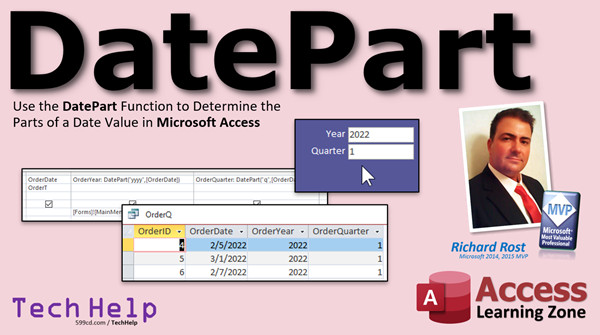
Get Specified Part of Date. Year, Quarter, Week, etc. In this video I will show you how to use the DatePart function to isolate specific parts of a date/time value such as the day of the year, week of the year, month, quarter, and so on. DatePart offers some options that other functions don't have. Damon from Waterville, Ohio (a Platinum Member) asks: I have a query that shows sales for the year, but right now I have to type in the start date (say 1/1/2021) and the end date (12/31/2021) and it's a bit of a pain EVERY time I run the query. Is there any way I can simplify that to just type in the year only? MembersMembers will learn about the FirstDayOfWeek and FirstWeekOfYear options, how to determine if a date falls within the same calendar week as the current date, and how to determine if a date falls in the same quarter of the current year.
Member AddendumI completely forgot to mention this in the video: the whole reason why it's handy to use the mathematical approach I showed to calculate the current quarter is because it makes it much easier to find records in the next quarter, or the previous quarter, or even use this for months. That way if you want the next quarter, and you're in the 4th quarter, you don't have to add 1 to the year and make the quarter value 1. Just use the little math trick I showed you and add 1 to that value. See how easy? I cover this in a lot more detail in the DateTime Seminar. Silver Members and up get access to view Extended Cut videos, when available. Gold Members can download the files from class plus get access to the Code Vault. If you're not a member, Join Today!
Links
Suggested Courses
Keywordsmicrosoft access, ms access, ms access tutorial, #msaccess, #microsoftaccess, #help, #howto, #tutorial, #learn, #lesson, #training, #database, DatePart, parts of a date, year, quarter, month, day of year, week, week of year, weekday, week number, hour, minute, second, first week of year, first day of week, Date in current week of year, DatePart Function, How do you calculate quarters in Access, How do I extract month and year from date in Access
More InformationTranscriptWelcome to another TechHelp video brought to you by AccessLearningZone.com. I am your instructor, Richard Rost. In today's video, I'm going to show you how to use the DatePart function to determine the parts of a date in Microsoft Access. The DatePart function has some cool options that some of the other date functions don't have. Functions like Year, Month, and Day exist, but DatePart can give you things like the week of the year, the quarter, and lots more. Today's question comes from Damon in Waterville, Ohio, one of my Platinum members. Damon says, "I have a query that shows sales for the year, but right now I have to type in the start date, say January 1st, 2021, and the end date, December 31st, 2021, and it's a bit of a pain every time I run the query. Is there a way that I can simplify that to just type in the year only?" Well yes, Damon, we can certainly do that. All we have to do is break up the date into its constituent parts. There's the month, the day, and the year part, and there are a couple of different ways we can do it. There are individual functions like that, or we can use a powerhouse called the DatePart function. So that's what I'm going to show you in this video. Now, before we get started, a couple of prerequisites. If you don't know how to use query criteria, calculated query fields, or parameters in queries, go watch these three videos first. You'll find links in the description down below the video. These are all free. They're on my YouTube channel. They're on my website. Go watch them and then come back. OK, so the DatePart function works like this. We'll set this up in a query as a calculated field. We'll say OrderYear. That's our new calculated value. It's going to be DatePart, and then what piece of the date do you want? This is the year, for example. yyyy, not just a single y. That's different. We'll talk about that in a few minutes. And then the date that you want to send it. So if the order date is June 1st, 2021, the result here will be 2021. I want to pull out the year portion of the date. That's the date part. Now you're probably saying to yourself, "Why do I have to bother learning DatePart when there are already functions that can pull out the year, the month, and the day, for example? What do I need this other new function for?" Well, DatePart has a couple of cool features that there aren't other functions for. For example, let's say you want to isolate the week of the year. That's ww as the criteria here. That will return a 23. It's the 23rd week of the year. A lot of businesses do calculations like that based on the calendar week of the year. There's also a quarter option - which quarter of the year. This is more popular. Second quarter, third quarter, fourth quarter, that kind of stuff. DatePart can give you those values. So here's a list of all the different options for DatePart. Do you like my cool little digital clock up here? Isn't that neat? Took me all about two minutes to make. So, four y's is the year itself. A single y is the day of the year, a number from 1 to 366 if it's a leap year. Quarter, month. ww is week of the year, 1 through 52 or 53. I think some years can have a 53rd week. w by itself is the day of the week - Sunday, Monday, Tuesday, Wednesday, and so on. That's like the Weekday function. Then you've got day, hour, minute, and second. Now Damon, I know you would probably get by with just the Year function. That's fine. But this gave me the opportunity to cover DatePart, which I haven't done yet in one of my TechHelp videos. So let's go over to Access and see how this all works. OK. Here I am over in my TechHelp free template. This is a free download up on my website if you want to grab a copy, but you can use any database you want for this example. Now, I've got a field right here in my order table with dates in it already. There's my order date field. And let's say I want to pull out just the sales from 2021. Let me cheat here and make, let's make this one 2020. Let's leave that one 2021 and that one 2021. Let's put a couple fake orders in here too, just real quick. Let's put a couple of 2022 orders in. There we go. All right, good enough. So we got two records from 2021. Now, in order to pull those out, Damon, what he's doing right now is he's typing in two dates with a parameter query. So I'm going to create query design, bring in my order table. Let's say you want the order ID and the order date and down here in the criteria block. He's putting in, I'll zoom in here under the criteria. He's doing between 1/1/2021 and 12/31/2021 like that. Notice that Access puts little pound symbols around those. Octothorpes, hashtags, whatever you want to call it, Access is pretty good about doing stuff like that for you. And now when I run this query, there's my results. Ignore the new blank one on the bottom. Be very careful though. I've got a whole separate video on the BETWEEN keyword. If you've got times in your dates, you can't use BETWEEN. So right now, fortunately, my order table only collects order date. If I use the Now function and I've got times on these like 5 p.m. or whatever actual minute and second that order came in, then this causes a problem because this technically says 12/31 at midnight. So you'd have to use something else. You'd have to use greater than or equal to that and less than the next higher date up, which would be 1/1/2022. You have to be very careful about that. I'm going to cancel that. Again, go watch my BETWEEN video. I'll put a link down in the link section down below if you want to learn more about that. Now the next thing you can do in here is you can put in parameters like StartDate. And I always say don't put spaces in your field names, but this is different. This will turn into a prompt. And then EndDate like that. And now when you run your query, you'll get the parameter pop-up: Enter Parameter Value. If you're not expecting to see Enter Parameter Value and you do, chances are something is spelled wrong. Again, I have a whole separate video just on this. Guess what? Links down below. But now I can type in 1/1/21, enter, 12/21/21, enter. Get the same results. But you can see how this gets tedious. If you have to do a bunch of these queries, you're running a bunch of year-round reports, you have to type this in all the time. It would be easier to type in 2021. Well, how do we do that? Let's come down here. Let's get rid of this criteria. We'll leave order date there. Let's make our own new calculated field over on this side right here. We're going to call this OrderYear. I'll zoom in, Shift-F2. OrderYear: and it's going to be the DatePart. What part of the date do we want? yyyy, come on. And what's the field that it's in? OrderDate like that. It says give me the year portion of order date. Now when you hit OK, Access puts a little bracketing on it. Since you watched my Access Beginner Level 1 class, you know not to put spaces in the field. Now when I run this, look at that. I see the order year is right next to the order date. Now I can use this to ask for the query criteria. So right down here under Criteria, I can put in "Enter the year." Look at that. And that becomes the prompt. So when I run it, 2021 is all I have to type in. Boom. And there you go. Let's do one with a quarter. Let's see what quarter each of these dates falls in. But first, a word from our sponsor. And that sponsor is me. If you're enjoying this, and you want to learn a lot more about dates and times and those kinds of functions in Microsoft Access, I have two classes, Access Expert 27 and 28. We cover all the different date/time functions, learn how to format dates, records from today, past, future, specific dates, all that stuff. We do an accounts receivable age. Format dates in the hour, minute format like that. And then in Expert Level 28, we cover all kinds of different functions. DateAdd, DateDiff, DateSerial. We display originals, per second, third, and so on, calculate someone's exact age, birthdays for next month or anniversaries or whatever. If you really want to take your date/time knowledge to the next level, I have this thing called the Date/Time Seminar, where I cover pretty much everything there is to know about dates and times in Access. We recreate Excel's NETWORKDAYS function, where you have workdays between two dates, including a holiday exclusion table, pop-up notifications on specific dates, all kinds of stuff. So again, that's Access Expert 27 and 28, and the Date/Time Seminar. I'll put links to all three of these things down in the link section down below. OK, back to our regularly scheduled program. Let's change this guy. We want to see the quarter this is in. So I just changed the yyyy to q. Let's get rid of the prompt for now, just so we can see what this looks like. And now when I run it, there you can see the quarter. These all happen to fall in the first quarter. Let's cheat. Let's make this guy 10, and let's make this one 4. There you go. So now if you want to see all the dates that fall in the same quarter, just come in here, Design View, and you say, Quarter. And then run it, and it will ask you which quarter. I'll put a 1 in there. And there are all the dates that happen to fall in the first quarter. Now if you want to say which quarter of which year, it gets a little more complicated; we just need two prompts. We've got OrderYear. I forgot to change it to quarter. Let's put this back to year. OK, which year? And then we'll just copy this whole thing. Copy, paste. I have two of them. And this will be OrderQTR, OrderQuarter. And then we'll say which quarter. And now when we run this, which year: 2022, and which quarter: 1, and there's your results. It works. If you really want to save yourself some time, don't make these parameter prompts, make these values you can pull off a form. For example, let's save this. I'll call this my OrderQOrderQuery. We'll come back to it in a second. Let's say you want to put that on a form somewhere. I'll just hijack this guy. Let's put in here Year. Let's open this guy up, and we'll call this OrderYear. Then we'll make the Default Value, not the Control Source. If you change the Control Source, you're locking that field to one value. So we're going to blank the Control Source. Get rid of the format there because I had to format it for short date before. So just OrderYear. Then under Data, make the Default Value = Year(Date()). See that? We're going to use the Year function and give it today's date. So that should always show today's year right there. Save it. Close it. Take a peek at it. And now it's got 2022 in there. We'll do the same thing with Quarter. Let's copy this. Copy, paste. We'll call this the Quarter. We named this guy OrderYear. Let's call this OrderQuarter. It sounds funny. Order. Order. Yeah. I know I made the other one QTR. Try to stay consistent, folks. Don't do what I just did. I try to spell things out whenever possible unless they are stupid long. Now, we have to use the DatePart function in here because there is no Quarter function. So DatePart, let me zoom in so you can see this better. DatePart("q", Date()). In other words, what quarter am I in right now? Save it. Close it. Open it back up again. I have a shortcut button up here in my Quick Launch that runs my main menu form. That's all that is. You can see right now today's date is February 5th of 2022. So that is correct. Now, we can now use these as the criteria for any queries or reports that we run without having to type them in all the time. How do we do that? We'll go into the query design view. Down here, instead of saying which year, we're going to replace that with a reference to Forms!MainMenuF!OrderYear and OrderQuarter. I have a whole separate video that covers how to do this too. It's called Getting a Value from an Open Form. I'll put a link down below in the link section. You can go watch that too. I didn't want to include it as a prerequisite - give you too much to watch. This is kind of an option if you want to learn how to do this. So under OrderYear, get rid of "which year." And let's put in here =Forms!MainMenuF!OrderYear. Get the OrderYear field off the main menu form, which is part of the Forms collection. OK, and then we'll do the same thing over here. I'm going to fix this. I don't like it. I feel dirty after doing it. There, OrderQuarter. And yes, these could be named the same thing. It doesn't matter if it has the same name in the query as it does in the form. I'm going to copy that guy, paste it over here, and then I just have to change this to OrderQuarter. So get the OrderQuarter field off the main menu form, part of the Forms collection. Hit OK. Close that. Save changes. Now, those values are right there. So this form has to be open for this to work. But notice when I run the query, it gives me those values without prompting me for anything. You can use this query now to build another form, to build a report, and the report will get its data from the query. See how that works? If I change this to 2021, and I open the query up again, look at that. Hang on. Important to note: this doesn't update until you leave the field. If you just type that in without hitting Enter or Tab off of it, it doesn't update. You can't just enter a value and then open that up. You have to make sure you enter it and then at least click off it or tab, so the data can refresh. And there were no fourth quarter 2021 values. Normally, the main menu here doesn't have records in it. Normally, you see this bar over here. That's called the record selector. When you change something, you can see that little pencil pops up. That means this record is dirty. That means it hasn't been saved yet. The same thing kind of happens here. This field isn't updated until you leave it. So if I put a 3 in there, I have to leave that field, and now it can get that value. Again, there are no third quarter values. So that is why we want to use the DatePart function. Because DatePart is cool. You can use it in place of all of those other functions here: Month, Day, Hour, Minute, Second, all those guys. And we have some extra ones: week of the year, which day of the year is it, quarter. I'll cover a lot more of those different ones in the extended cut for members. For example, what if your company considers the first week of the year to be the first full week? Normally by default, week of the year is based on whatever week January 1st falls in. So we'll talk about that in the extended cut. If you want to learn more in the extended cut for the members, it's about 10 minutes long, not super long. Most of them are usually about 10-20 minutes long. We're going to go over the FirstDayOfWeek and FirstWeekOfYear parameters. In case you're the kind of company that figures out the first week of the year as the first full week of the year, for example. Otherwise, it's just the week that January 1st falls in. Then we'll do some other special stuff. We'll show orders for this calendar week, the week that you're in, or this calendar quarter. I'll show you a new technique where you don't have to break it up into two fields for a year and a quarter. You can just do it with one. That's all covered in the extended cut for the members. Silver members and up get access to all the extended cut videos. All of them, there's 230 plus of them now. Gold members can download these databases. How do you become a member? Click on the Join button below the video. After you click the Join button, you'll see a list of all the different membership levels that are available, each with its own special perks. Silver members and up will get access to all of my extended cut TechHelp videos, one free beginner class each month and more. Gold members get access to download all of the sample databases that I build in my TechHelp videos, plus my Code Vault where I keep tons of different functions that I use. You'll also get a higher priority if you decide to submit any TechHelp questions to me, and you'll get one free Expert class each month after you've finished the Beginner series. Platinum members get all the previous perks, plus even higher priority for TechHelp questions, access to all of my full beginner courses for every subject, and one free Developer class each month after you finish the Expert classes. These are the full-length courses found on my website, not just for Access too. I also teach Word, Excel, Visual Basic, and lots more. You can now become a Diamond sponsor and have your name or company name listed on a sponsors page. You'll be shown in each video as long as you're a sponsor. You'll get a shout-out in the video and a link to your website or product in the text below the video and on my website. But don't worry, these free TechHelp videos are going to keep coming. As long as you keep watching them, I'll keep making more and they'll always be free. IntroIn this video, I will show you how to use the DatePart function in Microsoft Access to extract specific parts of a date, such as the year, quarter, or week, from your data. We will discuss how DatePart differs from other date functions, set up calculated fields in queries, and use parameters or form controls to make date-based filtering easier, especially for scenarios like entering just a year instead of specific start and end dates. I'll also walk through practical examples using queries and forms so you can see exactly how it works. QuizQ1. What is the main advantage of using the DatePart function in Microsoft Access over functions like Year, Month, and Day? A. It is easier to use for simple date extractions B. It allows you to extract additional date parts like week of year and quarter C. It is faster than the other functions D. It only works with Access forms Q2. If you want to find the quarter of the year for a date using DatePart, what argument should you use? A. mm B. yyyy C. q D. w Q3. What does DatePart("yyyy", [OrderDate]) return? A. The month of the order date B. The year portion of the order date C. The day of the order date D. The week number of the order date Q4. If a business wants to isolate sales by the week of the year, which DatePart argument should they use? A. m B. w C. ww D. d Q5. To prompt the user for a year in a query, what would you place in the criteria row under a calculated OrderYear field? A. Date() B. "Which year?" C. 2020 D. [OrderYear] Q6. Why can using BETWEEN for dates cause issues if time values are included? A. BETWEEN ignores time values completely B. It can exclude records on the last date if they include times past midnight C. BETWEEN includes times beyond the specified range D. Access does not support BETWEEN for dates Q7. Which of the following DatePart arguments will return the day of the week? A. yy B. ww C. q D. w Q8. What should you use in a query criterion to reference a value from an open form control named OrderYear on a form called MainMenuF? A. =MainMenuF.OrderYear B. =Forms!OrderYear C. =Forms!MainMenuF!OrderYear D. =Field!MainMenuF!OrderYear Q9. What is the default behavior of the week of the year returned by DatePart("ww", [Date])? A. It always starts on January 2nd B. It starts counting with the week January 1st falls in C. It starts with the first full week of the year D. It only counts weeks in February and beyond Q10. What is a key thing to remember when changing a value in a form field that is used in query criteria? A. The value updates immediately in the query B. The form must be closed and reopened C. You must leave (tab or click out of) the field for the value to update in the query D. Queries cannot reference values from forms Q11. Why would you create a calculated query field like OrderYear: DatePart("yyyy", [OrderDate])? A. To filter by full date and time B. To extract and group or filter by just the year part of the date C. To randomly generate years D. To sort by customer name Q12. If you want to enter default values on a form so users do not have to type them into the query each time, where should you set the default for OrderYear to the current year? A. Control Source = Now() B. Control Source = Year(Date()) C. Default Value = Year(Date()) D. Default Value = Now Q13. Which field would NOT be covered by the default DatePart arguments mentioned in the video? A. Year B. Millisecond C. Quarter D. Week of year Q14. If you want to identify all records from the third quarter of 2021, what criteria setup do you need in your query? A. OrderYear = 3, OrderQuarter = 2021 B. OrderYear = 2021, OrderQuarter = 3 C. OrderYear = "Third", OrderQuarter = 2021 D. OrderQuarter = "July-September", OrderYear = 3 Answers: 1-B; 2-C; 3-B; 4-C; 5-B; 6-B; 7-D; 8-C; 9-B; 10-C; 11-B; 12-C; 13-B; 14-B DISCLAIMER: Quiz questions are AI generated. If you find any that are wrong, don't make sense, or aren't related to the video topic at hand, then please post a comment and let me know. Thanks. SummaryToday's video from Access Learning Zone demonstrates how to use the DatePart function in Microsoft Access to extract different components of a date, such as the year, week, or quarter. While there are individual functions like Year, Month, and Day, DatePart goes further by allowing you to analyze data based on details like the week of the year or the quarter, which can be very useful for business reporting. This topic comes from a question about simplifying a sales query. Right now, the query requires the user to enter both a start date and an end date each time, for example, January 1st to December 31st. The question is whether it's possible to make the process easier by allowing the user to simply input the year. The answer is yes, and the solution involves breaking down the date field into its components using either basic date functions or the more flexible DatePart function. Before working with DatePart, it's important to be familiar with query criteria, calculated query fields, and query parameters in Access. If you haven't worked with these concepts yet, I recommend reviewing those basics first. The DatePart function is set up in a calculated field within a query. For example, if you want to extract the year from an OrderDate field, you would instruct DatePart to return the "year" component. It is essential to use "yyyy" (four y's) to specify the year, distinguishing it from just "y," which will give the day of the year. The same logic extends to other date components. So why bother with DatePart when there are already simpler functions? The advantage of DatePart is its ability to pull values that Year, Month, and Day can't. You can retrieve the week number within the year using "ww" or the quarter using "q." Many companies need to report based on these periods, so DatePart becomes a powerful tool. There are several DatePart arguments: "yyyy" gives you the year, "y" gives you the day of the year, "q" refers to the quarter, "m" to the month, "ww" to the week of the year, "w" to the day of the week, and others like "d" for day, "h" for hour, "n" for minute, and "s" for second. Let me walk you through a practical example. Suppose you have an orders table with an OrderDate field. You want to extract all sales from the year 2021. Typically, you might enter date range criteria using a parameter query, specifying "between 1/1/2021 and 12/31/2021." Access assists by formatting the dates, but you must be careful if your data also includes time values—not just the date. In such cases, the BETWEEN keyword in your criteria might not include all records on the last date if they have times greater than midnight. You would need to adjust your logic to handle those scenarios. Another approach uses parameter prompts like [StartDate] and [EndDate] in the criteria fields. While this method allows you to input your start and end dates interactively, it can become tedious if you frequently run the same reports for different years. In this situation, it's much easier to type in just the year you want. Using DatePart, you can create a calculated field in your query, for example, OrderYear: DatePart("yyyy", [OrderDate]). With this field in your query, you can prompt the user to "Enter the year," and only orders from that specific year will appear. Similarly, you can extract the quarter by switching the argument to "q," allowing you to group results or prompt for a specific quarter. Suppose you want to prompt for both the year and the quarter. You can add a second calculated field for the quarter, then prompt the user separately for each value, filtering the records accordingly. For more advanced automation, you can design a form with text boxes for year and quarter selection. By setting default values, you make report generation even quicker. For example, you can set the default for the year box to always display the current year using the Year function and for the quarter using the DatePart function. When your query pulls its criteria from these form controls, users no longer need to enter values manually unless they want to run a report for a different period. To make this work, set the query's criteria to point directly to the form controls, such as Forms!MainMenuF!OrderYear for the year and Forms!MainMenuF!OrderQuarter for the quarter. Remember that the relevant form must be open when running the query, or the process will not work. There are a couple of things to keep in mind about data entry. Values in form controls do not update until you move out of the field, so always press Tab or click off the field to save your changes before running any reports. The DatePart function is a versatile tool and can substitute for several other date-related functions, with added options like week of the year, day of the year, and quarter. In the extended cut of today's lesson, I cover advanced DatePart features like using the FirstDayOfWeek and FirstWeekOfYear arguments, which help when organizations define the first week of the year differently (for example, using the first full week instead of the week containing January 1st). The extended cut also demonstrates how to show orders for the current calendar week or quarter, and how to consolidate these prompts into a single field if needed. If you want even more in-depth knowledge on working with dates and times in Access, my Access Expert 27 and 28 courses cover all the various date and time functions in detail. There is also a full Date Time Seminar that explores creating solutions for calculating workdays, handling holidays, setting up date-activated notifications, and more. If you are interested in accessing the extended cut of this video, where all of these advanced topics are covered, you can become a member of the site. Silver members and above get full access to all extended cuts, as well as monthly free classes. Gold members can also download example databases and get access to my code library along with higher priority for questions. Platinum members receive the highest priority, along with access to all of my full-length beginner and expert courses, including topics beyond Access. You can find the complete video tutorial with step-by-step instructions for everything discussed here on my website at the link below. Live long and prosper, my friends. Topic ListUsing the DatePart function in Access queries Extracting year, week, and quarter from dates Comparing DatePart to Year, Month, and Day functions Creating calculated fields with DatePart Building criteria to filter queries by year Prompting for year input in query criteria Extracting quarter from dates using DatePart Prompting for quarter input in query criteria Combining year and quarter prompts in queries Referencing form fields as query criteria Setting default values for year and quarter on forms Using DatePart to display current year and quarter on forms Automating query filters using form controls Avoiding common parameter and field naming mistakes Synchronizing form controls and queries for reporting Primary TopicsDatePart function, Access query criteria, calculated fields in queries, year filtering, quarter filtering, parameter queries, referencing form values in queries Secondary TopicsBETWEEN keyword issues, using forms for query criteria, creating prompts in queries, time value problems in date fields, best practices for field naming |
||||||||||||||||
|
| |||
| Keywords: TechHelp Access parts of a date, year, quarter, month, day of year, week, week of year, weekday, week number, hour, minute, second, first week of year, first day of week, Date in current week of year, DatePart Function, How do you calculate quarters in Ac PermaLink DatePart in Microsoft Access |