|
||||||

|
|
||||||
|
Prevent DuplicatesBy Richard Rost
 4 years ago
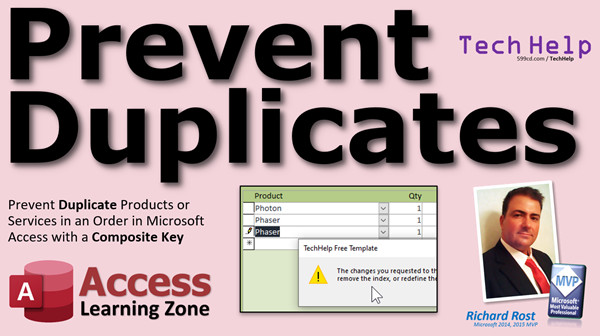
Prevent Duplicate Products or Services in an Order In this video, I'm going to show you how to prevent your users from adding a duplicate product or service to a customer's order in your Microsoft Access database, using something called a Composite Key. Ramiro from Houston, Texas (a Platinum Member) asks: I run an auto detail shop. My database is pretty simple. We have about ten services that we provide. The problem is that sometimes one of my guys accidentally adds the same service twice, which should never happen. Is there a way to prevent this in the database? CorrectionIn the video I mention that you cannot index Long Text fields. This used to be the case in older versions of Access. As of 2022, you can index Short Text, Long Text, Number, Date/Time, AutoNumber, Yes/No, and Hyperlink fields. You cannot index any of the field types that you shouldn't be using anyways: OLE Object, Calculated, Attachment. In older versions of Access you didn't used to be able to index Memo fields, which are now called Long Text fields, or Hyperlink fields. Honestly, I almost never index Long Text as that's going to be a real performance hit on your database. MembersMembers will learn a different method to prevent duplicates. We'll use a little bit of VBA and the DCount function to check if the product is already on the order. If so, we'll ask the user if they want to add it or not. This also allows us to use a custom warning prompt instead of the default system message.
Silver Members and up get access to view Extended Cut videos, when available. Gold Members can download the files from class plus get access to the Code Vault. If you're not a member, Join Today!
Links
Suggested Courses
Keywordsmicrosoft access, ms access, ms access tutorial, #msaccess, #microsoftaccess, #help, #howto, #tutorial, #learn, #lesson, #training, #database, composite key, prevent duplicates, prevent duplicate entries, How do you prevent duplicate entry in Access, Preventing Duplicates from being entered, Preventing Duplicate Records Across Multiple Fields, How to Prevent a Duplicated Data Entry, vba code to prevent duplicate entries in access, sql how to prevent duplicate entries, ms-access check for duplicates before update, how to avoid duplication of data in database
More InformationTranscriptWelcome to another TechHelp video brought to you by AccessLearningZone.com. I am your instructor, Richard Rost. In today's video, I am going to show you how to prevent duplicate products or services from being added to an order in your Microsoft Access databases. We are going to use something called a composite key to prevent duplicates. Today's question comes from Romero in Houston, Texas, one of my platinum members. Romero says, I run an auto detail shop. My database is pretty simple. We have about 10 services that we provide. The problem is that sometimes one of my guys accidentally adds the same service twice, which should never happen. Is there a way to prevent this in the database? Well of course, Romero, there is always a way to do pretty much everything in Microsoft Access. The question is how difficult is it? Now there is an easy way to do this and there is a more difficult way to do this. The easy way, which I am going to show you in this video, requires no programming. There is a better way to do it that does involve some VBA and I will show that in the extended cut for you members. But let me show you the simple way first. Before we do that, though, prerequisite: if you have not watched my invoicing database video, go watch that first. I show you how to set up the customers, the orders, all that stuff. We are going to use that database in this video. So if you have not watched this, go watch it now. You will find the link down below in the link section in the description below the video. It is a free video. It is on my website. It is on my YouTube channel. Go watch that now. Go watch it for the first one. Here I am in the TechHelp free template. This is a free database. You can download a copy from my website if you want to. Now in this database, we have a customer form. We have an order form with an order detail form. This is the simple version and for this, all you have to do is come in here and type in what you want to add to the order, a TV, and it costs $500. There is no picking a product or a service from a list. I do build that in the extended cut video for the members. However, we are going to change this one just slightly so you can still pick items from a list in here. There is a slightly different method I am going to show you. If you look at our order detail table, we just have a product name in here. We are going to replace that with a product ID. We will pick it from a list. So let's go to Create - Table Design. We will make a product table: product ID, that will be our AutoNumber, and then product name, and that will be text. You could put pricing and all that information in here. Pick from a list and it adds it automatically to the invoice for you. That is all covered in the extended cut for the invoicing video. This one I am just going to keep simple to show you how to prevent the duplicates. I can't teach you everything in one video. So we are going to save this. This will be my ProductT table; find the primary key, sure. We will put a few things in here. You can use products or services, whatever, it doesn't matter. Let's say we have Trivel bait, we have a photon torpedo, we have a phaser. Just three products, that's all we need. Save changes. Yes. Now, in our order details, we are no longer going to be saving that product name in here. So let's get rid of that. Actually, let's delete all these records first. Delete all these records. We are going to start something different. Right-click, design view. We are going to get rid of the product name. We are going to store instead the product ID. That's going to be a Number of type Long Integer. I cover this in my relational database video, which is a prerequisite of the invoicing database. So if you watched that one, then you would have watched that one first. So we have order ID, quantity, unit price, notes, and then of course the product ID. Now, we are not going to display a product ID in our order. We are going to display the product name. We are going to use a combo box for that. So let's go to our order detail form, which is right down there. Design this guy. We are going to get rid of product name because we are no longer putting the product name in the order details. We are going to put a combo box there showing the list of products from our product form. We are going to go with the ProductT. Bring both of those over like that. Sort them by product name, that's okay. If you have never made a relational combo box, I have a video for this too; I will put a link down below in the link section. Next, store that value in the product ID field. Next, and don't worry about the label because we are going to delete it anyways. There it goes. So there we go. We have to give this combo box a good name. We will call it ProductCombo. Tab order: Auto. Save it, close it. Look what we have. Go to orders, and now you can see we can pick from a list of orders. I have some space in there I have to fix. Design view. Bring it up like that. There. There is my photon. There is my phaser. There is my Trivel bait. Of course you have to put pricing in here yourself. I cover that in the other video. Now, the problem is, and this is what Romero is saying, he doesn't want his guys to be able to add the same product on this order twice. They shouldn't be able to come in here and put photon on there again. And if they try to, give them an error message. Warn them. Set red alert. Phasers just done. How do we do that? Let's delete these records first of all. We can do it using something called a composite key. Now, you are familiar if we look at the CustomerT. Let's look at the CustomerT first. Here is CustomerT. We have a customer ID, and that's the primary key. Primary key says this is a unique number, and no two customers can have the same customer ID right down here indexed: Yes (No Duplicates). I talk about this in my Access Beginner Level 1 class when we talk about AutoNumbers and primary keys. That's to ensure uniqueness. No two customers have the same number. Same thing with the product table. The product ID is unique. No two products will have the same product ID. Now, you can have something called a composite key. A composite key says we are going to take two or more fields, and the combination of those cannot be duplicated. For example, let's take a look at the order detail table. Let's go to design view here. Now, there is a primary key, which is the order detail ID. That's for each detail item. So each line item has its own unique key. We don't want to have an order that has the same product on it more than once. So what I want is a key that is unique for those two fields. In other words, no order should have two of the same product ID on it. So order ID and product ID, that combination has to be unique. Here is how we set that up. We go to Indexes right up here. Here are the existing indexes in the system. We have an index called order detail ID, we have an index called order ID. Now, that's not unique, it is just indexed. This one is the primary key field right here. That is unique. Product ID is also indexed. What does indexing mean? I explain this in my Access Beginner 1 class. Indexing generally just means that Access sets up a separate index table. It's hidden. You do not see it. And with that index, Access can quickly look up a data item. It can quickly search or sort based on any field you want. You can index pretty much anything you want. You can index last name. If you do a lot of searches or sorts based on last name, you cannot index certain things like Long Text fields, but most fields can be indexed. So what we are going to do is come down here. We are going to set up our own composite key or composite index that is based on two fields. First thing is give it a name. Here it says "Index Name." I am going to call this "OrderWithProduct." That is the name that I am creating for this index. The first field that it's based on is OrderID. To go down a row, you put ProductID below it. These two things are now part of the same index. I don't like this interface. That's how Microsoft set it up. You just have to know how to do it. If this is blank, it assumes it's part of this index. It's kind of silly. So now come right here. You will see down here you have Primary: No (it's not a primary). Unique: Yes. We are going to set that to Yes. That means every value in this index must be unique. So every combination of those two fields make up that index and that has to be unique in this table. Save it. If you get an error message at this point, that could be because the data that you have in your table does not meet the requirements of that index. You will have to fix it or delete the data in the index. Save it, close it. Come back to your customer form. Let's put in here a phaser. Let's add a photon torpedo and let's try to add a phaser again. Now, right now, nothing seems to be wrong because the record is still dirty. See that little pencil there? That means it has not been committed to the table yet. As soon as I try to move off of this record by clicking up here or down below it, that is the error message: The changes you requested to the table were not successful because they create duplicate values in the index, primary key, or relationship. Change the data in the field or fields that contain duplicate data, remove the index, or redefine the index to prevent duplicate data. This is the reason why I sometimes do not like using composite keys because there is no way to change this error message. Users are usually going to look at it and go, "Huh?" You will just have to train them and say, no, you can't do that. You can't add the phaser again there twice. You will have to hit escape and get rid of it. But it prevents the duplicate data from getting added to the table, which is what you want in the first place. If you want a more friendly error message, you will have to handle that on your own with a little VBA, which is what I am going to cover in the extended cut for the members. We are not going to use a composite key because I want to give the user a more friendly error message or warning message, and sometimes there is a case where you want to allow the user to add that duplicate service or duplicate product. You might want to say, "Hey, warning, the phaser is already in this order, are you sure you want to add it again?" but still give the user the ability to add it. I will cover that in the extended cut for the members. If you want to learn more about setting up an order entry system, my Access Expert Level 8 class covers all this kind of different stuff: setting up an order entry system, putting your products in, quantities, all that stuff, sales tax. In Expert Level 23, I cover a lot more with composite keys. I will put links to both of these in the description down below. If you want to learn more in the extended cut for the members, I will show you how to do the same thing without a composite key. The benefit is that you can give the user the option to add it again or not. You can say, hey, this product is already on this order. Are you sure you want to add it a second time? That is up to you if you want to allow them to do that or not. That is a business decision. I just show you how to do it. It will require a little bit of VBA, not much. A couple of lines of code. We will use the members only database, of course, so it's got the built-in products already where you can pick a product, hit Add, it puts it up top, put the pricing and all that stuff in there. A little bit of VBA, a little DCount, a custom warning message. That is all covered in the extended cut for the members. Silver members and up get access to all of my extended cut videos. There are like 230 of them, I think, now. Of course, Gold members can download these databases. How do you become a member? Click on the Join button below the video. After you click the Join button, you will see a list of all the different membership levels that are available, each with its own special perks. Silver members and up will get access to all of my extended cut TechHelp videos, one free beginner class each month, and more. Gold members get access to download all of the sample databases that I build in my TechHelp videos, plus my Code Vault where I keep tons of different functions that I use. You will also get a higher priority if you decide to submit any TechHelp questions to me, and you will get one free expert class each month after you finish the beginner series. Platinum members get all the previous perks, plus even higher priority for TechHelp questions, access to all of my full beginner courses for every subject, and one free developer class each month after you finish the expert classes. These are the full-length courses found on my website, not just for Access. I also teach Word, Excel, Visual Basic, and lots more. You can now become a Diamond Sponsor and have your name or company name listed on a sponsors page that will be shown in each video as long as you are a sponsor. You will get a shout out in the video and a link to your website or product in the text below the video and on my website. But do not worry, these free TechHelp videos are going to keep coming. As long as you keep watching them, I will keep making more and they will always be free. IntroIn this video, I will show you how to prevent duplicate products or services from being added to an order in your Microsoft Access database using a composite key. We will walk through updating your order detail tables and forms to work with product IDs, setting up a product list with a combo box, and configuring a composite index on order ID and product ID to ensure each product can only be added to an order once. This is a simple, no-programming solution to help keep your data clean and accurate. QuizQ1. What is the main goal of the video tutorial? A. To prevent users from adding duplicate products or services to an order in Microsoft Access B. To export database records to Excel C. To set up security permissions in Access D. To calculate total sales in an order Q2. Which method does the video focus on for preventing duplicates in order details? A. VBA coding with custom error messages B. Using a composite key in the table C. Macro automation D. Data macros for triggers Q3. In the simple version demonstrated in the video, what change is made to the order detail table to enable picking products from a list? A. Adding a new price field B. Replacing product name with product ID C. Adding a quantity field D. Storing both product name and product ID Q4. What is a composite key? A. A key based on a single field that must be unique B. An index that sorts table data alphabetically C. A key based on two or more fields where their combination must be unique D. A key used only for primary table relationships Q5. If a user tries to add a duplicate product to the same order after setting up the composite index, what will happen? A. The record will be deleted automatically B. The user is given a detailed, friendly warning about the duplicate C. Access will display a generic error message D. The application will ignore the duplicate and add it anyway Q6. Where do you set up the composite index in Access? A. In the Form Design view B. In the Table Datasheet view C. In the Table Design view, using the Indexes window D. On the Navigation pane properties Q7. According to the video, what limitation does the simple composite key method have regarding error messages? A. It can be customized with VBA only B. It always deletes the duplicate automatically C. It shows a generic error message that cannot be changed D. It highlights the duplicate in red but lets the user continue Q8. To provide a more user-friendly error message or to allow duplicates under special circumstances, what does the instructor suggest? A. Removing all keys and indexes B. Using VBA to handle duplicates with custom messaging C. Using macros instead of indexes D. Sorting the products list alphabetically Q9. What is the main difference between a primary key and a composite key as explained in the video? A. A primary key can only be set on text fields, a composite key on number fields B. A primary key ensures each record is unique by one field, while a composite key uses a combination of fields C. There is no practical difference between them D. A primary key is always auto-incremented, a composite key is not Q10. What is the instructor's recommendation for viewers who have not set up the basic invoicing database? A. Skip this video B. Watch the invoicing database video first as a prerequisite C. Begin directly with this tutorial D. Email tech support for assistance Answers: 1-A; 2-B; 3-B; 4-C; 5-C; 6-C; 7-C; 8-B; 9-B; 10-B DISCLAIMER: Quiz questions are AI generated. If you find any that are wrong, don't make sense, or aren't related to the video topic at hand, then please post a comment and let me know. Thanks. SummaryToday's video from Access Learning Zone covers how to prevent duplicate products or services from being added to an order in a Microsoft Access database. I am going to explain how you can use a composite key to stop users from accidentally putting the same product or service on the same order more than once. Romero runs an auto detail shop and is experiencing exactly this problem: sometimes his team inadvertently adds the same service twice to the same order, which should not happen. He wants to know if there is a way to stop this in the database. The answer is yes, and there are a couple of different approaches depending on how comfortable you are with Microsoft Access. The simplest method, which I am going to show you in this lesson, requires no programming at all. While there is a more advanced way to do this which uses VBA and allows for more flexibility, the quick method I will show here will solve most people's problems without writing any code. I will discuss the programming alternative in the extended cut for members. Before you follow along, you will want to be familiar with the invoicing database example I use in my other video. If you have not yet created that database with customers, orders, and related tables, I strongly recommend watching that tutorial first. The link is available on my website and YouTube channel, as well as in the description below. For this demonstration, I am using the TechHelp free template, which you can download from my website. This database includes basic customer and order forms, along with an order detail form. With this simple setup, users can add items by simply typing them in, such as putting a TV in an order for $500. There is no product list to pick from in the basic version, but in my extended cut video for members, I show how to pick products or services from a list, making it even easier and more reliable. Still, for this lesson, let's make a minor change so you can select items from a list. To do this, we need a Product table with fields for the product ID (as an AutoNumber) and the product name (as text). You can include pricing and any other details you want in this table. Add entries for the services or products you offer. After you add some products to this table, adjust your order detail table so it no longer saves the product name directly. Remove that field and instead store only the product ID, which ties back to your product table. Make sure the field type matches (a number, long integer). If you need a refresher on setting up relational databases, that is covered in my previous videos as well. On your order detail form, replace any product name textboxes with a combo box that lets the user pick a product from your product table. Configure it so it stores the selected product ID in the order detail record. This way, users are always picking from a reliable list, not typing in freeform product names. Now we come to the main issue: stopping duplicate products from being entered into the same order. Without any controls, users could add "phaser" to an order, for example, then accidentally add it again. We want to prevent this from happening. The solution is to use a composite key in the order detail table. You are probably already familiar with primary keys from your customer or product tables, where each record has a unique ID. However, a composite key is different. It uses more than one field together, and the combination of those fields must be unique. In our example, no single order should have the exact same product entered more than once, so we want the combination of order ID and product ID to be unique for each record in the order detail table. To set this up, go to the Indexes for your order detail table. Create a new index and give it a name such as "OrderWithProduct." For that index, include both the order ID and product ID fields. Set the Unique property of the index to Yes. Now, Access will not allow two records in the order detail table with the same order ID and product ID combination. If anyone tries to enter the same product on an order more than once, Access will display an error. However, one thing you should know is that the error message Access displays is not very user friendly. It is a generic system message stating that the changes could not be made because they would create duplicate values in a unique index or relationship. Your users may not understand what this means, so you will have to explain to them that they cannot put the same product on an order twice and if they see this message, it is likely because of a duplicate product. If you want a friendlier warning that explains more clearly what the problem is or perhaps even gives users the choice to proceed, you will need to use a bit of VBA code. That is a more advanced topic and is covered in the extended cut for members. There, I show you how to set up custom warning messages and even allow users to override the warning if your business rules allow for it. For those who are interested in building more robust order entry systems, I cover this in more detail in my Access Expert Level 8 class, including setting up products, quantities, sales tax, and more. Composite keys are covered in greater depth in Expert Level 23 as well. Links to these classes can be found in the description on my website. In the extended cut for members, you will learn how to accomplish the same duplicate-checking behavior without using a composite key. Instead, you will be able to program a warning that says, "Hey, this product is already on the order. Are you sure you want to add it again?" You get to decide how to handle those cases, depending on your business requirements. This involves a little bit of VBA, using commands like DCount to check for duplicates and customizing the message for your users. Silver members and above have access to all my extended cut TechHelp videos, and Gold members can download all sample databases and access my Code Vault. To become a member, just use the Join button on my website or YouTube channel, and you can read about the different levels and their benefits. Becoming a Silver, Gold, or Platinum member unlocks a variety of additional perks, including monthly free classes, priority question submissions, and more. Don't worry, though, my TechHelp videos will always remain free and I will keep creating more content to help you as long as you keep watching. You can find a complete video tutorial with step-by-step instructions on everything discussed here on my website at the link below. Live long and prosper, my friends. Topic ListPreventing duplicate products or services in order details Setting up a Product table with product ID primary key Replacing product name with product ID in order details Creating and linking a combo box to select products Modifying the order detail form to use a combo box Storing product selections using product ID Introduction to composite keys in Access Creating a composite index on order ID and product ID Configuring composite index for uniqueness Testing composite keys to prevent duplicate entries Interpreting Access error messages for duplicate data Primary TopicsMicrosoft Access, order entry system, composite key, relational tables, product lookup, preventing duplicates, indexed fields, order detail table Secondary Topicscombo box setup, table design, member extended features |
||||||||||||||||||||||||||||
|
| |||
| Keywords: TechHelp Access composite key, prevent duplicates, prevent duplicate entries, How do you prevent duplicate entry in Access, Preventing Duplicates from being entered, Preventing Duplicate Records Across Multiple Fields, How to Prevent a Duplicated Data Ent PermaLink Prevent Duplicates in Microsoft Access |