ISO Date Format
By Richard Rost

 4 years ago
Switch Date Format to Avoid Confusion YYYY-MM-DD
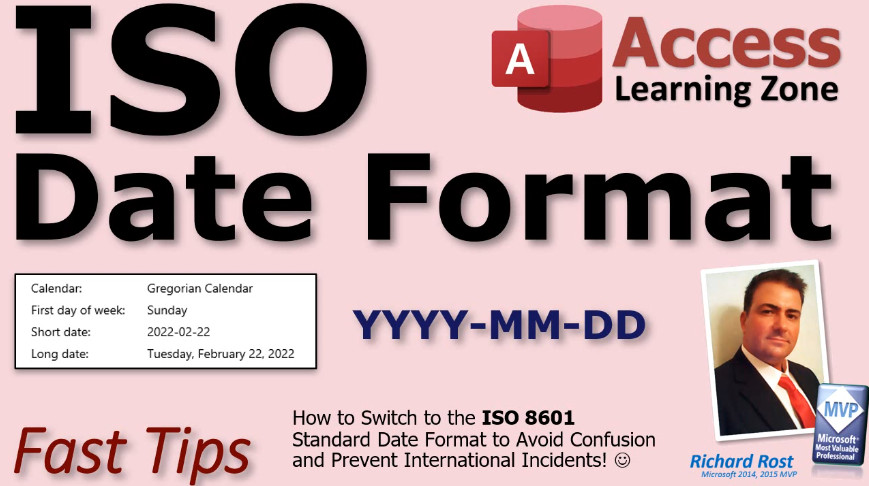
In today's video, I'm going to show you how to switch your Windows PC to the ISO 8601 standard date format. This will help you avoid confusion when communicating with people in other countries, and prevent international incidents!
Links
Addendums!
Notes
- Not quite an addendum, but just a quick note so you don't make the same mistake I did. I tested everything, uploaded my new front-end to the server (which also runs a copy) and I was still getting invoices with the old date format. Turns out I didn't make the change to Regional Settings on the server itself. Windows still had the old Short Date format. So make sure to change that EVERYWHERE you use the database. Can this be changed with VBA? I'm sure it could. Do I know how? No, but I'm sure the Google Machine does. :)
 More Information More Information
Topics Covered
If you communicate with people in other countries, whether for business or pleasure, you need a date standard that's the same for everyone. When you have dates displayed like 4/2/2022, that could mean April 2nd or February 4th, depending on where you're located.
This can be embarrassing on a personal level. "My flight will be landing at noon on 2/3/22." This can be costly on a business level! "To avoid a late fee, your invoice is due on 4/5/22."
I personally have students in almost every country of the world. When people ask me questions, and I reply, it can be very confusing for both of us. The ISO 8601 standard date format is unambiguous. Regardless of where you are, the date 2022-10-03 is always October 3rd, 2022.
Date and time values are ordered from largest to smallest unit of time: year, month, day, hour, minute, second. Each date value has a fixed number of digits, padded with leading zeros. YYYY-MM-DD
Dates may also be written without separators. This was more common with older computers storing date values in text files. YYYYMMDD
In addition to being a logical and unambiguous date format, ISO dates are naturally sortable strings. No separate logic is required to sort them.
In Windows, open Region settings, click Change Data Formats, Select the ISO Short Date.
The ISO Time standard is (local time zone): HH:NN:SS.xx
The ISO Time with a Time Zone added: HH:NN:SS+00:00
The ISO Time in UTC: HH:NN:SSZ
The ISO Combined Date/Time Standards:
YYYY-MM-DD HH:NN:SS
YYYY-MM-DDTHH:NN:SS
YYYY-MM-DDTHH:NN:SS+00:00
YYYY-MM-DDTHH:NN:SSZ
YYYYMMDDTHHNNSSZ
I am going to change my time settings from a single-digit HOUR to a double-digit one though. That’s more in line with the ISO standard. You’ll see why when we talk about Access shortly.
EXCEL USERS:
When you make this change, dates you have formatted as just Date or Short Date will be switched to ISO Dates. Custom date formats you have in place will not be changed.
Be careful typing in new date values now. If you just type in "1/2" then you'll still get 02-Jan. But if you type in "1/2/22" you'll get 2001-02-22.
ACCESS USERS:
Likewise any existing Short Date fields (which is the default) will be changed to the new ISO Date format. So unless you have any custom date formats, you'll be fine.
Typing in new date values a little bit different than Excel. The field on the form will always keep the same format, unlike Excel where the format may change based on what you type. Assuming Short Dates: Typing "1/2" will give you 2022-01-02. Typing "1/2/22" will give you 2001-02-22
Dates are still stored internally as a number, so you shouldn't have to worry. Any functions like DateAdd, DatePart, Year, Month, Format, etc. should all still work the same. The only time you may have a problem is if you’re importing data from spreadsheets or text files that are formatted differently. Be sure to double-check anything you import!
If you don't change the Windows Short Time setting that I mentioned earlier to show two-digit hours, then even if you use hh:nn to display times, Access will still use the Windows single-digit Short Time format.
Use an Input Mask to help your users get used to entering dates with the new format. https://599cd.com/InputMask
I'm just making the change myself today, so I'm sure I'll have a lot of tips, tricks, and pointers in the coming weeks. Stay tuned for more! https://599cd.com/ISODates
Keywords
access 2016, access 2019, access 365, microsoft access, ms access, ms access tutorial, #msaccess, #microsoftaccess, #help, #howto, #tutorial, #learn, #lesson, #training, #database, #fasttips, iso 8601 advantages and disadvantages, global standard date and time format, international date standard, universal date format, short date, two digit hour
More InformationTranscript Welcome to another Fast Tips video brought to you by AccessLearningZone.com. I am your instructor Richard Rost.
In today's video, I'm going to show you how to switch your system over to the ISO date format. This is a universally accepted date format used around the world to prevent confusion from going from month/day/year to day/month/year.
I recorded this video for Windows Learning Zone because this is actually a setting that you change in Windows, but it affects Excel and Access, and since most of you are Excel and Access users, I'm going to include it here under Access Learning Zone as well. So here we go.
Welcome to another Fast Tips video brought to you by WindowsLearningZone.com. I am your instructor Richard Rost. In today's video, I'm going to teach you how to switch your computer over to the ISO standard date format. This is a universal date format that's used all around the world, and you can use it to avoid confusion and prevent international incidents.
If you communicate with people in other countries whether for business or pleasure, you need a date standard that's the same for everyone. When you have dates displayed like 4-2-22, that could mean April 2 or February 4, depending on where you're located. This can be embarrassing on a personal level like my flight will be landing at noon on 2-3-22 if you send someone a text or an email, or it can be costly on a business level to avoid late fees or invoices due on 4-5-22. Is that April 5 or May 4?
Personally, with my computer classes, I have students in almost every country in the world. When people ask me questions, usually in their Excel sheets or their Microsoft Access databases, it can be very confusing for both of us. I get their information and look at it, wondering, is this day/month/year, year/month/day, or whatever? So it's important to have a standard date format.
The ISO 8601 standard date format is unambiguous regardless of where you are. The date 2022-10-03 is always October 3, 2022. You've probably heard of the ISO before; it's the International Organization for Standardization. It was founded in Geneva, Switzerland in 1947. They're responsible for everything from business practices and food safety to healthcare, technology, and of course, date and time formats.
8601 is the name for a specific set of standards for dates and times. It was first published in 1988. We should have been using it all this time. They recently revised it as of 2019, and it's a method for providing a clear standard for international dates and times.
Now, it's the most logical way to format a date. Date and time values are ordered from the largest to the smallest unit. So it goes year, month, day, hour, minute, second. Each date value has a fixed number of digits padded with a leading zero. So you'll never see something like 2022-1-2.
Dates may also be written without separators. This was more common in older computers when you were using text files to store dates. For example, you could just write it like that without any slashes or hyphens.
In addition to being a logical and unambiguous date format, ISO dates are naturally sortable strings. So you don't have to have any special logic or functions to sort files that might have these as backup file names, for example. You can see how easily they're just sorted. If you go month/day/year or even day/month/year, you can't naturally sort that.
So how do you set the ISO date format? Well, it's in Windows. It's in your Windows settings under Regional Settings. In Windows 10, and I'm pretty sure in 7 and 8, you go to Regional Settings, Change Data Formats, and then go to ISO Short Date.
I haven't upgraded to Windows 11 yet; I'm getting there. But just go to your Start button and type in Region. There's Region Settings. Click on that. Come down here to Change Data Formats. You'll see right here, Short Date. I dropped this down before and picked this one right there. That's the ISO Standard. Year-Month-Day.
For me, I'm in the US. It goes like this. I want that one. I'm going to leave the Long Date setting as it is. It's pretty much unambiguous as it already is. The Long Date is pretty much just something that I use for displaying in a Word document, if you put the date and you want it to look pretty or on top of a report.
The ISO Standard also includes times. If you want to change your Time Format, it's hour, minute, second, and then fractions of a second if you want it. I used "n" to represent minutes because in Microsoft Access, "n" is for minute in the Format, and "m" is for month.
This is a 24-hour clock. There's no AM and PM in the ISO Standard. So if you're familiar with military time, 2300 hours, for example, is 11 o'clock PM. This is probably the one reason why I won't yet switch to 24-hour time, the ISO Standard, because so many people are still used to a 12-hour clock. That's just going too far.
Let me show you a little bit more about the Time Standard. If you want to add a time zone, you can. You can go plus or minus however many hours before or after Greenwich Mean Time you are. For example, minus five right there would be New York in Standard Time.
If you're using Universal Coordinated Time, UTC Time, that's the format. You simply put a Z at the end. That indicates that it's UTC. If you don't know what UTC is, I've got a video about it. You can go watch it right there. You'll find a link down below in the link section.
You can put them together. You can do a date value with a time value because as you know, if you use Microsoft Excel or Access, each data point can be a day and time together in the same field.
There are different standards. Here's a date with a space and then a time. Or you might see it with a T there. Sometimes they separate it with a T. This is the date portion. This is the time portion. This one adds a time zone; actually, it's Greenwich Mean Time. That means there are zero hours plus or minus. This one indicates it's UTC. Here you might see it without any punctuation marks. This is perfectly valid. You can do year, month, day, notice they're all two digits, then a T, then hours, minutes, seconds, universal.
Don't worry if this all seems confusing. I'm just going over what the standard is. You don't have to worry about getting this complex with it yet.
While I'm strongly in favor of a 24-hour UTC clock, I know a lot of people prefer the standard 12-hour AM/PM system. I'm not ready to make that change yet. So baby steps. Although I think for world commerce and communication, as the world gets smaller and we are all communicating over the Internet and doing business in different countries, I think a 24-hour universal clock would be perfect. So it's three o'clock on Tuesday everywhere. That's just me.
Don't get me started on daylight saving time. I absolutely hate daylight saving time. I cannot stand it. Changing clocks twice a year is dumb. Especially where I live, in Florida, we've already voted - the state voted - to get rid of daylight saving time. But we're still waiting on Congress. Since it involves interstate trade, we have to wait for Congress. Sometime in the next decade we might be able to get rid of it.
If you want to learn more about either of these concepts, universal time or daylight saving time, there's the link right there.
I'm going to leave time pretty much as it is, but I am going to switch from the single digit hour to the double digit hour. That's more in line with the ISO standard. So I'm going to change my short time. The default short time is this guy. I'm going to change it to this one. Same with long time. I like that double digit hour. Why am I doing that? Well, you'll see exactly why when I talk about how this affects Microsoft Access in a few minutes. I'll explain why.
Today's video is only scratching the surface with dates and times. If you want to learn more about the ISO standard as it applies to days of the year, there's formatting for weeks of the year like 1 through 52, durations, time intervals, all kinds of stuff. I'll put links to some valuable resources. There's the link on my web page. You can go to it or I'll put some links down below in the description.
How does this stuff affect Excel and Access? When you make this change, the dates that you already have in your spreadsheet that are formatted as just standard dates or short dates will be switched to the ISO dates. But any custom date formats you have in place will not be changed. You can see over here, this was just a standard date and they all switched automatically. But this one had a custom date format in the cell and it kept it the way it was. It won't change any custom formatted cells that you have.
You do have to be careful entering in new values. If you just type in one slash two, you're going to get January 2nd, just like this. Just like you're expecting it to from the old standard. But if you type in one slash two slash 22, you're going to get this one, two, 22. See that? It's going to take this and make it year/month/day, even though you're expecting the old format, it's going to convert it to that. So be careful. You can still type it in the old format if you want to use the default year.
How does this affect Microsoft Access? Likewise, any existing short date fields, which is the default date format in Microsoft Access, will be changed to the new ISO date. Unless you have any custom date formats, you'll be fine. So my short dates got changed to that. My long dates look like that, which is fine. This one had a custom date which kept the old format, which was month/year. These are not going to change. The standard ones will change automatically.
Typing in new date values in Access is going to be a little bit different from Excel. The field on the form will always keep the same format, unlike Excel, where the format can change based on what you type. Remember, in Excel, when you type in one, two, you still get January 2nd. In Access, if you type in one, two, it's going to give you this format though. The value is still the same, but what's displayed is still going to be the short date that Access has. Access is a lot more structured and rigid, whereas Excel lets you change things more easily. It's going to try to adapt the format to whatever you type in, to what it thinks you want. I don't like that about Excel, so I like Access, where you can define what the field is supposed to look like ahead of time. You can do that with Access and Excel, but Access is more rigid.
If you type in one, two, twenty-two, same problem, you're going to get one, two, twenty-two in that format. So here's what you type in, here's what you get, minus the quotes of course.
Dates are still stored internally as the same number. You don't have to worry about the values in your data and your tables being wrong. Any functions that work with dates like DateAdd, DatePart, Year, Month, Format, all that stuff should all work just the same. The only time you might have a problem is if you're importing data from spreadsheets or text files that are formatted differently, so be sure to check any time you run an import.
Also, if you have code where you manually assemble dates based on string concatenation, be careful. I know I used to do a lot of that in the old days before I knew all the date functions. I would take the left two characters of a string and make that the month, and so on. You have to be careful.
With that short time setting that I mentioned earlier, here's why I'm switching to the two digit hour. If you don't change the Windows short time setting that I mentioned earlier to show two digit hours, then even if you use the hh:nn format to display times, Access will still use the Windows single digit short time format.
I did a video about this years ago. It's on my YouTube channel and my website, but basically, even if you specify hh:nn as the format, Access will still convert that over to short time and use one digit for the hour. I personally think it's a bug, but it will convert this over to short time. So you have to make the changes at the Windows level. Instead of this, you get this. That's why I like to do that. I like the two digit hours. I want all my times to line up the same. The only time I would change this is if I'm trying to make it look nice.
Remember, if you make these changes, you will have to close your database and reopen it. If you have an Access database open and you make changes in the Control Panel and change your regional settings, you have to close Access and restart it for those changes to take effect. A couple of times while preparing the slides I didn't do that. I forgot to close the database and wondered why it didn't change.
The advantages of using the new ISO date - if you do any kind of international communication, I've already gone over the advantage. It's unambiguous. Everyone is on the same page. Everybody knows what's going on. If someone's in England, someone else is in China, someone else is in the US, all of you are on the same page as far as the dates go.
The only major disadvantage I can think of for adopting the new format is getting used to inputting new dates. It's going to take you some time to get used to it. Me included. I'm just doing this today. I'm switching over all my databases and my computers to this standard today. I finally decided to just pull the bandaid off and just do it. Old dates will generally adopt to the new standard automatically. Typing in new values is going to take some getting used to.
If you're still just typing in common dates like month/day, you can still type in four slash five. But if you're doing something with years, you have to remember to lead with the year. You have to type in 22 slash 4 slash 5 at least. That will work, with practice you will get used to it.
If you want some enforcement and some help in getting used to typing in the new date format, set up an input mask in your fields. This way your users have to input the data that way. They have to type it in exactly right, 2022-01-22 or whatever. I have a separate video on input masks. There's the link right there. You'll find it down below in the link section.
There's more to come. Like I said, I'm just making this change myself today. I finally decided over the last couple of days that I'm going to do it. All my new classes and videos that come out are going to be in this date format just because I have people from pretty much every country on the planet that buy my lessons. I want everyone to be on the same page. I'm sure I'll have more tips, tricks, and pointers coming up and I'll put links on this page. If I do any follow-up videos for this, keep checking and keep watching my YouTube channel. You'll see something on there.
Of course, I have to mention the guys over at xkcd.com. It's a very funny cartoon series. Here's your public service announcement: the following formats are therefore discouraged.
There's your Fast Tip for today on setting your computer to the ISO date format. I hope you learned something.
Again, my name is Richard Rost from WindowsLearningZone.com and we'll see you again real soon. Intro In this video, I will show you how to change your computer's date and time settings in Microsoft Windows to use the ISO 8601 standard date format. We'll talk about why the ISO format is important for reducing confusion in global communication, how it works, and how switching your system settings affects dates in Microsoft Excel and Microsoft Access. I'll demonstrate how to update your short and long date formats, discuss how this impacts data entry and existing values, and review some of the benefits and considerations when adopting the ISO standard for your work. Quiz Q1. What is the main reason for switching to the ISO date format according to the video?
A. To make dates look better in reports
B. To prevent confusion caused by regional date formats
C. To comply with local government regulations
D. To save disk space in databases
Q2. What does the ISO 8601 date format look like?
A. Month-Day-Year (MM-DD-YYYY)
B. Day-Month-Year (DD-MM-YYYY)
C. Year-Month-Day (YYYY-MM-DD)
D. Year-Day-Month (YYYY-DD-MM)
Q3. What organization is responsible for the ISO date standard?
A. Microsoft Corporation
B. International Organization for Standardization
C. United Nations
D. American National Standards Institute
Q4. Why is the ISO date format naturally sortable?
A. It puts day first
B. It puts month first
C. It puts year first, then month, then day
D. It uses slashes as separators
Q5. Where do you change your Windows system to use the ISO date format?
A. In Microsoft Excel settings
B. In Windows Regional Settings
C. In browser settings
D. In Microsoft Access options
Q6. What is one potential confusion when communicating dates internationally using non-ISO formats?
A. Dates can look backward
B. Dates can be interpreted as arithmetic problems
C. The same date can mean different things in different countries
D. All dates are automatically interpreted as US format
Q7. According to the video, if a Windows user changes the short date format to ISO, what will happen to existing dates in Excel or Access?
A. All dates will be deleted
B. All dates will be converted to ISO unless they have custom formats
C. Nothing happens unless files are re-imported
D. Only future dates will be shown in ISO
Q8. What happens if you type in a date using the old format (like 1/2/22) after you've switched to ISO in Windows?
A. The entered date is rejected
B. The computer asks you which format you meant
C. It may interpret the input as year/month/day and display accordingly
D. The computer always uses month/day/year
Q9. In the ISO standard, how are times formatted?
A. hour:minute:second using a 24-hour clock
B. hour:minute AM/PM
C. day:hour:minute
D. second:minute:hour
Q10. What is the reason Richard recommends changing to a two digit hour for time fields?
A. To save disk space
B. For consistency with the ISO standard and proper alignment
C. Because Access does not allow single digit hours
D. So that Excel will show AM/PM
Q11. How does Excel handle dates compared to Access when you change the date regional settings?
A. Both are equally rigid
B. Excel is more flexible and adapts format to your input
C. Access allows more flexibility than Excel
D. Excel ignores Windows date settings completely
Q12. What must you do after changing the Windows regional date settings in order for changes to take effect in Access?
A. Wait five minutes
B. Reboot the computer
C. Close and reopen the Access database
D. Change language settings in Access
Q13. What is an effective way to enforce the new ISO date entry in user input fields?
A. Use conditional formatting
B. Use macros
C. Set up an input mask for your fields
D. Only train users and rely on memory
Q14. What is the main disadvantage of switching to the ISO date format according to the instructor?
A. System incompatibility issues
B. It is slower to type
C. Getting used to inputting dates in the new format
D. Risk of losing old data
Q15. Which of the following is NOT true about the ISO date format based on the video?
A. It is ambiguous and can mean different things in different regions
B. It is a universally accepted unambiguous format
C. It was designed to be naturally sortable
D. It uses fixed digits for each date component
Answers: 1-B; 2-C; 3-B; 4-C; 5-B; 6-C; 7-B; 8-C; 9-A; 10-B; 11-B; 12-C; 13-C; 14-C; 15-A
DISCLAIMER: Quiz questions are AI generated. If you find any that are wrong, don't make sense, or aren't related to the video topic at hand, then please post a comment and let me know. Thanks. Summary Today's video from Windows Learning Zone focuses on how you can switch your system over to the ISO date format, a universal date standard designed to eliminate confusion that can arise when sharing dates internationally. I know many of you are Excel and Access users, so I am also including this information here at Access Learning Zone because changing this Windows setting will affect both Excel and Access as well.
Let me explain why this is so important. If you regularly communicate with people in other countries, whether it is for business or personal reasons, inconsistent date formats like 4-2-22 can cause a lot of confusion. That might mean April 2 or February 4, depending on your location. This could be a minor issue, such as telling someone when your flight will land, or lead to serious business problems, like paying an invoice late because of a misunderstanding about its due date.
I personally have students from just about every country in the world in my computer classes, and I often run into this problem. When someone sends me data from Excel or Access, I need to figure out whether they are using day-month-year, month-day-year, or another format entirely. Establishing a single, unambiguous date format solves this problem.
The ISO 8601 standard provides that consistency. Any date written in this format is always clear. For example, 2022-10-03 means October 3, 2022, no matter where you are. The ISO, or International Organization for Standardization, is responsible for these standards. They first published this set of rules in 1988, and updated it in 2019, so it offers an established and logical way to represent date and time data.
With ISO dates, information is always stored from the largest to the smallest unit — year, month, day, then hour, minute, and second. Each component is represented with a fixed number of digits, with leading zeros when necessary, so you will never see a date written as 2022-1-2.
Another advantage is that ISO dates are naturally sorted in the correct chronological order as plain text, making them ideal for file names and data records. This is not the case if you use month-day-year or day-month-year formats.
To switch to the ISO date format in Windows, you need to access your Regional Settings. In Windows 10 (and this works similarly in Windows 7 and 8), you just search for Region in the Start menu, go into Region Settings, and then adjust the Short Date to the Year-Month-Day pattern. I personally leave the Long Date unchanged since it is usually clear and more decorative, for things like Word documents or reports.
ISO standards also apply to time. Time values are shown as hours, minutes, and seconds (with optional fractions of a second). The ISO standard uses a 24-hour clock, so there is no AM or PM. If you need to, you can include a time zone offset based on Greenwich Mean Time. For universal time, just add a "Z" at the end of the time value. If you're interested in learning more about Universal Coordinated Time (UTC), I have a separate video on that topic.
Dates and times can be combined in different ways — with a space or a "T" separating the date and time parts. You will occasionally see a combined value with no punctuation marks, which is also valid in ISO formatting.
Don't worry if some of this seems complex. For most purposes, you only need to focus on the basics, like the main year-month-day standard.
Personally, I am not ready to switch all the way over to a 24-hour clock, since many people are still more comfortable with the traditional 12-hour system. But I think going to a consistent date format is the right step, especially given how interconnected the world has become.
On a related note, I am firmly against daylight saving time! Here in Florida, we've already voted to get rid of it, but until Congress acts, it is still around.
If you would like to also standardize your time display, I recommend switching to two-digit hours on your Windows settings (for example, 09:00 instead of 9:00) for greater consistency with the ISO approach. You can change both the Short Time and Long Time in your settings.
Changing your date format to ISO affects Excel and Access in a few key ways. Data in your spreadsheets or databases that are formatted as standard short dates will automatically update to ISO format when you make the change in Windows. If a cell or field uses a custom date format, it will remain as you set it, even after the update.
A word of caution — if you continue to enter new dates as you used to (such as 1/2 for January 2), it still works as expected, but full day-month-year or year-month-day entries may now be interpreted differently. In Excel, typing 1/2/22 will become 1-2-22 in the new ISO format.
In Microsoft Access, existing fields using the Short Date format will also update. Custom formats stay as they were. Access is generally stricter about formatting than Excel. Typing 1/2 into a date field may look like the old style, but it is displayed in the new ISO format, with the underlying value unchanged.
Functions that rely on dates — like DateAdd, DatePart, Year, Month, Format, and so forth — will continue to work as before. The only time you need to be careful is when importing data from other files that use different date standards. Always double-check the results of any import.
If you have old code that builds date values by breaking a date string into pieces, be extra cautious. Those routines may not work as expected with the new date format.
One reason I suggest changing the Windows short time setting to use double-digit hours is because Access picks up the Windows format regardless of how you try to format the field inside Access itself. If you use the hh:nn layout but the Windows setting has single-digit hours, Access will still show single digits. Making the fix at the Windows level solves the display issue, which I consider a bug.
After making changes in your Windows settings, you must close and reopen your Access databases for the new settings to take effect. I sometimes forget that while preparing materials, so keep it in mind.
The biggest advantage of converting to the ISO date format is clarity, especially in international contexts. There is no more confusion about what a date means, no matter where the sender and recipient live.
The only real disadvantage is retraining yourself and your users to enter new dates using the ISO pattern. I just switched all my computers and databases today, so I am learning as I go. With practice, you will get used to it, but give yourself some time to adjust.
If you want to require your users to always enter dates in the new format, you can enforce this with an input mask on your data entry fields. There is a separate video available that covers input masks in detail, and you will find a link to it on my website.
Going forward, all of my new courses and lessons will use this format because my audience is worldwide, and I want everything as clear as possible for everyone. I will post more tips on this topic as they come up, so check my website and YouTube channel for updates.
As a closing note, take the advice of the comic strip xkcd and be aware of outdated or unclear date formats. They can cause more headaches than you might expect.
That wraps up this Fast Tip on changing your computer to the ISO date standard. You can find a complete video tutorial with step-by-step instructions on everything discussed here on my website at the link below. Live long and prosper, my friends. Topic List Explanation of the ISO 8601 date format standard
History and purpose of the ISO Standard
Structure of ISO date formatting (year-month-day)
Comparison of date formats and ambiguity
Setting ISO date format in Windows Regional Settings
Changing Windows 10 date format to ISO standard
Differences between long date and short date formats
Using 24-hour time versus 12-hour time in Windows
Applying ISO time format (hour:minute:second)
Understanding time zone and UTC notation in ISO format
Formatting combined ISO date and time values
Behavior of ISO date changes in Microsoft Excel
Behavior of ISO date changes in Microsoft Access
Effect of regional date format changes on existing data
Handling custom date formats in Excel and Access
Impact of ISO date entry on data input
Risks with string concatenation for date manipulation
How Access and Excel fields interpret new date entries
Change in short time display settings in Windows
Why to use two-digit hour formatting in Windows
Requiring application restart to apply new regional settings
Advantages of adopting ISO date format for international work
Input mask usage to enforce ISO date entries in Access Primary Topics ISO 8601 date format, Windows regional settings, Excel date formatting, Access date formatting, 24-hour time, date input, international standards, formatting effects
Secondary Topics time zones, UTC, daylight saving time, input masks, sorting dates, custom date formats
|





