|
||||||

|
|
||||||
|
Year to DateBy Richard Rost
 4 years ago
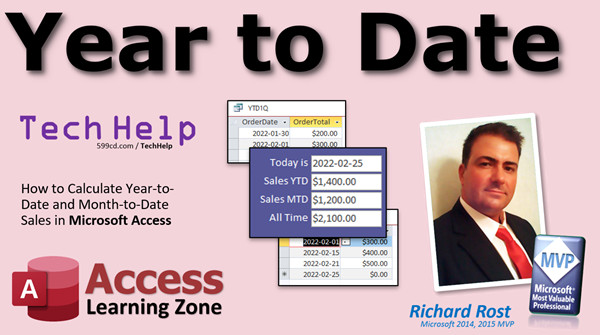
How to Calculate YTD and MTD Sales Totals in Access In this video, I will show you how to calculate sales totals year-to-date, and month-to-date. We will use the DateSerial function, Aggregate queries, and the DLookup function. Victor from Grand Island, Nebraska (a Platinum Member) asks: How can I calculate year-to-date and month-to-date sales for my company? I'd like to see a nice summary on my Main Menu screen when I log on to the database every day. While you're at it, an "all time" sales figure would be nice too. Thanks! MembersMembers will learn something completely unrelated to the original video. If you've been following my videos over the past week, I recently switched my whole system over to the ISO date standard (YYYY-MM-DD). Well, after checking on my personal year-to-date and month-to-date reports, I discovered they're wrong! And I've got a few hundred queries in my database to check. Now, a find & replace is easy when you're looking for "format" functions in VBA code. It's not so easy to do with queries. So, I'm going to teach the members how to loop through the QueryDefs collection and search for things in the SQL of your queries. Cool stuff!
Silver Members and up get access to view Extended Cut videos, when available. Gold Members can download the files from class plus get access to the Code Vault. If you're not a member, Join Today!
Links
Suggested Course
Keywordsmicrosoft access, ms access, ms access tutorial, #msaccess, #microsoftaccess, #help, #howto, #tutorial, #learn, #lesson, #training, #database, Year to date totals, month to date, Get Total Amount for Year To Date, Year-To-Date, YTD, MTD, sales dashboard, DateSerial, sales totals, querydef, querydefs
More InformationTranscriptWelcome to another TechHelp video brought to you by AccessLearningZone.com. I am your instructor, Richard Rost. In today's video, I'm going to show you how to calculate year-to-date and month-to-date sales in Microsoft Access. Today's question comes from Victor in Grand Island, Nebraska, one of my platinum members. Victor asks, how can I calculate year-to-date and month-to-date sales for my company? I'd like to see a nice summary on my main menu screen when I log onto the database every day. While you are at it, an all-time sales figure would be nice too. Thanks. Well Victor, there are a bunch of different ways you can do this. You can either build queries and do an aggregate query or you can use the DSum function. I'm going to show you both of those methods. The DSum function is better if you just want to put a total on a form somewhere. Knowing how to make the aggregate queries do it allows you to make different reports and stuff too. I'm going to show you both methods. Now before we get started, we've got a bunch of prerequisites for you. That's just necessary because I don't want to recover everything every video. That's why we've got these prerequisites. If you don't know how to use query criteria, go watch that. If you've never made an aggregate query, go watch that one. I want you to watch my birthdays video because in that video, I teach you how to use a function called date serial, which we're going to need for today. DLookup, which is important, and then DSum, which we're going to use also. DLookup is kind of like DSum's little cousin, which if you learn DLookup first, that's easier. Go watch all five of these videos. If you haven't already, they're all free. They're all on my YouTube channel. They are on my website. There are the links right there. You'll also find links down in the description below the video. Go click on those, watch those, then come back here. Here I am in my TechHelp free template. This is a free database. Download it up on my website if you want, or you can use your own database. That's fine. Now, in this database, we build a customer form. Each customer can have orders. Here's an order form with an invoice, all this good stuff. If you haven't watched this video, it's not a requirement. That's why I don't put it out as a prerequisite. If you want to learn how I built this, I'll put a link to my invoicing database down below as well. Now, this invoice calculates the order total by adding up the detail items. But to keep things simpler for this class, I'm just going to add an order total to the order table. Normally, we have our order invoice queue and our order detail queue that does all the adding up, but we're just going to keep it simple. Let's go in here and design the order table. I'm just going to add an order total in here. Normally, you can just use a query for this. That's fine. We're going to cheat just to keep the video for today easier. Here's some orders. Let's put a few more in here. The customer ID really doesn't matter. Let's add three more orders. Let's just change the dates up a little bit. This one's fine. We'll keep that in last year. Today's date is currently 2022, and it's February 25th. Let's add some. Let's put one in here from 1-30, which by the way, earlier this week, I switched my system over to this new date system, the ISO date, where it goes year, month, day. I love it. Couple of little minor problems that I posted videos about. So far, it's so much easier to read and work with. Let's make this next one, 2-1, and then we'll go to 2-15 to 2-21. Let's put one in the future. I'll go up to 3-5. Normally in your order entry system, you wouldn't have future dates, but at least this lets us just check and make sure that our calculations are working. If I do year to date, I should only get, well, let's make this one 2022. There we go. We only get these guys in year to date, and then month to date, I should only get these ones, because it's currently February. Okay, let's put some order totals in over here. Let's go 100, 200, 300, 400, 500, 600. So our year to date total should be that, which is 5, 9, looks like 1400. And our month to date would be just these 3, so that's what, 1200, 712. Okay, so we should have 1400, 1200, and then we'll do an all-time sale total, just add everybody up. I'm going to ignore the is paid, but of course you want to make sure that these are paid before you put them in your calculations, and that's just another criteria, which you know how to do. Now this is one of those instances where you have to use two queries to do calculations. Sometimes Access needs two queries. One query is going to apply the criteria and figure everything out. It's going to gather up the records that we need - the year to date. Just give me all those orders from January 1st of this year, up until now. Then we're going to take that set of results and feed that into another query that's going to do the aggregate to add up all the order totals. You can't just do that in one query. This is one of the biggest stumbling blocks that I see people make with Access, as they try to do too much with one query. Don't. Break it up. Make it two, three, four queries if you have to. Yes, more advanced users. There's something called a subquery, but I covered that in my SQL seminars. It's a lot more advanced for the average everyday user. It's much, much easier to just break it up into multiple queries. So let's go to Create. We'll do our year to date query first. Create Query Design. We're going to bring in our order table. Now, I want to show a list of all the orders from this year, from January 1st of this year, until right now. So I need the order date and I need the order total because we're going to add those up in the next query. The order ID and all the rest of the stuff don't matter. If you want to add is paid and say yes, put that here now. For the criteria, we're going to use the date serial function. If you watch that birthday video, you know, date serial lets you take a date, supply the three parts of the date, and it gives you a valid date value. So you can tell it the year, the month, and the date. So I'm going to zoom in. This is going to be, we have to be greater than or equal to January 1st of this year. So we're going to use date serial. The first component is the year. So it's going to be the year - of what year? The current year is the date function, see that? So that will get replaced with 2022, the current year of the system date. Next is the month. Now we want it from January 1st, so just put a 1 there and a 1 for the day. Right there, that value is going to give you January 1st, 2022, if it's currently 2022. If you are watching this in 2030, it will be that year. I know my videos have legs. I get people still watching my videos from like 2004. It still works. Of course it does. And Access hasn't changed much. So it's got to be between that one and less than or equal to right now. I use now because some people put date time in their order date. I do. I want to know what time of day the order came in too, so the time is stored there. So just go less than or equal to right now. It will be as of this moment. If you have future orders, be careful. I don't like using the between keyword because sometimes between gets you in trouble. So that's why I like to do greater than and less than. There's my criteria. Let's run it real quick, take a peek. There we go. I should only have orders from the first of this year up until right now. So that one from 2021 doesn't show up there and the one from March, which is in the future, doesn't show up. Perfect. Let's save this as YearToDate1Q (YTD1Q). Just to show you, you can't aggregate this. Here's the aggregator. You can't do that and change this to sum. If you run it, nope, because it's still grouping by that. Even if you turn this off to not show it, it's still being grouped, so you don't get a total here. You could DSum this up if you want to, but it's just easy to do this. Put this back on here, turn off the aggregate. Save it again, close that, make our second query. Create, Query Design, go to Queries, bring in this guy, bring in the order total. We don't need the date now because the date's already figured out, it's in this query. Now we're just getting a set of records that meet the date criteria. Now I turn my totals on, change that to Sum. Let's save this as my YearToDate2Q, and now when I run that, boom, I get the year-to-date sum of order total. There it is. Did that, and that's neat. I show you this way too because you can use this with other reports and stuff. If you want to pull this into different stuff, you can. That's one method to do it. Let's do a box on here to look up that value and display it there with a simple DLookup. So right click, Design View. I'm just going to copy this guy, copy, paste, slide it up. We'll put in here Year-To-Date Sales. Open this guy up, go to All. I'll change this to Year-To-Date Sales, and the control source is going to be what? Let's zoom in. We're going to just do, look up the value out of that query. Let's take a peek one more time. It's SumOfOrderTotal from YearToDate2Q. Got the control source ready. Here we go. = DLookup("SumOfOrderTotal","YearToDate2Q") That's it. We don't need extra criteria because the only value in that query is the value that we need. Hit OK. Change the format to currency, not a short date like the other box was. Save it, close it, and open it back up again. Boom. There you go. Here are your unit sales. It just reads in that one value. So that's how you can do it with queries. Now let me show you how you can do it directly with DSum. So very similar, it's a little more complicated. Let's copy this, paste it. I want to show you the easy way first. Let's do month-to-date. Open this guy up. Let's zoom in. Let's change this, let's call it MTD Sales. Zoom in, get rid of you. This is going to be equal to DSum now. Now we're going to go right to the order table and add stuff up, forget the aggregate and forget all that other stuff. What are we adding up? We're going to add up order total. Where are we getting it from? OrderT. Now what's our criteria? It's going to be the order date is greater than or equal to. Now the date is going to go outside the string because we've got to calculate, so we've got to put a pound symbol there. Remember, dates have to go inside of pound symbols. Here's where we put our date serial. So it's going to be date serial. What's the year? It's the year of the current date. Comma, what month? Well, we're doing month to date now, so it's got to be this month - currently February. So this has to be a 2. How do you get that? Use the month function - Month(Date). Comma, and we want the first of the month, of course, so 1. There's our date serial. That will be all replaced with, in this case, 2-1-2022. I see. I'm still a month, year. That is going to take me a while to get my brain completely rewired. Ampersand, close up that date. So that's the beginning of it, and order date has to be less than or equal to now. Yes, you can put functions like now and something like that inside the string, that's fine. Or if you want to, you could put a pound there and put now outside it, but this works just fine. If you want to include paid, you can also put on here order paid, or was it is paid? I forget what we call it. You could put is paid equals true in here if you want to include that. I'm going to leave it off for now, but obviously you want to check for that. Close it up. There it is. There's your grand formula. That's one step. You can do it all in one step with a DSum function. Save it, close it, open it back up again, and boom - there's your month-to-date sales. Now that you know that, a grand total for all-time sales. I like to see all-time sales, it's kind of neat. It's super easy. Now that you know how to do this one, just copy that. Let's put All Time. Come in here, and literally just chop off the criteria. That's it. Just add up order total from OrderT. If you want to put the is paid in here, here's where you put it: is paid = true. But I'm going to leave it off just for the purposes of this class. So put any other criteria you have. Save that, close it, and open it, and there you go. These are all-time sales. So that is how you do a little dashboard right here. Whatever calculation you want on there: month-to-date, year-to-date. You can change this label if you want to put the word February or whatever. I do that in my database. Have fun with it. Enjoy doing this stuff. I like this stuff. If you want to learn more, in the extended cut for the members, I'm going to show you something that's not quite related to what we just did, but it's really, really cool. This year-to-date stuff - I recently went to check my own personal database for my business because I've got some year-to-date calculations in there as well. Since I just recently switched over to this new date format, a lot of them didn't work. Now I've got dozens, if not hundreds of different queries in my database, and I didn't want to have to go through them all by hand. So what I did was I wrote a little VBA code to search through all of the queries in my database programmatically to find any query that had the word "format" in it using the old Format function so I could then switch it over to the new DateSerial format. That's what the extended cut covers - this VBA to loop through all the different queries in the database to perform a query search from the SQL property inside each query. It's really pretty cool. It's in the extended cut for the members. Silver members and up get access to all of my extended cut videos, and we're up to like 250 or so. That's a lot of them. You get access to all of them when you join. Gold members can download these databases and get access to my code vault and so much more. How do you join? Well, I'm going to tell you how in just a minute. How do you become a member? Click on the Join button below the video. After you click the Join button, you'll see a list of all the different membership levels that are available, each with its own special perks. Silver members and up will get access to all of my extended cut TechHelp videos, one free beginner class each month, and more. Gold members get access to download all of the sample databases that I build in my TechHelp videos, plus my code vault where I keep tons of different functions that I use. You'll also get a higher priority if you decide to submit any TechHelp questions to me, and you'll get one free expert class each month after you finish the beginner series. Platinum members get all the previous perks, plus even higher priority for TechHelp questions, access to all of my full beginner courses for every subject, and one free developer class each month after you finish the expert classes. These are the full length courses found on my website, not just for Access too. I also teach Word, Excel, Visual Basic, and lots more. You can now become a diamond sponsor and have your name or company name listed on a sponsors page. They will be shown in each video as long as you're a sponsor. You'll get a shout out in the video and a link to your website or product in the text below the video and on my website. But don't worry, these free TechHelp videos are going to keep coming. As long as you keep watching them, I'll keep making more, and they'll always be free. IntroIn this video, I will show you how to calculate year-to-date and month-to-date sales in Microsoft Access using both aggregate queries and the DSum function. You will learn how to set up your tables and enter sample data, create the necessary queries to filter sales by specific date ranges, and use DSum to display sales totals directly on your forms. I will also cover how to add an all-time sales total and discuss some tips for keeping your calculations accurate and organized. QuizQ1. What are the two main methods discussed in the video for calculating year-to-date and month-to-date sales in Microsoft Access? A. Aggregate queries and DSum function B. Table relationships and lookup fields C. Macros and conditional formatting D. Pivot tables and data macros Q2. When is it recommended to use the DSum function according to the video? A. When you want to show a total directly on a form B. When you need to enforce referential integrity C. When creating reports with multiple charts D. When importing external data Q3. What is the primary purpose of using aggregate queries in Access as shown in the video? A. To create summary data that can be used in reports B. To update multiple tables simultaneously C. To establish record-level locking D. To automate navigation forms Q4. Which function allows you to construct a specific date using year, month, and day values? A. DateSerial B. Format C. DatePart D. DateDiff Q5. According to the video, why is it better not to use a single query for both filtering and aggregating when calculating year-to-date totals? A. Because Access cannot apply both criteria and aggregation correctly in one query B. Because it uses too much memory C. Because it slows down the database startup D. Because it visually clutters the form Q6. In the example given, how is the year portion for the DateSerial function dynamically determined? A. By using the Year(Date) function B. By manually entering the current year C. By referencing a value from the settings table D. By hardcoding '2022' Q7. What is the recommended way to specify date ranges in Access query criteria to avoid issues, as per the video? A. Use greater than and less than comparisons, not the BETWEEN keyword B. Always use BETWEEN for clarity C. Use only hardcoded dates D. Avoid using date criteria entirely Q8. What is a potential issue when you have orders with future dates in your data, based on the video demonstration? A. They could be incorrectly included in year-to-date or month-to-date calculations B. They always cause a query to fail C. They will be automatically excluded by Access D. They are required for aggregate queries to work Q9. Which control source formula would you use on a form to display the year-to-date sales using a saved query named YearToDate2Q in the video? A. =DLookup("SumOfOrderTotal","YearToDate2Q") B. =Sum("OrderTotal","OrderT") C. =DSum("OrderTotal","YearToDate2Q") D. =Lookup("OrderTotal","OrderT") Q10. To calculate month-to-date sales directly on a form without a query, which function is recommended in the video? A. DSum B. DLookup C. DCount D. DFirst Q11. What special requirement must be considered when entering date literals in Access functions like DSum or query criteria? A. Date literals must be enclosed with pound/hash symbols (#) B. Date literals must be in square brackets C. Date literals must be in single quotes D. Date literals must use slashes instead of dashes Q12. How can you calculate all-time sales using the DSum function according to the video? A. Use DSum on OrderTotal from the OrderT table with no criteria B. Use DSum but add criteria for current year only C. Sum only unpaid orders D. Use DCount on OrderTotal Q13. What does the video suggest regarding including an "is paid" criteria in your order totals calculations? A. It should be included if you want to sum only paid orders B. It is mandatory for all aggregate queries C. It should always be excluded D. It is only relevant for customer records Q14. What additional topic does the extended cut of the video cover for members? A. Writing VBA code to search through queries for specific functions or text B. Importing data from Excel into Access C. Exporting reports as PDFs D. Building navigation forms Q15. Which membership level grants access to all of the instructor's full beginner courses and developer classes? A. Platinum B. Silver C. Gold D. Bronze Answers: 1-A; 2-A; 3-A; 4-A; 5-A; 6-A; 7-A; 8-A; 9-A; 10-A; 11-A; 12-A; 13-A; 14-A; 15-A DISCLAIMER: Quiz questions are AI generated. If you find any that are wrong, don't make sense, or aren't related to the video topic at hand, then please post a comment and let me know. Thanks. SummaryToday's video from Access Learning Zone covers how to calculate year-to-date (YTD) and month-to-date (MTD) sales in Microsoft Access. This topic comes from a question about creating summaries for company sales that are easy to view on a main menu when logging into a database. The request included showing year-to-date, month-to-date, and all-time sales totals. There are several ways to create these calculations in Access. You can use either queries with aggregate functions or the DSum function. I will demonstrate both options, and explain when each is most effective. The DSum function works well when you need to place a total directly onto a form. On the other hand, aggregate queries let you build more detailed reports and give you more flexibility, especially if you need to reuse the data in different locations. Before jumping in, there are a few important prerequisite topics that you should be comfortable with to follow this lesson. If you do not know how to use query criteria, build aggregate queries, or use functions like DateSerial, DLookup, and DSum, I recommend that you first review my tutorials on these subjects. They are all free and available on my website and YouTube channel. The DateSerial function is especially important here since it helps define date-based criteria for your queries. For demonstration, I used the TechHelp free template database, which you can download from my website, or you can use your own database. The sample database is set up with a customer table, orders with an invoice form, and everything needed to track sales activity. For simplicity, I added an "order total" field directly in the orders table. In a full production database, you would typically calculate the total using order details and line items, but to keep things clear for this lesson, we are working with a straightforward value. To illustrate the process, I created several order records with varying dates, including dates in the previous year, current year, and even a future date. The idea is that year-to-date calculations should only sum sales from the beginning of the current year onward, while the month-to-date calculation only looks at sales from the start of the current month. All-time totals simply sum every record. Calculating these figures in Access often requires two steps. First, you build a query to apply your date criteria and filter out the records for the desired period. For YTD, this means selecting orders from January 1st of the current year to the present. The DateSerial function is useful here because it allows you to construct the start date dynamically based on the system date. The second query then takes this filtered set and performs the aggregate calculation to sum the "order total" field. Trying to do this all in one query can lead to trouble, so breaking it into two steps is best for most users. Advanced users can use subqueries, but these are more complex and are covered in my SQL seminars. When constructing the queries, you set the criteria to select records between January 1st of the current year and now for the year-to-date calculation. For the month-to-date calculation, you would set the criteria from the first day of the current month to today. After filtering the right records, you then build another query that sums the order totals from the results of the first query. To display the totals on a form, you can use DLookup to pull the value from the summary query and show it in a text box. For example, using DLookup, you retrieve the sum from the year-to-date query and display it as a currency value. Alternatively, you can use DSum directly on the form without making a separate query. DSum allows you to sum the order totals in the order table and specify your date criteria all in one function. This requires building the date criteria within the DSum expression, and again, DateSerial is used to ensure the dates are dynamic and update each year or month automatically. For the all-time sales total, the process is even easier. You simply sum the "order total" field in the orders table using DSum or an aggregate query, without any date criteria. It is important to note that in your calculations, you may want to include only paid orders. This is done by adding an "is paid" criteria to your queries or DSum expressions. After completing these steps, you have a small dashboard on your form showing year-to-date, month-to-date, and all-time sales calculations. Labels and display settings can be adjusted to fit your needs. In the extended cut for members, I cover a VBA technique to programmatically search through all your queries in the database to find any that use the Format function, which can be useful if you need to update old queries to a newer date format. This extended lesson is all about looping through all queries via code and searching their SQL property, which can save a lot of time if your database contains many queries that need updating. Silver members and up get access to all of my extended cut videos, while Gold members can download databases and access a library of code and other resources. Platinum members enjoy additional perks, including full-length courses on Access and other Microsoft Office products. Membership information is available on my website, where you can see the various levels and benefits. If you want a complete video tutorial with step-by-step instructions on everything discussed here, you can find it on my website at the link below. Live long and prosper, my friends. Topic ListCalculating year-to-date sales using queries Calculating year-to-date sales using DSum Creating queries with date criteria using DateSerial Building a year-to-date sales summary with aggregate queries Displaying query results on forms with DLookup Creating month-to-date sales calculations with DSum Calculating all-time sales totals Formatting calculated fields as currency Adding calculated summary boxes to forms in Access Primary Topicsyear-to-date sales calculation, month-to-date sales calculation, all-time sales total, Microsoft Access, aggregate queries, DSum function, DLookup function, order tables, query design Secondary Topicsdashboard form design, order totals, use of DateSerial function, data validation for paid orders, future-dated records |
||||||||||||||||||||
|
| |||
| Keywords: TechHelp Access Year to date totals, month to date, Get Total Amount for Year To Date, Year-To-Date, YTD, MTD, sales dashboard, DateSerial, sales totals, querydef, querydefs PermaLink Year to Date Sales Totals in Microsoft Access |