Access Task Management Template
Microsoft Access Task Management Template
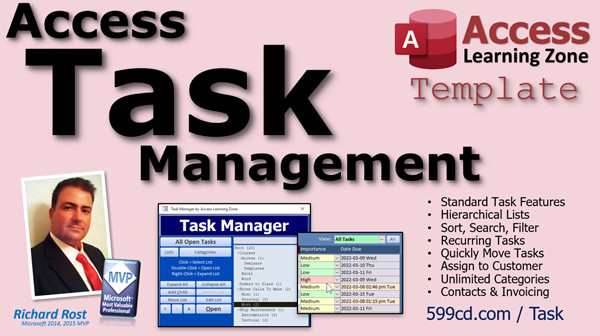
Introducing the Access Task Management Database Template from Access Learning Zone.
This template has all your basic task management features, plus you can organize tasks into hierarchical lists, you can set up recurring tasks, quickly move tasks between lists, assign tasks to customers, and setup unlimited categories including interests, locations, employees tasks are assigned to, or whatever you like.
This template is built 100% in Access with no add-ins, DLLs, or 3rd party components to install. Plus, you can download a free version to try to see if it meets your needs.
Videos
Sample Database
If you'd like to download a sample copy of the database template, you can do so here. This is a non-editable ACCDE version of the template which will let you see it work in action. You can enter/edit data, but you cannot access the design of the forms, reports, VBA, etc. The sample database requires 64-bit Access 2013 or higher. If you're still using 32-bit Office, read this. Be sure to watch the Installation Notes video (above).
Full Developer Database
Once you have purchased the full developer database template, come back to this page and click on the Download button below. This will give you access to the ZIP file containing the Template ACCDB file. The full version will run on 32-bit or 64-bit Access 2013 or higher (possibly 2007, but I haven't tested it). Be sure to watch the Installation Notes video (above).
 Links Links

Contents
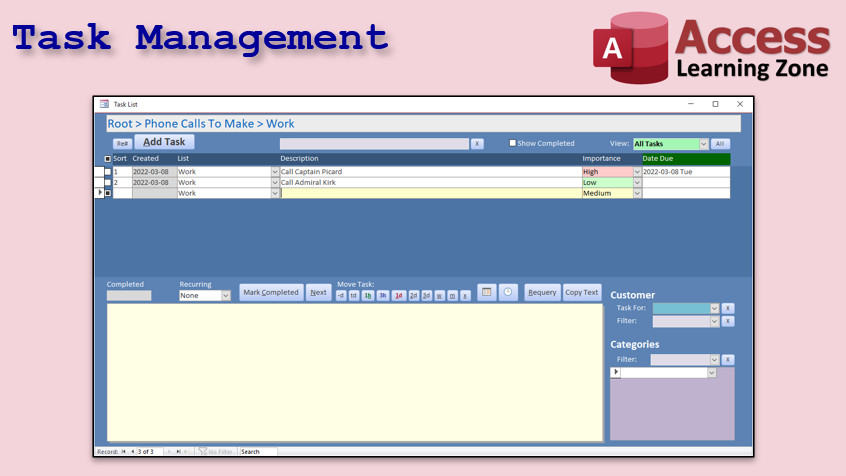
The Task Management Database includes standard fields for any contact manager: date created, description, notes, importance (low, medium, high), and an optional due date.
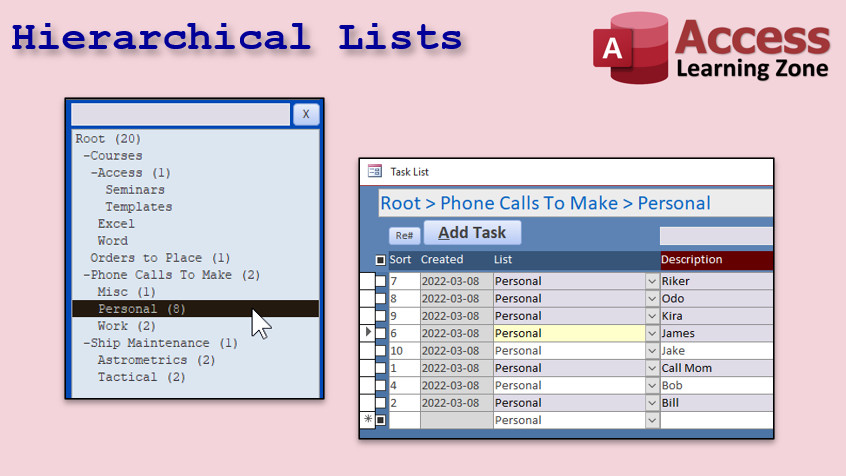
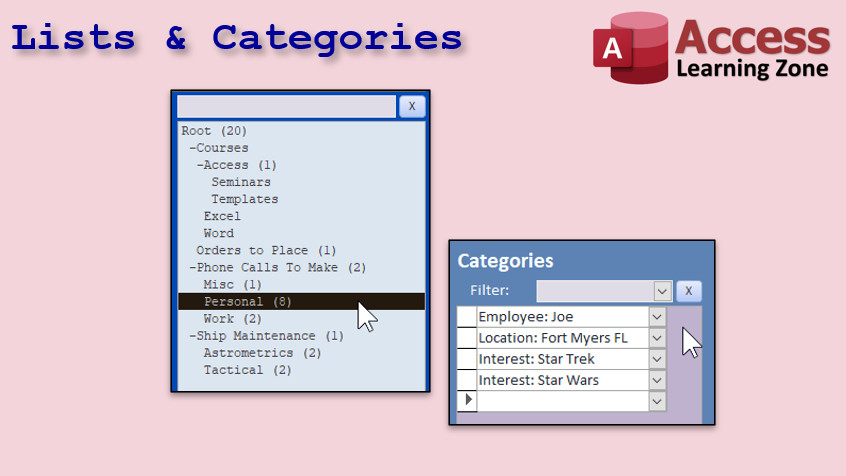
The one feature that lets my task manager stand apart from others is that it has a hierarchical list structure, so you can have lists with sub-lists. This way you can easily separate tasks for any situation. One list for phone calls, sublists to separate work from personal, and more. Add as many sublists as you want. Think of these like files and folders.
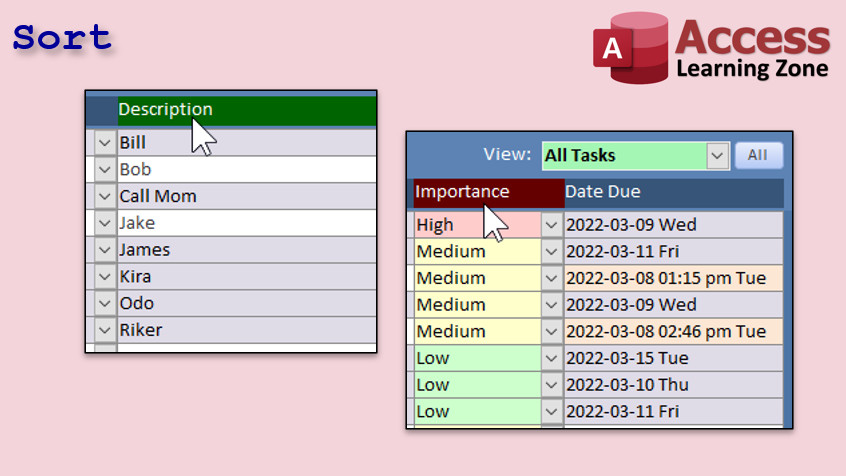
You can click on the column headers to sort by any field, ascending or descending.
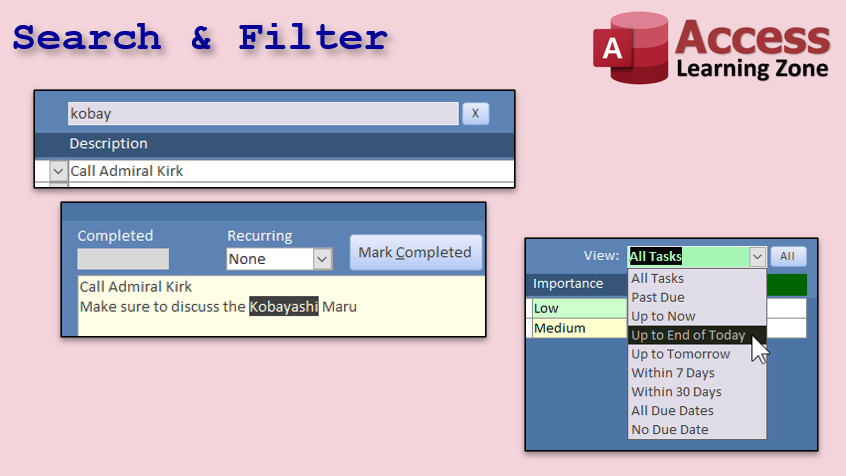
You can search based on any keywords found in the description or notes fields. You can filter based on various due dates: past due, up to now, up to end of today, tomorrow, within 7 days, 30 days, all due dates, or no due dates.
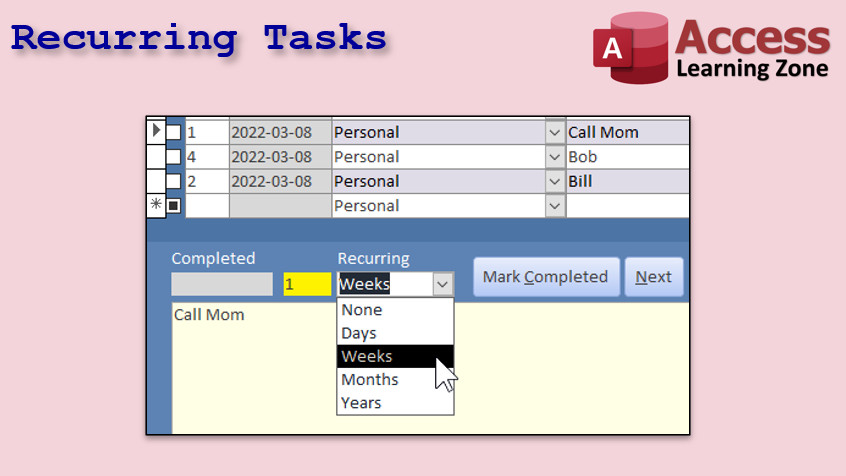
You can make tasks recurring, so when you mark it completed, it creates a copy of the task at the future interval you specify. This way you have a complete history of all of the past times you completed this task.
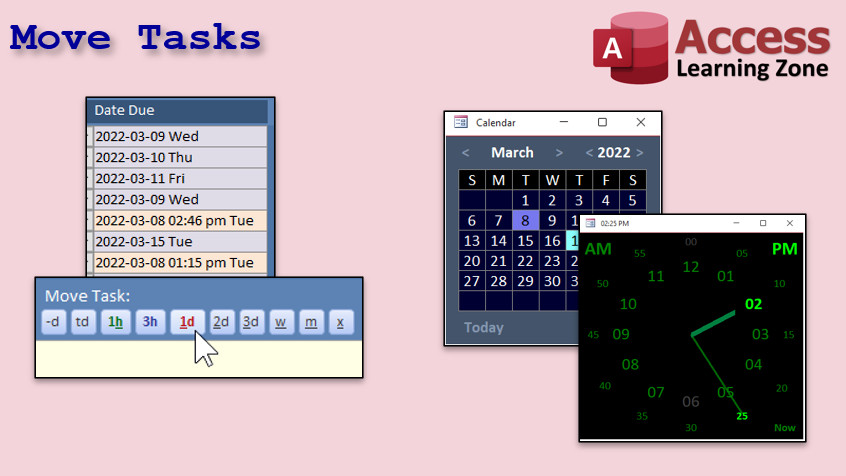
If you're like me, you spend at least a little time each day going over your list of tasks... And realizing which ones you won’t get to today. I do this a lot. I’ve included buttons that will allow you to quickly run down your task list and move them ahead 1 hour, 3 hours, 1 day, 2 days, 3 days, a week, or a month. This is a procrastinator's dream! LOL. I’ve also included my “world famous” date and time picker popups that are a whole lot more sophisticated than the built in Access date picker.
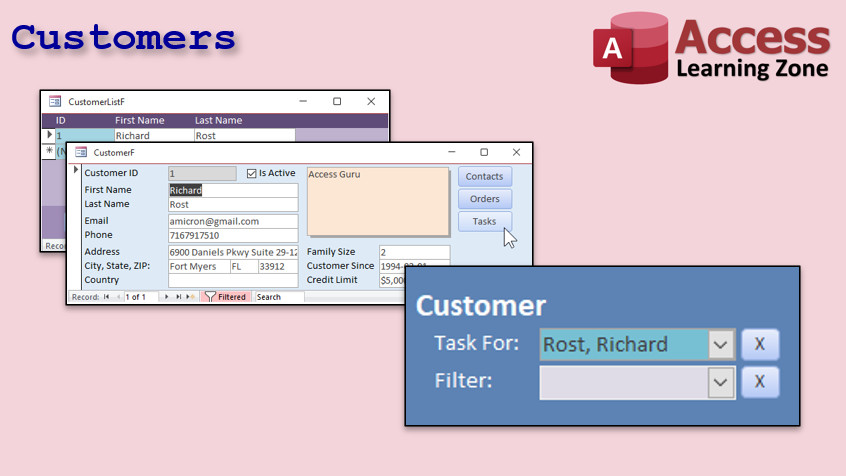
This database was built on my TechHelp Template, so you get a full customer database as well. You can assign customers to tasks, filter based on a specific customer, and bring up a list of just that customer’s tasks.
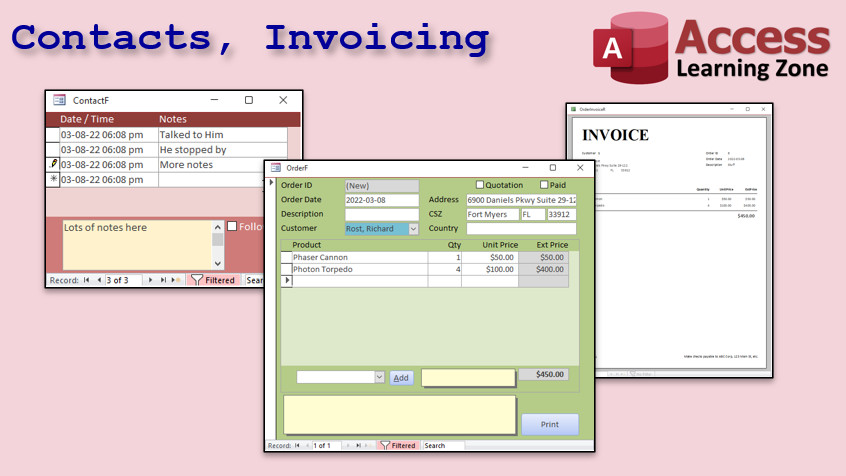
And of course you get all the contact management, order entry, and invoicing stuff from that database as well.
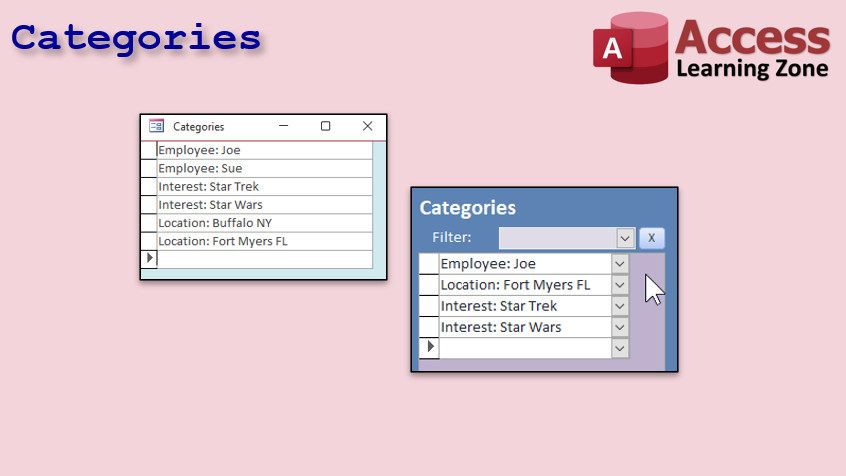
You can assign tasks to one or more categories. You can use these for tracking projects, locations, interests, employees assigned to the task or whatever else you want. You can then filter the list based on a specific category. Want to see all of the tasks for your Houston location? Want to see all the tasks for Star Trek fans? The possibilities are endless.
Once you mix lists with categories, you really show the true power of this database. Let’s say you’ve got a category set up for each of your product lines, you can say “show me all of the work phone calls I have to make for the XYZ product line by this date.” The possibilities are endless.
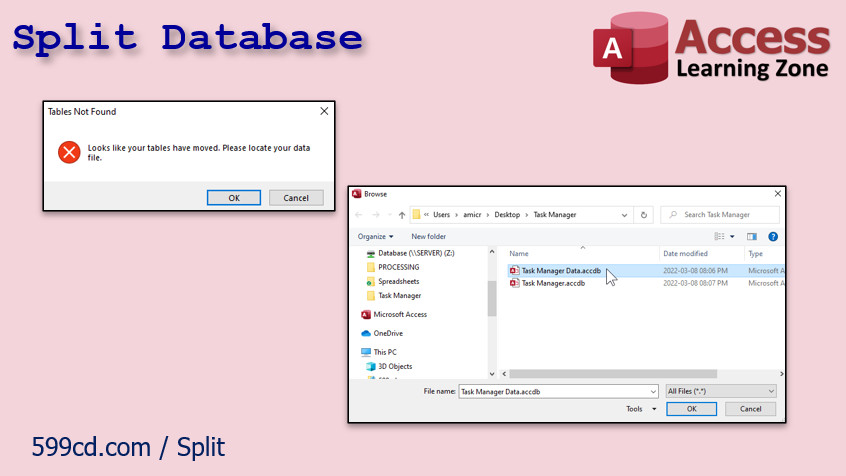
This template is distributed as a split database. This makes it easier for you to share on a network between multiple users. More importantly, if I release updates in the future (and I'm sure I will) you can just easily swap out the front-end file for the new updated one without having to migrate your data. Also, I've included code that will automatically re-link your tables if the back-end file moves. NOTE: this will run the first time you start your database, since your folder structure is likely different from mine. Watch the Installation Notes video above for details.
So there you have it... the Access Task Management Database Template. As of right now, I don't have any plans to make videos showing how this database was built, as there is a lot of high-end VBA in it. This database, however, is designed to be ready to use, right out of the gate, with little to no customization. If you do plan on modifying it, however, I strongly recommend you have completed my Developer series of Access classes. There's a lot of advanced SQL and VBA in it. If you are interested in me releasing this as a Seminar where I show how it was constructed (or at least walk thru the code) I would be happy to make one if there is enough interest. Post a comment below.
License
For internal use only. This template does NOT come with a royalty-free license. You may only customize the template for your business needs and for use within your organization at one location ONLY. You may not resell or distribute any form of this template to others without express written permission. Contact me for additional information on obtaining a license to distribute if you plan on including this template in a product you are reselling. Additional licenses are required if you plan on using this template with more than ten (10) employees or in multiple locations within your organization.
Not a Finished Product
Please keep in mind that most of my template databases are not designed to be finished products that are ready to go in a working environment. My templates are meant as starting points for you to customize for yourself so you don't have to reinvent the wheel. This requires that you have a basic understanding of Microsoft Access development. To work on most of my databases you should have completed my Access Beginner series and the first couple levels of my Expert series at a minimum. Most of my databases require knowledge of SQL and VBA as well. Keep in mind that most of my templates are not like off-the-shelf software. They're starting points for developers to be able to modify and use as their own. It really is going to be in your benefit to watch all of the prerequisite videos so you understand the database and how it works moving forward. This is not like QuickBooks where you just install it and use it. My templates are mostly designed for people who already have an understanding of how Microsoft Access works.
Customize For Your Needs
If you would like to discuss customizing this template for your needs, and integrating it into your current setup, please see my consulting page for details. While I no longer accept custom jobs that are specific to a single user, I may include your features in a future version of this template if they have mass appeal. If you are looking for custom enhancements made to this template just for you, visit my Developer Network.
Technical Support
Please note that technical support is NOT guaranteed for any of my courses, seminars, or templates. If you require help with modifying this template, you may post a question in the Forums, however an answer to your question is not guaranteed. If this template comes with an accompanying Seminar, then you should purchase that Seminar to see how the database was constructed. If not, then you should have taken the suggested courses. Most of my templates are designed on a Developer level and you should have a thorough understanding of SQL and VBA before attempting to modify them. If you have a problem with one of my databases, I will only support the unmodified database exactly as it's downloaded from my site. If you have modified it in any way, it may not be something I can help you with. You can post in the Forums, and I may be able to help you, but if the issue doesn't exist in my unmodified database, it's not something I can support.
Questions?
Got sales or customer service questions about this template? Feel free to contact me. If you have technical "how do I" questions about this template, you discover a bug, or want to suggest a new feature, then please post your comments below.
Upgrades
Here is my list of potential future upgrades. Please note these are not guaranteed. This is only a suggested list and ideas from customers. If you'd like to contribute any ideas, please post them below. Likewise if you are interested in any of these suggestions, post below as well. The more people that ask for a specific feature, the more likely I am to build it.
- Seminar videos showing how the database was built
- Monthly calendar view for tasks with a due date
- Printout report of tasks currently displayed
- Incorporation of this template into the ABCD
Unreleased Updates
I've already made a few minor updates to the database. These have not been released yet, but will be soon.
- Added a "show counts" checkbox to the main menu which disables the count of tasks for each list. It's just a minor thing, but it speeds up the database a lot when you have thousands of tasks in the system like I do. Not having to count the tasks in every list helps performance. You can turn it on and off as desired.
- For some reason I didn't include Notes in the keyword search. It only searches the Description. Now it will search for keywords in both.
- I decided to change the caption for the button to move a task to tomorrow from "&1d" to "&Tmrw". I feel this just makes more sense. Every time I think about moving a task, I think "tomorrow" so the ALT-T makes more sense than ALT-1. Just my opinion.
Keywords
microsoft access, ms access, ms access tutorial, #msaccess, #microsoftaccess, #help, #howto, #tutorial, #learn, #lesson, #training, #database, task manager, task management, free task management template, Task Management Access Database template, task management database, task management database template, task tracker, to do list, todo list
More InformationTranscript Introducing the Access Task Management Template brought to you by AccessLearningZone.com. My name is Richard Rost.
This template has all your basic task management features, plus you can organize your tasks into hierarchical lists. You can set up recurring tasks, quickly move tasks between lists, assign tasks to customers, and set up unlimited categories including interests, locations, employees, tasks that are assigned to, or whatever you like.
This template is built 100 percent in Access with no add-ins, DLLs, or third-party components to install. Plus, you can download a free version to try from my website.
The task manager creates all the standard fields that you'll find in any task management database: the date that the task was created, a description, an importance (high, medium, or low), an optional due date, and a big notes field.
The one feature that sets my task manager apart from others is that it has a hierarchical list structure, so you can have lists within sublists. This way, you can easily separate tasks for any situation: one list for phone calls, a sublist to separate work from personal calls, add as many sublists as you want. Think of these like files and folders in Windows. The lists represent folders and the tasks themselves are files.
You can click on any of the column headers to sort by any field, ascending or descending. You can search based on any keywords found in either the description or the notes field, and you can filter based on various due dates.
Filter options include: past due up to now, up to the end of today, tomorrow, within seven days, 30 days, all due dates, or no due dates. Show me all the tasks that I have assigned a due date to. "Up to the end of today" is my favorite one. It lets me see all the tasks that were due up to today, maybe something that I've missed, and stuff that I have to do later today, but not too much stuff.
You can make tasks recurring, so when you mark it completed, it creates a copy of the task at the future interval you specify. This way, you have a complete history of all the past times you completed this task. You can also make custom notes on each of them, so you have a history of all your completed tasks.
If you are like me, you spend at least a little time each day going over your task lists for the day and realizing which ones you're probably not going to get to today. I do this a lot.
I have included buttons that allow you to quickly run down your task list and move them ahead one hour, three hours, one day, two days, three days, a week, and so on. So you can say, this one I'll get to tomorrow, this one I'll get to next week, this one I'll get to in a couple hours.
I have also included my world famous date and time picker pop-ups that are a whole lot more sophisticated than the built-in Access date picker.
This database was built on my TechHelp templates, so you get the full customer database as well. You can assign customers to tasks, filter based on the specific customer, and bring up a list of just that customer's tasks. Of course, you get all the contact management, order entry, and invoicing features from the TechHelp database as well.
You can assign tasks to one or more categories. Categories are kind of a catch-all for any other kind of information that you want to be able to assign to tasks. For example, here you can see I've got employees, interests, and locations. What location is this task set in? What employee or employees are assigned to this task? What are the interests that are associated with this task? Star Wars or Star Trek, for example. You can assign an unlimited number of categories to each task, then you can filter based on that category.
For example, you can say, show me all the tasks that are assigned to Joe or all the ones that are set in Buffalo, New York. When you put together the lists with the categories, you can see that the possibilities are endless.
Let's say you've got a category set up for each of your product lines. You can say, show me all the work phone calls I have to make for the XYZ product line by this date. As I said, the possibilities are endless.
If you want to learn more about this database, I've got a feature walkthrough. It is about a half hour long, but I walk you through setting up the database, adding data to it, and using all the different features that are in there. Come and watch it. It's on my website and it's absolutely free.
Plus, you can download a free copy of the database to play with yourself, see if you like it, and if you have any questions, of course, feel free to contact me or post them below in the comments section.
Thanks for watching, and we'll see you next time. Intro In this video, I introduce the TEMP Access Task Management Template built entirely in Microsoft Access. We'll talk about organizing tasks into hierarchical lists, setting up and managing recurring tasks, sorting and filtering options, advanced date and time picker features, and assigning tasks to customers and unlimited customizable categories like employees, interests, and locations. You'll also see how to quickly reschedule tasks, use the built-in customer database, and download a free version to try out the template for yourself. Quiz Q1. What is a unique feature of the Access Task Management Template mentioned in the video?
A. It integrates directly with Excel
B. It supports hierarchical lists with sublists
C. It automatically sends emails for overdue tasks
D. It only allows one category per task
Q2. What types of fields are standard in the task management database?
A. Task creation date, description, importance, due date (optional), and notes field
B. Only description and due date
C. Only creation date and category
D. Only description, due date, and priority
Q3. How can tasks be organized in the Access Task Management Template?
A. Only by due date
B. Only alphabetically
C. Into hierarchical lists and sublists
D. Only by customer
Q4. What happens when you make a task recurring and mark it completed?
A. The task is deleted from the list
B. No change occurs
C. A copy of the task is created at the future interval specified
D. The task is assigned to a different customer automatically
Q5. What filtering options are available for due dates?
A. Only tasks due today
B. Multiple options, including past due, up to today, tomorrow, within 7 days, 30 days, all due dates, or none
C. Only future tasks
D. Only overdue tasks
Q6. What do the category assignments allow you to do?
A. Assign tasks to employees only
B. Limit tasks to one category
C. Assign unlimited categories to each task and filter based on any category
D. Sort tasks alphabetically only
Q7. What database features are included from the TechHelp templates?
A. Only the task list feature
B. Customer database, contact management, order entry, and invoicing
C. Only invoicing
D. Only order entry
Q8. What tool does the template include for scheduling tasks?
A. Microsoft Outlook integration
B. Built-in email reminders
C. Date and time picker pop-ups
D. Google Calendar sync
Q9. What is NOT required to use this Access Task Management Template?
A. Third-party components
B. Microsoft Access
C. Categories
D. Customers
Q10. What can you do after downloading the free version of the database?
A. You must purchase before using
B. Play with it and see if you like it
C. Only view the template, not edit
D. Only read instructions, not use the actual database
Answers: 1-B; 2-A; 3-C; 4-C; 5-B; 6-C; 7-B; 8-C; 9-A; 10-B
DISCLAIMER: Quiz questions are AI generated. If you find any that are wrong, don't make sense, or aren't related to the video topic at hand, then please post a comment and let me know. Thanks. Summary Today's video from Access Learning Zone introduces the Access Task Management Template, a robust solution for managing your tasks efficiently. My name is Richard Rost, and I am here to explain how this template can streamline your daily planning and organization.
This template goes beyond simple task tracking. It lets you organize your tasks into hierarchical lists, which means you can create main lists and then break them down into as many sublists as you need. Tasks can also be set as recurring, allowing you to automate repeated entries so you never have to re-enter them. You can easily reassign tasks between different lists, attach them to specific customers, and categorize them however you like. Categories can represent a variety of things such as interests, locations, assigned employees, or any other detail relevant to your work.
Importantly, this template is developed entirely using Microsoft Access without requiring any additional add-ons or third-party software. You have the opportunity to download a free trial version directly from my website.
Within the template, you will find all the standard fields typical of a professional task management tool. Each task includes a creation date, a description, a priority rating (high, medium, or low), an optional due date, and an ample notes section for further details.
A standout feature is the hierarchical list structure. This allows for easy separation of tasks based on context. For instance, you could have a main list for phone calls and sublists that separate work calls from personal calls. You are free to add as many sublists as your workflow requires. The structure works much like files and folders in Windows, where lists act as folders and tasks are the files within.
Sorting and searching are made simple. You can sort your tasks by any field in either order and search for keywords that appear in the description or notes. There are robust filtering options based on due dates as well. You can filter tasks that are overdue, due today, tomorrow, within the next week or month, all tasks that have a due date, or tasks with no due date at all. One particularly useful filter is "up to the end of today," which provides a focused look at what is both overdue and still pending for the current day.
Recurring tasks are also covered. When a recurring task is marked as complete, the system automatically generates a new entry for the future, maintaining a complete history of when you completed each occurrence. Each completed task can also have its own set of notes, preserving any unique details or progress updates.
For those of us who regularly assess our to-do list and have to adjust our schedules on the fly, the template includes handy buttons to quickly shift tasks forward by an hour, a few hours, or by one or several days or weeks. This way, it's easy to stay realistic about what will get done today and push items forward as needed.
I've also integrated my custom date and time picker pop-ups, which offer much more flexibility than the standard Access date picker control.
Since this system is built on my TechHelp templates, you also have access to a complete customer database. That means you can assign tasks to individual customers, filter to see all the tasks linked to a particular customer, and utilize contact management, order entry, and invoicing features offered by the TechHelp framework.
Tasks can belong to multiple categories. Categories are very flexible and can represent employees, interests, locations, or any qualifier you want. For example, you might have a category for employees to track tasks they are assigned, locations to indicate where the task is relevant, or interests such as Star Wars or Star Trek if that suits your data. You can assign as many categories to each task as you want, and then filter your tasks based on these categories.
Combining lists and categories gives you practically limitless ways to organize and find tasks. For example, if you categorize your tasks by product lines, you could quickly locate all work phone calls for a specific product line that need to be made by a certain date. The customization and organizational possibilities are practically endless.
If you are curious to see more, I have recorded a thorough feature walkthrough which lasts about half an hour. In that video, I guide you through setting up the database, entering your own data, and making use of each feature. The video is available for free on my website.
You can also download a free copy of the database to test for yourself. If any questions come up, you're welcome to reach out or leave a comment below.
You can find a complete video tutorial with step-by-step instructions on everything discussed here on my website at the link below. Live long and prosper, my friends. Topic List Hierarchical task list organization
Creating tasks with standard fields
Sorting and filtering tasks by column headers
Keyword search in description and notes fields
Filtering tasks by due dates
Setting up recurring tasks
Completing recurring tasks and tracking history
Quickly rescheduling tasks with preset time buttons
Using custom date and time picker pop-ups
Assigning customers to tasks
Filtering tasks by customer
Assigning and managing multiple categories per task
Filtering tasks by category such as employee or location
Integrating contact management, order entry, and invoicing features Primary Topics Access task management, hierarchical lists, recurring tasks, sorting/filtering, categories, customer assignment, TechHelp integration, advanced date picker Secondary Topics contact management, order entry, invoicing |





