Multivalued Fields
By Richard Rost

 4 years ago
Multivalued Fields: How to Use, When to Avoid!
In this Microsoft Access tutorial, I will teach you about multivalued fields: what they are, how to use them, and when you should avoid them.
Craig from Brattleboro, New Hampshire (a Platinum Member) asks: I inherited a database from my predecessor. In it, she used multivalued fields to track the sales reps assigned to a customer, as there can be several. I've watched many of your videos where you say not to use them, but in all honesty, they seem to work just fine. What's the deal?
Members
Members will learn how to programmatically access the elements of a multivalued field using a recordset loop. I will also show you how to add selections.
Silver Members and up get access to view Extended Cut videos, when available. Gold Members can download the files from class plus get access to the Code Vault. If you're not a member, Join Today!
 Suggested Courses Suggested Courses
Links
Multivalued Field References:
Keywords
access 2016, access 2019, access 2021, access 365, microsoft access, ms access, ms access tutorial, #msaccess, #microsoftaccess, #help, #howto, #tutorial, #learn, #lesson, #training, #database, multivalued field, mvf, lookup field, allow multiple values, lookup wizard, many to many relationship, junction table, got geddy
More InformationTranscript Welcome to another TechHelp video brought to you by AccessLearningZone.com. I am your instructor, Richard Rost.
In today's video, I'm going to show you how to use multi-valued fields, what they are, how you should use them, and when you should avoid them. Today's question comes from Craig in Brattleboro, New Hampshire, one of my platinum members. Craig asks, "I inherited a database from my predecessor. In it, she used multi-valued fields to track the sales reps assigned to each customer as there can be several. I've watched many of your videos where you say not to use them, but in all honesty, they seem to work just fine. What's the deal?"
Well Craig, multi-valued fields have had a place on my evil Access stuff list for a long time now. Basically, in a nutshell, it goes like this: they're fine for absolute beginners - people who want to use Access for a real simple database but have absolutely no plans on becoming a real Access developer or upgrading that database to something bigger in the future. If you just want a little simple Access database to store a few things, you can use multi-valued fields. But don't complain to me later on when you have problems because you're trying to do something that multi-valued fields aren't good for.
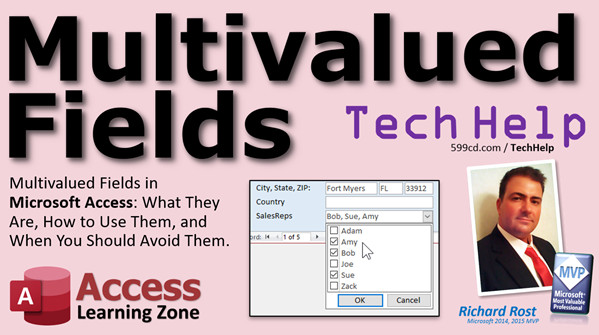
Let me explain. For those of you who might not know what a multi-valued field is, it basically allows you to select multiple options for one field in your table. For example, here I've got a single field called sales reps that can hold multiple values - in this case, Bob, Sue, and Amy. They're useful, as I mentioned a minute ago, because they allow novice users the ability to store multiple values in a single field without having to learn complex relationships or build a junction table.
One thing you shouldn't do is make different multiple fields: sales rep one, sales rep two, sales rep three, sales rep four, and so on, because then you limit yourself to a specific number of sales reps. That should be a relationship to a different table.
In order to create that relationship properly, you need something called a many-to-many relationship. I've got a different video that explains how to do that, but essentially, in a many-to-many relationship, you need to have a third table called a junction table. Right over here, we have drivers and over here, we have cars. For each driver to drive multiple cars and for each car to have multiple drivers, you have to have this thing in the middle called a junction table. Watch this video, my many-to-many video, which is free, if you want to learn how to set this up properly.
Essentially, what Access does is it provides you a hack for the interface. In other words, multi-valued fields really aren't a data type. Microsoft has hacked the interface to basically do a lot of this stuff behind the scenes. They create that junction table for you, but don't really let you see it, so you don't know what's going on. A lot of that behind-the-scenes stuff, however, gets very difficult to work with later on.
If you do decide to graduate to a more powerful database or you learn a little bit more about Access, and you want to start doing some more relationship stuff yourself, then you go back and kick yourself in the butt for making these multi-valued fields. I'm going to show in the extended cut for the members exactly what a pain it is to access some of these fields.
Essentially, if you're a database purist and into database theory, multi-valued fields violate the rules of normalization. These are a set of rules that say what databases should do and should not do, and this is definitely one of the things they should not do. Again, Microsoft is trying to add this feature to get people who don't want to be database administrators or database experts to be able to pick multi-valued fields like this, but they're kind of like putting training wheels on a motorcycle. They might help you out a little bit, but as you get a little bit more advanced, you're going to realize that you really don't want them there.
So, for a very, very simple database that you're not really going to grow, they're okay, but you'll wish you didn't have them later on. There are lots of issues with VBA and SQL. Older versions of Access, for example, couldn't even run an append or a delete query on a table if it had a multi-valued field in it. They fixed that issue since, but this was one of the major reasons why I decided not to use them when they came out back in 2007 or 2010, I think. They've done some fixes on them, but they're still not great.
If you're planning on upgrading your Access database to work online, they're okay if you're using SharePoint lists, but they're not okay if you plan to upgrade to SQL Server. Your multi-valued fields will get converted to an ntext field, which is basically a memo or a long text field, so that makes them useless right there. You'll have to manually go in and break that off into a separate table and make a junction table for it. I've got several other references about why you shouldn't use them. I'm not going to go over all of them in this video. I'll put some links down below in the link section. Go look below the video in the link section, and I'll put some links down there. You can click on them to read why some other people, including some Access MVPs, recommend that you don't use multi-valued fields for all but the simplest of databases.
Let me walk you through setting up a multi-valued field right now so you can see how they work. Again, this is for nothing but the simplest of databases, which is what I recommend using this for. I'm mostly showing this to you because you might inherit a database that someone else built that has multi-valued fields in it, so I want you to recognize them when you see them.
A lot of what we do as Access people is to get stuff that other people tried to build in Access that they had no business building with Access. They haven't even watched my beginner level one class.
So, in my customer form, let's say we want to set up a sales reps field down here where we can pick multiple sales reps. We don't want to go through setting up a junction table, but I am going to suggest that we set up a table for our sales reps. Yes, you can use a lookup that's based on a list, just like you can do with a combo box or a list box. We could type in that list of values in the multi-valued field itself. I don't recommend doing that because if you want to use this list anywhere else, like for example, on your order form, then you'd want that list of sales reps in a table.
Let's create a table design. We need a sales rep ID and a sales rep name. I'm going to keep it simple and it's just those two things for now in the sales rep table. In my sales rep table, I'll put my list of sales reps. We've got Bob, Joe, Sue, Amy, Doug, Getty, Alex, and Neil. Close it down.
Now, there's no way for us to put that information into a single field in our customer table and have each customer assigned to multiple sales reps. I've seen it several times where people did that. I've also seen a lot where you have products in your product table that are assigned to multiple vendors. You might buy a widget A from three different suppliers.
Let's go make a multi-valued field. Go to our customer table, right click design view. Down at the bottom here, we're going to call this sales reps, which I almost never do because I try to keep all my field names singular, but in this case, we're going to put multiple values in one field. It just feels wrong.
Come down here at the bottom, pick lookup wizard. Just like a combo box, you're going to look up the values in a table or query. Like I said, you could type in the values that you want, but then that list lives only in that field and you can't use it anywhere else. I strongly recommend if you're going to use a multi-valued field, at least get that list of values in another table, unless it's something that will never change - like shipping preferences, for example, UPS, FedEx. Even that could change.
Next, where are you getting your list of sales reps from? My sales rep table. If you want to learn how this thing works in more detail, go watch my relational combo box video. I go over this in a lot more detail.
Next, what do you want in here? Bring over both of those fields. The first value is going to be the actual value stored in this table (the ID: one, three, five, six, etc.). But we want to display the sales rep's name when the user is looking at the list of options. That's why we need both of those there. You can sort them; I'm going to sort them by the sales rep name. That's the most logical.
Next, what do you want the list of columns to look like? The key column is hidden. This is the value that actually gets stored in the table. Access is going to hide that for us. We don't need to see it.
Let's click next. What label would you like for the lookup field? Not a big deal. Data integrity is something you can turn on, but if you do, you can't do multiple values. Leave that off. This just means that you can't have, for example, a sales rep get deleted if their values are already assigned to one of the customers. This is referential integrity. I have a whole separate video on that. I'll include a link to that down below as well.
What we want is "allow multiple values." If you do that, it turns that one off. Kind of strange, because you can still turn this on later, but not a big deal for right now.
Hit finish. The table must be saved now. It's going to go ahead and create some relationships for you in the background. In fact, if you come up and click on database tools and then relationships, you'll see this guy here. It puts this relationship together in the relationships window for you: sales reps value. There's actually two different things here. There's the sales reps field and there's the sales reps value, which is the value of each individual item inside that multi-valued field that gets related over to the sales rep ID in the sales rep table. It's creating this weird junctionness in here. You can close that.
Sales reps is now saved as a number of type long integer because it's actually relating to an autonumber in a different table. So that has to be a long integer like any standard relationship. Click on the lookup tab down here, and now you'll see that the row source, just like a combo box in a form, is "select sales rep ID, sales rep name from the sales rep table, order by sales rep name." Again, it looks very much like a combo box.
Let's go ahead and save this and close it. Let's drop it on our form. Open up the customer form in design view. Make some room down here. Go to your add existing fields and look, there it is right down there: sales rep, sales rep's value. Make sure you grab the whole thing, not just the value; grab this whole thing, click, drag, and drop it right there.
This is that label that we talked about a minute ago. I'm just going to do this: click and then format painter and then paste. That makes it black and it's actually easy to read now.
So, sales reps. We'll close this, close our form down, save changes, open it back up again. Here we go: sales reps. There's our list. We've got Getty, Alex, and Neil. Hit ok and there you go. They'll show up in here as just a comma-separated list, but you can't edit that at all. If you try to type over it or type something into it, you can't. You have to drop this box down and use these options.
If you go back and look at the table, you'll see the same thing. Access is actually doing its best to hide what's in there and present this interface to you. Really, what's stored in there is some numbers.
How do we get to those numbers? Let's take a look at how this looks in a query. If you create a query and just bring in your customer table and want to show all your customers with their sales reps (customer ID, first name, last name, and the whole sales reps field, not just the value), you'll see there's a difference.
If I run that, that's what you see. That's okay if you want to just print out a list of each of your customers and their list of sales reps. But what if there's extra stuff assigned with those sales reps, like you want to get the sales rep's phone number or their email address or whatever? You want a list of all your customers and their sales reps, and there is some sales rep data.
Let's hypothetically say our sales reps table has some other bit of data in it, like a phone number. I'll put a couple of phone numbers in here.
Now how do I get that information to show up? As we've done with our relational queries in the past, we can add that table, add the sales reps table. The relationship is formed between the sales reps value and the sales rep ID. Now bring in the sales rep ID, the sales rep's name, and the phone number. Let's see what we get.
Now, Getty, Alex, and Neil each show up with their related information. Maybe they show the same phone number; maybe they live together. You can see for each customer, you're going to get a related record to the sales reps table, even though this thing is still showing all three.
Let's go back here. In our customer form, let's go to another customer, say, Jimmy Kirk. Let's pick some sales reps for him: Amy and Sue. Hit ok, close this, and go back to our query. There you go: you can see Sue and Amy.
I'm going to get rid of this field here to make it a little cleaner. Then you could throw this into a report. You could group by the customer and then you'd see each one of the sales reps and their related information in the detail section.
Let me show you one thing. Let me show you something that happened to one of my other students who was working with multi-valued fields and couldn't understand why the database broke.
He was building a database just like I was showing you there. Now, instead of bringing in the whole block, he brought in just the sales reps.value, dropped it there, saved it, and closed it. Open it back up again. There's a seven. What's that seven for? Well, seven happens to just be one of the values in this list here. Alex, I believe, is seven. Neil is eight, and Getty is six. Now, when you go to the next record, that's still Richard Rost, now it's six, and now there's eight. It's displaying one record for each of the options in the sales reps, and notice that my total list of customers went up. I only have six customers, and now it's showing nine. James Kirk now has two records. That's weird.
Let's get rid of that. I didn't mean to put that in there. Delete, save, close, open it back up again. It's still showing nine, and when I go to the right, I can't figure out why I broke my customer form. What happened? This is one of the problems I have with multi-valued fields: they're extremely erratic. Look what happened when I brought that multi-valued field in. It changed my record source. It changed it to "select customer T.*, sales reps.value from customer T," which is going to have the effect that we just saw. For each customer, you'll have a separate record in there for each of the values in that multi-valued field. It's a mess. Multi-valued fields are just a mess.
So if you're going to work with them, just be aware that you're going to have issues. I'm sorry. I've never liked them. I still don't like them. I've seen them cause more problems than they fix by just not having to build a proper relationship with a junction table.
So that, in a nutshell, is how to use a multi-valued field. Again, I recommend you don't use them, especially if you're watching my channel. I'm assuming you want to be a decent Access developer. Stay away from them if you can.
What should you use? You should use a many-to-many relationship with a junction table. This involves using a subform inside of a parent form where you can very easily do the same thing. Or if you want to get high tech, in my Access Developer 15 class, I show you how to use a multi-select list box. I've done some TechHelp videos on this too. I'll put some links down below. You can click on those and watch these videos if you want to.
In fact, members, in the custom list box video that I just did a little while ago, I show you how to do a multi-select list box in the extended cut for this one. For members, I'm going to show you how to programmatically, with record set loops, access the information inside that multi-select list box. It's not as easy as you'd think. You have to kind of dig in there.
The reason I'm going to teach this to you is because it's very likely that you might encounter someone who's using one of these in a database that you have to work on. I'll show you how you can pull that thing apart, read those items, and use that to put the stuff in a junction table the way it's supposed to be. I'll show you how to add a selected item to that list box as well. That's coming up in the extended cut for the members.
Silver members and up get access to all of my extended cut videos. Gold members can download the databases and have access to my code vault.
How do you become a member? Click on the join button below the video. After you click the join button, you'll see a list of all the different membership levels that are available, each with its own special perks. Silver members and up will get access to all of my extended cut TechHelp videos, one free beginner class each month, and more. Gold members get access to download all of the sample databases that I build in my TechHelp videos, plus my code vault where I keep tons of different functions that I use. You'll also get a higher priority if you decide to submit any TechHelp questions to me, and you'll get one free expert class each month after you finish the beginner series.
Platinum members get all the previous perks, plus even higher priority for TechHelp questions, access to all of my full beginner courses for every subject, and one free developer class each month after you finish the expert classes. These are the full-length courses found on my website, not just for Access. I also teach Word, Excel, Visual Basic, and lots more.
You can now become a diamond sponsor and have your name or company name listed on a sponsors page. You'll be shown in each video as long as you're a sponsor. You'll get a shout out in the video and a link to your website or product in the text below the video and on my website.
But don't worry, these free TechHelp videos are going to keep coming. As long as you keep watching them, I'll keep making more and they'll always be free. Intro In this video, we will talk about how multi-valued fields work in Microsoft Access, including what they are, how to set them up, and situations where you might want to use or avoid them. I will explain the differences between multi-valued fields and proper many-to-many relationships using a junction table, and show you step by step how to create and use a multi-valued field to assign multiple sales reps to a customer. You'll also learn about common problems and limitations that can occur with multi-valued fields and why they are generally not recommended for serious Access development. Quiz Q1. What is a multi-valued field in Microsoft Access?
A. A field that stores more than one value in a single record
B. A field that allows formatted text storage
C. A field used for storing images
D. A field exclusive to SQL Server databases
Q2. Why are multi-valued fields generally discouraged for advanced database design?
A. They take up too much storage space
B. They violate the rules of normalization in database theory
C. They make forms run slower
D. They require unique data types not supported by Access
Q3. For which type of user does Richard recommend the use of multi-valued fields?
A. Expert Access developers building complex systems
B. Beginners with simple, small databases not meant to be scaled
C. Companies transitioning to SQL Server
D. Users needing integration with Excel
Q4. What is the proper way to relate multiple sales reps to a customer in a normalized database?
A. Use multiple fields (sales rep 1, sales rep 2, etc.) in the customer table
B. Store all rep names as a comma-separated list in a single field
C. Create a many-to-many relationship using a junction table
D. Add a multi-valued text field in the customer table
Q5. What does Access do behind the scenes when you use a multi-valued field?
A. It leaves everything in a single table
B. It creates a hidden junction table to store the relationships
C. It stores all values as text in one field
D. It creates separate tables for each value
Q6. What is a major problem when trying to upgrade an Access database with multi-valued fields to SQL Server?
A. Multi-valued fields convert cleanly to a single field in SQL Server
B. Multi-valued fields will be lost and must be manually recreated
C. Multi-valued fields are converted to an ntext (memo/long text) field, making them unusable as relationships
D. SQL Server supports multi-valued fields natively
Q7. What happens if you only bring in the 'value' part of a multi-valued field onto a form in Access?
A. The form becomes faster and more responsive
B. The form displays only one value from the multi-valued field per customer
C. The record source changes and may show multiple records for the same customer
D. The form automatically sorts by that value
Q8. When is it acceptable, according to Richard, to store a fixed set of values directly in the lookup of a multi-valued field rather than in a separate table?
A. When the values will frequently change
B. When the list is used in multiple places in the database
C. When the list will never change, like shipping methods
D. When you need referential integrity
Q9. What is one of the issues older versions of Access had with multi-valued fields?
A. They could not store numbers in them
B. They would not allow append or delete queries on tables with multi-valued fields
C. They did not display correctly in forms
D. They produced too many automatic backups
Q10. What is Richard's recommended alternative to using multi-valued fields for assigning multiple sales reps to customers?
A. Using a single text field with all names
B. Using a combo box that allows multiple selections
C. Using a many-to-many relationship via a junction table and subform
D. Using separate forms for each sales rep
Q11. What visual effect does adding the multi-valued field's '.value' as a field to a form have, according to the video?
A. No effect
B. The form stops displaying customer data altogether
C. The customer list may display more records than actual customers, one for each value in the multi-valued field
D. The list of customers will only show those without sales reps
Q12. What happens to referential integrity when you allow multiple values in a lookup field?
A. It is turned on by default
B. It remains unchanged
C. You cannot enforce it in that field
D. It is strictly enforced and cannot be turned off
Q13. How are the actual values in a multi-valued field stored in the table?
A. As comma-separated text
B. As a single integer
C. As hidden foreign key numbers linked to other tables
D. As a Boolean array
Q14. Which approach is NOT recommended for building relationships between tables for multiple associations (like sales reps to customers)?
A. Using a junction table
B. Using a multi-select list box with a related table
C. Using a multi-valued field for simplicity's sake
D. Building a subform connected to a related table
Answers: 1-A; 2-B; 3-B; 4-C; 5-B; 6-C; 7-C; 8-C; 9-B; 10-C; 11-C; 12-C; 13-C; 14-C
DISCLAIMER: Quiz questions are AI generated. If you find any that are wrong, don't make sense, or aren't related to the video topic at hand, then please post a comment and let me know. Thanks. Summary Today's video from Access Learning Zone focuses on understanding multi-valued fields in Microsoft Access: what they are, how to work with them, and reasons you might want to avoid them in your databases.
The topic comes from a common question about inheriting a database where multi-valued fields were used to track multiple sales reps assigned to each customer. It's an approach many beginners find convenient, but there are important considerations before deciding to use multi-valued fields in your own database designs.
Multi-valued fields have been around since Access 2007 and are intended for very simple database needs. They allow you to pick multiple values for a single field, much like selecting several names from a list to assign to one customer. For users with no intention of becoming professional developers or ever expanding their database, they might seem like an easy solution.
However, once you start tackling advanced tasks, you will notice the limitations and drawbacks. Multi-valued fields are not really a true data type; Microsoft Access simply hides the complexity behind the scenes. It essentially creates a junction table for you, but this is handled out of sight, making troubleshooting and advanced development far more challenging.
If you are curious about what multi-valued fields actually are: they let you store several values in one field, such as listing Bob, Sue, and Amy together for a customer's set of assigned sales reps. This seems handy at first, but it bypasses the standard rules of database normalization. Rather than storing multiple pieces of data in one place, proper database design sets up relationships between tables to manage such connections.
The right way to manage a scenario like "many sales reps to many customers" is to create a many-to-many relationship. This is accomplished by using a third table called a junction table, which holds the links between customers and sales reps. This setup is cleaner, more flexible, and essential if your database will grow or require more advanced features.
While multi-valued fields can appear convenient, you may later regret using them if your database needs to scale, migrate, or interact with external systems. They can present significant issues when working with VBA, SQL, and in particular, migrating data to systems like SQL Server, where multi-valued fields are not supported and will instead convert to long text fields. If you attempt to upgrade your database, you will have to fix these issues manually by moving the data into a proper junction table.
To illustrate the setup, suppose you want to let users assign multiple sales reps to a customer. Instead of storing names directly or making several fields like "SalesRep1" and "SalesRep2," it is better to create a "SalesRep" table containing IDs and names. This not only lets you reference sales reps elsewhere but also keeps the system manageable should you need to use these same people in other parts of the database.
Access offers a lookup wizard that can populate a field in your customer table with a list pulled from the sales rep table. Selecting the option to allow multiple values will create a multi-valued field. Once set up, the relationship behind the scenes links the customer to multiple sales reps, but it is done in a way that hides the mechanics from you. The value stored in your table is actually the ID of the sales rep, but Access shows the name for the user's convenience.
When you add the multi-valued field to a form, you can pick several sales reps from a checklist. In the underlying table, these choices correspond to numeric IDs. In a query, if you want to see the list of customers and their sales reps, the field will show a comma-separated list of names. However, if you want more information about those sales reps, like their phone numbers, you have to form a query that joins the customer table (with its multi-valued field) to the sales rep table. This approach works but is clunky compared to proper junction tables.
Problems can arise when you try to manipulate or display these fields in ways Access does not expect. For example, dragging just the ".value" of a multi-valued field onto a form or report can change your record source, leading to duplicate or unexpected records. Such behavior illustrates why multi-valued fields are unpredictable and often cause trouble, especially for those aiming to work at anything beyond a beginner level.
In summary, multi-valued fields are acceptable only for small, non-expanding databases created by absolute beginners. For anything beyond that, it is best to properly design your tables with many-to-many relationships using a junction table. This sets up your application for future growth and compatibility.
If you want to achieve the effect of selecting multiple items, a better approach is using a subform for a many-to-many relationship or, for those more advanced, using a multi-select list box with VBA to manage selections.
For members, the extended cut includes demonstrations on how to programmatically read values in a multi-select list box, with details on how to loop through selections and convert them into properly normalized relationships using a junction table. There will also be a demonstration of adding items to such a list box.
Silver members and higher get access to all extended cut videos, plus a free beginner class each month. Gold members can download all sample databases, access a vault of VBA code, and receive higher priority for TechHelp questions. Platinum members receive all these benefits plus full access to beginner courses for all subjects and developer classes after completing expert training.
For detailed, step-by-step instruction on everything discussed here, you can find a complete video tutorial on my website at the link below.
Live long and prosper, my friends. Topic List What multi-valued fields are in Access
Situations where multi-valued fields are used
Drawbacks and limitations of multi-valued fields
How multi-valued fields differ from proper database relationships
Why to avoid multi-valued fields in professional databases
How Access implements multi-valued fields under the hood
Impact of multi-valued fields on database normalization
Issues of upgrading databases with multi-valued fields to SQL Server
Creating a sales rep table for lookup values
Setting up a multi-valued field using lookup wizard
Binding a multi-valued field to a form
Displaying selected items from a multi-valued field
Viewing and interpreting multi-valued fields in queries
Joining multi-valued field values to related records in queries
Pitfalls when adding only the .value field to a form
How multi-valued fields can disrupt form record sources
Recommended alternatives to multi-valued fields
Brief overview of setting up a proper many-to-many relationship with a junction table Primary Topics Access multi-valued fields, database normalization, many-to-many relationships, junction tables, lookup fields, relational design, Access forms, query issues, legacy database maintenance
Secondary Topics VBA and SQL problems, SharePoint compatibility, upgrading to SQL Server, subforms, multi-select list boxes, database upgrade paths
|







