Number Field Size
By Richard Rost

 4 years ago
Number Field Size in Microsoft Access. Doubles.
In this Microsoft Access tutorial, I will teach you how to use the correct field size so that your numbers with fractional components (digits after the decimal point) don't automatically round off.
Links
 Keywords Keywords
access 2016, access 2019, access 365, microsoft access, ms access, ms access tutorial, #msaccess, #microsoftaccess, #help, #howto, #tutorial, #learn, #lesson, #training, #database, #fasttips, A decimal value in a column is rounded up or down to an integer value in Access, Avoid Using Decimal Field Sizes, Number Data Types, rounding, numbers keep rounding off
More InformationTranscript Welcome to another fast tips video brought to you by AccessLearningZone.com. I am your instructor, Richard Rost.
In today's video, we are going to talk about number field sizes for beginners in Microsoft Access.
I get asked about this all the time, at least once a week. One of my beginner students says this to me. In fact, I got an email from a new beginner student this morning. He says he is trying to set up a database to track jobs they do painting, and for each job, he needs to track the number of gallons of paint they used to the half gallon.
He says he set up the table and every time he types in a number with a decimal component, like 2.5, Access rounds the number off. Why is it doing that? Can you figure it out?
Just at the table level, with no fancy coding or formatting or anything, it just does that. Do you know what it is?
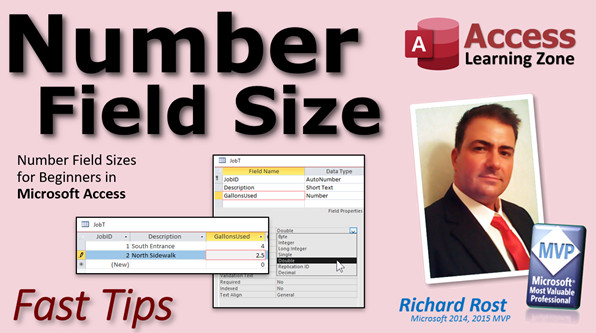
We talk about this in Access Beginner 1. Go into the design view for your table, click on the field, in this case "Gallons Used," and check the field size property down below.
The default field size is "Long Integer." When you create a new number field, it is set to Long Integer. A Long Integer means you can only have whole numbers: 0, 1, 2, 3, 4, and their negatives (negative 1, negative 2, etc.).
If you want to store a fractional component, a number with a value after the decimal point, then I suggest selecting "Double." Drop down that box and pick Double.
There are a whole bunch of different types of field sizes in here. For beginners, the only two field sizes you really need to worry about are Long Integer for counting numbers and their negatives, and Double for fractional values.
A lot of people pick Decimal. Decimals are a little more advanced and have some quirks to them. I talk about these in my full courses. Do not use Decimal. You will probably never use Replication ID. Single is not necessary. Byte and Integer, again, are for pretty advanced purposes if you are trying to save space in your database. For the vast majority of databases, just stick with Long Integer and Double. Those are the only two you have to worry about.
Here I am in my TechHelp free template. This is a free download off my website. You can grab a copy if you want, and you will find a link down below in the link section.
In here, let's say I have a Customer form. I have this Family Size in here. Let's say you are doing some kind of family size aggregate over all the families in the neighborhood. So you have calculated what the family size is, and you want to store that in here, like 2.8, for example.
When I hit Tab, it goes to 3. There is another interesting video you should watch called "Bankers Rounding," because some numbers, if you type in 2.5, they round to 2. If you type in 3.5, it rounds up to 4. Why does it do that? It is something called Bankers Rounding. I have a whole separate video on it. I will put a link down below in the link section. Go watch that too. It is pretty interesting.
For this particular problem, we are going to go into the Customer table design view. Find your field size. Where is Family Size? Right there. Field size down here is Long Integer. We are going to drop this down and pick Double. That is it. Save it. Close it. Open it up. Now I can come in here and type in 2.8, and it saves the fractional value. That is it.
If you want to learn more about this stuff, I cover field properties, field sizes, the Format property, and all this different stuff in my Access Beginner Level 3 class. I talk about the difference between Byte, Integer, Long Integer, Single, Double, and all that different stuff.
Of course, first, start with my free Access Level 1 class. It is four hours long, on my website, and you can watch it for free. It is also on my YouTube channel. Four hours. Go enjoy it, watch it, learn it. We talk about some of this stuff in that class.
If you like Level 1, Level 2 is just a dollar. I go more into form design and stuff. In Level 3, we dig down into field properties and get into a lot more table stuff. I think Level 3 is on my website for about $5. These are not expensive lessons.
I hope you learned something. Those are the number field sizes you have to worry about if you are a beginner. If you are a more advanced user, in my more advanced classes, we talk about them in detail.
Hope you learned something. We will see you next time.
How do you become a member? Click on the Join button below the video. After you click the Join button, you will see a list of all the different membership levels that are available, each with its own special perks.
Silver members and up will get access to all of my extended cut TechHelp videos, one free beginner class each month, and more.
Gold members get access to download all of the sample databases that I build in my TechHelp videos, plus my Code Vault where I keep tons of different functions that I use. You will also get a higher priority if you decide to submit any TechHelp questions to me, and you will get one free expert class each month after you finish the beginner series.
Platinum members get all the previous perks, plus even higher priority for TechHelp questions, access to all of my full beginner courses for every subject, and one free developer class each month after you finish the expert classes. These are the full-length courses found on my website. Not just for Access, I also teach Word, Excel, Visual Basic, and lots more.
You can now become a Diamond Sponsor and have your name or company name listed on a sponsors page that will be shown in each video as long as you are a sponsor. You will get a shout out in the video and a link to your website or product in the text below the video and on my website.
Do not worry, these free TechHelp videos are going to keep coming. As long as you keep watching them, I will keep making more, and they will always be free. Intro In this video, we will talk about number field sizes in Microsoft Access for beginners. I will explain why Access rounds numbers in your tables, the difference between Long Integer and Double field sizes, and which ones you should choose when you need to store fractional values like 2.5 or 2.8. We will look at a simple example of changing a field size in table design view so your number fields can properly store decimal values. This video is perfect for anyone new to Access who wants to avoid common data entry issues with number fields. Quiz Q1. Why does Microsoft Access round off numbers entered with a decimal component in a field set to the default number type?
A. Because the field size is set to Long Integer, which only stores whole numbers
B. Because Access cannot store decimal numbers at all
C. Because the Format property is set to Currency
D. Because decimal values are not allowed in any table
Q2. If you want to store fractional values (numbers with decimal points) in Access, which field size should you select?
A. Single
B. Long Integer
C. Double
D. Replication ID
Q3. For most beginner Microsoft Access users, which two field size types are mainly recommended?
A. Byte and Integer
B. Decimal and Single
C. Replication ID and Currency
D. Long Integer and Double
Q4. What happens if you type 2.5 in a Long Integer field in Microsoft Access?
A. It will store 0.5
B. It will round to the nearest whole number, storing either 2 or 3
C. It will give an error message
D. It will store it as text
Q5. Why might you avoid using the Decimal field size as a beginner in Microsoft Access?
A. It does not support negative numbers
B. It uses too much storage space
C. It has advanced quirks and is unnecessary for most beginner needs
D. It cannot store values above 10
Q6. What is "Bankers Rounding" as mentioned in the video?
A. Always rounding down to the nearest integer
B. Rounding .5 values sometimes up and sometimes down to avoid bias
C. Always rounding up to the next integer
D. Rounding only positive numbers
Q7. Which field size type is NOT recommended for most beginners when working with numbers in Microsoft Access?
A. Double
B. Long Integer
C. Replication ID
D. Double or Long Integer
Q8. What should you do to allow fractional input in a number field in Access?
A. Change the Format property to Decimal
B. Change the field size to Double in design view
C. Change the field name
D. Change the data type to Text
Q9. What happens after you change the field size from Long Integer to Double and save the table?
A. The field accepts decimal numbers like 2.8 and saves them correctly
B. The field converts all numbers to text
C. The field only accepts positive numbers
D. The field removes existing data
Q10. What does the video recommend as a first step for someone who wants to learn more about field sizes in Access?
A. Immediately subscribe to the Gold Membership
B. Take the free Access Level 1 class
C. Watch advanced SQL videos
D. Buy the most expensive course first
Answers: 1-A; 2-C; 3-D; 4-B; 5-C; 6-B; 7-C; 8-B; 9-A; 10-B
DISCLAIMER: Quiz questions are AI generated. If you find any that are wrong, don't make sense, or aren't related to the video topic at hand, then please post a comment and let me know. Thanks. Summary Today's video from Access Learning Zone is all about understanding number field sizes in Microsoft Access, especially for beginners.
This is a question I get every week from students who are just starting out with Access. Just this morning, for example, I received an email from a beginner who is building a database to track paint jobs. He needed to store the number of gallons used for each job, sometimes down to the half-gallon. He set up a table, but every time he tried to enter a decimal value like 2.5, Access would round it off to a whole number. He wanted to know why this happens and how to fix it.
Whenever you create a new number field in Access, the default field size is set to Long Integer. This field type only allows whole numbers such as 0, 1, 2, 3, their negatives, and so on. This means you cannot store values with decimals in a Long Integer field.
If you need to store numbers with a fractional part, you need to change the field size to Double. Go into the table's design view, select your field (for instance, "Gallons Used"), and look for the field size property. From the dropdown, choose Double instead of Long Integer. The Double option allows for storage of numbers with decimal parts.
For beginners, the main field sizes you should focus on are Long Integer for whole numbers and Double for decimal values. There are other options like Decimal, Single, Byte, and Integer, but these are meant for more specialized or advanced uses. Decimal fields, for instance, can behave unpredictably for beginners, and Byte or Integer are typically only used when you need to save space in your database. Unless you have specific requirements, Long Integer and Double are the best choices for most situations.
In my free TechHelp template, which you can download from my website, I demonstrate this in action. Suppose you are recording family sizes and want to store values like 2.8. If the field is set to Long Integer, Access will round 2.8 up to 3. There is also an interesting topic called Bankers Rounding, where Access rounds numbers differently depending on the value after the decimal point. For example, entering 2.5 might result in rounding down to 2, while 3.5 rounds up to 4. I have another video dedicated to Bankers Rounding, and you can find a link to that in the link section below.
To solve the rounding issue, open your table in design view, select the relevant field, and change the field size from Long Integer to Double. Save your changes and you're ready to store decimal values without losing the decimal portion.
If you'd like to explore field sizes, field properties, formatting, and related topics in more depth, I cover all of these in my Access Beginner Level 3 class. There I explain the differences and uses for Byte, Integer, Long Integer, Single, Double, and other properties.
Before enrolling in Level 3, be sure to start with my free Access Level 1 course, which is about four hours long and available on my website and YouTube channel. That will provide you with a solid foundation. If you enjoy Level 1, Level 2 is just a dollar and goes into more on form design, while Level 3, available at a very affordable price, gives you a deeper understanding of table design and field properties.
For those interested in additional learning opportunities, becoming a member unlocks several benefits. After joining, you will see a list of membership levels, each with its own perks. Silver members and above gain access to all extended cut TechHelp videos, receive one free beginner class per month, and more. Gold members can download all of the sample databases used in my TechHelp videos, as well as get access to my Code Vault and receive higher priority when submitting questions. You will also get one free expert class every month after finishing the beginner series. Platinum members receive all previous benefits, even higher priority for questions, access to all my full beginner courses in every subject, and one free developer class each month after completing the expert classes. I teach not just Access, but Word, Excel, Visual Basic, and other topics as well.
Rest assured, the free TechHelp videos will continue as long as there is interest. I will keep making them available.
If you want a complete video tutorial with step-by-step instructions on everything discussed here, you can find it on my website at the link below.
Live long and prosper, my friends. Topic List Setting number field sizes in Microsoft Access
Understanding the default "Long Integer" field size
Storing fractional values using "Double" field size
When to use Long Integer versus Double fields
Effects of field size on data entry and rounding
How to change a field's size in table design view
Rounding behavior in number fields due to field type Primary Topics Access table design, number field sizes, Long Integer, Double, storing fractional values, beginner best practices
Secondary Topics Bankers Rounding, field properties, Access course progression
|





