Rounding
By Richard Rost

 4 years ago
Understanding Int, Fix, Round, Banker's Rounding
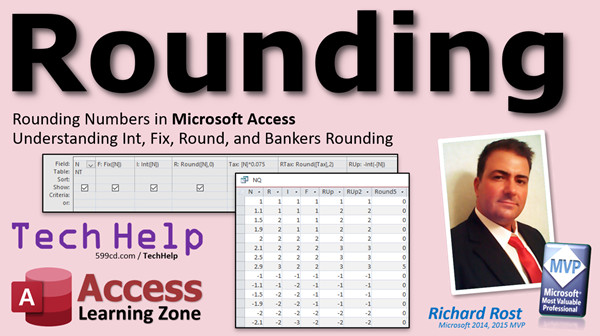
In this video, I'm going to teach you all about rounding in Microsoft Access. We'll look at the Round, Int, and Fix functions and how they're different. We'll learn about Banker's Rounding. Then, we'll see how to round a number to the nearest interval (5, 10, 100, etc.)
Phillis from Winnipeg, Manitoba, Canada (A Silver Member) asks: I need to calculate a commission rate based on monthly sales. The rate is based on whole dollar amounts only, and we chop off any cents. I know about the Round function, but I don't ever want to round up. How can I do this?
Members
Members will learn how to take some of these complex functions and turn them into global VBA functions. We'll make a function called RoundUp to round a number up to the nearest integer. RoundTo will round to the nearest interval (10, 100, etc.). Finally, we'll make a SchoolRound function which rounds the way you were taught in high school, where 1-4 rounds down and 5-9 always rounds up.
Silver Members and up get access to view Extended Cut videos, when available. Gold Members can download the files from class plus get access to the Code Vault. If you're not a member, Join Today!
 Tip Tip
Another way to think of Banker's Rounding is that numbers are always rounded to the nearest EVEN number. So...
- 1.5 would round to 2
- 2.5 would round to 2
- 3.5 would round to 4
- etc.
Suggested Courses
Links
Gold Member Links
Keywords
access 2019, access 2016, access 2021, access 365, microsoft access, ms access, ms access tutorial, #msaccess, #microsoftaccess, #help, #howto, #tutorial, #learn, #lesson, #training, #database, round, int, fix, bankers, Rounding numbers in Access, ms access round to 2 decimal places, nearest penny, nearest dollar, round up, round down, positive, negative, towards zero, away from zero, infinity, bias, nearest 5, nearest 10, nearest 100
 Subscribe to Rounding
Get notifications when this page is updated
More InformationTranscript Welcome to another TechHelp video brought to you by AccessLearningZone.com. I am your instructor, Richard Rost.
In today's video, we're going to talk about rounding numbers in Microsoft Access. I'm going to show you how to use the Int, Fix, and Round functions, and we're going to talk about bankers rounding.
Today's question comes from Phyllis up in Winnipeg, Manitoba, up in the Great White North, one of my silver members. Phyllis says, I need to calculate a commission rate based on monthly sales. The rate is based on whole dollar amounts only, and we chop off any cents. I know about the round function, but I don't ever want to round up. How can I do this?
So, Phyllis, what you're saying is you actually don't want to round that number off. You just want to chop off the pennies. So, a dollar fifty becomes one dollar. For that, you're not going to use the round function. You're going to use the Int function, and I'll explain that in a few minutes.
But first, let's go over why we want to round numbers in the first place. Let's say you charge a sales tax of 7.5 percent. On a $101 order, you're going to have to charge $7.57.5 in tax. And of course, those of us who have watched Superman 3 or the movie Office Space know that fractions of a penny can cause lots of problems. We're talking evil cyborg take over the world problems or at least going to burn the building down problems. But in any case, we don't want those fractions of a penny sticking around long in our database.
Now, keep in mind, when you're dealing with currency values in Microsoft Access, generally they only display two digits. But the actual value with that fraction of a penny is stored in the field. So, over here, for example, if I put 1.757 into a currency field, it's going to display as 1.76 and so on with these other ones. If you don't round each one of these line items off first, and instead you just add them all up, you get two totally different values down here. They're off by a penny, and that can cause problems.
So, from what I understand, it's generally accepted accounting practice to round off each line item, then add all of those up. You don't add them all up first and then round the final value.
Now, there's a couple of different functions we can use to handle our rounding. Next is the round function, which will round to the nearest integer. Values under 0.5 round down, values over 0.5 round up, and values equal to 0.5 use bankers rounding. We'll talk about bankers rounding in just a second, but let's see how this works first in the database.
Here I am in my TechHelp free template. It's a free database. You can download a copy off my website if you want. You'll find the link down below in the links section. We're just going to use a simple table and a query today.
Let's make a real simple table just to hold some numbers. I'll put the value N in there. That's the field name, and it'll be a number of type double. Remember, there are really two field sizes that you want to remember: double and long integer. Forget all the rest of these for now. Those are more advanced. If you want counting numbers, integers, use long integer. If you want anything with a fractional component, pick double, which we need for this example.
Save this. I'm going to call this Nt by number table. Primary key? No, we don't need one. This is just a simple table. For most real tables, I do put a primary key and ID in there, an autonumber, but we don't need it for this one. Save that. Let's close it. Let's open it up and put some values in it. Now, about 1, 1.1, 1.5, 1.9, 2, 2.1, 2.5, 2.9. Let's put their negatives in too. I'm going to copy all these and paste and just make these all negative values. You'll see why in a few minutes.
Now we're going to make a query, use these numbers in the query, and put calculated fields in to show the functions like round and such. If you don't know how to make a calculated query field, go watch my video on it. There's a link right there. You'll find the link down below in the links section below the video. Go watch that if you don't know how to make a calculated query field. It's really easy. I'm going to show you in just a second anyway.
Let's go to Create and then Query Design. Bring in your Nt. Close that and then bring that N down into the query. If I run it now, I just get a list of Ns.
Let's make a calculated query field to round that number off to the nearest integer. So, right down here, we're going to type in our colon. It's going to be round N, just like that. Let me zoom in so you can see it better: round N.
Then run it. There you go. Each one of those numbers is rounded off to the nearest integer. So 1.1 is rounded to 1. 1.9 rounds up to 2, as that's closer than 1. 2.1 rounds to 2. 2.9 rounds up to 3. The same thing with the negatives: that goes to -1, then -2, and then that one's -3.
The interesting thing to note here is the 0.5 values. Notice how 1.5 rounds up to 2, but 2.5 rounds down to 2 also. What is that? Well, that's something called bankers rounding.
So, what is bankers rounding? When you were taught rounding in high school, they said that if the fractional part is 0.5 or greater, you're going to round it up. Less than that, round it down. But the problem now is that more values will be rounded up than down. This works with high school math problems or with a very small set of data. But if you're running an accounting system with thousands of transactions over a long period of time, you're going to see a bias where more values are getting rounded up than down.
What bankers rounding does is it says look at the number to the left of what you're rounding. If that value is odd, then round up. If it's even, round down. That balances out the rounding over a large set of data.
You can see right here, 1.5: the one is odd, so we're rounding up. 2.5: the two is even, so we round down. 3.5, of course, would go up. So, that's bankers rounding. If you don't like bankers rounding, if you want to go with high school rules and always round 0.5's up, I will show you how to deal with that in the extended cut.
Now that brings us to Phyllis's problem. Phyllis wants to always round down. She wants to always chop off fractions - pennies basically - and round down to the nearest dollar. She wants to use the Int function.
Int rounds down to the nearest integer. Negative numbers also round down, so they keep going lower. Let's see how that works. Go to design view. Next column over, we'll make this one int of n. When I run this now, there you go, you can see the Int function. Here you can see 1.1 rounds down to 1. 1.5 rounds down to 1. 2.1 is 2. It basically chops off that fractional component.
But it's different for negative numbers. With negative numbers, it keeps going down. Even negative 1.1 goes down to -2. We're always going lower to the lower integer. Basically, it rounds toward negative infinity on the number line. So, -2.1 goes down to -3. That's Int.
Now, you might not always want that. You might want your positive numbers to round down, but your negative numbers to round up. In other words, you want to round closer to zero. For that, we're going to use the Fix function.
Fix rounds toward zero. So, positive numbers round down, negative numbers round up. Let's do Fix. F is going to be Fix of n. Why Fix? I don't know. I didn't make it.
And yes, if you guys haven't figured out by now, I have a little bit of a head cold going on. So, that's why my voice may sound different from the rest of my videos. Sorry. I just can't keep away from you guys. So, I have to do my daily video. I didn't do one yesterday; I should have done one.
Notice Fix behaves just like Int for the positive numbers. It rounds them down, but the negative numbers get rounded up toward zero. I very seldom use Fix. I use Int all the time though.
Now, what if you want to round up? In other words, you want to do the opposite of what Phyllis is doing. You want to take any number, and any fraction of a penny means you automatically go up to the next dollar. So 1.01 would bring you up to two dollars. There's the formula for it right there: -Int(-n). It's basically saying take the Int of negative whatever your number is and then multiply that by -1. The math works out. It's not very intuitive at all, but it works.
So here's round up. I'll just zoom in for this one here. We'll call this R up, and this is going to be -Int(-n). Yes, this works. You don't have to type in minus one times in here. When you run that, that rounds everybody up. 1.9 goes up to 2. 1.1 goes up to 2. Negative 1.9 goes up to -1. Remember, we're rounding toward positive infinity now.
Again, if that formula doesn't seem intuitive, it's not. I had to look it up myself. I don't use that often. In the extended cut for members, I will show you how to write a VB function to replace that. I'm going to actually call it RoundUp.
And no, we won't spray it on the weeds. See what I did there? I might be sick, but I still have my twisted sense of humor.
Finally, one more. I'll show you how to round to an interval. So, you want to round to the nearest 10 or the nearest 100 or the nearest 5. There's the formula: I is the interval, so it's i times round(n / i, 0). That will round it off. I forgot a closing parenthesis there. Access will yell at you; PowerPoint will not.
There's the function if you want to round to an interval. Round to the nearest 100, you can see over here in the example. Let's see how that works in the database. Let me zoom in again. Let's call this R10, for rounding to the nearest 10. So, it's going to be 10 times round(n / 10, 0).
The comma zero, by the way, is optional. That's how many decimal points you want to round to. Now, when we run this, everybody's rounding down because these are all really small numbers. Let's put some other numbers in here. Let's put a 7 in there, and that rounds to 10. 12 rounds to 10 also. 19, and how about 15? This will also follow bankers rounding.
If I put in 25, it also rounds to 20. You look at the digit to the left of the one that's being rounded. In these cases, we're rounding to the 10's digit.
If you want to round to anything other than a whole number, anything other than an integer, the round function can take a parameter. For example, let's call this R2, and we'll say it's going to be round(n, 2) to two decimal places. Now, instead of rounding to an integer, we're rounding to two decimal places.
When I run this now, let's put some new values in here. If I type in one, I just get a one. 1.5, I still get a 1.5. 1.55, I'll get 1.55. 1.555, I'll get 1.56. It's rounding to two decimal places. 2.555, it's 2.56.
There you go. There's your rounding, your Int, your Fix, your bankers rounding, and lots more.
If you want to learn even more, in the extended cut for members, I'm going to show you how to make functions out of those counterintuitive formulas that we were just using. Who wants to remember how those things work or look them up? No, I just want to have a function called RoundUp or Round2. We'll also do one called SchoolRound, which is my name for a function where I'm going to teach you how to round like it was in school. So, anything that's 0.5 or higher will automatically round up.
I have seen some statistics programs where they do say that you shouldn't use bankers rounding, so you might need that.
If you want to learn even more, in my Access Expert Level 8 class, I cover all kinds of stuff: more with rounding values, bankers rounding, nesting functions, calculating sales tax, all kinds of stuff. That's my Access Expert 8 class. You'll find a link to that down below.
I hope you learned some things today, and we'll see you next time.
How do you become a member? Click on the Join button below the video. After you click the Join button, you'll see a list of all the different membership levels that are available, each with its own special perks.
Silver members and up will get access to all of my extended cut TechHelp videos, one free beginner class each month, and more.
Gold members get access to download all of the sample databases that I build in my TechHelp videos, plus my code vault where I keep tons of different functions that I use. You'll also get a higher priority if you decide to submit any TechHelp questions to me, and you'll get one free expert class each month after you've finished the beginner series.
Platinum members get all the previous perks, plus even higher priority for TechHelp questions, access to all of my full beginner courses for every subject, and one free developer class each month after you've finished the expert classes. These are the full-length courses found on my website, not just for Access. I also teach Word, Excel, Visual Basic, and lots more.
You can now become a Diamond sponsor and have your name or company name listed on a sponsors page that will be shown in each video as long as you're a sponsor. You'll get a shout out in the video and a link to your website or product in the text below the video and on my website.
But don't worry. These free TechHelp videos are going to keep coming. As long as you keep watching them, I'll keep making more, and they'll always be free. Intro In this video, we will talk about different ways to round numbers in Microsoft Access. I will show you how to use the Int, Fix, and Round functions, explain how bankers rounding works, and demonstrate how to round numbers up or down, chop off cents, and round to specific intervals like tens or hundreds. We will also look at how rounding can affect calculations with currency fields and discuss best practices for rounding values in your Access databases. Quiz Q1. What is the main difference between the Int and Round functions in Microsoft Access?
A. Int rounds numbers to the nearest even number, while Round always rounds up.
B. Int always rounds down to the nearest integer, while Round rounds to the nearest integer using specific rounding rules.
C. Int chops off decimal places, while Round changes numbers to text.
D. Int only works with positive numbers, while Round only works with negative numbers.
Q2. What is "bankers rounding" as described in the video?
A. A method where all 0.5 values are rounded up.
B. Rounding is always toward positive infinity.
C. Rounding 0.5 values based on whether the digit to the left is odd (round up) or even (round down).
D. Rounding is always to the nearest tenth.
Q3. When using the Round function in Access, what happens to values exactly halfway between two integers (like 2.5)?
A. They always round up.
B. They always round down.
C. They follow bankers rounding rules.
D. They are not rounded at all.
Q4. What function should you use if you always want to "chop off" the decimal portion of a number in Access, rounding down for both positive and negative numbers?
A. Round
B. Fix
C. Int
D. Ceiling
Q5. How does the Fix function behave differently from Int when used with negative numbers?
A. Fix rounds negative numbers further away from zero.
B. Fix rounds negative numbers toward zero, while Int rounds them further away from zero.
C. Fix and Int behave identically with negative numbers.
D. Fix only works on positive numbers.
Q6. What formula allows you to always round a number up to the next integer in Access?
A. Int(n)
B. -Int(-n)
C. Fix(n)
D. Round(n,1)
Q7. If you wanted to round a number to the nearest multiple of 10 in Access, which formula would you use?
A. 10 + Round(n, 0)
B. n * Round(10, 0)
C. 10 * Round(n / 10, 0)
D. Round(n * 10, 0)
Q8. Which field size should you use for numbers with a fractional (decimal) component in Access tables, as discussed in the video?
A. Single
B. Long Integer
C. Double
D. Byte
Q9. When dealing with currency values in Access, what is a recommended accounting practice mentioned in the video?
A. Add all amounts together and then round the final sum.
B. Round each line item before adding them up.
C. Never round any values in currency calculations.
D. Convert all values to text before calculations.
Q10. In the context of rounding, what does the parameter in Round(n, 2) control?
A. The field size
B. The number of decimal places to round to
C. Whether bankers rounding is used
D. The table name
Answers: 1-B; 2-C; 3-C; 4-C; 5-B; 6-B; 7-C; 8-C; 9-B; 10-B
DISCLAIMER: Quiz questions are AI generated. If you find any that are wrong, don't make sense, or aren't related to the video topic at hand, then please post a comment and let me know. Thanks. Summary Today's video from Access Learning Zone covers the topic of rounding numbers in Microsoft Access. I will demonstrate how to use the Int, Fix, and Round functions, and we will also discuss the concept of bankers rounding.
The question for this session comes from a student who needs to calculate a commission rate based on monthly sales. The commission rate is determined by whole dollar amounts, meaning any cents have to be discarded rather than rounded up. In other words, if the value is a dollar fifty, it should simply be counted as one dollar. To achieve this, we need a method that always rounds down, not just rounding to the nearest whole number. This is where the Int function comes into play rather than the standard round function.
Before getting into specific solutions, it is important to understand why rounding numbers is necessary, especially when dealing with financial figures in applications like Access. For example, calculating sales tax can produce results that include fractions of a penny, which may seem trivial but can cause discrepancies if not handled properly. These tiny fractions can accumulate to real differences over many transactions. Because Access currency data types usually display only two decimal places but store the true value behind the scenes, adding up numbers without rounding each one first can lead to totals that are off by a penny or more. The best practice, and generally accepted in accounting, is to round each line item before summing them.
Now, let's discuss the various functions available for rounding. The first is the Round function, which most people are familiar with. This function rounds a number to the nearest integer, following standard rules: values below 0.5 round down, values over 0.5 round up, and values right at 0.5 follow bankers rounding. Bankers rounding means that for numbers ending in .5, you look at the digit to the left. If that digit is odd, the .5 is rounded up. If it's even, it rounds down. This approach is designed to avoid bias in large datasets where always rounding .5 up can skew results.
If you want to see how this works, imagine a list of numbers in a simple table in Access. Numbers like 1.1 round down to 1, 1.9 round up to 2, and for numbers like 1.5 and 2.5, bankers rounding will determine whether they go up or down. If you instead want to always chop off the fractional part and never round up, that's where the Int function is useful.
The Int function takes any number and removes the fraction, always moving toward negative infinity. For positive numbers, this simply chops off the decimal part. For negative numbers, it rounds further away from zero, so negative 1.1 becomes negative 2. In contrast, if the behavior you want is to round negative numbers toward zero, as opposed to more negative, you'll use the Fix function. Fix rounds numbers toward zero, effectively rounding positive numbers down and negative numbers up to the next whole number.
For those rare occasions when you need to always round up, regardless of the sign, there is a technique using a combination of the Int function with some extra math. Essentially, you take the negative of the Int of the negative of your number, which achieves an upward rounding direction for both positive and negative numbers. While this might not be intuitive, it is a useful trick.
If you need to round numbers to a particular interval, such as the nearest 10, 100, or 5, there is a formula that can be used for that as well. For example, multiplying the rounded result of your number divided by the interval will do the trick. This approach is helpful for situations like rounding to the nearest ten or hundred.
The Round function in Access can also take a second parameter to specify the number of decimal places you want to round to. Rounding to two decimal places is common for currency and other financial calculations.
In today's extended cut, I will demonstrate how to create custom functions in VBA to encapsulate some of these formulas, like the counterintuitive one for always rounding up. I will also introduce a function I call SchoolRound, which replicates the style of rounding most people learned in school, always rounding .5 up. This is useful for those situations where bankers rounding is not desired, or when consistency with other software such as statistics packages is important.
Additionally, if you are interested in learning more about advanced rounding techniques, bankers rounding, or nesting functions for tax calculations, I cover these in detail in my Access Expert Level 8 class. You can find a link to that course on my website.
For those curious about membership options, I offer several levels. Silver members and above get access to all extended cut TechHelp videos and other perks. Gold members can download all example databases and access the code vault. Platinum members benefit from everything mentioned plus even higher priority for submitting questions and access to all my full beginner and expert courses on Access and other subjects such as Word, Excel, and Visual Basic.
You can find a complete video tutorial with step-by-step instructions on everything discussed here on my website at the link below.
Live long and prosper, my friends. Topic List Rounding numbers in Microsoft Access
Using the Int function to round down
Handling currency values with rounding
Round function for nearest integer rounding
Explanation of bankers rounding
Creating a table with double and integer fields
Creating calculated query fields for rounding
Using the Int function with negative numbers
Using the Fix function to round toward zero
Formula to round up using -Int(-n)
Rounding numbers to a specified interval
Rounding to a specific number of decimal places with Round Primary Topics Microsoft Access rounding, Int function, Fix function, Round function, bankers rounding, rounding to intervals, currency field precision, calculated query fields
Secondary Topics rounding up with formulas, rounding to decimal places, field data types (double vs long integer), best practices in accounting
|




