Multi-Table Forms
By Richard Rost

 4 years ago
Editing Records in Multi-Table Forms in Access
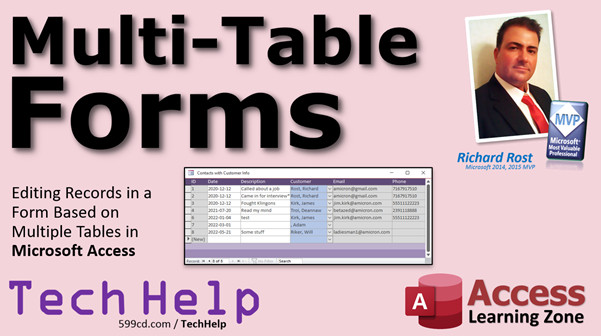
In this video, we're going to discuss the best way to edit data in a form that is based on fields from multiple tables.
Lina from St. Petersburg, Florida (a Platinum Member) asks: I've got a form based on a query with 4 different tables in it. It seems like whenever I make changes to one of the fields, strange things happen. Sometimes I can't add a new record. Sometimes I get an error message. Sometimes I think I'm editing one field and I end up changing 3 other things. What am I doing wrong?
Members
Members will see how to safely allow the user to edit fields in a form based on multiple tables by warning the user and asking if they're sure. We'll also see how to quickly open up another form to edit related data.
Silver Members and up get access to view Extended Cut videos, when available. Gold Members can download the files from class plus get access to the Code Vault. If you're not a member, Join Today!
 Suggested Course Suggested Course
Links
Keywords
access 2016, access 2019, access 2021, access 365, microsoft access, ms access, ms access tutorial, #msaccess, #microsoftaccess, #help, #howto, #tutorial, #learn, #lesson, #training, #database, microsoft access form based on multiple tables, Multiple Table Forms in Microsoft Access, How do you Create a form based on multiple tables in Access, subform, locked, Forms Involving Multiple Tables
More InformationTranscript Welcome to another TechHelp video brought to you by AccessLearningZone.com. I am your instructor, Richard Rost.
In today's video, we're going to be talking about editing records in a form based on multiple tables in Microsoft Access.
Today's question comes from Alina in St. Petersburg, Florida, just a hop, skip, and a jump away from me. Alina says, I've got a form based on a query with four different tables in it. It seems like whenever I make changes to one of the fields, strange things happen. Sometimes I can't add a new record. Sometimes I get an error message. Sometimes I think I'm editing one field and I end up changing three other things. What am I doing wrong?
Well, Alina, honestly, you really want to try basing your forms off of one table at a time. If you want to display information from other tables, that's okay, and I'll show you how to do that in just a minute. But you cannot reliably edit records from multiple tables in a form that's based on a query with lots of different tables in it.
I've literally had people send me forms that are based on queries like that. I just have to tell them, the query is way too complicated. You have to scale that down a little bit. Most of the time, what will happen if your query is too complex? You'll get an error message. It says, this recordset is not updateable. That means you have to simplify the query that the form is based on.
I have a whole video based on this, so go watch this one. I'll put a link down below for you. But, Alina, let's go through an example of how to properly set up a form that might be based on multiple tables.
First, some prerequisites. The database I'm going to be using is my blank template. So if you haven't watched this one, go watch this video. Also, watch the contacts video. We're going to add contacts to it. In order to add contacts and customers together, you have to know how relationships work. Watch the relationships video if you don't know how to relate two tables together. While you're at it, watch this one too: Relational combo boxes where you can pick a customer on the order form, for example.
These are all free videos. If you don't understand any of these concepts, go watch these. They're on my YouTube channel and my website. You'll find links you can click on down below in the description.
Let's say we want to build a form based on just two tables. We'll keep it simple: just two tables, customers and contacts. If you watched those other videos, you'll know I have a customer form, and each customer can have multiple contacts. The contact is when you basically talk to that customer or do something for them. It's all about a job, came in from an interview, etc. Each one of these is a contact. Not a person, a contact.
So let's say you want to build a form showing all of the contacts and the related customer information. Let's build a query. Create query design. I am going to bring in the contact table and the customer table. I want a list of contacts and the related customer information.
What do I want to see from the contact table? I want to see the contact ID and the date, and let's say the description. Then, next to that, I want to see who the customer was: first name, last name, and let's say phone number. I am going to save this, control S, as my contact Q, my contact query. Now when I run this, that's the information that I see. That looks good. That's pretty much all I want right now.
I've got the contact date, I've got a description, and I can see who the contact was for. Notice that the customer information might double up because these two contacts are for this same customer. That's fine. I can come over here and change things if I want to. That's not a problem.
Can I change the customer information over here? Let's see. Be careful with that. When you make a change over here, you're not changing stuff in the contact table. Now you're changing information in the customer table. Every one of those records for that customer will be updated with the new information in the customer table. So be careful about that.
If you've got multiple tables, you might not realize what field a table is coming from unless you're very careful about it.
What about adding new records? Let's come over here and try to add a new one. Let's add a new contact down here. I'll start typing in something. Wait, I can't do it. What's happening? Down here, look: it cannot add records. Join key of table contact.t is not in the recordset. What does that mean? I don't have the join field listed here.
What's the join field? What joins these two things together? The customer ID. Let's go back and add the customer ID. Here's customer ID. Let's run it. Now let's try to add. Hold on. Microsoft Access Database Engine cannot recognize... If I find a record in the customer's view, the matching field... What does that mean? It can't create the relationship between these two because you don't have customer ID from this table in there as well.
It's only a head escape. Customer ID. Again, right click, design view, bring in the customer ID from this table. Now you have two of them. Run it. Now I've got a second new one over here. Now I've got customer T and contact T dot customer ID. See, this just gets really complicated and complex. You have to be careful which one is from what table, and it's just messy.
Can you do it? Yes. At this point, now we can add a record here. Make sure we join these up properly. So this contact, let's give it customer two and then it'll link it up to James Kirk. But you see, this is messy, and this is only two tables. If you have three or more tables in here, it gets pretty crazy.
So moving forward, I want you to keep this thought in your head: when you're going to build a form, the form itself should only be based on one table. One table that you're going to edit the information from. If you want to edit the customer information, make it based on the customer table. If you want to edit the contact information, base it on the contact table.
Now, you can bring in additional fields to display information like just displaying this stuff in the form, that's not a problem. But you don't really want to let the user edit that stuff. If they want to edit that, open up the customer form to edit that.
Let me show you what I mean. Let's go back in here. Let's get rid of this customer ID from the customer table. We don't want that there. I'm going to bring this customer ID and slide this over to the left. I want to keep all my contact T stuff together. This is the stuff I can edit, and then this stuff over here, I want to have there so we can display it. But we're not going to let the user change this stuff.
We're not going to let our users work directly in queries. Let's go build a form off of this. If you look at this here, this is okay. I can safely edit this stuff, but we don't want the user to change this stuff because it gets messy.
Here's what we're going to do: save this, close it. If you watched those other two videos I pointed you to, you'll know there's a customer list, and I can double click on one of these customers to open up that customer's form. I can click on Contacts over here to open up this Contacts form. That's the way to get to it if you want to edit the Contacts.
There's also another form that I built: the customer with Contacts. This is how I prefer editing stuff like this. You've got the customer over here and you have Contacts as a subform on the main customer form. Want to learn more about subforms? I have a subforms video. I'll put a link down below.
Since I've already got a contact form built, let's just modify this. Let's make a copy of it first. Copy, paste. We'll call this the Contact List F. What we're going to do is approach this from a different angle. Instead of pulling up the customer and seeing his contacts, I want to pull up a list of all the contacts and see the related customers.
This form is based on my contacts table. Let's change it now to the contact query. What is this going to do for us? Now I can use those other fields that I pulled into that query to display information about the customer.
Just to keep things easy, I'm going to get rid of the stuff down here. We don't need this. We'll keep the example simple. I've got the contact date and the description. Now I'm going to bring over the first name, last name, and phone number right into the detail section. I can get rid of these labels here: delete, delete, delete. There's first name, last name, and phone number.
Let's size these to the grid real quick. Size to grid. We'll shrink that up. Save it and open it back up again. Looks like the results we had in the query, but I don't want the user to be able to edit this stuff because again, we get in messy territory.
What I'm going to do is right click, design view, lock those fields. I'm going to select all of these, right click, go to properties, and then find the data tab and set locked to yes. That's going to prevent the user from editing these fields. We don't want them to be able to edit those fields. That's when crazy stuff starts to happen.
Additionally, I like to make them a light gray. That way you can still see what's in there, but it visually tells the user you can't mess with this stuff. You can't change it here.
So, save it, close it, and then open it back up again. Now you have a nice concise list of all your contacts. You can see the contact information and then information for who it's with. This is handy if you're doing your follow ups, for example. You want the list of all the contacts and people you have to follow up with, and right here, handy, is their name and phone number.
But you don't want the user to be able to come in here and click on this stuff and mess with it.
Could you let the user change this information by changing, for example, the customer ID? Sure. We could put a combo box here so they can pick who the customer is for this contact. I already have a customer ID combo box built on my order form. This is a combo box right here. I cover building that combo box in my invoicing video if you want to go watch that. It's basically based on this query here that's got customer last name and first name put together into one field. We concatenate those things.
But I can steal this combo box. Right click, design view. We can copy this guy, copy, close that, close that. Let's come back to that contact list form, design view, and I'll just paste it right in here. I'll make some room for it. So we'll slide this over. This box has last name and first name in it, so I don't even need those fields now. Delete those, delete that, slide this up here, slide that over like that.
Save it, close it, and then open it up again. There we go.
Now I am seeing two fields from the contact table. This is actually based on the contact table because the only customer ID in this query that we made is from the contact table. We can't edit information that we bring in from any other tables.
So, if we're back in the contact query, for example, if you want to add email address, go ahead. Right click, design view. You want to see his email address? Add that. Save it, close it. Go back into this form. Let's pick the right one, design view, and then we can add that here. Add existing field, there it is, drag it in, drop it there, get rid of that label, slide it up here, and then I will use the format painter and just copy the format from this phone, format painter, and then paste. Let's see what we have. Save it, close it, again.
Looks good. Now, if I decide I want to change, let's say this fought the Klingons wasn't James Kirk, let's say it was Picard. Change it to Picard, and look at that. This information changes because we changed who the contact was from.
If I add a new one down here, new contact, I have to specify who it is, and then his information gets pulled in. We don't have a phone number for him now.
Now, there's a different direction you can approach this from. The bottom line is, you want to have just one table in a form that is the table you are allowed to edit. If you want to edit the other fields in that table, you have to go about it a different way.
Now, in the extended cut for the members, I will show you a couple of different things. First, we'll make a double-click event, so you can double-click on the customer here and open up the customer form. That's easy. I've showed you that before in a bunch of different videos. Then we'll also make it so you can edit these fields. But we'll pop up a prompt that says, "Are you sure you want to edit the email address in the customer table?" We're going to prompt the user and say, just so you are aware, we're going to be changing data in a different table, and you have to ask if they're sure. It will say yes or no. That's going to be covered in the extended cut for the members.
Silver members and up get access to all of my extended cut videos and gold members get the code vault and they can download these databases. Hope you learned something and we'll see you next time.
How do you become a member? Click on the join button below the video. After you click the join button, you'll see a list of all the different membership levels that are available, each with its own special perks.
Silver members and up get access to all of my extended cut TechHelp videos, one free beginner class each month, and more.
Gold members get access to download all of the sample databases that I build in my TechHelp videos, plus my code vault where I keep tons of different functions that I use. You'll also get a higher priority if you decide to submit any TechHelp questions to me, and you'll get one free expert class each month after you've finished the beginner series.
Platinum members get all the previous perks, plus even higher priority for TechHelp questions, access to all of my full beginner courses for every subject, and one free developer class each month after you've finished the expert classes. These are the full-length courses found on my website, not just for Access too. I also teach Word, Excel, Visual Basic, and lots more.
You can now become a diamond sponsor and have your name or company name listed on a sponsors page that will be shown in each video as long as you are a sponsor. You'll get a shout out in the video and a link to your website or product in the text below the video and on my website.
But don't worry, these free TechHelp videos are going to keep coming. As long as you keep watching them, I'll keep making more and they'll always be free. Intro In this video, we will talk about editing records in a Microsoft Access form when your data comes from multiple tables. I will explain why it is best to base your forms on a single table, how to display related information from other tables without causing editing problems, and common issues you might see if you try to edit records in forms built from complex queries. We will walk through building a form that shows data from both customers and contacts, discuss the use of subforms and locked fields, and show how to safely display, but not edit, related information. Quiz Q1. What is the recommended approach for designing forms in Microsoft Access when working with multiple tables?
A. Base the form on a query with all required tables and allow editing of all fields
B. Create a separate form for each table and only allow editing through its own form
C. Base the form on a single table and display related fields from other tables as read-only
D. Always use unbound forms with VBA to manage updates manually
Q2. What problem commonly occurs when basing an Access form on a complex query with multiple tables and trying to edit records?
A. The form becomes too slow to load
B. The query results disappear
C. The recordset is often not updateable and unpredictable changes may occur
D. Access automatically merges all tables into one
Q3. When using a query that includes fields from both "contacts" and "customers" tables, what is a potential risk if a user edits the customer information from the form?
A. Only the displayed record is edited in the contacts table
B. Multiple unrelated records may be deleted
C. All records for that customer in the customer table will be updated
D. The contacts data will be duplicated
Q4. Why might Access display an error like "Join key of table contact.t is not in the recordset" when trying to add a new record through a query-based form?
A. Because the primary key field from the main table is missing in the query
B. Because not all tables are included in the query
C. Because the query includes too many fields
D. Because the form is unbound
Q5. What is a safer design pattern for allowing users to view but not edit related data from another table in a form?
A. Make all fields editable regardless of their source
B. Hide related fields from the user entirely
C. Display related fields using locked (read-only) controls
D. Use macros to prevent all changes to the form
Q6. When should you use a subform in Access?
A. Whenever you want to enter data into multiple tables at once
B. To allow data entry for one table and display related records from another table in a parent/child relationship
C. Only when you want to create charts
D. To replace queries entirely
Q7. If you want to let a user change which customer is associated with a contact in a form, what Access control is typically used for this selection?
A. Text box
B. List box
C. Combo box
D. Check box
Q8. Why is it a good idea to differentiate locked (read-only) controls visually, for example with a gray background?
A. To remind users not to use those fields for calculations
B. To help users quickly identify which fields are not editable
C. To save memory in the database
D. To meet Access security requirements
Q9. What is the best practice if a user needs to edit customer-related fields shown on a contact form?
A. Allow editing of all customer fields on the contact form directly
B. Ask users to open the customer's form to edit those specific fields
C. Use VBA code to automatically update both tables
D. Prevent editing customer fields entirely
Q10. What approach is suggested in the video for handling edits to fields from related tables?
A. Only allow editing of fields from the main form's source table
B. Allow editing of all related fields through queries
C. Require users to re-enter all data each time
D. Never display related table data in the form
Answers: 1-C; 2-C; 3-C; 4-A; 5-C; 6-B; 7-C; 8-B; 9-B; 10-A
DISCLAIMER: Quiz questions are AI generated. If you find any that are wrong, don't make sense, or aren't related to the video topic at hand, then please post a comment and let me know. Thanks. Summary Today's video from Access Learning Zone focuses on how to properly edit records in a Microsoft Access form when those records are derived from multiple tables.
A viewer, Alina from St. Petersburg, Florida, wrote in with a common problem. She has a form based on a query that includes four different tables. She finds that when she tries to change a value in the form, unexpected things occur. Sometimes she is unable to add a new record, she receives error messages, and in some cases, finds that editing one field inadvertently changes several other fields as well.
This kind of issue typically arises from the practice of basing a form on a query that combines several tables together. While Access allows you to display information from multiple tables, trying to edit fields from more than one table in a single form can quickly become unreliable and confusing.
My general advice is to base each form on only one table—the table containing the records you intend to edit. If you wish to show additional information from other tables, that is possible, but you should avoid allowing users to edit that related data directly in the same form. Otherwise, Access often presents you with errors like "this recordset is not updateable" which usually indicates your query is too complex for editing.
If you need a refresher, I have dedicated videos on these foundational topics. I suggest you look at my blank database template, the contacts tutorial, and the explanation of table relationships if you are not familiar with how two tables relate. I also recommend watching my segment on relational combo boxes, which is helpful when you want to pick a customer for an order form.
Let's walk through a straightforward example using just two tables: customers and contacts. In my example, each customer may have several contacts, representing activities or communications with that person. The goal is to build a form that displays all contacts and their related customer information.
I start by creating a query that includes both the contacts and customers tables. From the contacts table, I select the contact ID, date, and a description. From the customers table, I add the first name, last name, and phone number. This gives me a clear overview of each contact along with the customer's relevant information. However, because one customer can have many contacts, the customer details may be repeated for each associated contact.
It's important to understand that when you edit the customer fields in such a query, you aren't modifying the contact record—you are actually changing the shared data in the customers table. So if you update a phone number, you will affect every contact for that customer. You need to pay close attention to which fields originate from which tables to avoid accidental changes.
Adding new records to a query that draws from multiple tables usually causes problems unless you specifically include the necessary join fields from each table—such as customer ID from both tables. Failing to do this will result in errors about missing join keys or unmatched fields. Even if you get it working, the process can quickly become convoluted and hard to manage as soon as you try to involve three or more tables.
The bottom line is that the table underlying your form should be the only one directly editable. If you want to edit customer details, base the form on the customers table. If it's contacts, base your form on the contacts table. You are free to display related data, but for editing, keep it to one source.
To keep the displayed data organized, you can bring customer fields into your form for visualization, but you should set these fields to locked. This prevents users from inadvertently altering the data. I recommend setting the locked fields' background color to a light gray to provide a visual cue that these fields are read-only.
A practical workflow I prefer is to rely on main forms with subforms. For example, display the customer information on a main form and include the contacts as a subform. If you are unfamiliar with subforms, see my subforms video for more guidance.
Another approach is to use a list form for contacts, displaying related customer details as locked fields. If you want to allow users to change which customer is assigned to a contact, you can implement a combo box for selecting the customer. There is an invoicing lesson that walks you through creating a customer selection combo box that concatenates the customer's last and first names for easy selection. Simply copy that combo box setup into your contacts form.
Once these changes are implemented, users can add new contacts and assign them to customers using the combo box, but they won't be able to edit customer details directly from the contacts form. If you want users to see more data, like email addresses, you can add those as locked display fields as well.
Should you need to edit a customer's details, you should provide a way to open the customer form directly, perhaps with a double-click event on the customer name. This keeps editing responsibilities clear and prevents unintended data changes.
For those interested in advanced functionality, in the extended cut for members, I demonstrate how to set up a double-click event that opens the customer form directly from the contacts list. I also show how to add a confirmation prompt whenever a user attempts to edit customer data from the contacts form, warning them that they are about to change data in another table and asking for confirmation before proceeding.
If you are interested in accessing the extended cut videos or downloading sample databases, you can become a member of my site. Silver members and above get access to all extended cut videos and at least one free beginner class each month. Gold members can download all sample databases and access the code vault, gaining priority for TechHelp questions and one free expert class per month. Platinum members receive those benefits and also access to full-length courses on Access, Word, Excel, Visual Basic, and more. Platinum members also receive a free developer class per month. My free TechHelp videos will always be available, so as long as you keep watching, I'll keep creating new content.
You'll find a complete video tutorial with step-by-step instructions covering everything mentioned here on my website at the link below.
Live long and prosper, my friends. Topic List Problems with editing forms based on queries from multiple tables
Why forms should be based on a single table for editing
Displaying data from related tables in a form
Building a query that joins two tables for a form
Handling updateability and join key errors in queries
Identifying and managing join fields in Access queries
Adding and displaying related table fields without editing
Locking fields on a form to prevent editing
Visually distinguishing locked fields for users
Using a combo box to select related records in a form
Copying and modifying a combo box for related data selection
Adding display-only fields from related tables to a form
Combining customer info in a contact-based form
Editing lookup fields with combo boxes while keeping integrity Primary Topics Access forms design, editing records, multi-table queries, recordset updateability, linking tables, subforms
Secondary Topics relational combo boxes, join fields, field locking, displaying vs editing data, visual cues, membership perks
|







