Military Time
By Richard Rost

 4 years ago
Enter and Display Military Time in Microsoft Access
In this Microsoft Access tutorial, I'm going to show you how to display military time, and how you can enter times without having to type in a colon separator.
Links
Suggested Courses
 Keywords Keywords
access 2016, access 2019, access 2021, access 365, microsoft access, ms access, ms access tutorial, #msaccess, #microsoftaccess, #help, #howto, #tutorial, #learn, #lesson, #training, #database, #fasttips, Show Date and Time with Military Time, 24 hour time in Access, Convert regular time to military time
 Subscribe to Military Time
Get notifications when this page is updated
More InformationTranscript Welcome to another Fast Tips video brought to you by accesslearningzone.com. I am your instructor, Richard Rost.
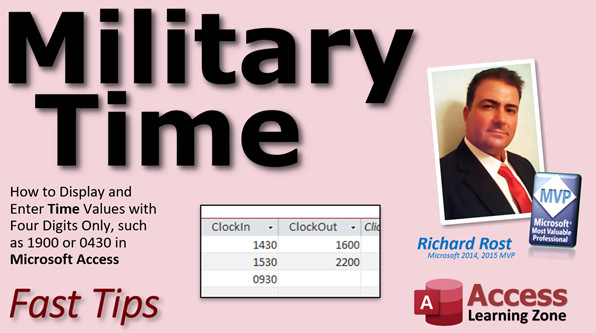
In today's video, I am going to show you how to display and enter time values with four digits only, or military time, such as 1900 or 0430.
Before we get started, if you are not familiar with the format property, go watch my format video. It is free on my website. On my YouTube channel, I will put links down below you can click on. You should also be familiar with the input mask property and how to use those, so go watch that video too. They are both free.
If you have a field that you want to store just a time value in, not a date time, but just a time value, such as clock in and clock out for a time clock table, you can set the format property to Short Time and it will display like you see right there: 17:34. That is 24-hour time.
However, military time generally does not have that colon separator. If you try to type in a new value like 0450 without the colon separator, you get an error message: "The value you entered does not match the date time data type in this column," and it will not let you do it.
You can change the format property to just hhnn. Remember, n is for minutes because m is already used for months. If we put the format property in as hhnn, the time will be displayed without the colon separator. However, you still have to type in that pesky colon. Otherwise, you get an error message.
This is where our friend, the handy input mask, comes in. Set the input mask to 00:00. What that says is 0 means you have to enter a digit there and the colon will just display an actual colon. You do not have to type it in because it is part of the input mask, and the data that gets saved in the table does not include that colon, but Access will convert this over to a proper time.
Now you can actually type in values like 1900 or 1450 and they are converted to proper time values. You might sometimes see that colon separator while you are typing in the field, but you can pretty much just ignore it and type the four digits.
Here is my table. If I come in here and hit Tab, I type in 0730 and it takes it just fine. 1530, and so on. You can see that colon pops up, especially when you are entering new values. If you are typing over an existing one, it does not display it. If you add a new record down here, like 1300, same thing.
If your goal is for your data entry people to just be able to tab to 1300, tab to 0700, tab, whatever, and not have to type in that colon, then this technique works great. You will also see the full time value in the field if you click on it, but unfortunately, that is unavoidable with this simple technique. In other words, if you click on one of these fields, you are going to see "10:00 PM" and there is really no easy way around that. To do something else would require some VB programming and gets a little more complicated at that point.
If you want to also capture the date value, I suggest putting it in a separate field. For example, here I have a work date date field. Remember, do not just call it "date." Date by itself is a reserved word because it is a function. Here, I have the default value set to Date. That will take today's date and put it in that field, so if you are entering in your clock in and clock out for today, you do not even have to type in the date.
If you want to learn more about the default value property, I have a video for that too. I will put a link down below.
This also works, by the way, if you only have people clocking in and clocking out and it does not span over midnight. If you do a shift that can go from 11 PM to 6 AM the next day, then you will need two different date fields. If it is just shift one, shift two type work, where it is 9 to 5, this will work just fine.
This will allow you to type in the date just once or get it by default value and then enter each separate time only, without having to type in date and time for both fields. Instead of typing "1/1 1430" and then "1/1 1600," you just type in the date once and then the clock in and clock out times.
You can always put those values together to make a full date time value with a calculated query field. If you do not know what calculated query fields are, go watch that video. Links are down below.
Here, for example, I create a calculated clock in date time field, which is the work date plus the clock in time. Remember, date time values are basically numbers, so I can take a date and add just a time to it and we get that time on that date. For example, I have January 1st at 1430, so now we get over here the full date time: January 1st at 2:30 PM. Now it is easy to do calculations on both of these.
If you want to get fancy, you could even say, if the clock out time is less than the clock in time, add a date to that. You would use a little IF function in there. I am not going to cover that today, but if you want to see how to do that, let me know. I will make another video. You could say, if this value is less than that value, add one to this. Of course, that assumes that you never have shifts that go over, say, 12 hours. Otherwise, someone could theoretically clock in at 2 PM on Monday and clock out at 3 PM on Tuesday. Then we are violating some kind of law somewhere.
There you go. There is the quick and dirty on military time if you want to just type in values without having to type in a colon. It is not perfect, but it is close enough.
Unfortunately, you do have to type that leading zero also. You cannot just type in 930 and have it turn into 0930, so you have to tell your people they have to type in all four digits. There is not an easy solution around that. Again, we can do everything if you want to get into some VBA programming. I would make that basically a text field and then format it accordingly and store the actual value in an underlying field, but that is a lot more advanced.
I will make videos to show you whatever you want to see, so if I have enough people interested, I will do it. Just put a comment down below and we will go from there.
I hope you learned something with this tip and we will see you next time. Enjoy.
How do you become a member? Click on the Join button below the video. After you click the Join button, you will see a list of all the different membership levels that are available, each with its own special perks.
Silver members and up will get access to all of my extended cut TechHelp videos, one free beginner class each month, and more.
Gold members get access to download all of the sample databases that I have built in my TechHelp videos, plus my Code Vault where I keep tons of different functions that I use. You will also get a higher priority if you decide to submit any TechHelp questions to me, and you will get one free expert class each month after you have finished the beginner series.
Platinum members get all the previous perks, plus even higher priority for TechHelp questions, access to all of my full beginner courses for every subject, and one free developer class each month after you have finished the expert classes. These are the full length courses found on my website, not just for Access. I also teach Word, Excel, Visual Basic, and lots more.
You can now become a Diamond sponsor and have your name or company name listed on a sponsors page that will be shown in each video as long as you are a sponsor. You will get a shout out in the video and a link to your website or product in the text below the video and on my website.
Do not worry, these free TechHelp videos will keep coming. As long as you keep watching them, I will keep making more and they will always be free. Intro In this video, I will show you how to set up time fields in Microsoft Access to display and enter four-digit military time values, such as 1900 or 0430, without needing a colon separator. We will look at using the format and input mask properties to simplify data entry for time-only fields, like clock in and clock out times. I will also discuss how to handle related date fields, combine dates and times in a calculated query, and ensure your data entry process is efficient for military time. Quiz Q1. What is the primary purpose of using the input mask property when entering military time in Access?
A. To automatically add the colon separator as you type
B. To ensure the time is stored as text
C. To allow users to enter four-digit time values without typing the colon
D. To convert military time to AM/PM format
Q2. Why do you have to use 'n' for minutes in Access format strings instead of 'm'?
A. Because 'm' is used for months in Access
B. Because 'n' stands for noon
C. Because 'm' is not recognized by Access
D. Because 'n' is the default
Q3. When entering a new military time such as "1900" into a time field formatted as Short Time, what happens if you do not enter the colon?
A. Access automatically corrects the value
B. An error message is displayed, and entry is blocked
C. The value is stored as text
D. The value is ignored
Q4. What does setting the input mask to 00:00 accomplish in the context of time entry?
A. Lets users type any format for time entry
B. Requires users to enter the colon manually
C. Displays the colon while typing but does not require it to be typed
D. Prevents entry of times with leading zeros
Q5. If you want to track both the date and the time of a clock-in event, what is the recommended setup in the video?
A. Use one field for both date and time together
B. Use two separate fields, one for date and one for time
C. Only keep the time field and ignore the date
D. Store everything as plain text
Q6. Why should you avoid naming a field "date" in your Access tables?
A. It's not descriptive enough
B. It's a reserved word in Access
C. It causes formatting issues
D. It makes input masks not work
Q7. What issue arises if a shift spans over midnight, from 11 PM to 6 AM the next day?
A. Only the time is recorded, not the date
B. You need two separate date fields
C. Access cannot store times past midnight
D. You cannot calculate total hours
Q8. How does Access treat date and time values in terms of storage?
A. Date and time values are stored as text strings
B. Date and time values are stored as separate data types
C. Date and time values are stored as numbers
D. Only time is stored; date must be calculated
Q9. What is one limitation of the technique shared in the video for entering military time using input masks?
A. Users can enter three-digit times
B. Users must always type a leading zero for times before 10 AM
C. Times cannot be displayed in PM format
D. The colon is always required
Q10. How can you create a full date-time value for calculation when using separate fields for date and time?
A. By manually entering both into a single field
B. By using a calculated query field to add the date and time together
C. By formatting the time field as a date-time type
D. By setting the default value on the time field
Answers: 1-C; 2-A; 3-B; 4-C; 5-B; 6-B; 7-B; 8-C; 9-B; 10-B
DISCLAIMER: Quiz questions are AI generated. If you find any that are wrong, don't make sense, or aren't related to the video topic at hand, then please post a comment and let me know. Thanks. Summary Today's video from Access Learning Zone covers how to work with military time, or four-digit time values, in Microsoft Access. I will explain how you can display and enter times like 1900 or 0430, using only four digits and without a colon separator.
Before starting, it is helpful to understand the format property and input masks in Access. If you are not familiar with these, I recommend checking out my videos on these two topics. They are both available for free on my website.
Suppose you have a field in your table where you want to store just the time (not both the date and time), for something like a time clock system that tracks when employees clock in and out. If you set the format property to Short Time, Access displays entries in 24-hour format, such as 17:34. However, typical military time does not include a colon, which poses a problem if you want your users to simply enter values like 0450 without typing the colon. If you try this in Access, you receive an error because the data does not match the expected date/time data type.
You might think of switching the format property to "hhnn." In this case, "n" stands for minutes because "m" is used for months in Access formats. Setting the format to "hhnn" does display the time without a colon. However, even with this change, Access requires you to include a colon when you enter new values. Otherwise, you still get a data entry error.
This is where the input mask property is helpful. By setting the input mask to "00:00," you tell Access that users must enter two digits, then the colon appears automatically, followed by two more digits. The colon itself is not actually stored in the data, but Access converts the input into the appropriate time value. With this setup, users can easily enter values like 1900 or 1450, and Access converts these into correct time data. While you might see the colon pop up as you are typing, you can simply ignore it and focus on entering the four digits.
For practical use, when you enter your time values, you can just type in, for example, "0730" or "1530." The colon will appear as you type, but you do not need to manually enter it. In your data entry process, this allows users to keep tabbing between fields and entering times quickly—no need to type the colon. Just keep in mind that if you click into one of these fields, Access will display the full time value, which might include something like "10:00 PM." This cannot be easily changed without getting into more advanced solutions, such as programming with VBA.
If you also need to record the date alongside the time, I suggest using a separate field for the date. Call it something other than just "date," as "date" is reserved in Access. Set the default value of this field to "Date," so it automatically enters today's date for you. This way, if you are entering clock in and clock out records for today, you do not need to enter the date every time.
This solution works well for shifts that do not cross over midnight. If your shifts do run overnight, you will need two separate date fields, one for the start and one for the end. For standard shifts, such as 9 AM to 5 PM, this simple approach will work fine and clients only need to enter the date once. Then you can enter separate clock in and clock out times as needed.
If you ever need to combine the date and time values for calculations or reporting, you can easily create a calculated query field in Access. Combine the date field with the time field in your query to create a full date/time value, making calculations much simpler. For example, you might have a calculated "clock in date time" that adds the work date and clock in time together, resulting in a single, complete timestamp like January 1st at 2:30 PM.
If you need to handle overnight shifts, you could add logic so that if the clock out time is less than the clock in time, a day is added to the clock out time. This could be done with an IIF function in your query or in VBA code, but that is a bit more advanced. If you are interested in seeing how to do this, let me know and I can make a video on that topic.
Overall, this is a straightforward way to allow users to enter military time using just four digits, without typing a colon. There are some limitations. For instance, users still need to enter a leading zero for times before 10 AM (like 0930 instead of 930). There is not an easy workaround for this without writing VBA code and setting up your own formatting. If enough people are interested in a more advanced solution, I am happy to make a video covering that.
I hope you found this tip useful. If you have any questions, suggestions, or topics you would like to see covered, leave a comment.
If you would like access to additional content and perks, I offer several membership levels. Silver members and higher get access to extended cut TechHelp videos, a free beginner class each month, and more. Gold members can download all of my sample databases and enter my Code Vault for VBA functions. They also get a higher priority for TechHelp question submissions and receive a free expert class monthly. Platinum members get all the above benefits plus access to all my full beginner courses in every subject, one free developer class each month, and even higher priority for questions.
Rest assured, I will keep making free TechHelp videos as long as there is interest. You can find the complete video tutorial, along with step-by-step instructions on everything we discussed, on my website at the link below.
Live long and prosper, my friends. Topic List Displaying and entering time values as four-digit military time
Setting the format property to display short time
Understanding the difference between short time and military time formatting
Using the input mask property to facilitate four-digit military time entry
Configuring input mask 00:00 for time entry
How Access formats and stores time values with input masks
Demonstrating data entry with four-digit military time
Limitations of four-digit time entry regarding the leading zero requirement
Structuring tables with separate date and time fields
Using the default value property to auto-fill today's date
Combining date and time fields into a full date/time value in queries
Adding time to a date using calculated query fields in Access
Considerations for overnight and split-shift scenarios with date and time fields Primary Topics Microsoft Access, military time entry, time field formatting, input mask property, date and time storage, calculated query fields
Secondary Topics date fields, data entry best practices, handling overnight shifts
|




