If Then
By Richard Rost

 4 years ago
If, Then, ElseIf, Else, End If, in Microsoft Access VBA
In this Microsoft Access tutorial, I'm going to show you how to program If, Then, ElseIf, Else, End If conditional statements in Visual Basic for Applications (VBA)
Recommended Course
Links
 Keywords Keywords
access 2016, access 2019, access 2021, access 365, microsoft access, ms access, ms access tutorial, #msaccess, #microsoftaccess, #help, #howto, #tutorial, #learn, #lesson, #training, #database, #fasttips, if-then-else statement, if, if/then, if then, if then else, if then elseif end if, can you do if then statements in access, If... Then... Else Statement, Using If Then ElseIf in VBA, conditional statements, ms access if statement with three conditions, ms access if statement with two conditions vba
 Subscribe to If Then
Get notifications when this page is updated
More InformationTranscript Welcome to another Fast Tips video brought to you by AccessLearningZone.com. I am your instructor, Richard Rost.
In today's video, I'm going to teach you how to use IF, THEN, ELSEIF, and END IF in your Microsoft Access Visual Basic. You can consider this a beginner's advanced lesson.
In our VBA, our Visual Basic for Applications programming, we use an IF...THEN statement to control what happens in the execution of the program. For example, IF grade is equal to A, THEN message box the word "Excellent." We have a field or a variable called grade, and if that's an A, then we're going to pop a message box up on the screen saying "Excellent." You have to say it like Bill and Ted. Excellent.
If you want multiple things to happen and want to issue multiple commands if that grade is A, then we use multiple lines and the words END IF to end that particular branch of the statement. So if grade equals A, then we're going to say "Excellent," and we're going to set score equal to 90. What is score? It could be another variable or a different field on your form. Doesn't matter. Whatever score is, it's going to get set to 90, and then we're done.
If you want to do one thing or do another thing, we're going to use ELSE. So for example, if state equals New York, then set the tax rate equal to 0.08. ELSE, if it's not New York, set the tax rate equal to 0, and END IF.
If you want to check for two conditions, this or that, you could use two separate IF statements, but it's logically better to use ELSEIF. It's one word. In some other languages, it's two words. Be careful: I used to program in C, and it's two words, but in Visual Basic, it's one word, ELSEIF.
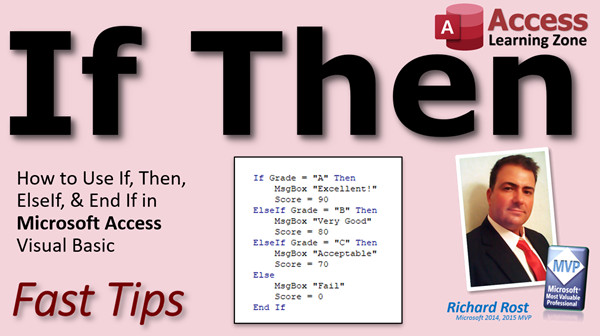
So if the grade is equal to A, then message box "Excellent" and set the score to 90. ELSEIF grade is B, then message box "Very good" and set the score to 80, and then we're done. Either A is going to happen or B is going to happen, or nothing might happen. If the grade is C, in this particular case, nothing happens. It's going to check for A (nope), check for B (nope), if it's C, nothing happens.
You can have multiple ELSEIFs inside of our statement to check for as many different criteria as we want to check for. We'll check for A ("Excellent"), B ("Very good"), ELSEIF grade is C, then message box "Acceptable," and you have to say that as a very disappointed dad: "Acceptable." Score is 70.
If you want to account for any other possibility, you'd put an ELSE after all of your ELSEIFs. So you'd say IF grade is A, ELSEIF grade is B, ELSEIF grade is C, and then anything else - if it's D, F, whatever - it's going to be message box "Fail," score is zero, you don't get to pass, and you're done.
You want to make sure that you indent for readability. See how I have the commands indented under the IFs and the ELSEIFs. Visual Basic doesn't care, but I care. Your teacher cares. It makes your code more readable for other people and for you in the future.
I've gone back and tried to figure out some code that I wrote 20 years ago, and I'm like, what was I doing? I didn't format it, I didn't put comments in. Trust me, future you will thank you when you go back to reread your code later. Indent for readability, please. If you post some of your code in my forum for me to help you with and it's not indented, no help.
There are some shortcuts you can take. For example, True is assumed. Instead of typing IF isActive = True, let's say that's a checkbox, then do that. You can just say IF isActive. The = True is assumed.
Here's another shortcut. I don't personally do this often because I think it makes the code difficult to read, but you might see this on some forums, some websites, and some books. You can use colons to separate commands instead of doing it like this. I think this is better and easier to read, but for brevity, if you're trying to keep your code short, this is equivalent to this. So IF isActive THEN x = 5: y = 7: Exit Sub is the same as that. I'm just putting that there so you know what it is if you see it.
That's it with the IF THEN statement. If you want to learn more, watch my Intro to VBA video - it's free, it's on my website, on my YouTube channel. There's the link; you'll find it down below. You can click on it as well. I cover IF THEN ELSE and a lot more in my Access Developer Level 1 class.
If you really want to learn how to be an Access VBA programmer, there are no better lessons than my Access Developer series. I have tons of lessons available. We cover all the ins and outs of developing Visual Basic with Microsoft Access. Right now, I'm on Developer Level 38, so there is lots of stuff on my website. Come check it out.
Hope you learned something in this Fast Tips video and we'll see you soon.
How do you become a member? Click on the Join button below the video. After you click the Join button, you'll see a list of all the different membership levels that are available, each with its own special perks.
Silver members and up will get access to all of my extended cut TechHelp videos, one free beginner class each month, and more.
Gold members get access to download all of the sample databases that I build in my TechHelp videos, plus my code vault where I keep tons of different functions that I use. You'll also get a higher priority if you decide to submit any TechHelp questions to me, and you'll get one free expert class each month after you've finished the beginner series.
Platinum members get all the previous perks, plus even higher priority for TechHelp questions, access to all of my full beginner courses for every subject, and one free developer class each month after you finish the expert classes. These are the full-length courses found on my website, not just for Access; I also teach Word, Excel, Visual Basic, and lots more.
You can now become a diamond sponsor and have your name or company name listed on a sponsors page that will be shown in each video as long as you are a sponsor. You'll get a shout-out in the video and a link to your website or product in the text below the video and on my website.
Don't worry, these free TechHelp videos are going to keep coming. As long as you keep watching them, I'll keep making more, and they'll always be free. Intro In this video, we'll learn how to use IF, THEN, ELSEIF, and END IF statements in Microsoft Access Visual Basic for Applications (VBA). I'll show you how to structure conditional logic, handle multiple possible outcomes with ELSE and ELSEIF, and provide tips for writing clear and readable code, including proper indentation and shortcuts you might see in other examples. This tutorial is great if you are starting with VBA in Microsoft Access and want to understand how to control your program's flow with IF statements. Quiz Q1. What is the primary function of the IF...THEN statement in VBA?
A. To loop through records in a database
B. To control program execution by making decisions
C. To create new database tables
D. To import data from Excel
Q2. How do you perform multiple actions for a single IF condition in VBA?
A. Use multiple IF statements without END IF
B. Use a single line of code separated by commas
C. Place actions on separate lines and close with END IF
D. You cannot perform multiple actions for one IF
Q3. What is the correct way to handle an alternative action if the IF condition is not true?
A. Use ELSE after the IF statement
B. Use SELECT CASE
C. Use DO WHILE
D. Use GOTO statement
Q4. What keyword does VBA use for multiple condition checks within a single IF structure?
A. ELSE IF (two words)
B. CASE THEN
C. ELSEIF (one word)
D. WHEN ELSE
Q5. Which of the following will NOT trigger any action in the provided example using IF...ELSEIF for grades A, B, and C?
A. A
B. B
C. D
D. C
Q6. What purpose does the ELSE block serve when used after a series of ELSEIF statements?
A. It repeats the previous actions
B. It handles any remaining unspecified conditions
C. It terminates the program
D. It creates a loop
Q7. Why is indentation in VBA code recommended?
A. VBA will not run code unless it is indented
B. Indented code executes faster
C. It is for readability and easier code maintenance
D. It is needed for data validation
Q8. What shortcut can you use when checking if a Boolean variable is TRUE?
A. IF variable = FALSE
B. IF NOT variable
C. IF variable (without = TRUE)
D. IF variable = 'Y'
Q9. What is the purpose of using colons in VBA IF...THEN statements?
A. To indicate a comment line
B. To separate multiple statements on one line
C. To define a data type
D. To start a new block
Q10. In VBA, why might you avoid putting multiple commands on one line separated by colons?
A. It is illegal syntax in VBA
B. It is more difficult to read and maintain
C. It slows down your program
D. It causes runtime errors
Answers: 1-B; 2-C; 3-A; 4-C; 5-C; 6-B; 7-C; 8-C; 9-B; 10-B
DISCLAIMER: Quiz questions are AI generated. If you find any that are wrong, don't make sense, or aren't related to the video topic at hand, then please post a comment and let me know. Thanks. Summary Today's video from Access Learning Zone covers how to use IF, THEN, ELSEIF, and END IF statements within Microsoft Access VBA. I consider this a beginner's advanced lesson, a step beyond the basics but not too far in.
In VBA, the IF...THEN statement allows us to make decisions in our program by controlling the flow based on conditions. For instance, let's say you have a variable or field named grade. If grade is equal to "A", you might want to notify the user with a message box saying "Excellent." When you want to do more than just display a message, such as setting another value like score to 90 if the grade is "A", you use multiple lines between the IF and END IF statements. This way, any commands you want to perform if the condition is true, you place between IF and END IF.
Sometimes, you will want different outcomes depending on your data. When you want the program to do one thing if a condition is true, and something else if it's false, you add an ELSE statement. For example, let's say you want to set the tax rate to 0.08 if the state is New York, and 0 otherwise. Use an IF condition with ELSE, and close it out with END IF.
When you have more than two possible outcomes, you can chain conditions using ELSEIF. It is one word in VBA, unlike some other programming languages which split it up. For instance, you could check if grade is A, then display "Excellent" and set score to 90. If not, check if grade is B, then display "Very good" and set score to 80. If neither A nor B, nothing happens unless you add more conditions.
You can include as many ELSEIF statements as you need to check all possible values. For example, you might want to display "Acceptable" for grade C and set score to 70. If you also want to catch anything not explicitly checked for, add a final ELSE at the end. So after checking for A, B, and C, if the grade is anything else, you could display "Fail" and set score to zero to indicate they did not pass.
Even though Visual Basic does not require it, I always recommend using indentation to keep your code easy to read. Indented blocks below each IF, ELSEIF, and ELSE make the intent of your code much clearer, especially if someone (including yourself) revisits it later. I have tried to untangle old code I wrote that was not indented or commented, and it is much easier to understand code that is formatted neatly.
There are some useful shortcuts. For example, you do not need to explicitly compare a Boolean value to True. You can just write IF isActive instead of IF isActive = True, and it works the same way.
Another shortcut you might see involves using colons to put multiple commands on one line. For example, you could write several assignments after an IF condition, all separated by colons. While this is valid, I recommend avoiding this for the sake of code readability, but you will sometimes see it in forums or books.
If you want to explore VBA further, I recommend watching my free Introduction to VBA video, available on my website and YouTube channel. I cover these IF, THEN, ELSE statements in more detail during my Access Developer Level 1 class.
For those interested in a deeper dive into Access VBA programming, my Access Developer series is an excellent resource. I have created many detailed lessons that walk you through all aspects of building solutions in Access using VBA. With over 38 levels to explore, there is a wealth of material on my website.
If you found this Fast Tips video helpful, be sure to explore the rest of my resources.
Anyone interested in becoming a member can choose from different membership levels, each offering unique perks. Silver members and above get access to all extended cut TechHelp videos, one free beginner class each month, and more. Gold members can download the sample databases built in my TechHelp videos, access my code vault full of useful functions, submit questions with higher priority, and get a free expert class each month after finishing the beginner series. Platinum members enjoy all that, plus even higher question priority, access to all my full-length beginner courses, and a free developer class monthly once they finish the expert classes. These courses go beyond Access, covering Word, Excel, Visual Basic, and more.
Your ongoing support allows me to keep producing and sharing free TechHelp videos for everyone who is learning Access. As long as there is demand, I will continue creating them.
You can find a complete video tutorial with step-by-step instructions on everything discussed here on my website at the link below.
Live long and prosper, my friends. Topic List Using IF THEN statements in VBA
Executing commands based on IF condition
Using END IF to end an IF block
Combining multiple commands in an IF block
Using ELSE for alternate actions
Using ELSEIF for multiple condition checks
Nesting multiple ELSEIF statements
Handling a default case with ELSE
Code indentation for readability
Assumed True condition in IF statements
Using colons to separate commands in one line Primary Topics Access VBA, IF THEN statements, ELSEIF, conditional branching, message boxes, code readability, shortcuts in VBA
Secondary Topics variable assignment, score grading logic, membership benefits (brief mention)
|




