Weekday
By Richard Rost

 4 years ago
Weekday, WeekdayName Functions in Access
In this Microsoft Access tutorial, I'm going to show you how to display the day of the week (Sunday, Monday, etc.) in your queries, forms & reports.
Pre-Requisite
Recommended Courses
Links
Usage
- DayOfWeek: Weekday([OrderDate])
- DayOfWeekName: WeekdayName([DayOfWeek])
- DayOfWeekName: WeekdayName([DayOfWeek],True)
- DayOfWeek: Weekday([OrderDate],2)
- Defaults: vbSunday = 1, vbSaturday = 7
 Keywords Keywords
access 2016, access 2019, access 2021, access 365, microsoft access, ms access, ms access tutorial, #msaccess, #microsoftaccess, #help, #howto, #tutorial, #learn, #lesson, #training, #database, #fasttips, Weekday function, WeekdayName function, How do I get the day of the week, Which method returns the weekday, VBA WEEKDAY, How to Get the Day of Week Using VBA, vbmonday, vbsunday, vba first day of week, firstdayofweek, day of week name from date
 Subscribe to Weekday
Get notifications when this page is updated
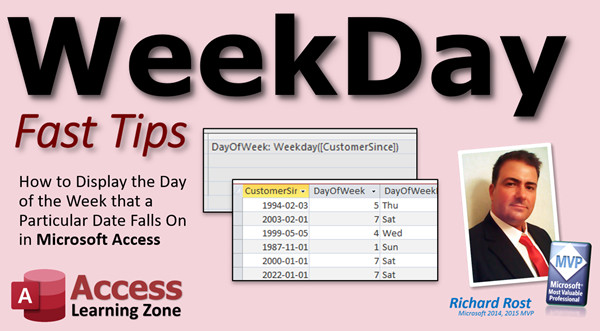
More InformationTranscript Welcome to another Fast Tips video brought to you by AccessLearningZone.com. I am your instructor Richard Rost. In today's video, I am going to show you how to display the day of the week that a particular date falls on in Microsoft Access.
You have a database and you have some dates. Let's say order dates, for example. For your reporting, you want to know what day of the week that falls on. Maybe you want to figure out what day of the week your shop is the busiest, for example.
Let's go ahead and create a query. Create Query Design. You can use this function in a query, in a report, in a form, or in your VBA - pretty much anywhere you want. I will bring in my Order table and close that. Let's just bring in the OrderID and the OrderDate.
Then, right here, I am going to create a calculated query field and use the Weekday function. If you have never made a calculated query field before, go watch this video on calculated fields. It's free. It's on my website and my YouTube channel. You will find a link down below. Click on the "More" button and you will find all this information below the video. Go watch this first and then come back.
I am going to come right here and create a calculated query field. Let's make some room. I am going to call this "DayOfWeek:" (that's the name I assigned to it), then I am going to use the Weekday function: =Weekday([OrderDate]). Just like that. Press Tab, and let me zoom in so you can see that better. I'll hit Shift+F2. There it is.
I do not use any spaces in the field names, so I do not need those brackets, but Access will put those on there for me. If you use spaces in your field names, then you should put those brackets on yourself, otherwise you will get errors. Hit OK.
Now run the query, and there we go. There is the day of the week. I am using the ISO date standard, which is year-month-day, so that everyone internationally knows what it is. I have a video on that too if you do not know what that is. Again, there is another free video for you, but the date format you are using does not matter.
What this function returns is a number representing the day of the week. The default is: 1 is Sunday. If you look on Microsoft's website, you will find that the default is Sunday = 1.
If you want to change that value, you can specify an optional first day of the week. That is what this "FirstDayOfWeek" parameter is. If you want your first day of the week to start on Monday, just change that parameter to 2. Here is how you do it:
Go back to design view. Come in here (I'll zoom in again so you can see it better) and put a ,2 right after the field name. In the query, you have to use the numbers. If you are using VBA, you can use those constants.
In VBA, you can actually type in "vbMonday" and Access will understand what that is. You cannot use that in a query.
Hit OK, then run this again, and now you can see these values have changed because now day 1 is Monday. If you look at the calendar, here is January 14, 2021, which is right there. That is day 4, because that is day 1 - so 1, 2, 3, 4.
I almost never use this. I have never had anyone in my 30 years of building Access applications want to change the first day of the week. So I just always stick with the default, which is Sunday. But sometimes, you get clients who might want to do things differently.
Let's put that back to the default, which is Sunday. There we go. Now this day of the week number is not of much use unless you are trying to count some kind of differences between something.
Normally, what you want to see is the weekday name, like Monday, Tuesday, Wednesday. For that, we use the WeekdayName function.
Let's call this "DayOfWeekName" or whatever you want to call it. We are going to use the WeekdayName function, and we are going to send to it that number that we just got, which is DayOfWeek. Or you could put "Weekday([OrderDate])" inside those parentheses too if you only want to do this in one field.
I will zoom in so you can see it better. There it is - that's my DayOfWeekName: WeekdayName([DayOfWeek]). Ready? There you go. That's Thursday, Thursday, Sunday.
If you want to abbreviate it, then come in here after WeekdayName, and go ,True. True means you want to abbreviate it.
Hit OK, run it, and there you go. There is the abbreviated version.
How did I know that? Well, Microsoft has a function guide for pretty much everything in Access, Excel, and everything else. You just have to know where to look for it. Part of my job is to teach you what is available.
Now that you know there is a function called WeekdayName, now you know how to use it. Just Google it, you will find it. WeekdayName takes three bits of information: the weekday (the number itself), the "abbreviate" parameter (a true or false Boolean value), and then there is the first day of week option again, which you can change as well.
That is how you do it in a query. Pretty straightforward and simple.
How do you do it in a form or report? You just make a text box and display that.
Let's say, for example, this is a delivery date and you want to put next to it what day of the week it falls on, to make sure your people do not schedule something for Sunday. Just come in here. I will copy this one, copy and paste, slide it over here. We will get rid of that label that comes with it.
Open this guy up. I will call this just "wDay" or whatever you want to name it. Now, the control source "CustomerSince" is a date. So we have to first get the weekday of that date. We have to convert it to a weekday first.
Go in here, and say: =Weekday([CustomerSince]). That will give us a number. Save it back over here. That is a 5, but I do not want the 5. I want to see Sunday or whatever the weekday name is.
This is where you do two of them at once. You come in here, and now you take that whole thing and feed it into the WeekdayName function. So you say: =WeekdayName(Weekday([CustomerSince])).
If you want to abbreviate it, put True right there. That is how you double those functions up. Hit OK, save it. I am going to close it, then open it back up again, and there is a Thursday. See? If I change that to today, it is a Friday.
What I like to do is make these so the user knows they cannot change that. That is because it is a calculated field and you cannot update that. So just make it gray. That is just for display purposes only.
There you go. There is your weekday function. If you want to learn more about date functions, I covered them in exquisite detail in my Access Expert Level 27 and 28 classes. It is a two-part series on all the date and time functions that come in Microsoft Access. I do a comprehensive guide to functions.
This is part three, but if you want just dates and times, go to 27 and 28. All kinds of different stuff are in here. If it has to do with dates and times, I cover it in these two classes.
I also have this thing called a Date/Time Seminar, which again covers everything that has to do with dates and times, and tons of functions and ways to use these dates and times and all these functions. All kinds of cool stuff in here.
I will put links to everything I talked about in today's video in the links down below.
If you like this, make sure you give me a thumbs up, like this video, and share it with your friends. If you have any questions, post them down below in the comments section. Hope you learned something today. Intro In this video, I will show you how to display the day of the week for a given date in Microsoft Access. We will use the Weekday and WeekdayName functions to show both numeric and text representations of weekdays in queries, forms, and reports. I'll explain how to use these functions, change the first day of the week if needed, and display abbreviated weekday names. You'll learn practical ways to use these features for your database reporting and forms. Quiz Q1. What function is used in Microsoft Access to determine the numeric day of the week from a date?
A. DayName
B. Weekday
C. DateValue
D. GetDayOfWeek
Q2. In Access, what does the default value 1 correspond to when using the Weekday function?
A. Monday
B. Friday
C. Sunday
D. Saturday
Q3. Which function can be used in Access to display the actual name (like Monday or Tuesday) of a weekday from a number?
A. GetDay
B. WeekdayName
C. DateName
D. DayOfName
Q4. If you want the first day of the week to start on Monday in the Weekday function inside a query, which parameter value should be used?
A. 0
B. 7
C. 1
D. 2
Q5. How can you obtain the abbreviated weekday name (Mon, Tue, etc.) using the WeekdayName function?
A. Add ,False as the second parameter
B. Add ,True as the second parameter
C. No way to abbreviate in Access
D. Use a separate function called AbbrevWeekdayName
Q6. When using field names with spaces in Access queries, what should you do to avoid errors?
A. Use double quotes around the field
B. Use parentheses around the field
C. Use square brackets around the field
D. Do nothing special
Q7. In a query, how would you display both the weekday number and the weekday name for an OrderDate field?
A. Use the Week function twice
B. Use Weekday([OrderDate]) for the number and WeekdayName([DayOfWeek]) for the name
C. Only WeekdayName([OrderDate])
D. Only Weekday([OrderDate])
Q8. What is recommended when adding a calculated weekday name field to a form so users know it cannot be edited?
A. Set the background color to red
B. Make it hidden
C. Make it gray to signal it is not editable
D. Set it as the default value
Q9. In VBA, which of the following can be used as a parameter to specify Monday as the first day of the week in Weekday?
A. MondayFirst
B. 1
C. vbMonday
D. No option is available
Q10. Which of the following is NOT true about the WeekdayName function in Access?
A. It can return abbreviated weekday names
B. It requires a number input representing the weekday
C. It only works in macros, not in queries or forms
D. It allows specifying the first day of the week
Answers: 1-B; 2-C; 3-B; 4-D; 5-B; 6-C; 7-B; 8-C; 9-C; 10-C
DISCLAIMER: Quiz questions are AI generated. If you find any that are wrong, don't make sense, or aren't related to the video topic at hand, then please post a comment and let me know. Thanks. Summary Today's video from Access Learning Zone focuses on how to display the day of the week for a specific date in Microsoft Access. This is useful if you have a database with various dates, like order dates, and you want to analyze on which days your business is busiest or generate reports based on that information.
To get started, you can use Microsoft Access to set up a query. Begin by opening the Query Design view and bring in the relevant table, such as your Orders table. You'll want to include fields like OrderID and OrderDate in your query. One of the strengths of the function we're discussing today is that it works not only in queries but also in forms, reports, and even in VBA code, so it is very versatile.
To calculate which day of the week a date falls on, you can create a calculated field in your query using the Weekday function. If you're not familiar with how to make calculated fields in queries, I have a separate video that covers this topic in detail which you'll find linked on my website. I recommend watching that first if you need a primer.
In your query, assign a name to your calculated field, such as DayOfWeek, and use the Weekday function to return the numeric value representing the day of the week for a given date. For example, the default setting makes Sunday equal to 1, Monday to 2, and so on through Saturday as 7. It's important to note that if you use spaces in your field names, you need to add brackets around them, otherwise Access might give you errors.
Once you run the query, you'll see the numeric day of the week for each date. The particular date format you use doesn't affect the function, although for consistency and clarity, I recommend using the ISO date standard, which is year-month-day.
If you want a different day to be considered the start of the week, such as Monday instead of Sunday, you can specify this using an optional parameter in the Weekday function. Simply change this parameter in your calculated field. In queries, you'll use the corresponding numeric code; for VBA, there are constants like vbMonday. Switching the first day of the week will adjust the numbering accordingly.
Although in my experience, most clients stick with the default of Sunday as the first day of the week, it's good to know how to change this if the need arises.
While seeing numbers can be useful for certain calculations, you will likely want to display the actual name of the day, such as Monday or Thursday, instead of a number. For this, use the WeekdayName function. You can define another calculated field, perhaps called DayOfWeekName, and use the WeekdayName function to convert the numeric weekday value into a name. If you only want this result in one field, you can nest the Weekday function directly within WeekdayName.
If you prefer to see an abbreviated version of the weekday, like Mon instead of Monday, the WeekdayName function has an option for that as well. By setting the abbreviate parameter to True, you will get three-letter day names.
All of these functions and their parameters are documented on Microsoft's website, and I make it a point to familiarize my students with what is available, as knowing which functions exist and how to use them is very powerful.
The same logic applies when you want to display the weekday on a form or report. Create a text box control, and set its control source to use the WeekdayName and Weekday functions, referencing the desired date field. This makes it easy, for example, to display the delivery day next to a delivery date in order to help avoid scheduling on undesired days such as Sunday.
To make sure users understand that the weekday field is not meant to be edited, I usually set its background to gray, making it clear that it is for display purposes only.
If you are interested in a deeper understanding of date functions, I have covered them extensively in my Access Expert Level 27 and 28 classes, which are a two-part series focusing on all the date and time functions available in Access. There is also a Date Time Seminar that explores these concepts in even greater detail.
You can find a complete video tutorial with step-by-step instructions on everything discussed here on my website at the link below. Live long and prosper, my friends. Topic List Creating a calculated query field to show the weekday number
Using the Weekday function in a query
Setting the first day of the week in the Weekday function
Displaying the weekday name using the WeekdayName function
Abbreviating the weekday name with the WeekdayName function
Nesting Weekday and WeekdayName functions together
Using weekday functions in forms and reports
Making calculated fields display-only in forms Primary Topics Access date functions, Weekday function, WeekdayName function, calculated fields, query design, form textbox controls, date display formatting Secondary Topics ISO date standard, abbreviating weekday names, first day of week parameter, read-only display controls |




