Lottery Numbers 2
By Richard Rost

 4 years ago
Counting Winning Lottery Numbers in Microsoft Excel
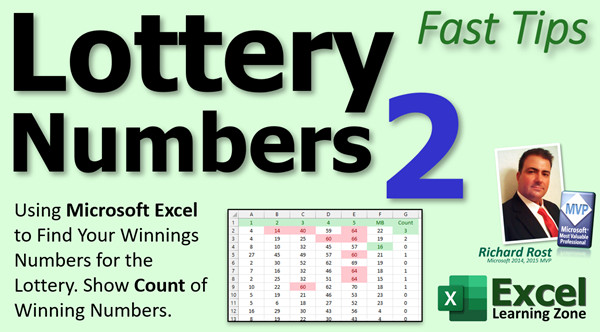
In today's video, I'm going to show you how to take our Lottery Numbers spreadsheet from last week and display the count of the winning numbers for each row.
Part 1
Recommended Courses
Links
 Keywords Keywords
excel 2021, excel 2016, excel 2019, excel 365, microsoft excel, ms excel, ms excel tutorial, #msexcel, #microsoftexcel, #help, #howto, #tutorial, #learn, #lesson, #training, #database, #fasttips, lottery, lotto, numbers, winning, count, or, and, logic functions
More InformationTranscript Welcome to another Fast Tips video brought to you by ExcelLearningZone.com. I am your instructor, Richard Rost.
I got a lot of great feedback from last week's lottery numbers part one video, where I showed you how to get your winning numbers into an Excel spreadsheet and have the winning numbers that you picked display red, for example. I mentioned in that video that if you want to see me show how to put the count of the number of winning numbers that you had in the sheet as well, to send me some feedback. Well, tons of you sent me feedback, so in this video, I am going to show you how to put that count there, and I am going to show you how to do a different, like a state lottery system.
I played some Florida lottery tickets, and they're a little bit different from the way Mega Millions works. So let's take a look.
I am sad to note that I did not win much in last week's drawing. I did hit the Mega Ball on a couple of my drawings, but, yeah, that's like what, six bucks? I decided to change the Mega Ball conditional formatting to green, and that's pretty easy to do. I just deleted the conditional formatting that I had in there and added a new one.
That's just something - going into conditional formatting, go to Manage Rules, pick the one you might have in there. You can edit this and change the color if you want to. I find it's easier to just delete it, especially when I am teaching beginners, then just go back to conditional formatting, highlight cells rules, and then say equal to, and then that guy, and then change the color here. That's all - now I made that green. I wanted it to show up differently because it is a winner. If you get just that number, you got a winner. It's only a couple bucks, but you still got a winner.
So, how do we get that count there? Let's put the word "Count" in there and let's do some conditional formatting here. We will copy that format.
Now, you could do a big, long IF statement if you know how to use the IF function. You could say IF this equals that or IF this equals that or IF this equals that because you have to check this number against each one of these spots, and you have to check this number against each one of these five. That is a lot of stuff, or we can use the OR function to take a look at the entire range.
Let's take a look at just one situation. I can come over here with the count and say equals OR. The OR condition says if any of the arguments inside of here are true, it will return TRUE. Otherwise, it will return FALSE. So if I say OR, and then this equals, let's just pick one number, let's just pick that one - if that equals that then it will return TRUE. In this case, it does not, you get FALSE, that's fine. Let's say I change this to a four, and look - now it's TRUE. That is what OR does.
Now, I do not want to just check this number against this number. I want to check this number against this whole range, and you can put a range in here too. Instead of saying if A2 equals J4, let's say if A2 equals this entire thing. Can we get away with that? Enter, and I got a FALSE. Let's put a four somewhere in here and see if it works. Oh, look at that, now it goes to TRUE. See that? The OR condition works with ranges. I can say if A2 equals anywhere inside that range, then that will evaluate to TRUE.
Now, that's the first number. What about the second number? Well, I can come over here and I can say plus OR, I am going to do the second number this time. This guy equals anywhere in this range, same thing, close it up and press enter. Oh, now, I got a two instead of TRUE or FALSE. What is happening there? Well, if you just do it with one of them, Excel evaluates it to TRUE and FALSE. In Excel, FALSE equals zero and TRUE equals one, so as soon as you put multiple of those together, now it is going to evaluate that to a one, and in this case, that one evaluates to a one, and it adds it up to two. See how that works? You can do the same thing all the way across. You can say OR if this one equals that, OR if this one equals that, and so on.
Now, this notation is kind of crazy. Whenever I am dealing with ranges like this, I like to use something called a named range. A named range is where we can say, take this and give it a name. Let's call this name "Winners" and then press enter. Now I have set up a named range. Winners is equal to that range right there. Now I can change my formula that says if A2 equals Winners or B2 equals Winners. See that? That's called a named range. If you want to learn more about named ranges, I cover them in my Excel Expert Level 1 class. I'll put a link to this down below.
Now that I have that named range set up, watch this. I can just copy this and go copy and then paste, paste, paste three letters. That's A2, B2, this one will be C2, this one will be D2, and this one will be E2, and press enter. Since I have named ranges in place, I can just autofill this guy down - double click and there it goes.
Maybe center those, and that will show you all of your winning numbers as the count for that row. You can sort that, put the winners up top. I think for Mega Millions you have to have at least three, or something, with the Mega Ball. Anytime you have the Mega Ball, it's a winner.
So what we are going to do is we are going to highlight this column, and we are going to say conditional formatting, highlight cell rules, if it's greater than two, then we'll go with green - it's a winner, and hit OK. There you go. If this guy had a third one, let's say this one's got the 14 in it too, and that one is a winner as well, you can easily see your winners. See that? That's how you set up that count.
There are millions of different ways to do this. I thought of about five different ways. This one's the easiest one that I can think of to explain. I also played Florida Lotto - I just copied the other one. Slightly different rules. There's no Mega Ball in the Florida Lotto, it's just the combination of these six numbers now.
So, same thing - we'll go Count. We'll copy that over here - where's the Format Painter? Here, we have to do the same thing but with these six numbers. We already have Winners as this, so we can't use the same named range twice in a sheet, so we have to call this one something different. Let's call this one FloridaWinners, or whatever - Fwinners. I like to keep it short.
Then we'll do the same thing here. It is going to be equals OR, does this equal any of the Fwinners? Enter - there's my FALSE. We'll just put a plus in there like that. Let's just copy this whole thing, there's one, two, three, four, five, six. Then we will just change these to be - you could double click on that and click on there. See, watch: double click D, double click E, double click F, and then press enter and there you go, there's your count. This one has none. Autofill it down and there you go.
Let's make some winners here. Let's make this one match up: 7, 11, we missed 20, it's 21, right? 32, 42, 51. Oh, we got all of them but one, so we have five winners there. This one again, let's see what we need for, we need at least two of six, you get a free ticket. So this says if this is greater than one, we'll make it green. Conditional formatting, highlight cells rules, greater than one, make it green. There you go. I think I got two free tickets out of all the ones I played.
Now, if you want to learn more about these logic functions like AND and OR and those kinds of tricks, I cover that in my Excel Expert Level 3 class. Again, I'll put a link to that down below.
If you have not yet watched my free Excel Beginner Level 1 class, go watch it. It's absolutely free. It's over an hour long and gives you all the basics. Or, if you have someone in the office or maybe someone at home that keeps bugging you with simple questions like "Hey, how do you do this, how do you sum up all common numbers?" - if you don't need this stuff, hand it off to someone else, you'll do me a favor. Even if they do not buy anything, I still want them to learn Excel.
If they do like Beginner Level 1, you can get Beginner Level 2 for just one dollar. It's on my website, there's a link, the final link you can click on down below.
There is your Fast Tips video for Excel for today. I hope you learned something and we'll see you next time.
So that's it. Want to learn more Excel? Be sure to like this video and subscribe to my channel. Stop by my website to watch my free Excel Level 1 course. It's over 90 minutes long and it covers all the basics. If you want me to post more Excel videos, I need to hear from you. About 90 percent of what I do is Microsoft Access, but I am also a published Excel author and I love Excel. So if you want to see me post more free Excel videos, post a comment below and let me know. Say, hey, I want more Excel! Intro In this video, I will show you how to count the number of winning lottery numbers in a Microsoft Excel spreadsheet, following up on the previous lottery numbers tutorial. We will talk about using conditional formatting to highlight winners, work with named ranges to simplify formulas, and apply logic functions like OR to count matches for different types of lottery games, including both Mega Millions and the Florida Lotto. You will also see how to use formatting to make your winning tickets stand out and learn some spreadsheet organizational tips. Quiz Q1. What feature in Excel was used to highlight the Mega Ball with a different color?
A. Data Validation
B. Conditional Formatting
C. Cell Styles
D. Table Formatting
Q2. Why did Richard Rost choose to delete and re-add conditional formatting rules instead of editing them?
A. It is easier for beginners to understand
B. It saves more memory
C. It prevents formula errors
D. It doubles the speed of Excel
Q3. Which Excel function was introduced to count how many of your numbers matched the winning numbers?
A. SUM
B. IF
C. OR
D. AND
Q4. In the video, what does the OR function return if at least one condition inside is true?
A. The number of true values
B. TRUE
C. FALSE
D. The cell address
Q5. What happens in Excel if you add together multiple TRUE/FALSE results in a formula?
A. TRUE and FALSE are ignored
B. FALSE equals 1 and TRUE equals 0
C. FALSE equals 0 and TRUE equals 1
D. It returns #VALUE!
Q6. Why did Richard Rost recommend using named ranges when working with these formulas?
A. It makes formulas easier to read and manage
B. It increases calculation speed
C. It prevents cells from being formatted
D. It hides the data automatically
Q7. When applying the counting formula to Florida Lotto tickets, what adjustment was necessary compared to Mega Millions?
A. Add a Mega Ball column
B. Use a new named range for the winning numbers
C. Change all numbers to text
D. Insert a VLOOKUP function
Q8. What visual cue was used to easily identify lottery wins in the spreadsheet?
A. Bold font
B. Italic text
C. Green cell background through conditional formatting
D. Cell borders
Q9. According to the video, what do you need to set as the rule in conditional formatting to highlight lottery wins?
A. Cell value equals zero
B. Cell value is greater than a threshold (like one or two)
C. Cell font is Times New Roman
D. Cell is empty
Q10. If you want to enhance your Excel skills in logic functions like AND and OR, which course does Richard recommend?
A. Excel Beginner Level 1
B. Excel Expert Level 1
C. Excel Expert Level 3
D. Excel Advanced Level 5
Answers: 1-B; 2-A; 3-C; 4-B; 5-C; 6-A; 7-B; 8-C; 9-B; 10-C
DISCLAIMER: Quiz questions are AI generated. If you find any that are wrong, don't make sense, or aren't related to the video topic at hand, then please post a comment and let me know. Thanks. Summary Today's video from Excel Learning Zone comes from my Fast Tips series, where I share practical ways to use Excel for everyday tasks. Last week, I covered setting up your lottery numbers in a spreadsheet and using conditional formatting to highlight your winning picks in red. After that video, many of you reached out asking how to automatically tally the number of winning numbers you had, in addition to what I had already shown. Since this was such a popular request, I decided to record a follow-up that covers how to display the count of your matched numbers, and I will also show you how to adapt this for a different lottery format like the Florida Lotto.
Let me start by saying last week's drawing was not particularly profitable for me. I did manage to match the Mega Ball a couple times, which led to a small prize. Because of that, I decided to distinguish the Mega Ball from the other numbers by changing its conditional formatting to green. This helps to make it stand out, since even matching just the Mega Ball is a small win. To do this, I simply removed the previous formatting on that cell and set up a new rule under conditional formatting to turn it green when you have a match.
Now, let's talk about how to show the count of winning numbers in your spreadsheet. You could, if you're comfortable with it, set up a lengthy IF statement to check each of your lottery numbers against each of the winning numbers. However, as I'm demonstrating here, a better approach is to use the OR function with ranges to simplify your formula. The OR function lets you check if any cell in a range matches a specific value. If any do, the function returns TRUE, otherwise it returns FALSE. Excel treats TRUE as one and FALSE as zero, which makes it easy to sum up matches.
By checking each of your numbers using the OR function against the range of winning numbers and adding up the results, you get a count of how many you matched. To make these formulas easier to manage, especially with ranges, I recommend using named ranges. For example, you can select your list of winning numbers and give that range a name like "Winners." This way, your formulas stay neat and are easier to understand or update later.
Once you have set up your formula for each lottery entry, you just need to fill it down for all your rows. You can then use conditional formatting on this count column to quickly spot the winners. For example, you could set up the formatting rule to highlight entries where the count is greater than two, marking those as winners.
I also explained how to adapt this setup for a state lottery, like the Florida Lotto. Unlike Mega Millions, the Florida Lotto does not have a separate Mega Ball, so you're simply checking six numbers against the official six-number draw. You'll want to create a new named range, perhaps "Fwinners," to refer to the winning numbers for the Florida game. The rest of the process follows the same principles: use the OR function across your entries, sum up the results, and apply conditional formatting so you can instantly see who has winning tickets.
If you're interested in learning more about functions like OR, AND, and other logical tools in Excel, I explain them in more detail in my Excel Expert Level 3 course. And if you have not yet watched my free Excel Beginner Level 1 class, that's a great starting point. It's over an hour long, covers all the basics, and is perfect for introducing new users to Excel. If you know someone who is always asking for Excel help, send them to that class - it's free and it might save you some time in the long run. For those who enjoy the Level 1 class, Level 2 is available for just a dollar.
That concludes today's Fast Tips lesson for Excel. If you learned something useful, I encourage you to check out my complete video tutorial, which covers every step discussed here in detail. You can find it on my website at the link below. Live long and prosper, my friends. Topic List Importing lottery numbers into Excel
Applying conditional formatting for lottery numbers
Changing conditional formatting color for specific numbers
Using the OR function to compare numbers to a range
Counting matching numbers between two ranges
Using named ranges to simplify formulas
Copying formulas for multiple columns
Autofilling formulas down a column
Conditional formatting based on count values
Setting up a count system for multiple lottery formats
Creating and using multiple named ranges for different games
Adjusting conditional formatting criteria for different games Primary Topics counting matches in Excel, conditional formatting, OR function, named ranges, lottery number tracking, autofill formulas Secondary Topics managing rules in conditional formatting, Excel logic functions, format painter, sorting results |





