Append Query
By Richard Rost

 4 years ago
Using an Append Query to Add Records to a Table
If you want to add a copy a bunch of records from one table to another, the best way to do it is with an Append Query. Whether you've just imported some new customer records, or a client gives you their product sheet in Excel, or anything along these lines, you can use an Append Query to get them into your existing Access tables. This video will show you how.
Pre-Requisite
Recommended Courses
Links
Up Next...
Keywords
access 2016, access 2019, access 2021, access 365, microsoft access, ms access, ms access tutorial, #msaccess, #microsoftaccess, #help, #howto, #tutorial, #learn, #lesson, #training, #database, #fasttips, Append Queries, Append Query, Add records to a table by using an append query, What is an append query, Why would you use an append query, Creating an Append Query, How to Append Data, How To Make An Append Query
 Subscribe to Append Query
Get notifications when this page is updated
More InformationTranscript Welcome to another Fast Tips video brought to you by AccessLearningZone.com. I am your instructor, Richard Rost.
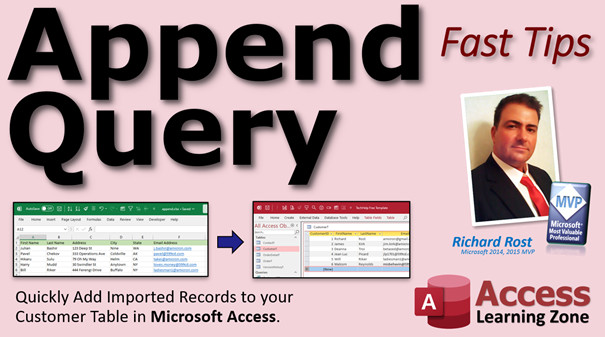
In today's video, we're going to talk about append queries - how to quickly add imported records to your customer table in Microsoft Access. This works for any other table too: customers, orders, products, whatever.
Here is a situation: You have your database. You've been building along with me. You have your customers in here. You've got your customer table.
Let's say you get a new list of customers from the main office, from your marketing people, or you buy leads online. You get an Excel sheet that you have to import into your database and get these people into your customer table. Here is what it looks like. Let's say they send you an Excel sheet like this, and you have to get this data in.
How do you do that? The first thing we're going to do is import this Excel data as a temporary table in our database. That's how I like to do it. I've got it saved on my desktop as append.xlsx. I'm just going to close this, and I'm going to close this down.
If you don't know how to import data from Excel, go watch my Import Data video. I'm going to walk through the steps real quick, but go watch if you want to learn more about importing data. I'll put a link down below you can click on.
You don't have to import data into your database. If you already have another table in here that's got the stuff you want, you can skip the import step. But I want to get that Excel data into my database.
So, I'm going to go to External Data, Import New Data Source, From File, Excel. Let's click Browse. It's on my desktop. There's my file right there: append. Hit Open. We're going to import the source data into a new table in the current database. Hit OK.
There's my data. First row does contain column headings, so check that box. Next. Now, you can go through and edit all these field names if you want to. If this is going to be a regular thing that you're going to do on a daily basis or whenever, sure, go through and make this all perfect. For now, I'm just going to treat this as a one-time import. I'm just going to hit Next.
Now, you can have Access add a primary key for you. But again, I'm not going to be keeping this data, so I'm just going to hit No Primary Key. Don't worry about it right now. We just want to pull this data into our customer table, which already has a primary key. Next.
We're going to import the table. Sheet1 is fine. Again, it's only temporary. Hit Finish. This database apparently already has a Sheet1, probably from a previous import. That's fine. I'll just say yes to overwrite it.
If you want to save these steps, go ahead. I'm not going to bother. I'll hit Close.
Here's my Sheet1; that's got my data in it. There it is.
Now, I'm going to take this stuff and put it into my customer table. If you have a small amount of data and your fields line up exactly right, you can copy and paste these. Only for a small set of data, and your fields have to be exactly the same going across. But if it's not, that's the beauty of an Append Query. You can set up the fields to go exactly where you want them to go.
So close this. Let's go to Create our Append Query. Create, Query Design. First, we're going to pick the table that has the data in it that we want to copy, the source table. That's Sheet1 - that's where we're getting our data from.
Then we're going to turn this into an Append Query by changing the query type, and we're going to pick what table is the destination table. Where are the records going to? That's our customer table. Hit OK.
Now, you can close Add Tables. I don't recommend using the star, especially when you're first getting started. There are a couple of different problems and issues that can come up if you use the star. We're just going to bring these fields in one at a time and match them up with the corresponding fields in the destination table.
First name, double click. Down here where it says Append To, drop that down and pick the FirstName field in our customer table. That's right there.
Now, if these names matched up exactly, as you'll see with Address and City and State in a minute, then Access guesses them correctly. Watch. Last Name, Address - it got Address, City, State. Then Email is slightly different, it's just Email on this table.
See how we picked the fields over here that we wanted and put them down here? That's where the fields are going to go into. If you want to set a criteria down here, you can. If you don't know about Access query criteria, go watch this video. I'll put a link down below you can click on.
Let's say you wanted to only bring in records from New York. Come down here to the Criteria row and put "New York" in there. Now, when you run this, it will only append records from New York. But I'm going to get rid of that because I want all of them for this first run.
Let's save this query. We'll call it "CustomerAppendQ," press Enter. Notice how append queries have a little bit different symbol over here. You can either run this guy right from here, or you can close this and then run it from here by double-clicking on it.
That's the beauty of an append query or any action query. You can set this up and then save it so you don't have to repeat these steps in the future if you get another table. If you get more leads you have to import, for example.
So, I'm going to run this guy by double-clicking on it. Nothing appears to happen unless you get a warning message. You might see this warning message: You are about to run an append query that will modify the data in your table.
I personally find these warning messages annoying, and I show you how to turn them off in my Blank Database Template video and this Suppress Warnings video. I show you how to turn these messages off. I find them annoying, especially when you're running a bunch of them in a row because a lot of times with action queries, you'll do an append and then a delete and then a make table all in the same batch. You have to keep clicking OK, OK, OK, Yes, Yes.
You run your append query, open up the customer table, and there's your extra records. Look at that. 7 through 11 are those guys. There are the new ones. There's Sheet1 - double-check, make sure. Julian through Bill.
One thing you will have to do is look for duplicates. If you have a field that is unique, like if you're pulling in some kind of other customer ID or, like I like to make email address indexed - no duplicates - you can see right here, there's Will Riker, who was already in the database, but Bill Riker was just added. So if this is indexed, no duplicates, then that'll prevent that problem.
You can index any field that you want to be unique. If you want to learn more about indexing, watch this video, so I've got a video for everything.
For example, let's delete those new records that came in. Delete.
Let's index CustomerT Email address. Go into CustomerT Design View, Email, set Indexed to Yes (No Duplicates). I don't want two customers to have the same email address. Save it. Close it. Let's run our CustomerAppendQ again.
Now, I get this error message - well, it's more of a warning, really. It says "TechOut Free Template can't append all of the records in the append query." It says it didn't add one record due to key violations.
Key violations mean you've got an indexed field, no duplicates, and you're trying to add a duplicate record. If you want to go ahead and run it anyway, say Yes.
Now what will happen is the query runs, but if you open this up, you'll see there is no Bill Riker on the bottom there because email is now indexed (no duplicates). So it won't import a duplicate record.
And this is the point where everybody mentions, what happens about AutoNumber 7 through 11 in there? So I get those, but don't worry about those. Those are not for you. Only Access needs to care about what these AutoNumbers are, unless you have to match them up with some other table, which generally isn't the case.
AutoNumbers are not for you. Don't worry about what the actual numbers are. They could be random numbers for all you care.
You may have to do some data scrubbing if you've got, like, phone numbers in here. Sometimes you have to remove hyphens or parentheses. There are all kinds of things you can do to check for duplicate records.
If you want to learn more about append queries and action queries in general, I cover a lot more about them in my Expert Level 14 class. In Append Queries, we'll build the student attendance table where you have a list of all the students in the class, you click one button, and it brings all of the student names into the attendance table every day. You get the list of students, and then it drops them right in, so you don't have to keep manually typing those in.
Then in Expert Level 22, we do even more with append queries. We do this thing called the Update Vendor Price Sheet Changes. This is where we get a pricing spreadsheet, just like the example we did today, from our vendor. Let's say we're selling computer parts. We'll import the price data. Then we'll run an update query to change any products that are already in the database. We'll update them to the new price.
Then we'll run an append query to add any new products that the vendor added to their catalog. That's a combination there, and again, that's covered in Access Expert Level 22. I'll put links to both of these classes down below.
If you want to learn more about action queries in general, I've got a five-class series that covers everything you want to know about them. It's over eight hours of lessons just on queries, mostly update queries, append queries, delete queries, make table queries, tons of different examples. I even go over some things that aren't action queries, like union queries (putting two tables together), crosstab queries (basically pivot tables in Excel). So, my Microsoft Expert 13 through 17 classes cover this. I'll put a link below that you can click on to find out more information.
How do you become a member? Click on the Join button below the video. After you click the Join button, you'll see a list of all the different membership levels that are available, each with its own special perks.
Follower members and up will get access to all of my extended cut TechHelp videos, one free Beginner class each month, and more. Gold members get access to download all of the sample databases that I build in my TechHelp videos, plus my Code Vault where I keep tons of different functions that I use. You'll also get a higher priority if you decide to submit any TechHelp questions to me, and you'll get one free Expert class each month after you finish the Beginner series.
Platinum members get all the previous perks, plus even higher priority for TechHelp questions, access to all of my full Beginner courses for every subject, and one free Developer class each month after you finish the Expert classes. These are the full-length courses found on my website, not just for Access, I also teach Word, Excel, Visual Basic, and lots more.
You can now become a Diamond sponsor and have your name or company name listed on a sponsors page that will be shown in each video as long as you're a sponsor. You'll get a shout out in the video and a link to your website or product in the text below the video and on my website.
But don't worry, these free TechHelp videos are going to keep coming. As long as you keep watching them, I'll keep making more and they'll always be free. Intro In this video, we'll talk about how to use append queries in Microsoft Access to quickly add new records from imported data, like an Excel spreadsheet, into your existing customer table. I'll show you how to set up a temporary table for your imported data, create an append query to match fields correctly, handle duplicate records using indexed fields, and tips for managing AutoNumbers. This tutorial is great if you need to regularly import and append new records to any table in your Access database. Quiz Q1. What is the main purpose of an append query in Microsoft Access?
A. To update existing records in a table
B. To add new records from one table to another
C. To delete specific records from a table
D. To make a backup of the current database
Q2. When importing data from Excel for an append query, what is a recommended first step?
A. Import the data directly into the final table
B. Import the data as a temporary table
C. Copy and paste the data into Microsoft Word
D. Print the data and enter it manually
Q3. Why is it NOT recommended to use the star (*) when creating fields in an append query, especially for beginners?
A. It selects all records
B. It can cause issues with field alignment and is not precise
C. It speeds up the process too much
D. It deletes necessary fields
Q4. What feature can be used in an append query to bring in only records from a certain city, such as "New York"?
A. Sort
B. Group By
C. Criteria row
D. Filter by Form
Q5. What is a possible warning you might see when running an append query?
A. Print error
B. AutoNumber mismatch
C. "You are about to run an append query that will modify the data in your table"
D. Table missing
Q6. Why might you want to index a field like email address with "no duplicates" in your customer table?
A. To allow multiple people with the same email address
B. To prevent duplicate records with the same email address
C. To speed up imports
D. To make emails easier to read
Q7. What happens if you try to append records containing duplicate values in a field that is indexed "no duplicates"?
A. All records are imported anyway
B. Only the duplicate records are imported
C. The records with duplicates are not imported and you get a key violation warning
D. The database crashes
Q8. How can you handle common data issues, such as phone numbers with unwanted characters before or after importing?
A. There is no way to fix them
B. Data must be correct before import
C. Perform data scrubbing or cleaning after importing
D. Use only numeric fields
Q9. What advantage does saving an append query give you?
A. It cannot be used again
B. You must rebuild it each time
C. You can rerun the same import process easily in the future
D. It deletes the source data
Q10. In the context of the video, what should you generally NOT worry about with AutoNumbers assigned to new records?
A. Their exact numeric values
B. That they match source Excel numbers
C. That they are unique for each record
D. That Access uses AutoNumbers internally
Q11. Which of the following is NOT an advantage of becoming a Follower member or above according to the video?
A. Access to download databases
B. Access to all extended TechHelp videos
C. Getting one free Beginner class each month
D. Higher priority for submitted questions
Q12. What type of Access query is best described as "putting two tables together"?
A. Delete Query
B. Crosstab Query
C. Union Query
D. Append Query
Answers: 1-B; 2-B; 3-B; 4-C; 5-C; 6-B; 7-C; 8-C; 9-C; 10-A; 11-A; 12-C
DISCLAIMER: Quiz questions are AI generated. If you find any that are wrong, don't make sense, or aren't related to the video topic at hand, then please post a comment and let me know. Thanks. Summary Today's video from Access Learning Zone covers how to use append queries in Microsoft Access for quickly adding imported records into your customer table. This process can be applied to any table you may have, such as customers, orders, or products.
Let's say you are working with your Access database and you receive a new list of customers from another department, perhaps marketing or sales, or maybe you've purchased a leads list online. Typically, these lists come in as Excel files. To get those names into your customer table, you first need a way to bring the Excel data into your database.
The approach that I recommend is to start by importing the Excel data as a new, temporary table. For instance, let's assume your file is named append.xlsx and is located on your desktop. If you are unfamiliar with the data import process in Access, I suggest checking out my detailed tutorial on importing Excel data, but I'll outline the basics here.
Begin by using the External Data menu, select to import a new data source from a file, and choose Excel. After browsing to your file and opening it, make sure to specify that you want to import the data into a new table. You should check the option indicating that the first row contains column headings. You may also adjust field names as needed, but for one-time imports, the default naming should suffice.
Unless you plan to keep this table, it isn't necessary to assign a primary key. Simply proceed with the import, using the default Sheet1 name for this temporary table. If the database already contains a Sheet1, you can overwrite it. Once imported, close the import wizard and locate your new Sheet1 table in your database. At this point, all of your imported Excel data will be in this table.
To move this imported data into your customer table, you have a couple of methods. If there are only a handful of records and the fields line up perfectly with your customer table, you could copy and paste the rows. However, this method is best reserved for small, straightforward imports. For anything more complex, or if field names don't match exactly, append queries are far more flexible, allowing you to match fields from source to destination however you need.
Now, you're ready to create the append query. Open Query Design, and select your source table, which in this case is Sheet1. Then change the query type to Append, and choose your customer table as the destination.
It's best to manually select the fields you intend to transfer rather than using the wildcard to select all fields, especially if you're new to Access. Drag each field from the source into the query design grid, and set the corresponding destination fields in the Append To row. When the field names match (such as Address, City, and State), Access will usually map them automatically. If you need to apply criteria, such as importing only records from a certain city, you can set that in the Criteria row. For example, entering "New York" there will only append rows with New York as the city.
After you've mapped your fields and set any optional criteria, save the query. An example name might be CustomerAppendQ. Once saved, you can run this query anytime you need. If your data sources and mappings remain consistent, running the append query is a simple, repeatable task.
Running an append query will prompt a warning message reminding you that you're about to modify data. These prompts can become tiresome, but there are ways to suppress them if you work with action queries frequently. After confirming, your records will be added to the customer table. You can then open the table and review the new entries.
It's important to consider potential duplicates. If you want to prevent duplicate entries, particularly when importing data regularly, you can index a field such as the email address to disallow duplicates. This is set in table design view by editing the email field's properties. If, during an append operation, Access detects a duplicate in an indexed field, it will display a key violation warning and skip the duplicate rows, helping to keep your data clean.
One question that often arises is about gaps in the AutoNumber field after deleting records or importing batches of data. Don't worry about missing or non-sequential numbers in AutoNumber fields. These are for internal database use rather than for the user's reference.
In some cases, you may need to clean or scrub your data before importing, especially with phone numbers or other fields that require standard formatting or deduplication.
If you want to expand your knowledge of append queries and action queries in general, I cover these topics in much greater detail in my Expert Level classes. In Expert Level 14, for example, I show how to build a student attendance table using append queries to efficiently populate daily attendance records. In Expert Level 22, I walk through a more advanced scenario where you receive a price update spreadsheet from a vendor. There, we use an update query to change prices on existing products, followed by an append query to add any new products.
For a thorough understanding of action queries including update, append, delete, and make table, I also have a five-class series spanning Microsoft Access Expert Levels 13 through 17. These include lessons on union queries and crosstab queries as well, for combining tables and generating summary reports.
If you're interested in learning even more, memberships are available at different levels. Follower members and above receive access to all extended cut TechHelp videos, a free Beginner class each month, and other perks. Gold members can download all TechHelp sample databases, access my Code Vault, receive priority for TechHelp questions, and get a free Expert class each month. Platinum members receive even higher TechHelp priority, extended course access for multiple subjects beyond Access, and a free monthly Developer class.
I want to assure you that these free TechHelp videos will keep coming, and as long as there's an audience, I'll continue producing new content.
You can find a complete video tutorial with step-by-step instructions on everything discussed here on my website at the link below. Live long and prosper, my friends. Topic List Importing Excel data as a temporary table in Access
Using the External Data wizard to import Excel files
Deciding whether to add a primary key during import
Overwriting an existing temporary table during import
Creating an append query in Microsoft Access
Setting the source and destination tables in an append query
Mapping source fields to destination fields in append queries
Setting criteria in append queries to filter records
Saving and reusing append queries for future data imports
Understanding and dealing with append query warning messages
Handling duplicate records during append operations
Indexing fields to prevent duplicate records in Access
Managing key violations with indexed fields in append queries
Understanding the impact of AutoNumber fields during appends
Basic data scrubbing considerations when importing data Primary Topics append queries, data import from Excel, Access action queries, field mapping, customer table, duplicate handling, primary keys, indexing unique fields
Secondary Topics warning messages, data scrubbing, AutoNumbers, related advanced courses
|




