First Day of Week
By Richard Rost

 4 years ago
Find the First Day of the Week in Microsoft Access
In this Microsoft Access tutorial, I will show you how to calculate the first day of the week, and the last day of the week using simple date math.
Matt from Detroit, Michigan (a Silver Member) asks: When calculating payroll, I need to know how to figure out the first day of the week for any date. How can I do that in Access?
Pre-Requisites
Recommended Courses
Usage
- D: MyDateField
- FirstDayOfWeek: D-Weekday(D)+1
- LastDayOfWeek: FirstDayOfWeek+6
Keywords
access 2016, access 2019, access 2021, access 365, microsoft access, ms access, ms access tutorial, #msaccess, #microsoftaccess, #help, #howto, #tutorial, #learn, #lesson, #training, #database, #fasttips, first day of the week, first day of week, last day of the week, last day of week, week begin date, week end date, beginning of week, end of week
More InformationTranscript Welcome to another Fast Tips video brought to you by AccessLearningZone.com. I am your instructor, Richard Rost.
In today's video, I'm going to show you how to calculate the first and last days of the week for any given date. Today's question comes from Matt in Detroit, Michigan, one of my Silver members - proof that yes, the Silver members do still get their questions answered. It's not just Gold and Platinum all the time. If I see a good question, I'll answer it, even if you are not a member.
Matt says, when calculating payroll, I need to know how to figure out the first day of the week for any date. How can I do that in Access?
Well Matt, you can do this in a form field, or you can do this in a query with some simple date math. Let me show you how.
First up, if you haven't watched my date math video, go watch that first. This explains how dates work in Access. A day basically has a value of one, so if you take a date and add one to it, that's tomorrow. Add seven, that's next week, and so on. So go watch this video - it explains how that works.
Also, go watch my Weekday video. This explains how the Weekday function works. It returns a number from one to seven based on the day of the week that a particular date falls on. Go watch both of these videos first. They are on my website and YouTube channel. They are both free, so go watch them, then come on back.
Here I am in my TechHelp free template. This is a free database you can grab a copy of from my website if you want to. In here, I have customers and every customer has a CustomerSince field. Let's say I want to figure out what the first day of this week is. Basically, I have a table with a whole bunch of dates in it, so we'll use that one.
Create a query in design view. Let's bring in my customer table. CustomerT, right there. Close that, and I am just going to bring in that CustomerSince field. There it is.
Now, because I don't want to have to type in CustomerSince for each of my calculations, I am just going to alias that. We're going to call it something else. We're going to say create a field called D, which is nice and short. Put a colon there and then put CustomerSince.
Let me zoom in so you can see that - Shift+F2. There it is: D: CustomerSince. That's creating an alias that says I am creating a new field called D, and it's just going to be whatever CustomerSince is. If I run this now, there you go. It's just easier to type in D in the rest of my calculations than to type in CustomerSince every time.
As we learned from the prerequisite video, if I want to find out the weekday of that, all I have to do is say, let's call it WDWeekday. It's going to be Weekday(D). Let's zoom in so you can see that one too. Create another new field called WDWeekday, and that's going to be the Weekday function of D.
Now let's see what that looks like. There are all your weekdays. For example, this is my birthday, in fact, 10/23/22 falls on a Sunday this year, which is a one.
Now, let's take a look at ye olde calendar. If I know that, for example, October 23 falls on a Sunday and that's a value of one from the Weekday function, if I take that Weekday function and subtract it from the date and then add one to it, I get the first day of that week.
For example, the 23rd returns a one, so if I subtract one and then add one to it, it sits on the first day of the week. Now, if I take this Wednesday here, the 26th of October, that's one, two, three, four - that's going to return a four from the Weekday function. If I subtract four and then add one to it, it puts me right there on the 23rd.
So that's the way that we calculate the first day of the week for any date. Come into design view. The next field over: FirstDayOfWeek is going to be whatever my date is (D), subtract the weekday, plus one.
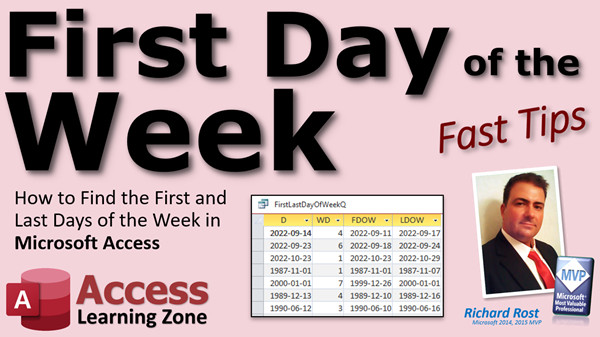
Let me zoom in so you can see that. Take your date, subtract whatever the weekday is, then add one to it. Then run it. There are all the first days of the week for all of these dates. There's my birthday - it's its own day of the week.
Let's check this one. How about September 23rd? September 23rd is on a Friday, so it should come back with the 18th as the first day of that week. And yep, there it is: the 18th.
Now that you know how to do this, the last day of the week, in case you need to figure out the last day, is very simple. Just add six to that. Again, come in here, design view. This day of the week is going to be the FirstDayOfWeek plus six. That's it. Run it. There you go - there is the last day of that week. In case you need to put up a week ending date, for example.
Here are the calculations in case you want to copy them down:
Where D is any date, plug those in. You can do the same thing in a form if you want to. If you do not want to have to make a query out of this, if you are in a form, for example, you can come in here, design view. We'll just make a copy of that guy, delete the label, slide this over here, open up its properties.
We'll go with First Day of Week. Now you have to use the CustomerSince field, though. So it's going to be: =CustomerSince - Weekday(CustomerSince) + 1. Just like that.
If I zoom in, you can see why I like to replace that with D in my queries to keep things simple and small. But in the form, you don't have that luxury unless you want to make another D field, which is kind of unnecessary.
Save that. I am going to make this gray just because I want the user to know you can't edit that. That's something that I am calculating. Close it, save it, open it. There is your first day of the week.
That is how you can do a calculated field in a query and directly in a form. This works for simple calculations, but if you have really complex calculations that involve multiple fields, it's better to do them in queries and then use that query as the record source for the form instead of trying to do everything right here.
If you want to learn more about all this date and time function stuff in Access, I have two classes that cover pretty much everything you want to know about dates and times: Access Expert 27 and its follow-up, Access Expert 28. All kinds of different things you can do with dates and times and calculations.
Okay, so that's your fast tip for today. I hope you learned something and I'll see you next time.
By the way, become a member, click on the Join button below the video. After you click the Join button, you will see a list of all the different membership levels that are available, each with its own special perks.
Silver members and up will get access to all of my extended cut TechHelp videos, one free beginner class each month, and more.
Gold members get access to download all of the sample databases that I build in my TechHelp videos, plus my code vault where I keep tons of different functions that I use. You will also get a higher priority if you decide to submit any TechHelp questions to me, and you will get one free expert class each month after you have finished the beginner series.
Platinum members get all the previous perks, plus even higher priority for TechHelp questions, access to all of my full beginner courses for every subject, and one free developer class each month after you finish the expert classes. These are the full-length courses found on my website, not just for Access. I also teach Word, Excel, Visual Basic, and lots more.
You can now become a Diamond sponsor and have your name or company name listed on a sponsors page that will be shown in each video as long as you are a sponsor. You will get a shoutout in the video and a link to your website or product in the text below the video and on my website.
But don't worry, these free TechHelp videos are going to keep coming. As long as you keep watching them, I'll keep making more, and they will always be free. Intro In this video, I will show you how to calculate the first and last days of the week for any given date using Microsoft Access. We will use a combination of date math and the Weekday function in both queries and forms to determine week ranges, which is especially useful for things like payroll calculations. I'll demonstrate each calculation step by step in a sample customer table and discuss the differences between using queries and form fields for this task. Quiz Q1. What is the primary topic of this video?
A. How to calculate the first and last days of the week for any given date in Access
B. How to create a form in Access
C. How to import data into Access
D. How to build reports in Access
Q2. What function does the video recommend using to determine the numeric value of a day in a week?
A. DateAdd
B. Weekday
C. DatePart
D. Format
Q3. In Access, what value does the Weekday function return for Sunday by default?
A. 0
B. 7
C. 1
D. 6
Q4. When calculating the first day of the week for a date D, what is the correct expression to use according to the video?
A. D + Weekday(D) - 1
B. D - Weekday(D) - 1
C. D - Weekday(D) + 1
D. D + Weekday(D) + 1
Q5. According to the video, how can you calculate the last day of the week once you have the first day of the week?
A. Subtract 6 from the first day
B. Add 7 to the first day
C. Add 6 to the first day
D. Subtract 7 from the first day
Q6. Why does the instructor use an alias 'D' for the date field in the query?
A. To comply with Access syntax rules
B. To make calculations and references easier and shorter
C. To increase database performance
D. To hide the field from the results
Q7. If you want to implement this calculation in a form instead of a query, which formula do you use in the control source?
A. =CustomerSince + Weekday(CustomerSince) + 1
B. =CustomerSince - Weekday(CustomerSince) + 1
C. =CustomerSince + Weekday(CustomerSince) - 1
D. =CustomerSince - Weekday(CustomerSince) - 1
Q8. According to the video, why might it be better to perform complex calculations in a query instead of directly in a form?
A. Queries run faster than forms
B. Queries can be exported more easily
C. Queries are better for complex calculations involving multiple fields
D. Forms cannot perform any calculations
Q9. What is recommended before watching this video, if you need background on how dates or weekdays work in Access?
A. Watch the video on importing data
B. Watch the video on date math and the video on the Weekday function
C. Watch the video on creating tables
D. Watch the video on formatting queries
Q10. What type of value does adding 1 to (Date - Weekday(Date)) yield, according to the video?
A. The last day of the week
B. The first day of the previous week
C. The first day of the week for that date
D. The day after the given date
Answers: 1-A; 2-B; 3-C; 4-C; 5-C; 6-B; 7-B; 8-C; 9-B; 10-C
DISCLAIMER: Quiz questions are AI generated. If you find any that are wrong, don't make sense, or aren't related to the video topic at hand, then please post a comment and let me know. Thanks. Summary Today's video from Access Learning Zone focuses on how to calculate the first and last days of the week for any given date using Microsoft Access. This question comes from Matt in Detroit, who needed to determine the first day of the week for payroll purposes. I want to emphasize that I answer good questions from everyone, including Silver members, so don't feel like you need to be Gold or Platinum to get feedback on your queries.
To tackle this problem in Access, you can use either a form field or a query. Both approaches involve some basic date math. If you're not familiar with how dates work in Access, I recommend watching my previous videos on date arithmetic and the Weekday function. In Access, dates are stored as numbers where each day has a value of one. So, adding or subtracting from a date simply moves you forward or backward by days, weeks, and so forth. The Weekday function returns a number from one to seven, representing the day of the week for a specific date. These resources are available for free on my website and YouTube channel, so make sure to review those if you have not already.
For this demonstration, I am using my free TechHelp template database, which you can download from my website. In this database, I have a table of customers, each with a 'CustomerSince' date field. The task is to identify the first day of the week for each of these dates.
Start by creating a query in design view and add your customer table. Bring in the 'CustomerSince' field, and for convenience, give it an alias. I like to call it 'D' so that it makes further calculations quicker and easier; typing 'D' is much shorter than 'CustomerSince' every time.
Next, to find the weekday number, create a new field that uses the Weekday function on 'D.' This shows which day of the week each date falls on. For instance, if a date is a Sunday, the Weekday function will return one.
Once you have the weekday number, calculating the first day of the week is straightforward. You take your date (D), subtract the weekday number, and add one. This gives you the Sunday of that week (assuming Sunday is set as the first day). For example, if a date falls on a Wednesday (weekday number four), subtracting four and then adding one lands you on the preceding Sunday.
To check your calculations, compare some results to a calendar. For example, if September 23rd is a Friday, subtracting its weekday value and adding one should give you the preceding Sunday.
If you want the last day of the week, just add six to the first day of the week. This will return the Saturday of that week (again assuming Sunday as the first day).
You can use these calculations in a query, or you can do the same thing directly in a form. In a form, you would simply enter the calculation into the control source property, replacing 'D' with the actual field name, like 'CustomerSince.' While it's possible to do these calculations in form fields, if you have more complex calculations that involve multiple fields, it's usually better to handle these in a query and use the query as your record source.
For those interested in exploring more advanced Access date and time functions, I have two full classes that cover a wide range of date and time calculations: Access Expert 27 and Access Expert 28.
If you find these tips helpful and want to support the channel or access more in-depth resources, consider becoming a member. Silver members and higher get access to extended TechHelp videos, monthly beginner classes, and more. Gold members can download all the sample databases and get higher priority for their questions, as well as access to expert classes. Platinum members enjoy even more perks, including all full beginner courses in various subjects and developer classes.
Even if you do not become a member, you can always count on the free TechHelp videos to keep coming as long as viewers continue to find them useful.
You can find a complete video tutorial with step-by-step instructions on everything discussed here on my website at the link below. Live long and prosper, my friends. Topic List Creating a field alias in an Access query
Using the Weekday function to get day numbers
Calculating first day of the week for a date
Calculating last day of the week for a date
Building calculated fields in queries
Building calculated fields in forms
Using query fields as form record sources
Explanation of date math for weekly calculations Primary Topics Microsoft Access, date math, Weekday function, calculated fields, queries, form controls
Secondary Topics Access templates, date aliases, field properties
|





