|
||||||
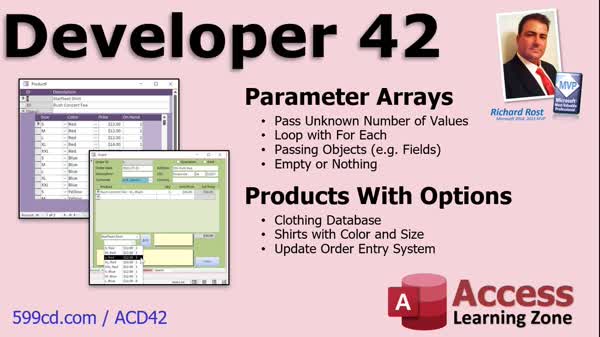
Access Developer 42Parameter Arrays, Product Options, InvoicingWelcome to Access Developer 42. In this course you will learn how to use parameter arrays in Microsoft Access VBA to work with multiple inputs efficiently, and see how to build a database for products with customizable options like color and size. We will discuss finding maximum values from several fields, creating functions for flexible inputs, using arrays, looping techniques, and handling empty arrays. You will also see how to structure tables and forms for inventory management and review practical examples such as invoicing systems and product options for order entry. Lessons
Database FilesOptions For Future Lessons
Resources
Lesson SummaryWelcome! Param Arrays & Product Options - Welcome to Microsoft Access Developer Level 42. In this course we will focus on parameter arrays, where I will show you how to pass multiple parameters to functions and use them with VBA, as well as building a database that handles products with customizable options like color and size. We will discuss finding maximum values from fields, building functions for flexible input, using parameter arrays, looping techniques, checking for empty arrays, and creating tables and forms to manage product options. Some lessons will review order entry and invoicing systems, and we will talk about structuring options for inventory management.
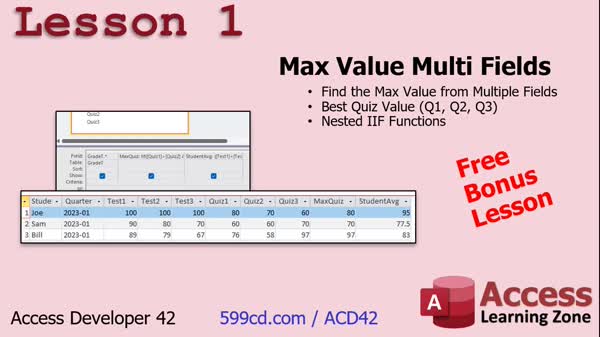
Lesson 1: Find Max Value Across Fields - In Lesson 1, we will learn how to find the max value from multiple fields in the same record in Microsoft Access. Using a scenario where a student's grade is based on the average of three tests and the highest of three quizzes, I will show you how to find the maximum quiz grade using nested if functions in a query. We will also discuss why Excel solutions for max values across fields do not directly translate to Access and walk through building the necessary table and query to perform these calculations with calculated fields.
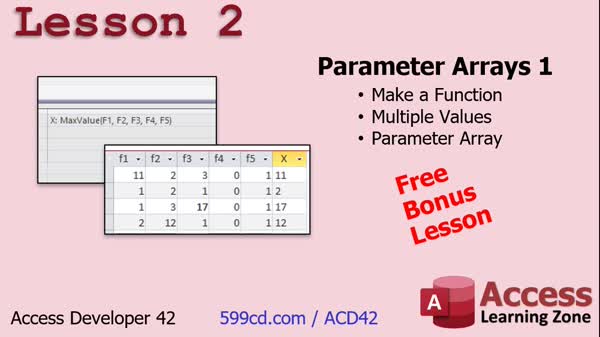
Lesson 2: Find Max Using Parameter Array - In Lesson 2, we will take the example from Lesson 1, where we found the greatest of three specific values, and turn it into a function that can handle any number of values using a parameter array. I will show you how to set up a parameter array in VBA, explain how arrays work, and walk through building a function that finds the maximum value from an unknown number of inputs. We will also discuss real-world scenarios with legacy databases and touch on array basics and looping through arrays.
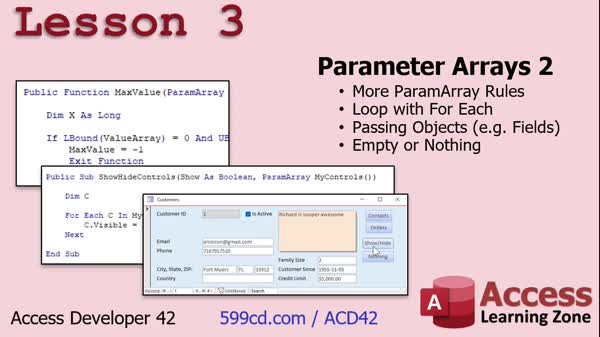
Lesson 3: ParamArray, Loops & Empty Arrays - In Lesson 3, we continue exploring parameter arrays by covering additional rules and best practices, such as declaring with the ParamArray keyword, ensuring it is the last argument, and understanding ByRef behavior. We will walk through using For Each loops to process items, how to pass objects like controls to parameter arrays, and how to check for empty arrays or Nothing values. You will see an example function for hiding or showing multiple controls and learn how to handle potential errors when no items are passed or when dealing with Nothing in your parameter array.
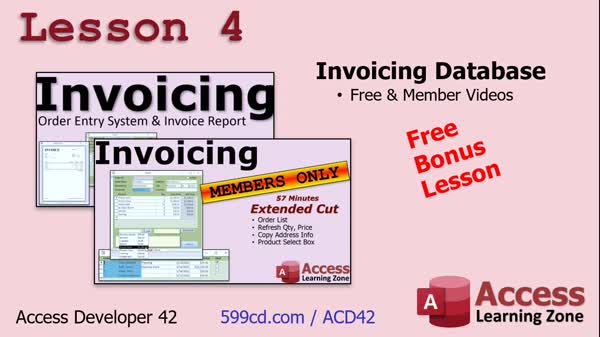
Lesson 4: Invoicing & Order Entry DB + Report - In this lesson, we will walk through creating a simple invoicing database in Microsoft Access. I will show you how to design the tables for orders and order details, set up relationships, build forms with subforms for order entry, create calculated queries for order totals, and design a printable invoice report that pulls together customer, order, and order detail information. We will also discuss best practices for storing customer information and touch on useful features like combo boxes and addressing common beginner questions with Access invoicing databases.
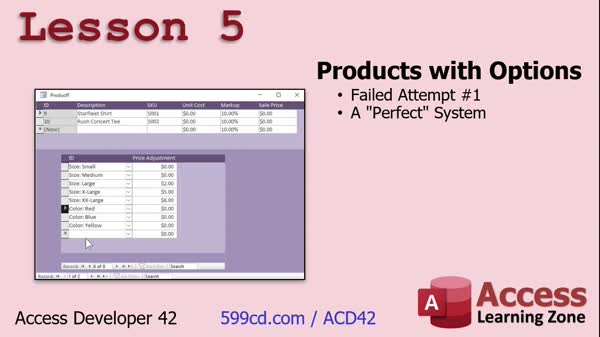
Lesson 5: Database for Products with Options - In Lesson 5, we will discuss creating a database for products with options, such as shirts with different sizes and colors. I will walk you through my initial attempt at designing a generic, highly normalized system that allows for any number of options and SKUs using multiple related tables. We will talk about the challenges this approach poses, especially for inventory tracking and data entry, and why this method may not be practical for most small businesses. I will explain my decision to switch to a simpler approach, which we will explore in the next lesson.
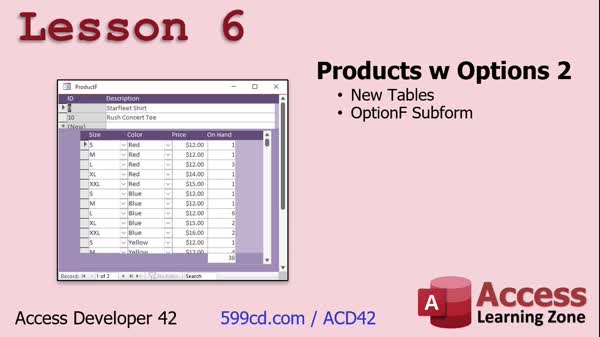
Lesson 6: Product Size & Color Tables - In Lesson 6, we will build new tables for size and color options and an option table to store each product's specific options, price, and quantity on hand, tailored for a clothing business. We will walk through creating and populating these tables, and then set up a subform to display product options in the product form. We will discuss customizing this approach for different business types, and I will show you how to use combo boxes for selecting size and color. We'll briefly mention filtering options and preparing this data for use in future order entry.
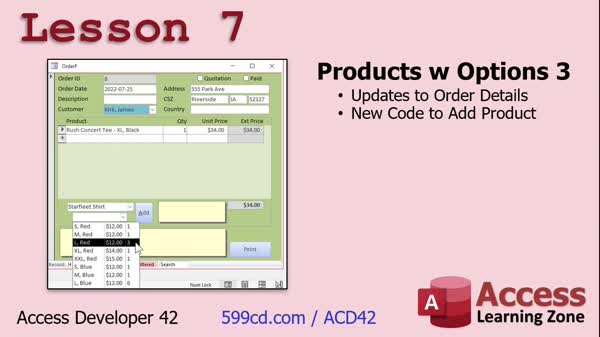
Lesson 7: Add Products With Options - In Lesson 7, we continue working with products with options by updating the order detail table to store option IDs instead of product IDs, and modifying the form to allow users to first select a product and then choose from its available options. We will walk through redesigning combo boxes for both products and options, building the necessary queries to display option details, and updating code so that the options shown depend on the selected product. We will discuss handling inventory and consider the possibility of using separate combo boxes for attributes like size and color.
Lesson 8: Plan Next Steps & Organize Tasks - In this lesson we will talk about what is next after completing the previous material, and discuss the upcoming topics and steps you can expect as you continue with the course.
NavigationKeywordsparameter array, VBA functions, pass multiple parameters, product options database, customizable product options, SKU options, max value from fields, order entry, invoicing database, inventory management, find maximum value, combo box options, subforms
More InformationTranscriptWelcome to Microsoft Access Developer Level 42, brought to you by AccessLearningZone.com. I am your instructor, Richard Rost. Today's class is going to focus on two things: parameter arrays. We're going to teach you how to pass parameters around, which is pretty cool. Then we're going to do products with options, a very popular request by people who are taking my inventory classes. I've got products like t-shirts, where each t-shirt can have multiple options like different colors, different sizes, and combinations thereof. So we're going to see how to do that in today's class. This is level 42 of the developer series, so that means there are plenty of prerequisites. You should have finished the beginner, expert, advanced, and developer classes, especially Developer 16 (record sets) and Developer 23 (inventory). Those are very important lessons. The inventory lesson, especially, is going to be useful for this one. I strongly recommend you do not skip levels, not because I am trying to get you to buy more classes, but because there is stuff covered in the previous lessons that is important for the following lessons. So, do not skip around. I am using an Access 365 subscription. It's currently March of 2023, so this will be roughly equivalent to Access 2021. Pretty much everything that I've covered in today's class is good for just about every version of Access, going back to at least 2007. I can't see them changing this stuff anytime soon, so if you're watching this in 2026, it's probably still good. Check the course notes down below on the course page, and I'll put any notes for any changes down there. If you've got any questions regarding the material covered in today's class, just scroll down to the bottom of the page that you're on right now and post your questions there. Also, be sure to take a minute to read through any other questions that have already been posted, as your question may have already been answered. Be sure to click the subscribe button to get notified if any other questions or comments are posted for this class. Of course, make sure to visit the Access Forum, where you can join in conversations with me, the moderators, and the other students. Let's take a closer look at exactly what's covered in today's class. In lesson one, which is a free bonus lesson, we are going to learn how to find the maximum value from multiple fields in the same record. For example, let's say you have three quiz grades and you want to find the maximum quiz grade because you're only going to take the best one. To do this, we're going to use nested IF functions, which we know how to do. We've done this in the expert series, but this is building up to something we're going to do with VBA in lessons two and three. In lesson two, we're going to take the example from lesson one, where we found the greatest of three specific values, and we're now going to turn it into a function so we can send any number of values to the function. It could be five, it could be fifty, using something called a parameter array. In lesson three, we are continuing with parameter arrays. We're going to learn more parameter array rules. We're going to learn how to loop through the items in the array with a for-each loop, instead of a for-next loop. We're going to see how we can pass different things to the array, like objects. You can pass an array of fields to the function. Then we'll learn how to check for an empty array and for nothing if the user passes the "nothing" value, whatever you want to call it. Lesson four is a free bonus lesson. If you are a TechHelp member on my website - silver, gold, platinum, etc. - then you may have seen this already, but this is the database that I'm going to use for the rest of today's class. If you've watched this already, feel free to skip to lesson five. If you have not watched this, I explain how I build the order entry and invoicing system for my TechHelp videos. It's a simpler version of the order entry system that we build in the developer classes, but it's perfect for this lesson that we're going over today. So watch this if you haven't seen it already. If not, skip to lesson five. In lesson five, we're going to talk about building a database that has products that have options. For example, let's say you're doing a clothing database or clothing company. You've got shirts that might have a size and a color option. So it's the same shirt, but it's small and red, medium and yellow, and so on. In this database, we're going to build something like that. In lesson five, I'm going to walk you through my first failed attempt. I was trying to build a perfect system where you didn't have to have specific fields for size and color. They could all be in a subtable with different options. While this solution works and I could get it to work, it's going to be a data entry nightmare when it comes to managing the inventory. We'll talk about that in this lesson. In lesson six, we're going to build some new tables for size and color options. Then we're going to make an actual option table to store each product's options for size, color, price, and then quantity on hand. Then we'll build a subform so we can track that for each product. In lesson seven, we're continuing on with the products with options. We're going to update our order detail table and form and add new code so that we can select the product and then pick the product's options. IntroIn this lesson, you will learn advanced techniques in Microsoft Access, including how to use parameter arrays to pass values to functions and create more flexible code. We will talk about finding the maximum value from multiple fields, building custom functions with parameter arrays, handling different types of array inputs, and managing empty arrays. The course also introduces methods for building a products database with options like size and color, explains table setup for product variations, and covers how to update your forms and tables to track inventory for different product options. This is Developer Level 42. QuizQ1. What are the two main topics covered in Microsoft Access Developer Level 42? A. Parameter arrays and products with options B. Macros and VBA debugging C. Queries and forms creation D. Security and backup strategies Q2. What is a parameter array useful for? A. Passing a variable number of values to a function B. Securing database tables C. Creating reports D. Importing external data Q3. Which previous lessons are especially recommended before starting Level 42? A. Developer 16 (record sets) and Developer 23 (inventory) B. Beginner 1 and Expert 1 C. Forms and Reports Basics D. Access 365 Interface Guide Q4. In lesson one, what technique is used to find the maximum value from multiple fields in the same record? A. Nested IF functions B. DLookup function C. Aggregate queries D. Pivot tables Q5. What improvement is made in lesson two over lesson one regarding finding the greatest value? A. Turning the logic into a function that accepts any number of values using a parameter array B. Adding more fields to the query C. Sorting data before finding the max D. Using macros instead of VBA Q6. What advantage does the for-each loop provide when working with parameter arrays, as discussed in lesson three? A. It allows iterating over each item in the array B. It finds the sum of all array elements automatically C. It replaces nested IF functions D. It only works with numeric values Q7. In lesson three, what types of values can you pass to a parameter array besides simple values? A. Objects, such as an array of fields B. Only numeric values C. Only string values D. Only table names Q8. What is an important consideration discussed in lesson five regarding storing product options like size and color? A. Attempting to use a subtable for all options leads to data entry complexity and potential errors B. Only having fixed fields for size and color is sufficient C. Product options are not necessary in most databases D. Storing options in the product description is best Q9. What is created in lesson six to better manage products with options? A. Separate tables for size and color options, and an option table for each product's options B. A single options text field in the product table C. One table for all products and options combined D. A report showing all options Q10. What is updated in lesson seven to support products with options? A. The order detail table and form, adding code to select product options B. The login screen C. The sales tax calculation module D. Customer profile tracking Answers: 1-A; 2-A; 3-A; 4-A; 5-A; 6-A; 7-A; 8-A; 9-A; 10-A DISCLAIMER: Quiz questions are AI generated. If you find any that are wrong, don't make sense, or aren't related to the video topic at hand, then please post a comment and let me know. Thanks. SummaryToday's video from the Microsoft Access Learning Zone covers Developer Level 42, and I am your instructor, Richard Rost. In this lesson, I focus on two key topics. First, we dive into parameter arrays, showing you how to pass parameters around within your Access VBA projects. This is a really helpful technique that builds on what you learned in previous classes. Second, we address a common request from students working through my inventory courses – how to handle products with options. For example, if you sell t-shirts that come in different colors and sizes, you need to account for all these variations within your database. In today's class, we will work through how to manage those options effectively. Before you get started, I want to emphasize that this is a Developer Level 42 class, so there are quite a few prerequisites. You should have completed the Beginner, Expert, Advanced, and all prior Developer lessons, especially Developer 16, where we discuss record sets, and Developer 23, which covers inventory. These topics will be referenced throughout today's material. Please do not skip levels. I am not simply trying to sell more classes; each one builds on concepts taught previously, and skipping around can leave gaps in your understanding. For reference, I am using Microsoft Access 365, as of March 2023. The material in this class is still applicable if you are using Access 2021, or even versions dating all the way back to Access 2007. I doubt Microsoft will be changing these features any time soon, so if you are watching this in a few years, everything should still be accurate. I also recommend checking the course notes on the course page for any important updates. If you have questions about anything covered today, just post your question on the page you are viewing. It is also very helpful to read through questions others have already posted; you might find your answer there. Make sure you are subscribed for updates and participate in the Access Forum, where you can discuss topics with me, the moderators, and other students. Let's take a look at what you will learn in today's class. The first lesson is a bonus and is free to view. Here, I show you how to determine the maximum value from several fields within the same record. For instance, imagine tracking three quiz grades and you want to pull out the highest score. We achieve this by using nested IF functions, building on what you learned in the Expert series. This method sets the stage for more advanced techniques using VBA in later lessons. In the second lesson, we take the example from lesson one and improve upon it by creating a function that can accept any number of values. Instead of having to write code for exactly three values, you will be able to handle five, ten, or even fifty by using a parameter array. Lesson three continues our study of parameter arrays. I show you additional rules and best practices. You will learn how to loop through elements in the array using a for-each loop, which simplifies the code compared to a for-next loop. We also discuss how to pass different kinds of data to the array, such as objects or arrays of fields, and how to handle empty arrays or passing a null value. Lesson four is another free bonus lesson. Some of you who are TechHelp members may have already watched this, as I use the database built in this segment for the rest of today's class. If you're already familiar with the TechHelp order entry and invoicing system, you can skip ahead. For those who have not seen it, I show how to build a simple order entry system suited for our discussion about products and options. This version is less complex than what we develop in the Developer series, making it perfect for today's topics. Lesson five covers one of the most common features requested in access courses: handling products with options. For example, in a sales system for clothing, you want to manage products like shirts that come in different sizes and colors. Instead of creating a separate product for every combination, I show you how to organize these options within your database. In this lesson, I also walk you through my first attempt at solving this challenge, trying to develop a system where all possible product options (such as size and color) are stored in a subtable. While this approach can work, it quickly becomes unwieldy for data entry, especially when handling inventory. In lesson six, we refine the design by building new tables specifically for size and color options. We also create an option table that links each product to its specific attributes, such as size, color, price, and the quantity on hand. I show you how to design a subform to make entering and tracking these options much easier for each product. In lesson seven, we continue working with products with options by updating the order detail table and form. I guide you through updating your code so that you can select a product and then choose from the available options for that product. If you would like to watch a full video tutorial covering every step discussed here with easy-to-follow demonstrations, you can find it on my website at the link below. Live long and prosper, my friends. Topic ListFinding maximum value from multiple fields Using nested IF functions to determine maximum Creating a function to find the maximum of any number of values Implementing parameter arrays in VBA functions Looping through parameter arrays with for-each loops Passing objects and fields to parameter arrays Checking for empty or "nothing" values in parameter arrays Building a product options database structure Evaluating approaches for storing product options Designing tables for product size and color options Creating a product option table for size, color, price, and quantity Building a subform to manage product options Updating order detail tables and forms for product options Adding code to select products and assign options in orders Primary TopicsVBA parameter arrays, finding maximum value, looping arrays, handling empty values, order entry database, product options, inventory management, relational table design Secondary Topicsnested IF functions, subforms, data entry considerations, product option selection, upgrading forms |
||||||||||||||||||||||||||||||||||||||
|
| |||
| Keywords: parameter array, VBA functions, pass multiple parameters, product options database, customizable product options, SKU options, max value from fields, order entry, invoicing database, inventory management, find maximum value, combo box options, subforms PermaLink How To Use Parameter Arrays and Build Products With Options in Microsoft Access Developer Level 42 |