After Update
By Richard Rost

 4 years ago
After Update Event in Microsoft Access
In this Microsoft Access tutorial, I will show you how to update the value of one field when another field is changed.
Pre-Requisites
Recommended Course
Links
Keywords
access 2016, access 2019, access 2021, access 365, microsoft access, ms access, ms access tutorial, #msaccess, #microsoftaccess, #help, #howto, #tutorial, #learn, #lesson, #training, #database, #fasttips, automatically change field, change value, set value, change data after, change data after field updated, refresh data, reset data
 Subscribe to After Update
Get notifications when this page is updated
More InformationTranscript Welcome to another fast tip video brought to you by AccessLearningZone.com. I am your instructor, Richard Rost.
In today's video, we're going to talk about the After Update event and how to automatically update fields when another field is updated.
Before we get started today, a couple of prerequisites for you. If you've never done any VBA programming before, go watch this. It's about 20 minutes long and will teach you everything you need to know.
Can you use an After Update event with a macro instead of VBA? Yes, you can, but why? VBA is so much better. It's easy to use. Go watch this. Trust me. Do this instead of macros. Go watch this.
Then, when you're done with that, go watch my If Then video. Most of the time, when you're doing an After Update event, you want to say, if the field I just changed is this, then do that. Set the other field to something else. You'll see the example in just a minute, but it'll be helpful if you know how an If Then statement works before watching the rest of this video.
There are a couple of different kinds of After Update statements. The most popular by far is a field-level After Update event. In other words, when some field is changed, take the value, look at it, and say, I want to change this other field.
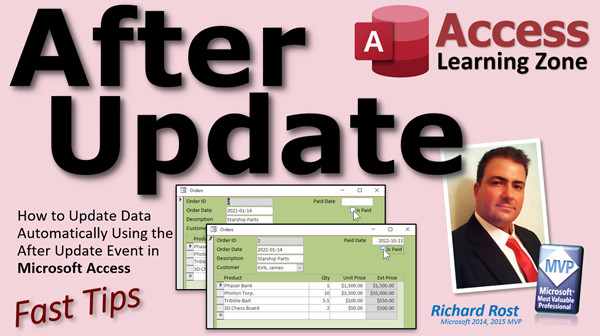
For example, let's say I've got an order form here. I've got an Is Paid checkbox. It indicates whether or not this has been paid. You might want to know on what date that order was paid so you can see if it was late, how long it's been paid, that kind of stuff. But you don't want to have to type it in manually. You can if you want to, but this is where an After Update event comes in handy because as soon as you click on that Is Paid checkbox, you can tell Access, hey, if I just marked this paid, set the Paid Date equal to today's date, and if not, if I uncheck it, make it blank.
You can still change it if you want to. That's another beauty of the After Update event. You can change a field but still let the user modify it, like if you're processing payments today for checks that came in last week. You can still change it yourself, but at least After Update takes some of the work for you.
So, let's add a Paid Date to our order table. I'm going to go to the order table, Design View, and we'll just add a Paid Date in here. That will be a Date/Time field, and we'll leave it blank by default, so it's normally null. When an order is marked paid, we'll set it.
Let's go into here, right-click, Design View. I'm just going to move some stuff that we don't need out of the way. I'm going to take this Notes field, slide it down here. I'll take this Invoice button, move it down here just for the class.
Let's take Order Date. I'm going to copy and paste, Control+C, Control+V, slide that over here. We'll change the label to Paid Date, and we'll make this field now bound to the Paid Date field. I'll go to All, change the Control Source to Paid Date, and while we're at it, copy and paste. We'll make the Name Paid Date as well.
The Name and the Control Source. The Control Source is what field in the table this field is bound to. This control, this text box, is bound to the Paid Date in the table.
Save it, Control+S. Close that down. Open it back up again. Now I can type in any old data I want in here. I could just pick this and put a date in. But what I want to happen is, when the user clicks on Is Paid, the After Update event fills today's date in there for us.
How do we do that? Let's go to Design View. Click on the check box. Go to the Events and find After Update. After Update, when this value is updated, I want something to happen.
What's going to happen? Hit the dot-dot-dot, the Builder button there. If it asks you what builder you want, pick the Code Builder, and our Code Builder pops up our VBA window. We're right down here, Is Paid After Update.
Everything you put in here is going to happen after that checkbox is updated. So right now, just to see what happens, type in
MessageBox "Hi there."
Just to see. Save it, Control+S. Come back over here. Let's close this. Let's open it back up again and click on the box. Well, hi there. See? That's all that is. That's an event. When this guy is updated, say hi there.
Simple enough. But I don't just want that. I want to say, if the Is Paid checkbox is now true, then set the date. So I'm going to say
If IsPaid Then
PaidDate = Date()
Now, you can say =True, but =True is assumed, so you don't have to put that. So, If IsPaid Then PaidDate = Date(), just like that. I'm going to have it put in the open and closed parentheses because technically Date is a function, it returns a value, but Access always gets rid of them. But I'm in the habit of typing those in anyway. It goes back to my old C programming days.
Otherwise,
Else
PaidDate = Null
In other words, if I uncheck that box, blank the Paid Date. It's not paid anymore.
Let's save that, Control+S. I'm back over here. I'm going to close my form and reopen it. Ready? Here we go. Click, and there's my Paid Date, today's date, October 11, 2022. Uncheck it and it goes away.
Pretty straightforward.
Now, you can do all kinds of stuff with After Update. After Update is by far the most versatile of the functions. I use it constantly. I cover it in tons and tons of my classes.
Here's another video where I cover After Update and DLookup. If you know DLookup, you can look up a value from a table or query. So when a field is changed, you can DLookup something like, what's the customer code? Who's your sales rep? That kind of stuff.
If you really want to learn all there is to know about After Update, in addition to a lot of other stuff, like more with the If Then Else command and lots of statements, procedures, parameters, all kinds of stuff, my Access Developer Level 1 class is the best place to start if you want to get serious about programming in VBA for Microsoft Access. Right now, I've got 41 different levels, each about an hour long, so I've no better place to learn Access programming.
Now, in addition to field-level After Update events, there are also form-level After Update events that will fire when the entire form is updated. So you can use it to check multiple fields. I cover that in Developer 1 as well.
There's something called a Before Update event. Before Update happens before the After Update, and you can cancel it. You can say, if this field isn't right, then we can cancel the event. There's all kinds of stuff going on.
But I don't want to blow your mind with too much information all at once. That is your fast tip for today.
Lots more coming and I hope you learned something. I'll see you next time. Intro In this video, we'll talk about how to use the After Update event in Microsoft Access to automatically update fields based on another field's value. You'll see a practical example using an Is Paid checkbox and a Paid Date field on an order form, learn how to write simple VBA code to set or clear the date when the checkbox is changed, and understand the difference between field-level and form-level After Update events. We'll also discuss when to use VBA instead of macros and touch on related topics like If Then statements. Quiz Q1. What is the main purpose of the After Update event in Microsoft Access?
A. To automatically update other fields when a field is changed
B. To filter records after entering new data
C. To delete records after an update
D. To export data after every record is modified
Q2. According to the video, what is preferred for programming After Update events rather than macros?
A. SQL Queries
B. VBA programming
C. Input Masks
D. Table Relationships
Q3. In the video example, what happens when the Is Paid checkbox is checked?
A. The Paid Date field is set to today's date
B. The record is deleted from the table
C. A messagebox appears showing record details
D. The Paid Date field is set to a week before
Q4. What does the Control Source property of a form control specify?
A. The data type of the field
B. The table in which the form is stored
C. The field in the table to which the control is bound
D. The size of the control on the form
Q5. What does the following VBA statement do?
If IsPaid Then
PaidDate = Date()
A. Sets PaidDate to blank if IsPaid is checked
B. Sets PaidDate to today's date if IsPaid is checked
C. Sets IsPaid to true if PaidDate is current
D. Sets IsPaid to false if PaidDate is null
Q6. What happens if you uncheck the Is Paid checkbox, according to the example?
A. Paid Date is set to last week's date
B. Paid Date stays the same
C. Paid Date is set to blank (Null)
D. Is Paid is immediately checked again
Q7. What is the difference between field-level and form-level After Update events?
A. Field-level happens before a file is saved, form-level happens after
B. Field-level tracks every table, form-level tracks queries
C. Field-level runs when a single field changes, form-level runs when the entire form is updated
D. Field-level runs only during table design, form-level runs during data entry
Q8. What other event type is mentioned that occurs before After Update?
A. Delete Event
B. Open Event
C. Before Update Event
D. Close Event
Q9. What can you do with a Before Update event that you cannot do with an After Update event?
A. Export data
B. Cancel the update if certain conditions are not met
C. Automatically close the form
D. Run a macro only
Q10. Which function is mentioned in the video that allows you to look up a value from a table or query when a field is changed?
A. DSum
B. DLookup
C. DCount
D. DSyntax
Answers: 1-A; 2-B; 3-A; 4-C; 5-B; 6-C; 7-C; 8-C; 9-B; 10-B
DISCLAIMER: Quiz questions are AI generated. If you find any that are wrong, don't make sense, or aren't related to the video topic at hand, then please post a comment and let me know. Thanks. Summary Today's video from Access Learning Zone focuses on the After Update event in Microsoft Access and how it can be used to automatically update certain fields when another field is changed.
Before getting into the main topic, there are a few important prerequisites. If you have never worked with VBA programming before, I recommend starting with my introductory VBA tutorial, which will give you a solid foundation in about 20 minutes. Many people wonder if they can use macros for the After Update event, and while it is possible, I strongly suggest using VBA instead. VBA offers much more flexibility and is easier to use in the long run. Trust me on this one. After you have covered the basics of VBA, it is also a good idea to familiarize yourself with If Then statements. Often, when setting up an After Update event, you want an action to happen only if certain conditions are met. Understanding If Then logic will make what I'm about to show you much easier to follow.
There are different types of After Update events in Access, but the most commonly used is the field-level After Update event. This event triggers when the value in a particular field is changed. For example, imagine you have an order form with a checkbox labeled Is Paid. When you mark an order as paid, you probably also want to record the date of payment. Manually entering the date every time can be tedious. With an After Update event, you can automate this step, so when the Is Paid checkbox is selected, Access will automatically fill in the Paid Date with today's date. If you later uncheck the box, it will clear out the date field.
What's convenient about this setup is that even though the Paid Date is filled automatically, the user can still modify it if needed. For instance, if you are logging payments today that were actually received earlier, you can easily adjust the Paid Date. The After Update event just helps cover the routine case for you.
To make this work, first add a Paid Date field to your order table. Set its data type to Date Time and leave it blank by default, which means it will be null until an order is marked as paid. Next, modify your order form in Design View. If you have a Notes field or other controls you do not need at the moment, just move them aside to keep your workspace organized. Then, copy the Order Date field, paste it, and use this copy for the Paid Date field. Adjust the label and set the Control Source to bind it to the Paid Date field in your table. Rename the control as well for clarity.
After saving your changes, you can type any date into the Paid Date field if you want, but the goal is to have this update automatically when the Is Paid checkbox is clicked. To set this up, switch back to Design View and select the Is Paid checkbox. Find the After Update property, which is where you specify what should happen whenever the field is changed.
Clicking on the Builder button opens the Code Builder, which launches the VBA editor. Now, any code you write in this event will run after the checkbox is updated. If you are just testing the event, you might have it display a message box, but what we want is different. We want to set up a condition: if the Is Paid checkbox is true, set the Paid Date to today's date; if it is not, clear the Paid Date. When writing this in VBA, you do not need to explicitly say equals true because Access assumes it. Then set Paid Date equal to the Date function, which provides today's date. If the Is Paid box is unchecked, you set the Paid Date field to null, which clears it.
Once you save these changes and reopen the form, you will see that clicking the Is Paid checkbox sets the Paid Date to today, and unchecking it clears the date. This shows how the After Update event can handle repetitive data entry tasks for you automatically.
The After Update event is a powerful tool in Access and I use it often in my classes. For more advanced uses, such as looking up values from related tables when fields are updated, you might want to check out my videos about combining After Update with DLookup. DLookup allows you to retrieve data from other tables or queries, such as customer codes or sales reps, when a field value changes.
If you are interested in truly mastering After Update events and many other programming concepts in Access, my Access Developer Level 1 course is the perfect place to start. It covers a wide range of fundamental topics including If Then Else statements, procedures, parameters, and much more. Right now, there are 41 levels, each about an hour long, so you have plenty of material to expand your skills.
One last thing to mention is that besides field-level After Update events, Access also offers form-level After Update events, which trigger when the entire form is updated. These are handy when you want to check several fields at once. I explain how this works in my Developer 1 course. There are also Before Update events, which run before data changes are finalized and give you the option to cancel an unwanted change.
For now, that's your quick tip. Plenty more lessons are on the way, and I hope you found this one helpful. You can find a complete video tutorial with step-by-step instructions on everything discussed here on my website at the link below. Live long and prosper, my friends. Topic List Explanation of the After Update event in Access
Automatically updating one field based on another's value
Adding a new Paid Date field to a table in Design View
Binding a form field to a table field using Control Source
Setting up an After Update event for a checkbox in a form
Using the Code Builder to add VBA code to an event
Writing VBA code to auto-fill a date when a checkbox is checked
Using If Then Else statements inside an After Update event
Clearing a date field when a checkbox is unchecked
Demonstrating field-level After Update event functionality Primary Topics After Update event, VBA programming, field automation, Access forms, Is Paid checkbox, conditional field update, event-driven programming
Secondary Topics Before Update event, form-level vs field-level events, DLookup function, If Then statements, macro comparison
|




