First Day of Quarter
By Richard Rost

 4 years ago
Find the First Day of the Quarter in Microsoft Access
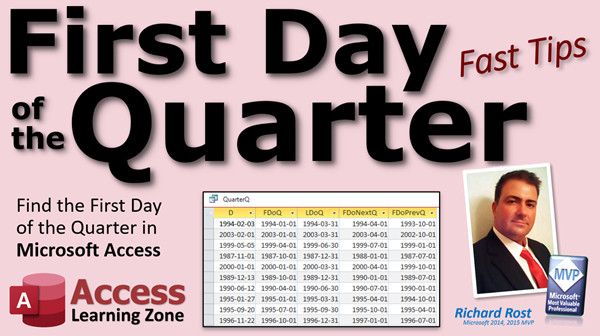
In this Microsoft Access tutorial, I will show you how to calculate the first day of the quarter for any given date. We'll also learn how to calculate the last day of that quarter, the first and last days of the previous quarter, and the following quarter.
Pre-Requisites
Recommended Courses
Usage
- D = Date() or any date you choose
- FDoQ: DateSerial(Year([D]),Int((Month([D])-1)/3)*3+1,1)
- FDoNextQ: DateAdd("q", 1, FDoQ)
- FDoPrevQ: DateAdd("q", -1, FDoQ)
- LDoQ: DateAdd("q", 1, FDoQ)-1
- LDoNextQ: DateAdd("q", 2, FDoQ)-1
- LDoPrevQ: FDoQ-1
Keywords
access 2016, access 2019, access 2021, access 365, microsoft access, ms access, ms access tutorial, #msaccess, #microsoftaccess, #help, #howto, #tutorial, #learn, #lesson, #training, #database, #fasttips, first day of the quarter, last day of the quarter, first day of previous quarter, last day of previous quarter, first day of next quarter, last day of next quarter, first day of quarter, last day of quarter, First day of current quarter
More InformationTranscript Welcome to another Fast Tips video brought to you by AccessLearningZone.com. I am your instructor, Richard Rost.
In today's video, I'm going to show you how to calculate the first day of the quarter for any given date. We're also going to see how to calculate the last day of that quarter, the first and last days of the previous quarter, and the following quarter. We're going to do all kinds of quarter stuff. This is especially handy for those of you who do budgets or any kind of fiscal year calculations.
I've got a bunch of prerequisites for you. I've got to know some stuff before you can learn some stuff. If you don't know how to do calculated fields and queries, go watch this video. You need to know how to use the date serial function. That's how you take the parts of a date and put it together to make a date value. Very handy. We'll be using the date add function. That's how you can add a month, add a quarter, subtract the month. You need to know how to use the year, month, and day functions. Specifically, in this video, we'll need to use the month function alone to find out what month a date falls in.
You'll need to know how basic date math works. You add one, you're adding a whole day. You subtract one, you're subtracting a day. Add a week plus seven. Watch this video.
And finally, what I'm showing you is going to work with any date format. Now, I personally use the ISO date format because I have students all around the world in different areas that have different date formats and everyone is getting confused, so I decided to standardize on this. And there it is, and that video explains what it's all about.
All of these videos are free. They're on my YouTube channel. They're on my website. I just gave you links. I'll also put links you can click on in the description down below the video. So if you didn't understand what any of that stuff was, go watch those videos first, then come on back.
Here I am in my TechHelp free template. This is a free database you can grab a copy of on my website if you want to, but you can use any database you want. We're not doing anything really fancy.
In my customer table, I've got a date field here called CustomerSince. We're going to cheat. We're going to pretend that's their date of birth or whatever date you're trying to find. Order date, CustomerSince, date of who? I want to use CustomerSince. I don't care. Do whatever you want. But we need some dates to play with.
Let's go make our query. So, create query design. I'm going to bring in my customer table. Then I can close the add tables pane. There we go. It's a big pane.
I'm going to find that CustomerSince field. Now, I don't want to have to refer to CustomerSince as CustomerSince in all my other calculations, so I'm going to alias that and I'm going to put D: in front of it. What does that do? The alias simply makes it so that I can refer to CustomerSince as D. It's a date and it's a whole lot shorter in my calculations. Zoom in for your Shift+F2. There you go. So D will henceforth be known as CustomerSince or the other way around, CustomerSince will henceforth be known as D.
Figuring out what quarter a month falls in is a little tricky, but we can do it with some simple math. First, let's isolate the month of that date. So it's going to be M. We'll call it M. Zoom in for you. M is going to be the month of D. If I hit OK, we should all know this by now if we watched the month/day video. There you go. There's a number from one to twelve that indicates what month this date falls in. So there's an 11. There's a 12. That's the easy part. I'll do that already.
Now, by a quirk of math, if I subtract one from that date, I'll get a number from 0 to 11. Then I can use integer division and divide that by 3 to get the quarter. What's integer division? It basically says divide two numbers and just chop off any remainder. So 10 divided by 3 is 3.33333. If I say 10 integer-divide by 3, I get just 3. It chops off the remainder.
What we're going to do now with that M value is say, take month, subtract one from it, and then put parentheses around it. Integer divide by 3. That's the backslash. Regular division is a forward slash. Integer division is a backslash, or you could use the int function, whichever you prefer. It's easier for me.
Now what I'm going to end up with is a number from 0 to 3 representing the quarter from that month. 0, 1, there's a 2, and there's a 3. If I add one back to this, plus one, that'll give me the actual quarter, first quarter, second quarter, etc., up to fourth quarter. See that? But if I don't go that far, let's get rid of that plus one. If I take this value now and then multiply that by 3 and add one, I get the month that begins that quarter. I know it's weird. Watch this.
So I'm going to take that value. Right now, we've got 0, 1, 2, or 3. I'm going to multiply that by 3. So we're going to get 0, 3, 6, and 9, then add one to that. I know, it's crazy. So take all of this, we really don't need these parentheses, but it makes it easier to read. Times 3 and then plus 1.
Now watch this. Look at that. We either have a 1, a 4, a 7, or a 10. And those are the months that represent the beginning months of each quarter. Now that I know that, I can throw together the quarter date for this particular date. That's going to be just take this. This is our value here for our month now.
We're going to take DateSerial. Now, the first thing DateSerial needs is the year. That's easy, we've got that already. Then this big long monster, that's what you just used to figure out the month. We always want the first day, so comma 1 for the day. That's it. Change the name over here. Let's call this FirstDayOfQuarter, FDOK.
This is the hard part right here. That's the tough part. When we're on it, there is the date representing the first day of each quarter.
Let's spot check a few. There's December 13th. So December falls in the fourth quarter. What's the first day of that fourth quarter? October 1st.
If you want the actual quarter up here too, you want the quarter value, that's fine. We already calculated that. Put it over here with the full zoom in, Shift+F2. Q is, what was that? The month of D minus 1 and then integer divide that whole thing by 3, then add 1 to it. I forgot my integer right there. The month minus 1, integer divide by 3 plus 1. So now we've got the actual quarter, if you want that.
You can use Format, too. Format will also return the quarter, but then it converts it to a text value, and then you have to convert that back to a number value. This is a good mathematical way to calculate the quarter. Every 3 over here should correspond to a July. Every 4 should correspond to an October, and so on.
Once you've got this calculating, everything else is simple, once you've got the first day of the quarter, because that was just basic date math.
If you want to figure out the last day of the quarter, just use DateAdd, add a whole quarter to it, and subtract one day. Let's come over here. Now, move quarter to the beginning. We'll go over here with that. The last day of the quarter is going to be DateAdd. DateAdd, what are we adding? Quarters. If you watched the DateAdd video, we're going to add one quarter to FirstDayOfQuarter. From that date, we get the next quarter first day. We're going to just subtract one day. That will go back a day, bringing us back into the last day of the current quarter.
Hit OK and run it. See? There's the first day of the quarter. There's the last day of the quarter. That's nice and simple.
Let's do the first day of next quarter. That's simple. First day of next quarter: we're going to add DateAdd. It's all just DateAdd stuff. We're going to add a quarter to FirstDayOfQuarter. We just did that, like that. Hit OK. There's the first day of the next quarter following our original date. That's good if you need, for example, when you're doing your budget and this expense came in now. If you budgeted it in the next quarter, there's the first day of the next quarter. Easy enough.
I've got all the rest of these, too. I'm going to put these on the website for you. You can just click on them if you want to copy them. I'm not going to make you watch me type them all in. The first day of the previous quarter is this. It's the same thing; you just add a negative one, and that will subtract a quarter. That's the first day of the previous quarter. Easy enough.
The last day of the next quarter: I'll paste that in. Looks like this. We're going to add two quarters to the first day of this quarter and then subtract one day. Same thing we did figuring out the last day of this quarter. Go ahead two, then back a day. That's easy.
The last day of the previous quarter: what's the last day of the previous quarter? Well, it's the first day of the quarter minus one. That's it. We know the first day of the quarter. Just minus one from that date, and then that puts you in the day before it.
That's all stupid simple, easy stuff. Once you figure this guy out, this is the tricky one. This is the one that takes a little bit of work. I'll be honest, I don't use this every day. I looked it up myself. I don't remember how to do this every time. I could probably sit down with paper and pencil and figure it out. That's the beautiful thing about math and science: you could destroy every math and science book in the world, and eventually someone will figure all this stuff out again. With no reference books, it'll come around again, in however many years.
So, do I memorize stuff like this? No, that's what the Google machine is for. This will be on my website too. I'll put it in the description text down below so you can just copy and paste it.
If you like stuff like this, then you're in for a treat. I have a whole bunch of classes on working with dates and times in Access. First, Access Expert Level 27 covers all kinds of dates and datetime functions, part one. I go through all the different functions in Access, like 99 of them. I've got a whole series of classes that just do functions.
Level 27 is datetime part one. Level 28 is datetime part two. I go through all kinds of stuff and a lot more detail than I covered in this video. If you want to go even beyond that, I have a whole datetime seminar that covers the material from 28 and 27, plus a whole bunch of cool extra stuff like network days and things like that. As I was putting together these two classes, I came up with a whole bunch of extra stuff that I could even keep going. There's all kinds of stuff.
One more thing, I also put together this thing called the fiscal year seminar. Not everybody works with fiscal year calculations. Corporations that run on a fiscal year only. So, I put together this specific seminar, try saying that ten times fast, specific seminar, for just people who work with fiscal year calculations. I didn't put this in the regular classes. I don't include stuff that I don't think most people will use, and only a very small portion of people use fiscal year stuff. That's all in this seminar. Lots of cool stuff.
I will put links to everything I just mentioned down below in the description below the video window. I know YouTube does a good job of hiding it, but if you go to my website, it's all right there on the page. I don't know why YouTube hides it like that, but you have to find a little more link and click on it, and all that opens up.
There you go. There's your fast tip for today. I know it wasn't fast, but we got to the first stuff quickly, I think.
Again, I'm Richard Rost. I hope you learned something today, and I'll see you very soon. Intro In this video, I will show you how to calculate the first day of the quarter for any given date in Microsoft Access. We will also learn how to find the last day of the quarter, as well as the first and last days of both the previous and following quarters. Using simple date math and functions like DateSerial and DateAdd, you'll see practical examples that are especially useful for budgeting and fiscal year calculations. If you work with dates in Access and need to organize your data by quarters, this video will help you get started. Quiz Q1. What is the main objective of the video tutorial?
A. To show how to calculate the first day of the quarter for any given date
B. To design a new database template from scratch
C. To demonstrate how to import data from Excel to Access
D. To explain VBA programming basics
Q2. Which field is used in the customer table to demonstrate date calculations?
A. CustomerDOB
B. OrderDate
C. CustomerSince
D. LastPurchase
Q3. Why does the instructor use an alias "D" for the CustomerSince field in the query?
A. To make calculations more readable and concise
B. Because Access requires single-letter field names
C. To hide the field from output
D. To automatically apply date formatting
Q4. Which function is used to obtain the month from a date in Access?
A. Day()
B. Year()
C. DateSerial()
D. Month()
Q5. How are quarters determined based on the month number?
A. By dividing the month by 4 and adding 1
B. By adding one to the month, then dividing by 3
C. By subtracting one from the month, integer-dividing by 3, then adding 1
D. By subtracting the month from 12, dividing by 3, and adding 2
Q6. What does integer division do in Access when used with months for quarter calculations?
A. Returns a decimal value
B. Rounds up to the nearest whole number
C. Rounds down and removes any remainder
D. Multiplies the two numbers
Q7. What are the starting months of each quarter?
A. January, March, June, September
B. January, April, July, October
C. February, May, August, November
D. February, April, August, December
Q8. Which function is used to construct a date from the year, month, and day components?
A. DateDiff()
B. DateAdd()
C. DateSerial()
D. Format()
Q9. How is the last day of the quarter calculated?
A. By using DateAdd to add one quarter to the first day of the quarter, then subtracting one day
B. By adding 29 days to the first day of the quarter
C. By subtracting one month from the first day of the next quarter
D. By adding three months to the original date
Q10. What is the purpose of the DateAdd function in these calculations?
A. To format dates for display
B. To add or subtract time intervals such as quarters from a given date
C. To compare two dates for sorting
D. To convert dates to strings
Q11. How can you determine the first day of the next quarter?
A. Add one month to the original date
B. Subtract one day from the first day of the quarter
C. Use DateAdd to add a quarter to the first day of the current quarter
D. Multiply the month number by 2
Q12. What is a simple way to get the last day of the previous quarter?
A. Add one to the first day of the quarter
B. Subtract one day from the first day of the quarter
C. Add one quarter to the last day of the quarter
D. Subtract one day from the last day of the quarter
Q13. Why does the instructor emphasize not memorizing complex date calculations?
A. Because they are always changing in Access
B. Because there are too many functions in Access
C. Because reference materials and resources like Google and Richard's website are available
D. Because memorization leads to mistakes
Q14. What additional resources does the instructor offer for those who want to learn more about date functions in Access?
A. Only this single video
B. Free template downloads exclusively
C. Additional expert level classes and specialized seminars
D. One-on-one tutoring only
Answers: 1-A; 2-C; 3-A; 4-D; 5-C; 6-C; 7-B; 8-C; 9-A; 10-B; 11-C; 12-B; 13-C; 14-C
DISCLAIMER: Quiz questions are AI generated. If you find any that are wrong, don't make sense, or aren't related to the video topic at hand, then please post a comment and let me know. Thanks. Summary Today's video from Access Learning Zone focuses on calculating the first day of the quarter for any given date using Microsoft Access. In addition to that, I will explain how to determine the last day of that quarter, as well as the first and last days of both the previous and following quarters. This information is especially useful if you are managing budgets or performing fiscal year calculations.
Before you get started, there are several prerequisites you should be familiar with. First, make sure you understand how to create calculated fields and work with queries. It's important to be comfortable using the DateSerial function, which is used to construct a date value from its year, month, and day parts. You'll also need to know how the DateAdd function works to add or subtract time intervals such as months or quarters. Familiarity with the Year, Month, and Day functions is required, too, and for this lesson in particular, we'll use the Month function to extract the month from a date.
A basic understanding of date arithmetic is also necessary. For example, adding one to a date will move it forward by one day, while subtracting one takes it back by a day. Adding seven will bump the date forward by a week.
The method I'll be demonstrating in this lesson works with any date format. Personally, I use the ISO format, since my students are from various parts of the world and there can be confusion over date formatting. Using ISO makes things much simpler.
All of these prerequisite tutorials are available for free on my YouTube channel and my website. You can consult those if you need to brush up on these topics before continuing.
For demonstration purposes, I'll be using my free TechHelp template database, which you can download from my website if you'd like to follow along. You can use any database, as the steps I'll be covering aren't specific to the template.
Suppose your customer table contains a date field called CustomerSince. You might use this as an example date for calculations, but the same process applies whether you're working with a field like date of birth, order date, or any other date. All you need is a date field to proceed.
The first step is to open Query Design and add your customer table. In order to make calculations easier, I recommend giving your field an alias. For example, instead of repeatedly referring to CustomerSince, you can use D as a shorthand. Using aliases makes calculations clearer and formulas shorter.
To identify the quarter a particular date falls in, start by extracting the month from your date and assigning it to a variable, M. The Month function will return a value from one to twelve, making this straightforward.
The next part involves determining which quarter that month belongs to. If you subtract one from the month and then perform integer division by three, you will get a value representing the zero-based index of the quarter (so zero for the first quarter, one for the second, and so on). Integer division means dividing two numbers and disregarding any remainder. For example, 10 divided by 3 gives 3.333, but integer dividing 10 by 3 gives just 3.
Using this, you take (Month - 1), integer divide by 3 to determine the quarter index, and to get the start month of the quarter, multiply that value by three and add one. This gives you either 1, 4, 7, or 10, which are the first months of each quarter.
From there, you can use the DateSerial function to assemble the first day of the quarter by putting together the year part of your date, the calculated first month of the quarter, and day one. This value will represent the starting date of the quarter.
If you want to find out what the actual quarter number is (first, second, third, or fourth quarter), just add one to your quarter index calculation. This gives you a one-based quarter number.
You can also use the Format function to get the quarter, but keep in mind it returns a text value, which you'll have to convert back to a number if you want to use it in numeric calculations. The method demonstrated here uses straightforward math, making it efficient and reliable.
Once you have the first day of the quarter, working out other key dates becomes simple. To get the last day of the quarter, use DateAdd to add one quarter to the first day of the quarter, then subtract one day. This gives you the last day of the current quarter.
Similarly, you can calculate the first day of the next quarter by adding one quarter to your first day of the current quarter. For the first day of the previous quarter, simply add a negative one quarter, which moves you back one quarter from your current point.
To calculate the last day of the next quarter, add two quarters to the first day of your current quarter, then step back one day. Conversely, the last day of the previous quarter is found by subtracting one day from the first day of the current quarter.
The most challenging part is calculating the first month of the quarter for a given date, but once you have that, the other computations use basic date arithmetic. Frankly, this isn't a formula I keep memorized. Usually, I'll look it up or figure it out as needed, and that's perfectly normal in programming.
All of these formulas and explanations are available on my website, so you can copy and use them in your own projects. The description below the video has all the relevant links.
If you find this lesson useful and want to learn more about working with dates and times in Access, you may be interested in my other courses. Access Expert Level 27 covers a wide array of date and time functions, while Level 28 takes those concepts further. For an even deeper dive into advanced date calculations, you might consider my DateTime Seminar, where I go beyond the standard functions and address topics like working days.
I also offer a seminar specifically focused on fiscal year calculations for those whose organizations use non-calendar fiscal years. Since only a small proportion of people need to deal with fiscal year matters, I separated this topic into its own seminar.
You'll find links to all of these resources and classes on my website. YouTube sometimes hides the full description, so it might be easier to visit my site directly for all the information in one place.
That sums up today's tip. While it may not have been as quick as intended, I think we covered the main concepts efficiently.
As always, you can find a complete video tutorial with step-by-step instructions on everything discussed here on my website at the link below. Live long and prosper, my friends. Topic List Aliasing a date field in an Access query
Extracting the month from a date value
Calculating the quarter number from a date
Calculating the starting month of a quarter
Using DateSerial to determine the first day of a quarter
Adding a column for the specific quarter number
Calculating the last day of a quarter using DateAdd
Finding the first day of the next quarter
Finding the first day of the previous quarter
Calculating the last day of the next quarter
Calculating the last day of the previous quarter Primary Topics Access queries, date calculations, quarters, DateSerial, DateAdd, date math, integer division, calculated fields Secondary Topics aliases, fiscal year calculations, ISO date format, prerequisite skills |





