Load Faster
By Richard Rost

 4 years ago
Make Access Forms Seem To Load Faster w Timer
In this Microsoft Access tutorial I'm going to show you how to make your forms seem to load faster by using a Timer event instead of the On Load or On Open events.
Members
Members will learn how to make Continuous Forms appear to load faster with an additional trick.
Silver Members and up get access to view Extended Cut videos, when available. Gold Members can download the files from class plus get access to the Code Vault. If you're not a member, Join Today!
Pre-Requisites
Links
Recommended Courses
 Keywords Keywords
access 2016, access 2019, access 2021, access 365, microsoft access, ms access, ms access tutorial, #msaccess, #microsoftaccess, #help, #howto, #tutorial, #learn, #lesson, #training, #database, how to make microsoft access forms load faster, Microsoft Access Performance Tips, Help Access run faster, Make Slow Forms Run Faster, Quick Ways To Speed Up Slow Running Access Database
 Subscribe to Load Faster
Get notifications when this page is updated
More InformationTranscript Welcome to another Fast Tip video brought to you by AccessLearningZone.com. I am your instructor, Richard Rost.
In today's video, I am going to show you how to make your Access forms seem to load faster by using a timer event. I say "seem to load faster" because sometimes there is not a lot you can do to actually make it load faster if it has calculations or records to read. But we can make the user experience better by making the form seem to load faster.
This is a developer Fast Tip, so you need a little bit of VBA experience under your belt. If you do not know VBA and you want to learn how to program, watch my Intro to VBA video first. It will teach you everything you need to know in about 20 minutes.
This is a trick that I use when I have a main menu or some other form with a bunch of calculations that it has to perform when it loads. I show some ideas for things like this in my Dashboard Form video. You could do a sales summary, you can load up some charts, all kinds of stuff. You have a form, it loads up, and it does some stuff before it gives the user some information.
Let's say, for example, on your Main Menu form, you have a field where you want to display what your monthly sales are every time your form loads. If you are just working with a single-user database and it is just on your computer and you do not have much data, it probably loads up really fast. But let's say you have a networked database like a lot of people do and all of your data is on a server.
You are pulling down a whole month's worth; maybe you have 10,000 or 20,000 records that have to come across the wire and that calculation can take even 5 to 10 seconds, which can seem like an eternity when you are waiting for a form to load. If that calculation is in your Form Load event or your On Open event, it is going to seem like that form is just not loading – it looks stuck, and the database might look like it is frozen to someone who does not know better. So, it would be nice if we could have the form appear and then maybe say "Calculating" or "Please wait" while the data is crunching.
How do we do that? Let's go to Design View and create the problem first. Let's say this is our month-to-date sales. I will rename this guy to MTD Sales, get rid of that control source, and change the format to Currency.
This could be anything in here. This could be a DLookup, or it could be a bunch of action queries running in the background. Sometimes if I have a big report that I am generating, I will run a few action queries to append some data into a temporary table and then do a bunch of crunching, so all kinds of stuff could be happening behind the scenes.
Let's say we put that in our On Load event or our On Open event. Yes, I realize you could just make this the control source if it is a simple calculation like a DSum or something, but a lot of times you have more stuff that has to happen before you can just do a simple calculation.
So, you put those things in your On Load event. Right here, let's just cheat and say MTD Sales equals 50,000. Save it and close it, and now when that form opens, boom, there is your thing. If it is just a local calculation or it is fast, there you go. But maybe lots of stuff has to happen before you get to that number.
Let's say you are pulling down a whole bunch of records from across the network, putting them into a temporary table, scrubbing them, changing some stuff, doing this and that – it's not just a simple little lookup. What we are going to do is cheat and pretend that we've got a five-second delay. To do that, I am going to use my little SleepSeconds function. If you are not familiar with my SleepSeconds function, watch this video. I show you how to make a timer function that can make your code pause, so you can wait three seconds, five seconds, to do something – that is what this function does. You will find links to all this stuff in the description below the video window.
Let's say right here we say SleepSeconds, and then we will just do a three-second timer. That is simulating the database having to do something, getting a bunch of records, calculating some totals, all that stuff. Save that, close it. Now when I open up this form, watch: click, wait, wait, wait, see? It takes three seconds for that part. Now, that is just three seconds; I have had queries and stuff that have taken 20 seconds or more to load before, which is unbearable. It makes you think your database is frozen.
How do we get around that problem? We are going to use the form's Timer event. If you do not know what the Timer event is, watch my Reminder Pop-Up video. I teach all about the Timer event and how to use this form's Timer event to wait a certain number of seconds before something happens.
For example, if you go into the events and come down to the Timer Interval, that is the number of milliseconds before this thing kicks off. If you put in, say, 3000, that is 3,000 milliseconds or three seconds. You can put your On Timer event in here to do something. Let's say in here, I am going to Beep. So every three seconds, this form is going to beep. Ready? Save it, close it, and then open it up. There is our three-second pause. We should get a beep in three seconds. There it is, you hear it? Yes, there it is. Every three seconds. I am going to stop that.
But we do not want a three-second pause every time, so let's go back. You have to go back into the Main Menu design view. We do not want to open it or it will start running again. Go back to the Timer Interval, get rid of that, put it back to zero, and come back in here.
Here is my form Timer event. What you want to do is this: you do not want to have a timer event that runs all the time. You want the Form Load event to set the Timer Interval to something really small, like 100 milliseconds (a tenth of a second).
What is going to happen is the Form Load event is going to say, "Hey, Timer, in 100 milliseconds, you go ahead and run my startup event, then stop yourself so you do not run again." You do not want it to run every hundred milliseconds, just once. You just need a little tiny bit of a delay so the form loads, displays itself, and then passes control off to the Timer event 100 milliseconds later. Remember, to the computer, 100 milliseconds is like forever.
We are going to load up the form, display it, show all the stuff, maybe a "Please wait" message if you want to, and then 100 milliseconds later pass control to the form Timer event, which does your startup stuff.
Here is what we are going to do. Take that Form Load event, cut that out of there, put it in the Timer event. In the Form Load, we are going to say Me.TimerInterval = 100 (milliseconds). That is it. The form is going to load and this code runs. The first thing you want to do in the Timer event is stop the timer from running again, so you are going to say Me.TimerInterval = 0 (that stops it), then go do your stuff. So it will run once when the form loads.
If you want, down here you can put something else. Even though this is a currency, you can still put a message in there like "Waiting." You can still say something like MTD Sales = "Calculating" or something like that. If you put text in there, it will still work. Then it will sleep those three seconds, then display the amount (again, pretending it is doing your calculations here).
Save that, come back over here, close the form. Now you are ready. Click, it displays, you see "Calculating," and then there is your 50,000. See how that worked?
In fact, if you want, you can do something like MTD Sales.BackColor = vbYellow or whatever, do your calculating, and you might also want to throw in a Me.Repaint in there. That forces it to repaint the screen immediately. It just redraws all the controls. I do not want to say refresh – it is not the same as Me.Refresh, which is also different from Me.Requery. Me.Repaint just says "redraw the form."
Then wait three seconds, set it to that, and then say MTD Sales.BackColor = vbWhite.
Save it, and now you are ready. The form is going to load now. Ready? Click – "Calculating" – and then there is your 50,000.
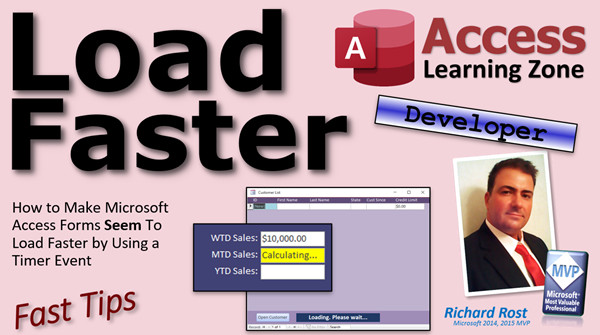
That is kind of neat. If you have a bunch of these, like in my little screenshot, you have week-to-date sales, month-to-date, year-to-date. This one will be yellow and say "Calculating" while it is doing its thing, then it will come down here calculating, then down here calculating. You can do as many of these as you want.
The same problem also happens with continuous forms – these guys that load lots and lots of records. If you have a customer list that has to load 20,000 customer records (yes, I know it only loads the pages at a time that are displayed on the screen), but even so, if you are pulling lots of records down over the network, these can still take forever to load, especially if that is based on a query. Access has to pull down all the records, chew through the query, and then display the right records.
You can do the same trick. When you are loading records into a continuous form, you can display a little message down at the bottom that says "Please wait, loading..." Load these in the background while the form is displayed, and then display the records, just like this one back here. It will load up the shell of the form with no records in it, say "Loading, please wait," and you can even make that flash if you want to. I have a video on flashing text, and you can also use the Timer event.
But there is a trick with continuous forms to get it to display the records properly and I will cover that in the extended cut for the members. Once in a while, the Fast Tips have an extended cut. I will show you how to load up a continuous form with no records in it, show the "Loading, please wait" sign, load those records in the background, and then properly display them. That is going to be covered in the extended cut for the members.
Silver members and up get access to all of my extended cut videos. That is your Fast Tip for today. I hope you learned something, and I will see you next time. Intro In this video, I will show you how to improve the user experience when opening slow-loading forms in Microsoft Access by using the form's Timer event. You will learn how to give users immediate visual feedback, such as a "Calculating" or "Please wait" message, while your form performs calculations or loads large recordsets. This Fast Tip is aimed at Access developers with some VBA experience, and I will demonstrate step-by-step how to set up the Timer event to make your forms appear to load faster. Quiz Q1. What is the main purpose of using the Timer event technique described in the video?
A. To actually make Access forms process data faster
B. To give the appearance that Access forms load faster by improving user experience
C. To perform real-time data validation on all form fields
D. To connect forms to multiple databases simultaneously
Q2. Which event does Richard recommend moving your calculation or intensive code into to improve the appearance of form loading?
A. Form Open event
B. Form Close event
C. Form Timer event
D. Control Click event
Q3. What must you do in the Form Load event to trigger the Timer event after a short delay?
A. Call Me.Refresh
B. Set Me.TimerInterval to a positive value such as 100
C. Set Me.Visible to False
D. Call the Timer event directly
Q4. Why do we set the TimerInterval back to 0 at the start of the Timer event?
A. To speed up query processing
B. To prevent the Timer event from running repeatedly
C. To close the form immediately after loading
D. To refresh the data source
Q5. What is the intended effect of showing a message like "Calculating" or "Please wait" while calculations run?
A. To temporarily hide the form from users
B. To distract users from slow network speeds
C. To inform users that the form is working, improving perceived performance
D. To make Access forms compatible with more data sources
Q6. How does the SleepSeconds function help in this demonstration?
A. It speeds up calculations by running them asynchronously
B. It allows simulating a processing delay to mimic heavy calculations
C. It refreshes form data at intervals
D. It automatically closes the form after a set time
Q7. What does Me.Repaint do in the context of these timer-driven updates?
A. Forces the form to refresh its data source from the database
B. Makes the form invisible and then visible again
C. Redraws the form and its controls to immediately reflect property changes
D. Runs all queries in the database
Q8. What color did Richard suggest using to highlight the calculated field while it is processing?
A. vbRed
B. vbBlue
C. vbYellow
D. vbGreen
Q9. Can this timer trick also be used with continuous forms that display many records?
A. Yes, with some extra consideration covered in the extended cut
B. No, it only works with single forms
C. Only with unbound forms
D. Only in web-based Access applications
Q10. What should you display on a continuous form while records are loading to improve user experience?
A. A blank screen
B. "Please wait, loading..."
C. The final data values immediately
D. The SQL query being executed
Answers: 1-B; 2-C; 3-B; 4-B; 5-C; 6-B; 7-C; 8-C; 9-A; 10-B
DISCLAIMER: Quiz questions are AI generated. If you find any that are wrong, don't make sense, or aren't related to the video topic at hand, then please post a comment and let me know. Thanks. Summary Today's video from Access Learning Zone focuses on making your Access forms appear to load faster by using the form's Timer event. While you often cannot actually accelerate the loading process if your form is running calculations or retrieving records from a server, you can improve the way the user perceives the loading process and make your application feel more responsive.
This method is aimed at developers who have some experience with VBA. If you are new to VBA and need to learn the basics, I recommend starting with my Intro to VBA video, where I explain everything you need in about twenty minutes.
The need for this technique often comes up with forms like main menus or dashboards that have to perform multiple calculations or fetch data when they load. You might want to show a sales summary, display charts, or do other tasks that require the form to crunch data before presenting it to the user.
For example, imagine you have a Main Menu form with a field that displays the current month's sales whenever the form loads. In a single-user database with minimal data, this would be almost instantaneous. However, if your database is on a network and you're working with thousands of records stored on a server, calculating that month-to-date total could introduce a noticeable delay. If that logic is executed in the Form Load or On Open event, the user just sees the form as frozen or stuck until the calculation completes. In some cases, it may look like the database has crashed.
A better experience is to have the form display immediately and show a message such as "Calculating" or "Please wait" while those calculations are being performed.
To set this up, you can start by designing your form. Suppose you have a control labeled "MTD Sales" for your month-to-date sales. Set its format to Currency and make sure it is ready to display a calculated value. The calculation could use functions like DLookup or involve running several action queries behind the scenes, especially if you need to work with temporary tables for larger reports.
If you put your calculations directly in the On Load event, the form won't appear to the user until all of the work is done. For quick calculations, this is fine, but longer processes slow things down and make the form unresponsive. A common way to demonstrate this is by inserting a five-second pause, simulating a heavy workload. For those unfamiliar with how to add such a pause, there is a SleepSeconds function I use in a previous lesson, which lets you insert a timed wait in your code. If you add SleepSeconds with a three-second wait for demonstration purposes, you will see the problem: the form does not appear until after the wait is over.
To get around this, you can use the form's Timer event. If you are not familiar with the Timer event, I suggest checking out my Reminder Pop-Up video, where I explain how to use the form's Timer and Timer Interval properties.
The Timer Interval property determines how often the timer event fires, in milliseconds. For example, setting it to 3000 would trigger the event every three seconds. You could use this to run repetitive actions, but in this solution, you only want the event to fire once, shortly after the form loads.
The approach is as follows: in your Form Load event, set the TimerInterval to a short value like 100 (which is 100 milliseconds or a tenth of a second). This allows the form to appear on the screen so the user sees it immediately, even if only briefly. Then, 100 milliseconds later, the Timer event fires. In the Timer event, the first thing you do is reset TimerInterval to zero, so it does not keep triggering repeatedly. Next, you run your startup calculations there.
This small delay gives Access enough time to draw the form for the user, display a message such as "Calculating" or "Please wait," and then execute the longer backend process. Even if you put text in a currency control temporarily, it will still work to show the message. You can further enhance the effect by changing the background color of the control to yellow, for example, to visually indicate that a calculation is occurring. It helps to call Me.Repaint to force Access to immediately redraw the controls after your changes.
After your calculation completes, you set the correct value (for example, the sales total) and restore the control's color if you changed it.
This approach can be extended to forms with several calculations—such as week-to-date, month-to-date, and year-to-date sales—allowing each to display an interim "Calculating" message before the actual results appear.
The same principle applies to continuous forms, such as a customer list that must retrieve thousands of records from a network server. Although Access only loads a subset of records for display, pulling data through a complex query can still take noticeable time. You can use the Timer event to display a "Loading, please wait" message while the form retrieves or processes the data. There are some additional tricks needed to make this display properly in continuous forms, which I cover in the Extended Cut of this lesson available to members. There, I explain how to load a continuous form with no records initially, show a loading message, and then fill in the actual data once it is ready.
Silver members and above have access to all my Extended Cut videos, where advanced techniques like this are demonstrated in greater depth.
You can find a complete video tutorial with step-by-step instructions on everything discussed here on my website at the link below. Live long and prosper, my friends. Topic List Explaining form load delays in Access due to calculations
Demonstrating impact of networked databases on form load time
Simulating a slow form load using a SleepSeconds function
Setting up and using the form Timer event in Access
Configuring the Timer Interval property in milliseconds
Using the Timer event to delay code execution after form load
Displaying status messages like "Calculating" during data loading
Changing control BackColor to indicate status
Using Me.Repaint to refresh form controls
Restoring display after calculations finish
Applying the Timer event delay technique to main menus and dashboards
Applying the same technique to continuous forms that load many records Primary Topics Access forms, Timer event, form load optimization, user experience, VBA event handling, delayed calculations
Secondary Topics SleepSeconds function, continuous forms, display messages, UI feedback, temporary tables
|




