DDQ Not SQ
By Richard Rost

 4 years ago
Double-Double "" Quotes Not Single ' Quote
In this Microsoft Access tutorial, I'm going to explain why I prefer using double-double quotes instead of single quotes in my criteria for strings.
Errata
The first line inside the DDQ function should be:
Pre-Requisites
Links
Recommended Courses
Keywords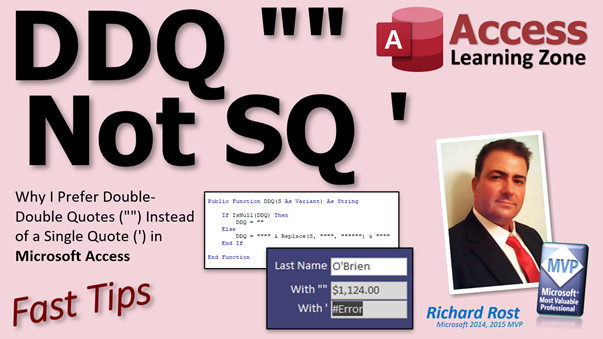
access 2016, access 2019, access 2021, access 365, microsoft access, ms access, ms access tutorial, #msaccess, #microsoftaccess, #help, #howto, #tutorial, #learn, #lesson, #training, #database, DDQ, SQ, Why use single and double quotes in statements, difference between single and double quotes in SQL, When to Use Quotation Marks In MS Access, Quotation marks within quotes
 Subscribe to DDQ Not SQ
Get notifications when this page is updated
More InformationTranscript Welcome to another Fast Tips video brought to you by AccessLearningZone.com. I am your instructor, Richard Rost.
In today's video, I'm going to tell you why I prefer using double, double quotes. A little double, double quotes. These guys right here, they look like two double quotes together, instead of a single quote, this guy, in Microsoft Access.
Last week, I released this video on how to do a double lookup - how you can use DLOOKUP to look up a value based on two other criteria. In this video, we got talking about the double, double quote problem. This comes up so much that I actually have another video just on this one. This one's a little older, doesn't have as pretty a title slide as the other ones do, but in this one, I talk about when to use single quotes, double quotes, and double, double quotes. If you haven't watched this one yet, go watch this one. All of these have to do with concatenation, so this is the granddaddy of all. I'll put links to all three of these videos down below. Go watch these.
Oh, and while we're at it, if you don't know what DLOOKUP is, go watch this video too, because this is the example I'm going to use in today's video.
Now, I got a lot of comments and emails from people saying that instead of using double, double quotes, they just use single quotes because it's a lot easier to read and to write than having to put double, double quotes here. I made them red and bold here so you can see them better instead of all of your strings, because for a last name, for example, you have to put double quote, double quote, double quote to close that string right there. Yes, this is PowerPoint, I know. And then ampersand, and then your criteria, and then you have to put another double quote at the end of it, and that's inside of that string. That's a lot of stuff to put into your string.
Whereas, it's easier to just put a single quote around that last name parameter. And yeah, that's fine. This will work just fine, I'm going to say 90 percent of the time. But then it doesn't, and you don't know why. And your stuff doesn't work. Let me show you an example.
Here I am in my TechHelp free template. It's a free database. You can grab a copy on my website if you want to. In here, I have a customer table, and let's assume, just for the purposes of class, that there's only one person with each last name in your table, and you want to look up their last name and pull any other value, let's say credit limit. We have to use a string value, so last name is nice and easy. We're going to do that, and we'll put it right here on our main menu using the lookup. Very simple to do. Very similar to what I did in the other video for the double lookup.
We're going to put in last name. Let's change this guy to a last name field, so we'll say last name here. Get rid of that control source, get rid of that format, and we'll make the data. Let's make a default value of just my last name, Rost, R-O-S-T. And we'll put the result in another field below it. So copy and paste that, Ctrl+C, Ctrl+V. We'll put the credit limit here, so this will be our DLOOKUP. Let's get rid of that default value, and we'll go to the All tab. We'll come up top here, and we'll name this guy credit limit, and the control source is where we'll put our DLOOKUP value.
I'm going to zoom in, Shift+F2. This is fairly straightforward. Equals DLOOKUP. Now, what am I looking up? The credit limit from the customer table where last name equals...
Now, I can't just say last name like that and call it a day, because it's a string value, so I have to enclose last name inside of double quotes. Double quote there, so that's inside. That there creates one double quote inside that string. You need two double quotes to get a single double quote, not a single quote. I know, it's confusing. It only took me about 25 years to get used to this stuff, and most of that was teaching it. The more you teach something, if you want to get good at something, teach someone else how to do it. By explaining this stuff to you, it solidifies a library.
Now, we also need another double, double quote after the name too, so we have to tack onto that a double, double, double quote inside like that. So what that is, is that's a string. Let me make this bigger so it's easier if you can see it all on one line. So that is a string. That's the opening and closing double quotes there and there for that string, and inside that string is one double, double quote, which will turn into a double quote. So that whole thing will be last name equals double quote, Rost, double quote.
This should work just fine. Let's make that gray real quick because that's something that a user can type in. I like to make those fields gray. Save it, close it, open it back up again, and there we go. Put in Rost, you get 5,000. Put in Picard, you get 500. Put in Riker, and he's 2,997. Perfect. I'm assuming those values are correct, and they are. It's working just fine.
Now, other people are saying you can use a single quote to do the same thing. No problem, let's do that. Let's come in here, copy, paste. We'll do the same thing. I'm going to make this one say with a double quote, and we're going to have this one - actually, it's with a double, double quote. We'll just put that right in the comments there, or the caption there, and this one will do with a single quote. Let's go back into here, and we'll go into the control. Let's give it a good name. What did we call this one? Credit limit. Let's make this one credit limit one, and then credit limit two. I blame Alex, he's got me naming all my fields.
So, control source. We're going to replace that double quote with a single quote, and this one over here with a single quote. That will look like, if you were to type it in, and bring out my glorious Notepad here, if you were to type it in, it would look like this: last name equals 'Rost' like that, instead of last name equals "Rost" inside your string. Inside the string, these get converted over to a double quote, whereas these will stay single quotes.
Everything looks fine. Let's hit okay. Save it, close it, open it up. Looks good. Rost, Picard, yes. Let's try Riker. Let's try O'Brien. O, single quote, B-R-I-E-N, boom. You get an error. That is why I don't like using single quotes.
Now, yes, you are sometimes likely to come across looking up a field with a double quote. But it happens a whole lot less often than you might run into a single quote. You can come up with a single quote in a name field, in a title field, in an address field. Single quotes are used all over the place. Whereas a double quote is usually only something like if you're maybe looking up a list of famous quotes, and it has like he said "something" in it. So I prefer to stick with the double double quotes, even though it's harder to write and a little harder to understand. Once you get used to it, it works a lot better.
Now, what you have to do is, in order for this to work, you have to put two of those there, and now it's not going to work with this. You have to rewrite your code to say, if I come across any single quotes, I have to convert them over to double single quotes. Which, by the way, is what you have to do with SQL Server. That's a whole different video because SQL Server uses single quotes around strings instead of double quotes. But we're just dealing with Access for this video.
If you did have a customer in your table, let's say Barclay here that had - let's pretend this is some kind of other thing you're looking up, and it's got a single quote in it. If you did search for Barclay here, see? Only why? Well, now it'll work with the single quote, but you'll get an error with the double quotes if you have that in your actual field.
So what do I do? If it's a field that possibly can have a double quote in it, which, you know, names can't, addresses can't, cities can't, most text fields that I can think of don't have that in there unless you're dealing with inches maybe. But if you are looking something up from a long text field that could have a double quote in it, you can wrap your function in another function that handles that. I just so happen to have one that I wrote. I call it the DDQ function, the double, double quote function.
What it does is you put this in your DLOOKUP instead of having to deal with all of those double, double quotes. It will handle the double, double quotes in front of the string and after the string, and it will also what's called escaping. It'll escape any double quotes that are inside them by replacing them with double, double quotes.
Let me show you how it works. Here's the function. Gold members, this will be in the Code Vault. I'll put a link down below on my website. Everybody else, get typing. There's not much. Yes, these are all double, double quotes. Reason number 5,622 to become a Gold member: the Code Vault has lots of awesome stuff in it.
I'm going to copy this to my clipboard. I'm going to come back here to my database. Go into a global module. You can drop this inside of a form if you want to, but if you put it inside of a public module, then you can use it anywhere you want. Paste it in.
Let me walk you through this real quick. It's a function, so it returns a value. It's going to return a string. It takes in a value called s as a variant. Why a variant and not a string? Because variants can handle anything including nulls. If you try making this a string and you send a null value into it, it's going to generate an error. So the variant can handle a null.
The first thing we're going to do is check to see if ddq is null, and if it is, return an empty string. That means nothing was sent to me, so just return an empty string. That avoids the error. However, this assumes there's something in that string s. The first thing we're going to do is we're going to add a double quote in front of it, and we're going to add a double quote at the end of it. We're turning it into a string for criteria. Then replace any time you see one of these inside the string, replace it with two of them. If you have a quote like he said "something", it'll then put those quotes around the something. It will now turn into double, double quotes. So your string will still work.
All you have to do is call ddq. No, it's not dq, we're not going for ice cream, although now I kind of want ice cream. My thing is, I used to love the Reese's Pieces Blizzard. For some reason, years ago they got rid of it. They still have the peanut butter blizzard, but why don't you have the Reese's Pieces Blizzard? Come on. I love that. Bring it back. Anyone here works with Dairy Queen, I want that back, please. I'll give you a free membership if you give me that back.
So we're going to take this. Now we're going to replace anywhere where we have a possibility of having double quotes in our criteria with the ddq function.
How do I do that? Well, save this first. Save it. We're going to close it. Give it a debug compile if you want. Now I'm going to come in here, design view, and go into this one and go in here. We don't need this now because we're not going to use the single quote anymore. Goodbye. We're just going to use our double quotes, and I can probably put that back to credit limit.
Go into the DLOOKUP function. Let's chop this all off here. So our string is going to be last name and ddq last name, like that. That's it. Because ddq will take whatever is in that last name field here, it'll make sure there are no double quotes in it, and if so, replace them with double, double quotes, and then it'll put this whole thing inside of double quotes. That gets returned right there.
Now, save it, close it, open it back up again. Boom, there it is. I do have a Barclay in our table. It works.
And that, my friends, is why I prefer using double double quotes instead of single quotes in my criteria and in my SQL statements while I'm working with Access. Of course, you can do something similar. I've got a similar function that I wrote for my ASP server using SQL Server as the backend, because even if you're working in Access and using pass-through queries, you still have to put your SQL statements, your strings, inside of single quotes. It takes some getting used to, but again, if we're just focusing on Access today, I really appreciate all the comments.
I've got a bunch of comments on my website, on my YouTube channel, by email. I've got most of them by email, and so I appreciate your feedback and that prompted this video, and I want to share this with everybody.
Thank you, and I hope you guys learned something today, and I'll see you next time. Intro In this video, I talk about why I prefer using double double quotes instead of single quotes when building string criteria in Microsoft Access, especially for DLOOKUP and other functions requiring text values. I'll explain the difference between single and double quotes, show real examples where single quotes can cause errors with names like O'Brien, and introduce a custom DDQ function to make handling double quotes easier and safer in your Access databases. Quiz Q1. Why does the instructor prefer using double double quotes over single quotes in Access string criteria?
A. Double double quotes are more widely supported in SQL Server
B. Double double quotes are less likely to cause errors with data containing single quotes
C. Double double quotes make code easier to read
D. Double double quotes are required for all text fields
Q2. What issue commonly occurs when using single quotes to surround string values in criteria?
A. Single quotes are slower to process
B. Single quotes cause numeric fields to error
C. Fields with single quotes in the value can break the criteria and cause errors
D. Single quotes are not accepted syntax in Access
Q3. In the example, what field is used as the string-based search criteria?
A. First name
B. Credit limit
C. Last name
D. Customer ID
Q4. What is the main function of the ddq (double double quote) function shown in the video?
A. It converts all quotes to single quotes
B. It adds double double quotes to surround a string and escapes any internal double quotes
C. It turns all text to uppercase
D. It replaces spaces with underscores
Q5. If a string criterion might contain a double quote, how does the ddq function handle it?
A. Converts double quotes to single quotes
B. Deletes any double quotes from the string
C. Escapes double quotes by replacing them with double double quotes
D. Throws an error and stops execution
Q6. When building a DLOOKUP criteria string for a text field in Access, what is the benefit of using double double quotes?
A. They are required for all data types
B. They make the code shorter and more concise
C. They prevent errors when the source data includes single quotes
D. They allow searching by partial matches automatically
Q7. What happens if you use single quotes for criteria and the field value itself contains a single quote (e.g., O'Brien)?
A. The lookup will work correctly
B. The lookup will display all matching records
C. The lookup will generate an error or fail
D. The lookup will ignore the record
Q8. According to the video, which data fields are more likely to have single quotes in them, causing potential problems?
A. Summary fields
B. Numeric fields
C. Text fields like names, titles, and addresses
D. Boolean fields
Q9. Why is the ddq function parameter typed as a Variant instead of a String?
A. Variants are faster in execution
B. Variants allow the function to handle Nulls, avoiding errors
C. Variants automatically convert numbers to strings
D. Variants are required by Access VBA
Q10. What is "escaping" in the context of string handling for SQL or Access criteria?
A. Removing unwanted data from a string
B. Duplicating special characters to avoid breaking the string structure
C. Adding spaces between characters
D. Changing text encoding
Q11. Why is it less common for data fields in Access to contain double quotes than single quotes?
A. Access automatically removes double quotes from entries
B. Users often type single quotes in names and addresses
C. Double quotes are disallowed in Access fields
D. Double quotes are only used for numeric data
Q12. How does the ddq function help when using DLOOKUP with possible problematic characters in the criteria?
A. It forces all values to lowercase before lookup
B. It ensures any quotes in the criteria are properly formatted and escaped
C. It sorts the data table before execution
D. It hides null values from the results
Q13. According to the video, what is a quick way to test your DLOOKUP functionality when building a form?
A. Press Shift+F2 to zoom in and edit
B. Use the Compile button in the Debug menu
C. Use Notepad to write SQL strings
D. Run a form in design view only
Q14. If you use the ddq function in a public module, what is the advantage?
A. It can be used anywhere in your database or application
B. It is only available to admin users
C. It runs at higher priority
D. It encrypts your code
Answers: 1-B; 2-C; 3-C; 4-B; 5-C; 6-C; 7-C; 8-C; 9-B; 10-B; 11-B; 12-B; 13-A; 14-A
DISCLAIMER: Quiz questions are AI generated. If you find any that are wrong, don't make sense, or aren't related to the video topic at hand, then please post a comment and let me know. Thanks. Summary Today's video from Access Learning Zone covers why I prefer working with double double quotes instead of single quotes when dealing with string criteria in Microsoft Access.
Recently, I made a video about performing a double lookup in Access, specifically how to use DLookup to search for a value based on two criteria. That discussion led to a common question regarding double double quotes. Since this topic comes up frequently, I also have another, older video that specifically explains when to use single quotes, double quotes, and double double quotes in Access strings. If you are not sure what DLookup is, I recommend you first watch my tutorial on that function since it is the focus of today's example.
After my double lookup video, I got a number of questions from viewers who said they find it easier to use single quotes around their string criteria, rather than writing out double double quotes. For example, if you are looking up records by last name, you can either wrap the parameter in double double quotes or single quotes. I agree that using single quotes seems easier because there is less typing, and it is often easier to read. Most of the time, using single quotes will work—probably 90 percent of the time. However, there are situations where it fails, and that can be tough to troubleshoot.
To show why, I set up a demonstration using my TechHelp free template. Suppose you have a customer table and you want to pull up the credit limit for a person by last name. Since last name is stored as a string, you need to build your DLookup function accordingly. When you construct the criteria, last name has to be enclosed properly in quotes. This is where beginners get tripped up. Within the DLookup, to wrap a string parameter in quotes, you need to use double double quotes. That way, when Access processes your function, it knows to treat the parameter as a string. If you just use a single quote, it may seem to work fine for most names—until you run into a last name that contains a single quote, like O'Brien. If you try to look up a value for O'Brien using single quotes, Access will throw an error, since the quote marks inside the data conflict with those used to identify the string parameter. Double quotes are much less likely to appear in a typical field like a name or city.
For this reason, I recommend always using double double quotes when writing out DLookup string criteria, even though it might feel cumbersome at first. Yes, it adds a little more complexity, but it reliably prevents errors caused by quote marks in your data. If you ever do need to handle names with double quotes, which is rare, you can create a function to escape those as well.
To make this process easier, I created a utility function called DDQ, which stands for double double quote. This function automatically wraps your parameter in double quotes and escapes any double quotes inside the value. You can place this function in a public module in your database, and then use it in your DLookup expressions in place of manually typing all the quotes. It checks for null values, returns an empty string if necessary, and ensures all embedded quotes are handled correctly.
For example, when using this function in your DLookup, you simply reference last name and pass it to DDQ. This returns a properly quoted string for your criteria, no matter what data it contains. This approach is much safer than simply using single quotes, which are prone to breaking when the data includes names or words with apostrophes.
While SQL Server uses single quotes for criteria strings, and there are similar escaping techniques there, with Access I recommend sticking to double double quotes, backed up with the DDQ function to simplify your code and avoid errors. If you ever need a version of this for SQL Server, you can create a similar helper function—just be aware that SQL Server has its own quoting rules.
I really appreciate all of the feedback and comments that led to making this video. I hope it helps clarify why double double quotes are the safer and more reliable choice for string criteria in Access. You can find a complete video tutorial with step-by-step instructions on everything discussed here on my website at the link below.
Live long and prosper, my friends. Topic List Difference between single quotes and double quotes in Access criteria
Building DLOOKUP criteria with string fields
Problems caused by using single quotes in criteria
Handling names with single quotes in Access lookups
Using double double quotes to escape string values
Creating and implementing the ddq function in VBA
Escaping embedded double quotes in Access strings
Best practices for dynamic criteria in Access DLOOKUP
Replacing single quotes with double quotes for reliability
Integrating helper functions into Access modules Primary Topics double double quotes, single quotes, string criteria, DLOOKUP function, Access VBA, escaping quotes, error prevention, custom functions Secondary Topics SQL Server string handling, code reusability, null handling in functions |




