Check Box Calc Field
By Richard Rost

 4 years ago
Display Check Boxes for Calculated Yes/No Fields
In this Microsoft Access tutorial, I'm going to show you how to display check boxes for calculated Yes/No fields, instead of just seeing 0 and -1.
Dana from Beaverton, Oregon (a Gold Member) asks: I know how to make a Yes/No field from a table appear as a check box in a query. However, is it possible to do that with calculated results? I don't see an option for a check box.
Pre-Requisites
Rick's Favorites
- IsFL: IIf([State]="FL","⬛","☐")
- IsNY: IIf([State]="NY","☑","☐")
- IsTX: IIf([State]="TX","🔘","⚪")
- ✅✔☒❎❌✘🔲⬛⭕⏺️
- □⧠❏◻⬜⦿◉🔘⚪❍☑️
- Remember, it's WinKey-Period(.)
Recommended Courses
Keywords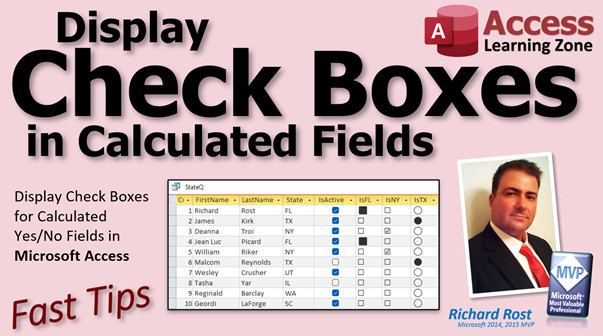
access 2016, access 2019, access 2021, access 365, microsoft access, ms access, ms access tutorial, #msaccess, #microsoftaccess, #help, #howto, #tutorial, #learn, #lesson, #training, #database, check, check mark, checkmark, tickmark, tick, ascii symbols, character map, boxes, circles
More InformationTranscript In today's video, I'm going to show you how to display check boxes, circles, or any other character you want in your calculated fields in your queries because you can't show a regular check box in a calculated field in a query. I am going to show you a little trick.
Today's question comes from Dana in Beaverton, Oregon, one of my Gold members. Dana says, I know how to make a yes/no field from a table appear as a check box in a query. However, is it possible to do that with calculated results? I don't see an option for check box.
Let's take a look at what Dana is talking about. First off, if you don't know what a calculated field in a query is, go watch this video. And if you don't know how to use the IF function, the immediate IF function, which basically is like a little If/Then wrapped in a function, then go watch this video. You need to know both of these things for today's video.
Here I am in my TechHelp free template. This is a free database. You can grab a copy off my website if you want to, but what I'm going to show you works in pretty much any database. In here, I've got a customer table and in my customer table, I've got customers' names, addresses, that kind of stuff. And right over here, I've got a field called IsActive.
That's a yes/no field, and by default, it shows up as a check box. Now, you could change that if you want to in table design. I'm down here to IsActive. And where it says Lookup, you can drop this box down and you can see there's Check Box, Text Box, and Combo Box. I cover these in my other classes, but basically Check Box is the default.
So if you make a query, go to design, and you bring in the customer table, and let's bring in FirstName, LastName, and I'm going to also bring in State. You'll see why in a minute. And IsActive. I'll take a peek, and there you go.
I'm going to save this as my test query, TestQ, whatever. Now, you could change in the query the way that this guy is displayed by going into design view and doing the same thing. Right-click on this column, go to Properties, go to the Lookup tab, and here's Display Control: Check Box, Text Box, which looks like this, and you'll get Yeses and Noes, or Combo Box. You can specify all kinds of resources and crazy stuff for it if you want to, and you get a Combo Box where you can actually pick Yes, No, whatever. I don't usually recommend that, but Check Box is the default and that's what most people want to see in your queries.
Now, what Dana is saying is if you have a calculated field, a calculated value that evaluates to true or false, she wants it to also display as a check box. Let's see what happens here. Let's make a calculated value over here. I'll just call it, let me zoom in so you can see, Shift+F2. I'll just call it SomeValueX and we'll say State = "New York".
That's going to evaluate to either true or false, yes or no, just like a check box would. If I run it, I get zeros and negative ones and nulls because this one doesn't have a state. Remember, any math on null or any kind of testing on a null value yields a null value. So you got negative ones for yes, zeros for no, and null.
Now, can I change this to a check box? Let's see. Come over here, right-click, Properties, Lookup, and what do we got? We got Text Box, List Box, Combo Box. There is no value for a check box. In order to have a check box, this has to be based on an actual yes/no field from the table. There is just no way around it at this level.
But there is a trick we can play to display something that looks like a check box. It's not an actual Access check box, but you can put something there. So if you've got a bunch of queries you want to look like check boxes, you can make it look like a check box.
Here's what I'm going to do. Let's replace this with an IF function. So we're going to say IF State = "New York", then put in here, let's just put the word "yes" or we'll put the word "no". This is what you get if it's true, this is what you get if it's false. Run it.
So we got yeses and noes, that's a step. Remember, this is uneditable anyway. It's probably why Access doesn't give you the opportunity to actually put a check box there. Because even if you had a check box there, it'd be locked. You can't change it. It's based on this field.
Now, instead of yes and no, let's put something else there. How about an X and O? Instead of a yes, we put an X, and a no, we put an O. How about that? There are Xs and Os.
What about if we used symbols like from the extended ASCII table that look like check boxes? Let's try that. Paste it in here. What's that cool stuff? Where do you get those things? Those are characters that are actual characters in your font set based on the extended ASCII characters. They're not perfect, but they kind of look like check boxes. That looks better. That's close to what you want.
It's not blue like this. These just changed to blue because I just upgraded to Windows 11. If you're watching any of my older videos, that's one of the nice things. I think this is nice because the older check boxes, I don't think under Windows 10 showed up enough.
So where do you find this stuff? If you Google "extended ASCII characters," you'll see that there's all kinds of extra character sets and fonts. You can get some that look like check boxes, some look like boxes, some look like bars, some look like all kinds of stuff in here. You can find characters for pretty much everything.
There's a little Windows tool that they added. I think in Windows 10, it's definitely in Windows 11. What you're going to do is open up Notepad, and then you're going to press Windows key + period on your keyboard. That brings up this guy. You can search those emojis; there's faces, there's all kinds of things. These are actual character sets and you can pick one of these guys like that and it puts it in your document.
Now, a lot of these, you can actually copy and put into Access like those guys: there's a check box, there's circles, these things and this. You can see as I click on them, they're all coming back here. They might not look exactly the same in here as they do in Access, but let's just copy some and see.
Let me zoom into this again, Shift+F2. I'll take this check box here, see what that looks like. I'll replace it with this one. Paste. That's pretty cool looking. And then we'll use this one for the empty box. I don't like that it's filled in like that. Let me go back to the one I had before. There it is. OK. Run it, and there you go.
Sometimes they look different in design mode than they do when you actually have them in the zoom box here. They change, but there's a bunch of good ones you can use. You can feel free to use different sets. For example, let me get rid of this one here.
I've got some other ones I copied to my clipboard. Here's a bunch I copied earlier. Here are some squares. You can use squares. Here's one, OK. So we're going to a field called IsFlorida, copy that and then paste it there. Let's see what that looks like. I zoomed in. Run that.
There's Florida: big box or not checked-in box. Then we've got IsNewYork, which is the standard ones we just saw. I'll put that back in there. Then I did another one, IsTexas, which is a circle, like that. Run them, and there you go. There's a whole bunch of different symbols you can use. If one of these changes to Texas, you see that lights up. If this changes to Florida, boom.
There are all kinds of different things you could do. You could have any character you want in here. Again, that's the Windows key + period to bring up that guy. You can go through and search for whatever you want in here. Search "check," and there's some checks. I clicked that and it placed it. There are gifs in here. No, the gifs won't work in Access.
There's the big emojis, there are symbols, all this stuff, currency symbols. These are the new ones in the old key map, the character map.
So, there you go. That's how you do it. That's how you put those kinds of things in your queries.
If you want to see those in a form as well, you could. Let's go to my customer list form here. Let's design this. Let's just get rid of this stuff we don't need here. I'll just get rid of this stuff. We'll keep State, slide this over here.
Let's base this now on that query. Go to Record Source and change that to TestQ. We'll need to get rid of those filters. Then we can bring in those fields: IsFlorida, IsNewYork, and IsTexas.
Now, they're not going to look perfect. I'll just get rid of the labels for now. But with a little manipulation, you could probably make these look decent. Make these smaller.
Let's see what we're working with here. Save that. Let's take a peek. It's not too bad. Go to design view. Make these backgrounds transparent. Let's see if we can close it and open it. Yes, that's them. There are borders around it too. We'll get rid of the border, make that transparent, and there you go.
That's not bad. Now, remember, again, these are read-only. You can't click on them and do stuff. But if you just want them for display purposes, there you go.
Dana, I hope that answers your question. And that is your fast tip for today. I hope you learned something. We'll see you next time. Intro In this video, I will show you how to display check boxes, circles, or other custom characters in calculated fields within Microsoft Access queries. You'll learn why standard check boxes cannot be used in calculated fields, and see a simple trick for simulating them using ASCII or emoji characters. I'll walk you through using the Windows emoji tool to find and insert symbols, customizing your queries for various visual options, and show how these display techniques can also be used in forms for read-only purposes. Quiz Q1. Why can't you display a regular check box in a calculated field in a query in Access?
A. Calculated fields cannot be bound to yes/no controls like check boxes
B. The database does not support calculated fields
C. Calculated fields only accept numeric values
D. Check boxes can only be used in forms, not queries
Q2. What does Access use by default to display a yes/no field from a table in a query?
A. Check box
B. Combo box
C. Text box
D. List box
Q3. If a query's calculated field evaluates to true or false, what is the default displayed value?
A. 1 and 0
B. True and False
C. -1, 0, or null
D. Yes and No
Q4. What is the main limitation when trying to change a calculated field's display control to a check box in a query?
A. Calculated fields must use text controls only
B. Only table fields of type yes/no can use a check box display control
C. There is a bug in Access preventing this
D. Calculated fields can only display numbers
Q5. When Dana tried to display a check box for a calculated value in a query, what options were available in the Lookup properties?
A. Text Box, List Box, Combo Box
B. Text Box, Check Box, Option Button
C. Check Box, Combo Box, Calendar
D. Label, Hyperlink, Image
Q6. What trick does the video suggest to make a calculated field look like it contains a check box?
A. Use ASCII or emoji characters that look like check boxes
B. Convert the calculated field to text only
C. Use a special Access add-in for check boxes
D. Change the entire query to a form
Q7. Which keyboard shortcut in Windows opens the emoji (character selector) panel?
A. Windows key + period
B. Ctrl + Shift + E
C. Alt + Tab
D. Windows key + E
Q8. What is a drawback of using characters or emojis to simulate check boxes in calculated fields?
A. The field will be read-only and cannot be interacted with
B. It will crash Access
C. The symbols will not display in reports
D. Access removes the characters at runtime
Q9. Where can you find a large selection of special characters to use for custom indicators in your queries?
A. The extended ASCII character set or the Windows emoji panel
B. Only in Access design view menus
C. Online Access forums only
D. From your internet browser bookmarks
Q10. Can you use these symbol "check boxes" in Access forms as well?
A. Yes, by displaying the calculated query field on the form
B. No, forms cannot display query results
C. Only with certain types of forms
D. Only on reports, not forms
Q11. What do you need to remember about these custom display characters when using them in queries?
A. They are for display only and are read-only fields
B. They replace your field data permanently
C. They allow editing like a real check box
D. They slow down your database significantly
Q12. Why does Access probably not allow check boxes for calculated fields in queries?
A. The results are read-only so a check box would be non-functional
B. Access is an outdated product
C. Users prefer radios over check boxes
D. Microsoft does not support check boxes anymore
Answers: 1-A; 2-A; 3-C; 4-B; 5-A; 6-A; 7-A; 8-A; 9-A; 10-A; 11-A; 12-A
DISCLAIMER: Quiz questions are AI generated. If you find any that are wrong, don't make sense, or aren't related to the video topic at hand, then please post a comment and let me know. Thanks. Summary Today's video from Access Learning Zone is all about how to show check boxes, circles, or any other symbols you like in calculated fields within your queries. As many of you probably know, Access does not let you use a regular check box in a calculated field of a query. Today, I'll walk you through a useful trick to work around this limitation.
The question for this lesson comes from a student who wants to know if it's possible to display check boxes for calculated values, not just for yes/no fields that originate from tables. She points out that while Access lets you render a yes/no field from your table with check boxes in your query results, you can't do that for calculated fields. At the moment, there's no default check box option for calculated results in queries.
If you are unfamiliar with calculated fields in queries, or with the Immediate IF or IIF function, I recommend reviewing those concepts first, as they're necessary for what we'll be doing here.
In my demonstration, I'll use my free TechHelp template database, although these techniques work in just about any database you may have. In my customer table, there's a field called IsActive, which is a yes/no field. By default, Access displays this as a check box, but if you want, you can change this behavior in table design under the Lookup tab to show as a check box, text box, or combo box.
When you bring your table into a query and select fields like FirstName, LastName, State, and IsActive, you'll see those check boxes. Within the query's design view, you can also access the Lookup properties for these fields and adjust the kind of display you use. Check box is the default, but you can use text or combo boxes as well.
Now, let's shift to the problem at hand. Suppose you want to show a check box for a calculated value, like whether a customer is from New York. If you create a calculated field that checks if State equals 'New York,' the query will return values of negative one for true, zero for false, and null if the State is missing. However, when you go to change the display control, you'll find you can only pick text box, list box, or combo box—there's no check box option for a calculated field. The only way you get that is by tying directly to a yes/no table field.
However, there is a workaround: you can set your calculated field to return a character that looks just like a check box or any other symbol you want to use. It is not an actual interactive check box, but it gives the appearance you might be looking for visually in your query results.
Here's how you do it. Rather than letting your calculated field return true/false or numbers, use the IIF function to return something like 'yes' or 'no.' This immediately makes your results more readable, but you can get fancier. Instead of words, you can use single characters like 'X' for yes and 'O' for no. But you aren't limited even to that – you can use Unicode or extended ASCII characters that look like check boxes, circles, squares, or whatever symbol you wish.
Many common symbols are available through Windows itself. If you open Notepad and press the Windows key plus period (the dot key), you'll get an emoji picker tool. This allows you to search and insert a huge range of symbols, checks, circles, and other special characters. Some will look slightly different in Access than they do elsewhere, so it's worth trying a few to see what looks good. Simply copy the symbol and paste it into your query in place of your 'yes' or 'no.' You might see filled boxes, empty boxes, circles, or check marks.
You are not limited to black-and-white characters, and you may see blue coloring or other style changes if you are using Windows 11, as I am in this example. If you need more inspiration, search online for extended ASCII tables. You'll find a wide range of characters you can use. Try out various ones until you find symbols you like for your queries.
Remember, these calculated fields in queries are always read-only, so they cannot be checked or unchecked by the user. That's probably why Access doesn't offer the check box display control here; it doesn't make sense to offer interactivity in a non-editable context.
If you want to use these visual symbols on your forms, you can do that as well. Set your form's record source to your query, add your new calculated symbol fields, and make whatever adjustments you like to remove labels or borders for a cleaner look. Adjust background and border properties to make the symbols stand out. Again, the fields remain uneditable, but if your goal is to display a visual indicator, this solution works very well.
That is the solution to Dana's question and hopefully to yours as well. If you would like full step-by-step instructions on every detail I discussed here, visit my website for the complete video tutorial.
Live long and prosper, my friends. Topic List Displaying check box, circle, or custom characters in calculated query fields
Difference between bound yes/no fields and calculated fields
Using the Lookup property for query fields
Demonstrating limitations of check box display for calculated fields
Creating calculated fields with the IIF function in queries
Displaying text values (Yes/No) in calculated fields
Replacing text with symbols (X and O) in calculated fields
Using extended ASCII and Unicode symbols for custom display
Accessing Windows emoji and symbol picker (Windows key + period)
Copying symbols from Notepad or Character Map into Access
Testing different symbols for check box and circle appearance
Displaying calculated check mark symbols in forms
Adjusting formatting for symbol fields on forms
Understanding display limitations (read-only) for calculated fields
Using various symbol types (boxes, circles, checkmarks) in queries and forms Primary Topics Access queries, calculated fields, displaying checkboxes, special character symbols, IF function, uneditable query output
Secondary Topics using Windows emoji picker, form design display, lookup field settings
|





