Reset New Year
By Richard Rost

 3 years ago
Reset an Access Database for the New Year
In this Microsoft Access video tutorial, I will show you how to set up your database properly without having tables, queries, or other objects that are based on year values.
Links
Recommended Courses
Keywords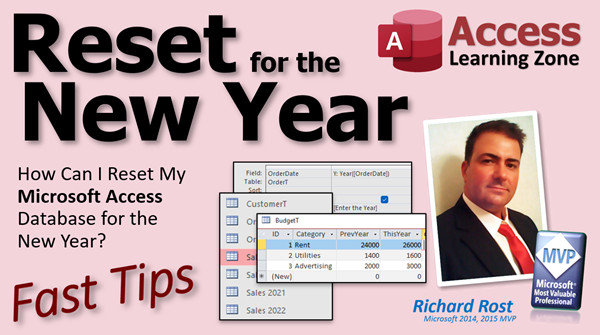
access 2016, access 2019, access 2021, access 365, microsoft access, ms access, ms access tutorial, #msaccess, #microsoftaccess, #help, #howto, #tutorial, #learn, #lesson, #training, #database, reset new year, reset autonumber, reset number on new year, reset order number, restart numbering
 Subscribe to Reset New Year
Get notifications when this page is updated
More InformationTranscript Welcome to another Fast Tips video brought to you by AccessLearningZone.com. I am your instructor, Richard Rost.
In today's video, we are going to talk about resetting your database for the new year. Now, it always happens. Today is January 5th, the first video of the new year. This week of the year, almost every year, I see tons of people sending me emails or posting in the newsgroups asking how to reset their database for the new year.
If your database is properly built, there is nothing that you need to reset. There is nothing that you should have to change. If you have orders or contacts or inventory, whatever, that is based on dates, you should be using either a proper date field for it or a year field at least. There is nothing really to reset there.
Let me show you the four things that people always email me that they need help with. I will show you the four ways that I would address them. This list is by no means exhaustive. I have seen some crazy stuff over the years. But let me show you the four that I always see time and time again. If any of these match your database, pay attention.
Number one is my favorite. I always get people that say they have their sales or whatever and each year is in its own table. Sales2019. Sales2020. No, do not do this because now your queries are based on those tables. If you rename the table, you can rename it in the query, but if you get into more advanced stuff, especially VBA programming, that does not happen anymore. So you should never have objects in your database that are based on a date value like that. The only exception is if you are archiving data, which we will talk about in a few minutes.
To fix that, you store all the records in the same table. All your orders should be in an order table or a sales table or whatever you want to call it. Use proper date fields. I know people want to bring up all the sales from 2020, so they just open up that table, and here are all the sales for 2020. What you are going to do is make a query and use proper criteria to view whatever year you want. This is how you do it.
Bring your order date in. You set a value y. That is going to be the year of the order date. That is going to return a number like 2020 or 2021. You can either put that number in the criteria or you can use a parameter query for that. Then it does not matter. You can have all 20-plus years of your sales in one table. If you want to see what the sales were for 2018, you pull up the query and specify 2018.
You need to know how to do Access query criteria and parameter queries if you want a prompt like "Enter the year." Here is how to use the Year function to pull the year out of a date.
Moving on, problem two is very similar to problem one. Instead of having different year tables in the database, some people copy the whole database. They set aside the old one; for example, "2022 is done, so we'll set that one aside." Now the whole table has all the data for that year in it, and all of the queries and reports are just based on that entire table. When they try to add records for 2023, the queries and reports are all wrong because they show more than just that year's data.
Again, you solve this the same way that you solved problem one. Use one table, and use criteria in your queries.
Here is where you can archive data. Some people make multiple copies because the database file gets too big. My database reached the two-gigabyte limit about 10 years ago. That is where you can split your database and have different tables in different files, or you can archive the data. If you have 20 years of sales data in a table, for example, and you know for a fact you are never going to need stuff from 15 years ago, you can archive that off into an order archive table to make your database smaller. If it turns out that you have to go back and look for something that is 10 years old, you can go back in the archive table. But on a daily basis, you might not need that information.
Here is a video on splitting your database if you want to split off the tables into their own files if your main database is getting too big. Here is a video on archiving old records. If you have five or ten years of sales data and only need the last couple of years in your main database, you can archive the old records.
Problem three is another big issue that I see. I had two people email me about this today, in fact. They built their database with the "previous year/this year" design, or one person had "this year/next year" for budgeting. You have one field that is the previous year's value and another field that is this year's value, or this year and next year. This is bad database design.
Do not design your database this way because what is "previous year"? If you open up this database three years from now, what is the previous year? To fix that, you are going to put the year in as a field, such as "budget year." Here is your budget year, then you have your category and your value.
If you want to compare 2022's rent to 2023's rent, or do a whole chart of it, you can use a crosstab query to compare year over year. Here is a video on crosstab queries. Here is a video for doing month-over-month sales, like comparing February of this year with February of last year. The technique is almost the same for year over year. I do not have a year-over-year video yet, but I am going to make one soon. This will show you basically what you have to do: use the Year function instead of the Month function. Same thing.
Finally, problem four is "I need to reset my autonumbers for the new year." No, you do not. You do not change autonumbers. Autonumbers are not for you. You do not touch them; they are for the computer. I have a whole video on this topic. Autonumbers are not for you. You should not care what those numbers are. Those are internal numbers for Access to form relationships and to make sure each record is unique. Do not touch those. It does not matter if Jean-Luc Picard is customer 4 or customer 1701.
What you can do, however, is use your own custom sequential counter that is based on the year. This is a little more tricky; it is a little more advanced, but I do have a video for it. If you want your order counter for a customer, for example, to reset, so now his last order was 2022-015, and now it is going to reset to 2023-001, that is what this video covers. Do not rely on autonumbers or anything like this.
One more person emailing me about changing autonumbers - I am just kidding. I am here to teach you. Autonumbers are not to be messed with. You do not have to worry about what their value is.
That is pretty much it. Those are the four big ones that people always email me about. How do I get my database ready for next year? How do I reset that? You should not really have to if you built your database right from the ground up. If not, if you have a situation in your database that you are dependent on and every year around the first week of January, you have to scramble to make some changes, let me know what it is. I want to know. I am making another video and will add on to the list of things. I have seen a whole bunch of weird stuff.
I do have two more links to show you real quick that are helpful with your year-end tasks. I have this video I am putting together on year-end reporting. That is very helpful. If you use a fiscal year, then I have a fiscal year seminar that covers all kinds of different ways to work with fiscal year data.
That is it. That is your fast tip for today. Welcome to 2023, everyone. Hope you had a great New Year's Eve and safe New Year's Day and all that good stuff. Looking forward to hearing your comments on what you think about this video, so post something down below. I will see you next time.
Oh, and yes, this is still my previous microphone that I was trying last week, and my new one arrives tomorrow. So we should see, hopefully in tomorrow's video, if I have the better mic or not.
Bye bye. Intro In this video, we will talk about best practices for resetting your Microsoft Access database for the new year. We will discuss common mistakes people make, such as using separate tables or database files for each year, building fields like "this year" and "previous year," and trying to reset autonumbers. I will show you how to properly use date fields, parameter queries, crosstab queries for year-over-year comparisons, and set up a custom sequential counter if needed. If you are seeing issues at year-end or looking to avoid manual changes, this video will help clarify the right approaches. Quiz Q1. What is the best practice for storing records with dates in an Access database?
A. Create a separate table for each year (e.g., Sales2019, Sales2020)
B. Store all records in one table and use proper date fields
C. Use a different database file for each year
D. Only use text fields instead of date fields
Q2. How should you retrieve records from a specific year in a properly designed database?
A. By opening the table named after the year
B. By filtering the main table using a query with criteria for the desired year
C. By copying records into a new table for each year
D. By renaming the query each year
Q3. When is it acceptable to create separate tables or files for different years?
A. For standard daily operations
B. For archiving data you rarely need access to
C. To make running queries easier
D. In order to reset autonumbers each year
Q4. What problem occurs when a database is designed with "previous year" and "this year" fields for things like budgeting?
A. Fields get too large over time
B. It becomes unclear which year "previous year" refers to in future years
C. It is easier to use in crosstab queries
D. Queries run faster
Q5. What is the recommended solution for comparing data from different years (e.g., 2022 vs 2023)?
A. Use separate tables for each year
B. Add fields for each individual year
C. Store the year as a field and use crosstab queries
D. Copy all data into a new file for each year
Q6. Why should you NOT reset or manipulate Access autonumbers for the new year?
A. They determine the display order of data on forms
B. They are meant for computer use to guarantee unique records and relationships
C. They make reports easier to generate
D. Users need to control autotnumber values
Q7. If you want a custom counter to reset each year (e.g., 2023-001), what should you do?
A. Change the autonumber property for the primary key
B. Write VBA or custom logic to generate your own yearly counter
C. Use a separate table for each year
D. Archive old records to start autonumbering from 1
Q8. What is a major problem with copying the entire database each year for "new year" data?
A. It ensures clean data separation
B. Queries and reports may become inaccurate when adding new records for future years
C. It makes archiving easier
D. It improves performance for all users
Q9. Under what circumstance should a well-designed database require changes at the end of the year?
A. Every year, to keep up with new data
B. Only if you need to archive data or split large databases
C. When Access prompts you to reset
D. To reset all report layouts
Q10. What should you use if you want users to enter a specific year in a query?
A. Only allow access to old tables
B. Use a parameter query and the Year function to filter by year
C. Hard-code the year in queries every January
D. Change the underlying data manually
Answers: 1-B; 2-B; 3-B; 4-B; 5-C; 6-B; 7-B; 8-B; 9-B; 10-B
DISCLAIMER: Quiz questions are AI generated. If you find any that are wrong, don't make sense, or aren't related to the video topic at hand, then please post a comment and let me know. Thanks. Summary Today's video from Access Learning Zone covers how to reset your Microsoft Access database for the new year, a question that comes up often at the start of January. Many users feel that something in their database needs to be reset when a new year starts, but if your database is structured properly, there really should not be any need to make changes just because the calendar has turned over.
Whenever someone asks me about starting fresh for a new year, I first point out that anything based on dates, like orders, contacts, or inventory, should be designed using proper date fields or a year field. There really is nothing to reset in well-built tables, as your data should remain continuous and work regardless of what year it is.
I often receive the same four questions every year about this topic. Let me walk you through each one and how to address them, as these problems tend to show up repeatedly.
The first common issue is having separate tables for each year, such as Sales2019 or Sales2020. This approach leads to headaches down the road, especially when it comes to queries and more advanced tasks like VBA programming. You should not create tables that are named or organized by year, except for situations where you need to archive data, which I'll discuss in a moment. Instead, keep all of your records in a single table and use properly defined date fields.
If you want to review sales from a specific year, use a query with criteria that filters by the year, not a separate table. You can create a query that uses the Year function to pull out records for the year you want. You can either enter the year as a parameter when prompted or hard-code it. This way, you keep all your data together, which makes it much simpler to report on any time period.
The second frequent problem is copying the entire database each year and using a separate file for each one. For example, some people keep a "2022" database file, set it aside, and then use new copies year by year. This can cause major problems because queries and reports often end up showing incorrect or overlapping records across years. The solution here is the same as with the first issue – keep all records in a single table, and use queries with the correct criteria to display only what you need.
In cases where you have so much data that the database is reaching Access's two-gigabyte limit, consider splitting your database. This means separating your data into different files or archiving older records. If, for example, you have sales data spanning twenty years but only need access to recent years, move older records into an archive table. This keeps your main working database lean and efficient. You can always consult the archives if you need to look up something from the past.
The third issue comes from designing tables that use fields like "previous year" and "this year" (or "this year" and "next year"). Some people design their budget tables with a separate column for each year. This is a weak structure because as time goes on, it becomes unclear which field represents which year. A better approach is to add a field for the actual year (for example, "budget year") and then store the category and value alongside it. This structure allows much greater flexibility when comparing data across years. For analysis, use a crosstab query to look at year-to-year or month-to-month comparisons. If you are interested in learning more about these queries, I have videos that explain crosstab queries and how to compare sales data month over month, which can also be applied for year-over-year reporting with minor adjustments.
The fourth and last common question is whether you need to reset your autonumber fields for the new year. The answer is no, you do not. Autonumbers serve as unique identifiers for records and are managed by Access. They are not for users to change or reset. Their main purpose is to ensure every record is unique, and users should not assign any other meaning to them. If you want to generate your own custom order numbers that reset each year, you will need to set up a separate sequential counter that is based on the year. This is more advanced but is covered in another tutorial if you need sequential values like "2023-001." However, it is important not to rely on or try to control autonumbers.
In summary, if your database is designed well, there should be little or nothing to reset at the start of a new year. If you find yourself scrambling each January to make changes, your design may need some attention. Let me know if you face an unusual situation that comes up every new year, and I may include it in a future video.
As a final note, I have some additional resources you may find helpful, including one focused on year-end reporting, as well as a seminar on working with fiscal year data.
Thank you for joining me for this fast tip, and welcome to 2023. I look forward to your feedback. You can find a complete video tutorial with step-by-step instructions on everything discussed here on my website at the link below.
Live long and prosper, my friends. Topic List Problems with storing data in separate year tables
Consolidating records into a single table
Using date fields and queries to view data by year
Using the Year function in Access queries
Creating parameter queries to prompt for year
Problems caused by creating yearly copies of the whole database
Using query criteria to filter data by year
Archiving old records to manage large database size
Splitting databases to manage data volume
Bad design of previous year and this year fields
Storing year as a data field for flexible reporting
Comparing year-over-year data with crosstab queries
Importance of not resetting autonumbers in Access
Creating custom sequential counters that reset each year
Using custom order numbers formatted with year prefixes Primary Topics Access database design, annual database reset, data archiving, query criteria, autonumbers, year-based data management
Secondary Topics crosstab queries, fiscal year reporting, splitting databases, parameter queries
|




