Association 6
By Richard Rost

 3 years ago
Microsoft Access Association Database, Part 6
This is Part 6 of my Microsoft Access Association Database. In today's video we're going to work on the helper form and the helper type form. These allow you to create lists of lists so you don't need a million tiny tables in your database for lists of things like gender, occupation, ethnicity, and so on.
Pre-Requisites
Links
Members
What's Next
Keywords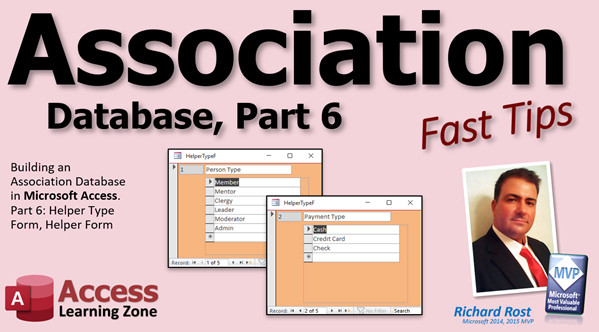
access 2016, access 2019, access 2021, access 365, microsoft access, ms access, ms access tutorial, #msaccess, #microsoftaccess, #help, #howto, #tutorial, #learn, #lesson, #training, #database, Helper Type Form, Helper Form, Lists of Lists
 Subscribe to Association 6
Get notifications when this page is updated
More InformationTranscript Welcome to another Fast Tips video brought to you by accesslearningzone.com. I'm your instructor, Richard Rost. Today we're continuing with our association database.
In today's video, we're going to work on the helper type form and the helper form, which allows you to create lists of lists so you don't have to have separate tables for everything. That's covered today. Here we go.
All right, and we are back. Part of it. Six. I made one or two little cosmetic changes, just captions. Like this, I'm going to change this to "Family" instead of "Families."
So get over here. Format it. Family. All right. You've got the families list and you've got the family form. Here we go.
Before I forget, we have to do this. Happy over here. All right, we're now in part six. Summary. And this whole template will be available for purchase when I'm done with it, by the way. Because if you don't feel like building this whole thing yourself, you can come get it on my website. It'll be cheap; it'll be a few bucks. I'm not going to start, but I know there are a lot of people out there that don't want to commit to being monthly members, even though you can sign up for one month and then cancel it. I don't want you to, but you can if you really want to. If you want to get that, there are a couple databases you want to grab, sign up as a gold member, log on, download them, and then hopefully you'll like them enough to keep signed on as a member.
But all right. What do we have to do today? Well, I think today we're going to work on the helper table stuff. So we've got the family list. We've got the family form. We can open up a particular family member. Or if we know who we're going in to, we can go in this way through the person list and just find someone this way.
Let's say I open up Mr. Spock. I've got a couple of fields like the Person Type ID. I envision Person Type being, depending on your organization type, if you're at church, it could be pastors or administrative or clergy member, however you want to do it. If you're a group, you could have teachers, or you could break it down. If you're a poker club, who are the dealers? Whatever kind of organization you have, whatever kind of people type you want.
The way the data would look, and again, it's easier to build stuff if you've got data in your table. So let's go helper type T. Helper type one is going to be Person Type. We'll take this and set it up here for now.
Let me close these. It's easier to build sometimes if you don't have background forms open. All right. So the helper type T. So type one is Person Type. We're going to open up our helper table. Now we're going to list all the Person types we want here.
Helper type one, and this is going to be whatever your list is going to be. You could have member, mentor, clergy, leader, moderator, admin, whatever. Depending on what kind of stuff you've got.
What are some other helper types we're going to need? Looking at our tables here, that takes care of Person Type ID. We also need a Payment Type ID. This could be payment type. We put those in this list too. Cash, credit card, check, whatever.
Let's look at the next one. We've got the demographic stuff. I got a list of them over here. Person type, we need genders. Gender, and then three. You've got male, female, and maybe unknown. Whatever other genders you want to list for your organization.
Then you've got marital status. We could do this entire list, which I'm not going to do right now. We'll do more of these when we have the form built.
Let's take care of building the form because this is much easier to maintain and edit when you have the form set up. This will be set up as a form/subform.
First, let's make a helper T continuous form. Copy, paste. This is going to be the helper F. All right, we're here. F, click design view.
Let's change the colors a bit. Make this how I like it. All right, so what do we need in here? We need the helper type ID, but we don't need to see it. The reason why we need it is because we have to set it equal to the parent form's helper type ID, which we don't have yet, but we're going to in a second.
We don't need these labels here. Get rid of those. Let's bind this form to the helper table. There you go. I'm going to set it.
This is going to be our helper type ID. We don't need the helper ID on here because that's the autonumber, and I don't really need it for anything. I need this to make the relationship with the parent, which is going to be the helper type table.
Don't need that, so that and this can be hidden. We're going to go to format and set visible to no. Again, my preference, I like to make it red and just bring it down and let's move it over here for now. Slide the description to the left. This is going to be the value. You can make this as big as you think you're going to need it. I'm just going to take this guy and slide it over the top.
Oh, that's in back, so we're going to right-click on this guy and then go "send to back." Position, send to back. We can still see the red thing. Even though it's hidden, I still want to see it in design.
Save that. Close it. Let's open it back up again. There we go. That looks correct.
Probably don't need the navigation buttons on the bottom. Go to format, navigation button, no. I'm going to leave record selectors on because we do want to be able to delete these items as necessary. Vertical scrollbar is fine. Save it. Close it. Put it up.
All right. Now we need to make the parent form. For that, I'm just going to copy this one. It's got the color scheme already. Actually, let me think. Yeah, that's fine. Copy, paste. Helper type F.
Design view. We don't need that guy. Let's see. We're going to change where you get data from to the helper type table, and you're going to be a single form. We could do a continuous form inside a continuous form, but we're not going to get into that. Let's go to single form.
That means this thing now is going to change to description, copy, paste. For this form, we are going to leave the navigation button on. We can go side to side and look at the different lists that we have.
I am going to put the ID on this form because the subform is going to need to grab it. You probably don't need it, but it's going to have that just for the helper type. Oh, look at that. See? Look at that now. Nobody caught it. This should be helper type ID, not T. That's my bad.
Let's save this form. Yeah, look at that. I do this a lot and I'm glad I caught that now. This should be helper type ID. Fortunately, we haven't done much with this yet, so that shouldn't make any difference anywhere else, but it's good that I caught that.
Let's drop that ID on here. Add existing fields. Yep, there you are. I think I want to slide it over here. I might get rid of it.
Let's align you to the left and make it gray. You know what, I'll add it, but I'm going to take it out of the tab stop. No, let's leave it in the tab stop because that way the one reason I do like autonumbers in my forms is because when the user is moving through them, that's usually the first field.
Let's make sure it's the first field. Tab order, auto. Because when you're tabbing through, if you accidentally hit a key, you're not sitting on description and you don't wipe out what's in there and then have to know to hit escape to exit it.
Now, let's put the subform right here. Grab the helper F, drag and drop it. We'll put the written label in place. If you think you're going to have a big long list, make this form bigger.
Save it. Close it and open up the helper type. There we go. There's person type, payment types. See, the relationship is made by the form/subform.
Now, the only problem we have is we have to set the default value of that ID in here because if I add a new item like that, and I move off of it and then back to it again, oh, it's there. Got it.
Let me see. Design view. It shouldn't have gotten it. Let's see here. It did. Got it. I'm impressed. Older versions of Access never got it like that. I didn't put a default value in here. It just assumed. They must have added this recently to Access, and I'm surprised and impressed that it worked because usually this guy's default value in here has to be equals either a parent helper type ID, or you could say Forms!HelperTypeF!HelperTypeID. But that, I'm surprised it made that relationship automatically. It shouldn't have. It didn't used to in older versions of Access. I'm not crazy. I don't know when they added that, but that's nice.
Let's try adding another one. Another one. We're good. But we don't need these, so let's delete them.
Now in my ABCD video, I show you how to make certain ones of these undeletable. So if you really want to learn that, go watch my ABCD video. I think I gave you a link in the last class. I'll give you a link in this one down at the bottom.
Now we've got these lists. You can see how it's easy to add new things in here.
Let's print up our spreadsheet here. Let's do a couple more. Let's do a Marital Status ID. Add a new one up here. Marital Status. You've got single, married, divorced, widowed, whatever.
What else do we have? Let's go back and make sure they're in there. See? Perfect.
Let's just skip down to location ID. I'm just calling it location. North, office, main street, campus, whatever locations you have in here. Or it could be in the big hall or in the reception area. Whatever locations you hold events in.
We'll add more of these as we're going. That is how you set up your helper form.
Now that we've got these lists made, in the next lesson, I'm going to show you how to actually use these on your other forms. Because we've got a person type and a payment type. We've got to add that to our person form right here as a combo box for the person type.
That'll be covered in part seven. There you go. There's your Fast Tip for today. I hope you learned something, and I'll see you next time. Intro In this video, we continue building the association database in Microsoft Access by working on the helper type form and helper form, which let you manage multiple lookup lists without needing separate tables for each one. I'll show you how to set up these forms, create and organize various helper types like person type, payment type, gender, marital status, and locations, and demonstrate how to use a form-subform relationship to make managing these lists easier. This is part 6. Quiz Q1. What is the main purpose of the helper type form and helper form discussed in the video?
A. To allow the creation and management of flexible lists, eliminating the need for separate tables for each list
B. To manage user security in the database
C. To display reports based on user queries
D. To maintain audit trails for data changes
Q2. How does the helper table simplify managing various types such as Person Type or Payment Type?
A. By providing a single structure for multiple lists instead of separate tables for each
B. By automatically duplicating data entry across all tables
C. By storing all data in unstructured text fields
D. By generating auto-updating reports
Q3. Which of the following is NOT listed as an example of a Person Type in the video?
A. Mentor
B. Admin
C. Guest Speaker
D. Leader
Q4. In the setup described, where are possible values for lists like Payment Type or Marital Status stored?
A. In the helper table with a specific helper type set for each list
B. In each main table as hardcoded values
C. As separate forms for each value
D. In a dedicated lookup database
Q5. Why are certain fields, like Helper Type ID, included but hidden on the subform?
A. To maintain the relationship with the parent form while not displaying unnecessary details
B. To prevent users from editing their values by mistake
C. To speed up the performance of the form
D. To reduce storage requirements
Q6. What is used to connect the subform to the correct list in the parent form?
A. The Helper Type ID as a foreign key
B. The Description field as a lookup
C. The value of the first record in the table
D. The auto-incremented ID of the subform
Q7. What was the instructor surprised about regarding new records in the subform?
A. Access automatically set the Helper Type ID for new records in recent versions
B. The form did not display any data
C. Records were deleted unexpectedly
D. The color scheme did not apply properly
Q8. Why might you leave the navigation buttons off the subform but on for the parent form?
A. Because the subform only handles list maintenance, while the parent allows browsing between lists
B. Because navigation buttons slow down data entry
C. To prevent users from switching records in the parent form
D. To maintain consistency between all forms
Q9. What is the suggested way to prevent deleting certain records from these lists, according to the instructor?
A. Follow instructions in the referenced ABCD video
B. Set a default value in the form
C. Use macros to lock all records
D. Remove the delete button from the form
Q10. Once the lists are set up with helper forms, what is the next step mentioned for using these in other forms?
A. Add the lists as combo boxes on forms like the Person form
B. Export the lists to Excel for reporting
C. Write VBA code to update multiple tables
D. Set up new security settings for the forms
Answers: 1-A; 2-A; 3-C; 4-A; 5-A; 6-A; 7-A; 8-A; 9-A; 10-A
DISCLAIMER: Quiz questions are AI generated. If you find any that are wrong, don't make sense, or aren't related to the video topic at hand, then please post a comment and let me know. Thanks. Summary Today's video from Access Learning Zone focuses on building out our association database, specifically working with helper tables and forms. The goal here is to streamline your table structure by creating lists of lists, so you do not have to maintain separate tables for every little category in your database. This approach keeps things organized and flexible as your database grows.
In this part of the series, I made a few small cosmetic changes, such as updating labels like changing "Families" to "Family" for clarity and consistency. These are small adjustments, but they do help keep the database more user-friendly.
As a reminder, once this association database template is finished, it will be available for purchase. If you do not want to take the time to build it yourself, you will be able to download it directly from my website for a few dollars. If you only need a couple of databases, you could also sign up for a gold membership, download what you need, and then discontinue your membership if you choose, although I hope you'll stick around.
For today's work, we focus on the helper tables. Right now, with the family list and family form in place, you can open up specific family members through either the family or the person list. For instance, say you open Mr. Spock's record. You will notice fields such as Person Type ID. The Person Type really depends on your organization. In a church, it might indicate pastors or administrative members. In other organizations, person types could be teachers, leaders, moderators, or whatever best fits your structure.
To make this system flexible, we use what I call the helper type table. The first entry, helper type one, is Person Type. In the related helper table, we add the different person types relevant to your organization. For example, your list might include member, mentor, clergy, leader, moderator, or admin.
Next, we consider other types you might need, such as Payment Type. Here you could list options like cash, credit card, or check. Other options that come up in association databases include genders and marital statuses. For genders, you might have male, female, and unknown entered in your list, for marital status, the typical options of single, married, divorced, or widowed.
Handling these lists is much more efficient once you have a dedicated form built. This way, you can maintain and edit your data easily through a structured interface, rather than working directly with the tables. To do this, I create a continuous helper form designed to display these list entries.
When building the helper form, you only need to include the helper type ID for relational purposes, but you do not need it visible in the form. I recommend hiding it for the sake of clarity. The form itself is bound directly to the helper table and arranged to show the data you care about. Little touches, like adjusting colors, sizes, and positioning, just help improve readability and usability.
For the parent form, I start by copying a form with my preferred color scheme. I then bind it to the helper type table and set it up as a single form view. The key here is to keep the navigation bar active so you can switch between different lists easily. It is useful to include the helper type ID in the parent form, even if you don't need it for display. This field is necessary to create the parent-child relationship with the subform.
One thing I noticed while working today is that newer versions of Access are much better about handling subform relationships automatically than previous versions. The forms are doing a good job of picking up the correct parent ID without the need for explicitly setting default values. This automatic functionality was a nice surprise and makes things a bit easier than in older Access versions.
With the parent and subform set up, you can now add as many lists as you need for your database. For instance, you can quickly create a marital status list or a location list for events or offices. Each list entry you add is managed through the same streamlined helper form setup.
Once these lists are in place, the next lesson will cover actually incorporating them into your other forms — such as adding the person type as a combo box on your person form. That way, you will be able to select from your predefined lists rather than entering text manually each time.
That wraps up today's Fast Tip. If you want step-by-step instructions on everything discussed here, you can find the complete video tutorial on my website at the link below.
Live long and prosper, my friends. Topic List Formatting and renaming the Family table and form
Explaining the purpose of the helper table
Creating and populating the helper type table
Populating person type values in helper table
Defining additional helper types like Payment Type and Gender
Building a continuous form for the helper table
Customizing the helper form interface and appearance
Binding the helper form to the helper table
Hiding and formatting unnecessary fields in the form
Setting up a parent form for helper types
Configuring the parent helper type form as a single form
Inserting and linking the subform into the parent form
Ensuring correct relationships between parent and subform
Populating the parent form with helper types such as marital status and location
Adding and testing new helper type lists in the forms
Explaining default value handling in recent Access versions
Demonstrating maintenance and deletion of list items in the helper form Primary Topics Access forms, helper tables, lookup lists, association databases, continuous forms, subforms, helper type relationships, form design, autonumber fields
Secondary Topics field formatting, navigation buttons, record selectors, Access interface preferences
|




