Split Function
By Richard Rost

 3 years ago
VBA Split Function to Break Apart Strings to Fields
In this Microsoft Access tutorial I'm going to teach you how to use the split function in VBA to break apart a text string into its individual component fields.
Pre-Requisites
Links
Source Code
Recommended Courses
Keywords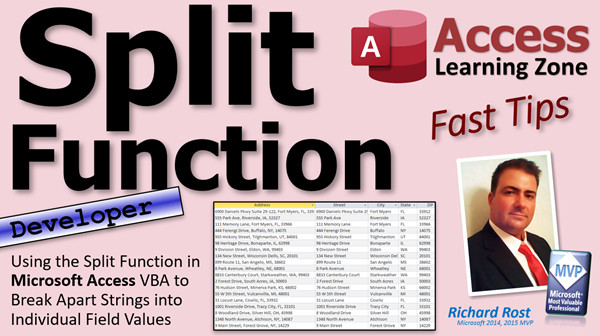
access 2016, access 2019, access 2021, access 365, microsoft access, ms access, ms access tutorial, #msaccess, #microsoftaccess, #help, #howto, #tutorial, #learn, #lesson, #training, #database, ms access vba split function example, use VBA to split a string from a text box, Parse a String into Multiple Fields, How to Split One Column Into Two, Undefined function 'Split' in expression
 Subscribe to Split Function
Get notifications when this page is updated
More InformationTranscript Welcome to another Fast Tips video brought to you by accesslearningzone.com. I am your instructor Richard Rost.
In today's video, we are going to learn about the Split function in Access VBA to break apart strings into their individual field values. As I have it listed right here, this is a developer-level video. If you have never done any programming before in VBA, go watch this video. It is about 20 minutes long. It covers everything you need to know to get started with VBA.
Also, go watch this video. I just released it. It is about the TEXTSPLIT function in Excel. It works very similarly to the Split function in VBA. These are both free videos. You will find them on my website and on my YouTube channel. Go watch those and then come on back.
So here I am in my TechHelp free template. This is a free database. You can grab a copy from my website if you want to.
I just imported a bunch of addresses. They are street, city, state, zip all separated by commas. Now, what I want to do is break this down into the four individual field components. I have a street, a city, a state, and a zip, and I want to put them in separate fields just like my customer table was built. There is address, city, state, and zip. It is like that, but this is all new stuff I imported. Someone sent it to me in a text file or Excel.
Fortunately, Access VBA has a function called Split. So let's try using that in a function. Let's start by building a query.
Now bring in that address table. Bring in the address field. I will zoom in here so you can see; it's Shift+F2. The way that Split works is it takes the string and breaks it down into an array of components. I will talk more about that in a second, but basically, we are going to have a zero-based array, with the first element as zero, the second as one, two, and three. The street address is zero.
So, let's say the street is going to be Split. What is the field called? Address. What is the delimiter? It is going to be a comma inside of double quotes. Just like we did in the other video in the Excel video. Close that. I want the first element, so zero. That is how you address it in an array. Run the query.
It says, "The expression you entered has an invalid dot or operator or invalid parentheses." That is how an array is supposed to work. Let's just get rid of this and see what happens. Run it.
Oh, what's that? Undefined function Split in expression. What does that mean? Unfortunately, Split is one of those functions that works in VBA, but it does not work in a query. So, in order for us to use the Split function, we are going to have to build our own wrapper function that uses Split in VBA, but can also return a value to our query.
I wanted to show you this first because this is one of the comments I always get from people: I get this "undefined function Split in expression." You cannot use Split directly in a query.
So let's close this down. Let's approach this from another direction.
I have got a form I built here. It is just AddressF. It is real simple, single form. It has the ID and the address straight out of this table. I have one record per screen.
Let's make a button and we will use the Split function here in VBA and message box the components to see how this works.
Drop a button right here. Cancel the wizard. I will put Split right on the button. Let's give the button a name. Let's call it SplitBTN (Split button).
Right click, Build Event. Code Builder opens up.
Now in order to use Split, you have to work with arrays. We are going to "Dim AddressArray()" which means we are not going to specify how many items are going to be in this array. An array is basically a list of items. We are going to declare that as an array of strings.
If you have never done any programming with arrays before, I recommend my Access Developer Level 21 class. I have a whole lesson on how to use arrays.
Now you can load up the array with items yourself. For example, you could say AddressArray(0) = Bill, AddressArray(1) = Peter, and so on. That is what arrays are used for. But we are going to use the Split function. We are going to tell the Split function, "Hey, I want you to load up this array with the items from that address field and I want you to split it up by commas." Just like in Excel.
So we are going to say AddressArray = Split(Address, ",") and split it based on the comma delimiter.
At this point, I am going to message box AddressArray(2). Let's see what the third item is. Remember, they are all zero-based.
Save it. Click the button. Bang, and there is Florida - zero, one, two.
If I come in here and say, "Give me AddressArray item 0," and go to a different record, click it, I get 555 Park Avenue. So, see, we basically created our own little function that declares an array, splits the field up, and then we can pull out of it whatever item we want.
Knowing this, I can make my own wrapper function where I send it those things as parameters. I can send it the field, I can send it what item I want, and have it return back a text value to me.
So, I am going to write it here and then we are going to move it to a global function.
Public Function - I will call it MySplit, slightly different name. Then do it: TextString as String and ItemNumber as Long. I am going to have the function return a String.
In the middle here we need one command: MySplit = Split (the actual Split function). What are we splitting? TextString, comma, and what's the delimiter? A comma. You could add that as another parameter at the top too if it is not always commas - you could use spaces or semicolons or whatever. I am just keeping it simple.
Then, which item of that array do I want? I want ItemNumber, like that. So, send it a text string and what number you want. It is going to split up that text string and then return you that item number.
Go up here, we can get rid of all this, and I am just going to say MessageBox MySplit(Address, 1). Click, look at that - I get Riverside.
Now that I have this function built, let's move it to a global function: cut it out of here, go to a global module, paste it down here. Now I can use MySplit anywhere in the database - other forms and even queries too. That is why I did that.
Let's go back now and build that query I wanted to build in the first place. I can go to Query Design, bring in my address table, bring in the address field.
The street is going to be MySplit(Address, 0) because the delimiter is specified in my function. Copy that. Let's run it and see what we get first. Look at that. Each one of these gets sent to that function and it returns the proper value.
Let's do the next one - Shift+F2. This one will be City, and that is going to return 1. While we are at it, State is item 2, and the Zip Code is going to be item 3.
Now when I run it, look at that. Isn't that beautiful?
The only problem you might run into is if there is some data missing out of here. In that case, instead of declaring these as strings, you can either check for nulls or declare them as variants. There are all kinds of extra things you can do with this stuff. I cover it in my full developer classes in more detail.
I hope you learned something cool today. That is your Fast Tips video for today, and again, check out my Access Developer classes, specifically Developer 21 where I talk about arrays in a lot more detail. I hope you learned something and I will see you next time. Intro In this video, we will learn how to use the Split function in Microsoft Access VBA to break apart a text string, such as an address, into its individual components like street, city, state, and zip code. I will show you why the Split function does not work directly in a query, how to create a VBA wrapper function that can be used in forms and queries, and how to apply this technique to separate imported data using a custom function. Quiz Q1. What is the main purpose of the Split function in Access VBA?
A. To combine multiple fields into one string value
B. To break a string into individual field values using a delimiter
C. To remove all whitespace from a string
D. To sort an array in alphabetical order
Q2. What type of variable does the Split function primarily work with?
A. Boolean
B. Integer
C. Array
D. Date
Q3. What kind of array does the Split function return?
A. One-based array
B. Two-dimensional array
C. Zero-based array
D. Linked list
Q4. Why cannot the Split function be used directly inside an Access query?
A. It is only available in Excel
B. It is not a recognized function in query expressions
C. It only works with numbers
D. It causes Access to crash
Q5. What is the recommended solution if you want to use Split logic inside a query?
A. Use the Replace function instead
B. Create your own wrapper function in VBA
C. Manually enter values into each field
D. Use the function only on forms
Q6. When using Split in VBA, what does Split(Address, ",") do?
A. Splits the Address variable wherever there is a period
B. Splits the Address variable into individual characters
C. Splits the Address variable into an array using commas as delimiters
D. Joins several addresses together
Q7. If you want to retrieve the city from a split address string "123 Main St, Buffalo, NY, 14201" using the zero-based Split array, what array index would you use?
A. 0
B. 1
C. 2
D. 3
Q8. How do you make your custom Split wrapper function available throughout your Access database?
A. Add it to each form individually
B. Create a macro for it
C. Move it to a global module
D. Convert it to a query
Q9. What parameter(s) does the custom MySplit function accept?
A. Field name only
B. Delimiter only
C. TextString and ItemNumber
D. No parameters
Q10. What should you be mindful of if your data sometimes has missing fields when using the Split function?
A. The array may contain empty values, so handle nulls or use variants
B. The function will not run at all
C. The data will be deleted
D. The array will automatically fill with zeros
Q11. Besides commas, what else can be used as a delimiter with the Split function?
A. Only numbers
B. Any character or string, such as spaces or semicolons
C. Only periods
D. Only tabs
Q12. What happens if you try to access an array index that does not exist after splitting a string?
A. An error will occur
B. The string is joined back together automatically
C. The query runs faster
D. The entire array is deleted
Answers: 1-B; 2-C; 3-C; 4-B; 5-B; 6-C; 7-B; 8-C; 9-C; 10-A; 11-B; 12-A
DISCLAIMER: Quiz questions are AI generated. If you find any that are wrong, don't make sense, or aren't related to the video topic at hand, then please post a comment and let me know. Thanks. Summary Today's video from Access Learning Zone focuses on using the Split function in Access VBA to separate strings into distinct field values. This is a developer-level topic, so if you are completely new to programming in VBA, I strongly recommend starting with my beginner tutorial first. That introductory video covers everything you need to get started with VBA and is available for free on my website and YouTube channel.
Additionally, if you work with Excel, I recently created a video about the new TEXTSPLIT function in Excel, which behaves similarly to the Split function in VBA. Both of these videos are freely accessible, and I suggest watching them before continuing with this lesson.
For today, I am working inside my TechHelp free template, which you can download from my website. I recently imported addresses into this database. The data arrived with street, city, state, and zip all combined into one field, separated by commas. My goal is to break this field apart so that each piece of data—street, city, state, and zip—is stored in its own individual field, matching the structure used in my Customers table. Often, when you receive bulk data from sources like text files or Excel sheets, this is a common challenge.
Access offers a built-in Split function in VBA, allowing us to separate a text string into an array based on a specified delimiter. Arrays in VBA start from zero, so the first element is indexed as 0, the second as 1, and so on. To demonstrate, you might want to extract the street—which will always be the first element (zero) when you split the address by commas.
Initially, you might try to use the Split function directly in a query by typing Split, the address field, the delimiter (in this case, a comma), and then specifying the element of the array you want. However, Access will produce an error, stating "undefined function Split in expression." This happens because the Split function cannot be used directly within a query. It is a VBA-only function, and queries don't recognize it.
Given this limitation, the solution is to create a custom VBA function—often called a wrapper function—that uses Split behind the scenes and returns the desired field value as a string to the query. This way, the query can call your function, which in turn uses Split and returns the required result.
Let me show you how you can test and build this logic in a form. I created a simple form, AddressF, which shows the address records one at a time. To demonstrate how Split works, I added a button to the form and named it SplitBTN. I used the Code Builder to write VBA code that declares an array of strings, then uses the Split function to populate this array by splitting the address field at each comma.
If you're not familiar with how arrays work in VBA, I cover arrays in depth in my Access Developer Level 21 class. Arrays allow you to store multiple values under one variable name, accessed by their index number.
Once the array is filled using the Split function, you can reference any element you want—for example, AddressArray(2) will give you the third component, which in a standard address is usually the state. Testing the button confirms this; clicking produces the correct address parts.
Building on this, I wrote a public function called MySplit, which takes two parameters: the complete text string and the index number of the item you want returned. This function splits the string and returns the chosen item. You can expand this function to also accept a custom delimiter if needed.
Once your custom function is written, you should move it to a global module so it is available throughout your database. With this setup, you can now use MySplit in queries, forms, and reports. For example, MySplit(Address, 0) will return the street, and MySplit(Address, 1) will return the city.
In your query, you can create fields for street, city, state, and zip by calling your MySplit function with the appropriate index (0 for street, 1 for city, 2 for state, and 3 for zip). Running the query will show these split-out fields, each in its own column.
One thing to keep in mind is that your data might contain missing fields. You can enhance your function to handle null values or declare the array as a variant instead of a string. There are many additional improvements and error-handling techniques you can apply, which I explain in more depth in my full Access Developer classes.
That wraps up today's Fast Tips lesson. Remember to check out my Developer series, especially Developer 21, for a more comprehensive look at arrays and advanced VBA programming techniques. You can find a complete video tutorial with step-by-step instructions on everything discussed here on my website at the link below.
Live long and prosper, my friends. Topic List Using the Split function in Access VBA
Breaking a comma-delimited address string into fields
Understanding zero-based arrays in VBA
Declaring and populating string arrays in VBA
Creating a button to trigger VBA code on a form
Using the Split function to extract array elements
Writing a wrapper function for Split in VBA
Creating a global VBA function for reuse
Calling a custom VBA function from a query
Generating separate fields for street, city, state, and zip in queries Primary Topics Access VBA, Split function, string parsing, queries, wrapper functions, arrays, delimited data Secondary Topics error handling, function parameterization, data import, global functions |




