Association 10
By Richard Rost

 3 years ago
Microsoft Access Association Database, Part 10
This is Part 10 of my Microsoft Access Association Database. In today's video we are going to make a series of nested forms so you can see the group types then the groups in each type and then the people in each group. We're going to do this using nested continuous sub forms which are really cool.
Pre-Requisites
Members
No extended cut, but here's the database file:
Links
What's Next
Keywords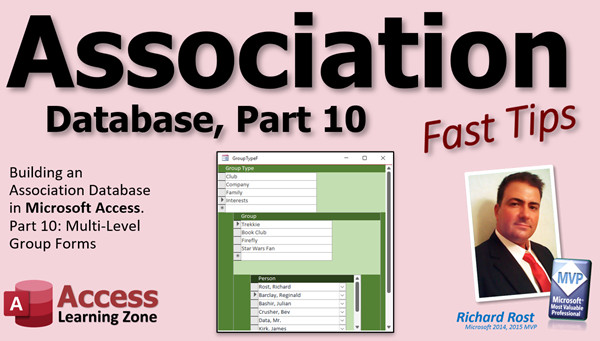
access 2016, access 2019, access 2021, access 365, microsoft access, ms access, ms access tutorial, #msaccess, #microsoftaccess, #help, #howto, #tutorial, #learn, #lesson, #training, #database, group type form, group form, put people into groups, nested subforms, nested continuous forms
 Subscribe to Association 10
Get notifications when this page is updated
More InformationTranscript Welcome to another Fast Tip video brought to you by AccessLearningZone.com. I am your instructor Richard Rost.
We are in part 10 of the Association Database. In today's video, I am going to show you how to build that multi-level group form where we have the group type, and under that will be a subform with all the listings of the groups. Then under that will be another subform with the listings of all the people in that group. Ready? Here we go.
Let's begin every lesson like we do by copying our database. I want you to see this every time I do it so that you get in the habit of making a copy of your database every time you sit down to make major changes. Put this guy off to the side and let's open it up nice and big.
I've got my saved position template that you can use to open up a database in any position on the screen if you want to. So you've got a database you want to open up right here every time. That's what that does. No, I'm not putting that code in this database. That's on my website. I put a link down below if you are interested.
Initially, I thought we were going to save the family list form, but let's delete that guy. Let's get rid of that. We're going to start from scratch because it's going to behave fundamentally different than families did.
What we're going to have is a list of group types such as families, companies, interests, whatever. That will be the group types. Then that will open up the actual group, and then inside the group, we'll see the people that belong to that group.
For this we've got a helper type form where we have the group types, and if you go to group 9 here you'll see the different group types in there: families, companies, clubs, and interests. But this is for modifying the helper type stuff. This is a managerial level thing.
We want our users to be able to easily work with this stuff, so we're going to make a separate form. We're going to have the group types, and then inside each group, you'll see a list of all the group types, and then you'll see the people in another subform.
For this one, I thought it might be fun to pull out my Nested Continuous Subforms video. So go watch this if you haven't yet. I'll put a link down below.
We're going to have it so that the top level is our list of group types. Then you click on one, the groups will show up down below. You click on one again, and it'll show you the people in that group, and that will have the ability to add it.
We'll take a copy of our... whoops, I closed forms. We'll take a copy of our continuous F, copy, paste. This will be our group type F. Right-click, design view.
Now, we're using purpleish and blue for people, so let's use green for groups. I usually use green for orders, but this database isn't going to be too much about orders, so we'll use green for groups.
Let's set our color. I like to make our color scheme look good right up front here. Let's make you dark green, and we'll make you a little bit lighter. Oops. Come here. Let's go there.
For this form, we're not going to need that ID. Slide this over. This is going to be the group type. This will be the list that's got family, company, whatever. This can be longer. This has to be wide because it's going to have two nested continuous forms underneath it.
For this, we don't need the footer. Now, where is this guy going to get its data from? It's not just a simple table, because the group is actually stored in the helper T. This list is stored in helper T where helper type ID equals 9.
Now, you could make a query. If you're not very familiar with SQL, you could write a query to do this, but let's get in the practice of doing a little SQL here.
What's it going to look like? Select what fields do you want in here? Now I need the ID, so I need the helper ID. I need the description, right? Let's make sure it's description. Oh, it's helper value. See, good thing I looked. Right, helper value.
What table? From the helper T where helper type ID equals 9. Yes, we have to hard code that 9 in, and we're going to order by helper value so it's sorted by the helper value. So that is our SQL statement, or the record source for the form. Combo boxes and list boxes have row sources; forms and reports have record sources. I always speak them backwards in my classes.
Now, I can come in here, go to the data tab for the record source, paste that in. Close it down. Save changes. Yes. Let's open it up. Where's that form? Type F. And... Oh, where are we? Empty? Okay, I'm seeing four records there. I didn't update this though. We've got to update that box.
It's unbound still, so what goes in there? Control source, helper value. Then we'll copy that up to the name. And now I should see what I want.
There's our group types: clubs, companies, families, and interests. Now, we're going to make a subform under that so we can see the items that are in each one of these groups.
Let's close this guy, and we're actually going to copy this and make a copy of that so that's changed all the colors again. This one's just going to be the group F. The group. Design view.
This one's just going to be group. Maybe make a little color change, make it like a tiny bit darker. What did we pick before? That one? Okay. Let's change it. Let's go unshaded dark so it stands off a little bit from its parent.
Now, this guy will get its data from the group table, group T. We want the description in here, but it's going to need to only show from the parent group. That's going to be handled by the subform relationship. This can actually just be group T without doing anything fancy with this one. That can be changed to description. Copy and paste up there.
Save it. Close it. Now, if I open up this guy, there's all the groups.
Now, we're going to put this as a subform inside of this one, and we're going to put it into the footer. Can't put it in here, can't put it in the detail section. It's got to be in the header or the footer. I prefer the footer; it makes more sense. So grab it over here, click, drag, drop.
I mentioned this in the other video that I told you to watch. Access says a form with a subform can't have its Default View property set to Continuous Forms. Yes, it can. Access is lying to you.
Look at that little label that comes in there. Arrange this guy where you want it to be, like right there. Make this a little bit taller maybe.
Now, Access went and changed this guy to a single form. It wants it to look like this. It wants it to look like that. There you go, through these. But we don't want that, so come out here and find Default View and set it back to Continuous Forms. Save it, close it, and it will let you do it. See?
Now, I'm noticing that these records down here aren't refreshing when I move from record to record up top here. That could be because we've got a custom SQL statement up here, and Access sometimes has a problem with that. So let's take a look here. Let's see the subform properties.
There's nothing in the Link Master Fields and the Link Child Fields. That's where you'd want to have the field that links these two things together. If your record sources are both simple tables or queries, it usually guesses correctly as long as the fields are named the same. But we're going to have to see what's going on here.
The group T has a group type ID, which is 58, 59, 61, okay, that represents the group type ID. To the helper T, where we get our parent records from, that is the helper ID. The helper ID in the parent has to be the group type ID in the sub.
For the subform property data, the master field is Helper ID, child field is GroupTypeID. Save it, close it, open it back up again. Companies - so we don't have any clubs, companies, families, interest. See that?
The trouble we run into here is that we have different fields. One is the Helper ID, the other is the GroupTypeID. You could alias them if you want to in a query, but once you get that down, that's a bit better.
One more level to go, and that's the people that are in each group. Again, let's copy either one of these, doesn't matter. I'll copy the group form, copy, paste. Let's call this GroupPersonF. Or if you want to, you can call this GroupXPerson, that's fine, doesn't matter.
Now, this form is actually going to be based on the junction table. This guy, PersonXGroupT. You can have it going both ways; you can have PersonXGroup, you can have GroupXPerson. It's the same thing. We're going to do the other way in the next class, where we open up the person form and show the groups that they're in. But for today, we're going to focus on going this way, so this is fine, because you can have "show me the groups with the people in it." In the other class, we're going to do people with the groups that they're in. You can go both ways.
Design this. First of all, the form is going to be based on PersonXGroupT. We'll put up here Person or People; we'll just put Person.
Down here, I don't want to see the IDs, because in that recordset, in PersonXGroupT, if I go to the list of available fields that are in here, if I drop this down, you can see there's PersonID. If you just want to see the IDs, let's just do this now, just to see the ID. Watch this. Let's save this. Close it. Let's go to the form. Our Person. Let's open up the person type. This guy here. Design that. Now we're going to drop a third nested form in here. Yes, this can get complicated pretty quick.
We're going to put this in the footer of that inside subform. Grab that, click, drag, drop it in here. You get the same message. Delete that. Slide that over here. Once again, I'm going to make this bar just a little bit darker. I think in the other video I did red, blue, and green so you can really tell them apart. Make this bigger.
Now, we've got the same problem though - this guy has been turned into a single form, so put that back to continuous. That should be continuous, and this should still be continuous. Okay, so we're good.
Save them, close it, open up the top one. Companies: ABC Corp, Amicron, okay, there's a one, see the one in there for me, Amicron, person one. XYZ's got person four, Microsoft's got nobody. Did I put John Logan, Microsoft? Maybe I messed that one up. Families, right, the Picard, there's person four. Ross, there's person one. So, it's working.
But I don't want to see IDs in here. I want to see a list of people. So let's replace this with a combo box that's got our list of people in it. I like to work in the lowest subform if I possibly can, so go back right in here directly. Open it up. We're going to delete that, we're going to put a combo box in there from our list of people.
Combo box, drop it there. We're going to get the values from a table or query. I'm going to pick my query that's got a person LFQ (so it's last name, first name). Next, what do you want in here? I need the PersonID. I need the LF. Oh, there's FamilyID; we can get rid of that out of that query. See, you're going to find little tidbits from the old stuff that we had, but that's okay. We can ignore it. Sort by LF. Next.
This can't get any data because, if you remember, that family is pulling off the table. We could just fix this here. We're just going to resize that, PersonID and LF will be like that. It'll get some values in a second. Next, what is the bound value? PersonID. Store that value in PersonID on this form. Next, the label is going to be deleted anyway. There we go, delete that. Slide that over. This will be my PersonCombo.
Let's save that and close it. Let's go take a look at that query real quick: PersonLFQ. Yeah, see, right there, that's why we're having problems. Let's get the FamilyID out of that query. Save it, and that should just give us this. Last name, first name. Are we sorting? Oh, we didn't sort it, did we? You know what, we really don't need to sort the query because the form is going to sort it; the combo box will sort it.
Here we go. Let's go back to our GroupTypeF. Company, Amicron, there I am. XYZ's got Jean-Luc, Microsoft... Let's say Jean-Luc works at Microsoft too. Click on Microsoft, come down here, pick Picard. Put some more people in here: Bev Crusher, Mr. Data. Go to clubs. I don't think we have any clubs. What happened there? Got kind of corrupted. Oh, I see what's happening. Yeah. We've got some cosmetic work to do, but it's working.
Design this. Let's see what else we need to fix. We don't need that section there. That can come a little bit more this way. It's just too wide. Let's see here. This inside one doesn't need to be that big, so take you down like that, which means this subform can be smaller. I lose track of which one's on which.
There you go with that. That means this can be smaller, which means this can be smaller, which means that this can be smaller. Looks good. Save it, close it, open it back up again. Looking better.
Another thing is you might not want all of these sets of navigation buttons down here. They get really confusing, so let's just turn them off.
So it's going to be this form. Start here. Scroll bars, probably vertical only. Navigation buttons, no. Same thing here: navigation button, no. Scroll bars, vertical only. And the same thing out here: navigation button, no. Scroll bars, vertical only.
Save it, close it, open it back up again. It's going to look better now.
You really need to make each one of these sections big enough to fit all these. Interests, family, company.
You got your clubs. Want to add some clubs? We've got a chess club, a checkers club, a monopoly club, a DND club, and, I don't know what else, we've got the Access and Allies club. Anybody ever play Access and Allies? Loved that game.
Now you can put people in those groups. Make sure you click on that group first. Who's in the chess club? Drop it down. Regis Barclay's in it, Kaley Fry's in it, Geordi LaForge is in it, and Miles O'Brien's in it. Who's in the checkers club? People put them into clubs. Same thing here: monopoly, DND. I'll be in the DND club, of course.
Clubs work the same as companies: who's attached to each company. Who else is in Amicron? Drop it down. Jim Kirk. Who's at this company? Who's at that company? Families, you'll probably use this most for families if you're doing something like a church database.
Make each one of these sections big enough to fit all these. Now, you might be looking at this going, "Well, that's kind of difficult if I'm at the person to figure out what groups they're in." We're going to do that going the opposite direction in the next section, in Association 11.
But this is the way to go in from the top: say, "Here's the groups, who's in that group?" We're going to reverse it in the next section.
Do you understand the relationship here? Level one, level two, level three.
There you go. There's your Part 10. Part 11 is coming up pretty soon.
Remember, members get to watch these videos as soon as I release them, because they go on the website sometimes a week or two before they're actually available publicly. You can go to my website, just click on the "What's New" link right here at the top of the homepage.
Today's February 19th. I'm recording this one, and these are all queued up for the future. They go out on those dates on YouTube, and they become public on my website. But members, you can watch these right now. Association 9 is already up there. Association 10 will be up there for the 24th, so you don't have to wait. Another reason to sign up for a membership.
That is your Fast Tip for today. I hope you learned something. Live long and prosper! See you next time. Intro In this video, I will show you how to build a multi-level group form in Microsoft Access for our ongoing Association Database project. We will set up a nested continuous subform structure, starting with group types at the top level, groups as a subform, and people within each group as another subform. I will walk you through setting up the forms, using SQL for your record sources, linking the forms with the correct fields, and customizing the layout and navigation options for a user-friendly experience. This is part 10. Quiz Q1. What is the main objective of the multi-level group form demonstrated in this video?
A. To display orders and related products for customers
B. To show group types, the groups within them, and the people in each group
C. To display only a list of individuals and their contact information
D. To create a report for financial transactions
Q2. According to the video, why is it recommended to copy the database before making major changes?
A. To reduce the file size for backups
B. To change the database structure to read-only
C. To ensure you have a backup in case something goes wrong
D. To give the new database a unique name each time
Q3. Which structures represent the hierarchy in the multi-level form built during the lesson?
A. Reports, Forms, Queries
B. Families, Companies, People
C. Group Types, Groups, People
D. Organizations, Departments, Members
Q4. Why was a new form created instead of reusing the old family list form?
A. The old form was too slow
B. The new form would behave fundamentally different than the old families form
C. The old form was missing required fields
D. The new form required a different layout style
Q5. What is the record source for the first (top-level) form displaying group types?
A. The group table
B. A query joining groups and people
C. SQL selecting from the helper T table where helper type ID equals 9
D. The person table
Q6. When setting up the first subform to display groups under a group type, which table is it bound to?
A. PersonXGroupT
B. HelperT
C. GroupT
D. PersonT
Q7. How are the top-level form and the group subform linked in Access?
A. By matching the group name field
B. Using Link Master Fields (HelperID) and Link Child Fields (GroupTypeID)
C. By using the same table for both forms
D. Through a calculated control
Q8. What is the purpose of the junction table PersonXGroupT in this database structure?
A. To directly store all group types
B. To manage many-to-many relationships between people and groups
C. To track deleted records
D. To keep audit logs of form changes
Q9. Why is a combo box used in the lowest level (people-in-group) subform instead of a textbox?
A. It is easier to type names in a textbox
B. A combo box allows selection from a list of people for the group
C. Combo boxes only display IDs
D. It automatically prevents duplicate entries
Q10. What is one issue Access can have when using custom SQL statements as a form's record source?
A. Access will refuse to display any records
B. Subforms may not refresh correctly when moving between parent records
C. You cannot link subforms if SQL is used
D. SQL statements cannot be used in Access forms at all
Q11. Which view property must be set to 'Continuous Forms' to display multiple records in Access subforms?
A. Datasheet View
B. Single Form View
C. Continuous Forms
D. PivotTable View
Q12. What adjustment is recommended to avoid confusion with navigation buttons in nested subforms?
A. Increase the size of navigation buttons
B. Remove navigation buttons from subforms and set scroll bars to vertical only
C. Change navigation button colors
D. Use navigation buttons on all subforms
Q13. What does the instructor suggest about the directionality of group-person relationships in the database?
A. The relationship is always one-way from people to groups
B. It can go both ways: from groups-to-people and people-to-groups
C. Only groups can have multiple people
D. Only people can belong to one group
Q14. When setting up the combo box for people selection, what must the bound column correspond to?
A. GroupTypeID
B. HelperID
C. The PersonID field in PersonXGroupT
D. Description field in GroupT
Q15. What is the benefit of using separate forms for group types, groups, and people in the multi-level form design?
A. It complicates data entry intentionally
B. It allows for clearer organization and easier navigation for users
C. It reduces the need for relational tables
D. It makes reporting more difficult
Q16. What is the main advantage of using nested continuous subforms according to the tutorial?
A. They require no linking fields
B. They enable displaying and managing related data at multiple hierarchical levels
C. They are faster to build than single forms
D. They prevent data from being edited
Q17. Why might you need to alias field names or use queries when linking parent and subform fields?
A. Field names must match between parent and subform for automatic linking
B. Queries run faster than tables in subforms
C. Aliasing allows deletion of records
D. To hide fields from the subform
Q18. According to the workflow described, when would you be most likely to use the Families functionality?
A. When tracking inventory
B. For situations like a church database to group individuals by family
C. To calculate employee salaries
D. When managing product categories
Answers: 1-B; 2-C; 3-C; 4-B; 5-C; 6-C; 7-B; 8-B; 9-B; 10-B; 11-C; 12-B; 13-B; 14-C; 15-B; 16-B; 17-A; 18-B
DISCLAIMER: Quiz questions are AI generated. If you find any that are wrong, don't make sense, or aren't related to the video topic at hand, then please post a comment and let me know. Thanks. Summary Today's TechHelp tutorial from Access Learning Zone covers the process of building a multi-level group form in Microsoft Access for our Association Database project. We're now at part 10, and in this lesson, I am going to walk you through creating a form structure that will allow users to see group types (such as families, companies, or clubs), view all the individual groups under each type, and then see a list of people associated with each group.
To start, I always encourage you to make a backup copy of your database before making any significant changes. It's a habit that will save you from potential headaches if something doesn't turn out as expected. Once you have your copy, open it and get ready to work.
For those of you interested in automatically positioning your databases on the screen, I have a saved position template available on my website, but that isn't necessary for today's lesson.
Initially, I considered reusing the family list form from earlier in the series, but I decided it's better to delete that and start fresh. This new functionality will be structured differently since it will handle various group types, not just families.
Here's what the objective is: we want a top-level list displaying group types, such as families or companies. When a user selects one, they'll see all the groups within that type, and under each group, they'll see all associated people. Our current helper-type form is more for administrative tasks, like adding or editing group types, and we need something more user-friendly.
So I'm going to build a dedicated interface with nested subforms. If you haven't already seen my video on Nested Continuous Subforms, I highly recommend checking it out because I use similar techniques here.
The form hierarchy will work like this: at the top is the group type list. Selecting a group type displays all groups of that type. Selecting a group then shows the people in it, and you can add new people directly to the group.
To create this structure, I started by copying my continuous form template and repurposing it as the form for group types. For the color scheme, since we typically use purple and blue for people, we're going with green for groups in this database. The group type form pulls its data from the helper table, filtered so only group types with HelperTypeID equal to 9 are shown. I used a simple SQL statement as the form's record source to achieve that, making sure the groups are sorted alphabetically.
With the top-level form ready, it's time to handle the subform that will show the individual groups within each type. Again, I copied my template form, adjusted the colors for visual clarity, and set this new form to pull data directly from the Group table. There's no special filtering needed here, because Access will use the parent/child relationship to display only the relevant records for the selected group type.
When adding the group subform into the main group type form, I placed it in the footer section. Access likes to warn you that subforms can't be in continuous forms, but you can safely ignore that — it works just fine. You might need to manually set the Default View of the form back to Continuous Forms, since Access likes to change it.
Next, I addressed the need to link the forms properly. The master and child fields aren't named the same in our setup: the helper table uses HelperID while the group table uses GroupTypeID. Make sure you manually specify these fields in the subform's Link Master Fields and Link Child Fields properties to ensure the subform filters correctly when different group types are selected.
With the two levels of forms working, it's time to add the third level: people belonging to each group. For this, I created another form based on the junction table that links people and groups. This subform gets added to the group form's footer section. We'll look at linking groups to people from both directions in later lessons, but here we're focusing on adding people to a group.
For displaying people in each group, you might notice that initially, only PersonIDs show up. That's not very informative, so we replace the textbox with a combo box that shows people's names. I use a query that outputs people by last name and first name for better usability. Make sure your query is clean — remove any fields like FamilyID that are no longer needed.
After replacing the IDs with readable names using the combo box, check and adjust the design of each form so everything fits nicely. Reduce unnecessary width, remove redundant navigation buttons and set each form to show only vertical scroll bars for a cleaner look. This helps avoid confusion with nested navigation controls.
Test your new forms by adding various groups and people. For example, you can set up clubs, assign people to them, and use this same method for companies or families. This structure works well for organizations like churches or community groups where people might belong to multiple families, clubs, or companies.
Remember, in our next lesson, I will cover how to view the groups each person belongs to, essentially building the interface in the opposite direction. For now, this setup gives you a clear and useful way to manage hierarchical group relationships from the group perspective.
Members get early access to these videos on the website, sometimes up to a few weeks ahead of public release. You can always check what's new or upcoming by visiting my website.
You can find a complete video tutorial with step-by-step instructions on everything discussed here on my website at the link below. Live long and prosper, my friends. Topic List Building a multi-level group form with subforms
Setting up a list of group types from the helper table
Creating SQL record sources for forms
Formatting and coloring forms for clarity
Configuring group-type forms to show group types
Building a group subform to display groups under group types
Linking subforms using Link Master Fields and Link Child Fields
Understanding relationships between helper IDs and group type IDs
Creating a subform from group table with correct parent-child links
Building a person subform based on the junction table
Creating a combo box to select people in a group
Modifying the person selection combo box to show last and first names
Adjusting form layouts for nested continuous subforms
Disabling navigation buttons and adjusting scroll bars for nested forms
Adding new groups and assigning people to groups
Demonstrating group membership by adding people to groups through the form Primary Topics Access multi-level forms, nested continuous subforms, group types, linking subforms, SQL record source, junction tables, dynamic form design
Secondary Topics color schemes for forms, navigation and scroll bar options, combo box population, UI cosmetic improvements
|




