VBA Colors
By Richard Rost

 3 years ago
Get the Exact Color You Want in Access VBA
In this Microsoft Access tutorial you're going to learn all about using colors in your VBA. Talk about the access long color codes, hex colors, and the RGB function. I'll show you how to change the background color of a field in your Access forms.
Pre-Requisites
Recommended Courses
Links
Keywords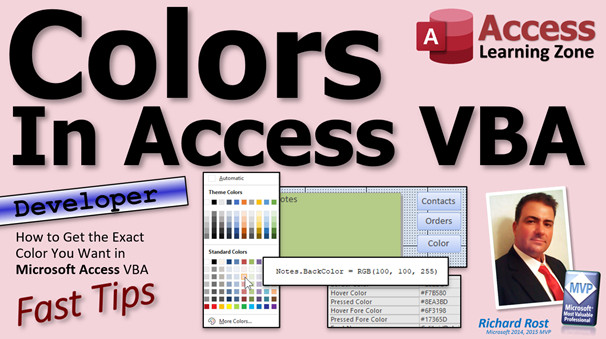
access 2016, access 2019, access 2021, access 365, microsoft access, ms access, ms access tutorial, #msaccess, #microsoftaccess, #help, #howto, #tutorial, #learn, #lesson, #training, #database, color, rgb, hex, access long colors, Microsoft Access Colors, rgb function
 Subscribe to VBA Colors
Get notifications when this page is updated
More InformationTranscript Welcome to another Fast Tips video brought to you by accesslearningzone.com. I am your instructor, Richard Rost.
In today's video, we're going to talk about colors in Access VBA and how to get the exact color that you want. It seems every time I do a video that involves colors of some kind, I show different means and methods that Access has. There's a couple of different ways you can handle colors. There's hex colors, there's the long colors, there's the RGB function, and we're going to talk about them all in this video.
People seem to be confused as to when to use which and how you get what you want. So we're going to talk about all that stuff in today's video.
And yes, this is a developer video because some of the stuff I'm going to show you is pretty much only usable in code like the RGB function. We're not going to use a ton of VBA, but if you don't know any VBA and you want to learn, watch this video. It's about 20 minutes long and it'll teach you everything you need to know.
Most of the time, people want to change color in their form or whatever to indicate something, like I just did a video a couple days ago on how to change a field's background color if it had a value in it and it was locked.
So let's say you want to take a button real quick right here, just copy and paste that button, we'll call this guy color. Let's say I want to change the color of this notes field just by clicking on this button.
The first thing we do of course, everybody knows, is we change this to color button. Don't leave it command 15 or whatever it was. Right click, build event, that'll open up my code editor. And in here, I'm going to say notes.backcolor =
Now here's where the video comes into play because there's a million different ways you can do this. The easiest method is to use one of Access's color constants. If you've got simple color needs, you can use these color constants or VB constants. VBWhite, for example, is one. And if you move off of it, you see that it capitalized the White there.
Want a full list of those guys? Right click, definition, and then I'll give you the full list of colors. Black, Blue, Cyan, Green, Magenta, Red, White, and Yellow. Those are the ones you can use. Anything other than these basic colors, you have to use different techniques.
But let's just see this in action here. Let me come back over here. Let me close this guy. And let's just say VBRed. All right, I'll make that button or make that back color of that notes field red. Click and bang, done. Very nasty looking, but it did the job.
Let's switch back over to design view. Let's click on notes and go to format and go to back color. Right now, you're going to see what's called a hex code in there. If you have done any work on the web whatsoever, you'll be familiar with hex codes.
A hex code basically starts off with the hashtag and then it's the RGB value. It goes from zero to F. It's hexadecimal, that's why they call it a hex code. This, with all F's, is white. All zeros is black. And then there's combinations in the middle. Just real quickly, if you go FF0000, that's all red. 00FF00 is all green. And 0000FF is all blue.
So if I came over here and I typed in FF0000, I get red. If I type in 00FF00, there's green, and so on. These are the same colors that you use on the web.
One of my favorite sites is htmlcolorcodes.com and they've got a color picker. You can come right down here and you can pick and it'll give you what the hex code is right there, and the RGB, which we'll talk about in a minute. You can slide this up and down and it'll give you the analogous colors and a color wheel and all kinds of cool stuff on this site. I'll put a link to this down below. I love this site.
Now in here, Access actually has its own little color picker. You can pick from down here. These are the standard colors. I'll talk about the theme colors in a second. Say you pick dark blue, for example. Look at that. You can see the red and the green values are lower. The blue value is higher. And you can click on more colors right down there on the bottom, and you get this window. There's standard, which you can pick from the simple colors, or go custom.
In this window, too, you can pick any value that you want and it will give you the hex code and the RGB values. So that's another way you can do it.
In addition to these hex codes, if you drop this down, you'll also see all of this stuff. These are theme colors. Personally, I don't like theme colors. If you drop this box open here, too, you'll see theme colors and standard colors.
If you pick theme colors, themes are designed— I cover themes in one of my classes. I forget which one. I talk about them briefly in Beginner 2 and then again in one of the expert classes. But I don't use them a lot. You can set up different themes and every theme can have its own color palette, and you can customize these.
I've never really found much use in them. Usually, I build a database and it's got a color palette and there you go. I like to have my customers one color, orders another color. So I'm pretty picky with colors, but I don't usually change between the different themes. I think they work better for some applications like Word or even Excel, but Access, I've never really had a need for custom themes.
So I try not to use the theme-based colors. I try to stick to the standard colors because I want that form, I want that field to be purple, or whatever I pick it to be. That's just my bias. If you think themes are cool, post something in the comments and I'll have a discussion about it.
Now in addition to these hex colors, Access back in the day gave us something else. When Access started out, we didn't have hex codes. These are relatively new. They added these when the web got really popular. Originally, we had a number that we could type in, like 62207, and it'll give you yellow, and Access converts that now to a hex code.
Those are called Access long codes, based on the long integer. If you want to inquire in your VB code as to what color this is, you get those long codes. For example, let's say we're not going to set it to VBRed. Let's say I want to message box whatever that backcolor property is.
Come back in here. Save changes. Yes, open it up, and 62207. Same. Those Access long codes are what's actually being used in Access as memory internally. The hex code just makes it easier for you to know what that is by looking at it. I still have a ton of code where I use the hex codes and a ton of code where I use the long codes, so I've got both. But mostly what I use is the RGB function.
RGB is basically when you look at the big color wheel, it's this stuff: red, green, and blue, which is what makes up the hex code. If I set that to zero and I set that to 255, that translates into 00FF00. And yes, there are functions that convert between them. We'll talk about those later. They're on the Code Vault for the members, by the way.
So in code, I don't want to have to deal with these, because honestly, back in the day, if you wanted an exact color, you could come in here to the color wheel—because the color wheel didn't always give you everything. You could come in here, put it on the exact color that you wanted, hit OK, it set it. Now it would put the value over here that that color was, but it was the long code. It wasn't the hex code. And then you could put that in your VB code. It was a pain. It's so much easier now with the RGB function.
Now all you have to do is this: we can say notes.backcolor = RGB, and plug in your red, green, and blue as integers from zero to 255. If you want it red with a tiny bit of green and tiny bit of blue, it's not going to be yellowish, let's see. Open it up, click. Now it's reddish, mostly red of course.
But if you do have a color picker tool and you want exactly that shade right there, there's your RGB—117, 134, 197. Come right in here and copy and paste that right in there. Now, there it is.
That's what I like to use, the RGB. I use RGB all the time to set my colors. Then I always put over here, "light purple" or whatever it is, so I can just see it by looking at it. Because you're going down your code and you're seeing all these different colors, your brain can't figure out that's light purple.
You can type in hex codes here, but they don't work right. They're not exactly the same as you think they should be. They're weird. I'm not exactly sure what they're doing. For example, if you want to type in white, normally it would be FFFFFF, but instead of a hashtag here, if you do that, you get an error message or syntax error. If you replace this with &H to tell Access that's a hex value, now that should be white, and that's white.
You'd think that for red it would be 0000FF, but it's actually backwards. And for blue it's FFFF0000. That's blue. Like I said, these are weird. And you'd think that green would be this, but it's not. It's black. So I don't know what this is doing. I don't like this. I never use this. I'm just showing you that it's possible, but no, just don't.
So again, if you're going to be getting colors in your code, then you're going to be getting those long colors. If you're going to be setting colors—which nine times out of ten, you're setting a color—just RGB it: 100, 100, 200. And then go. There you go.
If you're not sure about how much red, green, and blue, open up a web page that's got a color picker on it. Use the color picker in here and get the value, plop it in there. That's how you get the exact color that you want.
If you want to learn a lot more about this stuff, I cover a lot more with colors in my Developer 40 class. I actually show you how to do conditional formatting with VBA so you can set up different conditional formatting levels in your VBA based on the data that's in there. We talk a lot more about those functions: RGB to hex, and hex to RGB to flip those values back and forth. There's a lot more in here. Actually we do a Windows color picker, which is this thing here, which you can actually use in your code to allow the user to pick a control and then you pick a color for it. It sets the control. I talk about the Windows font dialog so you can set your font in code. That's all in Developer 40.
If you're a gold member and you've got access to the Code Vault, these functions here, the RGB to hex and hex to RGB, are in the Code Vault—just search for that.
I also want to mention Mike Wolf over at No Longer Set has an interesting article. If you want to work with those VBA long colors, those numbers that I talked about, and you want to convert those values to RGB, he's got code on here on his website to do that. I've never needed to do it, but if you do, see, I'm on here, there's my color, see: long live RGB and hex colors. I've always hated those classic color codes. So yeah, he's got a lot of code on here too for doing that.
I pretty much always stick to the hex and design mode and RGB in my VBA, but I'll put links to all that stuff down below in the description below the video. Check it out if you want to learn more.
That will be your Fast Tip for today. Now you know all you need to know about colors. I wish I would have known all that stuff when I first started out. This is cool stuff.
So that's your Fast Tip for today. Live long and prosper folks, and I'll see you next time. Intro In this video, we'll talk about how to work with colors in Microsoft Access VBA, including the different ways to specify colors such as hex codes, long integer codes, the RGB function, and Access color constants. I'll show you how to change form control colors in VBA, demonstrate various color picker tools, and explain the differences between standard colors, theme colors, and custom values for developers who need precise control in their Access applications. Quiz Q1. What are the main ways to specify colors in Access VBA discussed in the video?
A. Hex codes, long codes, and the RGB function
B. Only hex codes and CSS colors
C. Theme colors and HSL values only
D. Only named color strings like "red" and "blue"
Q2. What is the primary advantage of using the RGB function in Access VBA for setting colors?
A. It allows you to specify custom colors using red, green, and blue values directly
B. It automatically creates a theme
C. It only allows pre-set Access colors to be selected
D. It converts all numbers to hex codes automatically
Q3. Which of the following is an example of a hex code for white in typical web conventions?
A. #FFFFFF
B. 255,255,255
C. 10982456
D. RGB(0,0,0)
Q4. What does the Access long color code represent?
A. An internal integer value used by Access to store colors
B. The sum total of RGB values only
C. The hexadecimal value prefixed with a hashtag
D. The name of the color in text
Q5. Which colors can be used with Access VBA's color constants such as VBRed or VBWhite?
A. Black, Blue, Cyan, Green, Magenta, Red, White, Yellow
B. Any possible web color
C. Only primary colors (red, blue, yellow)
D. Only custom theme colors
Q6. What happens when you input a standard web hex code (like #FF0000) directly into VBA code in Access?
A. You get a syntax error or unexpected results
B. It always sets the correct color
C. The text is shown as a comment
D. VBA converts it to a theme color
Q7. If you use the RGB function as RGB(0,255,0), what color do you get?
A. Green
B. Blue
C. Red
D. Purple
Q8. Why are theme colors generally avoided by the instructor in Access development?
A. They can change with themes and are less predictable
B. They are only usable in Excel
C. They use too much memory in Access
D. They cannot represent standard colors
Q9. Where can you find a list of standard Access color constants directly in the VBA editor?
A. By right clicking and selecting Definition on the constant name
B. In the database property sheet
C. In the Access help menu under Themes
D. By clicking the Format tab
Q10. What limitation does the instructor point out about directly typing hex codes into VBA to set colors?
A. The color mapping is reversed and does not work as expected unless using a specific syntax (&H)
B. Only black and white colors are recognized
C. Theme colors must be active for hex codes to work
D. Hex codes are not supported at all in Access
Q11. What practical strategy does the instructor recommend for getting the exact color shade for your VBA code?
A. Use a color picker to get RGB values and use those in the RGB() function
B. Always use Access long color codes
C. Guess and check values until the color looks right
D. Use only theme colors for database consistency
Q12. If you want to know what the current color code of a form control's BackColor property is, what will VBA typically return?
A. The Access long integer color code
B. The full hex code in hashtag format
C. The theme color name
D. The name of the color in text
Q13. Why does the instructor prefer to use RGB values in code but hex codes in design mode?
A. RGB is easier to handle programmatically, while hex codes are standard for visual selection
B. Hex codes cannot be used in VBA
C. Theme colors only work in design mode
D. RGB is only available in Excel
Q14. What is a possible tool or website recommended in the video for picking and retrieving color codes?
A. htmlcolorcodes.com
B. accessvbacolors.com
C. Microsoft Office templates
D. windowscolors.net
Q15. In Access, what is the valid range for each RGB value in the RGB function?
A. 0 to 255
B. 1 to 100
C. 1 to 360
D. 0 to 1000
Answers: 1-A; 2-A; 3-A; 4-A; 5-A; 6-A; 7-A; 8-A; 9-A; 10-A; 11-A; 12-A; 13-A; 14-A; 15-A
DISCLAIMER: Quiz questions are AI generated. If you find any that are wrong, don't make sense, or aren't related to the video topic at hand, then please post a comment and let me know. Thanks. Summary Today's TechHelp tutorial from Access Learning Zone focuses on understanding and using colors in Microsoft Access VBA. Many students express confusion about how to work with colors, so I want to take some time to clarify the different options and approaches you can use, whether you're working in design view or writing VBA code.
First, let's cover the basics. Access supports several ways of representing colors: you have the traditional hex color codes that you may recognize from web design, the long integer color values that Access has used since its early days, and the RGB function you can call directly from VBA code.
Most users want to change colors on forms to indicate something visually, such as highlighting a field or changing a button's background. In a previous lesson, I explained how to modify a field's background color if it met a certain condition. Suppose you want to change the color of a notes control by clicking a button; the setup is simple in terms of design, but there are several ways you can specify the color, and that's where people often get confused.
The easiest option is to use Access's built-in color constants. These are the basic ones like VBWhite, VBRed, VBBlue, and so on. If you only need simple, standard colors, this works just fine. There are only a handful of these VB color constants available, so they're not suitable if you want something more specific.
When you look at the Back Color property of a control in design view, you'll usually see a hex code there. Hex codes are familiar to anyone who's worked with web design before. They start with a hash mark followed by six characters representing the red, green, and blue values in hexadecimal. For example, FF0000 is red, 00FF00 is green, and 0000FF is blue. All F's (FFFFFF) gives you white, and all zeros (000000) is black. This makes it simple to pick colors if you're used to web design standards.
There are plenty of tools online, such as htmlcolorcodes.com, that provide color pickers and will show you both the hex code and the RGB values for any color you select. Access itself also has a built-in color picker dialog, so you can select from standard colors visually, and you can jump into a custom or standard tab to set an exact color, viewing both the hex and RGB numbers.
Aside from hex codes and the basic color constants, you'll also come across theme colors in Access. Personally, I tend to avoid theme colors in my projects. While themes allow for coordinated palettes and work well in programs like Word or Excel, I find they're less useful in Access database design, especially if you want full control over individual field or form colors. I always prefer assigning specific colors rather than relying on a theme, but if you find themes useful, that's always an option you can explore on your own.
Now, prior to the introduction of hex color codes in Access, we worked with long integer color values. These are simple numbers like 62207 that internally represent colors. If you inspect the Back Color property of a control in code, you'll see such a value displayed. This is still the value stored in memory, but modern versions of Access convert between this and the hex code automatically in the property sheet. These long color codes are what get used in VBA when you're working directly with the control properties.
Most of the time, however, I prefer to use the RGB function in my code. The RGB function allows you to specify a color by plugging in the red, green, and blue values as integers from 0 to 255. This is straightforward, makes your code clear, and matches the visual model most people think of when dealing with colors. For instance, if you use RGB(255, 0, 0), you'll get pure red. You can use online color pickers or Access's built-in tools to find the exact RGB values you want. Paste these values into your code, and you'll get precision every time.
It's worth noting that while you can try to enter hex color codes directly using the &H prefix in VBA, it's not very predictable. The byte order is reversed compared to what you might expect, and the results can be tricky. For example, white requires a specific pattern, and colors like red and blue swap places based on the way Access reads the bytes. Because of these quirks, I recommend sticking with RGB for all your VBA color assignments. It is much more reliable and easier to read and maintain.
If you're not sure which red, green, or blue values to use, any decent web-based color picker or the built-in Access color dialog will show you the RGB numbers. Simply copy those values into the RGB function in your code, and you're set.
For those of you who want to go even deeper with colors in Access, I cover much more in my Developer 40 class. That course includes working with conditional formatting via VBA, converting between RGB and hex color codes, and even integrating Windows dialogs to let users select their own colors or fonts. All the example functions discussed, including code to convert between different color types, are included in my Code Vault for Gold members.
If you're interested in handling Access's classic long color codes or need code for converting those to RGB, Mike Wolf over at No Longer Set has a useful article with sample code. It's a great resource if you're dealing with older databases or integrating different types of color representations.
Personally, my workflow in Access is to use hex codes in design mode and the RGB function in VBA. This keeps things straightforward and readable, and I avoid theme colors unless there's a very specific need for them.
You'll find links to all the resources mentioned here, as well as more comprehensive lessons and example databases, on my website.
You can find a complete video tutorial with step-by-step instructions on everything discussed here on my website at the link below. Live long and prosper, my friends. Topic List Using color constants in Access VBA
Viewing and selecting colors with Access's color picker
Understanding and using hex color codes in Access
Understanding and using Access long color codes
Using the RGB function to set colors in VBA
Getting color values from third-party color pickers
Inputting RGB values directly to set form control colors
Converting between hex and RGB values for colors
Handling theme colors versus standard colors in Access
Limitations of hex code syntax in VBA color assignment
Differences between hex, long, and RGB color representations
Copying and pasting RGB values from color pickers into code
Previewing and modifying form control background colors using code Primary Topics Access VBA colors, setting form control colors, RGB function, hex color codes, Access long color values, color constants, color pickers, theme colors
Secondary Topics conditional formatting with VBA, color conversion functions, Code Vault references, user-driven color selection, none
|




