Dynamic Default
By Richard Rost

 3 years ago
Dynamic Default Values in Microsoft Access Forms
In this Microsoft Access tutorial I'm going to teach you how to use the same value for multiple new records during data entry with something I call a Dynamic Default Value.
Members
Members will learn how to automatically change the default value of the current new record when the default is changed and vice versa (change the default, default value when the new record is entered). Yes I know this all sounds very confusing but it makes more sense in the video. Watch it and I'll explain. LOL
Links
Recommended Course
Keywords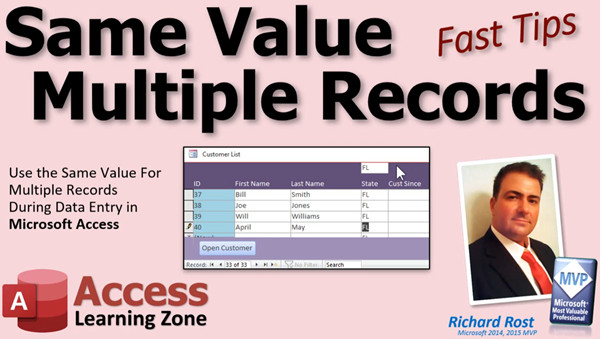
access 2016, access 2019, access 2021, access 365, microsoft access, ms access, ms access tutorial, #msaccess, #microsoftaccess, #help, #howto, #tutorial, #learn, #lesson, #training, #database, Dynamic Default Value, Input the Same Data into Multiple Records, Entering data once for multiple records, Assign default values from the last record
More InformationTranscript Welcome to another Fast Tips video brought to you by AccessLearningZone.com. I am your instructor, Richard Rost.
In today's video, I'm going to show you a little data entry tip: how to set a default value on your form so as you're entering multiple records, it will use that value for the new records. This way, for example, if you're entering a bunch of people from Florida, you don't have to keep typing in Florida for every customer.
This question comes up every so often. Let's say you've got some data entry to do and you've got to enter a bunch of new customers. Let's say you went to a trade show or a farmer's market or wherever you get your leads from and you've got to enter like 20 new customers, and 18 of them are from the same state or pick any other value here. As I'm entering in my new records down here, Joe Smith, I don't want to have to type in Florida for each one of them. Of course, Florida is just two characters, but you may have some larger default value, maybe something big like this city name. You don't want to have to type that in for everybody.
So how can we set up a field up top that will act like a default value for new records?
Now you can set a default value in the table or in the form field, but then that's always the same thing. You can't easily change that. This allows the user to change it when they open up the form.
All we're going to do is just go to design view here and make this bigger. Let's drag down the header section and move these labels down to that. Now I'm going to copy the state text box, copy (Ctrl+C), look up here in the header and paste (Ctrl+V). I'll put the copy up there.
Now this box is still bound to the state field, so it's going to have the data in there from that record in the table. We need to unbind that. Go to Data and get rid of the control source. Just delete that. That way, this box can hold its own value. It doesn't get saved anywhere. It's not bound to a table field, it's just a box on the form that you can put something in.
Next, let's give it a good name. Go to All. Let's call this my state default. You can give the default value box a default value. Go to Data and then down to Default Value. Whatever you're going to type in the most, you figure, OK, I'm in Florida, so you figure most customers you enter are going to be in Florida. Put that in there. That's going to be the starting default value for the default value box.
Now, I want to tell this state field to get its default value from the default value box. So here in Default Value, type in =state_default. Access will put it inside of square brackets for you. Here, I'll zoom in so you can see that. OK. =state_default.
So in turn, this box is going to start out at Florida, and for every new record, it will default to whatever is in that box.
Let's save it, close it, and open it up again.
My default value is Florida. I'm going to go to a new record, and look at that, it starts off at Florida. I'll type in Joe Smith. The next record already is coming in at Florida. Peter Smalls, Florida. You don't have to type it in; just pass it.
Bill Watson.
Now, if you want to change that, you can change it on the fly. Let's say I've got a bunch of New Yorkers now, so I'll come up here and put in New York. It won't change immediately for the next record, so you will have to type in New York one more time. I'll show you a way around that in the extended cut.
So now, I'll type in here, Rick Jones. You can see now, you have to put in New York there. But the next record, as it comes in, is New York. So now you're ready to enter a bunch of New Yorkers, like Phil Smith, and so on.
See how that works? Every time it adds a new record, it just gets whatever default value is up there.
You could do the same thing with related fields, like with a combo box. For example, let's say you've got contacts here. If you're not familiar with my TechHelp database, by the way, every customer can have multiple contacts. A contact is every time that you talk to this person. Normally, this form gets its default value from this form. But let's say you want to enter a bunch of contacts and you don't want to have to open up each customer's record.
You could take this contact form, and instead, you could throw a combo box on here for the customer. So instead of having the customer ID there, delete that and drop a combo box on here.
Go to Form Design and find the combo box. Drop it over here. Look up the values from the table or query. I'm going to get my list of values from my query that has the customer's last name and first name put together. If you haven't watched my blank template video where I build this, go watch that. I'll put a link down below. I think this is in the contact management part, which is part two.
Next, what fields do you want? We'll bring them both over: the ID and the last name, first name. We're going to sort by last name, first name. It's going to look like this. We have to hide that customer ID field. I go over all this in my relational combo box video; I'll put a link to that down below, too, if you've never done this before.
Next, what field has the value you want? That's the customer ID.
Next, we're going to store that value in the customer ID field on the contact form. Next, what label do you want? We're going to delete it anyway, so it doesn't matter. Hit Finish.
There's our combo box. I'm going to delete that label. Move some things around here. Slide these boxes to the right. Then, grab that customer and drag it over here to the left. I don't want it to say customer ID for the box. In fact, its name probably is combo8. Change that.
Come up top, and instead of combo8, call that the customer combo. Slide this bottom up. Drag these boxes to the right. Copy that, copy-paste, slide it over here. That's going to be the customer. That's just a label and goes up top.
Change your tab order: Tab Order, Auto Order. There we go.
Now we have the form the way we need it to be. I can show you what we're doing here. I open up the contact form. Now this is what it looks like. You have all your customers here, your date and time, and notes. It should still work from here if you open up this guy.
But we could change the default value to get it from the form if we want to. But I'm going to do something different. We're going to make the default value using a header field, like we just did a minute ago.
Right-click, Design View, make the header a little bit bigger, drag the stuff down. Copy this combo box, copy, paste up top here. We're going to call this guy customer_default or customer_ID_default. Let's keep it consistent: customer_ID_default.
If you want to, you could set this box's default value to =Forms!CustomerF!CustomerID. That way, if the customer form is open, this box will get its value from that form. If not, it just won't have anything in there.
Save it. Close it. Open up the customer form. If I open up contacts, look at that. It's defaulting to Richard Rost.
Now we're going to change this box's default value to this one, just like we did on the other form. This is customer_ID_default. Go to the default value, type in =customer_ID_default.
Now, everyone's pointing at everybody else. Let's check it out.
Contacts. Look at that. Now I'm ready to enter a bunch of extra contacts here. If you're entering a bunch of contacts, or a bunch of orders or tickets or anything else, you can do something like this: click on this and that and make them not tab stops. Set Tab Stop to No. Now, when I save that and come back in, I'm just right here. You can go tab, tab, tab, right down the list. Another one, more.
Same trick: if you want to change who the customer is for the next record, put the anotroy in there. It saved it right away. That tells me, since this record went dirty, I forgot a step. I'm leaving this in the video intentionally so you don't make the same mistake. What did I forget to do? When I copied this record, I didn't unbind it. The control source is still set to the customer ID. That means if you change this, it's going to change the record you're on. We want to delete that control source and leave that combo box unbound.
Yes, I like to leave my mistakes in the videos because if I make that mistake, chances are you're going to make that mistake.
Let's close it. Go back and do the same thing. Go to this form, come down to the bottom. There's an anotroy. Set her as the default value up here. Where's Troy? T... Deanna, all right.
Stuff.
She's not coming in for this one because that value wasn't set when the form opened, so you have to manually set that one, too. But now we're all set to go and type in a bunch of Deanna records.
Don't worry about that. Whether it's a text box, a combo box, or a check box, you can use whatever you want for that. That's some cool stuff.
So, extended cut for the members: what we're going to do is go back to this customer list. First of all, as I mentioned earlier, when I change this--let's say Texas--this box doesn't immediately change. It's going to require some programming, just two lines of VB code. I'll show you how to do that in the extended cut. I'm also going to show you how to go the other way. If you're down here typing in your records and you change this, it'll change that, too. So, let's say you're entering a bunch of New Yorkers, then go straight into Florida. It will change the default value.
If I come in here and type in PA for Pennsylvania, it goes right to Pennsylvania. The next one, I can type in a couple more people for Pennsylvania. If I change it to Texas, it'll now update to Texas, and now we're ready to enter Texas. Then I want to do--let's see--this person is going to be New Yorker again. Bam, right back to New York. You have to requery the form, so that's why it seems like it jumps back down to the bottom. But I think it's pretty cool. That will be covered in the extended cut for the members.
We have two things we will be doing for members: we will instantly change the new record's default if you change the default box, and second, we will change the default record box if you change the value in a new record.
Glad everyone is with me. I hope you learned something. Live long and prosper, and I'll see you next time.
Oh, and I almost forgot to say that Silver Members and up get access to all of the extended cut videos for the TechHelp videos and the Fast Tips. Fast Tips have extended cuts sometimes; it all depends on what I feel like doing that day.
See you next time.
Platinum Members get all the previous perks, plus even higher priority for TechHelp questions, access to all my full beginner courses for every subject, and one free developer class each month after you finish the expert classes. These are the full length courses found on my website, not just for Access, but also Word, Excel, Visual Basic, and lots more.
You can now become a Diamond Sponsor and have your name or company name listed on a sponsors page. It will be shown in each video as long as you are a sponsor. You will get a shout out in the video and a link to your website or product in the text below the video and on my website.
But don't worry, these free TechHelp videos are going to keep coming. As long as you keep watching them, I'll keep making more. And they'll always be free.
If you have not yet tried my free Access Level 1 course, check it out now. It covers all the basics of Microsoft Access. It's over four hours long, and I just updated it for 2021. You can find it on my website or on my YouTube channel. I'll include a link below that you can click on. Also, if you like Level 1, Level 2 is just $1. Yep, that's all, $1, and it's free for all members of my YouTube channel at any level, even supporters.
Want to have your question answered in a video just like this one? Visit my TechHelp page on my website. You can send me your question there. While you're on my site, feel free to stop by the Access Forum. Lots of good conversations happening there. Be sure to follow my blog, find me on Twitter, and of course, YouTube.
Once again, my name is Richard Rost. Thank you for watching this TechHelp video brought to you by AccessLearningZone.com. I hope you enjoyed this video and that you learned something today. I'll see you again soon. Intro In this video, I will show you a handy data entry tip in Microsoft Access: how to set up a dynamic default value on your form, making it easier to enter multiple new records that share the same field value, such as state or customer. We'll cover how to add unbound text and combo boxes in the form header to control default values for new records, and how to apply this technique to related fields like customer IDs for contact forms. This can streamline your data entry when working with groups of similar records. Quiz Q1. What is the main purpose of setting a default value on a form as described in the video?
A. To ensure only administrative users can enter data
B. To speed up data entry by automatically using common values for new records
C. To limit how many records a user can enter in one session
D. To prevent users from updating existing records
Q2. Why is setting a default value in the table's design sometimes not ideal for data entry?
A. It can be too difficult to implement
B. It always enforces the same value and cannot be easily changed during form use
C. It makes the database slower
D. It hides the field from users during data entry
Q3. What does it mean to "unbind" a text box on a form in Microsoft Access?
A. Making it invisible to users
B. Removing its Control Source so it is not linked to a field in the table
C. Setting its control source to another table
D. Encrypting the values it displays
Q4. After unbinding the text box and giving it a name like state_default, how do you make the State field on the form use this value for new records?
A. Set the State field's default value property to =state_default
B. Set the State field's caption to state_default
C. Set the State field's input mask to state_default
D. Set the State field's format to =state_default
Q5. What is the effect of changing the value in the default value box while entering new records?
A. The change automatically applies to all previous records
B. The change will apply only to the next new records after it is set and not the immediately active one
C. The change cannot be reversed
D. The change applies retroactively to all existing data
Q6. When using a combo box to select a default customer for new contacts, what step is necessary to prevent changes from affecting the current record?
A. Make sure the combo box is still bound to CustomerID
B. Delete the combo box label
C. Remove the Control Source from the copied combo box to unbind it
D. Change the field type from numeric to short text
Q7. Why is it suggested to set the Tab Stop property to No for the default value control in the form header?
A. So users can quickly tab through the main data entry controls without stopping in the header
B. To hide the control from the user
C. To prevent accidental data entry in the default value box
D. To allow only administrators to change the default
Q8. What benefit does using an unbound control in the form header, as a default value, provide over hard-coding a default value in the table or form control?
A. It allows users to easily update the default value as needed during data entry
B. It prevents any data entry mistakes
C. It guarantees all users will see the same value no matter what
D. It prevents any changes without administrative privileges
Q9. In the extended cut, what additional feature does Richard mention will be implemented with VB code?
A. Instantly updating the default value for new records when the default box changes and vice versa
B. Changing the data type of the state field
C. Adding validation for all form data
D. Automatically sorting records by state
Q10. What can you do if you want a combo box default value to match the value in a parent form, such as when entering contacts for a customer?
A. Set the combo box's default value to =Forms!CustomerF!CustomerID
B. Set the combo box's input mask to CustomerF
C. Set the combo box to always display the first customer
D. Remove the combo box from the form
Q11. What is one advantage of using copy and paste to create the default value control in the form header?
A. It carries over formatting and settings from the original control
B. It automatically links to every table in the database
C. It removes all event properties from the control
D. It creates a backup of your database
Q12. According to the video, which control types can be used as an unbound default value control in the form header?
A. Only text boxes
B. Only combo boxes
C. Any control type such as text box, combo box, or check box
D. Only command buttons
Q13. Why might you need to requery the form after changing the default value in some cases?
A. To refresh the data and apply the updated default to new records
B. To stop the form from accepting new entries
C. To delete the previous records
D. To enforce security on form inputs
Answers: 1-B; 2-B; 3-B; 4-A; 5-B; 6-C; 7-A; 8-A; 9-A; 10-A; 11-A; 12-C; 13-A
DISCLAIMER: Quiz questions are AI generated. If you find any that are wrong, don't make sense, or aren't related to the video topic at hand, then please post a comment and let me know. Thanks. Summary Today's TechHelp tutorial from Access Learning Zone focuses on a helpful data entry technique in Microsoft Access: setting up default values on forms for easier entry when dealing with repeated information. I often get asked how you can enter multiple records—say, a batch of new customers from a trade show—without having to repeatedly fill out the same field for each record, especially if most of the values are identical, like having all the customers from the same state.
Let's consider a scenario where you are entering several new records, and most of your new customers are from Florida. Typing "FL" each time can get tedious, and if the value in question is a long city name, this becomes even more cumbersome.
Although you could set a default value directly in the table or in the form's field properties, that method is static and not easily changed by the user when working in the form. Instead, I'll show you how to create a field at the top of your form that acts as a flexible default value for new records.
To start, open your form in design view and expand the header section. Copy the text box for the field you want repeated—let's use "state" as an example—and paste it into the header. The copied box, by default, will still be bound to the table field, but we want it unbound. To do that, delete the control source property so it can hold any value you specify without writing it back to the data table.
Give this new unbound text box a meaningful name, such as "state_default." If you expect most of your entries to be from Florida, set its default value property to "FL" or "Florida." This is just the starting value for the default, and it can be changed at any time.
Now, instruct the actual data entry field (the one bound to "state" in your records) to take its default value from this new header box. In the default value property of your bound field, refer to "=state_default" (Access will automatically bracket the name for you). Now, when you add a new record, it auto-fills the field with whatever is in your default value box. If you change the header box's value to something else, any subsequent new records will pick up the new value.
For example, after entering a few Florida records, if you need to switch to New York, simply update the value in the default box to "NY" or "New York." The next new record will use this updated default. There is a slight limitation—the change will not reflect until the subsequent record, so you will have to manually enter the new value once before the new default takes effect. In the Extended Cut, I will show you how to make new records immediately respond to this change using just a couple of lines of VBA code.
This same concept can be applied to related fields such as combo boxes. Suppose you have a contact tracking system in which each customer can have multiple contacts. If you often need to add several contacts for a particular customer, you can place an unbound combo box for the customer in the header of your form, set its default value either to a specific customer or to the customer currently open in another form, and tell your data entry field to take its default from this combo box.
Remember, when creating a copy of the combo box for use in the header, be sure to remove its control source—otherwise, changing it could accidentally change existing records. It's easy to overlook this step, but it's important for ensuring new entries receive the right default without modifying old data.
Once set up, data entry becomes much more efficient. When you want to switch the customer or other default field, just update the value in the header box, and future records will follow suit.
In today's Extended Cut for members, I demonstrate two additional enhancements. First, how to make the default value update instantly for the next new record immediately after changing the default box, using a small amount of VBA code. Second, how to update the default field when you change a value directly in a new record, so the next entry picks up the revised value seamlessly. These techniques make batch entry even smoother, especially when you often switch between similar but not identical values.
If you found this tutorial helpful, you will find a complete video walkthrough with step-by-step instructions covering everything discussed here on my website at the link below.
Live long and prosper, my friends. Topic List Creating a default value field in a form header
Unbinding a text box from its control source
Naming and setting default value for an unbound field
Referencing a form control as a Default Value for another field
Changing the default value dynamically during data entry
Copying and modifying combo boxes for default selection
Building a customer selection combo box on a contact form
Setting the combo box's row source from a query
Choosing displayed and stored fields in a combo box
Changing the bound column and label for combo boxes
Correctly unbinding a copied combo box in a form header
Setting default value of a combo box to a form control
Adjusting tab order to streamline data entry
Setting tab stop property for better navigation during entry
Entering consecutive records with dynamically set defaults
Applying the default value method to text boxes, combo boxes, and check boxes Primary Topics Access forms, data entry optimization, dynamic default values, unbound controls, combo boxes, header fields, user interface improvements Secondary Topics control source management, tab order, relational design, Access VBA (mentioned for advanced use), none |







