Between Dates
By Richard Rost

 3 years ago
Show Paid Orders Between Two Dates in Access
In today's Microsoft Access tutorial I'm going to teach you how to show paid orders between two dates in Microsoft Access. We'll do it with a query using static criteria and then again using parameter values or the user can type in the dates. Then I'll show you how to do it using form fields to supply the criteria which make it very easy for the user to change. I'll show you how to do it with the command button wizard, and then again using a little VBA. So there's something for everyone in this video from beginner to advanced.
Pre-Requisites
Members
No extended cut, but here's the database file:
Links
Recommended Course
Keywords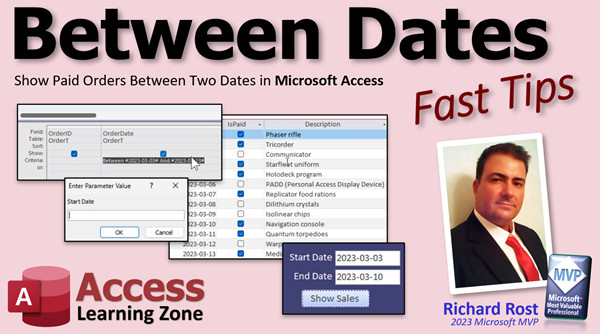
access 2016, access 2019, access 2021, access 365, microsoft access, ms access, ms access tutorial, #msaccess, #microsoftaccess, #help, #howto, #tutorial, #learn, #lesson, #training, #database, How do I find records between two dates, How do you create a date range, How do you add between criteria, Examples of using dates as criteria, Create a query that accepts Start date and End date, How to select records between two dates, query Date Criteria Examples, how to get data between two dates, access query date range parameter
 Subscribe to Between Dates
Get notifications when this page is updated
More InformationTranscript Welcome to another Fast Tips video brought to you by AccessLearningZone.com. I am your instructor, Richard Rost.
In today's video, I'm going to show you how to show paid orders between two dates in Microsoft Access. Now, advanced users, stick around because we're going to do it first with a query using static criteria for the beginners. Then I'll show you again using parameter values, where the user can enter the parameter value and type in the dates when the query runs. Then I'll show you how to use form fields with default values to supply the dates based on the current date. The user can change them and get a little more advanced. Then I'll show you how to make a button using the command button wizard to open the query. And then for the more advanced users, I'll show you how to do it with a little bit of VBA. So there's something in this video for everybody, beginner to advanced.
Before we get started, make sure you've at least watched my Access Beginner 1 class. It's four hours long and teaches you all the basics of Microsoft Access. It's absolutely free. It's on my website. It's on my YouTube channel. I'll put a link down below in the description so you can just click on it, go watch it, and come on back. Also, make sure you know how to use Access query criteria. That's putting criteria in your query. Go watch this video too.
Here I am in my TechHelp free template. This is a free database. You can download a copy off my website if you want. I modified the order table a little bit. I added some more orders, of course, and I added an order total in here.
Now, normally, when we do our invoicing system in our order entry, we have a separate order detail table that includes the line items for each invoice. But for this class, I just kept it simple. Normally, you'd make a query to put together that order total, but I'm just using the table for now.
We have the important information, which is the order ID, the order date, whether it's paid or not, the description of the order. I had some fun with this one. And then, of course, the order total.
Now, the boss says, I want to see all the orders between two dates. Let's say March 3rd and March 13th. All right? And I only want to see them if they're paid. So let's go make a query.
I'm going to close this down. Let's go to Create, Query Design. I'm going to bring in my table, which is my OrderT. Bring in the fields that you care about from the table. Let's say you want to see the order ID, the order date, whether it's paid, the description, and the order total.
First thing I'm going to do is set a criteria for the is paid right there. You want to make that true or yes. If I run my query now, you can see there's a list of all of the paid orders from all dates.
Let's add a date criteria. We're going to use the Between keyword. So come right here in the criteria field. I'll zoom in so you can see this better. Shift F2. That zooms us in. I'm going to say Between.
Now, I use the ISO date format for all of my dates. So it's going to be 2023-03-03 (that's March 3rd) and 2023-03-13. It's year, month, day, as it should be. If you want to learn more about ISO dates, I'll put a link down below for my ISO date video.
I'll hit OK, and notice that Access puts the little pound symbols around the dates. That's OK. Let Access do that. I'll zoom in again so you can see it. That's what Access does. Dates have to be between those. Usually, Access is smart enough to put them there for you. In case it doesn't, then you get to put them there.
As a quick side note for those of you who regularly watch my videos, notice how the font kind of changed here. This is a display bug that is currently in one of the latest Access versions. The guys over at Access Forever made a mention of that in one of their recent posts. You can see some of the aberrations that occur here. Be careful about that. They said there's going to be a fix by the 14th of March. It's currently March 10th, so hopefully they get that fixed. There you can see it right there. I'll put a link to their post down below as well.
If I go ahead and run this query now, there you go. You can see all the records between March 3rd and March 13th.
Now, you have to be careful using that Between keyword because if you have dates with times in them, it might not always give you the right values. For example, if you've got an order in the system on March 13th at 6pm, then that record won't show. I have a whole separate video called Between Wrong, about when the Between gives you wrong values. I'll put a link to that down below in the link section as well. But if you have just date values in here without times, you don't have to worry about that.
Now, you might not want to hard code that date into the criteria because you're stuck with that. If you want the user to be able to change that value, they have to know how to come in here and design the query and all that stuff. So you might want to make prompts for them so they can type in whatever they want when this runs.
We're going to come in here and replace each one of these with a parameter. So I'm going to put inside square brackets start date, and then over here inside square brackets end date, just like that. Between start date and end date. The user will be prompted with whatever you put inside those brackets. Just don't use the name of a field in the table.
Hit OK and run it. Under start date, now if you're typing in dates from the current year, you don't need to specify the year. So I can just say 3-3 and 3-13. Boom, there we go. That's called a parameter query. Again, we've got a video for it. There it is. Go watch that. Lots of good stuff. I have a video for pretty much everything.
Let's go back to design view and we can save this query now. Control S. We'll call this OrderBetweenDateQ. My personal preference is I try to name all of my objects in the singular form. This is because later on, when you're doing programming or making more complicated SQL statements, you don't have to wonder, is it OrdersBetweenDates, or is it OrderBetweenDates, or is it OrdersBetweenThe? I just try to keep everything singular if I can. It gives me less of a headache later on. For example, it was actually OrdersBetweenDates, right CustomerQ instead of CustomersQ, that kind of stuff. Keeping everything singular just makes sense.
Now I can close this guy. If I want to run it again, I can double click on it. I have to type in the start date again, 3-3, 3-13. I've got my information. Let's run a slightly different one. Run it again, 3-3 to maybe 3-14. You can see every time you run this query, you have to type in those values.
Wouldn't it be nice if you didn't have to do that? Maybe you could run it from a form and have form fields that supply those dates, and maybe those dates could be defaulted to, let's say, a week ago and today. Let's try that.
Right here in my main menu, now we're getting a little more advanced. Let's go into design view. Here's today's date, and let's say that I want to get the sales from the previous week. This guy, what is his name? His name is CurrentDate. But I want the user to be able to change it, so I'm going to default it to the current date instead of forcing it to always be the current date. I'm going to move the control source from here, get rid of that, go over to data, and in default value, put that. See what I did right there? Control source means you are always going to be this; you cannot change it. Default value means I'm going to start you off at that, but you can change it if you want to.
Since we're doing that, let's rename it to end date. That will be the end date in our query. In fact, I'll change this to end date like that.
Now, we need a start date. You could say the start date is automatically date minus seven to get a week, or we'll just copy that and make a start date field. Let's copy this, paste, and rearrange these because obviously, you want the start date on top. We'll do it like that. This guy will be start date. We'll change the label to start date, and his default value is going to be =Date()-7.
If you want to learn more about default values, there's a video for you. Again, I'll put a link down below. Let's slide these up, right there. Save that, close it, and open up the main menu again. I'll put a button up here that does it. There you go.
So the start date and the end date default to today's date and then today's date minus seven.
Now in my query, instead of prompting the user for this stuff, what I want to do is say, hey, get the values from this form.
Let's go to our query. Design view. The name of this form is MainMenuF. It's right there. What I'm going to do is close this thing. A menu here, we're going to shift that to the zoom in, and instead of start date, we're going to reference Forms!MainMenuF!StartDate. Then the end date, we can just copy and paste. Paste it over here, EndDate. Just like that. Between Forms!MainMenuF!StartDate and Forms!MainMenuF!EndDate.
So instead of the user typing in those values, it's just going to get them from the main menu form. Hit OK, save it, close it.
Now when I open that query, look at that. It doesn't prompt you, but it gives you the same results. It's easy to change this if you want to go back to the first, just change it there, and then run your query.
What if you want to put a little button right there to open your query for you? Design view. Normally, I love VBA programming. I can do this with one line of code. But if you're a newbie or a beginner, that's fine. You can use the command button wizard. Find the button in the toolbox, put it right there, go to miscellaneous, run query, next, give it the name of your query, next. I like text myself. Show Sales. Next. Give the button a meaningful name: ShowSaleButton, BTN. Keep it singular. Finish.
Save it, close it, open it back up again, and boom. There's your query. Run it. Change date. Run it. There you go.
Now, going a little more advanced for those of you who want to learn some VBA. It's a little tiny bit more.
Let's get rid of that button. I'll show you how easy VBA programming is. Drop a button on there again. This time, cancel the wizard. Change the caption to Show Sales. Open up the button's properties. Give it its name. Go to All. ShowSaleButton, like we did before. Right click on that button, go to Build Event. That opens up our code editor. Now we're in the VBA code editor.
Between Private Sub ShowSaleButton_Click(), this is what happens when you click on that button. We're going to put one line of code in here:
DoCmd.OpenQuery "OrderBetweenDateQ"
That's it. That's all you need, and that's a whole lot easier, I think, than running through that wizard. Once you learn how to do this stuff in VBA, it's super simple. Save it, close it, close it, open it, click it, boom. See that? Super easy to do.
I love Access. Isn't Access awesome? It's my favorite program.
If you want to learn more about getting a value from an open form like we did, how we got the value off the main menu, here's a video for you called the Form Name video. But watch that.
If you want to learn more about programming in VBA, once you learn a little bit of VBA, your Access databases become tremendously more powerful, even with just a few commands. Watch my Intro to VBA video. It's about 20 minutes long. It's everything you need to know to get started.
If you want to learn more about this Access query stuff, I have a whole Level 5 Beginner class that covers query criteria, multiple IN and OR conditions, parameter queries, wildcards, all kinds of stuff. Beginner Level 5.
You'll find links to all this stuff down below in the description below the video.
There is your fast tip for today. In tomorrow's video, I'm going to show you how to do something similar, but we're going to show sales total by day of the week. This is a question that came in to me; one of my students wants to be able to see how to take all my sales and then sum them up and show them by day of the week, so Monday, Tuesday, Wednesday, and so on. She wants to know which days of the week are her best days for sales and the slowest days for sales.
That's coming up in tomorrow's video. We'll see you then.
Live long and prosper, and I'll see you tomorrow. Intro In this video, I will show you how to display paid orders between two dates in Microsoft Access. We'll start by building a query with static date criteria, then move on to parameter queries where users can enter their own dates. Next, I'll show you how to use form fields with default date values, add a button to run the query, and finally, demonstrate a simple VBA method for more advanced users. This video covers techniques suited for both beginners and advanced users. Quiz Q1. What is the primary objective demonstrated in the video tutorial?
A. Showing paid orders between two dates in Microsoft Access
B. Calculating total sales for all time in Access
C. Designing a new order detail table
D. Importing data from Excel into Access
Q2. When creating a query to find paid orders, what value should be set as the criteria for the 'is paid' field?
A. False or No
B. Null
C. True or Yes
D. Not Null
Q3. Which keyword is used in the query criteria to include records between two dates?
A. Between
B. Range
C. Inclusive
D. Filter
Q4. Why is it important to use the ISO date format (YYYY-MM-DD) in Access date criteria?
A. It sorts alphabetically
B. It is required for currency formatting
C. It avoids confusion and ensures correct date filtering
D. It is the only format Access accepts
Q5. What happens if a datetime field in Access includes a time value when using the Between keyword for dates?
A. All records are included
B. Records on the end date with a time later than midnight might be excluded
C. Only records with time are included
D. Records are sorted by time first
Q6. How can a query be modified so that the user is prompted to enter the start and end dates every time it runs?
A. Use square brackets around the parameter names in the criteria
B. Add a macro to the query
C. Use a calculated field for the dates
D. Change the field type to Long Text
Q7. What is the benefit of using form fields with default values to supply query parameters?
A. Users can never change the dates
B. The dates are set automatically but the user can modify them
C. Queries will only work on current date values
D. Only admins can run the queries
Q8. In the video, how is the default value for the start date set to one week before today?
A. =Date()+7
B. =Date()
C. =Date()-7
D. =Today()-1
Q9. How does the query reference form field values for dates?
A. By using Forms!FormName!ControlName in the criteria
B. By creating a new table
C. By linking forms to reports only
D. By setting the control's Row Source property
Q10. What is the advantage of adding a command button to a form to run the query?
A. It always sends results to Excel
B. Users can run the query with one click without entering dates each time
C. The query runs automatically on form load
D. Users must enter SQL code manually
Q11. What is the simplest VBA code used to open a query from a button click event in Access?
A. DoCmd.OpenTable "OrderBetweenDateQ"
B. DoCmd.OpenForm "OrderBetweenDateQ"
C. DoCmd.OpenQuery "OrderBetweenDateQ"
D. DoCmd.RunSQL "OrderBetweenDateQ"
Q12. Why is it recommended to use singular object names for Access queries and forms?
A. It improves performance
B. It helps clarity for programming and prevents confusion in SQL statements
C. It is required for Access to function
D. It automatically creates forms for queries
Q13. What should be avoided when naming parameter prompts in a parameter query?
A. Using numbers in the name
B. Using the name of a field in the table
C. Using spaces in the prompt
D. Using all lowercase letters
Q14. If a user wants to default the end date form control to today's date but still allow changes, where should the expression =Date() be used?
A. Caption property
B. Control Source property
C. Default Value property
D. Format property
Q15. What is a parameter query in Access?
A. A query that automatically emails results
B. A query with hard-coded criteria only
C. A query that asks the user for input values when run
D. A query used only in VBA modules
Answers: 1-A; 2-C; 3-A; 4-C; 5-B; 6-A; 7-B; 8-C; 9-A; 10-B; 11-C; 12-B; 13-B; 14-C; 15-C
DISCLAIMER: Quiz questions are AI generated. If you find any that are wrong, don't make sense, or aren't related to the video topic at hand, then please post a comment and let me know. Thanks. Summary Today's TechHelp tutorial from Access Learning Zone focuses on displaying paid orders between two specific dates in Microsoft Access. I want to address this topic so that both beginners and more advanced users can follow along and find techniques useful for their own experience level. I will start with a basic query that uses static criteria, suitable for beginners. Then, I will modify the query to use parameters, so the user can type in the dates each time the query is run. After that, I will show you how to use form fields with default values that are based on the current date, making it easier for users to generate results without always having to enter dates themselves. I will also cover how to add a button that runs the query from a form using the command button wizard, and finally, for those who are comfortable with programming, I will demonstrate how to accomplish all of this with a little bit of VBA. I intend for this lesson to provide something for everyone, no matter your level of expertise.
Before you get started, I highly recommend watching my Access Beginner 1 course if you are new to Microsoft Access. This free, four-hour class will teach you all the basics you need and is available on my website and YouTube channel. You should also be familiar with Access query criteria. If you are unsure about that, I have a separate video that goes over how to put criteria in your queries.
For this tutorial, I am using my free TechHelp template database, which you are welcome to download from my website. I have updated the Orders table by adding more customer orders and included an Order Total field for easier demonstration. Keep in mind, in a proper invoicing system, calculations like order totals would typically be done in a query pulling from a related Order Detail table, but for simplicity, I am storing the totals directly in the table for this example.
The Orders table includes fields for Order ID, Order Date, whether the order is paid, a description, and the Order Total. The scenario is that my hypothetical boss wants a report that shows only the paid orders that fall between two specific dates, for instance, March 3rd and March 13th.
To do that, I begin by creating a new query in Design View. I add the Orders table and select the fields relevant for the report: Order ID, Order Date, Paid, Description, and Order Total. Next, I set the criteria so that only records where Paid is True (or Yes) are included. Running the query at this point provides a list of all paid orders.
To filter by date, I use the Between keyword in the criteria row for the Order Date field. I like to use the ISO date format, which is year-month-day (for example, 2023-03-03 and 2023-03-13). If you are not familiar with ISO dates, I have a video on that topic too. Access will automatically surround the dates with pound symbols, which is required for date values, so just let Access handle that for you.
It's worth mentioning that there is currently a display bug in certain versions of Access where the font in the query grid can look odd. This is a known issue discussed by the Access Forever group and should be resolved soon.
Now, running the query with the Between criteria will show only the records that are both paid and between the specified dates. However, you should be cautious with the Between keyword if your date field contains time values. Records with a time later in the day on the ending date may not be included. I have a video called "Between Wrong" that goes into detail on why this happens and how to handle it. If your dates do not include times, you do not need to worry about this problem.
The approach I just showed involves hard coding the dates into the query, which is not ideal for users who may want to see different date ranges without editing the query design. To make it more user-friendly, you can replace the static dates with parameters. Simply enter [start date] and [end date] in the criteria row, using square brackets. When you run the query, users are prompted to enter their desired dates. You can even abbreviate the dates if they are in the current year. This feature is what we call a parameter query, and I have an entire video dedicated to this as well.
I like to name queries and other database objects using the singular form, such as OrderBetweenDate rather than OrdersBetweenDates. This helps avoid confusion down the road when writing VBA code or SQL statements.
Although prompting the user for dates in a parameter query works, it can be tedious to type them in every time. A better approach, especially for frequent users, is to use a form with fields to supply those dates. The form can even provide default values, like today's date and a date a week ago.
In my example, I modify the main menu form to add two fields, one for the start date and one for the end date. These fields have default values: the start date defaults to seven days before today, and the end date defaults to today. The key is to specify those default values rather than using a control source, which would lock the fields and prevent user changes. I also rename the form fields for clarity.
To connect these form fields to the query, I switch to Design View on the query and change the criteria for Order Date to reference the form fields using the syntax Forms!MainMenuF!StartDate and Forms!MainMenuF!EndDate. Now when you run the query, Access pulls the dates directly from the form, allowing users to easily change the date range with just a couple of clicks—no more prompts.
To make it even easier for users, you can add a button to the form that runs the query. For beginners, the command button wizard guides you through adding a button that opens the query. Just give it a logical caption and name, and you are set.
For those comfortable with VBA, you can do the same thing in code. Remove the wizard-created button, drop in a new button, and open its property sheet to assign a meaningful name. You then open the code builder for the button's Click event and use a single line of VBA to open the query. This method is more efficient and flexible once you're comfortable with basic programming. I cover how to open objects like this in other videos, and I have a full introduction to VBA programming class if you'd like to expand your skills.
To wrap up, you now have several methods for showing paid orders between two dates using Access: static queries, parameter queries, form-driven queries, and queries opened by both wizards and simple VBA code. This covers the process from beginner to more advanced techniques.
If you're interested in more advanced topics like referencing values from open forms or further exploring VBA programming, I have detailed video tutorials on each of these subjects. My Access Beginner Level 5 class, for example, dives deeper into query criteria, multiple conditions, and wildcards.
You can find a complete video tutorial with step-by-step instructions on everything discussed here on my website at the link below.
Live long and prosper, my friends. Topic List Creating a query to show paid orders between two dates
Adding static date criteria using the Between keyword
Using ISO date format in Access query criteria
Setting criteria for Yes No fields in queries
Creating a parameter query to prompt for date input
Naming queries using singular object names
Referencing form fields as query criteria
Setting default values for form date fields
Using Date() and Date()-7 for default date ranges
Building a command button to run a query with the wizard
Configuring a button's on-click event to open a query with VBA
Using DoCmd.OpenQuery in VBA to open a query
Rearranging and renaming form controls for clarity Primary Topics Access queries, date criteria, parameter queries, referencing form values, command button wizard, VBA for queries
Secondary Topics ISO date format, query object naming conventions, Access display bugs, default values in forms
|




