Sales By Weekday
By Richard Rost

 3 years ago
Show Sales by Day of the Week in Microsoft Access
In this Microsoft Access tutorial I will show you how to calculate sales totals by day of the week. This will allow you to see your best and worst days of the week. Your best day for sales might be on a Monday for example, and your worst day is Wednesday. This way you might want to run some promotions on Wednesdays. Or bring on extra staff on Mondays.
Lisa from Reno, Nevada (a Gold Member) asks: I run a small restaurant and it would be handy to know which days of the week are my busiest in terms of sales. This way I can bring on more staff during those days. It would be nice to enter in two dates and see all of the sales between those dates summed up by day of the week. This way I can punch in say a 3 week from last year and see all of the busy days.
Pre-Requisites
Members
No extended cut, but here's the database file:
Links
Recommended Courses
Keywords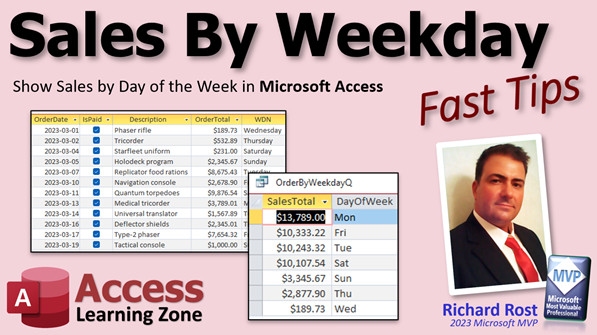
access 2016, access 2019, access 2021, access 365, microsoft access, ms access, ms access tutorial, #msaccess, #microsoftaccess, #help, #howto, #tutorial, #learn, #lesson, #training, #database, Aggregate sums for each day of the week, Finding the total amount of sales by days of the week
More InformationTranscript Welcome to another Fast Tips video brought to you by AccessLearningZone.com. I am your instructor Richard Rost. In today's video, I'm going to show you how to calculate sales totals by day of the week. This will allow you to see your best and worst days of the week. Your best day for sales might be on a Monday, for example, and your worst day on a Wednesday, like you can see there. This way, you might want to run some extra promotions for Wednesdays - this business obviously does - and maybe bring on extra staff on Mondays because you're busy.
Today's question comes from Lisa in Reno, Nevada, one of my Gold members.
Lisa says: I run a small restaurant and it would be handy to know which days of the week are my busiest in terms of sales. This way, I can bring on more staff during those days. It would be nice to enter two dates and see all of the sales between those dates summed up by day of the week. This way, I can punch in say a three week period from last year and see all of the busy days.
Lisa, I forgot the word period there, or whatever you want. I'll add it for you. Hang on.
There we go. Sometimes when I get your emails, I just copy and paste what you send me and I didn't proofread that one well enough. So sorry about that.
All right. So how do we do this? Well, we're going to need a few things under our belt first. First, go watch yesterday's video, Between Dates - and by yesterday, I mean Friday's, because this video is going to be planned on Monday. So, yes, I said tomorrow when I recorded yesterday's, but I forgot today was Friday. So Mondays.
Go watch this one. This will show you how to take a bunch of orders and then show paid orders between two dates. That's the first part of what you need, Lisa.
Then go watch this video. This will teach you about the weekday function and the weekday name function, how to determine what day of the week a particular date falls on.
Finally, go watch this video on aggregate queries. In order to group something up based on some value, like day of the week, you need to create what's called an aggregate query or a total query.
An aggregate query says, I want to take all of these many, many records and put all the Mondays together, put all the Tuesdays together, and so on. I'll show you how that works in just a few minutes. But go watch these three videos first. They're all free. They're on my website. They're on my YouTube channel. Go watch those, and then come on back. I'll wait for you. I'll hold up class just for you. Go.
All right. Here's a copy of the BetweenDates database, which is the one I built in the last video. So Gold members, if you want, you can go download this off the website. That's one of the benefits of being a Gold member.
I'm going to copy this guy. Create a copy, write Copy there, and we'll call this one the Sales by Date, Sales by Date. Let's open you up.
Got my start date and end date here. Let's widen out that margin a little bit. Let's say all the sales from March. I'll show sales. There's a bunch of them. There they are.
Of these dates, I want to know which ones fall on Monday, on a Tuesday, on a Wednesday, and so on. The first thing we're going to do is add day of week to this query.
Come over here. Here's that aberration again. If this bothers you, by the way, all you have to do is close the query, and instead of running the query and then going into design view, just go straight into design view and that aberration doesn't happen. Hopefully by the time you're watching this, the guys at Microsoft have fixed the problem.
Right here, we're going to zoom in, Shift + F2. We're going to add the weekday. So it's going to be WD: that's an alias, Weekday([OrderDate]). That will give me a number from one to seven showing the weekday. There we go, and we learned that in the weekday video.
But I don't necessarily want to see a number in my results. I want to see the weekday name.
Let's go back to design view. There's the aberration again.
Come over here, Shift + F2. We're going to add another one for the weekday name, WDN, or whatever you want to call it. The column is going to be WeekdayName([OrderDate]). Now, you could put Weekday([OrderDate]) in here or just WD because we already figured out what WD is. You can stack functions and make nested functions. But I find this much easier to read and to work with later.
Hit OK. Run it. There's the full weekday name. If you want to abbreviate that, just use the Left function.
Come in here, we'll do one more. Shift + F2, zoom in. I'll call it WD3, the left three characters. "Left([WDN],3)". So take that one, I just figured out WDN, and give me the left three characters.
Hit OK. Run it, and there we go. If you want to learn more about all those cool string functions - Left, Right, Mid, all these things - watch my string functions video.
Now this query is good. Save it.
One thing that I see a lot of beginner Access students do is they try to do too much with one query. You can't really apply an aggregate to this query as it exists because there's just too much information in it - too many fields to deal with.
All we really want is the order total and that day of the week. I don't care about the description. This query handles the date criteria. This query handles whether it's paid or not, but I don't need all that stuff in my final result. In fact, it's at this point impossible to just aggregate this stuff.
We're going to now close this guy and we're going to use that one to feed another query. Sometimes it's easier and more beneficial to break your more complicated queries down into multiple steps.
We're going to make another query. Create, query design. We're going to bring in that other query, the order between date. Now we're going to bring into this query just the fields we care about. In other words, the WD3, which is our three letter day of the week name, and our order total. That's it.
When I run it, I get just that. Now we're going to apply the aggregate. The aggregate is going to say group by this field here. We don't have the exact date, we don't care about the exact date. All we care about is the day of the week. So all of the Mondays will get grouped together, for example, all of the Saturdays will get grouped together, and then we're going to sum up this guy.
Design view. Go to your Totals - that turns on the aggregate. We've got group by for this one - that's fine. We're going to change this one, drop it down to Sum. Run it, and there you go. It is now grouped by these and all of these are summed up together. We only have one unique one here. We've got seven records. That's exactly what we should expect.
Let's save this guy. Save it, OrderByWeekDayQ. Remember, keep everything singular.
That was easy because the other query handles a lot of the other stuff - the date criteria and making sure it's paid - and this guy just needs to know that.
Let's apply a sort so we can see which the busy days are and which the dead days are. Come in here and let's apply a sort right here. Sort descending maybe. Save it, Control + S, and then run it again.
There we go. Now the field is "SumOfOrderTotal." Let's change that.
How do we change that? Using an alias. I'll come right in here in the field name and I'll Shift + F2 to zoom in, and we're going to apply an alias. We'll call it SalesTotal, like that, colon. That will change "SumOfOrderTotal" into just "SalesTotal." It's easier to read, I think.
Run that. That's called an alias. You still want to make sure this abides by my rules: no spaces, no weird characters, just "SalesTotal." If you've got spaces in your field names - no, no, no, bad, bad, bad - you haven't watched my Access Beginner 1 class. Lots of fundamentals in there, even for people who have been using Access for years. You have to watch it. Want to learn more about aliasing fields? There's a video for you.
Maybe you actually want this sorted by the day of the week. If you come in here and sort by day of the week as it is, sort that ascending by day of the week, you're going to get them sorted alphabetically by day of the week, which probably isn't what you want.
What we're going to do in that case is add that WD, that weekday, back into the query. It shouldn't affect the aggregate because these two are the same thing. This one here is just based on that. We'll make this guy ascending. Turn that sort off. Run it now, and there you go. There's your 1, 2, 3, 4, etc. Then you'll get Sunday, Monday, Tuesday, Wednesday, Thursday in that order.
If you don't want to see that guy, you can just hide it. You still need it in there for the sort, but you don't want to see it in the final result. Isn't that pretty cool?
Although personally, I wouldn't care if it was in there or not because I never let my end users see queries directly. I would take this and make either a form or a report out of it and show the user that. I don't let users poke around in queries or tables. That's the topic of a whole different video, but that's just me. That's my preference.
If you want to learn more about this cool aggregate stuff, I recommend my Access Expert 11 and 29 classes. Expert 11 talks about aggregate queries. We do lots more with aggregate queries. In 29, I talk a lot more about the aggregate functions. There's lots of cool stuff you can do with this stuff, and I'm only scratching the surface. That's what my Fast Tips videos are for. My full courses are to teach you this stuff in depth. My Fast Tips and my TechHelp videos are usually to answer a specific question like How do I do something? but I don't go into all the depth that I do in my full classes.
I'm showing Lisa how to tackle a specific problem using a couple of different techniques. The two kind of complement each other because in my full courses, I teach you everything there is to know about what you're doing. We'll cover pretty much everything there is to know about aggregate queries, which I don't do in this video because I'm just showing you how to do this specific thing. So if you really want to learn Access, that's what the courses are for. The Fast Tips are just a little help, a little nudge.
So there you go. That's how to do sales by weekday. Lisa, I hope that answered your question. I hope everyone else learned something. That's your Fast Tip for today. Live long and prosper, my friends. I'll see you next time. Intro In this video, I will show you how to calculate and summarize sales totals by day of the week using Microsoft Access. You'll learn how to set up queries to enter a date range and see sales grouped by each weekday, discover your busiest and slowest days, and use aggregate queries with weekday functions and field aliases to make your data easier to analyze. Plus, I'll demonstrate tips for sorting results and organizing your queries for clear, useful summaries. Quiz Q1. What is the primary goal of the tutorial?
A. To sum sales by customer
B. To sum all sales without date filtering
C. To calculate sales totals by day of the week
D. To generate a histogram of order amounts
Q2. Why would knowing sales totals by day of the week be helpful in a small restaurant, according to the video?
A. To pick which days to close
B. To bring on more staff on busy days and run promotions on slow days
C. To plan which menu items to discontinue
D. To predict weather patterns
Q3. What is the purpose of using "aggregate queries" in Access, as described in the video?
A. To find duplicate records
B. To sort records by alphabetical order only
C. To group records and perform calculations like SUM on them
D. To create backup copies of tables
Q4. What is the function of the Weekday([OrderDate]) expression in the tutorial?
A. It returns the full date and time of an order
B. It gives the first three letters of the weekday
C. It returns a number representing which day of the week the order date falls on
D. It calculates the total amount of the order
Q5. Why is the WeekdayName([OrderDate]) function added in the query?
A. To find out if an order is paid
B. To show the full name of the day of the week for each order
C. To filter orders below a certain amount
D. To abbreviate the day of the week
Q6. What does the function Left([WDN],3) do in the query described?
A. It adds up the sales from three days
B. It creates a three-day moving average
C. It takes the first three characters of the weekday name
D. It sorts the orders by the amount
Q7. Why is it important to break complex queries into multiple steps, according to the instructor?
A. To make queries harder for users to find
B. To better handle different criteria at each step and simplify aggregating data
C. To save on file size
D. Because Access only allows one query per table
Q8. In the final aggregate query, which fields are brought in for grouping and totaling?
A. Only customer names and order dates
B. Only the WD3 field (three-letter weekday) and OrderTotal
C. All fields from the orders table
D. Only the order IDs
Q9. What must be done to apply the SUM aggregate to the sales data grouped by day of the week?
A. Sort by the customer name
B. Set the Totals row to "Group By" for day of week and "Sum" for the sales total
C. Make sure there is only one record per day
D. Use the AVG function instead of SUM
Q10. When sorting by the three-letter weekday name (WD3) alone, what issue does the instructor mention?
A. It causes duplicate records to appear
B. It sorts the days alphabetically, not by their natural order in the week
C. It removes weekends from the results
D. It creates circular references
Q11. What solution is provided in the tutorial for sorting records in the natural order of the week?
A. Group by sales total
B. Use the OrderDate field as the primary sort
C. Add the numeric WD field back into the query and sort by it
D. Sort by sales total in ascending order
Q12. What is the purpose of using an alias, such as SalesTotal: in the query?
A. To hide confidential fields
B. To give the SUM field a more meaningful and user-friendly name
C. To convert numbers to text
D. To automatically hide zeros
Q13. According to the instructor, what should you avoid in field names in Access?
A. Using numbers and underscores
B. Spaces and special characters
C. Colors and images
D. Using all uppercase letters
Q14. What does the instructor recommend for end users instead of allowing them to view queries directly?
A. Let them edit tables directly
B. Show a printed list only
C. Use forms or reports for user interaction
D. Send them the raw database file
Q15. What additional resources does the instructor recommend for learning more in-depth about aggregate queries and functions?
A. Access Expert 11 and 29 classes
B. Access for Dummies book
C. Any online forum
D. Office 365 default training
Answers: 1-C; 2-B; 3-C; 4-C; 5-B; 6-C; 7-B; 8-B; 9-B; 10-B; 11-C; 12-B; 13-B; 14-C; 15-A
DISCLAIMER: Quiz questions are AI generated. If you find any that are wrong, don't make sense, or aren't related to the video topic at hand, then please post a comment and let me know. Thanks. Summary Today's TechHelp tutorial from Access Learning Zone focuses on calculating sales totals by day of the week using Microsoft Access. This technique will help you identify which days your business performs best and which days might need a little boost, such as running promotions or adjusting your staffing levels.
Lisa, a Gold member, wrote in to ask how she can see which days of the week are busiest for her small restaurant. She wants to be able to enter a date range and quickly see sales totals for each weekday, making it easier to plan staffing and promotions. This is a very practical question for any business owner who needs insights into patterns over time.
To accomplish this, there are some important concepts and tools you'll need to be familiar with in Access. First, you should understand how to filter records between two dates. If you haven't already, I recommend brushing up on the technique with my previous lesson on showing all orders in a specific date period. This is foundational for narrowing your data set.
Next, you should familiarize yourself with Access functions for working with dates, specifically the Weekday function, which returns a number for the day of the week, and the WeekdayName function, which provides the name of the weekday. Learning about these will help you classify each sale by the day it occurred.
Finally, building aggregate (or total) queries is essential. Aggregate queries let you group your data by a certain value, like the day of the week, and then sum up sales for each group. If you need a refresher, be sure to check out my lessons on aggregate queries so the steps below make sense.
Once you have those concepts under your belt, let me walk you through the process step by step. You will start with an existing database (perhaps one you might have built from my BetweenDates video) that already filters sales between two dates. In it, you'll have your order records and fields like OrderTotal and OrderDate.
First, modify your query to identify the day of the week for each record. You can assign an alias, such as WD, to the Weekday function to generate a number (1 through 7). While this number is useful for sorting, it is much more readable to use the weekday name. Add another field to your query using WeekdayName, perhaps with an alias like WDN, so instead of a number, you'll see "Monday" or "Tuesday" in your results. If you want the results to show just the first three letters, use the Left function to abbreviate them, calling it something like WD3.
At this stage, your query probably still has too much information, making aggregation tricky. The best practice here is to break the process into multiple queries. The first handles filtering and calculating day names, and the next one focuses only on the specific fields you need: the day and the sales total.
Create a new query that draws only the essential fields from your first query, such as the three-letter day name (WD3) and the order total. Now you can use the Totals option in query design view to group your records by day, then use the Sum function to add up the sales for each weekday.
At this point, your query results will show the total sales for each day of the week. For clarity, you can alias the Sum field as "SalesTotal" so your results are cleaner.
If you want to see which days are busiest, simply sort the results by SalesTotal in descending order. Alternatively, if you want the weekdays to be listed in calendar order from Sunday to Saturday instead of alphabetically, add the weekday number (WD) to the query, use it for sorting, and then hide it from the final output. This lets you keep the natural weekday order in your results.
I want to point out that, typically, I do not allow end users to interact directly with tables and queries. All this work serves as a back end for properly designed forms and reports which are safer and more user friendly. If you're interested in diving much deeper into aggregate queries, my Access Expert 11 and Access Expert 29 courses cover them extensively, including many advanced tips that go beyond what Fast Tips and TechHelp videos have to offer.
To sum up, the steps involve building a base query to filter sales by date, adding fields to denote the day of the week, creating a secondary aggregate query to sum sales by that day, and then arranging the results to display your busiest and slowest days. This workflow is efficient and gives you actionable business insight.
If you want to see the full video tutorial, including step-by-step guidance for everything discussed here, you can find it on my website at the link below.
Live long and prosper, my friends. Topic List Calculating sales totals by day of the week in Access
Creating a query to filter orders between two dates
Adding weekday number to a query using the Weekday function
Adding weekday name to a query using the WeekdayName function
Abbreviating weekday names to three letters with the Left function
Building step-by-step queries for complex tasks
Using aggregate queries to group and sum data by weekday
Applying sorting to show busiest or slowest weekdays
Renaming query fields using aliases
Sorting weekday results in calendar order instead of alphabetically
Hiding fields in queries while using them for sorting purposes Primary Topics Microsoft Access, aggregate queries, grouping data, weekday functions, sales analysis, query design, date filtering, aliases, sorting query results
Secondary Topics query best practices, hiding fields in queries, beginner errors in queries, making reports/forms from queries
|






