Required
By Richard Rost

 3 years ago
Using the Required Property in Microsoft Access
In this Microsoft Access tutorial, I will teach you how to use the required property to force data entry for a specific field, why you should rarely use it, and better alternatives.
Topics Covered
- Setting Required Property
- Custom Error Message
- Zero Length Strings
- No Data is Better than Bad Data
- BeforeUpdate Events
Pre-Requisites
Links
Recommended Courses
Keywords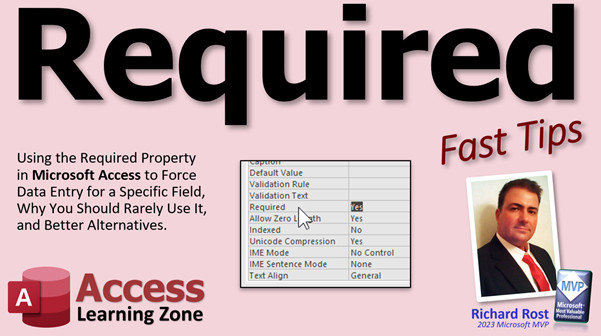
access 2016, access 2019, access 2021, access 365, microsoft access, ms access, ms access tutorial, #msaccess, #microsoftaccess, #help, #howto, #tutorial, #learn, #lesson, #training, #database, required field, required property, Require a value in a field, What is the required property in Access, Mandatory Fields, Custom Error Message, No Data is Better than Bad Data, data integrity rules of been changed, existing data may not be valid for the new rules, existing data violates the new setting for the required property
 Subscribe to Required
Get notifications when this page is updated
More InformationTranscript Welcome to another Fast Tips video brought to you by AccessLearningZone.com. I am your instructor, Richard Rost.
In today's video, we're going to talk about the Required property that forces data entry into a specific field, why you should rarely use it, and what some better alternatives are. And don't worry, advanced users; I have a little bit for you at the end.
In this video, we're going to talk about the Required property, what it is, and when you should use it and when you should not use it. I'll show you how to set it. We'll talk about getting custom error messages, because by using the Required property by itself, you can't get a custom error message. I'll show you how to do that. We'll talk about how to use zero-length strings with the Required property. There are some tricks there.
I'll give you my little speech about why no data is better than bad data and why I don't like using the Required property in a lot of instances. We'll talk about a better method for requiring data, which is a Before Update event.
Here I am in my TechHelp free template database. This is a free download; you can grab a copy now if you really want to, but this will work with any database.
Let's say I've got a customer table, and I have a bunch of stuff in here. I want to make sure that for the future, first name and last name are always entered for every customer. You could come in here and put someone else in here and it's just Joe, and I don't want that. I want to make sure there's always a last name.
To do that, go into Design View. Go to that field, find the Required property, and set that to Yes. I just double-click that right there. We'll do the same thing for last name - Required. Now, save the table.
Since there is existing data in this table, Access is saying that the data integrity rules have changed. The existing data may not be valid for the new rules. Do you want to test the existing data to make sure it matches up with your rules? If you say Yes, it'll go through and check all the records, and it says existing data violates the new setting because I do have one record in there - that Joe guy without a last name. You have some options: keep the new setting and continue testing, revert to the old setting and continue testing, or stop testing. I'll just hit Cancel to stop testing because I know what the problem is.
Now, at this point, Access will still let me save the table, close it, and go away even though I've got someone missing a last name. Be careful if you've got existing data in your database.
I'm going to go back in here now and go down here to find Joe, and I'll put in Smith. Now, everybody's fine. Everyone's got a first name and a last name.
Now, if I go at this point to add someone new, let's say Adam, and I leave it like that and try to move to the new record, I get "You must enter a value in the customerT.last name field."
Access is yelling at me, telling me I can't do that; I've got to put something in this field. The problem here is that that's not a very user-friendly name, and it's got "customerT.last name." What does that mean? In this particular case, your user can probably figure out what that is, but what if you've got a weird field name or something crazy? You might want to make a more user-friendly message there.
Unfortunately, you can't do that with just the Required property. So I'm going to hit Escape and cancel that, hit Escape a couple times, come back into here to Design View. Now, instead of using the Required property, what we can do is use a Validation Rule, which allows you to specify validation text.
Let's just do it for last name. Take the Required property and set it to No. But now go up to the Validation Rule and type in "Is Not Null." What you're saying there is basically the same thing as the Required property: you've got to put a value in this field.
Now you can specify Validation Text: "You must enter a last name." Save it now. Again, data integrity - do you want to test? No. Close it, come back into here.
Let's try putting someone else in: Adam. I'll just go down arrow. Boom – "You must enter a last name." That's how you get a custom message. If you want to require a value, instead of using the Required property, use the Validation Rule.
If you want to learn more about Validation Rules, I have a video for it – there you go. Of course, I have a video on the Null value and how to check for that. These are free videos – I'll put links down below you can click on. They're on my website, they're on my YouTube channel – go watch those.
Validation Rules are also better because if you want to do that for, let's say, a numeric field – let's say my family size over here, let's say hypothetically this value has to be over five. You can come in here and find family size. Instead of requiring it, we can say in here for the Validation Rule (get rid of the Default Value), the Validation Rule has to be >5 or Is Null. In other words, it's got to be a value over five, or it can be empty; it can be blank. So, they can leave it blank or type in a number, but it can't be anything less than five. You can do other kinds of things with the Validation Rule, too.
Let's get rid of that. I cover that in more detail in the Validation Rule video.
Let's go back to first name and last name for a minute. Forget the Validation Rule thing for just a second. Let's make Required = Yes for both of these. Required is Yes for first name and last name.
Let's say you're doing something like bank loan applications, and you have to have a first name and last name in order to process the application — you can't leave it blank. Save that, come back out here.
Now, I'm going to put in David. Oh man, I didn't get this guy's last name, but you know what? I know a little bit about Microsoft Access, and I know I can't leave that field blank. But I can put a zero-length string in there. How do I do that? I go "" (quote quote). Now, watch this – down arrow – look at that. Zero-length strings and Null are not the same thing.
I have a whole separate video explaining what zero-length strings are, but basically, a Null value means I have no data. A zero-length string means I have data, but it just happens to be that the data is there is no data. It's kind of confusing.
The perfect example that I like to use is middle name. For this example here, I'm going to add middle name to the mix: Insert Row, middle name. Again, a bank loan application – you might want to have that or at least middle initial.
For first name, I'm going to say Required is Yes, Allow Zero Length is No. I don't want them to be able to get away with that zero-length string trick. Last name – same thing, Allow Zero Length is No.
For middle name, I'm going to require it and also allow zero-length strings because some people might not have a middle name. I tell this example in my zero-length string video, but my grandfather, his name was Benny Spardoodie – he had no middle name. His birth certificate and his actual Army or Navy dog tags said Benny None Spardoodie. Some people don't have a middle name, so you might want to allow the option for this field where it's required, but you want to allow them to enter a blank if that field does indeed have no value.
I'm going to save this again, don't do the checking, close it. Now, if it's just any old person: Peter Wilson – it says you must enter a middle name. What's your middle name, Peter? All right – James. Now, for my grandfather, Benny Spardoodie. Need your middle name, Benny – what's your middle name? I don't have a middle name. In that case, I can put a zero-length string in there and allow it. There you go.
So that's why you may or may not want to require it, but allow a zero-length string, and the default is to allow zero length. Anyone who knows a little Access or has watched my videos will know that trick. It's another reason why I really don't like the Required property.
That brings us to "No data is better than bad data." I spent a lot of time in my Access Beginner 4 class talking about this. What does this mean? When it comes to a database, I would rather have fields that are Null, that users have not typed data into, instead of typing in junk data just to get around my Required property.
Let's say you've got a database at the front of your store, and a customer comes in. You're typing in the sales order, and you put everything in here. The guy's name is Steve, and you forgot to ask him for his last name. The computer won't let you put the order in, and he's already left the store. What do you do? Just put some junk in there to get around it – "I don't have his last name." Now you've got bad data in those fields, and that's not good. That's why they call it bad data.
I would rather have blank data in there, because at least later on if it's important, I can have one of my people contact these customers and say, "Hey, we didn't get some information from you. I need it for my records." It's very easy to make a query and pull up all the records that are missing data, such as phone number is Null, or the last name is blank, or whatever.
But if you've got bad data in there now, you've got to hunt through all your records manually and say, "Well, okay, it typed in XXX for last name." So that's why I say that no data is better than bad data. Don't force your users to put something in unless it's absolutely necessary.
Like I mentioned earlier, you're doing loan applications. If you cannot submit this to underwriting without this information, then okay – fine, make it required. But for your general everyday, average database, unless you really super need to make it required, don't make it required. Otherwise, you're going to get junk.
So just keep this in mind as you're building your database: unless you really need to make something required, don't. They don't talk about this in a lot of other courses or books that I've seen. I always do my research when I'm putting my videos together to see what everyone else has to say out there. I watch a few YouTube videos; I read a few articles. Some really good ones, some really bad ones. But I'm trying to give you the benefit of my 30 years of doing this stuff. These are just things that I've come across.
Finally, I promised advanced users a little something extra.
What I prefer doing instead of using the Required property or even Validation Rules is using a Before Update event. Let's come back in here and set these Required back to No. No. No. Did I do the phone number? No.
Let's go into the form. In the form, go to Design View, bring up the form's properties. You'll see Events over here. This is called the Before Update event. In here, you can put logic to check not only one field, but you can check multiple fields. You can say things like, "If the family size is greater than 15, then they have to have a credit limit of $500," or whatever. You can do multiple types of conditional checks in here, but I'll just show you a simple one.
I'll go into the builder here, and that brings up my VBA window. Here's the form Before Update event. Notice it can be cancelled. You will cancel it if they don't match whatever criteria you want. You'll say:
If IsNull([FirstName]) Then
MsgBox "Uh-uh-uh, you didn't say the magic word"
Cancel = True
End If
Jurassic Park could have been prevented if they just spent more money on it.
Now, at this point, if they didn't put a first name in, you're going to say Cancel = True. That will abort without saving the data in the form. If that condition's not true (in other words, there is a first name), then it will allow you to save the record. Save that, close it, open it.
If I go to a new record now and I put in Joe Smith, and go to a new record – all good. But if I come in here and don't put a first name in, "Uh-uh-uh, you didn't say the magic word." I want to put a picture of Dennis Nedry up there, just Wayne Knight with his little finger wag. I'm old.
But that's a Before Update event – that's my preferred solution. Notice now the record is still dirty; you can't leave it, you can't close the form. Your only option is: do you want to close the object and save the database anyway? No. You can come in here and fix it, or you can hit Escape and cancel your edits.
Like I said, you can put all kinds of additional logic in here. You can check multiple fields. You can look up values in other tables. Let's say you're putting an order in and, after the order is put in and all your line items are there, you can check and make sure that the amount of that order is greater than the customer's credit limit. That's something you would use DLookup for, and pull that data out of a different table. There are all kinds of things you can do. Learn a little VBA, folks. That's what I'm here to teach you.
If you've never done any VBA programming before, go watch this video. It's about 20 minutes long. I'll put a link down below for you. It'll teach you everything you need to know to get started. It's not scary, folks.
Here's that video on Before Update; it teaches a lot more about how that works. There's also something called After Update, and a lot of different events in there, but this will get you going.
Like I mentioned earlier, if you want to learn more about the different field properties in the table, including the Required property, Allow Zero Length, additional field properties like indexing, backing it up, and all kinds of cool stuff – Access Beginner Level 4. Spend a couple dollars on my website and it'll teach you lots more.
So there you go, folks. There is your Fast Tip for today. I hope you learned something.
Live long and prosper, my friends. I'll see you next time. Intro In this video, we will talk about the Required property in Microsoft Access tables, including what it does, when you should and should not use it, and why relying on it can sometimes cause problems in your database. I'll show you how to set the Required property, discuss its limitations with custom error messages, cover zero-length strings, and explain why "no data is better than bad data." We'll also look at better alternatives like using a Validation Rule for custom messages and demonstrate how to require fields using the Before Update event for more advanced flexibility. Quiz Q1. What is the main purpose of the Required property in Microsoft Access?
A. To ensure that a specific field cannot be left empty during data entry
B. To prevent duplicate entries in a field
C. To automatically generate primary keys
D. To restrict users to numeric values only
Q2. What is a major limitation of the Required property in terms of user experience?
A. It slows down data entry significantly
B. It only works with numeric fields
C. It does not allow custom error messages
D. It hides the field from users when enabled
Q3. What is the better alternative discussed in the video for providing user-friendly messages when data is missing?
A. Setting Allow Zero Length to Yes
B. Using the Validation Rule property with Validation Text
C. Relying on default Access error messages
D. Making the field a primary key
Q4. Which Validation Rule would you use to require a value but also allow the field to be left empty?
A. =5
B. >5 or Is Null
C. Is Null only
D. <5
Q5. What happens when you set the Required property to Yes, but the Allow Zero Length property to Yes in a text field?
A. The field cannot be left empty or blank
B. Only numbers are accepted
C. Users can enter a zero-length string ("") to bypass the Required property
D. The field becomes read-only
Q6. Why might you allow zero-length strings for a required middle name field?
A. To force every record to include a middle name
B. To allow users to indicate they do not have a middle name without entering junk data
C. To prevent users from entering any data at all
D. To make the field automatically fill with "None"
Q7. What concept is summarized by the phrase "No data is better than bad data" in the context of database management?
A. It is better to have blank or missing data than to have inaccurate or made-up data
B. All fields should always be filled, even with guesswork
C. Old data is more valuable than recent data
D. Duplicate data is acceptable if it is complete
Q8. When is it acceptable to use the Required property according to the video's recommendations?
A. Whenever you want perfect data in every situation
B. Only when the business process cannot continue without that information, such as a loan application
C. For all important fields in any table
D. For calculated fields only
Q9. What advantage does the Before Update event provide compared to the Required property or Validation Rules?
A. It only runs after saving a record
B. It allows for complex and multi-field validation with custom logic and messages
C. It makes the form read-only
D. It disables all error messages
Q10. What does the Cancel = True line in the Before Update VBA code do?
A. Automatically saves the record without checking data
B. Allows the record to be saved without validation
C. Prevents the record from being saved if a validation fails
D. Deletes the entire record
Q11. What is the difference between a Null value and a zero-length string in Microsoft Access?
A. There is no difference; both mean empty
B. Null means no data at all, while zero-length string means data is present but is ""
C. Null means zero, while zero-length string means negative
D. Null is used only in numeric fields, zero-length in text fields
Q12. What is a common reason for users entering junk data into required fields?
A. To bypass validation and quickly save the record
B. To enhance data quality
C. To create duplicate records
D. Because required fields are always hidden
Q13. Which scenario illustrates an appropriate use of Allow Zero Length set to Yes in a required field?
A. Telephone number for a customer must always be filled
B. Primary key auto-number field
C. Middle name when some people do not have one
D. Last name on a loan application form
Q14. What can a Validation Rule do that the Required property cannot?
A. Prevent duplicate records
B. Enforce complex validation criteria and show custom error messages
C. Set default field values
D. Hide certain form controls
Q15. What should you do if you want to require multiple fields and enforce relationships between their values before allowing a record to be saved?
A. Use only the Required property for each field
B. Use a Before Update event in the form and write custom logic
C. Use a table index
D. Create a macro to auto-fill the fields
Answers: 1-A; 2-C; 3-B; 4-B; 5-C; 6-B; 7-A; 8-B; 9-B; 10-C; 11-B; 12-A; 13-C; 14-B; 15-B
DISCLAIMER: Quiz questions are AI generated. If you find any that are wrong, don't make sense, or aren't related to the video topic at hand, then please post a comment and let me know. Thanks. Summary Today's TechHelp tutorial from Access Learning Zone focuses on the Required property in Microsoft Access tables. I will explain what this property does, why you should avoid using it in most situations, and present better ways to make sure users enter the information you need in your databases.
First, let me discuss what the Required property is. In Access, if you set a table field's Required property to Yes, the program will force users to enter something for that field whenever they create a new record. For example, if you have a customer table and want to make sure every customer has a first and last name, you might set the Required property to Yes for those fields.
To set the Required property, open your table in Design View. Locate the field you want to require data for, and set the Required property to Yes. Save your changes. Keep in mind, if you already have data in the table, Access will warn you that this rule might conflict with existing records. If some of those records are missing values in your now-required fields, you will get an error, and Access will ask you if you want to validate your existing data. You can choose to test, skip validation, or cancel. If you proceed, Access will tell you which records violate the new requirement.
But there are some drawbacks. If you try to enter a new record and leave a required field blank, Access will stop you with a default error message. This message includes the technical field and table names and might confuse your users, particularly if those names are not straightforward.
So, how can you require a value AND give your users a clear custom error message? The Required property by itself does not let you customize error text. However, by using a Validation Rule and Validation Text, you can accomplish more. Instead of setting Required to Yes, set it to No and enter a validation rule such as Is Not Null. Then, in the Validation Text property, write a friendly message like "You must enter a last name." Now, if users fail to enter a last name, they'll see your custom message instead of Access's default.
Validation Rules are very flexible. For instance, if you want a numeric field, such as family size, to only accept values over five or allow it to be blank, set the Validation Rule to ">5 or Is Null." This ensures only values greater than five or nothing at all are accepted.
Let me talk briefly about zero-length strings. If you set the Required property to Yes, Access will block blank fields, but a user who knows Access can sometimes bypass this by entering a zero-length string, such as two quotation marks with nothing between them. This is not the same as Null because a zero-length string technically counts as data. For some fields, such as middle name, you might require data but still allow users to enter a zero-length string if, for example, someone genuinely has no middle name. You can control this with the Allow Zero Length property set to Yes or No depending on your needs.
Here's an example. For first name and last name fields where you absolutely must require data, you can set Required to Yes and Allow Zero Length to No. For a middle name field, you can still set Required to Yes but Allow Zero Length to Yes for those rare cases where someone does not have one.
At this point, I want to make an important note: No data is better than bad data. I cover this extensively in my Access Beginner 4 class. Suppose you're collecting customer information at a store and forget to get a last name, but Access insists that you enter something. You (or your users) might enter "Unknown" or "XXX" or some other junk value just to bypass the requirement. Now the database has useless data. Later on, if you find you need this information, it's much easier to identify missing (blank) data than to hunt through fake or incorrect entries.
Think carefully before making any field required. Unless your process absolutely cannot continue without that information (such as submitting a loan application), it's often better to allow blanks. This makes maintaining and cleaning your data simpler in the future. Most other tutorials and books don't stress this point, but my years of experience have shown me that careful handling of required fields saves many headaches down the road.
Finally, for those comfortable with a bit of VBA, I prefer using the form's Before Update event to handle data validation. This method is more flexible than the Required property or Validation Rules. In the form's Before Update event, you can check if one or several fields are blank, run all kinds of checks (even across related tables), and display clear, custom messages. It gives you much more control over your data-entry process. If a field does not meet your criteria, you can cancel the update, display a helpful message, and prevent the record from being saved until corrected.
If you've never tried VBA before, don't worry. I have a basic introductory video on my website that walks you through this process step by step. Using this method, you can check multiple fields, require relationships between fields, and create a much better data-entry experience for your users. For more information, you can check out my other tutorials on the Before Update event and related field properties.
To sum up, while it's tempting to use the Required property to force data into your tables, it's better to use Validation Rules and custom VBA logic to make entry requirements clearer and your tables easier to maintain. Only force required fields when absolutely necessary.
You can find a complete video tutorial with step-by-step instructions on everything discussed here on my website at the link below.
Live long and prosper, my friends. Topic List Explanation of the Required property in Access
How to set a field as Required in table Design View
Limitations of the Required property
Custom error messages using Validation Rule and Validation Text
Difference between Required property and Validation Rule
Setting a Validation Rule to force data entry
Using Validation Rule with numeric fields
Difference between Null values and zero-length strings
Allow Zero Length property and its effect
Handling required fields with zero-length strings
Requiring data but allowing zero-length strings when appropriate
Why "no data is better than bad data" philosophy
Dangers of forcing required fields with nonessential data
Using the Before Update event for custom data validation
Writing VBA code to enforce data entry
Displaying custom messages in the Before Update event
Canceling record saves in the Before Update event if validation fails
Multiple-condition validation in form events Primary Topics Access Required property, data validation, custom error messages, Validation Rule vs Required, zero-length strings, Allow Zero Length, Before Update event, data integrity, VBA for form validation
Secondary Topics Null value, user input errors, design best practices, DLookup, field properties
|




