Database Launcher
By Richard Rost

 3 years ago
Create a Microsoft Access Database Launcher
In this Microsoft Access tutorial I'm going to teach you how to use one database to open another using the FollowHyperlink command. We can effectively create a database switchboard which is a database that opens other databases. We'll also see how ChatGPT handles this issue.
Jan from Aurora, Colorado (a Gold Member) asks: I've got two separate Microsoft Access databases that I have to work with. One contains my customers and the sales guys have to use it. The other includes mostly accounting information and my list of vendors and such. The issue is that sometimes the sales guys have to look at the vendor information, and I of course need to use both databases. I don't want to merge these into one database as it's very complicated. Is there a way to just click a button and switch to the other database?
Members
Members will learn how to make a list box containing your database files and launch them that way instead of hard coding them into buttons. We can also use this technique with other objects too and not just database files. You can open spreadsheets, documents, and more.
Silver Members and up get access to view Extended Cut videos, when available. Gold Members can download the files from class plus get access to the Code Vault. If you're not a member, Join Today!
Pre-Requisites
Links
Recommended Courses
Member Links
Keywords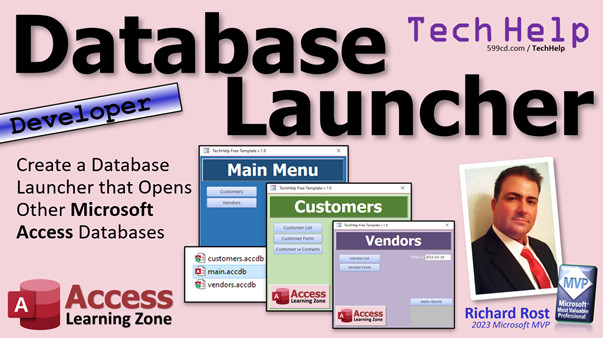
access 2016, access 2019, access 2021, access 365, microsoft access, ms access, ms access tutorial, #msaccess, #microsoftaccess, #help, #howto, #tutorial, #learn, #lesson, #training, #database, master database, database switchboard, Can you link multiple Access databases, How to Link One Access Database to Another, combine databases, how to connect to multiple access databases, shellex, shellexec
More InformationTranscript Welcome to another TechHelp video brought to you by AccessLearningZone.com. I am your instructor, Richard Rost.
In today's video, we are going to create a database launcher, which is a database that you can use to open other databases and other stuff too.
Today's question comes from Jan in Aurora, Colorado, one of my gold members. Jan says, I have got two separate Microsoft Access databases that I have to work with. One contains my customers and the sales guys have to use it. The other includes mostly accounting information and my list of vendors and such.
The issue is that sometimes the sales guys have to look at the vendor information and of course I have to use both databases. I do not want to merge these into one database as it is very complicated. Is there a way to just click a button and switch to the other database?
Well, yes Jan, what I would recommend in this case is to make a database launcher. It is kind of like a switchboard but instead of opening forms, you are opening other database files. You can also use it to open pretty much any other files you want like Word documents or spreadsheets or any of that stuff.
To do this, we are going to use the Follow Hyperlink command, which is a VBA command. Go watch the Follow Hyperlink video if you have not seen it already. While this is technically a developer level video because it does use some VBA, we literally only need one line of code.
Go watch this if you have never done any VBA programming before. It is about 20 minutes long. It teaches you everything you need to know. That one line of code is easy. It is knowing where to put it that is the tough part.
Go watch this. I am going to show you, but still, if you want to learn more about VBA, go watch this first.
All right, so let us try to recreate what Jan has got going on here. I am going to create a folder, a new folder. I will call this my database folder, whatever. This could be on your PC, it could be on your server, it could be wherever you have it that you can share it for the other users.
We are going to open that up now. I will move my TechHelp database into here. Let us say that this is the customer database, customer DB, whatever you want to call it.
Let us open that up. I am just going to visually change this so we know what is the customer database. We will call this Customers. We will change the color a little bit. We will make it purple.
You do not want to merge these into one database. I get it. Sometimes databases are complicated and you do not want to mess with things. It is working fine just the way it is. There is our customers database.
Now let us take another copy of the TechHelp. I am going to copy another one in there, copy here. Let us make this the vendor database. I am going to open that up. These are standalone databases. You do not want to change things. They work just fine.
We will make this one the Vendors. We will make this one, I do not know, in your color. Make this one green. I think I did it reversed in the screen caps, but that is okay. It does not matter. This is your vendor list, and so on.
Make all your cosmetic changes that you need. This will, of course, open a whole different set of forms. I am just replicating two different databases. Here we have Customers. We have got Vendors.
Now we are going to make a third database. I will copy it one more time. Bring it in here. This will be the launcher, the main database or your switchboard, whatever you want to call it. Let us open that up. This will be the database you will open first.
This guy does not really need anything in it. It does not need any tables, so we can delete those tables. Goodbye. See you. It does not need these queries. Let us keep things simple. Get rid of this stuff we do not need.
I am going to keep these because those are my template forms in case I decide I want to make more. But all we really need in here is that main menu form. So we can get rid of all of these forms. We can get rid of these reports. I will leave that macro since that is the macro that opens up the main menu form. I will leave that global module in case there is any code in there that I need, but now we have got our main menu.
Now what are we going to do? We are going to make the first button open the customer database or whatever you want to call it. Give it a good name over here if you want to name it Open Customer Button, whatever you want to call it.
Let us go to its event. You can click on Event here. It has got an On Click event. Click on that. Now it is going to put you in a new spot here.
Keep in mind that the old button, which is this guy here, is no longer valid. When you change the name of an object, it is unlinked to its code. In fact, I want to get rid of all the rest of the stuff in here because we do not really need it. Keep Status, though, just in case.
Here I am in the Customer Button Click. This is going to happen when I click on that customer button. It is literally one command: FollowHyperlink, and then it is going to be the full path and name of the database file.
Go back to your folder. Here is the database folder we created. Click right there. It will give you the full path. Mine is C users Amma Kerr. It is short for Amma Kerr, I know. It is on my desktop and then it is database folder.
Yours will be wherever you put it. It could be Z colon backslash database back whatever. You will need this and then the name of your database, so it is customer-db.accdb. Got that? Throw it in Notepad if you have to.
Right in here, in quotes, we are going to put that full path slash customer-db.accdb. That is it. There is your one line of code. That is all you need.
Save it. Close it. Open it back up again. I have got a button right here which basically runs that macro that opens up the main menu. Click on Open Customer Database and boom, there is your customer database. You can get the work done on that. Real easy. When you are done, you just close it and you are back at your main menu.
Let us do the other one. Let us put the vendor button in here now. I am going to change this to Vendor Button. Right-click on it, build event. Same thing. I am just going to copy and paste this guy. Copy, Control-C, paste. This is the vendor DB, or how do we double-check? Vendor DB.
Right here, vendor DB. Close it. We will get rid of this button here too. Close that. Close it. Open it up. I did not change captions today. I always forget stuff. Open Vendor Database. Save it. Close it. Open it back up again and click, and there is your vendors. Easy enough.
Close that. There you go. That is how you make a launcher or a switchboard to have one database open another database. If you want, you could put a password. Let us say you are going to give this front end to everybody. You could put passwords on this stuff.
You could password the whole database file if you want to by putting a password in that vendor database, and then you have to type it in every time it opens it. You could use the trick that I show in my security seminars to actually put a password in the button itself or create user logins or any of that stuff.
Here is my video for setting up a database password. I will put a link to this down below in the description under the video. Here is my Simple Security video where I show you how to secure these databases a little bit. In the extended cut, I show you how to do that password box.
If you want to learn a lot more about that FollowHyperlink command, I cover it in detail in my Developer 39 class. I use it a lot with Word, Excel, and other stuff too.
If you have been watching my videos for any length of time now, for the past couple of weeks at least, I have been doing some stuff with ChatGPT. I am very impressed with ChatGPT and its ability to generate code and instructions for how to do things, especially in Microsoft Access.
I am not really worried about my job. Just kidding. ChatGPT is nowhere near as fun as I am. It does give some really cool instructions and tips on how to do certain things.
Let me show you what happened when I asked it Jan's question. I basically put Jan's question word for word into ChatGPT and it says you can create a simple solution using a form with a button that allows you to switch between two databases, and it gave me a bunch of instructions. It said the command button wizard will appear, choose Miscellaneous in the categories list, and Run App in the actions list.
The problem is, command button wizard Miscellaneous does not have a Run App command. There is a Run Application macro command, but that is a little bit different than what I am doing. As long as you know that, you are okay.
I actually told ChatGPT there is no Run App option in the command button wizard. It said, oh, apologies for the confusion, and then it went ahead to give you the exact same solution that I just gave you. Use the Application.FollowHyperlink.
You do not necessarily need Application. That is assumed with the FollowHyperlink command, but it eventually got there. I am pretty sure that eventually ChatGPT is going to learn all these things, especially if I keep telling it stuff like this.
It is going to be a great resource for getting information like this. As soon as they come up with a Max Headroom-like interface that gives you the instructions... I am old. If you do not know who Max Headroom is, look it up on YouTube.
If you want to learn more about this stuff, in the extended cut for members, I am going to show you how to make that an editable list of items instead of hard-coding that FollowHyperlink command into a button. Which means if you have to go into design to change it, I will show you how you can make it an editable list, so even your users could click a button, open up a table or a form, type in a new item, change it, delete it, whatever. It works during runtime.
It is best to try to avoid making design-time changes if possible. Then we will see how to work with other file types. You want to launch a spreadsheet, a Word document, a folder, HTML page, PDF, or whatever. The problem is, FollowHyperlink will give you a security warning if you try to open anything but an Access database. I will show you how to get around that in the extended cut for the members.
Silver members and up get access to all of my extended cut videos. There are lots of those. There are hundreds of them. Gold members can download these databases.
That is your TechHelp video for today. I hope you learned something. Live long and prosper my friends. I will see you next time.
Silver members and up will get access to all of my extended cut TechHelp videos, one free beginner class each month, and more. Gold members get access to download all of the sample databases that I build in my TechHelp videos, plus my code vault where I keep tons of different functions that I use. You will also get a higher priority if you decide to submit any TechHelp questions to me, and you will get one free expert class each month after you finish the beginner series.
Silver members get all the previous perks, plus even higher priority for TechHelp questions, access to all of my full beginner courses for every subject, and one free developer class each month after you finish the expert classes. These are the full-length courses found on my website, not just for access. I also teach Word, Excel, Visual Basic, and lots more.
You can now become a Diamond sponsor and have your name or company name listed on a Sponsors page that will be shown in each video as long as you are a sponsor. You will get a shout out in the video and a link to your website or product in the text below the video and on my website.
Do not worry, these free TechHelp videos are going to keep coming. As long as you keep watching them, I will keep making more, and they will always be free.
If you have not yet tried my free Access Level 1 course, check it out now. It covers all the basics of Microsoft Access. It is over four hours long and I just updated it for 2021. You can find it on my website or on my YouTube channel. I will include a link below that you can click on.
Also, if you like Level 1, Level 2 is just one dollar. That is all, one dollar, and it is free for all members of my YouTube channel at any level, even supporters.
Want to have your question answered in a video just like this one? Visit my TechHelp page on my website. You can send me your question there.
While you are on my site, feel free to stop by the Access Forum. Lots of good conversations are happening there. Be sure to follow my blog, find me on Twitter, and of course YouTube.
Once again, my name is Richard Rost. Thank you for watching this TechHelp video brought to you by AccessLearningZone.com. I hope you enjoyed this video and that you learned something today. I will see you again soon. Intro In this video, I will show you how to create a simple database launcher in Microsoft Access that allows you to open multiple Access databases from a single menu, perfect for users who need to switch between different databases like customers and vendors without merging them. We will use a single line of VBA code with the FollowHyperlink command to set up buttons that open other database files, and I will walk you through setting up the folder structure, creating the launcher form, and linking each button to its target database. Quiz Q1. What was the main objective of the video tutorial?
A. To merge two databases into one single database
B. To demonstrate how to create a database launcher to open other databases
C. To teach advanced SQL queries for Access databases
D. To perform data migration from Access to Excel
Q2. Why did Jan not want to merge the two databases?
A. The databases use completely different formats
B. Merging databases would lose all the data
C. Keeping them separate avoids unnecessary complexity and disruption
D. Jan did not have permission to merge them
Q3. What VBA command is primarily used in the video to open another database from a button?
A. RunCommand
B. OpenDatabase
C. FollowHyperlink
D. DoCmd.OpenForm
Q4. What is a database launcher as described in the video?
A. A macro that backs up your databases automatically
B. A database form that tracks which users open which files
C. A database with forms or buttons to open other databases or files
D. An Access-only feature that merges multiple databases
Q5. Which of the following file types can you potentially open using the database launcher with the FollowHyperlink command?
A. Only Access databases
B. Any file type, such as Word, Excel, or PDFs
C. Only PDF files
D. Only web pages
Q6. Where must the full file path to the target database be specified when using FollowHyperlink in VBA?
A. In the Access options menu
B. As an argument to the FollowHyperlink command in quotes
C. In a macro property window
D. In the database settings panel
Q7. What should you keep in mind when renaming a button or control in Access forms?
A. Only the name changes, and nothing else is affected
B. The button stays linked to its old code
C. Changing the name breaks the link to its original code event
D. It automatically updates all macros
Q8. What is discussed as a way to enhance security for database access?
A. Encrypting the launcher database only
B. Putting a password on the entire database or adding password functionality to buttons
C. Using Access built-in login form only
D. Relying solely on user education
Q9. What additional feature is mentioned in the extended cut for members regarding the launcher?
A. Printing database lists directly from the launcher
B. Making the list of buttons and links editable at runtime via a table or form
C. Automatically emailing users when databases are launched
D. Synchronizing data between the databases
Q10. What limitation of the FollowHyperlink command does the video mention?
A. It cannot open any file outside of Access
B. It does not support URLs
C. It may produce a security warning for non-Access files
D. It is not available in recent versions of Access
Q11. Which Group membership level allows users to download all sample databases from TechHelp videos?
A. Bronze
B. Silver
C. Gold
D. Diamond
Q12. According to the video, what should you do if you want to change which database a button opens without editing VBA code?
A. Use macros only
B. Use a text field on the form directly
C. Use an editable list or table as shown in the extended cut
D. Recreate the button each time in Access
Q13. What was said about using ChatGPT to generate Access code?
A. ChatGPT always provides perfect step-by-step instructions
B. ChatGPT sometimes gives incorrect or outdated guidance but can still be helpful
C. ChatGPT refuses to give any Access-related code
D. ChatGPT only works for web programming scenarios
Q14. Why is avoiding design-time changes mentioned as best practice for the launcher buttons?
A. They are more difficult to implement
B. They increase the launcher file size
C. They prevent the need for reopening the database in design mode for edits
D. They make backups impossible
Q15. What must you include in the FollowHyperlink command to correctly open the other database?
A. The database password
B. The network settings
C. The full file path and file name in quotes
D. The form object name
Answers: 1-B; 2-C; 3-C; 4-C; 5-B; 6-B; 7-C; 8-B; 9-B; 10-C; 11-C; 12-C; 13-B; 14-C; 15-C
DISCLAIMER: Quiz questions are AI generated. If you find any that are wrong, don't make sense, or aren't related to the video topic at hand, then please post a comment and let me know. Thanks. Summary Today's TechHelp tutorial from Access Learning Zone covers how to create a database launcher in Microsoft Access. This is a database designed to open other databases or any files you need, serving as a centralized starting point for your workflow.
This concept came from a question by a user who works with two separate Access databases: one for customers, used mainly by sales staff, and another for accounting, containing vendor information. Occasionally, sales needs to access vendor information, and the user needs to work in both databases. Merging the databases is not a practical solution because of their complexity. The question was whether there is a way to easily switch between these databases with the click of a button.
My recommendation is to create a database launcher. This functions similarly to a switchboard in Access, but instead of opening forms within a single database, it allows you to open different database files or even other documents like Word files or spreadsheets.
To implement this, I use the FollowHyperlink command in VBA. If you are not familiar with this command or with VBA in general, I suggest you watch my FollowHyperlink video first. It is about 20 minutes long and walks you through the basics you need. In this tutorial, we only need a single line of code, but the main challenge is knowing exactly where to put it in your project.
To illustrate, I recreated Jan's situation with two databases. First, I created a new folder to hold all the databases. This can be on a local computer or a shared network location. I put a copy of my TechHelp database into this folder and named it "Customers." I updated its appearance slightly to make it clear which one represents customer data.
Next, I made a second copy of the database, renamed it "Vendors," and changed its color so it looks distinct. Both of these are stand-alone database files, each with their own forms, tables, and functions. They are kept separate to avoid complexities from merging.
Then, I created a third copy in the folder, which becomes our launcher database. This "main" database is the first one you will open. It does not need to store any tables or queries itself, so I removed most of the existing objects except a main menu form. All you need in this launcher database is a form that serves as the menu or switchboard.
Inside this launcher, I added buttons for each of the other databases. For instance, the first button is set up to open the customer database. You can name it clearly, such as "Open Customer Database." To link the button to the customer database, I set up an On Click event and wrote the single line of VBA using the FollowHyperlink command. This needs the full path to the database file, so you should locate the folder and copy the full path plus the filename. Place this in quotes in the VBA editor for the button's On Click event.
After saving the changes, clicking the button on the main menu form will open the corresponding database. The same process is repeated for the vendor database: create a "Vendor" button, set up its On Click event, and link it to the vendor database path. With both buttons set up, you can easily launch either of your databases directly from the launcher.
If security is a concern, you can add passwords to your databases or even require logins. Access allows you to set a password on the database files, so users are prompted when opening them. I cover this technique in detail in one of my security seminars, which includes ways to set up a password prompt on the button itself or to add user login options.
For further exploration of the FollowHyperlink command, I provide more information in my Developer 39 class, where I use it to work with Word, Excel, and other types of files.
As an interesting side note, I tested ChatGPT on this same problem by asking Jan's question. It offered a solution involving command buttons and the FollowHyperlink command, although there were some inaccuracies about the options available in the Access command button wizard. With some back-and-forth, it settled on the same approach that I use.
In today's Extended Cut, I will demonstrate how you can make the launcher's list of items editable, so you do not have to change the design each time you want to add or modify which files or databases you can open. Instead, you can store your list in a table or form, making it easy for users to update at runtime. I will also show you how to work with launching different file types such as spreadsheets, Word documents, folders, web pages, and PDFs. There is a special trick to avoid security warnings when opening non-database files with FollowHyperlink, and I will explain how to handle that.
Silver members and up have access to my full collection of extended cut videos, as well as a free beginner class every month and more. Gold members get the added benefit of being able to download all the sample databases I create in these tutorials, as well as exclusive access to my code vault.
If you are new to Access, do not miss my free Access Level 1 course, which covers all the basics of Microsoft Access and has been updated for 2021. It is over four hours long and is available on my website and YouTube channel. Level 2 is just one dollar, and it is free for all supporting YouTube members.
If you would like to have your question answered in a future video, you can submit it on my website's TechHelp page. You can also join the Access Forum, follow my blog, or connect with me through social media and YouTube for more tips and discussion.
As always, you can find the complete video tutorial with step-by-step instructions on everything discussed here on my website at the link below. Live long and prosper, my friends. Topic List Creating standalone customer and vendor Access databases
Copying and customizing multiple Access databases
Setting up a dedicated database launcher
Deleting unnecessary tables, queries, and forms
Creating a main menu form in Access
Adding command buttons to a form
Configuring button On Click events
Writing VBA code using the FollowHyperlink command
Specifying the full file path in VBA
Creating buttons to open specific Access databases
Testing form buttons to open different databases
Updating button names and captions for clarity
Discussion of password-protecting Access database files Primary Topics Access database launcher, switchboard, VBA FollowHyperlink, opening external databases, simple VBA, user navigation Secondary Topics database folder organization, cosmetic customization, ChatGPT comparison, database security options, extended functionality hints |







