Create a Database
By Richard Rost

 3 years ago
How to Create a Database in Microsoft Access
In this Microsoft Access tutorial I'm going to teach you how to create a new database. We will also create our first table, set field names, enter data, and save the table. We also learn about the security warning when you open a new database.
Links
Why This Video?
Some of you may be wondering why I'm taking the time to make simple beginner videos like this one when I've already covered the concepts in my other lessons. Honestly, my goal is to show up in YouTube, Google, Bing, and other web search results where I don't currently have a video appear. So if you are finding yourself searching for anything Microsoft Access related and one of my videos doesn't show up in the top few results then definitely please let me know about it. Thanks.
Full Text
To create a new database in Microsoft Access, start by opening Access up. Now if you've previously opened databases on this machine before, you'll see them listed down here under recent. You'll also notice some templates up here and these are other databases built by other people and this is fine if you want to work with someone else's databases. But if you want to build your own database, click on this blank database right here. You will be asked for a file name for your database. The default is database1. Not very descriptive, so let's click in here and let's type in customers.
This file is going to be saved in your documents folder, whatever your user documents folder is. If you want to change that, you can click this button here to browse and put it somewhere else. I'm going to click create and a blank new, brand new database will be created for me. Now in a Microsoft database, all of the data is stored in one or more tables. You can kind of think of tables like Excel spreadsheets. Access starts you off with your first table called table 1. We're going to rename it in just a second. But unlike a spreadsheet, you can't just type anything you want wherever.
In Access, you want to define your fields or columns and give them good names. For example, right here where it says Click to Add, click on that, and it wants to know what type of data you want to store in this particular field. Short text, number, currency, date and time, lots of different options. For now, just pick short text and Now it says field one give it a name. I'm gonna type in first name No spaces Take it from me. This is just one of my tips as having done this for almost 30 years now Don't put spaces in your field names. All right, so this first field is going to be first name capital F capital N first name Then press enter or tab.
That will move you to the next column. Again, pick short text and type in last name, no space, capital L, capital N. Press enter. And that's good for now. We've got two fields. Actually, we have three fields. Access started us off with an ID field. What's an ID field? Well, basically that's a way of giving each record, each row a unique identifier like a customer ID, a product ID and so on. And Access will keep track of that for you using something called an auto number. For now though, let's just click down here and we're going to enter in some data into our table.
I'll type in my name, Rick, tab, Rost and at this point it's just like Excel, tab, right notice the ID 1 went in right next to my name. If I tab again, I could put in Jim Kirk, he's customer 2 and so on, right? John Luke Picard and I can keep typing in customers. If you want to add more fields, you can come over here, pick the data type and type in a name. If you want to add more records, you come right down here and type in more people. Again, just like a spreadsheet with columns that are called fields and rows that are called records. Now, I'm done with this customer table, so I'm going to close it.
And Access says, hey, do you want to save changes to the design of table one? We made some changes, right? We added first name and last name. So I'm going to say yes, and let's give this table a good name. Table one doesn't really tell me what's in that table. So I'm going to type in customer T. Now again, this is my personal naming convention. I've been using this for many years. I like to end all of my tables with the letter T, all of my queries with Q, my forms with F, my reports with R and so on.
You don't have to do that if you don't want to. A lot of people just call it customers. Don't put spaces in here also. Again, very important. Sometimes in books you'll see TBL customer, that's fine too. Lots of different naming conventions, just pick one and try to stay consistent. I like customer T. Now I'll hit okay. My customer table is saved right there. If I want to open up that customer table again and see the people in it, I can double click on it and that opens up the table. I can close it here. If you want to create another table, just go to Create, and then Table Design.
And I've got a whole separate lesson on how to create tables. At this point, I'm going to close my database. And now the next time I open up Microsoft Access, you should see it right here on the Recent list. If not, you can browse to it by clicking on Open over here and then again here's the recent list or click on Browse and browse to wherever you put your database file. Open it up and there you go. Now, the security warning is going to appear the first time you open any database. This is just Microsoft's way of keeping your computer safe from viruses. All you have to do since you created this database is click on Enable Content. Don't do this for databases that you got from anybody else including downloading off the web, unless they're mine of course. I'll click on Enable Content and that will go away. And you shouldn't see that any other time you open this database in the future. And that's it. Now of course we just scratched the surface with Microsoft Access. If you want to learn more about building Microsoft Access databases, tables, queries, forms, reports, that kind of stuff, I have a free Microsoft Access beginner level one course. It's over four hours long and it covers everything you need to know to get up and running with a complete Microsoft Access database.
Keywords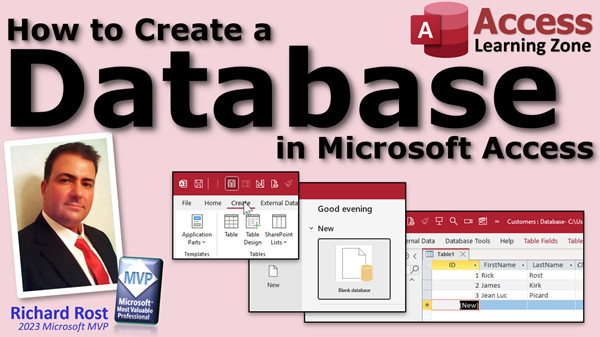
access 2016, access 2019, access 2021, access 365, microsoft access, ms access, ms access tutorial, #msaccess, #microsoftaccess, #help, #howto, #tutorial, #learn, #lesson, #training, #database, Creating a Database from Scratch, How to Design a Microsoft Access Database, how to create a database, building a database, database design basics
More InformationTranscript How to create a database in Microsoft Access, brought to you by AccessLearningZone.com. I am your instructor, Richard Rost.
To create a new database in Microsoft Access, start by opening Access up. If you have previously opened databases on this machine before, you will see them listed down here under Recent.
You will also notice some templates up here. These are other databases built by other people. This is fine if you want to work with someone else's databases, but if you want to build your own database, click on this blank database right here.
You will be asked for a file name for your database. It is called database1, which is not very descriptive, so click in here and type in Customers.
This file is going to be saved in your Documents folder, whatever your user documents folder is. If you want to change that, you can click this button here to browse and put it somewhere else.
I am going to click Create. A brand new blank database will be created for me.
Now in a Microsoft Access database, all of the data is stored in one or more tables. You can kind of think of tables like Excel spreadsheets.
Access starts you off with your first table, called Table1. We are going to rename it in just a second. Unlike a spreadsheet, you cannot just type anything you want wherever. In Access, you want to define your fields or columns and give them good names.
For example, right here where it says Click to Add, click on that. It wants to know what type of data you want to store in this particular field: Short Text, Number, Currency, Date and Time, lots of different options. For now, just pick Short Text.
Now it says Field1. Give it a name. I am going to type in FirstName. No spaces. Take it from me. This is just one of my tips, having done this for almost 30 years now - do not put spaces in your field names. So this first field is going to be FirstName, capital F, capital N, FirstName.
Press Enter or Tab. That will move you to the next column. Again, pick Short Text and type in LastName, no space, capital L, capital N. Press Enter. That is good for now. We have got two fields.
Actually, we have three fields. Access started us off with an ID field. What is an ID field? Basically, that is a way of giving each record, each row, a unique identifier, like a customer ID, a product ID, and so on. Access will keep track of that for you using something called an AutoNumber.
For now, though, click down here and enter some data into the table. I will type in my name: Rick, Tab, Rost. At this point, it is just like Excel. Tab. Notice the ID 1 went in right next to my name. If I tab again, I can put in Jim, Kirk, he is customer two, and so on. John, Luke, Picard, and I can keep typing in customers.
If you want to add more fields, you can come over here, pick the data type, and type in a name. If you want to add more records, you come right down here and type in more people. Again, just like a spreadsheet with columns that are called fields and rows that are called records.
Now I am done with this customer table, so I am going to close it. Access says, do you want to save changes to the design of Table1? We made some changes. We added FirstName and LastName. I am going to say yes, and let's give this table a good name.
Table1 does not really tell me what is in that table. I am going to type in CustomerT. This is my personal naming convention. I have been using this for many years. I like to end all of my tables with the letter T, all of my queries with Q, my forms with F, my reports with R, and so on. You do not have to do that if you do not want to. A lot of people just call it Customers. Do not put spaces in here also.
Sometimes in books, you will see TBL Customer. That is fine too. That is a different naming convention. Just pick one and try to stay consistent. I like CustomerT. Now I will hit OK. My customer table is saved right there.
If I want to open up that customer table again and see the people in it, I can double-click on it and that opens up the table. I can close it here.
If you want to create another table, just go to Create, and then Table Design. I have got a whole separate lesson on how to create tables.
At this point, I am going to close my database. The next time I open up Microsoft Access, you should see it right here on the recent list. If not, you can browse to it by clicking on Open over here. Then again, here is the recent list or click on Browse and browse to wherever you put your database file. Open it up and there you go.
A security warning is going to appear the first time you open any database. This is just Microsoft's way of keeping your computer safe from viruses. All you have to do, since you created this database, is click on Enable Content. Do not do this for databases that you got from anybody else, including downloading off the web, unless they are mine, of course. Click on Enable Content and that will go away, and you should not see that any other time you open this database in the future.
That is it. You now know how to create a basic database in Microsoft Access.
Of course, we just scratched the surface with Microsoft Access. If you want to learn more about building Microsoft Access databases, tables, queries, forms, reports, and that kind of stuff, I have a free Microsoft Access Beginner Level 1 course. It is over four hours long and covers everything you need to know to get up and running with a complete Microsoft Access database. Find the link down below in the description.
If you do not have time to sit through my four-hour course, I do have a condensed version on how to use Microsoft Access that covers all the basics in about 30 minutes. I will put a link to that down below as well. Intro In this video, I will show you how to create a new database in Microsoft Access from scratch, including naming your database, creating and naming tables, defining fields, entering data, and understanding the importance of naming conventions. You'll also learn how to navigate recent files, handle basic data entry, save your table design, and respond to common security warnings when opening your database for the first time. Quiz Q1. What is the first step to create a new database in Microsoft Access?
A. Start by choosing a template from the available options
B. Start by opening Access and clicking on Blank database
C. Start by importing a spreadsheet
D. Start by entering data directly into a table
Q2. Where is a new Access database saved by default?
A. Desktop folder
B. Downloads folder
C. User's Documents folder
D. System folder
Q3. What does Access start you off with after creating a new database?
A. A blank query
B. The Ribbon
C. Table1
D. Several pre-made forms
Q4. In Access, what is the purpose of a table?
A. To store all macros
B. To manage user security
C. To store data in fields and records
D. To design database applications
Q5. How are tables in Access similar to Excel?
A. You can type anything into any cell
B. They both have columns and rows for organizing data
C. You can only use numbers
D. Both are for formulas only
Q6. Why is it recommended not to use spaces in field names?
A. It causes Access to crash
B. It looks more professional
C. It prevents potential problems and ensures consistency
D. It decreases typing time
Q7. What should you do after entering field names like FirstName and LastName?
A. Add a macro
B. Press Enter or Tab to move to the next field
C. Run a query
D. Enable macros
Q8. What is the ID field that Access creates by default?
A. A field for entering email addresses
B. A text field for notes
C. A field that acts as a unique identifier for each record
D. A field for calculating totals
Q9. How does Access handle new records in a table?
A. You must run a script to add them
B. You add new records by typing into a new row, just like a spreadsheet
C. You can only import records from Excel
D. You must create a new table for each record
Q10. What are columns called in Access tables?
A. Rows
B. Forms
C. Fields
D. Macros
Q11. What are rows called in Access tables?
A. Queries
B. Reports
C. Records
D. Labels
Q12. What does the instructor recommend as a naming convention for tables?
A. Use spaces in table names
B. End the table name with a "T" (e.g., CustomerT)
C. Start the table name with "Table"
D. Use only lowercase letters
Q13. What should you do after making design changes to a table in Access?
A. Ignore saving, changes are automatic
B. Click Save and give the table a descriptive name
C. Export the table to Excel
D. Run a backup
Q14. What is a common security warning that appears when you open a new database?
A. Database cannot be found
B. Performance alert
C. Enable Content warning
D. Update Access message
Q15. When should you click "Enable Content" if you see the security warning?
A. Only if you made the database yourself or trust the source
B. Every time with any database
C. Never click it
D. Only when importing Excel data
Q16. Which of the following is NOT a suggested way to name tables according to the video?
A. Ending with "T"
B. Naming with "TBL" at the start
C. Using spaces in the name
D. Naming simply "Customers"
Q17. What is the best way to open a recently used database in Access?
A. Reinstall Microsoft Access
B. Select it from the Recent list or use the Browse feature
C. Double-click any file in Windows Explorer
D. Use the Help menu
Q18. What is true about Access templates shown at the start?
A. They are all blank databases
B. They are built by other people and may serve as examples
C. They cannot be used or modified
D. They import data from Excel
Answers: 1-B; 2-C; 3-C; 4-C; 5-B; 6-C; 7-B; 8-C; 9-B; 10-C; 11-C; 12-B; 13-B; 14-C; 15-A; 16-C; 17-B; 18-B
DISCLAIMER: Quiz questions are AI generated. If you find any that are wrong, don't make sense, or aren't related to the video topic at hand, then please post a comment and let me know. Thanks. Summary Today's TechHelp tutorial from Access Learning Zone will guide you through creating a new database in Microsoft Access. My goal is to explain each step clearly, so whether you are brand new to Access or just need a refresher, you will be able to get started with ease.
Begin by opening Microsoft Access. If you have worked with databases before on this computer, you will notice a list of your recently opened files. Access also displays a series of templates at the top of the screen. These templates are pre-built databases provided by others and can be useful if you are looking for a ready-made solution. However, when you want to build a database from scratch, it is best to start with a blank database.
After choosing to create a blank database, Access will prompt you for a file name. By default, it is called database1, but that is not very descriptive. Consider naming it something meaningful, like Customers. The file gets saved to your Documents folder unless you choose a different location.
After clicking the Create button, Access builds your new, blank database file. In Access, data is organized in tables, which are similar to worksheets in Excel. Each table consists of fields (which are the columns) and records (the rows).
Access automatically starts you off with a table named Table1. I recommend renaming it to something more descriptive. In Access, you cannot just type any data wherever you want like you can in Excel. You first need to define the fields and give each one a name.
As you set up your table, you will see an option to add fields. Each field requires you to pick a data type, such as Short Text, Number, Currency, or Date and Time. For basic customer information, Short Text is usually fine. When assigning names to your fields, I suggest using names without spaces (for example, FirstName instead of First Name). After almost 30 years of working with Access, this is a tip I strongly recommend. Capitalize each word, such as FirstName and LastName.
Access begins each table with an ID field, which is designed to hold a unique identifier for every record. This is often called a primary key, and the data type is usually AutoNumber. This way, every customer, product, or item has a unique number assigned to it automatically by Access.
Now, you can enter data into your table. Fill in information for each customer, such as first and last names, and Access will assign the next available ID number. If you need to add more fields, you can do so at any time. If you need to add more customers, just enter their names in new rows. Remember, fields represent columns and records represent rows, much like an Excel spreadsheet.
Once you have finished entering your initial data, you should save changes to your table. Access will ask you to name the table. I personally use the convention of ending all my table names with the letter T, for example, CustomerT. This helps keep your database organized, especially as it grows to include more objects such as forms, queries, and reports. Some people prefer prefixes like TBL_Customer, which is also acceptable. Pick a naming style you like and try to be consistent.
To reopen your table later, just double-click its name in the database window. If you want to create another table, you can do that by choosing Table Design from the Create menu. I cover table creation in more detail in another lesson.
When you finish working, you can close the database. The next time you start Access, your database should appear on the recent list. If not, you can always browse to its location manually.
You may see a security warning the first time you open a database. This is a precaution by Microsoft to protect your computer from potentially harmful files. If you created the database yourself, simply enable the content. Be cautious about enabling content in databases you receive from other sources unless you trust them.
With these steps, you now know how to set up a basic Microsoft Access database. We have only covered the basics here. Access is a powerful tool that lets you build tables, queries, forms, reports, and much more.
If you want to keep learning, I offer a free Microsoft Access Beginner Level 1 course that walks you through building a complete database. It is over four hours long and covers everything you need to get started. If you are looking for a quicker overview, I also have a condensed, 30-minute version covering all the essentials. You will find links to both lessons below.
You can find a complete video tutorial with step-by-step instructions on everything discussed here on my website at the link below. Live long and prosper, my friends. Topic List Creating a new database in Microsoft Access
Using the Blank Database template
Naming your Access database file
Choosing a storage location for your database file
Creating your first table in Access
Defining table fields and data types
Naming fields without spaces
Understanding the ID AutoNumber primary key
Entering data into tables
Adding additional fields to a table
Adding more records to a table
Saving and naming tables using naming conventions
Renaming Table1 to a descriptive name
Opening and closing tables in Access
Locating and opening your database from the Recent list
Dealing with Access security warnings
Enabling content for trusted databases Primary Topics creating a blank database, setting file location and name, table creation, adding fields, field naming conventions, data types, entering records, naming tables, saving and reopening database
Secondary Topics security warning handling, recent file access, introductory naming conventions
|





