IsTrusted
By Richard Rost

 3 years ago
Is Your Database Running From a Trusted Folder?
In this Microsoft Access tutorial I'm going to teach you how to tell if your database is running from a trusted folder or not. We will create an Autoexec macro and read the CurrentProject.IsTrusted property.
Members
There is no extended cut, but here is the database file:
Silver Members and up get access to view Extended Cut videos, when available. Gold Members can download the files from class plus get access to the Code Vault. If you're not a member, Join Today!
Prerequisites
Links
Recommended Courses
Keywords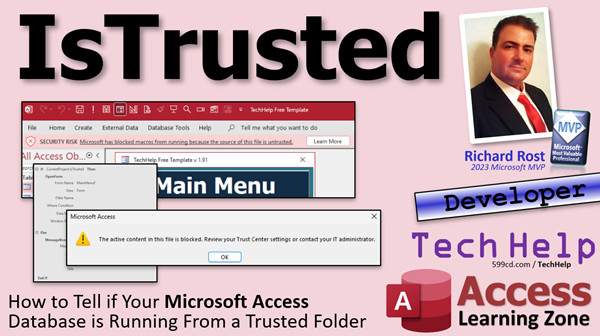
access 2016, access 2019, access 2021, access 365, microsoft access, ms access, ms access tutorial, #msaccess, #microsoftaccess, #help, #howto, #tutorial, #learn, #lesson, #training, #database, CurrentProject.IsTrusted, check for trusted folder, check if database is trusted, is project trusted
 Subscribe to IsTrusted
Get notifications when this page is updated
More InformationTranscript In today's video, I'm going to teach you how to tell if your Access database is running from a trusted folder or not. This is a developer-level video. We are not going to be doing any programming in this video. We are actually working on a macro. It's the macro right there. But if you are a VBA developer and someone is running your database and they're not running out of a trusted folder, you might want to know so you can give them a warning message.
That's what we're going to talk about in this video.
Here's the situation. I've got my database and I want to send it to someone or some people so that they can open it and run it and use it and do stuff with it. When they open it up, it's going to load up my main menu, which might have some VBA code and some other stuff and do some other things, and these buttons are going to work and all that stuff. But if you send them this video and they don't have a trusted folder set up, like let's say I'm running it out of my Downloads folder, they just downloaded it, they save it in their Downloads folder, they open it up and you get this:
This active content in this file is blocked. Review your Trust Center settings.
What does that mean? Their thing opens up and they get another warning message up here and they don't know what's going on. None of these things work. That's because all the active content has been locked out by Microsoft for safety reasons. I get it, because people can do some nasty things with VBA and even with macro commands to mess up your machine.
So, what can you do?
Let me first take this file and put it back on my desktop. I have my desktop set up as a trusted location because I'm an expert and I know what I'm doing. I don't recommend that you set up your desktop as a trusted folder, generally because people have a tendency to just take stuff and drop it on the desktop and run it without being safe. I'm extra cautious, and I do a lot of teaching off this computer.
But you want to set up your own trusted folder. If you don't know how to do that, go watch this video on setting up trusted locations.
So, now that I've got this back out here, let me open it up again. What I have set up and what I normally teach in my classes is to use a setup form. Go to File, Options, and then here in Current Database, we've got a setup form.
Well, if you want to check first to see if the database is in a trusted location, we're not going to use a display form here, a setup form.
What we're going to do is set that to no. Instead, we're going to use what's called an auto-exec macro. We're going to create a macro named auto-exec.
Back in the old days, back in my youth… that's a great movie, by the way… back in my youth, we had no choice but to use an auto-exec macro because they didn't have the option in Access to have specified startup forms. So, we had to make a macro and call it auto-exec.
What we're going to do is have this auto-exec macro load up and we're going to say, check to see if this database, if this project is trusted, and if so, go ahead and continue on and open up that startup form. The startup form can have whatever other startup code that you want in its On Load event. If not, then we can either give the user a message box or we can display another form with instructions in it. That's up to you. I'm just going to show a message box. But at least it could be a little more friendly than what Access just shows you.
Tell them, you have to set this in a trusted folder. Call me if you don't understand.
So, how do we do this?
We're going to create a macro. It's about the only time I ever use a macro, by the way. I almost never use macros. I'm going to shut this Action Catalog down.
We're going to start off with an IF. We're going to check something - what's the IF? I want to see if the database is in a trusted folder. That's going to be if CurrentProject.IsTrusted. CurrentProject.IsTrusted.
If that's the case, then do some stuff. What are we doing? We're going to open up the Main Menu form. So, OpenForm, MainMenuF. That's it for that part.
Otherwise, else, we're going to add an else over here. Else, it's not trusted in other words. We'll just add a message box in here. You could open up another form that's maybe a little prettier that's got a nice little message in it, but I'm just going to say MessageBox. There it is. There's all this stuff in here you can pick too if you want, but I'm just going to do MessageBox.
What's the message? You are running this database from an untrusted location. Please move it to a trusted folder. Contact Rick for help, whatever.
You can put whatever kind of message you want in there, or, like I said, have it open up another form that's got pretty stuff in it. You get the point.
Yes, there are other actions you could add. You'd want to think that you could do something like just close Access down. There is actually a Quit Access command. There, Quit Access. But look, if you pick that, you get this, which says it's unsafe. I don't know why Quit Access is unsafe, Microsoft team, come on. If they want to shut the database down, it's not an unsafe action. That's just kind of, no, change that.
So, I'm going to get rid of that. But opening a form, giving a message box, some other things are fine.
We're going to save this now. Control-S, save this as auto-exec. It's got to look just like that: auto-exec.
Close it. Shut the database down. Now, if you run it from out here, open it up, auto-exec runs and it loads up your startup form. That's what it's supposed to do. But if you have this guy in an untrusted location, like my Downloads folder, open it up, and there you go. You get the active content is blocked, but at least now you get your message. It says you are running a database from untrusted, and you give whatever other instructions you want to the user in here.
You want to tell them step by step how to set up a trusted folder. That's fine. Point it to my video, I don't care. Put a form with the hyperlink to my video on there, that'll do it. Hit OK, but at least now you've explained to them that the database isn't trusted.
Give whatever message you want in here.
That's it. That's pretty much it. Nice, simple one for today.
Now, if you want to learn more about macros in Microsoft Access, I don't have a lot of classes on macros. The reason why is because I tend to cover them very briefly and then I skip over them and go right to VBA programming. That's my thing. I like VBA programming. I'm not huge on macros.
But I know a lot of people out there don't want to be full-fledged programmers, but you want a little bit of automation in your database. So, I got the beginner lessons and the expert lessons. That's for everybody. I got it. I got six advanced levels and then I skipped right to developer, which is like 40, this is old. There's like 43 of them, I think. But in the advanced lessons, this is where I spend time covering macros. We can do a lot that you can do with macros.
The main reason why I wanted to cover macros way back when I started doing this was because Microsoft had something called Microsoft Web Apps, and the Web Apps used macros. But then they dropped the Web Apps and so macros really got kind of put on the back burner. But there are some cool things you can do with macros. If you don't want to be a full-fledged programmer, you can still pick from lists and build automation that way. There are a bunch of safe actions that you can still do, like opening forms and things like that to automate a database.
If you want to distribute it and you just want some simple things in it without having to have people put the database in a trusted folder and go through all that stuff, so if your needs are simple, that's great. Access Advanced 1 is where I'd start. I'll put a link to that down below. Check it out. It's about an hour long. It covers all the basics with macros, all the simple stuff, a lot of things we did today. I do spend a lot of time covering form events, like when certain events kick off: Open, Load, Resize, all that stuff.
I also want to take another opportunity to plug the Northwind 2.0 database. I knew about this trusted project macro a while ago, years ago, but I completely forgot about it. Then I was poking through the Northwind database, and just like in the old days, the Northwind database refresh I remember and taught me something that I had forgotten all about. I'm like, yeah, I forgot that trick. Let's do that. Let's make a video on that.
So, I just started tearing this thing apart and there's a lot of good code in it. So, if you are a developer, go check it out. There's a developer edition and a beginner edition. Go check them out. You can download them, watch this video to find out more information on those.
That's it. That's how to tell if your database is running from a trusted folder or not. This has been your TechHelp video for today. I hope you learned something.
Live long and prosper, my friends. I'll see you next time. Intro In this video, I will show you how to determine if your Microsoft Access database is running from a trusted folder using a simple auto-exec macro. We will talk about why trusted locations matter, how the CurrentProject.IsTrusted property works, and how to create an auto-exec macro that checks for a trusted folder and gives a custom message to users who need to move the database to the correct location. This developer-level video is focused on macros, not VBA programming, and is ideal if you want to automate checks for trusted locations in your Access projects. Quiz Q1. What is the main purpose of using an auto-exec macro in this tutorial?
A. To automatically check if the database is running from a trusted folder
B. To disable VBA code in untrusted locations
C. To force the user to select a trusted folder at startup
D. To prevent Access from showing any startup forms
Q2. What happens when a Microsoft Access database is run from an untrusted folder?
A. Active content, such as VBA and macros, is blocked for security reasons
B. The database opens normally with all features enabled
C. Only VBA code is blocked, but macros still run
D. Forms and reports are automatically deleted
Q3. How does the tutorial suggest informing users if the database is not in a trusted location?
A. Display a custom message box explaining the issue
B. Automatically close Access without explanation
C. Remove all forms from the database
D. Hide the main menu and do nothing else
Q4. If the database is found to be in a trusted folder, what action does the auto-exec macro perform?
A. Opens the MainMenuF form
B. Displays another warning message
C. Runs a backup routine
D. Shuts down Access immediately
Q5. Why does the instructor recommend NOT adding the desktop as a trusted folder for most users?
A. Users might unsafely run unknown files from the desktop
B. The desktop is read-only by default
C. The desktop does not support Access databases
D. Trusted folders cannot be on the desktop
Q6. What property does the macro use to determine if the database is trusted?
A. CurrentProject.IsTrusted
B. Database.IsTrusted
C. Application.IsSafe
D. File.IsSecure
Q7. What is a safer alternative to showing a generic Access security warning when the database is untrusted?
A. Providing a user-friendly custom message box or form with instructions
B. Exporting the database contents automatically
C. Closing Access silently
D. Disabling all forms
Q8. In the context of this video, which of the following is NOT a safe action recommended to automate in macros for user assistance?
A. Showing a message box
B. Opening a form with additional instructions
C. Running the Quit Access command to close the application
D. Providing a hyperlink to a help video
Q9. Why might someone choose to use macros for startup automation instead of VBA in distributed databases?
A. Macros provide simple, safe automation without requiring programming knowledge
B. Macros run faster than VBA code
C. Macros cannot be blocked by Access security settings
D. Macros are required for all professional Access databases
Q10. Where does the auto-exec macro get its name, and why is this important?
A. The macro must be named auto-exec so Access will run it automatically on startup
B. The macro must be named Startup or it will not function at all
C. The macro name can be anything as long as it is in the root directory
D. The macro name is chosen based on user preference and does not affect function
Q11. What does the instructor suggest as a next step if you want to automate additional startup actions in your database?
A. Add more actions to the auto-exec macro
B. Create additional databases for each task
C. Disable all macros for safety
D. Use only VBA for any automation
Q12. Why did Microsoft introduce the concept of trusted folders and blocking active content from untrusted locations?
A. To improve security by preventing malicious code from running automatically
B. To make Access databases run faster
C. To ensure compatibility with previous Access versions
D. To save disk space
Answers: 1-A; 2-A; 3-A; 4-A; 5-A; 6-A; 7-A; 8-C; 9-A; 10-A; 11-A; 12-A
DISCLAIMER: Quiz questions are AI generated. If you find any that are wrong, don't make sense, or aren't related to the video topic at hand, then please post a comment and let me know. Thanks. Summary Today's TechHelp tutorial from Access Learning Zone will teach you how to determine whether your Access database is being run from a trusted folder. This guidance is aimed primarily at developers, but there is no actual coding involved since everything we'll do takes place inside a macro. However, if you are a VBA developer, you may want to know this technique. If users are running your database from an untrusted folder, it is important to detect this and display a warning so they understand why parts of your database may not be working.
Let me give you some context for why this is necessary. Imagine you have built an Access database to share with others. You send them the file, expecting them to be able to open it, navigate your main menu, and use its features. If that person saves your database in a folder like Downloads, which usually is not trusted, they will see a message from Access saying, "This active content in this file is blocked. Review your Trust Center settings." There will also be a warning bar, and they might not understand what is happening. None of the database's interactive features will work because Microsoft Access disables all active content for security reasons. This is a smart move by Microsoft, since VBA and macros can potentially cause damage if used with malicious intent.
What should you do in this situation? If you want someone to use your database, it needs to reside in a trusted folder. For my own work, I have the desktop set up as a trusted folder, but this is not something I recommend for most users; it is too easy for files to end up there accidentally and run without caution. I only do this because I know how to manage my environment and do a lot of teaching on this particular computer. Instead, each person should set up their own dedicated trusted location. For instructions on creating a trusted location, I have a separate video tutorial, and you may want to watch that if you are unfamiliar with the process.
Now let us consider the startup of the database. In my classes, I often teach how to use a setup form that loads when the database launches, but if you want to first check whether the database is trusted before displaying anything else, you do not want to start with a setup form. Instead, you can use an auto-exec macro. This is a macro named "auto-exec" that runs automatically when the database opens.
Those of you who have used Access for a while may remember that auto-exec macros were once the only way to run startup actions because Access did not support specifying a startup form. The approach here is to have the auto-exec macro check whether the current project is trusted when the database launches. If it is trusted, the macro can open your startup form. That form can contain any other startup code you want in its On Load event. If the database is not trusted, your macro can display a message or open a form with detailed instructions for the user. I will demonstrate this with a simple message box, but you could use a more elaborate approach if you prefer.
To set this up, create a macro. I rarely use macros, but in this situation, a macro is the best solution. Add an IF condition to check if the database is in a trusted folder by using CurrentProject.IsTrusted. If this returns true, the macro should open your main menu form. If not, set up the macro to display a message telling the user they are running the database from an untrusted location and asking them to move it to a trusted folder. You can tell them to contact you for help or provide instructions. You could also have the macro display a form with more detailed instructions or even a hyperlink to my video explaining how to set up trusted folders.
Some people might wonder if it is possible to just close Access automatically when the database is not trusted. Although there is a Quit Access action, Access considers this "unsafe" and does not allow it when the database is not trusted, which is unfortunate but outside our control.
When you are finished, save the macro as "auto-exec" spelled exactly that way. Close the database. Now, any time you run the database from a trusted folder, it will open normally, displaying your startup form. If it is in an untrusted location like Downloads, the user will still see the default security warning, but now they will also get your friendly message explaining what is happening and what steps to take.
Feel free to modify the message to suit your needs, or have the auto-exec macro open a form that explains the trusted location requirement in detail, links to setup videos, or provides contact information for support.
That covers the basics of how to detect whether your Access database is being run from a trusted folder and how to give your users clear instructions. This is a straightforward but valuable technique.
If you are interested in learning more about macros in Microsoft Access, I do have some introductory and advanced lessons available, although I focus more on VBA in my teaching because that is where you get the most power and flexibility. However, if you just want some lightweight automation and do not want to dive deeply into programming, macros are a good fit. Access Advanced 1 is a great place to start for a full hour-long introduction to macros and feature coverage, including how to utilize form events and simple automation tasks.
Also, I want to mention the Northwind 2.0 database. While exploring it recently, I was reminded of this trusted project macro capacity. The Northwind sample databases contain a lot of high-quality code, so whether you are a beginner or seasoned developer, they are worth checking out.
That is everything you need to know about determining whether your database is running from a trusted folder in Access. You can find a complete video tutorial with step-by-step instructions on everything discussed here on my website at the link below.
Live long and prosper, my friends. Topic List Checking if an Access database is in a trusted location
Understanding the consequences of running from untrusted folders
Using the autoexec macro to automate startup checks
Using CurrentProject.IsTrusted in a macro
Displaying a custom message box for untrusted locations
Opening a startup form if the folder is trusted
Using macro IF/ELSE actions to control execution flow
Handling user instructions for setting a trusted folder
Saving and naming the macro as autoexec
Testing macro behavior in both trusted and untrusted locations Primary Topics Microsoft Access, trusted locations, macros, AutoExec macro, CurrentProject.IsTrusted, database startup process, user messaging
Secondary Topics VBA programming, form events, Northwind sample database, Access advanced lessons
|




