Format Currency
By Richard Rost

 3 years ago
Format Number, Currency with Thousands Separator
In this Microsoft Access tutorial I'm going to show you how to properly format currency with a thousands separator and lots of pretty colors. Oooohhh. Aaaahhh.
Sophia from Charleston, South Carolina (a Platinum Member) says: I'm trying to format a currency value to show a thousands separator, so that 1000 shows up as 1,000 however numbers like 900 are showing up as 0,900 which is not what I want. Help!
Prerequisites
Links
Recommended Courses
Usage
- Positive, Negative, Zero, Null
- #,###.00;(#,###.00)[Red];"---"[Green];"None"[Blue]
Keywords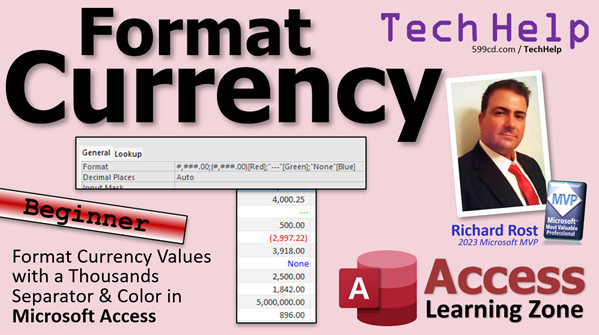
access 2016, access 2019, access 2021, access 365, microsoft access, ms access, ms access tutorial, #msaccess, #microsoftaccess, #help, #howto, #tutorial, #learn, #lesson, #training, #database, Format a number or currency field, Custom numeric formats, format function, commas, thousands separator, keep leading zeros, limit the number of digits, Format Number with thousands comma but no decimal places
More InformationTranscript Welcome to another TechHelp video brought to you by AccessLearningZone.com. I am your instructor, Richard Rost. Today, we are going to talk about formatting currency values. I am going to show you how to use the nifty thousands separator, that little comma, and how to use colors.
Today's question comes from Sophia in Charleston, South Carolina, one of my Platinum members. Sophia says, I am trying to format a currency value to show a thousands separator so that one thousand shows up as 1,000. However, numbers like 900 are showing up as 0,900, which is not what I want. Help.
I love that little "help" at the end, Sophia. That is cute.
Now, first of all, if you are in the United States, you use a comma. If you are in other countries, you might use a dot or some other delimiter. I do not know. I just know the US and Canada. We use the comma. Change yours accordingly if you are in a different country.
The problem that you are having is that there are two different characters that you can use for formats when it comes to numbers or currency values: zero and the pound sign or hashtag. I am going to call it a pound sign.
A zero says put a digit here. If there is no digit, put a zero. The pound sign says put a digit here. If there is no digit, leave it blank. That is the difference.
Now let's look at a couple of examples.
But first, if you have not yet watched my format video, go watch this. I explain the format property and function in a much more general overview of what these things mean, so if you do not know how to use these, go check that video out first. Today's video is going to be specifically on formatting numbers and currency.
Here I am in the TechHelp free template. This is a free database. You can download a copy off my website if you want to. In our customer form, we have a credit limit. Now, you could put the format here, or you could put it directly in the table if you want to. If you plan on having this format propagate through all the different forms and reports in your database, what you can do is start by putting it in the table itself.
Watch this, Design View. Now come down here where it says Credit Limit. Here is the format.
Now we are using the basic currency format, which is the pretty simple straightforward one that you get. If you want to change this, you can type right here in the format. I am going to zoom in so you can see, Shift+F2.
I am going to change this to what Sophia had up front. She had 0,000. Click OK.
Now, notice right away, you see this little guy. This is in newer versions of Access only. It says do you want to update this format everywhere the Credit Limit is used. This will propagate through all the different forms and reports that are based on Credit Limit. If I say yes, it will apply it to these. OK.
If you do this up front when you build your table, before you build your forms and reports, it will automatically pull that format in.
Now, if we go and look at the value, see we are saving the table. I am going to come over here to the right. I am going to slide this guy to the left one. I will have to keep sliding over there.
Here is the Credit Limit. As you can see, this record, for example, is 500, and it has the zero in front of it. That is because the zero placeholder says always put something here, even if it's not there.
Notice we are not seeing any cents. If I type in $500.25, you do not see it.
Let's go back to Design View and change this now. Instead, I want to see this. Use pound signs. Click OK. We will propagate it at the end when we are done. Save it. Come back in here, and now notice that looks a lot better. We are still not seeing pennies, though.
If you want to see the pennies, you can come in here and put pound signs in there for the pennies if you want to. If you do not want to see any cents, just leave them off. Sometimes it brings it all the way back over to the right. It shows those blank spots, though.
What I like to do in this case is to go like that. I will zoom in again. These are all optional. Or you might want to see a zero here.
If that zero shows, hit OK. Now, look at that. The format went back to standard. Some of these predefined formats are already in there. Sometimes it drags it back over to the right here.
That is one of the problems with tables. You really cannot control the formatting, widths, or placement of objects inside a table. That is why, for interfacing with your user, it is very important to always stick with forms. This is just for me to show you. You, the developer, can play with your tables. Your end users, if you are building the database for other people, should never work with your tables directly.
That is how you show it with less than a thousand. If you just have 95 in here, you will see it. If you put in 5,000,000, those extra commas should propagate in there, even into the billions.
There is more that you can do with formats than just that.
All right, let us have some fun here. Let us go back into the format here. Instead of standard, let us put this back to this. Let us say I want my negative numbers to show up inside of parentheses. In your format, you can have four different sections. The sections are separated with semicolons.
You can say, OK, that is what I want for positive values. For negative values, I want the same thing, so I am going to copy that, Ctrl+C. But I want it inside of parentheses, like that.
That is the second section. Section 2 is negative values. Let us see what happens here. Click OK. Save it. Preview it.
Let us go slide over here. Let us make this negative 200. Look at that. It is displaying inside of parentheses. Same for negative 25 cents.
Let us have some more fun. Let us say I want that negative value to be red. Watch this. Inside of square brackets, in the same section, put the word "red" inside of that section, in square brackets.
Click OK. Save it. Back in here. Now there you go. There is your red stuff.
How about for zero values? I want to see a dash instead of a zero. That is the third section. The third section is what you want to see if the value is zero. You have positive, negative, then zero is the next section.
I am just going to put a dash in there. Let us see what happens. Put a dash in there. Access immediately changed it to a backslash dash. That means the next character is literal. You can just put the dash in there. I never remember that myself.
Now let us take a peek. If I put a zero value in here now, look at that. I get a dash. Accountants like that a lot.
How about three dashes, like dash dash dash instead? Let us make this now dash dash dash. Look at that. Access puts it inside quotes. It is hard to see, but it's inside quotes. Let us also make it green.
Click OK. Save it. What do we have? We have three green dashes right there. That is kind of hard to see. Pretty cool.
There is one more thing. There is one more section. There are four sections in here. The last section, the fourth section, is what to do if the value is null. Null means there is no value. Remember, null is different from zero. If you are not familiar with null, go watch this video. It explains null in more detail. Null means there is no value.
So we can put - let us put the word "none" in here like that. And let's make it blue. If there is no value, it will say none. People do not necessarily know what null means, so we will put the word none in there. Maybe they do not have one.
Save it. Let us open it back up again. Slide over here and let me delete this credit limit. Now, look at that. It says none and it is blue. That is pretty cool.
Again, you could put this anywhere you want. You could put it in the table, reports, or forms. You can put it in the Format function. There are lots of places you could put this stuff.
If you want to learn more about formatting numbers or currency fields, I will give you a link to Microsoft's page where they have all kinds of different information. Most of the stuff I have already talked about, but there is more. There is other stuff you can read about with different currencies, percentages, and all kinds of weird things.
I also cover this in more detail myself in my Access Expert Level 8 class. Yes, I know this is a beginner video, but in my expert class, I go into this in a lot more detail.
So, Sophia, I hope that answers your question. I hope everybody else learned something. That is going to be your TechHelp video for today.
Live long and prosper, my friends. I will see you next time. Intro In this video, we will talk about how to format currency values in Microsoft Access, including how to use the thousands separator, adjust number formats with zeros and pound signs, and control how positive, negative, zero, and null values appear in your fields. I will show you how to set up formats that use colors, parentheses for negatives, and custom text for zeros and nulls, along with tips on where to apply these formats in tables, forms, and reports. Quiz Q1. What is the main difference between the zero (0) placeholder and the pound sign (#) placeholder in Access number formatting?
A. The zero placeholder always shows a digit or zero, while the pound sign shows a digit or nothing.
B. The pound sign always shows a digit or zero, while the zero shows a digit or nothing.
C. Both placeholders act the same way in all situations.
D. The pound sign is only used for text formatting, not numbers.
Q2. What happens when you use the format "0,000" for a number less than one thousand in Access?
A. The number is rounded up to 1,000.
B. The number is displayed with a leading zero, like 0,900.
C. The number displays without a leading zero.
D. The number is displayed in scientific notation.
Q3. In a four-section custom number format in Access, what does the third section represent?
A. Positive values
B. Negative values
C. Zero values
D. Null values
Q4. What symbol should you use to make negative numbers display in red within a custom format string in Access?
A. {red}
B. <red>
C. !red
D. [red]
Q5. How are the sections of a custom numeric format string in Access separated?
A. Commas
B. Colons
C. Semicolons
D. Slashes
Q6. In the context of Access formatting, what does "null" mean?
A. The value is zero.
B. The value is negative.
C. The value is missing or does not exist.
D. The value is greater than 1,000.
Q7. Why is it generally recommended to apply formatting for end-users on forms rather than tables in Access?
A. Forms are easier to design than tables.
B. Tables do not store any formatting information.
C. You can better control placement and display in forms.
D. Formatting in tables always overrides forms.
Q8. If you want to show a dash ( - ) instead of a zero value using custom formatting, which section should you edit?
A. The first section
B. The second section
C. The third section
D. The fourth section
Q9. If you want to display the word "none" in blue when a field is null, how should you format the fourth section in your custom format string?
A. none[blue]
B. [blue]"none"
C. blue("none")
D. "none" [ blue ]
Q10. What happens if you update the format property in an Access table and choose to propagate changes?
A. Only the table is updated.
B. All related forms and reports based on that field are updated.
C. Only the reports are updated.
D. The database will not allow format changes.
Q11. When using a custom currency format with commas in Access, what will happen if you enter 5,000,000?
A. It will display as 5,000,000 with appropriate commas.
B. It will display as 5000,000.
C. The commas will be removed, showing 5000000.
D. It will display as 5.000.000.
Q12. Which of the following is NOT a use for custom number format sections in Access?
A. Specifying how positive numbers appear
B. Formatting negative values
C. Deciding how text strings are displayed in number fields
D. Showing a value when the field is null
Answers: 1-A; 2-B; 3-C; 4-D; 5-C; 6-C; 7-C; 8-C; 9-B; 10-B; 11-A; 12-C
DISCLAIMER: Quiz questions are AI generated. If you find any that are wrong, don't make sense, or aren't related to the video topic at hand, then please post a comment and let me know. Thanks. Summary Today's TechHelp tutorial from Access Learning Zone is all about formatting currency values in Microsoft Access, with a special focus on using thousands separators and applying colors to your data to improve readability. I'm your instructor, Richard Rost, and today I'll cover some important formatting techniques that can make your currency fields both clearer and more visually attractive.
A common question I get concerns why formatting sometimes gives unexpected results. For instance, Sophia from Charleston wanted her currency values to show a comma as the thousands separator, so that 1000 becomes 1,000. However, when she applied her formatting, smaller numbers like 900 ended up displaying as 0,900, which is obviously not ideal.
The first thing to understand is that currency formatting behaves differently around the world. In the United States and Canada, a comma is typically used as the thousands separator. In other countries, you might see a period or another character used instead, so you should adjust your formatting according to your local conventions.
The root of Sophia's problem comes from the difference between two key formatting symbols: zero (0) and the pound sign (#). The zero means "always display a digit here." If there's no digit in that position, a zero will appear. The pound sign, on the other hand, tells Access to display a digit only if one exists in that position and leave it blank otherwise. Knowing which symbol to use is fundamental to getting the output you want.
As an example, if you use the format 0,000 and enter a value less than one thousand, like 900, Access will display it as 0,900. That's because the leading zero tells Access to always put something in that digit slot. If you use #,### instead, only existing digits are shown, so 900 would display as just 900, with no unwanted zeros at the start.
If you're new to formatting in Access, I highly recommend familiarizing yourself with the format property and function first. There are earlier tutorials and resources on my website that provide a broader introduction to these features.
Let's say you want a currency field, like 'Credit Limit' in your Customers table, to always show the correct formatting across all forms and reports. The best place to apply your format is directly at the table level. By setting the format property right when you create your table, all forms and reports based on that field will automatically inherit this formatting as you build your application.
If your database is already set up, you can still modify the format property of a field in Design View. Enter your desired format string in the Format property for the field. For instance, using #,### will display numbers with thousands separators but no unnecessary zeros. If you want decimal places, you can extend your format to show pennies. Otherwise, leave off decimal placeholders if you don't want to display cents.
It's also important to understand the limitations of table design. Table datasheets don't give you fine control over the widths or positions of displayed fields. Your users shouldn't work directly with tables anyway - forms give you much more control over formatting and presentation and are the preferred interface for end users.
Beyond basic formatting, you can add more visual cues with conditional formatting. The format property in Access allows for up to four sections, separated by semicolons. These sections let you specify how positive values, negative values, zero values, and null values should be displayed.
For instance, you might want negative numbers to appear in parentheses, which is common in accounting. The second section of your format string determines the look of negative numbers, so you can enclose that section in parentheses. If you want even more clarity, you can also apply colors. Placing a color name in square brackets (such as [Red]) within the desired section of the format string will display values in that color.
Zero values can be made to display as a dash, or even a series of dashes, if you want them to stand out or follow standard accounting practices. The third section of the format string defines the appearance of zero values. You can also apply color here, such as making the dashes green.
The fourth and final section handles null values, which represent the absence of a value altogether (different from zero). If you want to display a message like "none" in blue when the field is null, you can include this in the fourth section of your formatting string for additional clarity.
Remember, these format settings can be applied not just at the table level, but also in forms, reports, or even in code using the Format function. If you want to explore more advanced formatting options, Microsoft has extensive documentation that covers additional scenarios, including working with other currencies, percentages, and more advanced formatting requirements.
I also cover these formatting techniques in much greater depth in my Access Expert Level 8 class, so if this is a topic you find yourself working with a lot, you might want to check that out for more tips and tricks.
I hope this explanation helps you format your currency values exactly the way you want and clarifies the important differences between the formatting symbols and sections. For a complete video tutorial with step-by-step instructions showing everything I discussed here, please visit my website at the link below.
Live long and prosper, my friends. Topic List Difference between zero and pound sign in format strings
Formatting currency with thousands separator
Applying custom number format in table design
Formatting numbers with and without leading zeros
Showing or hiding decimal places in currency values
Propagating table format changes to forms and reports
Customizing negative numbers with parentheses
Formatting negative numbers in red
Setting zero values to display a dash
Displaying custom text and color for zero values
Using four-part format sections for values
Displaying custom text for null values
Applying color formatting in number formats Primary Topics Access custom currency formatting, format property, thousands separator, number format placeholders, positive/negative/zero/null value formatting
Secondary Topics propagation of formats to forms and reports, importance of not letting users edit tables directly, localization considerations
|





