Combo Box
By Richard Rost

 3 years ago
What is a Combo Box in Microsoft Access?
In this Microsoft Access tutorial, we will learn what a combo box is, what it's used for, and the three types of them: value list, relational, and find record.
Prerequisites
Links
Additional Links
Recommended Courses
Details
A combo box is a control that you place on a form that allows you to select from a list of choices. They're very similar to "drop down lists" that you find on the web, however in Access they are called "combo" boxes because they are a combination of a text box (where you can type in a value) and a list box (where you can select a value).
List boxes provide a list of options, and you can select one or optionally multiple items, however they take up a lot of real estate. A combo box is nice and compact. Open it, pick your value, close it. Some combo boxes allow you to type in whatever value you want. Others force the user to select from the list of options provided.
There are three types of combo boxes: value list, relational, and find record. A value list combo box is the easiest to create. It is a combo box where you specify a list of options for the user to select from. This is usually good for lists you don't expect to change often: states, delivery methods, gender, etc.
A relational combo box is a combo box that is filled with data from another related table. These are used to select data that can change in real time. For example you would put a relational combo box on your order form for the user to select the customer for that order. The CustomerID comes from the customer table and it's stored in the order table. The final type of combo box is used to find records. You can use these to select an item from the combo box to find records based on that selection.
Keywords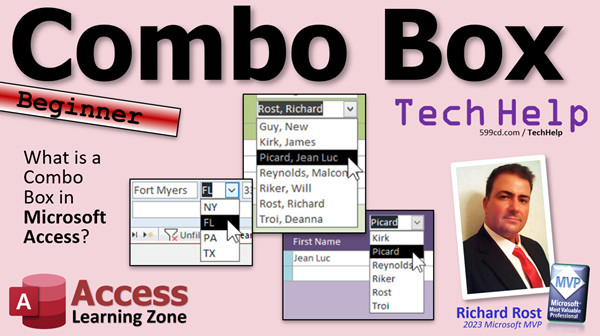
access 2016, access 2019, access 2021, access 365, microsoft access, ms access, ms access tutorial, #msaccess, #microsoftaccess, #help, #howto, #tutorial, #learn, #lesson, #training, #database, what is a combo box, how do you use a combobox
 Subscribe to Combo Box
Get notifications when this page is updated
More InformationTranscript Welcome to another TechHelp video brought to you by AccessLearningZone.com. I am your instructor, Richard Rost.
Today's video is for beginners. We are going to talk about what a combo box is and why you would use one in Microsoft Access. A combo box is a control that you place on a form that allows you to select from a list of choices. They are very similar to drop-down lists that you find on the web. However, in Access they are called combo boxes because they are a combination of a text box, where you can type a value in, and a list box, where you select the value.
List boxes provide a list of options and you can select one or, optionally, multiple items. However, they take up a lot of real estate - lots of space on your forms. A combo box is nice and compact. You open it, you pick your value, and it closes.
I generally use list boxes like these when there is a lot of space available and I want the user to see all the options at once instead of having to open it up and scroll through a list.
Some combo boxes allow you to type in whatever value you want. Others force the user to select from a list of available options.
There are three different kinds of combo boxes. There's a value list combo box, a relational combo box, and a find record combo box.
A value list combo box is the easiest to create. I cover them in my beginner lessons. It's a combo box where you specify a list of options for the user to select from. This is usually good for lists you do not expect to change often, like a list of states or delivery methods.
A relational combo box is a combo box that is filled with data from another related table. These are used to select data that can change in real time. For example, you would put a relational combo box on your order form where the user selects the customer for that order. The customer ID comes from the customer table and it gets stored in the order table.
And finally, we have a find records combo box. You can use these to select an item from the combo box to find records based on that selection. You drop down the list, pick the last name Picard, and it takes you right to Jean-Luc.
The easiest way to create a combo box is to use the combo box wizard, which you will find on the ribbon in form design mode. Just open up your toolbox, pick a combo box, and that wizard should start right up. You can see the three different options right there: combo box to get the values from another table or query (that's relational), type in the values that you want (that's a value list), or find a record.
How do we set up all these different combo boxes? I have free videos to explain all of these in more detail. You will find links down below that you can click on.
Here is the video for value list combo boxes. I have got one for relational combo boxes. And, of course, the find record combo boxes.
I have got a couple of other videos for questions that people always ask me about combo boxes. For example, everyone always asks me how do you put last name and first name together - two fields together - in the combo box? You can see two fields when you drop it down, but not always when it is closed. This video covers that.
I have a video that covers cascading combo boxes. What is that? That is when you have two or more combo boxes that depend on each other. For example, you pick your state and then the city combo box will only show you a list of cities from that state. That is called cascading combo boxes.
I have a video on how to use the list items edit form. That is where you can make a little button you can click on and it will open up a form so your user can add items to the list very easily.
I have tons of different videos on combo boxes. Just visit my website, use the search box, and type in "combo" and you will see I have about 30 of them. These are just the popular ones.
If you want to learn more, I cover the value list and find record combo boxes in my Access Beginner Level 8 class. And in Access Expert Level 1, we start covering relational database concepts, including relational combo boxes.
But there you go. That is what combo boxes are and why you want to use them. I hope you learned something today. Live long and prosper, my friends. I will see you next time. Intro In this video, we will talk about combo boxes in Microsoft Access, including what they are, why you would use them, and how they differ from list boxes. I will explain the three main types of combo boxes: value list, relational, and find record combo boxes. We'll cover when to use each type and how to create them using the combo box wizard. I will also mention solutions to common questions, such as how to display multiple fields in a combo box and what cascading combo boxes are. This video is designed for beginners interested in using combo boxes in their Access forms. Quiz Q1. What is a combo box in Microsoft Access?
A. A control that combines a text box and a list box, allowing selection or entry of values
B. A type of report that displays data in two formats
C. A special kind of table for advanced relationships
D. A feature used only for database security
Q2. How does a combo box differ from a list box on a form?
A. Combo boxes allow multiple selections, list boxes do not
B. Combo boxes are larger and always visible, list boxes are smaller
C. Combo boxes are compact and can allow both selection and typing, list boxes usually require more space
D. List boxes are interactive, combo boxes are not
Q3. In what situation would you generally use a list box instead of a combo box?
A. When you want all the options visible and have enough space on the form
B. When you need to save form space
C. When you want users to type their own values
D. When connecting to another database
Q4. What are the three main types of combo boxes discussed in the video?
A. Value list, calculation, and summary combo boxes
B. Basic, advanced, and multi-select combo boxes
C. Value list, relational, and find record combo boxes
D. Static, dynamic, and chart combo boxes
Q5. Which kind of combo box allows users to select values pulled from another related table?
A. Value list combo box
B. Find record combo box
C. Relational combo box
D. Static combo box
Q6. What is a value list combo box best used for?
A. Dynamic lists that change frequently
B. Lists that do not change often, like states or delivery methods
C. Connecting to external data sources
D. Selecting multiple records at once
Q7. For what purpose would you use a find record combo box?
A. To provide a static list of options
B. To link two tables in a database
C. To quickly find and jump to specific records by selecting from the list
D. To enforce validation rules
Q8. What is the easiest way to create a combo box in Microsoft Access?
A. Write SQL code manually
B. Use the combo box wizard found in form design mode
C. Import one from Excel
D. Use a macro
Q9. What are cascading combo boxes?
A. Two combo boxes placed next to each other for visual effect
B. Combo boxes that display animations when opened
C. Multiple combo boxes where the selection in one affects the options in another
D. Combo boxes that allow saving multiple values
Q10. What is the function of a list items edit form related to combo boxes?
A. To sort items in the list automatically
B. To allow users to print the list
C. To provide a way for users to add new items to the combo box list via a form
D. To export the combo box data to Excel
Q11. If you want to select a customer for an order and ensure the customer list is always up to date, which kind of combo box should you use?
A. Value list combo box
B. Relational combo box
C. Find record combo box
D. Cascading combo box
Q12. According to the video, if you want to show both last name and first name together in a combo box, what should you do?
A. Use only a list box
B. Create a calculated field or use a query to combine fields for display in the combo box
C. Change the font size of the combo box
D. Select single column display only
Answers: 1-A; 2-C; 3-A; 4-C; 5-C; 6-B; 7-C; 8-B; 9-C; 10-C; 11-B; 12-B
DISCLAIMER: Quiz questions are AI generated. If you find any that are wrong, don't make sense, or aren't related to the video topic at hand, then please post a comment and let me know. Thanks. Summary Today's TechHelp tutorial from Access Learning Zone is designed for beginners and will help you understand what a combo box is and why you would use one in Microsoft Access.
A combo box is a control you can add to your forms that lets you choose from a list of available options. If you are familiar with drop-down lists on websites, combo boxes serve a similar purpose. Access calls them combo boxes because they combine features from both a text box, where you can type in your own value, and a list box, where you can choose a value from a list.
List boxes offer a visible list of options and let you pick one or sometimes multiple items at once, but they do take up quite a bit of space on a form. Combo boxes, on the other hand, are more compact. You click to open the list, pick the value you need, and it closes up again.
I usually recommend list boxes when space is not an issue on your form and it is helpful for your users to see all the available options at once without scrolling. However, combo boxes are generally more useful in most situations because they use less space and make the interface cleaner.
Some combo boxes give users the ability to type in any value, while others restrict users to only select from the list of options provided.
There are three main types of combo boxes in Access: value list combo boxes, relational combo boxes, and find record combo boxes.
The value list combo box is the simplest to set up and is perfect for lists that do not change frequently, like states or delivery methods. You define the list of options yourself.
A relational combo box pulls its list of choices from another table in your database. These are best for lists that might change over time. A good example would be adding a combo box to your order form that allows the user to pick a customer from your customer table. When a new customer is added, they automatically appear as an option because the combo box pulls data directly from the customers table.
The third type is a find record combo box. This kind is used to quickly locate a specific record on your form by selecting it from the dropdown. For example, you could select the last name Picard, and Access would immediately show you Jean-Luc Picard's record.
Creating a combo box is easiest with the combo box wizard found on the ribbon when you are in form design mode. Open your toolbox, choose the combo box tool, and the wizard will launch. The wizard lets you set up your combo box to pull values from another table (a relational combo box), lets you type in your own values (a value list), or helps you build a find record combo box.
If you want to learn the step-by-step process for setting up each different kind of combo box, I offer free videos on my website that walk through each type in more detail. You will find links to these tutorials where you can follow along as I demonstrate how to build each one.
In addition to the three main types, I also have videos that answer some of the common questions I get about combo boxes. For instance, many people want to display both first and last names together in their combo boxes. In that particular tutorial, I explain how you can show two fields together when the combo box dropdown is open, and how to control what appears when the combo box is closed.
Another popular topic is cascading combo boxes, where one combo box depends on the value chosen in another. For instance, when you choose a state, the following city combo box will only display cities in that state. I cover exactly how to configure this in my video on cascading combo boxes.
There is also a video tutorial on using the list items edit form, which lets you add a button to your form so users can easily add new items to the combo box list on the fly.
All together I have dozens of videos on combo boxes to cover just about any scenario you might encounter. Visit my website, use the search function, and type in "combo" to browse through all the available resources.
If you want to go even further, I discuss value list and find record combo boxes in detail in my Access Beginner Level 8 class. Relational combo boxes, along with broader relational database concepts, are covered in my Access Expert Level 1 course.
In summary, combo boxes are an essential part of building user-friendly forms in Access, giving you flexible ways to input and display information. I hope this overview helped clarify what they are and how to get started using them.
You can find a complete video tutorial with step-by-step instructions on everything discussed here on my website at the link below. Live long and prosper, my friends. Topic List What a combo box is in Microsoft Access
Differences between combo boxes and list boxes
Types of combo boxes in Access
Value list combo box explained
Relational combo box explained
Find record combo box explained
Using the combo box wizard
Displaying multiple fields in a combo box
Cascading combo boxes
Using list items edit form with combo boxes Primary Topics combo boxes, Microsoft Access forms, value list combo box, relational combo box, find record combo box, list box comparison, combo box wizard Secondary Topics cascading combo boxes, displaying multiple fields, list items edit form, user interface design |




