|
||||||
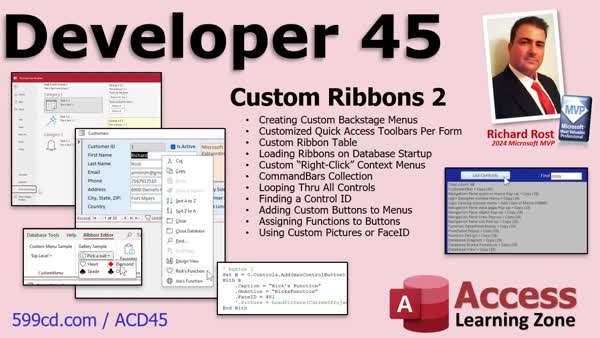
Access Developer 45Custom Ribbons, Backstage, QAT, Context MenusWelcome to Access Developer 45. In this course you will learn how to customize ribbons and backstage menus in Microsoft Access, including creating custom ribbon galleries, nesting menus, adding buttons and hyperlinks to the backstage, and setting up Quick Access Toolbars for forms and reports. We will also discuss building your own custom ribbon table, working with right-click context menus using VBA, identifying and using built-in button IDs, and adding custom buttons with icons and OnAction events. This course builds on previous material and explores advanced customization for the Access interface. Lessons
DownloadsLinks
Resources
Lesson SummaryWelcome! Customizing Ribbons & Menus - Welcome to Microsoft Access Developer Level 45. In this course we will continue with customizing ribbons and menus in Access, focusing on creating custom backstage menus, setting up Quick Access Toolbars for individual forms, and building our own ribbons table instead of using system tables. We will talk about adding right-click context menus, exploring the Command Bars collection, and identifying control IDs and captions. I will show you how to add custom buttons and functions to menus, use custom images or built-in icons, and discuss loading custom ribbons on startup. This course builds directly on Developer Level 44 and assumes knowledge from previous levels.
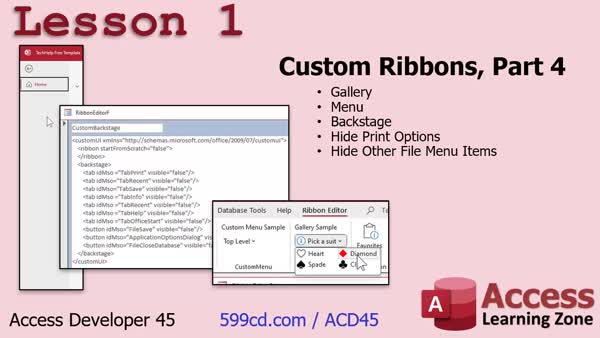
Lesson 1: Custom Ribbon Menus & Hide Backstage - In Lesson 1, we continue our work with custom ribbons by walking through how to create a gallery control on the ribbon and set up a custom menu group with nested menus. We also begin discussing how to manage the backstage (file menu), including how to hide print options and most other backstage commands, except for the home menu. I will show you the code examples and steps involved and mention how to fully hide the ribbon if needed, though the focus remains on customizing rather than removing it. We will talk about adding your own items to the backstage in the next lesson.
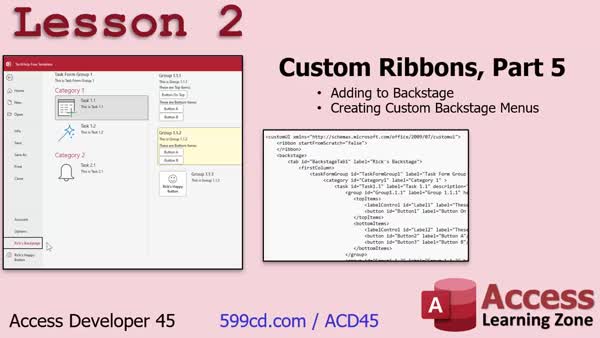
Lesson 2: Custom Backstage Menu & Links - In Lesson 2, we will walk through how to add your own items, categories, buttons, and even hyperlinks to a custom backstage menu in Access using XML. We will look at the structure required to create custom tabs, categories, and groups in the backstage, and I will demonstrate how I set up my own example, including changing background colors and adding custom actions. We will also discuss the complexity involved in customizing the backstage and briefly mention practical uses and when it might be worthwhile to use these custom ribbons in your projects.
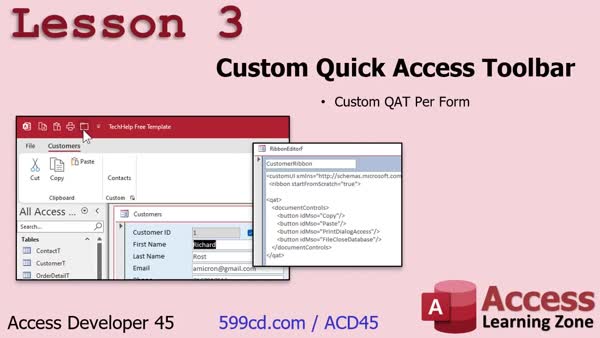
Lesson 3: Custom Quick Access Toolbars - In Lesson 3, we will walk through how to create a custom Quick Access Toolbar for specific forms or reports in your database. I will show you how to add custom toolbar buttons using the ribbon editor, demonstrate where to place the code, and explain which options affect individual forms versus the entire database. We will also discuss how to set up database-wide toolbar items using the File - Options menu. This lesson gives you the tools to customize quick access toolbars exactly where you need them.
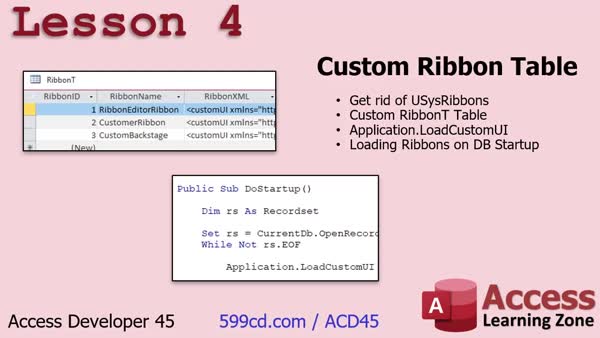
Lesson 4: Custom Ribbon Table Without USysRibbons - In Lesson 4, we will walk through how to avoid using the hidden USysRibbons system table by creating your own custom ribbon table called ribbonT in Microsoft Access. I will show you how to set up this new table with RibbonID, RibbonName, and RibbonXML fields, move your ribbon data into it, and update your forms to use it instead of the system table. We will discuss using VBA to load ribbons into memory at startup with Application.LoadCustomUI, and cover limitations involved in updating ribbons while a form is open.
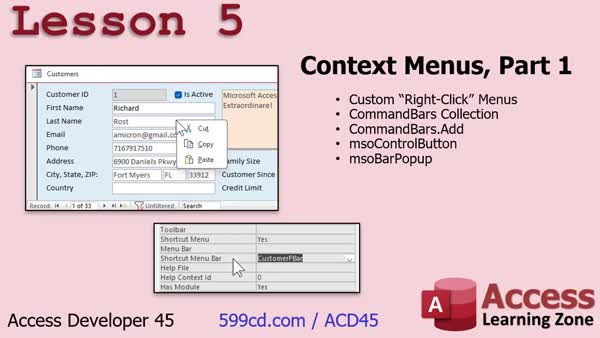
Lesson 5: Custom Right-Click Menus with VBA - In Lesson 5, we will start working with context menus in Access, specifically setting up custom right-click pop-up menus for forms. I will walk you through the process of creating and loading a context menu with VBA code, including explaining how to use the CommandBars object, define buttons like Cut, Copy, and Paste, and assign your menu to a form. We will also discuss declaring constants, managing modules, and considerations for developer versus end user modes. More options and customization of context menus will be covered in future lessons.
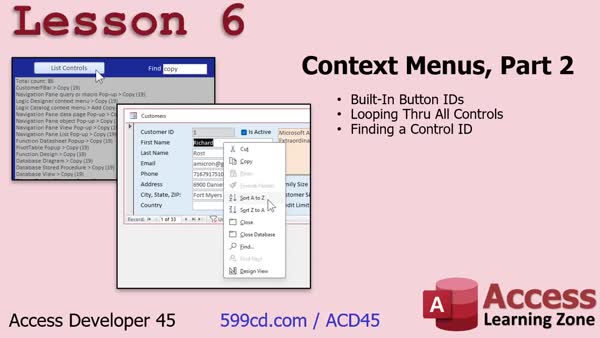
Lesson 6: Command Button IDs & Custom Menus - In Lesson 6, we continue working with custom context menus by focusing on how to identify and use built-in button IDs. I will show you methods to loop through all controls on command bars and build a form that allows you to search for a control by name to discover its ID. We will discuss how to add commands like Sort Ascending, Format Painter, and others using their IDs, demonstrate code for iterating through command bars and controls, and set up a search feature to help find specific built-in button commands for your context menus.
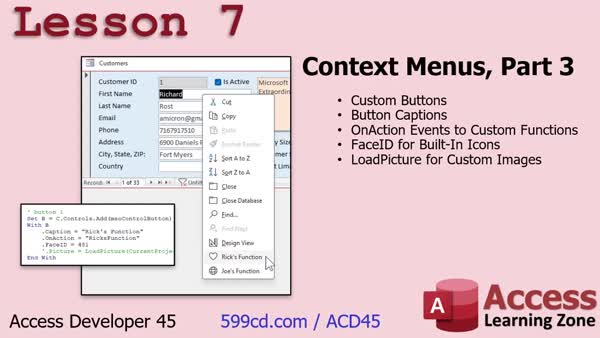
Lesson 7: Custom Buttons: Icons & Events - In Lesson 7, we are finishing up our series on context menus by learning how to create custom buttons on right-click pop-up menus, including setting properties like captions, OnAction events for custom functions, and adding icons using built-in FaceIDs or custom images with LoadPicture. We will walk through adding multiple buttons, handling parameters in OnAction, and discuss useful resources for finding FaceIDs and exploring other control types for command bars.
Lesson 8: Next Steps After Dev 45 & AI Bot - In this lesson, we will discuss what is next after Access Developer 45, including plans for Access Developer 46 and potential topics such as purchase orders with reorder levels, class modules, TableDefs, and SQL transactions. I will also explain how you can suggest topics for future lessons, provide feedback through course surveys, and share testimonials. Additionally, I will mention resources like the Access Index, the AI Access Bot, and the TechHelp series to help you find answers and further learning on Microsoft Access topics.
NavigationKeywordscustom ribbons, backstage menu customization, quick access toolbar, custom context menu, command bars, ribbon xml, loadcustomui, ribbon gallery, nested ribbon menus, custom ribbon table, right-click menu, button faceid, vba context menu, onaction events
More InformationTranscriptToday is part two of my Customizing Ribbons and Menus series. We are going to pick up where we left off and develop a 44. We are going to start by looking at creating custom backstage menus. That is this thing when you hit File. That is called the Backstage. It is the File menu. We are going to look at setting up Custom Quick Access Toolbars. We are going to set things across the top of Access per form, so every form can have its own Quick Access Toolbar. We will build our own ribbons table so we do not have to use that use Sys Ribbons anymore, and we can load custom ribbons when the database starts up. Then we will get to the thing that everybody has been bugging me about: these right-click popup menus, also called Context Menus. We will learn about the Command Bar collection. We will loop through all the controls in the system. We will actually build a little tool so we can go through and loop through all the different controls and find out what their IDs and their captions are. We will see how to add custom buttons to menus. We will assign our own custom functions to those buttons, so you can have a right-click menu with a custom function on it. We will see how to add custom pictures or use the built-in Face IDs for the button icons. Lots of stuff today. As I mentioned before, this class follows developer 44. This is a pretty hard prerequisite. If you have not watched developer 44, go watch that first. I cover a lot of stuff in developer 44 that is crucial and fundamental to understanding this stuff today. If you do not watch that class, you are not going to understand what is going on today. So this is basically a two-part series. Before that, I strongly recommend all of my beginner, expert, advanced, and developer classes, levels 1 through 43. They are designed to be followed one after the other. Do not skip levels. It is currently September of 2024, so I am using Access 365, which is roughly equivalent to Access 2021. 2024 is not out yet. It is due out later this year. If you have any questions about the material covered in today's class, feel free to post them right on the page that you are on. Just scroll to the bottom, and you will see a box that says post a new comment or question there. There is also an Access forum on my website in case you have any other questions that are not necessarily related to today's class, but you have to ask them somewhere. Ask them here. Let us take a closer look at what is covered in developer 45. In lesson 1, we are continuing our work with customizing the ribbon. We will see how to create a gallery, a custom menu on the ribbon. Then we will start working with the backstage, which is another name for the file menu. We will see how to hide print options, and hide pretty much all the other menu options on there as well, except for that home menu option. You cannot seem to get rid of that one. In lesson 2, I am going to show you how to add your own items to a backstage tab menu. You can add your own categories and buttons and all kinds of things right on the backstage, right on the file menu. We will do that in lesson 2. Lesson 3 is nice and short and simple. I am going to show you how to create custom quick access toolbars for specific forms or reports. It is easy to do it for the whole database - you can do that in file options. But if you want a custom quick access toolbar for each specific form, you can do that with this technique. In lesson 4, we are going to get rid of that hidden system table called use-sys-ribbons. We are not going to use it. I do not like messing with those hidden system tables at all. So we are going to create our own custom ribbon table. Then we will use application.loadcustom-ui to load our own ribbons in instead of relying on that system table. We will do that on startup and then I will show you how to work that into the database. In lesson 5, we are going to start talking about what everybody has been emailing me about: right-click context menus. Those right-click popup menus. We are going to start working on those in this lesson. In lesson 6, we are continuing with custom context menus. I am going to show you how to figure out the built-in button IDs. We are going to loop through all the controls. We will actually build a form where we can search for a control by name to get its ID. It will be pretty cool. In lesson 7, we are finishing up with context menus. We are going to learn how to make custom buttons on your right-click popup menus. We will learn about the action event to add custom functions behind those buttons so you can click on a button and do whatever you want to do. We will see how to use the face IDs for the built-in icons or load pictures so you can load your own custom images in your buttons, like my pretty face. Thanks for watching. IntroIn this lesson, we continue exploring advanced customization in Microsoft Access with a focus on ribbons, backstage menus, and right-click context menus. You'll learn how to create custom menu galleries, add your own options to the backstage file menu, set up Quick Access Toolbars for specific forms, and build your own ribbons table to avoid using hidden system tables. We'll also work through designing custom right-click popup menus, identifying control IDs, and adding your own buttons with custom functions and images. This is part 2. QuizQ1. What is the primary focus of Microsoft Access Developer Level 45? A. Creating detailed reports B. Customizing ribbons and menus C. Building complex queries D. Advanced data analysis techniques Q2. In the context of Access, what is the "Backstage"? A. The main form B. Another name for the Developer Toolbox C. The File menu D. The Reports menu Q3. Which table does the tutorial recommend replacing for storing custom ribbons? A. USysRibbons B. UseRibbons C. RibbonT D. SysRibbonCustom Q4. What function is used to load custom ribbons when the database starts up? A. Application.LoadUI B. Application.StartRibbon C. Application.LoadCustomUI D. Application.InitializeRibbons Q5. In Lesson 1, which menu option on the Backstage menu cannot be hidden? A. Home B. Print C. Save D. Share Q6. What is the purpose of the CommandBar objects collection? A. To manage database security B. To customize the Access user interface C. To populate forms with data D. To create reports Q7. In Lesson 2, what is added to the Backstage menu? A. New ribbon commands B. Custom functions C. New items like categories and buttons D. Custom queries Q8. What command is used to hide the ribbon completely? A. DoCmd.HideRibbon B. DoCmd.ShowToolbar Ribbon, acToolbarNo C. DoCmd.RemoveRibbon D. Application.HideRibbon Q9. How do you customize the Quick Access Toolbar for specific forms or reports? A. By changing File Options B. By creating custom code in the VBA editor C. By using a custom XML file D. By using macros Q10. In Lesson 4, how is the new ribbon table structured? A. RibbonID, RibbonXML, RibbonType B. RibbonID, RibbonName, RibbonXML C. RibbonName, RibbonData, RibbonType D. RibbonID, RibbonName, RibbonData Q11. In the tutorial, which method is recommended for identifying built-in button IDs? A. Using online documentation B. Trial and error C. Looping through all the controls D. Command prompt commands Q12. How can one add custom images to buttons in context menus? A. By using Face IDs or loading an image from a file B. By using only Face IDs C. By using only image URLs D. By adding images through the Access options Q13. What are FaceIDs used for in context menus? A. Identifying different versions of Access B. Specifying icons for built-in buttons C. Naming custom context menus D. Setting up database relationships Q14. Which of the following is NOT an example of a control type added to context menus? A. MSO_CONTROL_BUTTON B. MSO_CONTROL_IMAGE C. MSO_CONTROL_POPUP D. MSO_CONTROL_DROPDOWN Q15. Why is it recommended to use late binding for objects like CommandBar in VBA? A. For easier debugging B. To ensure portability across different user environments C. For faster performance D. To reduce code complexity Q16. Which Microsoft Office tool's object library can be referenced for more context menu options in VBA? A. Microsoft Word B. Microsoft Excel C. Microsoft Office D. Microsoft PowerPoint Answers: 1-B; 2-C; 3-C; 4-C; 5-A; 6-B; 7-C; 8-B; 9-B; 10-B; 11-C; 12-A; 13-B; 14-B; 15-B; 16-C DISCLAIMER: Quiz questions are AI generated. If you find any that are wrong, don't make sense, or aren't related to the video topic at hand, then please post a comment and let me know. Thanks. SummaryToday's video from Access Learning Zone continues our series on Customizing Ribbons and Menus. This is part two, where I pick up where we left off and move forward from developer 44. We begin by examining how to create custom backstage menus, which is what you see when you select File in Access. That area is known as the Backstage, essentially functioning as the File menu. Next, we will go through the process of setting up custom Quick Access Toolbars. These toolbars appear across the top of Access and can be customized for each form individually, so every form in your database can have its own unique Quick Access Toolbar. We will also move away from using the hidden system table called use-sys-ribbons by building our own ribbons table. This allows us to load custom ribbons automatically when the database starts, providing much greater control and flexibility. A topic that many people have been requesting is the creation of right-click popup menus, otherwise known as context menus. I will introduce the Command Bar collection and demonstrate how to loop through all the controls in your system. We will build a tool that allows us to loop through these controls to identify their IDs and captions. I will show you how to add custom buttons to these menus and assign your own functions to those buttons. This way, you can have a right-click menu that runs any custom function you want. You will also learn how to add custom icons to buttons using pictures or the built-in Face IDs for button icons. It is important to note that the material covered in this class builds specifically on developer 44. If you have not already completed developer 44, please do that first since concepts introduced there are fundamental for understanding today's content. In fact, I highly recommend all of my beginner, expert, advanced, and developer classes, levels 1 through 43, before tackling this one, as they are structured to be followed in sequence. I am currently working with Access 365, which is functionally equivalent to Access 2021. At this time, September 2024, Access 2024 has not yet been released but is expected later in the year. If questions come up regarding the material, you can post them directly on the page you are viewing. Scroll to the bottom and use the provided box to submit new comments or questions. There is also an Access forum on my website for any questions that are not directly related to today's lesson. Let me provide a breakdown of what is covered in developer 45: In lesson 1, we continue our discussion on customizing the ribbon by creating a gallery, which is a custom menu on the ribbon. We also begin working with the Backstage area. I will show you how to hide the print options and nearly all other options from the file menu, though the home menu option is one that cannot be removed. Lesson 2 is focused on adding items to a backstage tab menu. You will learn how to add your own categories and buttons directly onto the file menu. Lesson 3 offers a straightforward look at creating custom Quick Access Toolbars for specific forms or reports. Setting up a toolbar for the whole database is easy through file options, but I will teach you how to provide unique toolbars for each form if desired. Lesson 4 covers how to stop using the hidden use-sys-ribbons system table. We create a new custom ribbon table, use the application function to load custom ribbons at startup, and integrate this process into your database structure. In lesson 5, we start exploring right-click context menus, which have been a popular request. We set up the foundation for these popup menus. Lesson 6 continues with the context menu topic by showing how to discover the built-in button IDs. I will demonstrate how to loop through controls, and you will even build a form that allows you to search for controls by name and find their IDs. In lesson 7, we wrap up the context menu section by learning how to add custom buttons to right-click menus and assign custom functions to these options. You will also see how to use Face IDs for built-in icons or add your own pictures to your buttons, making for a fully customizable experience. If you would like a complete video tutorial with step-by-step instructions on everything discussed here, you will find it on my website at the link below. Live long and prosper, my friends. Topic ListCreating custom ribbon galleries Building custom backstage (File menu) tabs Hiding print and menu options in backstage Adding custom items to backstage tabs Creating custom Quick Access Toolbars per form Building a custom ribbons table Using Application.LoadCustomUI for ribbon loading Loading custom ribbons at database startup Creating right-click context menus Determining built-in button IDs for context menus Building a tool to search for control IDs and captions Adding custom buttons to context menus Assigning custom functions to context menu buttons Using Face IDs and custom images for menu buttons Primary Topicscustom ribbons, backstage menu customization, quick access toolbar per form, custom ribbon tables, right-click context menus, command bar collection, assigning custom functions to menu buttons, button icons Secondary TopicsAccess versions (365/2021), developer class structure |
||||||||||||||||||||||||||||||||||||||||||
|
| |||
| Keywords: custom ribbons, backstage menu customization, quick access toolbar, custom context menu, command bars, ribbon xml, loadcustomui, ribbon gallery, nested ribbon menus, custom ribbon table, right-click menu, button faceid, vba context menu, onaction events PermaLink How To Customize Ribbons, Backstage Menus, Quick Access Toolbars, and Context Menus in Microsoft Access |