On Paint
By Richard Rost

 3 years ago
Use the On Paint Event Like Conditional Formatting
In this Microsoft Access tutorial, we're going to talk about the On Paint event. Now, while you can use it to do the same thing that conditional formatting does, and in fact, it even has more flexibility than conditional formatting, it's got some problems and some drawbacks. So, we're going to talk about that, and I'm going to show you one way to use the On Paint event to supplement conditional formatting, which is really pretty cool.
Members
There is no Extended Cut, but here's the database for the Gold members.
Silver Members and up get access to view Extended Cut videos, when available. Gold Members can download the files from class plus get access to the Code Vault. If you're not a member, Join Today!
Prerequisites
Links
Recommended Courses
Keywords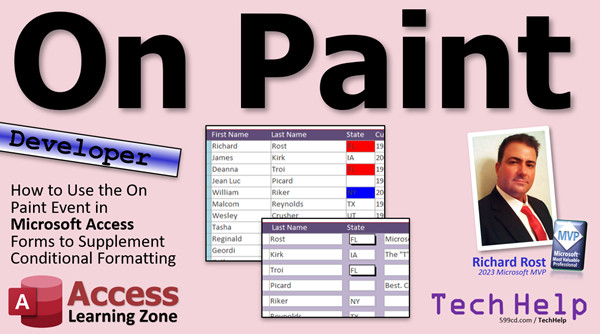
access 2016, access 2019, access 2021, access 365, microsoft access, ms access, ms access tutorial, #msaccess, #microsoftaccess, #help, #howto, #tutorial, #learn, #lesson, #training, #database, on paint event, section paint event, section.paint, conditional formatting
 Subscribe to On Paint
Get notifications when this page is updated
More InformationTranscript Welcome to another TechHelp video brought to you by AccessLearningZone.com. I am your instructor, Richard Rost. Today we are going to talk about the On Paint event in Microsoft Access.
This is one of those lesser-used events. It has some cool features and you can do some cool stuff with it, but it also has some problems, and we will talk about that in today's video.
The On Paint event is one of those things that has been on my list to make a video for quite some time now. I personally do not use it that often, so it has been sitting toward the bottom of the list. But just recently, a post came up on Reddit in the MS Access group and essentially someone is looking for a way to color the text boxes in a continuous form to his exact specifications, and you can have up to 250 different colors.
With Conditional Formatting in Access, the maximum number of colors you can set up ahead of time is 50. You can modify that programmatically, but again, 50 is the max. If you need more than 50 colors, you cannot do that – you can use On Paint for it.
One of the admins tagged me in this conversation, so now I have to chime in with my two cents. He does not remember seeing it before. On Paint is one of those things that was added in Access 2007, so it is relatively new. I never knew about it until maybe about a year or two ago myself, and it is a good supplement for conditional formatting, but I will show you why I personally do not like using it in just a second.
Before we get into it, though, this is a developer-level video. So if you have never done any programming in VBA before, go watch my intro to VBA video. It is about 20 minutes long, it teaches you everything you need to know, and it is a free video. It is on my YouTube channel and on my website, so go watch that first.
Also, make sure you understand Conditional Formatting and what it is used for. Traditionally, if you want to change the color of a text box on a form, if it is a single form, you can use VBA. But if it is a continuous form, you have to use Conditional Formatting, and this video explains how.
All right, so here I am in my TechHelp free template. This is a free database. You can get a copy off my website if you want to. Now, if you have got a single form and you want to say, all right, if the state is Florida, make the state background color red, you can go into the code, you can put an On Current event in there, and say if the state equals Florida set the background color to red.
That works fine in a single form, but not in a continuous form, because if you change the background color in your code, it changes all of them if the current record is Florida.
So for that, we have to use Conditional Formatting, which is what my other conditional formatting video shows you how to do.
The problem is, Conditional Formatting can only have up to 50 events associated with it. So, with formatting, Conditional Formatting, new rule, you can add 50 of these. You can add them manually, or you can add them with VBA. It is a little bit tricky – I do cover it in one of my developer lessons – but it is possible. But still, you are limited to just 50 items regardless, whether you do it manually or in your code.
Now, in a continuous form, the detail section – well, every section really, but the detail section is where you want to use it – has an On Paint event. This event fires every time the detail section is painted or drawn on the screen, for every record.
So if you get 30 records on the screen, this event is going to run 30 times, and that is one of the problems.
Let me show you an example. Let us come into here in our On Paint event, and we will say if the state equals Florida then state.BackColor equals vbRed, otherwise state.BackColor equals vbWhite. And if so, all of our Floridians show up as red.
Save it, come back over to here. Let us close it and open it back up again. Okay, looks pretty good. Again, same thing we could do with conditional formatting.
Scroll down, scroll back up – notice there is a little bit of a delay there. It is a little bit more delayed than you would have with Conditional Formatting, and that is one of my problems – the flicker. In fact, the more records you have on the screen at once – I have got a small window open here – see how it is kind of flickering?
And it is not just every time you scroll – every time you click it has to refresh that whole thing. It probably does not show up that much in the video, but I can notice a huge amount of screen flicker.
Here I did a little side by side – here are two different databases, one with Conditional Formatting (I made Florida blue) and one that I showed you with the On Paint event.
Now, I do not know if this is going to come through in my video recording software and app, but when I scroll up and down using the Conditional Formatting, it is nice and smooth. When I do the same thing over here with the On Paint event, there is much more noticeable flicker. And again, it is fast, but the human eye catches it. With the On Paint event, there is just a lot more screen flicker than over here. There is much less flicker on this side.
So that is the major reason why I do not like to use the On Paint event. But if you can get away with that flicker – if that does not bother you at all – if you are the kind of person that opens up a form and just lets it sit there for a while and you do not really scroll up and down a lot, you can do some pretty cool stuff with it.
For example, let us say you want to set up a table that has all the states in it and their colors. You could do something like that.
Let us create a state table. We have the state, and that will be short text, and this is one of the only times when I do not use an AutoNumber. I will allow this – you can make that your primary key and just put the two-digit state abbreviation there. That is one of the only times I allow a table without an AutoNumber in it. Then, how about the bgColor here?
Save that as my state table. Then you can put whatever states you want in here with their colors. So New York can be blue. You can use the Access numbers if you want. I like using hex colors myself.
So for New York, let us go with blue, so it would be RGB – I will go with that. Florida will make red. Let us do Texas as green. And whatever – all these are web colors if you are not familiar, and I will show you a function in a few minutes to convert that over to an Access long integer number.
But you can add as many conditions in here as you want, and Georgia, whatever. You can have a thousand of them in here if you want to – it does not matter.
Save that, let us make a query, and we will pull together our customer stuff, because in here we have just got the customer stuff. We have to pull in the state information. So, create, query design, bring in the customer and the state. Access should join those together. I am going to bring in all the customer information and that background color.
If you run this now, you are going to be missing some people, so make sure you make this an outer join because not everybody has a state. You want to make sure you include those null values, like Jean-Luc Picard.
I will save this as my customerQ, my customer query. You can see if you scroll all the way to the right, there are your customer color codes for the states that actually have colors.
Now, we will take our customer list and we will change the record source for this guy from the customerT to the customerQ, and now we can use that background color.
Now I can go back to that On Paint event, which is in here, event On Paint, right here. Get rid of what is in there.
In order to utilize that hex color, I am going to use a function called HexToRGB. This is an example of one of the lots and lots of functions I have in my code vault on my website, so I just copy this guy here and I will just drop it right in here. Normally, you would put this in a global module somewhere so the whole database can use it, but just for now, I will put it right here.
Come down to your detail paint section, and we are going to say if the bgColor is null – right, if isnull(bgColor) – then the state.BackColor equals vbWhite or whatever you want to make it, else state.BackColor equals HexToRGB(bgColor), and that is it.
Save it, throw in a quick debug compile, everything is good, we can close that, we can close that, we can open it back up, and there we go – we have got all of our colors. Scroll down, there you go. A little bit of a flicker, but it is not super bad. I do not want to make it out like it is this huge nasty thing, but it is definitely more noticeable than Conditional Formatting.
If you need more than 50, or you want an easy way to change this on the fly, this is definitely a good method. Also, now your users can easily set up and change these colors too. Let us say you want to add more – let us add Washington and South Carolina. Close this, open up your state table, put Washington in here, and then South Carolina. Let us go #FFFF00 – I am just making up colors. Close it, open it, and boom – they have got colors now.
You can have as many as you want. And yes, that On Paint event fires once for each record, so it is a lot of code execution behind your form. I try to use Conditional Formatting when possible because of that.
I will use the On Paint event to supplement Conditional Formatting. You can use it to change things that Conditional Formatting cannot. Because if you look at the list here, take a look at Conditional Formatting – there is not much you can really do.
You have got bold, italics, underline, background color, foreground color, and enabled. That is it.
So what if you want to change something like the border color or the special effect property – make it shadowed, that kind of thing? You can do something like this.
Let us watch this. Let me get rid of – I am going to space these out a little bit more, give me a little bit different look here. Let us slide that over a little bit. Change up our look a little bit.
Now, let us say that in your On Paint event, instead of working with colors, you want to work with the border color. You could say if state equals Florida (and again, you can put this in a table if you want to – I am just showing you here), if state equals Florida then state.BorderColor equals vbRed, else state.BorderColor equals vbBlack.
Then take a look – there you go. You cannot change border color with Conditional Formatting, but you can change it this way.
Or let us say you want to do – make all of these guys go to Format, go to Shape Outline, make it black, standard, and let us do border width down here. Let us up that to two points and set the color to black and flat as a special effect. Save it and let us get rid of this real quick just to see what you have got.
Okay, looks good. Now, what we are going to do is say, if the state is Florida, then state.SpecialEffect equals 4 (4 is shadowed), otherwise, we are going to set it equal to 0, which is just the normal flat. There is a list of these on Microsoft's website if you Google it – it is just flat, raised, sunken, etched, shadowed, and chiseled. I pretty much almost always use either shadowed, raised, or sunken, and you have got to have your border set to at least two pixels or else it is not going to show up.
All right, and boom, there you go. Look at that! See, that is pretty cool. You get that shadowed effect just under the Florida ones.
The flickering is not too bad. I can live with it. If you have got people on your network with slow computers, though, then they are going to notice that flicker. I have a pretty fast laptop, but I can tell you on my slower machines in years past, I remember that flicker being pretty bad.
So, that in a nutshell is how the On Paint event works. Me personally, I try to use Conditional Formatting whenever possible, unless I want to change something that Conditional Formatting does not allow.
If you like this stuff, if you like the way I teach, if you want to learn more about this VBA stuff with Access, check out my Access Developer lessons. I have got a lot of them on my website. I just released Developer 44, so there are many, many hours of courses available. And of course, in that Access Developer Level 40 class, I show you how you can manipulate Conditional Formatting in VBA. We do something very similar – we set up a table where we can have different events, for example, go to the beach, get a conference, whatever. We can set up a foreground color, background color for the text, and for the box that it is in. Your user can pick that and set that up, and then when the form loads, the VBA loads it into the Conditional Formatting. Again, you are limited to 50 items, but I think for most people, 50 items is plenty enough.
I think in my 30 years of building with Access, I have come across maybe one client who needed more. That is why I was surprised with that post on Reddit – like, you need 250? That is a lot of colors. But I get it – if you want to match the record to exactly what color you want, then that On Paint event is going to work just fine for you.
But there is your TechHelp video for today. I hope you learned something.
Live long and prosper, my friends. I will see you next time. Intro In this video, we will talk about the On Paint event in Microsoft Access. You'll learn what the On Paint event does, how it can supplement conditional formatting when you need to customize more than 50 colors in a continuous form, and some of the limitations such as screen flicker. I'll walk you through using On Paint with a table to control formatting options like background colors, border colors, and special effects based on data, and explain why you might choose this method over traditional conditional formatting in your Access forms. Quiz Q1. What is the primary limitation of Access Conditional Formatting that the On Paint event helps overcome?
A. It cannot change text color.
B. It only works with single forms.
C. It is limited to 50 formatting conditions.
D. It cannot change border style.
Q2. What happens when you try to change the background color in VBA on a continuous form without using Conditional Formatting or On Paint?
A. The color does not change at all.
B. The changes only apply to the selected record.
C. All records' background color change based on the current record.
D. VBA gives an error.
Q3. What is a key disadvantage of using the On Paint event compared to Conditional Formatting?
A. It cannot work with colors.
B. It causes noticeable screen flicker and performance issues with many records.
C. It only allows five formatting options.
D. It does not support continuous forms.
Q4. In which section of a continuous form is the On Paint event typically used to change record appearance?
A. Form Header
B. Form Footer
C. Detail Section
D. Page Footer
Q5. Why might you want to use a separate table for storing state color values when using the On Paint event?
A. To speed up queries
B. It allows for easy customization and unlimited conditions
C. It is required for all formatting
D. Tables are mandatory in Access for all properties
Q6. Which of the following properties CANNOT be changed using Conditional Formatting in Access?
A. Background color
B. Foreground color
C. Border color
D. Bold text
Q7. Which programming language is typically used with events like On Paint in Microsoft Access?
A. Python
B. Java
C. VBA (Visual Basic for Applications)
D. JavaScript
Q8. When does the On Paint event for a detail section fire?
A. Only when opening the form
B. Once for each record as it is drawn on the screen
C. Every time a new color is selected
D. Only when clicking a record
Q9. What is required if you want to use a hex color code for formatting inside the On Paint event?
A. Use of Record Macros
B. A HexToRGB conversion function
C. Changing system settings
D. Using a special property only available in Access 97
Q10. Which of the following is TRUE regarding the On Paint event?
A. It is available in all versions of Access
B. It is primarily used for changing data values
C. It was introduced in Access 2007
D. It removes the 50-condition limit on Conditional Formatting
Q11. If you need to format a specific property (like shadowed or chiseled appearance) that Conditional Formatting does not allow, what should you use?
A. Only Conditional Formatting
B. Only Table Properties
C. The On Paint event
D. Data Macros
Q12. What is a good reason to avoid using the On Paint event extensively in forms with large numbers of records?
A. Forms cannot have events
B. The On Paint event cannot change any visual properties
C. Excessive flicker and performance degradation
D. It is not compatible with queries
Q13. For most users, why is Conditional Formatting generally preferred over the On Paint event?
A. It supports more formatting features
B. It is easier, causes less flicker, and handles most typical use cases within its limit
C. Conditional Formatting is only for tables
D. On Paint is only compatible with reports
Q14. What should you do first before working with the On Paint event if you have no VBA experience?
A. Watch the intro to VBA video recommended by the instructor
B. Change your Access version
C. Increase database size
D. Only use macros
Q15. How can users easily modify color rules if you set them up using a table and the On Paint event?
A. They must rewrite VBA code
B. They can simply edit table values
C. It requires a database rebuild
D. Color rules cannot be changed easily
Answers: 1-C; 2-C; 3-B; 4-C; 5-B; 6-C; 7-C; 8-B; 9-B; 10-C; 11-C; 12-C; 13-B; 14-A; 15-B
DISCLAIMER: Quiz questions are AI generated. If you find any that are wrong, don't make sense, or aren't related to the video topic at hand, then please post a comment and let me know. Thanks. Summary Today's TechHelp tutorial from Access Learning Zone focuses on the On Paint event in Microsoft Access. I am your instructor, Richard Rost, and I am going to walk you through what this event does, where it can be useful, and some of the issues that might come along with it.
The On Paint event is a relatively new feature in Access. It was introduced in Access 2007, so unless you have been working exclusively with more recent versions, you may not even have noticed it. It is not among the most commonly used events, but it can come in handy in specific situations. Recently, someone in the MS Access Reddit group asked about coloring text boxes in a continuous form with up to 250 unique colors. Since Conditional Formatting in Access only allows 50 rules, this presented a challenge. You can set up 50 rules either manually or with VBA, but that's the cap.
If you ever need more than 50 distinct formatting conditions, the On Paint event gives you a way to work around that limitation. Since I was tagged in the Reddit discussion, I wanted to share my perspective and show both the strengths and the weaknesses of using the On Paint event.
Before you go much further, though, I want to point out that this is a developer-level tutorial. If you have not programmed in VBA before, I recommend you start with my introductory VBA video. That one runs for about 20 minutes and covers the basics you will need to understand what we are doing here. It is completely free and is available on both my website and my YouTube channel.
Also, make sure you already understand Conditional Formatting in Access. In a single form, you can adjust the color of a text box using VBA when a field has a certain value. However, in a continuous form, changing the property in code affects all visible records, not just the current one, so you have to use Conditional Formatting.
With Conditional Formatting, you are limited to 50 rules. Whether you create those by hand or use VBA, you cannot exceed that number. This is the main limitation that the Reddit user ran into.
Now, the detail section of a continuous form, as well as other sections, has access to the On Paint event. This event triggers once for every visible record section each time Access needs to redraw the form. If you have 30 records on screen, the event runs 30 times. That right there is part of the challenge with it. It is pretty resource-intensive and can lead to some noticeable screen flicker, especially if there are a lot of records visible or you are scrolling quickly.
If you use the On Paint event, you can programmatically set properties such as background color whenever Access repaints the section. For example, you can set a text box's background color to red if the state is Florida, or leave it white otherwise. When you test this out, you'll notice it works just as Conditional Formatting does in a basic example, but you may spot more delay or flickering when you scroll the form. That is one of the drawbacks of relying on On Paint — it just is not as smooth as built-in Conditional Formatting.
I did a comparison by setting up two forms side by side: one using Conditional Formatting and one using the On Paint event to change colors. Scrolling through the Conditional Formatting version was smooth and clean. The form with the On Paint event, though, definitely had more flicker, especially while scrolling or selecting records. This might not bother some users, but keep it in mind if you have forms that need to refresh often or if users will be navigating a lot.
On the upside, if you are not bothered by a little flicker or the form is not updated frequently, the On Paint event allows you to do much more than Conditional Formatting alone. For instance, you can set up a table listing every state alongside the color you want to use for each one. This is especially helpful if you have more than 50 conditions or if you want an easy way to update or add colors later without having to edit your VBA code.
Here is how you could structure this setup. You would create a simple table with two fields: state abbreviation and background color. For a situation like this, I do not use an AutoNumber as the primary key — the state abbreviation does just fine. You could then enter as many states and color codes as you want. I prefer to use hex color codes, but you could use the standard Access color numbers if you wish.
Once your colors are entered, you make a query that joins your customer data to the state color data. Make sure this join is set as an outer join so you still include customers who might not have a state listed. Once you have your query, change your form's record source to use it instead of the original table so you can retrieve the background color directly.
In the On Paint event code, you then check if the color value for the state is null. If it is, you can set a default (like white). If it is not, you use a conversion function (such as HexToRGB, which is one of the many helper routines in my code vault) to set your color.
After compiling the code and reopening the form, you should see all your designated colors appear based on the state value for each record. You will probably still notice some flicker, but the system works. Plus, users can now go back and add new states or change colors simply by editing the data table.
Remember, the On Paint event runs once per record every time the form is redrawn, so it can cause a significant amount of code execution. I always recommend sticking with Conditional Formatting where possible. When you absolutely must work around its limits or need to change properties that Conditional Formatting does not support, then the On Paint event becomes helpful.
That brings me to another benefit of the On Paint event. Conditional Formatting only allows you to control a few properties: bold, italics, underline, background color, foreground color, and enabled state. You cannot, for example, change things like the border color or special effect property. With On Paint, you can. For example, you can highlight the border of a text box red if the state is Florida or assign a shadowed effect to specific records. This adds another layer of visual customization that just is not possible with Conditional Formatting alone.
If you make these kinds of changes, keep in mind you may see even more noticeable flicker on slower computers or across a network. On my relatively fast laptop, it is tolerable, but it is definitely something to consider.
In summary, the On Paint event is a powerful supplement to Conditional Formatting in Access forms. I personally reserve it for cases where I need to change properties beyond what Conditional Formatting supports or when I need more than 50 unique conditions. For most uses, Conditional Formatting alone is enough. In my experience with clients, very few have needed more than that limit, but if you run into a situation like the one on Reddit, this method will absolutely get the job done.
If you want to learn more about Access VBA and form customization, I have developer lessons and more comprehensive tutorials available on my website. If you are interested in how to manipulate Conditional Formatting through VBA code, I cover that in detail in my Developer Level 40 class, including using tables for run-time configurable formatting options.
For a complete step-by-step video walkthrough of everything I covered here, visit my website at the link below.
Live long and prosper, my friends. Topic List Explanation of the On Paint event in Access
Limitations of Conditional Formatting in continuous forms
Changing background color in single vs continuous forms
Using the On Paint event to set text box background color
Performance issues and flicker with the On Paint event
Creating a state table to store color codes
Assigning colors to records using a lookup table
Building a query to join customer data with state color codes
Making an outer join in queries to include all records
Changing form record source to use the new query
Using a HexToRGB function to convert hex colors
Applying background colors from table data in On Paint
Adding new colors to the state table and updating the form
Changing properties like border color with On Paint
Setting special effect property (shadowed, flat) via On Paint
Comparison between Conditional Formatting and On Paint capabilities Primary Topics Access On Paint event, continuous forms, Conditional Formatting limits, VBA dynamic formatting, custom record coloring, form performance issues
Secondary Topics hex color to RGB conversion, supplementary event usage, border and special effect formatting, table-driven formatting, performance/flicker considerations
|




