RunSQL v Execute
By Richard Rost

 3 years ago
Difference Between RunSQL & Execute in Access
In this Microsoft Access tutorial, I'm going to teach you the difference between DoCmd.RunSQL and CurrentDb.Execute and when you would want to use each.
Mike from Newcastle, England (a Platinum Member) asks: I've been following your Microsoft Access videos for years, and you used to always use DoCmd.RunSQL in your code. But recently, I've noticed you using CurrentDb.Execute instead. What's the difference between the two, and what should I use?
Members
Members will learn how to trap errors in db.Execute commands with the dbFailOnError parameter. We will also learn how to count how many records were affected with any SQL command by using the RecordsAffected property.
Silver Members and up get access to view Extended Cut videos, when available. Gold Members can download the files from class plus get access to the Code Vault. If you're not a member, Join Today!
 Prerequisites Prerequisites
Links
Recommended Courses
Rick's Picks
Keywords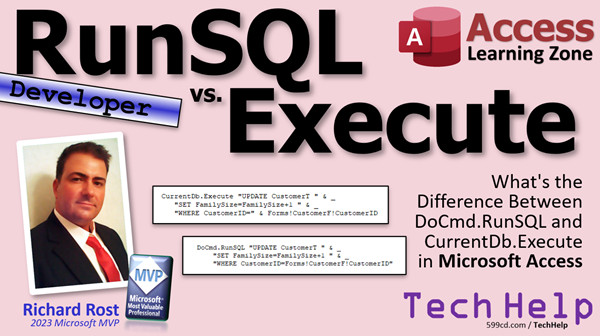
access 2016, access 2019, access 2021, access 365, microsoft access, ms access, ms access tutorial, #msaccess, #microsoftaccess, #help, #howto, #tutorial, #learn, #lesson, #training, #database, What is the difference between docmd.runsql and currentdb.execute, Execute vs RunSQL, CurrentDb.Execute vs. docmd.runsql, suppress warnings, handle errors, dbFailOnError, RecordsAffected, run-time error 3061, too few parameters expected 1
More InformationTranscript Welcome to another TechHelp video brought to you by AccessLearningZone.com. I'm your instructor Richard Rost. Today we're going to answer that age-old question for Access developers: What's the difference between DoCmd.RunSQL and CurrentDb.Execute? Inquiring minds want to know. And by inquiring minds, I mean Mike from Newcastle, England, one of my Platinum members, and a few other people. I get asked this all the time.
Mike says, "I've been following your Microsoft Access videos for years, and you used to always use DoCmd.RunSQL in your code, but recently I've noticed you using CurrentDb.Execute instead. What's the difference between the two, and what should I use?"
Well, Mike, like everyone else, I keep learning more about Access myself. In fact, I consider it a bad day if I don't learn something new. I try to learn something new every day. I read a lot of other Access websites and blogs like NoLongerSet and a few others. I'll put some links down below to some of my favorites. As time goes on and I continuously learn new things, I change my technique from time to time.
When I first started programming in Access VBA and using SQL, I used the RunSQL command a lot. It's easy and good enough for most developers. However, the more experience you get, the more you realize that Execute is where the real power lies. So let's talk about the differences.
Of course, I'll start by saying, if you're currently using RunSQL and you're happy with it, and it works for your database, stick with it. It's fine. There's nothing wrong with it. There are just some extra capabilities that Execute can offer that can really take your database to the next level.
So, RunSQL operates within the Access user interface. It's interpreted by Access before the database engine gets it. There's a database engine that sits kind of below the Access front end, the interface that you work with. And Execute sends commands directly to the database engine.
Why is this important? Well, RunSQL, since it's working within the Access interface, knows about the different objects in the interface like forms and their fields. So if you format a RunSQL statement like this and put Forms!CustomerF!CustomerID inside the SQL statement, it can handle it. If you try that with Execute, you're going to get a "too few parameters" error message. Now, you can still reformat the code. You can still say "WHERE CustomerID = " and then use some string concatenation. This will essentially figure out what that CustomerID is at the VBA level before sending it to the Execute command, so you just have to structure things a little bit differently.
The reason why RunSQL is better for beginner developers is that it will give you warning messages. You can turn these messages off either at the system level under the File Options, Access Options, or you can turn them off with the SetWarnings command. Execute is completely silent; it doesn't give you any pop-ups or dialog boxes. It just runs your SQL.
And of course, if you want to learn how to turn off those warnings for RunSQL, I have a video for you. You'll find a link down in the link section below.
Continuing on, RunSQL can prompt the user for parameters. For example, you could say "SET FamilySize = " and then put a parameter inside of your SQL, and it will prompt you for it. I personally would never use this. I would get that value from a form field myself. I don't like those prompt parameter value pop-ups, so go watch this video to learn how to do that.
RunSQL will give you a progress meter down below on the status bar, at the very bottom of the Access window. If you're running a query that takes a while, you'll see the little progress meter go across the bottom. Execute does not give you that. It is completely silent. But this will be the topic of a future video. There is a way to get some kind of visual feedback, and I'll talk about that later.
RunSQL is relatively slow, and by that, I mean for small queries with a few dozen or hundred records, we're talking milliseconds. But if you've got a big query, Execute might crunch that down to a fraction of that time. So if you've got 100,000 records to crunch through, you could be talking about the difference between 10 seconds and two minutes.
RunSQL can be used in a macro; Execute cannot. But I almost never use macros, so I'm not worried about that. I will add that, yes, you can use a wrapper function and use RunCode in a macro, and then use that to run your Execute command. But why go through all that? Just don't use a macro.
RunSQL can be canceled by the user when they get that prompt up front that says, "Hey, you're about to run an action query." If they say no, it will cancel the RunSQL command, but it will generate an error. You'll see it right there: "Operation canceled by user." So you'll have to trap that error with some error handling on your own. And of course, error handling is covered in this video.
Execute commands cannot be canceled by the user but they can be rolled back using what's called a transaction. Again, this will be covered in a future video. You can execute the SQL, check some conditions, and if you don't like what happened, you can roll it back if the whole thing is encapsulated inside of a transaction.
The problem with RunSQL that I don't like is that it cannot programmatically handle errors. If an error happens during RunSQL and you've turned off those nuisance warnings, you won't see anything. With Execute, you can trap errors using a parameter called dbFailOnError. So, if errors occur while Execute is running, you can then use error handling to see what happened. And I'll be talking about this more in the Extended Cut for the members.
Basically, with RunSQL, once you turn off those warning messages, you're completely blind. RunSQL cannot programmatically tell you how many records were affected. Execute has a RecordsAffected property that will tell you exactly how many records were affected.
So in summary, RunSQL runs at the Access interpreter level, whereas Execute goes directly to the database engine. RunSQL can see forms; Execute cannot. RunSQL will give you warning messages; Execute does not. RunSQL has the option for parameters; Execute does not. RunSQL has a progress meter; Execute does not. RunSQL can be used in macros; Execute cannot. RunSQL can be canceled; Execute cannot. RunSQL is slow; Execute is faster. And Execute can be rolled back in transactions, whereas RunSQL cannot.
If you want to learn more about programming and VBA with Microsoft Access, check out my Developer lessons. I also earlier promised you a list of some of my favorite Access sites, the ones that I read on a regular basis. Here they are, in no particular order, although I do like NoLongerSet the best. I'll put links to these down below as well.
In the Extended Cut for members, we're going to take a look at trapping errors using dbFailOnError. I'm also going to show you how to count the number of records that were affected. You're going to see how the RecordsAffected property can be used in Execute commands. Silver members and up get access to all of my Extended Cut videos, including this one.
Intro In this video, we will talk about the differences between DoCmd.RunSQL and CurrentDb.Execute in Microsoft Access. You'll learn how each command interacts with the Access user interface and database engine, when you might choose one over the other, and what features they offer such as handling form references, warnings, parameters, macros, progress meters, speed, and error handling. This overview will help you decide which method is best for your Access projects. Quiz Q1. What is the main difference between DoCmd.RunSQL and CurrentDb.Execute in Microsoft Access?
A. RunSQL operates at the Access UI level and Execute directly interacts with the database engine
B. Both RunSQL and Execute interact with the database engine in the same way
C. Execute can only be used in macros, while RunSQL cannot
D. RunSQL is only for beginners and cannot run SQL statements
Q2. Which command can interpret references to Access form fields directly in SQL statements?
A. Only Execute
B. Both RunSQL and Execute
C. Only RunSQL
D. Neither can reference form fields
Q3. What advantage does Execute have over RunSQL when it comes to handling large datasets?
A. Execute is generally slower than RunSQL for large datasets
B. RunSQL can handle transactions better
C. Execute is typically faster than RunSQL for processing many records
D. Both handle large datasets with the same speed
Q4. If you need to receive warning messages or prompts when running an action query, which command should you use?
A. Only Execute displays warning messages by default
B. Both RunSQL and Execute always display warning messages
C. Only RunSQL will display warning messages and prompts by default
D. Neither RunSQL nor Execute can show warning prompts
Q5. What feature does RunSQL provide in the Access interface that Execute does not?
A. Ability to show progress meter during query execution
B. Ability to use complex VBA functions in SQL
C. Ability to roll back commands in transactions
D. Ability to use the RecordsAffected property
Q6. Which command allows you to programmatically determine how many records were affected by an SQL action query?
A. Only RunSQL
B. Both RunSQL and Execute
C. Only Execute
D. Neither command can provide this information
Q7. What happens if you use a Forms!FormName!FieldName reference inside an SQL statement with Execute?
A. It works the same as with RunSQL
B. You get a 'too few parameters' error
C. It automatically retrieves the value
D. It prompts the user for the value
Q8. Which command can be rolled back via transactions if needed?
A. Only RunSQL
B. Only Execute
C. Neither command supports transactions
D. Both can use transactions natively in macros
Q9. Which command can prompt the user for parameters if they are used in the SQL statement?
A. Both RunSQL and Execute
B. Only Execute
C. Only RunSQL
D. Neither command
Q10. What should you do if you want to use Execute in a macro?
A. Execute can be used directly in macros
B. Use a wrapper function and RunCode in the macro
C. Use Execute as an embedded macro command
D. Execute cannot be used in any way from a macro
Q11. What is a drawback of RunSQL regarding error handling when warning messages are turned off?
A. It always provides full error information
B. It can programmatically trap errors using dbFailOnError
C. You are left with no information if something goes wrong
D. It stops the database engine completely
Q12. Which command is silent, meaning it does not produce dialog boxes or progress bars?
A. RunSQL
B. Execute
C. Both RunSQL and Execute
D. Neither RunSQL nor Execute
Q13. When might RunSQL be a better choice than Execute?
A. When you want to handle errors programmatically
B. When you need warning messages and user prompts
C. When you need to roll back transactions
D. When you need to suppress all user interface feedback
Q14. How can you cancel a RunSQL operation before it executes?
A. You cannot cancel RunSQL once started
B. By pressing ESC while the query is running without prompt
C. By responding 'No' to the warning dialog box prompt
D. There is a special cancel command you need to add to code
Q15. What is a recommended way to supply values to SQL statements if using Execute?
A. Use a Forms! reference in the SQL string
B. Use string concatenation to insert variable values
C. Use parameter prompts in the SQL
D. Access will automatically resolve variables in the SQL
Answers: 1-A; 2-C; 3-C; 4-C; 5-A; 6-C; 7-B; 8-B; 9-C; 10-B; 11-C; 12-B; 13-B; 14-C; 15-B
DISCLAIMER: Quiz questions are AI generated. If you find any that are wrong, don't make sense, or aren't related to the video topic at hand, then please post a comment and let me know. Thanks. Summary Today's TechHelp tutorial from Access Learning Zone focuses on a common question many Access developers ask: What is the difference between DoCmd.RunSQL and CurrentDb.Execute? I often hear this from many people in the community, including long-time members who have been following my Microsoft Access videos.
When I first started working with Access VBA and SQL, DoCmd.RunSQL was my preferred choice. It is straightforward, easy to use, and suited most projects just fine. However, as I gained more experience and learned about Access from other sources and communities, such as the NoLongerSet blog and others, I began to realize just how much more versatility and power CurrentDb.Execute provides. My approach has evolved with time, and as I continually learn new things, I adjust my techniques accordingly.
If you are currently using RunSQL and you are satisfied with it, there is no need to change anything. It works well for many applications. But Execute does offer additional features that can elevate the capabilities of your database projects.
The primary difference lies in where and how each command operates. RunSQL functions within the Access user interface, which means Access itself interprets the command before handing it over to the database engine. This setup allows RunSQL to access interface-level objects, such as forms and their fields. For example, you can reference a field from an open form directly within your SQL statement using RunSQL. Execute, on the other hand, sends the SQL straight to the database engine and does not recognize those interface elements. If you try to reference a form or control directly in your SQL with Execute, you will encounter errors like "too few parameters." To get around this, you must build your SQL statements with any values pulled from interface objects already evaluated by your VBA code.
Another reason RunSQL is very approachable for new developers is the feedback it provides. RunSQL will display warnings before running action queries, asking the user to confirm the changes. You can turn these warnings off globally in the Access options, or through your VBA code using the SetWarnings command. Execute, by contrast, provides no user prompts or warning popups; it simply executes the SQL code silently.
With RunSQL, you can also build queries that prompt the user for input using parameters. Personally, I never rely on those pop-up prompts and prefer to capture my values through form controls. The good news is that with Execute, you handle all parameter values in your VBA code before passing them along, keeping everything tightly controlled.
If you are running long queries, RunSQL includes a progress meter at the bottom of the Access window. This is useful for giving visual feedback when processing large batches of data. Execute does not provide this feature but keep an eye out for future tutorials where I will discuss alternative ways to provide visual feedback.
Performance is another important consideration. While you might not notice a huge difference with smaller datasets, Execute is noticeably faster when working with larger queries. If your project involves processing tens or hundreds of thousands of records, Execute will save significant time over RunSQL.
RunSQL can be used in Access macros, while Execute cannot. Personally, I rarely use macros, but if you do stick with macros, RunSQL will remain your option. There are workarounds, like calling a VBA function from a macro to use Execute, but that just introduces unnecessary complexity.
One advantage of RunSQL is that when it displays its warning prompt before making data changes, the user can cancel the operation. If the user cancels, you will get an error which you will need to handle in code. With Execute, the operation cannot be canceled by the user once it has started. However, Execute supports the use of transactions, allowing you to roll back changes in VBA under certain conditions if needed. I will be covering transaction processing in more detail in upcoming video lessons.
Where RunSQL really falls short is in error handling. Once you disable warning messages, you have no way to know if something went wrong during execution. RunSQL does not expose information about the number of records affected, and programmatically catching errors is not possible. Execute, on the other hand, offers the dbFailOnError parameter, which allows you to trap and handle errors in your VBA code. It also provides a RecordsAffected property so you can check exactly how many records were changed. These features allow for much more robust error monitoring and control in your applications.
To summarize, here are the key differences. RunSQL runs within the Access interpreter, and can directly access forms and controls. It provides confirmation warnings, support for macros, parameter prompting, and a progress meter, but lacks robust error handling, speed with large queries, and transactional rollback. Execute runs SQL directly at the database engine level, does not interact with the user interface or macros, provides no prompts, is generally faster, supports transactional rollback, and enables full error trapping and reporting through VBA.
For those interested in expanding their Access programming skills, I recommend taking a look at my Developer lessons. I also keep a list of some of my favorite Access community sites, which I read regularly, and I encourage you to explore those as well.
In the Extended Cut for members, I will be covering how to use dbFailOnError for better error handling, how to programmatically count the number of records affected, and how to make use of the RecordsAffected property with Execute commands. Silver members and up get access to all of my Extended Cut videos, including this one.
You can find a complete video tutorial with step-by-step instructions on everything discussed here on my website at the link below. Live long and prosper, my friends. Topic List Differences between DoCmd.RunSQL and CurrentDb.Execute
How DoCmd.RunSQL operates within Access
How CurrentDb.Execute operates at the database engine level
Using form references in RunSQL SQL statements
Handling form field values with Execute using string concatenation
Warning messages and prompts with RunSQL
Turning off warnings with SetWarnings for RunSQL
RunSQL user parameter prompts versus Execute
Progress meter support with RunSQL
Performance comparison between RunSQL and Execute
Using RunSQL in macros
Canceling RunSQL via user prompt
Error handling differences between RunSQL and Execute
Using dbFailOnError for error trapping with Execute
Checking number of records affected with Execute Primary Topics Access VBA, DoCmd.RunSQL, CurrentDb.Execute, SQL execution, error handling, action queries, Access interface, database engine
Secondary Topics macros, parameters, transactions, best practices, performance
|







