Save As Text
By Richard Rost

 3 years ago
Save & Load Access Database Objects as Text Files
In this Microsoft Access tutorial, I will teach you how to utilize the SaveAsText and LoadFromText functions to save and load your database objects as text files. Learn how to easily export forms, reports, and other objects as text files for easy sharing via email or other means. This is an invaluable technique for distributing updates and for circumventing corporate restrictions on sending files. Discover how you can send a custom form as a text file and then have the recipient load it back into their Access database seamlessly.
Andrew from Huntsville, Alabama (a Platinum Member) asks: A coworker and I are working on the same (copy of a) Microsoft Access database, but he's in a different location. My company has strict policies that only allow us to send text files from our computers—no attachments, no FTP, and we can't even use thumb drives. I've tried zipping the file and renaming it with a .txt extension, but they still catch it. We're not breaking any corporate rules; my boss even said it's okay. However, it's up to us to figure out a workaround since the IT guys are no help. Is there anything you can think of? We make little changes to forms or reports every now and then, and we'd like to be able to share them.
Members
There is no Extended Cut, but here's the database for the Gold members.
Silver Members and up get access to view Extended Cut videos, when available. Gold Members can download the files from class plus get access to the Code Vault. If you're not a member, Join Today!
Prerequisites
Links
Recommended Courses
Keywords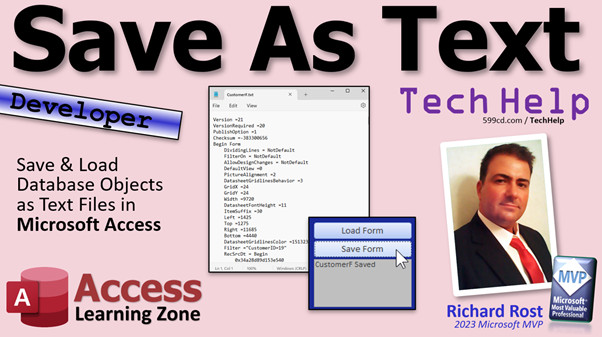
access 2016, access 2019, access 2021, access 365, microsoft access, ms access, ms access tutorial, #msaccess, #microsoftaccess, #help, #howto, #tutorial, #learn, #lesson, #training, #database, SaveAsText, LoadFromText, save as text, load from text, export database objects, save database objects, export forms, export reports, transfer form, send form, send report object
 Subscribe to Save As Text
Get notifications when this page is updated
More InformationTranscript In today's video, I'm going to show you how to save database objects like forms and reports as text files in Microsoft Access. You can save a form as a text file, send it to someone else (like in an email), then they can load it back up into their database and voila, there's a copy of your form.
Why would you want to do this? Let's take a look at one example.
Today's question comes from Andrew in Huntsville, Alabama, one of my Platinum members. Andrew says, "A coworker and I are working on the same copy of a Microsoft Access database, but he's in a different location." I added the copy of, uh, because Andrew and his coworker friend work for the same company but in two different cities. They're using the same database but not sharing data. So they want to work on basically the same database that does the same job for both of them, but they each have their own set of data. They want to be able to share the front ends.
"My company has strict policies that only allow us to send text files from our computers - no attachments, no FTP, and we can't even use thumb drives. I've tried zipping the file and renaming it .text, but they still catch it. We're not breaking any company rules. My boss even said it's ok. However, it's up to us to figure out a workaround. The IT guys are of no help."
Of course they are. IT guys hate Microsoft Access. They hate Access with a passion. I don't know why, but they do.
"Is there anything you can think of? We make little changes to forms or reports every now and then and we'd like to be able to share them."
What you can do, Andrew, is take an object, or all your objects if you want, and save them as text files (literal .txt files). You can either send those files as attachments (if you're allowed to) or you can just copy and paste the text itself into an email and send it.
Let me show you how.
Before we get started, this is a developer-level video.
What does that mean? You're going to need to use a little VBA.
How little? One line of code will do it. One to save and, of course, one to load. We're going to put a couple of extra little things in there, but if you haven't programmed in VBA before, go watch this video. It'll teach you everything you need to know to get started in about 20 minutes. You'll find a link down below. Click on that, watch it, and come back.
Here I am in my TechHelp Free Template. This is a free database. You can download a copy off my website if you want to, but if you watched my Intro to VBA video, you know that already.
Let's say I'm working on my customer form and I made a couple of changes and I want to send it to Captain Kirk on the Enterprise, but I have to send it by text because that's the only thing that goes, the only thing that transmits through subspace.
On the main menu, let's use this button here, Design View. I'm going to repurpose this button. Let's call this Save as Text.
Here's my little status box. If you don't know how the status function works, I cover that in the video where I build this guy. I'll put a link to that video down below as well.
Right-click, Build Event. That'll load up my code editor. I'm right down here in my Hello World button click. We don't want to status Hello World. We're going to save the file here.
Now, how do we do it? We're going to use the command Save as Text. Space. Here's a list of all the different things you can save as text. Lots of stuff - tables, queries, forms, reports, database property, all kinds of stuff in here.
For today, we're just going to focus on forms. The two big things that people always want to send back and forth are forms and reports. So AC form.
What is the name of the object? Let's do CustomerF. That's my customer form.
And then a file name. Where do you want to save this file to? I'm just going to save it on my desktop. There's the folder: C users Amaker Desktop customerF.txt. That's where we're going to save that file.
When we're done, that's the one line that you need. When we're done, I'm going to say Status. That's my little status box. CustomerF saved. Then I can give you a beep.
Save it. Come back over here. Close it. Save it. Close it. Whenever. Open it up. And close it.
All right. Ready and go.
CustomerF saved. Let's go to our desktop and see what we got. Now look at that. CustomerF.txt. Let's open this guy up. Let's see what we got here.
Look at that. There you go. There's all the stuff that Access needs to recreate that form in text format. I don't recommend making changes to the text. You can easily mess things up and then it won't rebuild.
But there you go. There's how you save it as a text file. Now you can just send that text file, or you can select all this text and put it in an email if you want to.
How do we load it back in? Design view. Let's copy this button. Copy, paste. Slide you up here. We'll do Load Text. Or "Load from Text" is the command. Let's keep it the same.
Give your button a good name. I forgot to do it with this one because it's Hello World button. Change it, obviously, or Alex will yell at you. Load button. Whatever you want to call it.
Right-click. Build event. Very similar to this one. I'm going to just copy that. Come down here and let's paste it in.
Instead of Save as Text, it is Load from Text. Same stuff. AC form CustomerF file name.
In fact, for this, let's just call it Customer2F, just so you can see they're different.
Customer loaded.
It's always good to throw in a Debug Compile once in a while.
Close it. Open it up. Let's load it up.
And there it is. Customer2 pops right over here. Look at that. Copy of it. Same. It's a beautiful thing. It's that simple.
At this point, people always ask me, can you make a drop-down box that has all the forms in it, so I can just pick one? Or all the reports? Whatever.
Absolutely you can. I've already covered that in this report list box video. In the free video, I show you how to make a list box that's got reports. You specify which ones you want to have in there. Then you click the Print Report button; it opens it up.
In the extended cut for the members, I teach you how to loop through the different reports in the database in code, so you can loop through all of them. You can exclude the system reports, any system objects. The same technique works for forms - it is nearly exactly the same thing.
If you want to learn how to do that, then go watch this video. Members only, of course. I have so many videos in it. I have hundreds of extended cuts now. There's tons of stuff. Your membership is well worth it.
If you like this stuff, if you like learning with me, come and check out my developer lessons. I have hundreds of hours of those too. I've got like 43 levels of developer classes, and a lot of them are like three hours long. So there's lots and lots of stuff to watch.
But that is going to be your TechHelp video for today.
I want to add as a disclaimer, Andrew, that I do not tell anyone this as a way to bypass any corporate rules or regulations you guys may have. But if you are indeed using this and you've gotten approval from your boss already to just be able to send a report or a form object back and forth, then I certainly encourage that.
This is also good for version control too. If there are any changes, you can export your different objects in your database as text files. Then you can very easily just look at that text file and see if there are any changes. If there are, then you'll know which objects have changed.
In fact, back when I was building my Access updater database, this guy, this is used so that if you've got five, ten, fifteen, twenty users on your network all using the same database, if you update your developer copy, you can push out a new front end to everybody with one click. I originally thought of using a text-based method to do this. So if you changed the form, it would just push out just that form, and then the local front end would pull that form in and read the text.
But I decided it was easier just to push the whole front end ACCDB file out to everybody. It was just cleaner. But obviously that requires being on a local area network. For what you're doing, Andrew, you can only use text because you guys are in two different locations.
I'm not trying to help anybody break the rules, but that's how you can share those forms and reports and stuff.
That's your TechHelp video for today. I hope you learned something. Live long and prosper, my friends. I'll see you next time. Intro In this video, I will show you how to save forms and reports as text files in Microsoft Access using a simple line of VBA code. You'll learn how to export a form from your database, send it as a text file or even copy its contents into an email, and then import it back into another Access database. This is a handy solution if you need to share database objects with coworkers in different locations or when company policies only allow sending text files. I'll also discuss when you might want to use this technique for version control or sharing objects between front end databases. Quiz Q1. What is the main purpose of saving Access database objects as text files?
A. To share forms or reports with others in environments with strict file transfer policies
B. To create backup copies of the database data
C. To reduce the file size of the Access database
D. To convert forms into readable HTML documents
Q2. In what situation did Andrew need to save database objects as text files?
A. He wanted to change his office location
B. He and a coworker in different cities needed to share front end objects without sharing data
C. His company required all forms to be saved as PDFs
D. He needed to migrate his database to SQL Server
Q3. Which VBA command is used to export an Access form as a text file?
A. ExportAsText
B. SaveAsText
C. SaveFormToFile
D. BackupFormText
Q4. Why is it not recommended to manually edit the text file created by exporting a form?
A. The file is encrypted and unreadable
B. Manual editing can easily corrupt the file and prevent successful re-import
C. The text file is only meant for backup purposes
D. It is illegal to edit Access object definition files
Q5. What is the corresponding VBA command to import a form from a text file?
A. ImportFromText
B. LoadFromText
C. UploadFromFile
D. ReadAsText
Q6. According to the video, which types of objects can you export and import as text using this method?
A. Only queries and tables
B. Only forms and reports
C. Forms, reports, tables, queries, and other database objects
D. Only macros and modules
Q7. What is a benefit of exporting Access objects as text files, in addition to sharing them?
A. Facilitates version control by allowing you to compare changes in objects
B. Automatically updates related tables
C. Changes the data structure automatically
D. Makes objects load faster in Access
Q8. What is a good practice after updating VBA code in the context of exporting or importing objects?
A. Always delete the old code module
B. Run Debug Compile to check for errors
C. Close Access immediately
D. Restart your computer
Q9. What limitation led Andrew and his coworker to seek a text-based sharing method?
A. They did not have Access installed on their computers
B. Company rules prohibited sending Access files, but allowed sending plain text
C. They could only share files over FTP
D. They needed to collaborate in real time
Q10. If you wanted to create a user-friendly way to select objects to export or import, what could you use based on the video recommendations?
A. A text box for manual input
B. A drop-down (combo) box or list box showing object names
C. A PDF generator tool
D. Microsoft Word mail merge
Answers: 1-A; 2-B; 3-B; 4-B; 5-B; 6-C; 7-A; 8-B; 9-B; 10-B
DISCLAIMER: Quiz questions are AI generated. If you find any that are wrong, don't make sense, or aren't related to the video topic at hand, then please post a comment and let me know. Thanks. Summary Today's TechHelp tutorial from Access Learning Zone covers how you can save database objects such as forms and reports as text files in Microsoft Access. This method allows you to share your database objects with others by simply sending the object in a text format, which can then be imported into another Access database.
Let me share an example to demonstrate why this technique can be useful. Suppose you and a coworker are maintaining separate copies of the same Microsoft Access database in different locations. You're not sharing data, but both databases perform the same functions for your company. From time to time, you make changes to the front end - things like forms or reports - and want to be able to send those updates back and forth.
Sometimes company policies are strict and may only allow you to send text files between computers. No attachments, no FTP, and no flash drives. Even renaming or zipping database files might still trigger security filters. However, management says it's fine for you to exchange database objects as needed, so you just need an effective workaround.
One way to accomplish this is to export your database objects as text files. Access provides a way to save objects in a human-readable text format. You can generate a text file for your object and then either send that file directly or copy and paste its contents into an email.
Before getting started, it's important to note that this is a developer-level topic. You will need to work with a little VBA code. It only takes a line or two of VBA to save or load a database object as a text file. If you have never used VBA before, I recommend my introductory tutorial that walks you through the basics in about 20 minutes. You can find a link to it on my website.
Let's walk through the process using my TechHelp Free Template as an example. For demonstration, let's say I've updated a customer form in my database and want to send it to someone, but the only way to transmit files is through text.
You can set up a button in your database's main menu labeled "Save as Text." This button will run a bit of VBA code that uses the Save as Text command. The command lets you specify the type of object (for instance, a form or report), the object's name, and the location and filename where you want to save the text file - such as saving "CustomerF" as "customerF.txt" on your desktop.
After the file is saved, you can open it with a text editor and see all the information Access needs to rebuild the form. It's best not to manually alter anything in the text file because changes can easily break the import process. Instead, simply send this file, or just copy and paste the contents, to your colleague, who can then import it into their copy of the database.
To load the text file back into Access, you set up another button, perhaps "Load from Text," and attach similar VBA code. This time you use the Load from Text command, specifying the type, new object name (if desired), and the file path. When run, Access will recreate the form or report in your database under the name you provide. You can use this method to create a copy, such as naming it "Customer2F" to keep it separate from the original.
Many students ask whether it's possible to create a drop-down box listing all forms or reports so you can pick and export any of them. That is certainly possible, and in one of my other video tutorials, I show how to set up a list box that lets you choose from your reports and open them easily. For those interested in more advanced techniques, in the Extended Cut of that video, I demonstrate how to loop through all the reports or forms in your database using VBA, excluding system objects if you prefer. The same code applies to forms as well.
If you enjoy these kinds of developer-level lessons, be sure to look into my full set of developer classes. There are over 40 levels packed with many hours of great content to help you become a Access expert.
A quick disclaimer: This method is not intended as a way to bypass company security restrictions. Only use it if you have permission from your management. However, this export technique is also great for version control. You can export forms, reports, or other objects so you can easily compare versions and track changes.
Interestingly, when I developed my Access Updater Database for managing app updates, I considered using text exports for distributing object changes to multiple users on a network. Ultimately, I opted for updating the whole front end ACCDB file, since it's simpler on a local network. However, for situations like Andrew's, where individuals are in remote locations, exporting and sharing text files is a practical solution.
That's everything you need to know about exporting and importing Access objects as text files. If you want to see this step-by-step, I encourage you to check out the complete video tutorial on my website at the link below.
Live long and prosper, my friends. Topic List Saving Access forms as text files using VBA
Saving Access reports as text files using VBA
Selecting the object type in SaveAsText command
Specifying the object name in SaveAsText
Specifying the file path for SaveAsText output
Exporting a form to a .txt file from Access
Opening and viewing exported Access object text files
Importing forms back into Access from text files with VBA
Using the LoadFromText command to load objects
Renaming forms when importing via LoadFromText
Using status messages to show save or load results
Sending database object text via email for sharing
Limitations and risks of editing the exported text manually
Using exported text files for basic version control
Use cases for sharing Access objects between locations Primary Topics Microsoft Access, export database objects, forms, reports, VBA automation, SaveAsText, LoadFromText, text-based sharing
Secondary Topics version control, developer tips, member content overview
|




