Web API
By Richard Rost

 3 years ago
Retrieving Real-Time Data Using a Web API in Access
In this Microsoft Access tutorial, I'm going to teach you how to use a little VBA code to go out to the web and retrieve data using something called a Web API. The example we're going to use today involves going out to an internet time server and getting the exact time, but this technique can be used for tons of different things, including interacting with ChatGPT.
Members
There is no Extended Cut, but here's the database for the Gold members.
Silver Members and up get access to view Extended Cut videos, when available. Gold Members can download the files from class plus get access to the Code Vault. If you're not a member, Join Today!
Prerequisites
Links
Code Vault Links
Recommended Courses
Keywords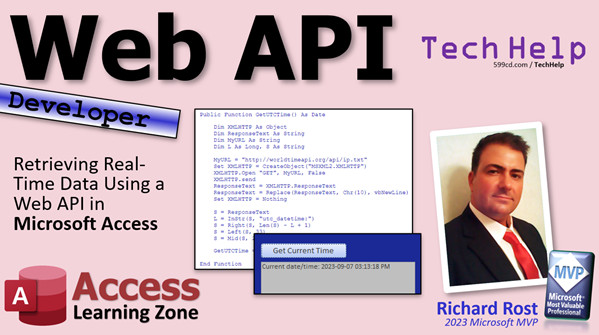
access 2016, access 2019, access 2021, access 365, microsoft access, ms access, ms access tutorial, #msaccess, #microsoftaccess, #help, #howto, #tutorial, #learn, #lesson, #training, #database, Retrieving Real-Time Data, Web API, Data Retrieval with VBA, Real-Time Data Access, Web API in Access, Microsoft Access Web API Tutorial, Access VBA Web API Example, Web Data Integration, Access Data from Internet, Microsoft Access Time Retrieval, Internet Time Using VBA, Access Web Data with VBA, ChatGPT Integration, Real-Time Data Access with Access, Access VBA Web API Fetch, Web API Data Retrieval in Access, VBA Code for Web Data Retrieval, Access External Data, Microsoft Access Data Integration, Internet Time Retrieval Tutorial, Access Web Data Fetching.
 Subscribe to Web API
Get notifications when this page is updated
More InformationTranscript Today's video is a good one. I'm going to show you how to retrieve real-time data using a web API in Microsoft Access.
All right, what is a web API? Well, it stands for web application programming interface. A web API basically lets you exchange information with a website. You can send requests. You can send data. You can get information back from them. Lots of different sites have APIs: Google, GitHub, Amazon, Microsoft.
In fact, a little while ago, I showed you how to send text messages using Twilio. I'll put a link to that video down below. But even if a site does not have an API, you can still use this technique to get information from any web page. If there is a site out there you want data from, you can just request it and it will bring it back.
Now, in the near future, we are going to be doing some lessons using Chat GPT and the OpenAI web API. So we are going to be able to talk to Chat GPT from Access. That is going to be really cool. But today, I'm going to show you just how to send and receive information over the web.
Today, we're going to use an Internet Time Server website to get the current time. You're going to send out a request and it is going to return the current date and time. This is also a cool technique in and of itself because you can use this for your employee time clock. This way, your users cannot cheat their time clocks by changing their system clock. When they clock in, their system is going to go right out to the time server, get the time, and bring it back.
Now for this, I am going to be recycling a member video. I did cover this topic about three years ago for the members in an extended cut. Why am I recycling? Well, it is good to recycle. Why reinvent the wheel? I have already done this. It has been three years and I rightfully predicted in this video three years ago that this would be the way of the future. And it is. Everything is moving online. You are going to have to learn how to do this eventually to work with data online.
I also want you to see some of the cool stuff that the members got. They got this three years ago. So you are just getting it today. Yet another reason to sign up.
All right. Now, even though this video is three years old, everything in it is still valid. I just tried everything. Everything works. The website we are going to go to, which is worldtimeapi.org, has changed their interface a little bit, but all the code that I give you in this video works just fine.
This is, of course, a developer lesson, so we are going to be using some VBA. Here it is. If you have not yet watched my intro to VBA video, go watch that first. It is about 20 minutes long. It teaches you everything you need to know to get programming in VBA.
So sit back, relax, enjoy, build this database yourself and save the code because I am going to be doing a bunch of new videos in the near future on how to use this to get other information from the web, including Chat GPT.
All right. Ready? Here we go.
HOWDY MEMBERS. Welcome to the Daylight Saving Time members-only extended cut. I'm going to show you how to go out to the internet and get the time from an internet server. The one I'm going to use is worldtimeapi.org. Although there are a lot of different ones, I went through a couple of them and this was the easiest one. It looks really cool. It is easy to pull information, and I like it.
If for some reason they stop working in the future, it is only a couple of lines of code for you to manipulate it and to use a different server. But this is a pretty good one.
If you go out to their site, worldtimeapi.org, you get the page here. You can read all about it. There are different examples, different things you can do. You can specify a time zone if you want to. You have got to just format the URL differently. You can specify the time zone, the location, the region. You can get it in JSON or plaintext. We are just going to do plaintext.
All right. What we are going to do today is we are going to use our IP address. Our public facing IP address generally tells the internet server where you are. In my case, it works just fine. But if that does not work for you, sometimes if you are on a cellular network or if you are part of a virtual network, you might have to specify the location in your URL.
But for us, all we have to do is copy it from my other clipboard here. Copy. All we have to do is format our URL like that.
All right. Their site, API, and then ip.txt, hit enter, and that is what it returns. OK. It returns based on your IP address. It knows where you are. Here it knows I am American, New York times, oh, I am in Florida. So that is correct.
It knows my UTC offset right now is minus four because as of this minute, daylight saving time is active. So I am GMT minus four. In a few hours, I will be GMT minus five.
But really, all we have to do is have Access get this information, which I will show you in a minute, and then read this line right here, the UTC datetime. It has got the year, month, day, and then a T, and then the hour, minute, and seconds. We are just going to ignore everything on the end of that. That is literally what we are going to do today is write this code. It is not that hard.
Here I am, blank database. Create a form. All right. It does not need to be anywhere near this big. Shrink it down. I have to put some color on my new stuff. All right. We will just go with purple.
OK. Now I need a button. Right here. Cancel the wizard. Get time. And then I am going to need a text box to store that time in. So design text box, and we will drop it right there. Get rid of the label. We will make this nice and big. I am going to make this bigger than I need it for now just to show you everything that is in it, because there is a bunch of stuff. I am going to make it really big right now. We will shrink it down in a bit.
I am going to call this guy - what do we want to name this? Let us call this UTC time. OK. I am going to make this guy just slightly gray so the user knows there is nothing to be typed in there. This is just stuff that is being returned.
All right. Let us save this as my UTC form. Like I said, this is a good solution if you want to prevent your users from manipulating your system clock too, because they will have no control over where it gets the time from.
OK. Right click, build event. Now, you could do this with as little as like six or seven lines of code. But I am going to expand it a little bit just to make things easier. Now, some of this is going to be new for you.
All right. We are going to use XMLHTTP, which is a means by which Access can actually create an object that is essentially like a web browser in memory. It is not a real web browser. But basically, it allows Access VBA to go out to the internet, request a page, and pull it back.
All right. It is super simple. You just have to know the right lines of code. First, we have to dim xmlHTTP as an object. What kind of an object? Do not worry about it. I am not going to go into all the details about everything involved. Just, it is an object. It is a block of memory out in the computer that Access will do certain things with.
All right. Then we are going to dim a responseText as a string. When I go out to the internet and pull some information back, it is going to be stored in responseString. And then ultimately, we will drop it in our form. But I am going to keep it in responseString because I am going to do some manipulation with it.
OK. Dim myURL as a string. That is where we are going to store the URL that we are calling. We are going to need a couple other temporary variables. Dim L as a long S as a string.
What else do I have in here? Yes, I wrote this up ahead of time because this is one of those things that I know. I have done it a million times, but I do not know it well enough to do it off the top of my head. Like recordsets and all that stuff, I could do off the top of my head. This I have done, honestly, probably maybe a dozen or so times. I have used it in other applications before. So I am kind of copying some code that I wrote up previously.
Then I declared some different variables for different steps along the way. Like, we are going to get back that big block of text here, and I want to store this in the responseText. Then I am going to whittle this down and just grab that out of there with some string manipulation functions. So I have got a couple of different variables in here that I declared, then UTCDateTimeString as a string, I am going to get FormattedDateTime as a string, and then Dim FinalDateTime as a date.
Actually, I am not going to use that date one. Do not worry about the date one because we are just going to store that value in here. I wrote it that way because you can write this up as a function too. I have it written up as a function, so you can just return that. But we are just going to drop it in the form for now.
All right. First, let us set the URL. So myURL equals http://worldtimeapi.org/api/ip.txt. That is right from them. That is the page I just took you to, this guy, that gets the time information. You can pull anything off of here you want to. If you want to find out what time zone your IP is in, there you go.
All right. Here is a line of code you are just going to have to know: Set XMLHTTP = CreateObject and then it is, in quotes, MSXML2.XMLHTTP. All right. You just have to type that in. I would not remember that off the top of my head either.
Essentially, we are telling Access, create me an object of this type. And that type is what you use to connect to an HTTP server.
OK. Now xmlHTTP.Open "GET", myURL, False. All right. That says, open the connection that I just declared. There is GET and there is POST, the two ways of working with either getting or posting HTML forms or just requesting. GET basically is to request a URL just from the query string. POST is for HTML forms. Again, this is not a web class. I just want you to know the difference briefly. You are going to send the URL there.
And then False. I forget what False is, to be honest with you. I know I use, I pretty much always use it. The problem is, with creating an object here, you do not get that Intellisense, that helper thing.
I just looked it up. I remember now. This is whether it is asynchronous or synchronous. All right. False means it is synchronous, which means the program execution is going to stop and wait for the value to be returned. If you set that to True, then the code will continue and you will have to have what is called a callback function so that when the data is actually finally received, it can process it, but it will have to be a different function. It is a little more complicated process that way, like AJAX on the web.
Like Facebook has a Like button. When you click on that Like, it transmits a signal off to the server to set the Like value in their database. You can keep doing other stuff, and a second or two later, when the data is actually acknowledged, it returns a value to that button to change to a thumbs-up or whatever. That would be an asynchronous communication. But False means we are doing this synchronously, which means at this point it is going to sit and wait for the time server.
If the service is not running this may time out. That is always a problem. But you have to just go with a reliable service.
All right. Now we are going to send the data. We have opened the connection. Now we are going to xmlHTTP.Send. That sends the information and it is going to sit here and wait now.
OK. Then when it is received, we are going to say responseText = xmlHTTP.responseText. In other words, put in my local responseText variable what the xmlHTTP object returned from the web.
OK. Now, this is something I added myself. When you get that string back from the web, it is going to not have a normal VB newline on the end of each line, which is a chr(10) and a chr(13). So I am going to replace the chr(10)s with a VB newline. I am just basically adding the right stuff at the end of the line so Access can process these as full lines.
So responseText = Replace(responseText, chr(10), vbNewLine). I am replacing their end line character, which is just a chr(10), with a VB newline, which is basically chr(10) and 13. That is all that is. We are going to quickly read it and deal with it in Access.
Now we are done with the internet. So Set xmlHTTP = Nothing. Destroy the object. Clear the memory. Get it out of there.
OK. There are ways to set timeouts in here in case this times out after 15, 30 seconds, whatever. I am not going to go into that much detail. This is supposed to be just a quick way to get the time. If you have problems and want me to see more of this, let me know. I have been thinking about putting together an API class, like a whole seminar on how to get and send information to different servers. There is lots you could do with this, all kinds of different stuff. This is definitely the future. The way to transmit information is through web APIs.
OK. Now I am going to put responseText into a local variable S. That is why I declared S. S = responseText. Why? Because it is shorter. It is easier to work with because I am going to be doing a bunch with it as you will see in a minute here.
And actually, down here on the bottom, let us drop into my UTC time what we have got so far, just so you can see it. I am going to say UTC time = S, just so you can see how this works.
Ready? Open it up and then get time. Boom. There it is. That is it. That simple, that easy, that code. All this right here generated that. It went out to this URL.
In my first version of this, in fact I have got another database that I use. I have got my URL as a text box up here. I will show you the other one I got. Where is it? Here. Right there. Same thing. This is the first version that I built. It turns it here and then I format the date time string differently, which is what we are going to be doing in a second.
All right. I am going to isolate this line. Then I am going to format that date time like this by just manipulating the string and then I converted it into an actual Access date time down here. Same thing. This is the first version that I built. I wanted to make sure I got this right before I did all this with you so I do not waste your time.
Sometimes I run through stuff the first time with you just because I am going off the top of my head and sometimes I put together a more prepared lesson for you because I care. Ninety percent of the time when we are dealing with Access, if it is just an Access-alone topic, I can handle it. I have been working with Access for 26 years. I know it inside and out. Coding all that stuff just off the top of my head is no problem. This stuff is relatively new. I have only been doing this with these API calls for a year or two. This is something I still go off my notes for.
OK. Now what I am going to do is figure out where in this string is the data that I want. This is not wide enough. Let me do this real quick: design, because it is kind of misleading because you cannot see the string exactly the way I want you to see it. Let me do this. Make it a little bit bigger.
OK. Do not abuse this by the way. A lot of times these places that do free APIs like this, they will shut off your IP address if you do too many requests. Do not use this and abuse their server and do 5000 requests every hour. If this is just for you for employee log in, log off or some simple stuff, I am sure they are cool. That is why companies like this make this stuff available online for free. If you abuse it, I guarantee you they will shut off your IP address.
Next, we are going to locate where in this string this is, this UTC datetime. That is what I want. I chop everything off before that. That is why I declared that L because here is my next line of code:
L = InStr(S, "utc_datetime:")
Find out the location of that spot right there. Once I know where that is, then I am going to say
S = Right(S, Len(S) - L + 1)
What does that mean? Take the rightmost characters of S. How many? Well, the length of S is the whole thing, minus L, which is this position, plus 1. So, chop off everything but that, basically. Give me that many characters from the right. The whole length minus that.
Now I can take the left 33 characters off of that. Why 33? Well, because this, right there to here, is all I care about. I want those 33 characters. How many characters are there? 33 characters. So that says,
S = Left(S, 33)
So now I am left with just that in my string.
All right. Let us set it now. Here. Hit the get time again. Ready? Boom. That is what I got left. See? We are getting there. We are whittling it down.
Now that I have got that, here comes the next line of code. I am just copying off my other database because why not. And there.
FormattedDateTime = Mid(S, 20, 2) & "/" & Mid(S, 23, 2) & "/" & Mid(S, 15, 4) & " " & Right(S, 8)
So, find character 20. Month is right there, 20, 2. Day is 23, 2. Year is mid S, 15, 4. If you are in Europe and you want to do it day, month, year, just flip those around. And then the time is the right 8 characters. Once you have got that, actually I am just going to say we do not need formatted date time, do we? No, we do not.
Let us get rid of that. And we do not need UTC date string. Do we? No, not really. Get rid of that too. We could just say here, we could just say
S = Mid(S, 20, 2) & "/" & Mid(S, 23, 2) & "/" & Mid(S, 15, 4) & " " & Right(S, 8)
Fit all that on one line. That should work.
All right. Save it. Get time. Boom. I used extra variables in my code because I was setting things like, you know, all kinds of crazy stuff, setting other fields and stuff. But you do not need to do all that.
In fact, what you could do now is you could say
UTC time = CDate(S)
and it will make sure S is formatted as a proper date. There you go.
All right. It is currently 11. See, it is 7, 8, 9, 10, 11. Yeah. We are four hours behind UTC.
Now we do not need this big gigantic field. I just wanted to put that in there to show you all the stuff. Right. Now the data that is in this field is stored as an actual time, a time value, date time value, because we formatted it using CDate. It converts the string to a date.
So now I just hit the date, get time. Boom. There it is. No matter where you are, no matter what time of day it is, it is going to go out to the internet and get the time off of the data server. If you want to change your time server, go right ahead. Same techniques will apply.
All right. There is the code. It is pretty easy. If you want to turn this into a function, just do this. Watch this: say, Public Function GetUTCTime As Date
Then take all of this stuff, cut it out, paste it up here. Right here, with the return of value as date. Actually, I am going to copy this down here so I do not forget it. Here, change this to that, so the value of the function GetUTCTime is right here.
So now in your button, and you can put this in a global module if you want so your whole database can use it. Like I said, do not abuse it.
All right. Now you just say
UTC time = GetUTCTime
just like that. Save it, and it works.
Yes, I will put this in the Code Vault for you. I will put a link to it in the description below the video.
There it is. I put it in the Code Vault. A lot of people ask what the Code Vault is because I show it all the time. It is basically a repository I am saving of all the different projects that I have been building over the years. Not ready for primetime release yet. I am going to make it a subscription-based service where there is all kinds of stuff in here. There is tons of Access VBA, there is generic VBA. It does not look like a lot yet, but I have lots and lots of stuff that I have not added here yet, ASP, and yeah, you will be able to access all of this for a little monthly fee.
But some of it is going to be free, like the stuff I just put in here for this class in the free video. So it is in here. I will put a link in the description below. It is just get UTC time as the URL, or you just type it in. Do not be lazy. Just type it in. I am just kidding. I copy stuff too.
Want to send a shout out to World Time API. They will probably never see this video because it is a members-only cut. But if you use their service, I strongly recommend you give them a couple bucks, donate. It costs money, servers, all that stuff, and just to show appreciation. You can tell them I sent you.
I will probably do some additional API lessons in the future because this is pretty cool stuff. It is the way of the future, and it is an easy way for you to not only get, but also to send information from your Access database.
I have done other lessons in the past where I have used the web browser control, where you can actually load a form in an Access web browser, fill it in with JavaScript, and then post it back up by hitting the send button. That is the old school method of doing it. The new way is with APIs and JSON and all kinds of cool tricks now that you can use.
I will be covering that more, probably more in my developer lessons, but maybe I will do a couple of TechHelp videos for it too. It is a lot more advanced than the average Access user is ever going to use, so there is not a lot of demand for it. But I thought while I was covering a lesson on daylight saving time and internet time and all that stuff, I would throw this in there for you guys.
All right. So that is it. I hope you learned something. That is two today. You guys got two members videos today, which is good because that is going to have to hold you over for a couple days. I have to work on my Access Developer 18 class tomorrow and the next day, so we are not going to get another new members video. Probably let us see, today is Sunday. No, today is Saturday. Probably until like Tuesday or Wednesday, I will release another one.
I am going to be doing progress bars with recordsets in my Developer 18 class, and I was thinking I might do a simple progress bar release for a free TechHelp and I will give you guys a little bit more information. The actual progress bar with recordsets is going to be a long lesson. So we will see how that goes.
Anyways, have a good night. Happy Halloween and take it easy. We will see you next time.
So there you go. That is how you get data from the web using a web API. In future videos, we are going to do a lot more with this. Again, make sure you visit World Time API, and if you are going to use their service, give them a few bucks. Make a donation.
All of their examples, by the way, used to be on the homepage three years ago. They moved them up here to examples, and there are all the different ways you can interact with their data.
If you want to watch the original videos where I built that time clock, here is the daylight savings one. This is where I cover the internet time server for the members. Here is the video in the extended cut where I show you how to send SMS messages through the Twilio API. Again, that is in the member-only video.
If you want to learn a lot more about it, I cover web APIs in more detail in my Access Developer Level 32 class. I show you how to FTP a file up to a web server. I show you how to build a currency conversion database. These were TechHelp videos, but here I show you how to get the rates from an API and get the current currency conversion rates from the web. What is the current and the conversion right now? Well, that is what we are going to do in this class.
All right. So there you go. There is your TechHelp video for today. Like I said, coming up pretty soon, Chat GPT. We are going to use Access to send queries out to Chat GPT and ask it stuff and bring that data back into our database. Eventually, we are going to learn to talk to it to be able to get it to do stuff in our database in real, like, English. So it is going to be cool. I have got a whole bunch of lessons planned. A lot of it is going to be free. So stick around.
There is your TechHelp video for today. I hope you learned something. Live long and prosper, my friends. I will see you next time. Intro In this video, I will show you how to retrieve real-time data from the web using a web API in Microsoft Access. We will discuss what a web API is, how to use VBA and the MSXML2.XMLHTTP object to make requests, and walk through a step-by-step example connecting to worldtimeapi.org to fetch the current date and time. You'll learn techniques for extracting and formatting the data in your Access database—perfect for solutions like employee time clocks where you need a reliable, server-based timestamp. Quiz Q1. What is the main purpose of using a web API in Microsoft Access as demonstrated in the video?
A. To exchange information with a website, retrieving or sending data
B. To create local backups of Access databases
C. To manage user permissions in Access applications
D. To automate printing of Access reports
Q2. Why might you want to get the current time from an internet time server rather than using the system clock on a computer?
A. To prevent users from tampering with their local system clock
B. Because system clocks are always synced to the internet
C. To avoid daylight saving time changes
D. Because internet time servers always display local time
Q3. Which tool or technology did the video use in VBA to request and retrieve data from a web API?
A. MSXML2.XMLHTTP object
B. Access Web Browser Control
C. ODBC Connection object
D. Excel Web Query
Q4. What happens when you set the asynchronous parameter in the xmlHTTP.Open method to False?
A. The program waits for the response before moving on
B. The program immediately continues and does not wait for a response
C. The program will not send any requests
D. The request is canceled
Q5. What is the advantage of retrieving time from worldtimeapi.org for an employee time clock system?
A. It prevents employees from faking clock in and out times by changing their local system clock
B. It allows employees to choose their own preferred timezone
C. It retrieves only the date but not the time
D. It stores time data in a proprietary format only Access can read
Q6. Which method is used to initiate the HTTP request with the xmlHTTP object?
A. Open
B. Run
C. Request
D. Fetch
Q7. In the video, what was the approach used to extract the desired date and time information from the response text?
A. String manipulation functions like InStr, Right, Left, and Mid
B. Deserialize JSON into an object
C. Use a regular expression to find dates
D. Search for XML nodes directly
Q8. If you wanted to pull the time for a specific time zone from worldtimeapi.org rather than using your IP address, what would you need to do?
A. Specify the timezone in the URL you request
B. Change your system clock
C. Convert the returned time manually
D. Use a non-API web page
Q9. What could happen if you abuse a free web API service by sending too many requests in a short time?
A. Your IP address could be blocked by the API provider
B. The API will automatically convert your requests to a paid plan
C. You will receive every third request as blank data
D. The API provider will increase your rate limit
Q10. What is the main role of the statement Set xmlHTTP = Nothing in the VBA code?
A. To release the memory used by the xmlHTTP object
B. To initialize a new HTTP request
C. To convert the response to a date value
D. To display the data in a text box
Q11. What does the Replace(responseText, chr(10), vbNewLine) line accomplish in the code?
A. Converts line endings so Access can process the text properly
B. Translates the text from one language to another
C. Removes all whitespace from the response
D. Changes the time format from UTC to local time
Q12. Why does the code ultimately convert the extracted date and time string using CDate(S)?
A. To ensure the value is recognized as an actual date/time type in Access
B. To create a string output for printing
C. To encrypt the date for security
D. To convert the value to GMT
Q13. What is a potential benefit of turning this VBA logic into a public function in a global module?
A. The function can be reused across multiple forms and modules in the database
B. It will automatically be called whenever the database opens
C. It converts all string fields into date fields
D. It allows the database to update itself over the internet
Q14. Which of the following is an example of a synchronous web API request?
A. The code halts execution and waits until data is returned before moving on
B. The code continues running and processes the result in a callback later
C. No connection to the web is attempted
D. The response is cached for offline use
Q15. According to the video, how does the IP address relate to determining the correct time in the time API call?
A. The API uses the public IP address to infer your location and timezone
B. The API ignores the IP and always returns UTC
C. The IP address determines the language of the response
D. The API only works if you specify a password in the request
Answers: 1-A; 2-A; 3-A; 4-A; 5-A; 6-A; 7-A; 8-A; 9-A; 10-A; 11-A; 12-A; 13-A; 14-A; 15-A
DISCLAIMER: Quiz questions are AI generated. If you find any that are wrong, don't make sense, or aren't related to the video topic at hand, then please post a comment and let me know. Thanks. Summary Today's TechHelp tutorial from Access Learning Zone focuses on how to retrieve real-time data using a web API in Microsoft Access.
To start, let's talk about what a web API is. The term stands for web application programming interface. Essentially, a web API is a set of rules that allows you to exchange information with a website. This means you can send requests, provide data, and receive information back in return. Many companies such as Google, GitHub, Amazon, and Microsoft offer APIs. In the past, I demonstrated how to use Twilio's API to send text messages, which you can find linked on my website.
Even if a website does not officially provide an API, you can often still use these same tools to retrieve data from its web pages. If you have a site in mind from which you want to collect data, you can send a request to it and bring the information back into Access.
Looking ahead, I'll be offering lessons where we interact with Chat GPT using the OpenAI web API, allowing us to communicate directly with Chat GPT from within Access. That will be an exciting development. But for today, our focus will be on the fundamentals of exchanging information with a web server.
For our example, we'll use an Internet Time Server, specifically worldtimeapi.org, to retrieve the current UTC date and time. This technique has practical uses, such as implementing an employee time clock that relies on a trusted internet source rather than a user's potentially manipulated system clock. When employees clock in, your database can retrieve the server time directly, preventing time fraud.
This topic was initially addressed in a members-only video I released about three years ago, and I predicted then that online data interaction would become key for Access users. That has proven true, and it's important to master these techniques. Also, it demonstrates the value of a membership, as this information was available to members long before being released to the public. Even though the video is a few years old, the essential code and methodology remain valid. The website we use, worldtimeapi.org, has altered its interface slightly, but the method I provide still works without modification.
This lesson is developer-focused, so we will use a bit of VBA. If you're new to VBA, I strongly recommend watching my Introduction to VBA video first. It is around 20 minutes long, covering the foundational knowledge you'll need.
Here's how the process works: In Access, create a simple form. Place a button labeled "Get Time" and a textbox to display the retrieved time. The textbox serves only to show information, so you might want to format it in gray or another color to indicate users should not enter data there.
Save the form, perhaps calling it "UTC Form." This approach is especially useful because it prevents users from tampering with clock-in or clock-out times, as the information comes directly from a trustworthy server.
Now, the core of the method relies on the XMLHTTP object. This object is provided by Windows and lets VBA in Access make HTTP requests, acting like a web browser in memory. With the right set of commands, Access can reach out to any web page or API and pull back the data you need.
First, you'll set up a few variables, including xmlHTTP for the object handling the request, responseText to hold the server's reply, and myURL for the URL to call. Other variables will help parse and format the response.
The time server's URL we'll use is http://worldtimeapi.org/api/ip.txt. When this address is accessed in a browser, it returns plain text showing the current time and other relevant information. The IP address helps the server determine your geographic region and time zone. If the automatic detection does not work, you can format the URL to specify the region or time zone explicitly.
To get the data, create the XMLHTTP object and open a connection using the "GET" method, providing the URL and setting the request to be synchronous. This means Access waits for the response before continuing. Using a synchronous request ensures that your code does not move forward until the data has arrived, which keeps things simple.
Send the request, wait for the reply, and then store the incoming data in your responseText variable. There is a small quirk: the newlines returned by the server may be character 10 only, but Access expects a different combination for new lines. So, you can replace the newline characters in the response for better readability and processing.
Once you've pulled back the data, you can destroy the XMLHTTP object to free up resources.
The next step is to extract just the piece of information you want from the response. In this case, you are looking for the UTC datetime value. Use string functions to find where this line starts in the response, then extract that section. More string manipulation lets you isolate the specific date and time information.
If needed, you can format the extracted string into a typical date-time value and convert it with CDate so Access can work with it as an actual Date type rather than a string.
You might choose to encapsulate this code in a function, such as GetUTCTime. By creating a public function in a module, you can reuse this code anywhere in your database, such as assigning the returned value directly to a textbox or field. Just remember not to overload the server with frequent requests, as excessive use might get your IP address blocked.
I've made the source material for this lesson available in my Code Vault, where I keep a library of Access VBA projects and other materials. Some resources are free, while others will eventually require a small subscription fee. For now, you can get this code for free by following the link in the video description.
World Time API provides this great free service, so if you use it regularly, consider making a small donation to help them cover operating costs.
Web API interaction is the direction that much of modern data processing is headed. In future lessons, I plan to cover more advanced projects, such as sending and receiving other types of online data, including integrating with Chat GPT. I'll also cover topics like building a progress bar with recordsets, uploading files via FTP, and performing currency conversions by fetching real-time rates from a public API.
Some of these more advanced lessons are part of my Access Developer classes, such as Level 32, where I cover working with APIs, file uploads, and dynamic data retrieval in detail.
To sum up, today's video showed you how to get data from a web source using a web API in Access. With this technique, you open the door to a whole world of possibilities, from employee time clocks to live web data integration. Stay tuned for more lessons, including interacting with AI services like Chat GPT directly from Access.
You can find a complete video tutorial with step-by-step instructions on everything discussed here on my website at the link below. Live long and prosper, my friends. Topic List Understanding what a web API is in the context of Access
Using worldtimeapi.org to get the current UTC date and time
Formatting URL requests for a web API
Retrieving data from a web API using VBA in Access
Using the MSXML2.XMLHTTP object in VBA
Sending HTTP GET requests from Access VBA
Handling synchronous versus asynchronous web requests
Parsing plain text API responses in VBA
Replacing line endings in API responses for Access compatibility
Extracting specific fields from API response strings
String manipulation in VBA to isolate the UTC datetime
Converting date and time strings to Access date values
Displaying retrieved UTC time in a form text box
Creating a button to trigger web API data retrieval
Saving and naming Access forms and controls for this function
Cleaning up objects in VBA after data retrieval
Turning the API retrieval code into a reusable public function
Using error handling strategies for web requests
Preventing users from cheating time clocks using external time sources Primary Topics Microsoft Access, VBA programming, web API integration, HTTP requests, real-time data retrieval, time server usage, string manipulation, developer techniques
Secondary Topics asynchronous vs synchronous requests, converting strings to dates, using public APIs, member-exclusive content references
|




