Find Between
By Richard Rost

 3 years ago
Extract Text Between Delimiters in Microsoft Access
In this Microsoft Access tutorial, I will teach you how to extract specific text located between two given delimiters or keywords within a block of text. This is incredibly useful when you're dealing with text data and need to isolate particular information. Whether you're parsing through data retrieved from a Web API, system logs, analyzing text files, or simply want to manipulate text in your Access databases, knowing how to do this can save you a ton of time. We'll use VBA to create a custom function called FindBetween to achieve this.
Members
There is no Extended Cut, but here's the database for the Gold members.
Silver Members and up get access to view Extended Cut videos, when available. Gold Members can download the files from class plus get access to the Code Vault. If you're not a member, Join Today!
Prerequisites
Links
Code Vault
Recommended Courses
Keywords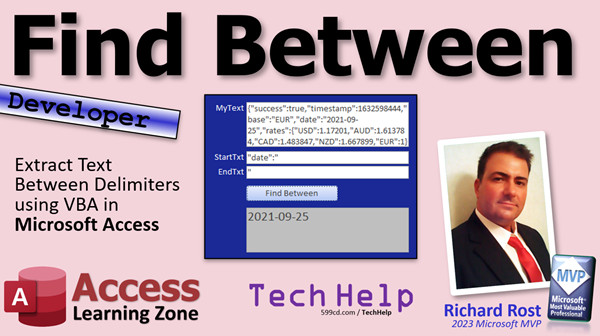
access 2016, access 2019, access 2021, access 365, microsoft access, ms access, ms access tutorial, #msaccess, #microsoftaccess, #help, #howto, #tutorial, #learn, #lesson, #training, #database, FindBetween, find text between two other bits of text, Text Parsing, VBA Function, String Manipulation, Extract Text, Text Delimiters, Custom Function, FindBetween, Data Isolation, Text Analysis, Web API Parsing, System Log Parsing, Text Field Manipulation, Advanced Developer Techniques, VBA String Functions, Block of Text, Access VBA, Keyword Search, Text Between Keywords, Textual Data Analysis, VBA Text Functions, Level Up Access Skills, JSON, XML
 Subscribe to Find Between
Get notifications when this page is updated
More InformationTranscript Welcome to another TechHelp video brought to you by AccessLearningZone.com. I am your instructor, Richard Rost.
In today's video, I am going to show you how to extract text between two delimiters in a string using some VBA in Microsoft Access. This is incredibly useful when you are dealing with text data and need to isolate particular information. So whether you are parsing through data retrieved from a web API, system logs, analyzing text files, or simply want to manipulate text in your Access databases, knowing how to do this can save you a ton of time.
We are going to use some VBA and create a custom function called FindBetween to achieve this. This is an advanced developer lesson. We are going to use a bunch of code. Here we go. Get ready.
Last week, we did a web API lesson where I taught you how to use some VBA code to go out to the web and get some data from a web page, whether it is a specific API or even just any web page you want, and it will bring back the text on that page. Now, in this particular lesson, we just got it and just displayed it like that. But sometimes you are going to get data that is formatted differently.
Most of the time, if you are dealing with a web API, it is going to return data that looks like this in a format called JSON. That stands for JavaScript Object Notation. It is just a fancy way for pairing data up. You have name value pairs. Here are our rates. This is for doing currency conversion. I covered this one in my Access developer lessons. We are starting off our base values, Euros. Here is the date that it was generated. Then US dollars is that value. 1.17 US dollars per euro. Australian dollars. So it is just packaging up name value pairs.
Here is the same data in XML. You have tags in here instead. Same data, but it is just packaged differently. Or you might get plain text like this.
In any of these cases, you have to be able to find the start tag and the end tag where you want to find the data between. With JSON, for example, let's say you are looking for the US dollars. You want to find everything between this and then the comma. This is our FindBetween. I want to find all of this. Then you want to find that and say, give me the text between those two things. Same thing here, but our tags are a little different. We are going to look between US dollars like that and then maybe look for that guy. You could find the whole tag if you want to, but really you are just looking for where that thing starts.
But that is the point of this lesson. We are going to make a function that finds stuff between any two delimiters.
If you have never done any programming in VBA before, go watch this video first. It is my intro to VBA. It is about 20 minutes long. It will teach you everything you need to know to get started.
Of course, while you are at it, go watch this video. We are not going to be doing any web API stuff today, but this FindBetween function, I am showing this to you because we are going to be doing a lot with some other web APIs, including ChatGPT. So the FindBetween function is very handy for parsing the data. I am going to give you a quick walkthrough of my code for the function. I am not going to explain everything in exquisite detail, but I am going to give you the basics.
Here are some other videos that will help you if you are a beginner VBA programmer. Go watch my If Then video. My video on string functions like Left, Right, Mid, and InStr. In fact, I have a second video on InStr. Go watch this too. And this one cannot hurt. This one is about making your own function, which I am going to be showing you a function that I wrote and teaching you how to use it.
All right, so these are all free videos. They are on my website. They are on my YouTube channel. I will put links down below. You can click on and go watch these if you do not know any of these things first. And let's go.
The code we are going to use today is code that I wrote originally about a year ago. Actually, I have something kind of similar to this that I have been using for years in my own database. But I updated it and revised it about a year ago. Again, I am going to walk you through this basically, but we are not going to cover every little nook and cranny of it. I do cover it in detail in my Access Developer 32 class. This is the big one where I cover FTP, getting value from web APIs, building the FindBetween function, copying files to a web server, the currency conversion stuff, getting the information from the web API, all that kind of stuff. If you want to learn specifically how this thing was built step by step, go get Access Developer 32.
If not, here is the code. If you are a Gold member, you can just hit the copy button down here to copy it to your clipboard, or you can download the database template that is on my web page. For everybody else, you have to type it in or use some kind of OCR screen recognition. Whenever you want, just copy that. That is the function. Go ahead, pause. I will wait. Go on.
Once you have got it, go to your database. I am using my TechHelp free template. This is a free database you can download from my website if you want to. I am going to come down here in my global module. I am going to paste this function right down at the bottom. There we go. Just slide, let us see the whole thing.
Now, this function basically takes three bits of information: the whole string, the start delimiter, and the end delimiter, the thing that you want to start and end what you are looking for in the string. Optionally, I added a second end delimiter. I will explain why a little later.
Right here we find the start text of the string. Then right here we find the end text. This is bigger because it is optionally looking for a second end delimiter as well. We chop off any leading or trailing new line characters, tabs, carriage returns, that kind of stuff. Then we return the value, trimming it to get rid of any leading or trailing spaces.
Why two end tags? Well, if you look at this data that is returned here for the currency conversion, notice that US dollars, Australian dollars, Canadian dollars, these all have commas after them. But the last guy in line does not have a comma. So you might want to also look for that curly brace. That is why I have it so you can optionally have a second end tag as well. So that is the case, you send in the first tag here and then optionally the second tag.
What this basically does is L is equal to InStr. So look inside the string of the whole thing. SWhole set to S. That really there is just to make it so that you do not have to put SWhole everywhere. It just makes it nice and smaller, dealing with SWholes. If L is found, if it is not zero, that means it is found. Then it sets S equal to then. It just basically chops off the left side of that delimiter. You add some characters in there for the length of the delimiter itself. The same thing happens here again, we just chop off the right side.
That is the function we are going to use. Again, if you want to learn more about how this was built, Access Developer 32. This goes along with what I told you in the Web API class. In order to drive a car, you do not have to fully understand how an engine works. All you really have to know is how FindBetween works. Now we are going to go work with it. So just put this in your database in a global module.
Now we can use it.
Let's take our form here and I will make this a little bit bigger. We are going to put my text in here. We will call it my text. We will make this guy bigger. First, let's update it a little bit. Let's get rid of the name. I am going to call it my text. The control source is blank. The format is nothing. Save that.
We are going to need a copy that, paste, paste, paste. We need three more of them.
We have my text. We have the start text. We will call this guy StartTextTXT. This will be EndText. This will be EndText2, which you do not always need. EndText2.
This is where our result is going to go down here. We can make this small. Let's make this text bigger so we can see the results. We are just pulling out simple data.
EndText and EndText2 can be nice and small down here. StartText can go there.
That was my alarm system in the background telling me I have a low battery.
There are always unexpected noises in my office. That is why you always hear them in my videos.
That is where we are going to paste the text right there. Let's put in.
Good enough.
Do I obsess over my form object placement? Sometimes a little bit too much.
Good enough.
Save that.
Now, what is our code going to look like in our FindBetween button here?
We do not need Status Hello World. I am going to do the FindBetween. I am going to put that value into S. So, the name is S as a string.
Let's set the status box. Status box equals blank before we start. That is that big gray box in the bottom where our results are going.
First thing you want to do is check to see if my text is null. If they did not put anything in here, we are going to say, we do not have any data.
So if IsNull(myText) then Status. The status function is, I have a whole video on that. I covered that when I built the TechHelp free template. I will put a link to that special video down below as well. Status missing data. Maybe a beep. Then exit.
Now S equals FindBetween. What are we looking for? The whole string is my text, comma, start text, comma, end text, comma, optionally end text 2.
Now in case any of these things are null, we want to deal with that right here. How do we deal with null values before we send them to a function? If you try to send a null value to a function, you will get a runtime error. But we can get rid of that by sending it an empty string instead, and that is NZ.
I have a whole separate video on NZ as well. If you do not specify the type here, it will use whatever the default type is for that particular variable. In this case, it knows it is a string, so it is going to send it an empty string. If you want to specify the value, you can put something after the comma here.
That is the way we are going to call this. We have already checked to make sure this guy is not null. The NZ will check to make sure these guys are not null.
Once we get the result back from FindBetween, it is going to go sit inside of S. Now we can deal with it.
If S equals empty string, that means it was not found. Then status not found. Otherwise, status S just displays the value. That is it.
See how nice and easy it is once FindBetween is already written? Now it is very easy to work with it and use it. Let's go test it.
I resized a little bit off screen, a little bit bigger. Save it. Close it. Put it back up.
Here we go. Let's put that data in here that we had before. So I am going to go back to my code vault, copy that, copy and paste. Let's say we are looking for US dollars. So I want the beginning of it to be this, and the ending of it is going to be a comma.
FindBetween. There is your value.
Let's say we are looking for Canadian dollars. CAD. Same thing. FindBetween.
You want to give it enough so that you are sure you are getting that tag. That is why I did the whole thing. I mean, you could just do like USD and that, but we are just making sure.
In the case of the euro, it is at the end. Now, if we do not know what order these are going to come back in, sometimes maybe euro comes in up front.
Let's do this. Let's say we are looking for a euro. I hit FindBetween. It does not find it. But if I specify that second end tag, it could be this, the end curly brace. Now it finds it. So I would specify these for all of these guys in this particular case.
Let's try this XML example. Put the data up here. Now, let's say we are looking for US dollars so we need that, and we need the slash USD on the end. We should never need an end tag for that one because it is always going to have that closed tag. There we go. Works the same.
That is one benefit of XML. It is always got every bit of data, always got a closing tag. That is the same. It does not always have that comma like JSON sometimes does.
Most web APIs today will return either XML or JSON. I personally prefer XML, but I know JSON is the way of the future. No, before you ask, there is no built-in JSON interpreter for Access. But Alex, one of my admins on the website, does have a third-party utility. I will put a link to it down below.
However, I have personally found that I do not always need to pull in complete sets of data from the web. I just usually want bits of information, so my FindBetween function always works fine for me.
What about plain text data if you get it like this? In this case, let's look for US dollars. So the beginning of it is going to be USD colon. Now, we are going to have to find on the end there. If it always comes in this particular order, we are looking for AUD. There we go. We found it again.
Let's try finding AUD, and we will look for CAD coming after it. There. The Trim should handle getting rid of the spaces.
Now, the key with this one is obviously these have to be in the same order. If you are looking for the Euros in this case, you would have to go EUR, and then leave that blank. You can leave the EndText blank and the StartText blank. If that is the case, it goes to the end of the file. If you are looking for something at the beginning without a start tag, then just leave StartText blank.
In the future, I might update the code so that it goes to the end of the line. Just have an option here: stop at end of line or something, but I have not written that yet. Maybe if needed. I have not needed it yet because nine times out of ten, if you are just getting plain text stuff, it always comes in the same order. But sometimes it does not.
A lot of the times, I am going to be using this on my account balances database. If you are pulling information from a credit card web page or your bank web page, whatever, usually you go to that page, you just copy all the text, and then you can paste it into Access or into a text editor, whatever. Stuff comes like this. So if you are going to program Access and you want to try to find what are your pending charges, you just take pending charges, put that in the start, take posted charges, put that in the end tag, and then hit FindBetween. And there is your value.
I use this extensively. But again, if the data gets reformatted on their end, if they change their web page around, as they do, then you have to redo your code. That is why I wrote FindBetween. It makes it really easy to just change things up.
So there you go. That is FindBetween. We are going to be using this extensively in the next several lessons, maybe not in a row. I have some more planned for the future, but we will be using this in future videos for sure because we are going to be doing a lot more with getting values off the web. If you have been following my account balance stuff, we are going to be getting, you know, you go to your bank web page or your credit card web page, you can pull in that text, and you can find stuff on the page using FindBetween. Of course, we will be doing more with the web API videos, and we will use FindBetween to get and parse the data that is returned from that.
If you like the stuff in my code vault, there is lots and lots of code in the code vault. Consider upgrading to Gold member today if you are a silver member, or if you are not a member at all, what are you waiting for? This stuff is great. It is literally worth its weight in gold. Well, since it is a digital product, I guess it does not have any weight. But you know what I mean.
Again, Access Developer Level 32 covers all this cool stuff, getting data from the web API that we did before, and this FindBetween function, and lots more.
That is going to do it for today's video. That was your TechHelp video for today. I hope you learned something. Live long and prosper, my friends. I will see you next time. Stay tuned for some cool stuff, including some ChatGPT videos. Intro In this video, I will show you how to extract text between two delimiters in Microsoft Access using VBA by creating a custom FindBetween function. We will cover how to apply this technique to different formats of data, including JSON, XML, and plain text, and walk through setting up a form that utilizes the function. I will also explain handling optional delimiters, null values, and demonstrate practical uses for parsing data returned from web APIs and other sources. Quiz Q1. What is the primary purpose of the FindBetween function discussed in the video?
A. To extract text located between two specified delimiters in a string
B. To replace all text in a string with new values
C. To convert numerical data to currency format
D. To sort alphanumeric data in a database
Q2. Which Microsoft Access programming language is primarily used in this tutorial?
A. SQL
B. Visual Basic for Applications (VBA)
C. Python
D. JavaScript
Q3. FindBetween is especially useful when working with data retrieved from which types of sources?
A. Hardware diagnostics logs
B. Web APIs returning JSON, XML, or plain text
C. Images and multimedia files
D. Access database tables only
Q4. What are the required input parameters for the FindBetween function?
A. String to search, start delimiter, end delimiter
B. Table name, field name, value to find
C. Module name, function name, property to update
D. Recordset, query, sort order
Q5. Why does the function allow an optional second end delimiter?
A. To support processing multiple fields from multiple tables
B. To handle cases where different records use different field names
C. To account for variations in the data format, like missing commas at the end
D. To add additional formatting to the extracted string
Q6. In the context of parsing JSON, what does the FindBetween function help you obtain?
A. A complete JSON object as a string
B. The data between a specific key and a delimiter, such as a comma
C. The total number of key-value pairs in the JSON
D. The name of the JSON file being parsed
Q7. What does the NZ function achieve when calling FindBetween?
A. It converts all numbers to text
B. It ensures null values are handled by replacing them with empty strings
C. It imports new data directly from a web page
D. It formats the result as currency
Q8. If FindBetween does not find the specified start and end delimiter in the string, what does it return?
A. A runtime error
B. A prompt to enter new delimiters
C. An empty string
D. The original string unchanged
Q9. Why is it sometimes necessary to use both a start delimiter and two end delimiters with FindBetween?
A. To cover cases where you want to extract multiple pieces of data at once
B. To match nested tags in XML exclusively
C. To handle different ways data can be terminated, such as a comma in JSON or a closing brace
D. To create loops for extracting multiple values at once
Q10. When using FindBetween with XML data, why is finding the end tag generally straightforward?
A. The tag order always changes in XML
B. XML tags always have a clear and specific closing tag
C. XML does not use delimiters
D. XML data requires conversion before parsing
Q11. Based on the video, what should you do if you want to extract text to the end of a string using FindBetween?
A. Leave the StartText and EndText fields blank
B. Only specify the end delimiter
C. Specify a start delimiter but leave the end delimiter blank
D. Specify both start and end delimiter as space
Q12. Which Access object did the instructor modify to create the interface for demonstrating FindBetween?
A. A table
B. A form
C. A report
D. A macro
Q13. Which of the following is NOT mentioned as a resource for learning foundational VBA concepts?
A. Intro to VBA video
B. If Then video
C. String functions video (Left, Right, Mid, InStr)
D. Query wizard tutorial
Q14. What is a typical real-world scenario for using FindBetween as described in the tutorial?
A. Parsing account balance data from copied text on a bank's website
B. Backing up Access databases to cloud storage
C. Modifying table relationships in Access dialogs
D. Exporting reports to PDF
Q15. What does the Trim function do when used in conjunction with FindBetween?
A. It sorts the extracted string alphabetically
B. It converts the result into upper case
C. It removes leading and trailing spaces or new line characters from the result
D. It replaces delimiters with blank spaces
Answers: 1-A; 2-B; 3-B; 4-A; 5-C; 6-B; 7-B; 8-C; 9-C; 10-B; 11-C; 12-B; 13-D; 14-A; 15-C
DISCLAIMER: Quiz questions are AI generated. If you find any that are wrong, don't make sense, or aren't related to the video topic at hand, then please post a comment and let me know. Thanks. Summary Today's TechHelp tutorial from Access Learning Zone focuses on extracting text between two delimiters in a string using VBA in Microsoft Access. This technique is especially helpful when working with text data where you need to pull out specific information. Whether you are importing data from web APIs, reviewing system logs, analyzing text files, or just manipulating strings inside your Access databases, being able to isolate portions of text efficiently can save a great deal of time.
To accomplish this, I will show you how to use VBA to create a custom function called FindBetween. This is designed for those with some VBA development experience, as it involves quite a bit of code.
Recently, I covered a topic on retrieving data from the web using VBA, where we grabbed the content of a web page or web API and displayed it in Access. Often, that data does not come in a pretty or convenient format. For example, most web APIs return data as JSON, which stands for JavaScript Object Notation. This format uses name-value pairs to organize data. For instance, you might see currency conversion rates where each currency value is paired with its code, like "USD" or "AUD," and the data is enclosed in curly braces. The same dataset might also be sent in XML, where data comes in tag form, or as plain text.
No matter the format, if you want to pull out a particular value, you have to identify the beginning and ending of that information within the text. As an example, if you are searching for the US dollar rate in a JSON string, you need to locate the start of the "USD" data and the end (like a comma or closing brace), and extract everything in between. This is exactly the purpose of the FindBetween function. It lets you extract whatever is located between two delimiters in any string.
If you have never programmed in VBA before, I recommend you start with my Introduction to VBA video, which covers all the basics. Additionally, it would help to review my tutorials on fundamental concepts like If Then statements, string manipulation with Left, Right, and Mid functions, using InStr, or even creating your own VBA functions. All of these resources are available for free on my website and YouTube channel.
The FindBetween function that I demonstrate today was originally written for my own projects and improved over time, and I cover it in complete detail in my Access Developer 32 class. In that class, you will find thorough explanations about building this kind of function, working with web APIs, extracting values from web pages, and much more. However, today's lesson gives you a basic walkthrough of how the function works and how to use it.
To use FindBetween, just add it to a global module in your database. The function requires three pieces of information: the target string, the start delimiter, and the end delimiter. There is also support for an optional second end delimiter. This extra option is important in cases where the delimiter could vary - for example, in JSON data, the last entry in a list might end with a closing curly brace instead of a comma, so having two possible end delimiters ensures you always capture the data you need.
The function itself works by searching for the position of the start delimiter, then the end delimiter, and extracting the text between them. It trims off any extra spaces or whitespace at the start or end, and returns the result. If you supply a second end delimiter, it will look for that if the first is not found.
Once you have put the function into your global module, you can use it from anywhere in your database. I illustrate this by setting up a simple form with text boxes for the source string, the start delimiter, the end delimiter, and the optional second end delimiter. Another box shows the result after running FindBetween.
In the event that the user has not entered any text in the main input box, the code sets the status to display a message letting the user know that data is missing. If everything is filled in, the code ensures that if any of the delimiter fields are left blank, empty strings are passed to the function instead of Nulls, which would otherwise cause errors. This is handled using the NZ function.
After FindBetween runs, if no match is found, the code displays a "not found" message. Otherwise, the extracted text is shown in the status box. Once you have the FindBetween function set up, using it in your applications is simple.
I demonstrate extracting currency values from a JSON example, finding US dollars or Canadian dollars by specifying the correct delimiters. In some situations, especially when the order of items in your data can change, using the optional second end delimiter helps ensure you always get a result, no matter where your item appears in the list.
For XML data, using FindBetween is straightforward as well, since every data point has a clearly defined closing tag. As a result, you do not need to worry about variable separators like commas.
Plain text data works similarly, provided that the ordering of values is predictable. You just set the start and end delimiters to the appropriate strings. If you leave one of the delimiters blank, FindBetween will extract everything to the end or from the beginning as needed.
I also cover some practical examples, like grabbing bank account balances or pending charges from downloaded text copies of your financial statements. By setting the start and end delimiters to keywords such as "pending charges" and "posted charges," you can quickly pull out the relevant information.
This approach is extremely flexible. If your data source changes its format, you can simply update the delimiters in your call to FindBetween, instead of rewriting all your extraction logic.
In closing, today's lesson has shown you how to extract text between two delimiters using the FindBetween function in VBA for Access. We will be relying on FindBetween in upcoming tutorials, especially when working with data from web APIs and websites, including future projects involving ChatGPT and other advanced integrations.
If you are interested in more code samples and developer tools, consider exploring the additional materials on my website. For a detailed, step-by-step walkthrough of everything discussed today, check out the complete video tutorial on my website at the link below.
Live long and prosper, my friends. Topic List Extracting text between two delimiters using VBA
Creating the FindBetween custom VBA function
Handling optional second end delimiter in FindBetween
Using FindBetween to parse JSON data in Access
Using FindBetween to extract values from XML data
Using FindBetween to extract values from plain text
Setting up a form for text extraction with multiple fields
Passing user-entered delimiters to the VBA function
Dealing with null values using the NZ function in VBA
Displaying text extraction results on an Access form
Using FindBetween for web API text parsing
Applying FindBetween to locate account balance data
Troubleshooting text extraction when delimiters are missing
Understanding the impact of data order on text extraction
Using Trim to remove leading and trailing spaces from results Primary Topics Access VBA, string parsing, custom function, FindBetween function, delimiter handling, text extraction, JSON data, XML data, API responses
Secondary Topics null handling in VBA, NZ function, status messaging, form design, future extensions
|




