On Filter
By Richard Rost

 3 years ago
A Better Solution Than the On Filter Event in Forms
In this Microsoft Access tutorial, I'm going to teach you about the On Filter event, why I think it's useless and don't use it. I'm going to show you two better alternatives. We're going to synchronize the filter in two side-by-side continuous forms.
Elijah from Bolingbrook, Illinois (a Platinum Member) asks: I've got two continuous forms that I have open side by side. On the left, I have my customers, and on the right, I've got my sales reps. Sales reps are assigned by state. Now, if I filter the customer list on the left by state, I would like it to only show the sales reps who are assigned to that state. I'm trying to use the "On Filter" event, but it doesn't seem to be doing anything. What am I doing wrong, and how can I get this to work?
Members
There is no extended cut, but here's the database file:
Prerequisites
Links
Recommended Courses
Keywords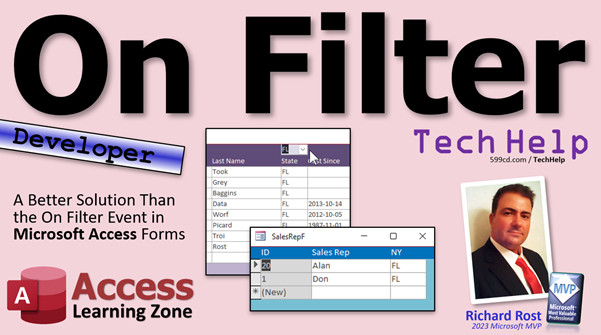
access 2016, access 2019, access 2021, access 365, microsoft access, ms access, ms access tutorial, #msaccess, #microsoftaccess, #help, #howto, #tutorial, #learn, #lesson, #training, #database, On Filter event, Form filter event, Form ApplyFilter event, alternative to On Filter event, side-by-side continuous forms, syncing filters, forms synchronization, filter event usage, filter data, form filtering, continuous forms filtering, form design best practices.
 Subscribe to On Filter
Get notifications when this page is updated
More InformationTranscript Welcome to another TechHelp video brought to you by AccessLearningZone.com. I'm your instructor Richard Rost. In today's video, we're going to learn about the unfilter event, why I personally think it's useless and never use it, and what a better alternative is. We're going to synchronize the filter in two side by side continuous forms.
Today's question comes from Elijah in Bolingbrook, Illinois. I hope I'm pronouncing that correctly. One of my Platinum members. Elijah says: I've got two continuous forms that I have open side by side. On the left I have my customers and on the right I've got my sales reps. Sales reps are assigned by state. Now if I filter the customer list on the left by state, I would like it to only show the sales reps who are assigned to that state. I'm trying to use the unfilter event but it doesn't seem to be doing anything. What am I doing wrong and how can I get this to work?
Elijah, first of all, you are not crazy. The unfilter event doesn't do what you think it's going to do. I'm going to demonstrate right now.
Before we get started, however, this is a developer level video, which means we're going to be using some VBA. If you've never done any VBA programming before, go watch this video. It's about 20 minutes long and it teaches you everything you need to know to get started. Make sure you understand how the filter property works. We're going to need to know how variables work. You're going to need to know how to use the replace function for my solution to the problem. We're going to use an aggregate query as part of it. You're going to find the after update event much more reliable. These are all free videos. They're on my website, they're on my YouTube channel. Go watch those and come on back.
Here we are in the TechHelp free template. This is a free database. You can get it from my website if you want to. In this database we have a customer list. You're probably familiar with this guy. I added a sales rep table, just a list of sales reps and the states that they represent. Some states can have multiple sales reps. If we sort this, for example, you can see Florida has Don and Ellen. This is kind of what Elijah showed me in his screenshots when he sent me his question.
I made a sales rep form to go with it. It's just a simple continuous form over here with all the sales reps. What he wants to have happen is: when you filter this by Florida, let's say, he wants this form to automatically apply the same filter. You'd think it'd be pretty straightforward.
Let's turn these off and examine the unfilter event. Go to design view, go to this form, go to events. Let me slide this in so you can see a little better. There is an unfilter event right there. Macro or function that runs when a filter is edited.
Now, I like to right-click on my forms and apply filters all the time, so that would be pretty cool. Let's go into design view here, go to the builder event for the form filter event. Looks good. Let's set the filter for the other form equal to the current filter. So let's say Forms!SalesRepF.Filter = Me.Filter. If I'm filtering this form by state, let's filter the other form by state. Sounds good.
Let's come back out here. Let's close this guy. Save changes. And we've got to make sure this guy's open, of course. Open up the customer list again and let's apply a filter. Nothing happens.
From what I remember with filters, we also have to set the FilterOn property. Remember that guy? We'll do the same thing in here. We'll come in here and we'll say Forms!SalesRepF.FilterOn = True. You can turn the filter on and off - even if you set the filter property, you still have to set the FilterOn property.
That must be what I forgot. Debug Compile. Let's try it again. Let me turn that filter off and try it again. Ready? Filter equals Florida. That's still not working. Hmm. That's weird. Is that event even firing when I do that? Let's try it. Let's just throw a message box in here. MessageBox "Hi there". This is what I do just to say, hey, is this event even running? Let's come back out here. Try it again. Let's filter based on this one here. Ready? Go. And now I'm not even getting the message box. What's going on?
Well, the filter event, the form filter event, does not run when you do this with the little right-click menu, which is really the only way I ever apply a filter. I hate using this stuff up here. In order for it to work, you have to either use the advanced filter or the filter by form. I honestly hate both of these. I don't like them at all.
If you go filter by form, there's your "Hi there", and then you get the filter by form stuff here. Let me mute these guys. Real quick, I'm going to show you what's going on. Come out here, right-click... excuse me, can't right-click. Advanced filter by form. There's my "Hi there", and then you get the filter by form thing, which I don't like. So forget that.
It also works if you do the advanced filter, which opens up like a query grid. But again, I really don't like that. It's not a good solution for your end users. I pretty much ignore most of everything in here.
The other situation that you have, and you notice that we got some error messages when we tried to do this: this is what Elijah sent me in his email that he's trying to do it this way, and this could work. But the main problem is when Access creates the filter, and you can see what it creates by going into the properties. Look at that: it says CustomerT.State = 'Iowa'. So the whole problem here with CustomerT.State - that's what the filter creates if you do the filter in here, and it's just not going to be compatible because this guy is SalesRepT.State. So it's not going to work.
To do what you want to do, you can't use the filter event. Now, if you're one of those people that does like the filter by form, and you do like the advanced filter, great. Use this, and I can connect those instructions on how to use it in Microsoft on Microsoft's website. Here's their page here. I'll put a link to this down below and it gives you what the parameters mean and ways you can use it, and here's some example code. But again, it only works with those two types of filters, and I don't like them. I never use them, so I'm not going to do this.
Let me show you how I would tackle this problem. We're not going to use this at all. In fact, I'm just going to REM this whole thing out. I'm going to keep it around for just a second, though, because I'm going to show you a similar function - excuse me, a similar event - that does work. In addition to form filter, if you drop this down, there's also an apply filter event. Very similar. This one does run when you apply a simple right-click filter to the form.
Now, like I mentioned a minute ago, you can't just do this, Elijah. You can't just set the other form's filter to this one because it includes the table name, which will mess your filter up. But let's see what we get when we use this guy. So I'm just going to say: let's just MessageBox Me.Filter. I want to see what Access puts in the filter property when this guy runs.
Let's see what we got here. Let's set it to Florida. Right-click equals Florida. Boom. CustomerT.State = 'Florida'. When you turn the filter off, that event also runs.
Let's try something a little more complicated. Let's right-click and say does not equal Florida. CustomerT.State <> 'Florida' OR CustomerT.State is null. That's good. I'm seeing CustomerT in both of those.
How about if I right-click and say contains Kansas? CustomerT.State Like '*Kansas*' or is null? So every one of these seems to be a valid filter, but it's just got CustomerT in it. Why don't I take this and replace CustomerT with SalesRepT, which is what this guy is based on, then I could use this in this form. How does that sound? That could work.
Let's go back here. Instead of message boxing, let's put it in a variable. We'll Dim F As String for my filter. F = Me.Filter. I'm going to say F = Replace(F, "CustomerT", "SalesRepT"). Then let's MessageBox F to see what we're getting. Just MessageBox F. Make sure it's valid first.
Save it. Come back out here. Let's turn the filter off. OK, that's the filter. Now remember, the filter still is in there, it's just turning it off, but that's still in the filter form. Let's right-click and go equals Florida. Look - SalesRepT.State = 'Florida'.
Now let's try to apply that to this one. Let's come over here, and instead of message boxing it, we're going to say (here it is, down here): Forms!SalesRepF.Filter = F. Now, about the FilterOn, we can use the property for my FilterOn. We could actually do this: Forms!SalesRepF.FilterOn = Me.FilterOn. So if I turn off the filter on the current form, turn off the other filter, set it equal to the same state.
Save that. Let's come back out here. Let's turn this one off and - hold on. This one got turned on. Wait a minute. On, that one's off. What's going on?
Let's take a look at what's going on here. Let's see now. Let's MessageBox the status of each of these. MessageBox this one and a space and that one. I want to see what's going on here.
Click. OK. True, true. Then, oh... alright, so something funky with the timing here. This one changes, then the MessageBox appears, then this one changes. What's up with that? False, false. They're the same, but look at that. That's interesting.
Here's what's going on. Sometimes you've got to MessageBox stuff like this to figure it out. The actual value of this doesn't get set until this event is finished. That's weird. So you're changing the other guy, but then your MessageBox is run, and then the value changes when you're done. It's weird. Access is all about event timing. You've got to figure out when things run. What goes first? OnOpen, OnLoad. What goes first? OnUnload, OnClose. See what I'm saying?
In this particular case, if you want the desired effect, you're going to set this to Not Me.FilterOn - the opposite of what you think it should be. Now if you turn that one off, this one's off. If you turn this one on, that one turns on. It's weird, I know. I didn't design it, I just have got to teach you how to do it.
Now if I set this to Iowa, equals Iowa - oh, wait a minute. Now you're kidding me. Now it's not working again. What's going on?
Let's reset this. Turn this one on, that one goes on. Turn that off, that goes off. That works. But what happens if I set it to Florida? It's not - what's going on here? Alright. See, this is why I get frustrated with these filter events.
So this thing is valid when you turn this on or off. See, that's good. But if you then come in here and just apply a filter, that doesn't fire. It's weird. Again, it's all about timing. I don't like changing this setting here along with the apply filter, because it handles differently whether you're turning the filter on and off or applying a filter. It's weird. Another reason why I don't like these events.
So the way to fix this is: we're going to take that out of there. We're going to put it somewhere else that runs every time a record changes or reloads, and that's the OnCurrent event. This is the way to fix this. Yes, this is after years and years of playing with this stuff.
In the Form_Current event, we're going to put this and get rid of the Not. Now, this will fire every time you move from record to record, but it shouldn't make a difference unless the filter changes. As I'm moving from record to record, if I apply a filter, the filter gets applied, the OnCurrent event runs again, and it fixes that. If I turn it off, it fixes it. If I apply another filter, it fixes it.
The trick is: do the filter change in the apply filter but do the filter unchanged in the form current. It's a pain, I know, but if you want this kind of behavior, that's what you have to do. If you want to see it in action, put a MessageBox "Current" in here and you'll see where it's running, and you can put a MessageBox "Apply Filter" here. I put those always to the left, so you remember to clean them up later.
Let me turn that off. There's the apply filter, and then current runs after it. If you only turn this off, apply filter runs, there's current, and now it fixes it. If you didn't have that current event, if this wasn't here, and we turn this off, you get apply filter, no OnCurrent event, it doesn't get fixed. It's weird. If you guys can figure out how to do it in just the apply filter event, let me know. Post a comment down below. This is the way that I've been doing it to fix it for as long as I can remember.
But this isn't even the way I prefer to do this. Now, this will work just great if you want to do complicated stuff in here. If you want to, for example, filter based on multiple states, you could do a contains kind of filter, or whatever you want. Text filters, whatever begins with. If you like those kinds of filters, then do that. It's a little more complicated, but there is the solution for you.
In the title slide here, I show you the solution I like to do. You can only filter by one state at a time this way, but 99 percent of the time, I think that's what most people want to do. They just want to pick a state. Let me show you: this is my preferred solution.
I'm going to leave all this code in here for the Gold members and such, so you guys can see it, but I'm going to REM it all out. So we're going to REM this stuff out, so it's still in here for you. You can see it there. I'm going to get rid of this form filter stuff, because this is garbage. I never use the form filter event. Apply filter, sure, once in a while. You can REM out that if you want to. Gold members, that's in there if you want to use that.
Let me show you how I can do this. First, we need a combo box that has just the list of states in it. That's why we're going to use an aggregate query. Real quick: Create - Query Design - bring in the CustomerT, bring in State. We are going to make it a Totals query, an aggregate query. We are going to sort ascending, and we're going to say criteria is Is Not Null. My mouse has been doing that - I move the mouse over here and it just randomly clicks for no reason when I don't even touch it. Is Not Null. If you want to include null values, that's fine, but I don't like seeing them. Usually when you want to filter by states, you want to see the states. We'll call this the StateQ. It already exists because I played with it before and I created one. That's what the StateQ is. Sorted list of states.
Now we're going to come into our - wrong form - we're going to come into our customer list form. We'll make a little bit of room at the top, slide these guys down, and put a combo box right here with the list of states in it. Combo box, drop it here. I'm going to get the values from a table or query. We're getting them from the StateQ query. There's only one field in it, sorted by state, that's fine. Next. That's what it's going to look like. Make it nice and short, leave enough room for the little drop down next to it. We're not going to store the value, we're just going to remember it for later use. The label doesn't matter, we're going to delete it.
There's my combo. Delete the label, put this right above State, like right there. Make it about the same size. Give this a splash of color like that.
Open it up. We're going to change the name to StateCombo - or let's call it StateFilter. Don't call stuff combo unless it's a filter box. StateFilter.
So what we're going to do in your AfterUpdate event, after this guy gets updated, we're going to say Me.Filter = "State = '" & StateFilter & "'" and the extra double quotes are because it's a string. Me.FilterOn = True.
Then we're going to set the other guy. So Forms!SalesRepF.Filter = Me.Filter. No need to reinvent the wheel. Me.Filter - set it to the same thing. No replace needed this time. Then FilterOn = True.
Save it. Come back over here. Let's close it. Open it. Set a filter - Kansas. Boom. See how easy that is? Nice and sweet. Nice and easy for your users too. They don't have to learn all the right-click filter stuff. If you want to give them that extra level of power or control if they need more advanced filtering, great. But again, in my experience, most users just need the simple. There you go.
To clear the filter, you can leave these active down here, but they'd have to do it to both of them. I like to give them a little X box - not an actual Xbox. I don't do that for my clients; depends on the customer. If they're spending a lot of money... well, in the past when I used to do that. Make a button, hit cancel when I used to build databases. Put a little X box, a box with an X in it next to it that just clears the filter. Like that.
And it's just a training issue, or you can put a control tip text and then when they hover over it: Clear Filter Button, or Turn the Filter Off Button, whatever you want to call it. Event - OnClick. It's literally just going to be these guys - turn them off. We'll start with FilterOn = False and Me.FilterOn = False. Or you can toggle it. You could say Me.FilterOn = Not Me.FilterOn. That way they can toggle it on and off if they want. That's up to you.
Maybe set the filter box itself equal to null. StateFilter = null. Blank the combo box.
Let's see what we got. Drop this down and then clear. Oh, that works so much nicer. Isn't that easy? Isn't that easier than having to teach people the right-click and all that other code?
I'm all about simple. When it comes to me, like my databases, because I'm a nerd obviously, I like all the functionality and the crazy stuff, but I also like making things simple too. For end users, I like to make the database simple and bulletproof.
I don't like giving them too many options. Most of the times that I used to build databases, I used to turn this menu off. The right-click menu can get you in trouble. I turn the ribbons off, I turn the - of course - this off, I turn off as much as I can. I control what they do 100 percent through my buttons.
The only other thing you really have to worry about at this point is if this form isn't open and they try to apply a filter, that's going to - right - we can't find that form. The way you fix that is by checking to see if the form is loaded first. You can throw an On Error Resume Next if you want to in there. If you want to go cheap, or you can actually check to see if that form is loaded; I have a separate video that covers that. I'll put a link down below in a separate related video.
If you want to learn how to do this with a report, I've got a separate video that teaches you how to do it with a report - kind of similar, except you have the report look at the filter from the form instead of pushing it like we're doing with this one. Very similar stuff.
If you like this kind of thing, I have a template available where I show you not only how to do filtering stuff with a dropdown list but you can also do text boxes where you can type in bits of it - like you can type in part of a last name and it'll filter it, filter by dates, filter by ranges, and all that kind of stuff. I'll cover that in the search and sort template. Check that out.
If you like learning with me, come on, join the party. I have tons and tons of developer lessons available on my website as well. Dozens or hundreds of hours. I think I added it up one time - it's over 100 hours. So yeah, come check it out.
But there you go. There is your TechHelp video for today. I hope you learned something. Live long and prosper my friends. I'll see you next time. Intro In this video, we'll talk about using the filter and unfilter events in Microsoft Access, including why the unfilter event often doesn't work as expected and what alternatives you should use instead. I'll show you how to synchronize filters between two continuous forms, explain the importance of event timing, and demonstrate a simple solution using a combo box for filtering by state. We'll use some basic VBA, aggregate queries, and discuss how to make filtering easy for your end users without relying on the built-in right-click filter menu. Quiz Q1. What is the main task Elijah wants to accomplish with his side-by-side continuous forms?
A. Synchronize the filter between both forms based on state
B. Sort both forms by sales rep name
C. Delete records from both forms simultaneously
D. Add new records to both forms at the same time
Q2. According to the instructor, what is the major downside of using the Unfilter event in Access forms?
A. It only works with text fields
B. It does not fire when using the right-click filter
C. It deletes the filter permanently
D. It slows down the database
Q3. What is the better alternative event to use for synchronizing filters when the right-click filter is applied?
A. OnLoad event
B. AfterUpdate event
C. ApplyFilter event
D. BeforeDelete event
Q4. Why does simply copying the filter string from one form and applying it to another form not always work?
A. The filter may include references to the wrong table names
B. The filter string is encrypted
C. The filter applies to all open forms
D. It only works with numeric values
Q5. What VBA function does the instructor use to adjust the filter string for the second form?
A. Left
B. Replace
C. Len
D. Mid
Q6. Why does the instructor not prefer to use the Advanced Filter or Filter By Form features for end users?
A. They are only available in Access 2007
B. They require macros to function
C. They are not user-friendly and are confusing for most users
D. They are faster but less accurate
Q7. What property must be set to TRUE after setting the Filter property in order for the filter to take effect?
A. FilterActive
B. FilterEnable
C. FilterOn
D. FilterState
Q8. What kind of query does the instructor create to populate the combo box for state selection?
A. Crosstab query
B. Aggregate (Totals) query
C. Append query
D. Make-table query
Q9. What is the preferred control the instructor adds to the form for users to filter by state?
A. Text box
B. List box
C. Combo box (StateFilter)
D. Command button
Q10. Where does the code to apply the filter based on the selected state in the combo box go?
A. In the combo box AfterUpdate event
B. In the form Load event
C. In the form Unload event
D. In the Detail section OnClick event
Q11. When clearing the filter, what does the "X" button do according to the instructor's solution?
A. Deletes all filtered records
B. Toggles the filter off and sets the combo box to null
C. Exports the data to Excel
D. Refreshes only the SalesRep form
Q12. Why does the instructor recommend simplifying user access to filtering and limiting options like the right-click menu?
A. To reduce the risk of data corruption and user confusion
B. To save system resources
C. To promote using only SQL queries
D. To encourage users to write more VBA code
Q13. Which event does the instructor suggest finally to ensure that filter synchronization works reliably as records are changed?
A. Form_Open
B. Form_Current
C. OnClose
D. AfterInsert
Q14. What extra step does the instructor take to ensure the SalesRep form is updated only if it is actually open?
A. Checks the record source
B. Checks if the form is loaded before applying the filter
C. Opens the form without checking
D. Always closes the form first
Q15. According to the instructor, for the majority of users, what is the most common filtering need?
A. Filter by multiple states at once
B. Complex string pattern filters
C. Filter by just one state at a time
D. Filter by date ranges and numeric intervals
Answers: 1-A; 2-B; 3-C; 4-A; 5-B; 6-C; 7-C; 8-B; 9-C; 10-A; 11-B; 12-A; 13-B; 14-B; 15-C
DISCLAIMER: Quiz questions are AI generated. If you find any that are wrong, don't make sense, or aren't related to the video topic at hand, then please post a comment and let me know. Thanks. Summary Today's TechHelp tutorial from Access Learning Zone focuses on understanding and managing the filter and unfilter events in Microsoft Access forms. Specifically, I'll walk you through why I find the unfilter event unhelpful, and I'll show you a more reliable technique for synchronizing filters between two continuous forms - in this example, a customer list and a corresponding list of sales reps, each filtered by state.
The scenario we are addressing comes up often. Suppose you have two forms displayed side by side: one for customers and one for sales reps. Each sales rep is assigned to a specific state, and you want the list of sales reps on the right to dynamically match the filtered list of customers by state from the left. The goal is to have the sales rep form automatically reflect any filter the user applies on the customer side.
Let me first clarify how the unfilter event works in Access. Many assume that this event is triggered every time you change or remove a filter, especially by using the right-click context menu. However, Access does not behave this way. Through trial and error, I have found that the unfilter event only fires with certain actions, such as applying an advanced filter or a filter by form, both of which are less intuitive and rarely preferred by most end users. The simple right-click filter action, by far the most common and user-friendly for most people, does NOT trigger the unfilter event. As such, I rarely, if ever, use this event in my projects.
Instead, I recommend focusing on the ApplyFilter event, which is much more reliable. This event does trigger when you apply a right-click filter on your form. When using this event, you will notice that Access often creates a filter string that includes the table name and the field, such as "CustomerT.State = 'Florida'". The challenge with simply copying this filter string directly from the customer form to the sales rep form is that the sales rep form may reference a different table or field, leading to incompatible filter expressions. For example, a filter that works on the customer form will refer to CustomerT.State, which does not correspond to the SalesRepT.State field in the sales rep form.
To synchronize the filter between the two forms, I use a simple VBA trick - I capture the filter string from the customer form, then use the Replace function to swap out the table name so it matches the sales rep form. For example, I replace "CustomerT" with "SalesRepT" in the filter string before applying it to the sales rep form. This allows both forms to be filtered by state using equivalent expressions.
However, there are still timing issues and quirks in Access that can make this tricky. Changes to the FilterOn property, or toggling the filters on and off, will not always propagate cleanly through the events. Sometimes, the new filter is only fully applied after the current event completes, leading to inconsistencies if you rely solely on the ApplyFilter event. Through years of working with Access, I have found that combining the ApplyFilter event with the Form_Current event gives the most reliable results. The ApplyFilter event handles updates when the filter is explicitly changed, while the Form_Current event manages synchronization as records are refreshed or when the filter is cleared. Together, these ensure that both forms remain in sync, regardless of how the filter is adjusted.
Despite all this, my recommended approach for most users is to avoid these filtering events altogether and instead provide a simple, consistent user interface for filtering. A combo box, positioned above the customer list, allows users to select the desired state. Behind the scenes, this combo box is populated using an aggregate query that lists all states present in the customer table, excluding nulls for clarity.
When the user selects a state from this combo box, I use the AfterUpdate event in VBA to set the Filter property on both the customer and sales rep forms to reflect the selected state. There is no need for complex string manipulation or event juggling. This method is intuitive for users and far more reliable for developers.
To further improve the user experience, I suggest adding a button (often represented as a small 'X') next to the combo box which, when clicked, clears the filter on both forms and resets the combo box. This gives users a straightforward way to remove the filter without having to rely on right-click menus or other less obvious interface elements.
I generally recommend keeping the user experience as streamlined as possible. For most end users, the fewer options and distractions, the better. If advanced filtering options are required, you can still make them available, but for the bulk of users, a simple drop-down selection and a clear filter button are ideal.
One final consideration: if you attempt to apply a filter to a form that is not open, Access will throw an error. To prevent this, you should include a check in your VBA code to ensure the target form is loaded before attempting to apply a filter. I have a separate lesson on how to check if a form is open, and you can find that, along with other related videos, on my website.
If you want to learn more advanced filtering techniques, such as how to filter by partial text, date ranges, or even through search boxes, I also cover these topics in detail in my Search and Sort template.
You can find a complete video tutorial with step-by-step instructions on everything discussed here on my website at the link below. Live long and prosper, my friends. Topic List Explanation of the Unfilter event in Access forms
Why the Unfilter event does not work as expected
Demonstrating issues with synchronizing two continuous forms
Examining the Apply Filter event and its usefulness
Extracting and modifying form filter strings in VBA
Using the Replace function to adjust filter strings
Synchronizing filters between two forms based on state
Handling differences in table names in filter properties
Troubleshooting filter event timing and behavior
Using the OnCurrent event to fix filter synchronization
Demonstrating limitations of built-in filter options for users
Building an aggregate query to list unique states
Creating a combo box for state-based filtering
Writing AfterUpdate event code to apply filters
Applying the same filter to both forms via combo box
Adding a button to clear filters with VBA
Setting the combo box filter field back to null to reset
Making user-friendly filter interfaces for end users
Checking if a related form is loaded before applying filters Primary Topics Access form filter events, Unfilter event limitations, ApplyFilter event, OnCurrent event, synchronizing filters with VBA, combo box filter design, continuous forms filtering
Secondary Topics aggregate query for unique states, user interface design, error handling when forms are closed, simplifying user experience, restrictions of right-click filters
|




