Uncheckable Box
By Richard Rost

 3 years ago
Check an Uncheckable Checkbox on Form in Access
In today's Microsoft Access tutorial, I'm going to teach you how to check a box that is uncheckable on a form with a recordset that is not updatable. Yes, we're going to work some magic.
Olivia from Bellevue, Washington (a Platinum Member) asks: I've got a continuous form that's based on a very complex query, and because of that, the form is not updatable. However, there's a checkbox on that form that I would really like to be able to check on or off. Right now, I have to open up the customer's record, find the order, check the box, go back to the form, requery it... it's a pain. If you could show me how to check that uncheckable box, I will love you forever.
Members
There is no extended cut, but here is the database download:
Silver Members and up get access to view Extended Cut videos, when available. Gold Members can download the files from class plus get access to the Code Vault. If you're not a member, Join Today!
Prerequisites
Links
Recommended Courses
Keywords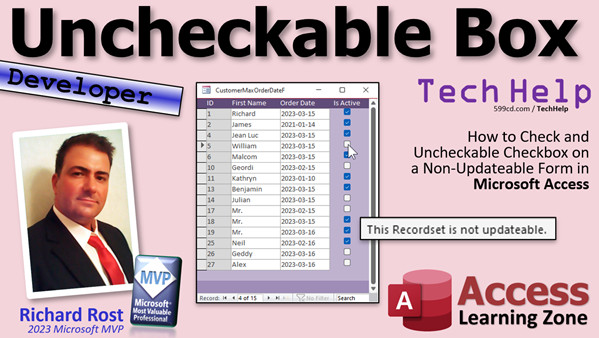
access 2016, access 2019, access 2021, access 365, microsoft access, ms access, ms access tutorial, #msaccess, #microsoftaccess, #help, #howto, #tutorial, #learn, #lesson, #training, #database, check uncheckable checkbox, non-updateable form, uncheckable box, form recordset, updateable form, checkbox manipulation, checkbox functionality, checkbox hack, transparent button, sql, recordset.requery
More InformationTranscript Today we are going to work some magic. I am going to show you how to check an uncheckable checkbox on a non-updateable form in Microsoft Access.
All right, you have that dreaded form. It is based on a query that is really complex and all of a sudden you get the warning message that says "This recordset is not updateable." You can't do it. Well, I am sure how to get around that. Are you ready? Here we go.
Today's question comes from Olivia in Bellevue, Washington, one of my Platinum members. Olivia says, "I have a continuous form that is based on a very complex query, and because of that, the form is not updateable. However, there is a checkbox on that form that I would really like to be able to check on or off. Right now, I have to open up the customer's record, find the order, check the box, go back to the form, and create it. It is a pain. If you could show me how to check that uncheckable box, I will love you forever."
That is fantastic. You do not have to love me forever. Just be a subscriber forever. Let's see how to do this.
There are a couple of different ways we can do it. I am going to show you the easiest one. But first, we have some prerequisites.
First, you should know how to make an aggregate query. There are a ton of different ways that you could create a query or a recordset under a form that is not updated. The easiest one I can think of is to use an aggregate query, a sum or a max. So learn how to make aggregate queries. Watch this video and I will go over the different ways that a form can become not updateable, including using an aggregate query. Go watch this if you want to learn more about that.
You are going to need to know how to use the Immediate IF function. We are going to need some VBA to do this, folks. Sorry, no way around it. This is going to be a developer-level video. If you have never done any VBA programming before, do not worry about it. Go watch this. It is about 20 minutes long. It will teach you everything you need to know to get started.
We are also going to need some SQL. We are going to have to run an update query. So go watch this for a little primer on how SQL works with Access.
And finally, go watch my Requery In Place video. This is where you can requery a form and update the data in the form without moving the location of the cursor or changing what record you are on.
These are all free videos. They are on my website. They are on my YouTube channel. You will find links down below you can click on to go watch them. Go watch those first, then come on back.
Here I am in my TechHelp free template. This is a free database. You can download it from my website if you want to.
Let's make a query that is not updateable. The easiest way I can think to do that is with an aggregate query. Now, Olivia showed me some of her database. She sent me some screenshots. She has a really complex query, and I get why she is doing what she is doing. But let's just make something simple here that we can all relate to.
So, let's create a query design. Let's base this on the customers and orders. Let's just make a query showing each customer and the max of their order date. So we have the customer ID. Let's go first name. We will go order date. We will turn on the aggregate totals here and make this be max. So it is basically going to show us the most recent order date.
And let's say we want to check a value on the customer form on or off. She is checking order information, but it does not matter. The specifics are moot. The technique will work for anything.
This field could be out of any of these tables or even not in these tables. Or you can launch whatever event you want to do any kind of stuff. You put the legos together however you want, folks. I am just going to show you how to do it.
So, let's save this. This will be the Customer Max Order Date Q.
Now, if I were on this, notice there is no "add new record" on the bottom. That means this is non-updateable. If I click, I get "This recordset is not updateable."
Now, let's make this into a form so we can use it on the form. So, let's copy my continuous F. Copy, paste, Control C, Control V. We will call it the Customer Max Order Date F. Easy enough.
Open it up. Design view. We will base this guy on that query. So, go to Data and pick that query we just made, this guy here.
We can now add existing fields. I will take all of these and drop them right in here. I will delete the labels that came in. I use the format painter. Keep these guys around, and we will just do this, and click, and click. Now we can delete these. Slide you over here. Slide you over there. Slide you into here.
And here is the button we are going to check, right there. Just making it presentable. Then I will delete that label. We will make this one giant label across the top. I will do my little trick where I go, "ID," space, space, space, "First Name," space, space, space, "Order Date," and then this is the checkbox.
Save it. Close it. Everyone is with me so far.
There it is. But I have got the same problem. Can't check these guys. Nothing in here is updateable.
And yes, I realize that if we were going to actually do this, we could base the form on the customer table and just use a DMax function in here. Then this would still be updateable and we could still check the boxes. I get that. No comments on that down below, please. I understand. This is only an example.
This is just for class. I get there are other, better ways to display this information. But if you have a super complex query that has data in here that makes this unupdateable, you can use this technique to now be able to check the box.
Are you ready for it?
I get tons of comments from people that are like, "You know, you could do this another way." Yes, I know I could do that, but I am trying to show you something in class for the purposes of education.
How do we do it? There are a whole bunch of events that we could use. We cannot use the On Click event. In fact, the On Click event will not even fire. Watch. If I do this, come in here, go to Events, the On Click event for this guy, and I put in here just even something like a message box "Hi", if I come back out here and open it up again, it does not even fire. I get "The recordset is not updateable." On Click will not even run. So, I will just get rid of that.
One of my first ideas was to use the On Got Focus event. You could take this out of the tab stop so that you can't accidentally tab to it. You could use the On Got Focus event, but then that opens up its own set of problems. If you want to figure out what those problems are, try it. You will see. I messed with it for like 20 minutes until I gave that up.
So, what I ended up using was our good buddy from yesterday - the transparent button. This was in yesterday's video for the beginner. I know probably a bunch of you do not bother watching the beginner videos because you probably know how to put transparent buttons on forms. But if you do not, go watch this video and you will learn how. I am going to show you right now.
I know some of you guys think you are too good for the beginner videos. I sneak some good stuff in those beginner videos from time to time. Some people think that I should not waste my time making beginner videos. No, I like to cater to everybody. Not everyone wants to be a developer like Benjamin from yesterday's video, and I respect that. So, I try to show as many things as I can without using VBA.
But anyway, what we are going to do is we are going to drop a transparent button over that checkbox. Go to buttons. Drop it right there. Cancel the wizard. I am going to make this a little bit bigger so we can see it. We are going to put you right over the top of that checkbox, just like that. As big as you want, it does not matter. Let's call it "IsActiveButton" because we are changing the is active field.
So, IsActiveButton, whatever you want to call it. We are going to make it transparent. Go to Format, find Transparent right down there, and turn it to Yes. You can change the caption if you want to, whatever.
So, there is a button now over that checkbox region. Save it. Close it. Click it. Now, if I click, you can see that is moving from record to record, but I am not getting that error message anymore because I am actually clicking on the button that is over that.
Now we have to put some code in that button to actually do some stuff. What is the stuff? Well, we want to take the value of the button and negate it. So if it is true, make it false. If it is false, make it true. It is the same thing that checkbox does without code. But we need to use some code because it is the only way we can do it, as this is not updateable. You have to change it at the table level, which is going to involve an update query.
So, back in here, right click on that button, build event, where the IsActiveButton click. It is a simple SQL statement. It is going to be:
CurrentDb.Execute "UPDATE CustomerT " & _
"SET IsActive = " & IIf([IsActive], False, True) & " " & _
"WHERE CustomerID = " & [CustomerID]
Don't forget the spaces there.
Now, this needs to be not the value of the current IsActive. I tried putting in here "NOT IsActive," which you would think would work, but it does not. Why, I am not exactly sure. If you message box that, you get a zero and a negative one, which is what you should get, but for some reason, the SQL does not like it.
So, I am going to actually put the values for true and false in there. So we are going to say, "IIf(IsActive, False, True)". So if it is currently active, make it false; otherwise, make it true. I probably should have put IIf as one of the prerequisites, which I will go back and do now. I snuck that back in there. That is a nice thing about doing videos that are not live.
I almost hate doing live videos. I do some of the user group videos, and it is unnerving because I am used to being able to pause and go back and change things, edit stuff out, and take a sip of coffee. That is why I like doing pre-recorded videos more than the live stuff.
So we have that right. You could actually put true and false as text in there if you want to, but you do not have to.
Next line, space, "WHERE CustomerID = " & CustomerID on the current record. So that is going to go out to the table, update that value for that customer.
But nothing appears to happen on the form at this point, because you have changed it in the table, but the form needs to requery.
But we do not want to issue a Me.Requery because if we do that, it is going to requery all the records and put the cursor back up on record one. So that is where the Recordset.Requery comes in handy. It requeries the data, updates all the records on the form, but does not move your position. That is a nice little guy right there.
Save it. Always handy to throw in a little Debug - Compile from time to time. Close it. Close it. Open it.
Here is my complex thing and watch: click, click. Oh, it is a beautiful thing.
There you go, Olivia. Now you have to love me forever. Or just be a Platinum member forever and I will be happy. You can see, and that is how you can take a value on a form that is not updateable and update it.
You can do the same thing if you want to change the order date. Put a transparent button over that, click on it, ask the user for the date, and then update it that way. Same thing with the person field. Any of these fields, you can put a button on there, click on it, pop it up, open a form, ask them for it, whatever.
There you go. That is that.
Do you like learning this stuff? Do you like learning with me, Olivia? Become a developer student. Join up. I have 40-some levels. Each is well over an hour long, some are an hour long, some are like three hours long. I have lots and lots and lots of code, lots and lots of videos, lots of cool stuff. You want to learn Access? This is the way. This is the way. I am mixing genres now because I am a Trekkie.
But that is going to be your TechHelp video for today. I hope you learned something. Live long and prosper, my friends. I will see you next time. Intro In this video, I will show you how to check an otherwise uncheckable checkbox on a non-updateable form in Microsoft Access. You'll learn why forms become non-updateable when based on complex queries or aggregate queries, and how to work around this limitation by placing a transparent button over your checkbox and using VBA along with an update SQL statement to toggle the value at the table level. We'll also talk about using Recordset.Requery to update your form without losing your current position. Quiz Q1. Why might a form in Microsoft Access become non-updateable?
A. Because it is based on a complex query, such as an aggregate query
B. Because the database is too large
C. Because there are too many users connected at once
D. Because Access does not support forms with checkboxes
Q2. What is the main issue Olivia is facing with her form?
A. She cannot sort the data by customer name
B. She cannot check or uncheck a checkbox on a non-updateable form
C. She cannot add new records using a button
D. She cannot use VBA code in her form
Q3. What type of query most commonly leads to a non-updateable form?
A. Aggregate query
B. Make-table query
C. Append query
D. Crosstab query
Q4. Why does simply putting code in the On Click event of a checkbox not work on a non-updateable form?
A. The On Click event will not fire at all
B. The On Click event only works for command buttons
C. The On Click event fires, but makes the form unresponsive
D. The On Click event deletes the record
Q5. What is the workaround demonstrated in the video for updating a value on a non-updateable form?
A. Placing a transparent button over the checkbox and using its click event
B. Editing the record directly in the table
C. Using a macro assigned to the form load event
D. Creating a new subform that is updateable
Q6. Why does the transparent button technique work?
A. The button's click event fires, allowing VBA code to run even though the form is non-updateable
B. The button converts the form into an updateable form
C. The button automatically writes changes to the form
D. The button updates the user interface only but not the data
Q7. What does the VBA code executed when the transparent button is clicked actually do?
A. Runs an UPDATE SQL statement on the underlying table to change the checkbox value
B. Refreshes the whole database
C. Deletes the current record
D. Filters the form to only show active customers
Q8. Which function is used in the VBA code to flip the current value of a checkbox field in SQL?
A. Immediate IF (IIf)
B. IsNull
C. Nz
D. DCount
Q9. Why is it necessary to run a requery after performing the update?
A. To refresh the form data to reflect the updated value without losing the current record position
B. To export the data to Excel
C. To save the database design
D. To restart Access
Q10. What is one of the main advantages of using Recordset.Requery instead of Me.Requery in this scenario?
A. It keeps the cursor on the current record instead of jumping to the first record
B. It exports the current data
C. It deletes all unfiltered records
D. It closes the form automatically
Q11. How could you adapt this technique to update fields other than checkboxes on a non-updateable form?
A. Place a transparent button over any field, prompt the user for a value, and update the underlying table with an UPDATE SQL statement
B. Only use the technique with date fields
C. Convert the form to a report
D. The technique will only work for checkboxes
Q12. What is the main concept being demonstrated in this video?
A. How to manually update data on a non-updateable form using a transparent button and VBA
B. How to export data from Access to Excel
C. How to create an append query
D. How to build a split form in Access
Answers: 1-A; 2-B; 3-A; 4-A; 5-A; 6-A; 7-A; 8-A; 9-A; 10-A; 11-A; 12-A
DISCLAIMER: Quiz questions are AI generated. If you find any that are wrong, don't make sense, or aren't related to the video topic at hand, then please post a comment and let me know. Thanks. Summary Today's TechHelp tutorial from Access Learning Zone covers how to make a checkbox work on a form in Microsoft Access that is not updateable. Many of us have run into the classic headache where a form is based on a complex query, and as a result, Access will not allow edits. One of the most common aggravations here is the inability to check or uncheck a box that you want to change on-the-fly. Today, I will show you how to get around that limitation.
This question comes from a member who has a continuous form built on a complex query, which makes the form read-only. There is a checkbox on the form that she wants to be able to check and uncheck. Currently, she has to open up each individual customer record, find the specific order, make her change, and then go back to the main form. It is tedious and time-consuming. If you have ever wanted to check an 'uncheckable' box on a locked form, this technique will help you.
First, let us discuss some prerequisites. You should have experience with aggregate queries, since these are one of the most common reasons a form becomes non-updateable. I recommend reviewing how aggregate queries work in Access, and understanding what makes a recordset non-updateable. Next, you should know how to use the Immediate IF (IIf) function, as we will use it in our solution. Some basic familiarity with Access VBA is also needed, since we will write a bit of code. If you have not done VBA before, there are introductory resources that can get you up to speed. Knowing a little SQL is helpful, since we will run an update query behind the scenes. Lastly, understanding how to requery a form in place is key, so you do not lose your position after making updates.
Now, let us walk through the process.
In my free Access template, which you can download from my website, I have set up a scenario similar to Olivia's, but with simple tables: Customers and Orders. Imagine a query that returns each customer and their latest (max) order date - standard aggregate query stuff. Once you have set that up, save your query. You will notice that when the main form is based on this query, there is no "add new record" option. If you try to edit anything, you get the dreaded message that the recordset is not updateable.
To demonstrate the workaround, I copied an existing continuous form and based it on the non-updateable query. I then added all the fields from the query to the form design, cleaned up the labels, and adjusted the layout for readability. At this stage, you can see the data, but you cannot check or uncheck the boxes on the form because the data cannot be stored back to the database through the query.
Of course, there are ways to avoid this by redesigning your forms—for example, by putting the checkbox in a subform based on the underlying table, or by using expression fields. But that is not always practical, especially with very complex queries. For our educational purposes, it is important to know how to work around this limitation.
The first thing to try is the standard On Click event of the checkbox, but you will find that it simply does not fire on a non-updateable form. Similarly, using the On Got Focus event comes with its own set of problems, mainly dealing with how records gain and lose focus in a continuous form. I spent some time experimenting with these approaches without success.
The technique that actually works is to use a transparent command button placed directly over the checkbox. This method is simple, effective, and does not interfere with the form's design. If you are not familiar with placing transparent buttons on forms, I suggest checking out my beginner-level video on the topic.
To implement this, insert a command button from the controls and cancel any wizards. Resize the button as needed and position it exactly over the checkbox you want to make interactive. Set the button's style to "Transparent" in the property sheet. Give your button a meaningful name, like "IsActiveButton."
Now, with the transparent button in place, when you click over the checkbox area of the form, you are actually clicking the button. What remains is to handle the logic behind the click.
The code for the button needs to do a few things: determine which record was clicked, flip the checkbox value from true to false or vice versa, and perform the update directly in the underlying table using a SQL update statement. Essentially, you write a small bit of VBA that, when the button is clicked, runs an update query against your table, setting the checkbox field to its opposite value for the current record. In this example, I used the IIf function to check the current value of the IsActive field and reverse it.
Keep in mind, when Access processes update queries, especially from non-updateable forms, you must reference the table directly, not the form's recordset. The action directly updates the CustomerT table for the selected CustomerID. Remember, you cannot simply use "Not IsActive" in the SQL for some reason. Instead, use IIf(IsActive, False, True) so it will set the value to False if it is currently True, or vice versa.
After you make the change in the table, the form itself does not automatically recognize the update. Rerunning Me.Requery is not ideal since it resets your cursor position to the first record, which is frustrating. Instead, use Recordset.Requery so you can refresh the data while keeping your place.
With all of this in place, you now have a form based on a non-updateable query with an interactive checkbox, thanks to your transparent button and some VBA code working in the background. You can use this same approach with other fields. For example, you could have a transparent button over the Order Date field and pop up a form to set a new date, or use it with any editable field, launching a dialog if necessary.
If you enjoy learning techniques like this and want to really master Microsoft Access, consider becoming a developer student. I have dozens of in-depth, multi-hour lessons available.
You can find a complete video tutorial with step-by-step instructions on everything discussed here on my website at the link below.
Live long and prosper, my friends. Topic List Creating a non-updateable form in Access using an aggregate query
Understanding why a form is not updateable
Identifying limitations of uncheckable checkboxes
Adding a transparent button over a checkbox
Making a button transparent on a form
Assigning a custom name to the transparent button
Using the button click event to run SQL for record updates
Writing SQL to update a single field in a table with VBA
Using the Immediate IF function in VBA SQL
Updating a True False field using SQL in Access
Refreshing the form data with Recordset.Requery after update
Ensuring record cursor position is maintained after requery Primary Topics non-updateable Access forms, checkboxes, aggregate queries, VBA, transparent buttons, update queries, requeries
Secondary Topics form design, SQL in Access, recordset positioning, event handling
|






