Custom MsgBox
By Richard Rost

 3 years ago
Custom Dynamic MsgBox in Microsoft Access VBA
In this Microsoft Access tutorial series, we focus on creating a custom message box using VBA, enhancing the standard MsgBox function.
We start by building a form similar to a MsgBox, adding key features such as OK and Cancel buttons, modality, and dialog options. The tutorial includes steps for positioning this custom MsgBox relative to the Access application window, which is particularly useful for multi-monitor setups.
We also cover advanced aspects like determining the Access window's dimensions dynamically, managing multiple parameters with OpenArgs, and customizing button captions. Additionally, you'll learn how to modify form aesthetics, including background color and font styles, and how to add icons. The tutorial also introduces unique features like custom beep sequences and dialog resizing. Overall, this tutorial combines practical demonstrations with essential theoretical concepts to provide a solid understanding of creating custom message boxes in Microsoft Access.
In Part 1, we will set up our MyMsgBox Form, and add OK and Cancel buttons. We will learn how to open a form in acDialog mode so that code execution STOPS until the user closes that form. Once the user clicks a button, we will save the user's choice to a memory variable, return that value to a calling function, and have that function return the value to the user's VBA code. We'll then learn how to move the form to the upper-left corner of the Access window because in a multi-monitor setup, the window tends to appear on the primary display. This fixes that problem.
Members
In today's Extended Cut, members will learn how to center our dialog message box over the Microsoft Access application window.
Silver Members and up get access to view Extended Cut videos, when available. Gold Members can download the files from class plus get access to the Code Vault. If you're not a member, Join Today!
Addendum
A subscriber on YouTube pointed out to me that the Auto Center form property will properly center a popup, modal, or dialog form over the Access application window. This did not used to be the case "back in the day" when I was developing apps for a living. The Access team must have fixed this in recent years. So, the code developed in the Extended Cut isn't necessary, but it's still good to learn in case you want to learn how to position a window anywhere on the Access screen. See:
Prerequisites
Links
Recommended Courses
Coming Up
Keywords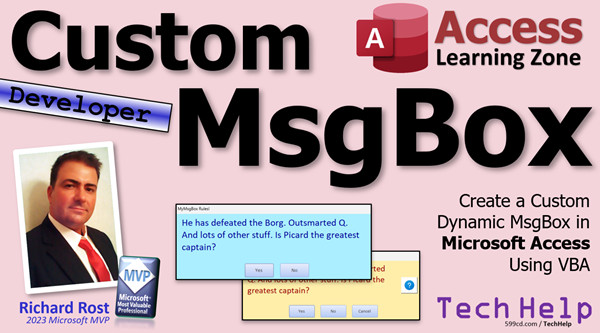
TechHelp Access 2016, Access 2019, Access 2021, Access 365, Microsoft Access, MS Access, MS Access Tutorial, #msaccess, #microsoftaccess, #help, #howto, #tutorial, #learn, #lesson, #training, #database, Custom Dynamic MsgBox, Custom MsgBox in Access, Dynamic MsgBox creation, Multi-monitor Access VBA, Access form window positioning, OpenArgs, VBA dialog options, MessageBox design in Access, VBA custom beep sequence, Access form resizing, Enhanced MsgBox functionality, Custom MessageBox scripting, Access tutorial for advanced users, acDialog, dialog form, TempVars, Move Form, Me.Move, WindowMode, position of dialog form, dialog window position
 Subscribe to Custom MsgBox
Get notifications when this page is updated
More InformationTranscript Welcome to another TechHelp video brought to you by AccessLearningZone.com. I am your instructor, Richard Rost. Got a good one for you today, folks. We're going to be starting another series. After I just released last week's videos on message box options, tons of you emailed me asking if it's possible to make a custom message box where you can change the colors and the size and the style and the font and all that stuff.
Yeah, you can. And we're going to cover that in this series.
We are going to learn how to make a dialog form. Now, a dialog form isn't like a regular form. If you open up a regular form with your VBA code, the code continues to process. So it pops the form up and continues to do stuff. With a dialog form, it pauses the code execution, so you can pop up this form and then wait for the user to do something. That is exactly how we're going to build our message box.
I'm going to show you how to move the form on the screen where you want it. Members will have an extended cut. I'll show you how to center it over the application window, the Access application window.
Now, because you can't open the form and then set values on it, like we normally do where we can open a form and then say, Forms!MyForm!CustomerID = 3, you can't do that if the code execution pauses. So you have to have a way to send data to that form. We're going to learn how to use the OpenArgs parameter.
We're going to send it a bunch of name-value pairs, or sometimes called key-value pairs, like Caption=RX Form, Font=Arial, that kind of stuff. We'll change the captions, the color, the font, the font size, all kinds of stuff.
We're going to learn how to make multiple buttons. Most message boxes that I've seen, usually three buttons is enough: Yes, No, Cancel, OK, Retry, Report, that kind of stuff. But you can build four, five, six, twelve, however many you want. They're your Legos; you put them together however you want to.
We'll see how to retrieve the return value to send it back to the code. So this guy is basically going to return a value like a function. We'll be able to set the height and the width of the form. So if you want a big form, a little form, tall form, wide form, narrow form, however you want it, we'll be able to stretch and move the controls on the form based on its size.
So if the box gets bigger, we can stretch and move these controls around too, so they'll slide left and right. And again, members, another extended cut coming up showing you how to center these buttons exactly in the middle regardless of how big it is. That requires some code and some math.
We'll see how to add some different icons to the form, just like the standard message box, or you could put whatever icons you want on there. You want a picture of Captain Picard's head, put that on there if you want to. I don't care.
But unlike message box, we can change the size. We can make them big, we can make them small, we can do whatever. Members, another extended cut. That's three extended cuts for this series.
We're going to show you how to do your own custom intelligence for the parameters in here. That's going to be neat. We'll get to that.
And we'll add beeps to it. You want one beep, you want three beeps, you want 16 beeps when your box opens, that's up to you.
And of course, lots more. Lots of tips and tricks are going to be coming along the way. This will be probably, I don't know, I'm guessing maybe five or six parts for this series.
Let's talk about some prerequisites first. If you don't know how to use message box in your VBA code, go watch this first. This explains the basics. Then go watch last week's message box options video, which covers all the different options - well, most of the options that come with message boxes.
And of course, all of this is predicated on you having some VBA experience. So if you've never used VBA before, go watch this video; it teaches you everything you need to know in about 20 minutes. So go watch all those. They're free. They're on my YouTube channel. They're on my website, and then come on back.
There will be some other videos along the way for different things, but I'll mention those as we're going. They're not all really hard prerequisites.
We're going to start where we usually do, which is my TechHelp free template. This is a free database. You can download a copy from my website if you want to.
Now, our message box form itself isn't going to have any data in it. So I'm going to pick another form that looks like it to start as a template. Let's pick our main menu form, this guy right here, because it kind of looks like a message box already. Let's just copy and paste this guy, Ctrl-C, Ctrl-V.
I'm going to call this MyMessageBox. That's what we're going to call this thing: MyMessageBox. I thought about calling it Rick's MessageBox, but we'll go with MyMessageBox for you guys.
Let's open you up in design view and just so we don't get these confused here, I am going to delete everything. I'm going to change the background color. Let's make it - let's go with this color for now.
Don't forget to delete all the code out of here too. So I have a button I put up here to view code. If you don't have that button, you can go to the form design and go to this little guy right here that says view code. That'll put you in the code for that form.
We don't need any of this stuff in here for all those subs. You can just get rid of all that stuff. Of course, you're going to leave the Option Compare Database and the Option Explicit. That should be in every module.
And of course, don't touch my copyright notice. Leave it, people. Don't mess with it.
Let's hop back over here and let's put some buttons on here. For now, we're going to start off - let me make this a little bit smaller - with just OK and Cancel. We'll add the third button later.
I was thinking about it before; you can usually get away with OK and Cancel for most applications. I just like to have the third option on there, the Yes, No, Cancel, just once in a while. But OK and Cancel usually is good enough.
With the Yes and No, like I said in the other videos, sometimes people will see a prompt, a message box, and they'll be like, I don't know what to do, I don't know how to answer it. Cancel just says, I don't know, just get me out of here. So we'll add that later.
So grab a button. Drop it down here. Cancel the wizard if it starts up. We're going to make this button OK. And I'm going to put a little whoo in front of it - a little ampersand. Whoops. In the caption - ampersand OK. That way the user can go Alt-O to push that button.
Let's give the buttons a good name, of course. So this guy is going to not be Command16, it's going to be OK_BTN, and I let the end of all my buttons be BTN.
Let's copy this guy, copy-paste, and we'll slide it over here. Sit. We'll change this to Cancel. And this guy is going to be the Cancel button.
By the way, for years and years and years, I always clicked in here, and then you have to select the text. Recently, someone in one of the forums somewhere mentioned to me that if you click over here on the left, it just selects the text for you over there on the right. That's cool. See, even I learn new things from time to time. Microsoft is cool. They put little changes in every now and then, little tiny interface enhancements. I'm like, oh, when did they add that? I didn't know about that.
So there we go. Here's a start to our message box.
We can also make these the default and cancel buttons. If you're not familiar with that, you can make a button so that if you press Enter on the form, it'll push that button. Likewise, if you hit Escape, it'll push that button. This is right here on the other properties. Default for this one's Yes, and on this guy, Cancel will be Yes. If the user hits Escape, it'll push the Cancel button.
We're going to make this form modal. So go to its form's properties. Go to Other and find Modal. Make that Yes. That way the user has to do something to close this form before they can click on anything behind it. That's what modal is. I have separate videos on all this stuff, by the way. But again, this is a developer video. I'm pretty sure you know that already.
Now, traditionally, if you opened up a form and you wanted to get a value back from it, you could click on this button, for example. Let's say this form called this form, and then you hit OK. You want to send this button back to the form before it, the one that called it. Or if it's some VB code, you want to return a value.
So since this dialog here has to be able to return a value to VB code and not necessarily to a form, what we're going to do is we're going to store the value, whatever the user clicks on, in a TempVar. You can use a TempVar, you can use a global variable, you can use whatever method you want. I personally like TempVars because they're easy to work with. And Adam recommends them, so that's enough for me.
If you want to learn more about TempVars, go watch this video.
If the user clicks on the OK button, go to Build Event. We're going to say TempVars, what's what we're going to call it - MyMessageBox equals - and for now, let's just return a string value. So OK. We're going to change it to a number later, but for now, we're going to do this. And then we're going to close the form.
So they click on it. We're going to save that TempVar, because we don't know where - who called it. We don't know where it's got to send the data to, so just store it in memory for now.
Then we're going to do DoCmd.Close acForm, Me.Name. So basically the current form, Me.Name is the name of the current form. I'm going to put acSaveYes in here. I always explain this because your end users are not going to have an editable version of the database. They can't make any design changes. But you - the programmer - you want to save any changes you made.
I've done this a million times where I've opened up a form with the design, made a bunch of changes, just flipped back to form view, and then hit my button, and it closed the form without saving the changes and I just lost a lot of work. So I always put acSaveYes in here.
Let's do the same thing for the Cancel button. Copy that, paste it in here. I know it's a little bit of duplicated code, but that's all right. Then Cancel. I don't consider two lines to be duplicated code.
So now when this form opens up from whoever called it, we're going to have two options now, OK and Cancel. If the user clicks the OK button, it saves OK in memory and closes the form. Then whoever called it can deal with that value.
So who's going to call it? We want to be able to call it from anywhere in the database.
What does that tell you? We need to put it in a global module. So out here, global module. My database has a GlobalMod already. If you don't have one, you can go to Create and then Module over here - not Class Module, Module. I've already got a global module, so stick it in here. Or you can make your own new module if you want - for MyMessageBox module or whatever you want to call it.
In here, we're going to make a public function. I'm going to call this MyMessageBox. It's not going to take any values in, but it's going to return a string.
Now, when you call MyMessageBox, you're going to say DoCmd.OpenForm, it's going to open up the MyMessageBoxF. But we want to open it as a dialog. Dialog means that as soon as this command executes, it's going to open the form and stop. The code is going to stop there. All the lines that come after this don't matter until that form closes. You can run other code in your form, but this particular function is going to stop execution.
So we have to come all the way over, slide that over like that, come all the way over and go comma, comma, comma, comma, comma. Right there. Window mode. See, window mode is going to be acDialog.
This is one of the reasons why I made yesterday's video about named arguments, because instead of all those commas you can come in here and say like this: WindowMode:=acDialog. See that? So much easier than all those commas. I know I've been jamming on the commas my whole life.
So we've opened up the form as a dialog. The user has the only options now to hit OK or hit Cancel. In fact, I forgot to turn the close box off. We'll do that too.
So that's done. That form has been opened. The form now closes. Now what do I do? Well, now this function can return to whoever called it that TempVar value. How do we return a value from a function? MyMessageBox (the function) = TempVars!MyMessageBox.
See how this works? So in your code you're going to say: I want to open up my MyMessageBox. You call the function, the function opens the form, the form sets the TempVar, the TempVar comes back to the function, the function returns the value back to whatever code called it.
See how this works? It's a little tricky, little chain there, but this is the best way to do it. In fact, this beats lots of other methods. I used to teach this by saving a hidden value on a form and then reading that. No, no, no, no, no. This is the way you want to do it.
Now we need a way to test this guy.
Let's test it. Let's go back to our main menu. Actually, let's close this guy. Before we close this guy, one more thing I forgot to do. I'm going to turn off the control box and the close button. Where is the close button? I can never find the close - well, it's right there. It's right underneath it.
You don't want the user to be able to close it with this, and you don't want the user to be able to click on this and go to close. So we're going to turn both of those off.
Save it. Hit close.
Now let's go to our Hello World button in here and we'll call it from here. In fact, let's make this a little bit bigger. I should have just made this big to begin with because I'm always resizing it.
Right-click. Build Event. Now in here, what we're going to do is we're going to say: I want to get the value that MyMessageBox returns, just like we do it with a regular message box.
So let's put that value - because we're returning a string right now. We'll return a number later. I just want to use a string because it's easy to test it with.
So let's make Dim s as a string. s is basically our response. We're going to say s = MyMessageBox. Now for now, we're not sending any parameters to it; later on, this is where we'll send the parameters like what the prompt is, what the title is, what buttons you want, what color you want, all that stuff. It's coming.
So s is going to get that value from MyMessageBox. Then we'll say Status "The response was " & s.
Save it. Always good to throw a Debug.Print in once in a while. Everything's clear.
Good. Close it. Close it. Let's open this up. I got code that moves the application window. Don't worry about that.
Ready? Click the button.
Now this is something we're going to address in a future part. It opened up on a different screen because the screen that I record my videos on is actually above my primary monitor.
One of the problems with dialogs and modals and pop-ups and stuff is that they can open on any screen. We're going to deal with this problem in a few minutes in the next part. This just opened up on my other screen, so I just slide it up, and notice it's modal - so I can't click anywhere behind it, the boxes are off, I can't close it any other way than hitting OK or Cancel.
So I'll hit OK, and there it goes. It returns OK. Let's do it again. Click, same thing. Had to drag it up. Hit Cancel, and there's your cancel.
See what happened there. My Hello World calls MyMessageBox. MyMessageBox opens the form. The form has two buttons. You click a button, it sets the temp value equal to either OK or Cancel, and this line freezes right here until that form is closed. Then it comes back to here, and the function value MyMessageBox is set equal to whatever the user selected. That is returned back to s, and then we can display s.
That is how you get a value from your message box. Isn't that cute?
Now, like I said, the problem if you have a multi-monitor setup like I do: that pop-up dialog box is likely to pop up on your primary monitor regardless of what monitor your Access application is on.
So what we can do is, in order to get that guy to pop up at least over the Access window, is to move it over the Access window. We can do that by going to the MyMessageBox form. We're going to go to the form's Load event (OnLoad), and in here, all we have to say is Me.Move and then some coordinates relative to the upper left-hand corner of the screen. So if I put in like 1000, 1000, save it, come back out here, now when I click, look, it appears right there. This is 1000 pixels right and down from that corner. That's a better positioning, and you can move it as far as you want relative to this corner.
Wouldn't it be nice if this guy appeared centered over the Access window? Well, we can definitely do that, and I will be covering that in the extended cut for the members.
In the extended cut, we're going to write some code. We're going to center this dialog box right over this region here, because remember, you're not going to have the ribbon and you're not going to have the navigation pane in your final product. These will be hidden. I have other videos. I'll show you how to do that.
So this is going to be centered over this region right here, because if your monitor is really big, you want this guy to be in the middle of it, and so that's what we're going to do. That's in the extended cut for the members.
Silver members and up get access to all of my extended cut videos. There are hundreds of them. I don't know, it's like 500 by now. Gold members can download these databases that I build.
That is going to be your TechHelp video for today.
Tune in tomorrow. Tune in tomorrow, same bat time, same bat channel. I got a lot more to go with this. We got a lot more. Probably, I don't know, five, six, seven parts. I'm going to do what it takes to get the job done, right.
So tune in tomorrow. Members, you can watch part two and your extended cut right now. Well, not right now because I haven't recorded it yet. But another member benefit at any level is you can watch the videos as soon as they're posted. As you know, on YouTube, I post them - I schedule them one per day. Sometimes I'll record like ten in a day and I'll just put them all up on the website, and members can watch them there - and on YouTube now too.
So that's it. Go home. We're done.
Hope you learned something. Live long and prosper, my friends. I'll see you tomorrow. Intro In this video, we will learn how to create a custom message box in Microsoft Access using a dialog form. I will show you how to set up a form that can pause your VBA code, handle user responses with TempVars, accept parameters for customization like captions, colors, and fonts, and return values to your code just like a regular message box. We'll cover adding multiple buttons such as OK and Cancel, adjusting the position of the dialog on your screen, and building a function in a global module to call your new message box from anywhere in your database. Quiz Q1. What is the primary goal of the video tutorial series discussed in the transcript?
A. To show how to build a custom message box form in Access with flexible design options
B. To demonstrate basic VBA programming with message boxes
C. To teach database normalization best practices
D. To explain how to import data from Excel into Access
Q2. How is a dialog form different from a regular form in Access VBA?
A. A dialog form continues code execution after opening, while a regular form does not
B. A dialog form automatically saves data, while a regular form does not
C. A dialog form pauses code execution until the form is closed, unlike a regular form
D. A dialog form can only be used in macros, not in VBA
Q3. Which method is described for passing information to the custom message box form?
A. By using SQL queries
B. By editing form control sources
C. By using the OpenArgs parameter when opening the form
D. By using hidden fields on the form
Q4. What are 'name-value pairs' or 'key-value pairs' in the context of this tutorial?
A. Pairs of Access table names and VBA module names
B. Parameters sent to the dialog form to define its settings, such as Caption=RX Form
C. Two linked tables in the database
D. VBA reserved variable names
Q5. How does the tutorial suggest returning a value from the dialog form to the calling code?
A. Using a TempVar to store the result and reading it after the form closes
B. Writing the result to a table and querying the table
C. By using a hidden text box on the form
D. By parsing the form's record source property
Q6. What is the benefit of making the form modal?
A. It runs faster
B. The user cannot interact with other application windows until the form is closed
C. It automatically resizes based on content
D. It enables direct editing of VBA code
Q7. Why are shortcuts such as an ampersand (&) in button captions (e.g., '&OK') used on the form?
A. To add special characters to the button label
B. To allow keyboard shortcuts like Alt-O to activate the button
C. To increase button size
D. To highlight the button in yellow
Q8. Where does the tutorial recommend putting the function that calls the custom message box form so that it can be used from anywhere?
A. In the code behind the form only
B. In the table design
C. In a global module as a public function
D. In a macro
Q9. What does 'WindowMode:=acDialog' do when opening the form?
A. It maximizes the form on the screen
B. It opens the form as a modal dialog, pausing code execution
C. It saves the form design automatically
D. It allows multi-user editing of the form
Q10. What does the DoCmd.Close acForm, Me.Name, acSaveYes command accomplish after a button on the dialog is clicked?
A. Closes all forms in the database
B. Opens another form
C. Closes the current form and saves any changes made to its design
D. Deletes the form
Q11. What is the purpose of disabling the close and control box options on the dialog form?
A. To allow the form to remain open at all times
B. To ensure the user can only close the form with the provided buttons (OK or Cancel)
C. To prevent VBA code from closing the form
D. To enable editing of the form layout by the user
Q12. What issue might you encounter with the position of modal dialog forms in multi-monitor setups?
A. The dialog is always centered on the Access window
B. The dialog may open on the primary monitor regardless of where Access is located
C. The dialog can only be opened on a secondary monitor
D. The dialog resizes itself automatically across all monitors
Q13. How is the example code set up to test whether the custom message box is working?
A. By opening the form in datasheet view
B. By storing and displaying the returned string from the MyMessageBox function in a variable, then showing it in a status message
C. By running a SQL query to compare the values
D. By exporting results to Excel
Q14. What type of value does the MyMessageBox function currently return in the tutorial?
A. Boolean
B. Date
C. String
D. Object
Q15. Which of these is NOT emphasized as a prerequisite to understanding the tutorial series?
A. Familiarity with using message boxes in VBA
B. Basic VBA coding experience
C. Advanced knowledge of SQL Server
D. Knowledge of message box options
Q16. What is the recommended way in the video to move or position the dialog form on the screen?
A. Use the Me.Move method with specific X and Y coordinates in the form's Load event
B. Resize the form window manually before running the code
C. Use an AutoCenter property in VBA
D. Set the window position in the Access application options
Q17. Why are TempVars considered a good method for sharing data between forms in the context of this tutorial?
A. They are saved permanently with the database
B. They are automatically encrypted
C. They are easy to use and accessible from anywhere in the database session
D. They ensure only one user can access the database
Q18. What is a benefit of using a public function in a global module to encapsulate the message box logic?
A. It restricts message box use to one form only
B. It allows the message box to be reused from any location in the database or code
C. It makes the code harder to debug
D. It requires less VBA knowledge
Answers: 1-A; 2-C; 3-C; 4-B; 5-A; 6-B; 7-B; 8-C; 9-B; 10-C; 11-B; 12-B; 13-B; 14-C; 15-C; 16-A; 17-C; 18-B
DISCLAIMER: Quiz questions are AI generated. If you find any that are wrong, don't make sense, or aren't related to the video topic at hand, then please post a comment and let me know. Thanks. Summary Today's TechHelp tutorial from Access Learning Zone focuses on creating a custom message box in Microsoft Access. Many of you contacted me after last week's lesson on message box options, asking whether it's possible to design your own message box where you can control the colors, size, style, and font. The answer is yes, and this series will walk you through how to build one.
To accomplish this, we'll be using what's known as a dialog form. Unlike a standard form, where VBA code continues running after it opens, a dialog form pauses your code's execution until the user interacts with the form. This approach allows us to emulate the standard message box but with much greater flexibility.
Throughout this series, I plan to show you several enhancements. For example, I will demonstrate how to reposition the form on the screen and teach members, in the extended cut, how to center it over the Access application window.
One challenge with dialog forms is that, because your VBA code pauses while they are open, you cannot interact with their controls from the calling code in the usual way. To work around this, I'll show you how to use the OpenArgs parameter to pass information to the form. We'll send name-value pairs that let you specify things like the caption, font, font size, color, and more. This gives you the ability to design a highly customizable message box.
We'll also discuss adding multiple buttons to your custom message box. While most message boxes just have OK, Cancel, or Yes/No/Cancel, you can add as many buttons as you like, with any text you prefer. Once the user makes a selection, we'll examine how to retrieve that response and return it to the calling code, treating your message box more like a function than a passive dialog.
Another aspect I'll cover is making your form resizable and making the controls on it responsive to those changes. If you want a wider or taller box, you'll be able to stretch or shrink it, and the controls will adjust their placement accordingly. Members can look forward to an extended cut where I work through the math and code involved in centering buttons dynamically, no matter what the size of the form is.
Custom icons are another feature we'll explore. You'll have the ability either to mimic standard message box icons or use any picture you want.
A unique advantage of creating this custom solution is that you can set the size however you want, unrestricted compared to the standard message box. Members can also look forward to extended cuts on additional customizations, such as adding intelligence for interpreting parameter values and even creative options like custom beeps when the box opens.
This will be a multi-part series. Expect around five or six parts as we cover all these features and more, including various tips and tricks along the way.
Before we begin, make sure you have a solid understanding of VBA and the basic MsgBox function in Access. If you need a refresher, I recommend watching my introductory videos on those topics first. These are all available free on my website and YouTube channel. Some previous tutorials will be referenced as we go along, particularly my free TechHelp template database, which you can download from my site.
Our custom message box form will be built from a template that resembles a typical message box — in this case, I'll start by copying the main menu form, renaming it MyMessageBox, and clearing out any irrelevant controls and old code. I want to explain not just the steps but also the reasoning behind them. For example, I recommend cleaning up code modules, ensuring only necessary declarations like Option Compare Database and Option Explicit are present, and deleting any old event procedures.
We will start the basic design by adding OK and Cancel buttons, giving them appropriate names and assigning them keyboard shortcuts. I'll also show you how to designate the default button (activated by the Enter key) and the cancel button (activated by the Escape key), just like in the built-in message box.
Next, we want our form to be modal, so that the user cannot click on anything in Access until they deal with the message box. This is done by adjusting the Modal property on the form.
An important consideration is how the custom dialog will return a value to your calling code. Since you want the custom message box to work like a function, we'll store the result (the button clicked) in a TempVar. TempVars are a handy way to temporarily store values that can be accessed by any code in your database.
When a user clicks a button in this dialog, we'll set the TempVar to a string value like "OK" or "Cancel" and immediately close the form. I always recommend closing forms with acSaveYes to ensure any design changes you've made are saved, which saves a lot of time during development.
After saving the form and making sure the close box is disabled, I'll show you how to write a public function in a global module to manage displaying the form. This function will open MyMessageBox as a dialog, which halts the calling code until the form is closed, and then returns the result stored in the TempVar. By placing this code in a global module, you can call your custom message box from anywhere in your database.
Testing the new message box is as straightforward as calling it from a form event, capturing its return value, and displaying it wherever you need.
A common challenge with dialog placement involves multiple monitors. By default, forms may appear in unexpected places. To address this, I'll demonstrate how to use the Me.Move command in the form's Load event to set the position of the message box, ensuring it pops up where you prefer. Customizing dialog positioning and centering it within the Access window will be tackled in the extended cut for members.
Silver members and higher get access to all extended cut videos, which go deeper into these advanced techniques. Gold members can also download copies of all the databases I build.
This concludes today's TechHelp tutorial. If you'd like more detailed, step-by-step guidance — including everything discussed here — you can find the complete video tutorial on my website at the link below.
Live long and prosper, my friends. Topic List Creating a custom dialog form in Access
Differences between regular forms and dialog forms
Pausing code execution with dialog forms
Passing data to forms using OpenArgs
Using name-value pairs for form customization
Changing the caption, color, font, and font size of the form
Adding multiple custom buttons to the message box
Retrieving return values from a custom dialog
Setting custom form height and width
Dynamically moving and resizing form controls
Adding icons to the custom message box form
Assigning default and cancel properties to form buttons
Making a form modal to enforce focus
Returning a value to VBA from a custom dialog
Using TempVars to pass values between forms and code
Opening forms as dialogs using acDialog
Disabling the close box and control box on a form
Calling the custom dialog from a global VBA module
Testing the custom message box from a form
Using the Me.Move method to position the form on screen
Debug.Print and status updates for testing return values Primary Topics custom Access message box, dialog forms in VBA, TempVars usage, modal forms, VBA form positioning, global VBA modules, button return values
Secondary Topics button naming conventions, user interface design, Access form properties, keyboard shortcuts, testing dialog forms
|




