Edge Browser 9
By Richard Rost

 2 years ago
Fill Out Web Forms. getElementById, Name, Submit
In this Microsoft Access tutorial, I'm going to show you how to use the new Edge Browser Control.
In Part 9, we're going to learn how to fill out a web form from our Access database. You will learn how to locate a form field by its ID with the getElementById command. If an element doesn't have an ID, we will use the getElementsByName command to locate it in an array of controls. Then, we'll learn how to submit the form using either the click or submit methods.
Members
There is no extended cut, but here is the database download:
Silver Members and up get access to view Extended Cut videos, when available. Gold Members can download the files from class plus get access to the Code Vault. If you're not a member, Join Today!
Prerequisites
Recommended Courses
Keywords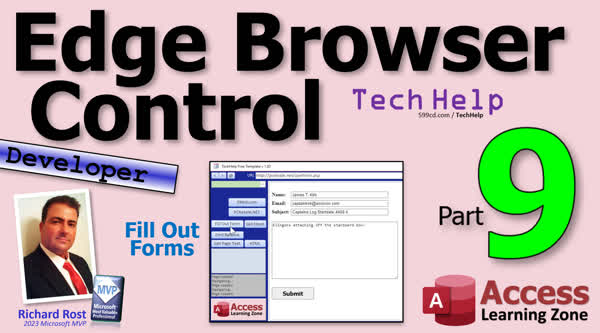
TechHelp Access, Edge Browser Control Access, Fill out web form Access, getElementById Access, getElementsByName Access, Access form submission, Click method Access, Submit method Access, Access VBA browser control, VBA Edge Browser Access, Access populate web forms, VBA script form fill Access.
 Subscribe to Edge Browser 9
Get notifications when this page is updated
More InformationTranscript Welcome to another TechHelp video brought to you by AccessLearningZone.com. I'm your instructor Richard Rost.
Today we are continuing with the Edge Browser Control series, building a web browser in your Access database. In part 9, I'm going to teach you how to fill out forms.
Ever find forms on the web that you'd like to be able to just click a button and fill them in? I'm going to show you how to do that today.
Of course, this is part 9 of a series, so if you haven't watched parts one through eight yet, go watch those and come on back.
In the last video, I showed you how to read the text out of a page. In this video, I'm going to show you how to post data to a form on a web page.
This works best if you control the form too, if it's on your own website. For example, I put together one here on my PC Resell page. Go to Links, and then I've got the Customer Service Form.
This is something I control. I can put stuff in here. I can build this the way I want.
This doesn't mean you can't do it with any form on the web, but it's got to be formatted properly. I'm going to show you how to figure out if it's formatted properly in this video.
This will work for a lot of forms. If you have a bank website, PayPal, something really high tech, it might not allow this because these features can be locked down to prevent you from doing this. But it should work most of the time.
This is very handy, especially if you've got a website and your users are working with your Access database, and you want them to be able to submit information via your own website. You can build the form here, and then you can build the database, and they can submit customer info, whatever, right out of your Access database. There are lots of things you can do with this.
Let's make a button over here to fill in this form. If you're not familiar with HTML, this might be a little difficult for you. It definitely helps if you have a little bit of HTML background and a little bit of JavaScript background. I've got an HTML 101 course on my website. It's really old, but it teaches you all the basics.
If you take a look at any page in your browser, right-click on it and go to View Page Source, it'll show you the HTML behind that page. You can see here's a form. What we're looking for are the controls in that form. Here's input name, your name. There it is, that's the your name field. Here's the email address field. Here's the subject field. What you're looking for is this ID right there. We've got your name, and the ID is your name, so we can use that to push a value into that web form, into that field, from our Access database.
So, let's edit our form. I'll make some more room here. Let's shrink this down even more. Move these controls down.
Add more buttons. Copy this guy, paste, and we'll call you Fill Out Form.
Again, I'm just showing you the basics here. You can do all kinds of stuff with this. Use the rest of your Access knowledge that I've taught you and apply it however you want. If you want to make a button to take the customer data and submit it to a form, that's all on you. I'm just showing you the basics here.
Right-click, Build Event, bring up our code builder.
Now, we're going to say WB.ExecuteJavaScript, just like we've done before, and the command is going to be:
document.getElementById
Again, capitalization is important. It's capital E, capital B, capital I. getElementById.
Open parenthesis, single quote, and then the name of the field: yourname
Close it up, .value
Equals, and then in single quotes again, whatever you want the name to be. I'll put in here: James T Kirk
Close up our quotes and parenthesis and there you go.
That's the command. That's the field name with the ID. In here, put what you want to send to the form, and you can put your own field name in here.
You can do something like this with your own field on your form.
Let's save it.
Again, I'm just showing you the basics here.
Debug, compile, make sure the compile is good. Come over here, let's go back to that form.
Open it up, PCResell.net, go to Links, go to the Customer Service Form.
Now, these are just some default values that pop in there because of my browser. As soon as I hit Fill Out Form, boom, look at that, James T Kirk goes in the name field.
Let's do the email. Let's go back to the source of the page.
Email's right here, and the ID is email. So, same thing.
Copy this command, put it next, and we'll change email, and the value will be
[email protected]
Save it.
Back over here, fill out the form, click, and there we go.
Pretty straightforward.
I also want to mention that instead of looking at the HTML source, there's another way that you can view the elements on the page, and that's by inspecting. If you right-click on any field or any object in the page and go to Inspect, it brings up the Inspector.
With the Edge control, there is a bug. The first time you open up the Inspector, it doesn't go to the right control. But the second time you do it, if I right-click now and go to Inspect, it'll put you on that element, see, right there. You can see all the details. This is basically just a fancy way of looking at the HTML source code.
I grew up looking at this stuff, so I'm just used to this, but if you like the Inspector, there it is. Just be aware of that bug. They've said it's supposed to be fixed in an upcoming version, but it's not a big deal.
So, I'm going to close this. What about the next item? What about the subject? Let's try the subject.
Subject's next. Let's come back over here. Let's go back to our code.
Copy this and paste it, and we'll say subject.
We'll say captains log, star date 8765.2, whatever.
Save it.
Back to our database, click the button.
Nothing's happening. Why is nothing happening? What's going on here? Let's double-check our name.
ID is subject. Let's look at the HTML. It says name equals subject. Oh, look at that. Whoever built this page, in this case me, didn't put an ID.
You don't have to put an ID on a control for it to work. As long as it's got a name, then whatever page is accepting it, in this case custserv.asp, will just work off that name. You don't have to have an ID. An ID is useful for JavaScript to be able to locate that control, but it's not required. You'll find a lot of pages online don't have IDs for their controls.
So, what do you do? You can try to find the object by name, but it's a little trickier because you have to actually look at an elements array.
You could have multiple objects on this page named subject. Usually you don't, but you could, depending on how they built the page.
Like I said, this works best if this is a website you control. If not, you might have to deal with whatever the developers did.
Let's see how we can find that subject. This is an easy page. This is the entirety of the HTML right here.
We can be pretty sure there's nothing else called subject on this page.
Back over here, instead of getElementById, it's getElements (plural) by name, N-A-M-E.
This is going to return an array, so you have to look at an individual element of that array by putting it in brackets over here. The first one is zero. So in brackets, put zero.
It's going to look at the entire elements collection of objects on that page, find all the objects named subject, give me the first one, which is zero.
If there happened to be two, you'll have to get the second one, which is one. It's a zero-based array.
Since I built this page, I know this is going to work, and I did this intentionally, can you tell? I do this kind of stuff to teach you things.
Now, click the button. Boom, and there's your captain's log, star date, whatever.
So, keep that in mind. If the object on the page doesn't have an ID, you'll have to find it using the name array.
What's next? It's this text area here where you put your notes, and that is going to be this text area.
This one's got a name and an ID, so we can use the ID for this one. It's called comments. We'll come back here. If you have the ID, use the ID by all means.
Change this to comments, and put in the value.
Klingons are attacking. Red alert. Whatever.
Back over here, hit the button. There you go.
How do you actually submit this form? You can just click on the button right there if you want to.
It's been submitted. Let me back up though.
If you want to have your VB code submit this, in other words, you want to load the page, fill out all the information in the form, and then submit it automatically, you can do that too.
You can either make it part of this button here, or we can make a separate button for it. Let's make a separate button for it.
Copy, paste, and I'll say Submit.
Slide you up next to this guy.
Submit button. This is going to be different for every form you have to deal with online, unless you control these yourself.
There's no way around it, every website is different.
I tried doing this with a bunch, like my bank site, PayPal site. It's possible, but it's a lot of work. It's more work than it's worth most of the time.
A lot of these websites, especially bank sites, have specifically developed their sites so you can't do this kind of stuff.
This is handy if you want to go to one of your vendors' websites and submit a requisition form or you want to pull down some of their product information, or that kind of stuff. It's not for anything super secure.
How do we submit this guy?
Let's take a look at the HTML, find the submit button. It's right down here.
I programmed this guy with a submit, and it looks like there's a bug in my HTML right there. There shouldn't be a space between ID and style, but it's not affecting it. It still works.
There, I fixed it. Like I said, this works best if you control the website.
We need to find the button with the ID of submit. It's going to be very similar to what we did before.
Copy one of these guys, paste it in there. We're going document.getElementById('submit'). Now, we're not setting a value. What are we doing? We're clicking the button. So, .click()
Save it.
Close it. Go back out here. Close this, open it back up again. Go to PCResell, Links, Customer Service Form. Fill out the form and submit, and there you go.
There are different ways you might have to submit the form too. For example, this might not have an ID.
You might have to find it by name like I showed you before. It might not have a name or an ID. As long as it's got a type="submit," that's all you need for the button.
You might have to locate the form by name or even by ID. You might need to locate the form and submit the form.
This form is called custserv.
Another way you could submit this form would be to find the form called custserv and .submit it. That's submitting the form.
Save it. I'm back over here.
Let's go back to the form, fill out the form, submit, and that works too.
In fact, your form might not have a name or an ID. I've seen that too.
It could just be form method="post" action="whatever" without a name or an ID.
In that case, you can find the form in the array of forms numerically.
That looks like this. I'll rem this out.
This is going to be very similar code.
Again, learn your JavaScript if you want to do a lot of this. This is going to be document.forms[0] or whatever number it is, .submit(). That's saying, find the first form on the page and submit it. Be careful, because a lot of websites, including mine, have multiple forms on the page, even though it doesn't look like it.
Here's my Customer Service Contact Form. Here's a form right here. It's not the first form on the page. There's a little search box up here. This is a form. That's form zero. This guy would be form one.
You have to look at the HTML and figure out which is which.
But in our case, document.forms[0].submit() should work.
Let's save it. Again, back up to the form, fill it out, and then submit, and there it goes.
If you like this stuff, if you like working with websites and you want to develop your own forms on your website and have your customers or employees submit stuff, whether it's through your Access database or right in your web browser, I cover all of this in my ASP course. I've got a full course on it.
This is what the HTML behind the form page looks like. To accept this stuff, the other form that it goes to is customerservice.asp, which is this guy. This is ASP right here.
Everything between this tag is ASP, and it says yourname = Request("yourname"). It's requesting it from whatever page called this one. It could be a form. You could get it off the query string right in the browser. This just displays the information that was submitted.
But in here, you could send this to an Access database. You could send it to SQL Server, store it, do whatever you want with it.
I cover how to do that in my ASP course.
Active Server Pages, SQL, I have lots of ASP lessons. Here they are, all kinds of stuff.
Then with SQL, setting up a database, connecting Access to it, connecting it to SQL Server, I have a whole separate SQL Server seminar.
If you want to do stuff between Access and your website, this is the way to do it. I know a lot of people say ASP is old. Yeah, it's old, it's been around for a long time, but you know what? It's rock solid and bulletproof. I love ASP; my website still runs on classic ASP.
There's a newer ASP.NET, but most sites don't even need all the new features that are in ASP.NET. I can talk about it for hours, but ASP is just perfect for 99 percent of websites.
ASP 101 is free, check it out. I'll put a link down below.
That is going to be your TechHelp video for today, part nine. We're winding down, I've got a couple more things to show you, and then that's going to be it for the Edge Browser Control series.
If there's anything else you want to see how to do, now is the time. Post it in the comments.
Live long and prosper, my friends. I'll see you next time. Intro In this video, you will learn how to automatically fill out web forms using the Edge Browser Control in Microsoft Access. I will show you how to identify form fields by their ID or name, set their values from your Access database, and programmatically submit the form using Visual Basic and JavaScript. We will cover practical examples for working with both inputs that have IDs and those that only have names, and I will demonstrate various techniques for submitting forms efficiently. This is part 9. Quiz Q1. What is the primary function demonstrated in this video with the Edge Browser Control in Access?
A. Reading emails from an inbox automatically
B. Filling out web forms programmatically through Access
C. Exporting reports from Access to Excel
D. Printing Access forms to a network printer
Q2. Which technology is used in Access to interact with web page controls for filling in forms?
A. SQL commands
B. ExecuteJavaScript
C. VBA Macros only
D. OLE Automation
Q3. When programmatically filling out a web form, why is having control over the web page important?
A. It allows you to change the colors of the website easily
B. It ensures form fields are properly named and formatted for automation
C. It guarantees faster loading speeds
D. It removes the need for JavaScript knowledge
Q4. In the code example, how is the value of a field with an ID set via JavaScript?
A. document.getElementByName('name').value = 'Value'
B. document.forms[0].set('ID', 'Value')
C. document.getElementById('ID').value = 'Value'
D. document.input['ID'].value = 'Value'
Q5. If a form field does NOT have an ID but has a name attribute, which JavaScript method should you use to access it?
A. document.getElementById
B. document.getElementsByClassName
C. document.getElementsByName
D. document.getElementByName
Q6. What is returned by document.getElementsByName when used to find a form field?
A. A string containing the field value
B. An HTML form object
C. An array (collection) of matching elements
D. A single element object
Q7. What is the index of the first element in a JavaScript array returned by getElementsByName?
A. 1
B. 0
C. -1
D. Depends on the browser
Q8. How is a form typically submitted using JavaScript if you have the submit button's ID?
A. document.submit()
B. document.getElementById('submit').click()
C. document.form.submit()
D. document.getElementById('form').value = 'Submit'
Q9. If a form does not have a name or ID, how can you select and submit it using JavaScript?
A. document.form[1].submit()
B. document.forms[0].submit()
C. document.getElementsByClassName('form').submit()
D. document.getElementById('form').submit()
Q10. Why might programmatically submitting forms not work on some secure websites like banks or PayPal?
A. Because those sites do not use JavaScript
B. Because those sites prevent automated interactions for security reasons
C. Because those sites are only compatible with Firefox
D. Because those sites use outdated HTML
Q11. What is a benefit of using ASP (Active Server Pages), as mentioned in the video?
A. It is brand new and cutting-edge
B. It is complex but contains the latest web features
C. It is rock solid, reliable, and still useful for most sites
D. It only works on non-Windows servers
Q12. When inspecting a web page to find field IDs or names, what two methods were described in the video?
A. Using browser history and cookies
B. Viewing page source and using the Inspector tool
C. Checking email and logging network requests
D. Asking the website administrator directly
Q13. If there are multiple forms on a page, how do you determine which index to use in the forms array for submission?
A. Count the hidden fields
B. Always use index 1
C. Look at the order of the forms in the HTML document
D. Use the login form every time
Q14. Why is knowing some HTML and JavaScript helpful when automating form submission from Access?
A. It allows you to rename database tables
B. It helps you identify the correct methods and properties to interact with webpage elements
C. It is required to compile VBA code in Access
D. It increases the speed of your Access database
Answers: 1-B; 2-B; 3-B; 4-C; 5-C; 6-C; 7-B; 8-B; 9-B; 10-B; 11-C; 12-B; 13-C; 14-B
DISCLAIMER: Quiz questions are AI generated. If you find any that are wrong, don't make sense, or aren't related to the video topic at hand, then please post a comment and let me know. Thanks. Summary Today's TechHelp tutorial from Access Learning Zone focuses on building a web browser within your Access database, specifically using the Edge Browser Control. We are now at part nine in this series, and in this lesson, I am going to teach you how to fill out web forms from within Access.
Many times, you come across web forms that you wish you could just fill in with the click of a button rather than typing everything manually. The good news is that you can automate this process, and today I'll show you how.
This is the ninth part of the series, so if you haven't worked through parts one through eight, I strongly recommend reviewing them first to build up the necessary foundation.
In the previous lesson, I explained how to extract or read text from a web page. Today, we're taking it a step further and will be posting data to a form on a web page. This process is easiest and most reliable if you also control the web form in question, such as one hosted on your own website. For example, I use my own PC Resell website and its Customer Service Form for demonstration.
While this method can work with many forms across the web, its success depends on how the form is coded. High-security or financial sites often restrict access and may prevent this kind of interaction, but for most standard forms, it should work fine.
This technique is especially useful if you have a website and your team regularly works in Access. You can set up your forms on your website and then send data directly from your Access database, allowing staff to submit customer or transaction info quickly and efficiently.
To get started, you'll want to create a button in your Access database to fill in the web form. Having some familiarity with HTML and JavaScript will make this process easier, but it's not absolutely required. If you need to brush up on HTML, I have a foundational course available on the website that covers the basics.
When working with web forms, one key skill is understanding how the form fields are coded. Every web page is built with HTML, and each form input usually has a name and, ideally, an ID attribute. To see this information, you can view the page's source code in your browser, which reveals how the form fields are defined. The ID attribute is especially important because it allows JavaScript and VBA scripts to target that specific field.
After identifying the field's ID—let's say there is a "yourname" field with ID "yourname"—you can use your Access VBA code to push data into that form. Add your button, wire it up to run the appropriate code, which executes JavaScript within the browser control, and assigns a value to the field.
Let's say you repeat this process for other fields such as the email address and subject. As you go, always check the source code to confirm each field's ID or name. Some fields might not have an ID; in cases like this, you'll have to find them by their name, which is a bit trickier. Without IDs, you need to target the control by name using an array-like approach, since multiple form controls on a page could share the same name.
This is why controlling the design of your website's forms is beneficial. If you know how they are structured, you can reliably script to fill them in from Access. For demonstration purposes, I intentionally set up my form so that you get to see both approaches.
If a field has an ID, use that. If it only has a name, you'll use a method that targets the named field as part of a collection. Be sure to check which number in the array corresponds to the field you're working with, as the first element is index zero.
For larger fields like text areas, the principle is the same. Again, use the ID when available.
Once you've filled out all the fields, you can submit the form either by manually clicking the submit button in the browser or by invoking the form's submit action from VBA. You could create a separate button for submission. The code you'll use will depend on the form's structure. If the submit button has an ID, you can target it directly. If it doesn't, you may have to reference it by name, or, if neither are available, you can access the form itself as part of the forms collection on the page and invoke its submit action.
Some websites have multiple forms on the same page. For instance, there could be a search form ahead of the main form you want to submit, making it necessary to count which form is the one you want. Take care when referencing forms by index in these cases.
If you want to see what the form and field structure looks like in a more user-friendly way, you can use your browser's Inspect tool to see the underlying HTML. That said, in the Edge browser control used by Access, there's a small bug where the inspector doesn't always jump to the correct element on the first try, but it works on the second attempt.
Beyond filling and submitting forms, if you want to connect your Access database with your website for real-world use—like passing form data from Access to your web application, storing it in a database, or emailing notifications—this forms the bridge between your desktop and web data entry processes. I cover all of these concepts in depth in my ASP courses, where you'll learn how data moves from your Access application to the server and how it can be processed and stored, whether using classic ASP, SQL Server, or other backend technologies.
While newer platforms exist, classic ASP remains a solid and reliable choice for the vast majority of routine websites and has proven its reliability and robustness over decades. If you're interested, my introductory ASP 101 course is free and available on my site.
That wraps up part nine of the Edge Browser Control series. As we near the end of this series, if there's anything specific you'd like to learn about, now is the perfect time to let me know.
You can find a complete video tutorial with step-by-step instructions on everything discussed here on my website at the link below. Live long and prosper, my friends. Topic List Using Edge Browser Control to fill out web forms in Access
Identifying form input fields by ID in HTML
Filling form fields using JavaScript from Access
Using getElementById to set field values
Viewing HTML source to locate form field IDs
Using the browser Inspector to examine elements
Handling forms with input fields that use name but not ID
Using getElementsByName to access input elements
Referencing elements in the name array by index
Populating text area fields in web forms
Automating form submission using JavaScript
Submitting forms via getElementById('submit').click()
Submitting forms using the form's name with .submit()
Selecting forms by array index with document.forms[0].submit()
Understanding form and control identification challenges
Applying JavaScript methods in Access VBA for web automation Primary Topics Access Edge Browser Control, filling web forms, posting data to web forms, JavaScript automation, HTML form structure, locating form elements, form submission, database-web integration
Secondary Topics HTML element inspection, handling forms without IDs, troubleshooting form automation, limitations with secure/bank sites, classic ASP usage
|




