Spawn Copies 2
By Richard Rost

 2 years ago
Spawn Multiple Copies of the Same Database, Part 2
In this Microsoft Access database, I'm going to show you how to spawn multiple copies of the same database in Microsoft Access. This is Part 2 of 2.
Members
Members will how to have the database create a copy of itself and then spawn that copy so you won't run into record or file locking issues.
Silver Members and up get access to view Extended Cut videos, when available. Gold Members can download the files from class plus get access to the Code Vault. If you're not a member, Join Today!
Prerequisites
Links
Recommended Courses
Keywords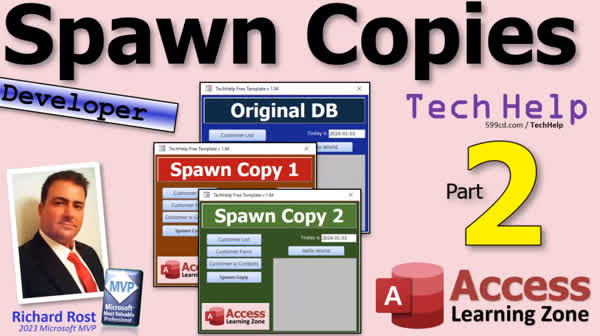
TechHelp Access, bulk email database, database copies, multiple database instances, simultaneous database access, Access database replication, multiple Access sessions, parallel processing in Access, optimize Access database, speed up Access operations, Access database multitasking, multi-instance database, database performance optimization, concurrency in Access, running multiple Access databases, email sending optimization, multi-threading in Access, Access database concurrency, multiple connections Access database, Access database scaling, Access parallel tasks, Access productivity enhancement, multiple Access windows, managing multiple databases, Access database speed improvements, Access resource optimization, concurrent database access, Access database process management, performance tuning Access database.
 Subscribe to Spawn Copies 2
Get notifications when this page is updated
More InformationTranscript Welcome to another TechHelp video brought to you by AccessLearningZone.com. I am your instructor, Richard Rost. Today is part two of my spawn copies video series. If you have not watched part one yet, go watch that right now and then come on back.
We now join our program already in progress.
Now let's examine the shortcut that we just created. Properties. Here is the shortcut. You see the shortcut goes right to MSXS-EXC. That is the executable file.
Notice it is in quotes. That is very important. Any path or file name that has spaces in it, you have got to have quotes. Another reason why I tell you not to use spaces in your field and table names too inside of Access. They really help it here in Windows though.
Alright, so what we are going to do now is we are basically going to say, alright, along with this MSXS.exe, we are going to put a command line parameter after that, which is basically going to be what I had you copy earlier to your notepad.
Now, even if you do not have spaces in this, put quotes around it like that.
Then you are going to copy this. I am in here where the target is. Put a space after that and then paste that in. That is what it should look like now. You got MSXS.exe, space, quote, and then the full path to your database.
But you are not done now. You are not done. You do not want to start in the office 16 folder. You want to start wherever your database was. That is why I said you are going to take this part of it here, just the path. Put that inside of quotes and that is going to be your start in folder. That is where you want to start.
If it is just a simple database, you are not doing any kind of file IO, that really does not matter. But if you are doing stuff where you are reading and writing files and it matters what folder the database is in, then that is just a good habit to do.
There are other options here too. You can change the icon. You can go into advanced here and run this as administrator, which usually you do not need to do, but there are all kinds of stuff you can do with a shortcut to straight Access.
When you are done, hit apply. Hit OK. You can rename this if you want to. "Start database copy" if you want to.
Now watch this. Double click. It opens up my database. Slide it over here. Double click. It opens another copy of my database. See that? I got two of them running now. Run it again. I got a third copy and you can keep making copies till you run out of memory.
Again, this is fine if it is for processes that are mostly in memory where there is not a lot of read-writes to the tables. If I am sending an email and I have got to wait 60 seconds before the email server replies, you should be okay getting away with two, maybe three copies this way.
But be careful and keep your eye on it and monitor it because you might get some failures and you might get some read-write conflicts. Record locking can be an issue.
Now, if you do not want to go through- let me close these down. If you do not want to go through- oh, another one, make one more mention here. Another problem that you might have is if you have got multiple copies of this thing open and you start making design changes in any one of them, you could have some serious problems there too.
In fact, you might not be able to- let me see, start another copy. Because it is going to say you do not have exclusive access. Let's see, design. Yeah. See, you do not have exclusive access to the database. So Access is protecting itself. But you do not want to get in here and make a design change and realize that is another copy running and then you cannot save your changes.
There are issues that can arise. Again, like I said, I do not recommend doing this. I am showing you how to, but it is like a parent telling his kid, well, you really should not go play in the street, but you guys are big boys. Make sure your hockey game does not get interrupted by a truck. So game off.
Now, if you do not feel like making this shortcut out here, you can have the database itself spawn this copy. Watch this. That is just one line of code. You can do it right from inside the database. Just make another button here called spawn copy. Copy you, spawn copy you.
Alright. And in here, yeah, you should name the button and all that stuff. I am just showing you a quickie.
In here we can use the Shell command. Shell says run some other program. This will not work with Application.FollowHyperlink though, because FollowHyperlink, for those of you who know what that is, you can use it to open up any other type of file or document or whatever, but again, it will open up the same copy of the database if you try doing it that way.
But Shell, you can say, hey, open up MSACCESS.exe, just like we just did. I am not going to type the whole thing out. I am just going to paste it in there. Burp.
I had Shell in my original one. So it is Shell and then this stuff.
So here is the command: MSACCESS.exe. Now remember inside of quotes, we got the name. We got double double quotes because that becomes a single set of double quotes inside the string. I have a whole separate video on double double quotes and when you should use those and all that. I will put a link to that down below if you are curious.
But this basically will be what we had in the shortcut before. So that is inside of quotes, the path, MSACCESS.exe, and the space, and then another set of double quotes, and then CurrentProject.FullName is the name of your current database with its path. That again gets put inside of double quotes inside the string. VBNormalFocus just says, yes, I want to see it. You do not want it to start minimized. That is the Shell command.
Now we will give it a quick debug compile, and come over here, save changes, yes. Now the database will make its own spawned copies. That copy can spawn a copy, and that copy can spawn a copy, and so on.
They'll tell two friends, and they'll tell two friends, and so on. I am old, I remember all these old commercials.
I have four copies of the same database running in memory on the same machine. Be careful what you use it for.
Now why is this bad, really? Well, if you have got multiple copies- if you look in your database folder, where are you? Not that one. Look in this one here. There is this file here called frontend.lacdb. That is the lock file for it.
Bad things start to happen when you get multiple frontend copies working on that same lacdb file. They really want their own. It is just from experience, by 30 years of working with Access, I can tell you that bad things can happen.
So what is the right way to do this? Well, Access does handle multi-user stuff. It is fine, but again, it wants every person to have their own frontend.
Now since this frontend is linked to that backend, I can do this. I can copy this. And we can call this frontend2. And I can copy it again. And I can call this frontend3. Come here. Yeah, I am here. See?
Here is frontend. Yeah, my system is running slow today for some reason. Alright, put that over there. Here is frontend2. Alright. Looks good. Then here is frontend3.
Look at see, they are getting their own lacdb files. See? There is copy3. I got three copies right here. Each one of them has their own lacdb files. See that? That controls the locking for this file.
Watch what happens if I go into one of the customer forms here and I start editing. See? Look at that. The backend lacdb file pops up. If I start modifying this and this guy comes over here and he starts going in here and starts doing something. Then closes it and then this guy comes over here and tries to change it or close it, see? You get your write count.
You get the videos on how to deal with this stuff with record locking and stuff. I will put links to that stuff down below too. Access definitely behaves better if it has got multiple frontend copies running in, not just the same frontend running over and over again. But again, try it and see. It might work for you.
Another thing you could do, and I am getting to the point where I am pretty much done with this lesson, is you could create multiple shortcuts to these different frontends. In the shortcut, you could give command line arguments. You could tell the shortcut, you could tell the database what copy it is. For example, you can come in here and you could say, CMD1 for copy 1 or CMD3 for copy 3. That is the CMD command line argument. Then inside the database, you open it up and you say, what copy are you? For example, I will put my link to my command line arguments video down below.
Now the problem with this method, if you are going to use it to run multiple copies of your database, is just maintenance because every time you make a small change to your original frontend, you have to make sure you make this copy, then make that copy, and so on.
Is there a better way? Well, yes, with a little bit of VBA, not much, you could make one database and then have it automatically create these spawned copies. It will copy itself and then run the copy. When you are all done, you just have a button you click and it cleans up all the spawned copies because the database cannot delete itself.
So how do we do that? That is where these guys from the title slide came from. In the extended cut for the members, I will show you how to make the database make copies of itself. It will literally copy it, and yes, there is a way to copy an open file. Once it makes the copy, it will spawn the copy. Then we will make a button, after you are all done running your spawned copies, or just once in a while, just to delete all the extra ones. Time to make a change to the original, delete all the spawns. That will be in the extended cut for the members.
Silver members and up get access to all of my extended cut videos. There are a lot of them now, folks. That is going to be your TechHelp video for today. I hope you learned something.
Live long and prosper, my friends. I will see you next time. Intro In this video, we will continue exploring how to launch multiple instances of the same Microsoft Access database using command line shortcuts and the Shell command in VBA. I will show you how to properly set up shortcuts with command line parameters, discuss the importance of handling file paths and record locking, and demonstrate how to use VBA to spawn database copies directly from within Access. We will also talk about the right approach for multi-user setups by using separate front-end copies and consider some of the potential risks when using these methods. This is part 2. Quiz Q1. What is the primary purpose of adding quotes around file paths in Windows shortcuts?
A. To specify that the path is a network location
B. To ensure that any spaces in the file path are properly recognized
C. To make the shortcut run as administrator
D. To convert the path to lowercase
Q2. Why is it important to set the 'Start in' folder of a shortcut to match the folder containing your Access database?
A. It improves the performance of Access
B. It is required for opening the database
C. It helps file operations that depend on the working directory
D. It allows shortcuts to use custom icons
Q3. Which Windows command is used in VBA to launch a new instance of an application like Access?
A. Application.FollowHyperlink
B. Shell
C. OpenDatabase
D. Exec
Q4. What is the main risk of opening multiple instances of the same frontend Access database file?
A. The database will become read-only
B. Record locking conflicts and possible data corruption
C. Users will be logged out after a few minutes
D. The file will be automatically deleted
Q5. Why is using the FollowHyperlink method not suitable for spawning a new copy of the same Access database?
A. It requires administrator privileges
B. It only opens the file once in the same application instance
C. It cannot handle file paths with spaces
D. It does not support command line arguments
Q6. What does the file frontend.lacdb represent in an Access database folder?
A. A backup of the database
B. A user activity log file
C. The lock file controlling record access in the frontend
D. The configuration file for Access options
Q7. What is the recommended method for supporting multiple users in a multi-user Access environment?
A. Have all users share a single frontend file
B. Provide each user with their own copy of the frontend linked to a shared backend
C. Use different versions of Access for each user
D. Only allow one user at a time to use the database
Q8. If you make design changes in one of many open copies of your database frontend, what is a likely issue?
A. All copies will automatically update
B. You may not have exclusive access to save changes
C. The backend file will be deleted
D. The shortcut will stop working
Q9. What is one drawback of manually creating and maintaining multiple frontend copies for users?
A. Access will refuse to run multiple copies
B. Updates or changes must be manually distributed to each copy
C. Users cannot differentiate between copies
D. Only one copy can access the backend at a time
Q10. What does the VBNormalFocus parameter in the Shell command do?
A. Runs the program as an administrator
B. Minimizes the program window
C. Opens the program window in normal view
D. Runs the program in the background silently
Answers: 1-B; 2-C; 3-B; 4-B; 5-B; 6-C; 7-B; 8-B; 9-B; 10-C
DISCLAIMER: Quiz questions are AI generated. If you find any that are wrong, don't make sense, or aren't related to the video topic at hand, then please post a comment and let me know. Thanks. Summary Today's TechHelp tutorial from Access Learning Zone will continue the discussion on spawning multiple copies of an Access database. If you missed the first video in this series, I recommend you watch that before proceeding, as this is part two and builds on the previous material.
To start, let's take a closer look at the shortcut we created earlier. The shortcut points directly to the MSACCESS executable file. You will notice that the path is surrounded by quotes. This is essential, especially if your path contains spaces. The same rule applies in Access when naming your fields and tables; avoiding spaces makes things easier all around.
The next step involves adding a command line parameter after the path to the executable. This will typically be the path to your database file, and once again, it's best to surround it with quotes, even if there aren't any spaces. Take this database path you copied to your notepad, and in the shortcut's target field, add a space after the path to MSACCESS.exe and then paste in your quoted database path. At this point, the target should have MSACCESS.exe, a space, then the full path to your database inside quotes.
However, there is another detail to finish the setup. You do not want the "Start In" folder to default to the Office application folder. Instead, set it to the folder that contains your Access database. Copy that folder path, enclose it in quotes, and place it in the "Start In" field. If your database performs file operations or relies on specific directories, this step is important to ensure everything works smoothly, although for simple databases it is less critical.
Shortcuts also let you customize the icon or set the program to run as administrator using the advanced properties, but that's beyond what we need here.
Once that's done, hit apply and OK. You can rename your shortcut to something like "Start database copy" for clarity.
Now, when you use this shortcut, it will open up your database. You can open multiple copies by launching the shortcut again and again. Each click gives you another running instance. This works well for processes that run mostly in memory and do not perform heavy or simultaneous reading and writing to the tables. For example, if an operation such as sending an email causes you to wait for a response, running a couple of database copies this way can be convenient.
However, be cautious: running several concurrent copies can result in failures or record locking conflicts, especially if you are editing data in more than one window. Also, be aware that if you attempt to make design changes in any instance while multiple copies are open, Access will prevent you from saving these changes unless you have exclusive access to the database. This protects your data, but it is still something to keep in mind.
If you want to avoid manually creating these shortcuts, it's possible to have the database launch additional copies of itself. This can be achieved with just a single line of VBA using the Shell command. By adding a button to your form labeled "Spawn Copy," you can trigger the database to open a new copy. The Shell function will launch a new instance of MSACCESS.exe with the path to your current database provided as a command argument. It is important to use the correct syntax for quotes within the command string, and I have additional resources on that topic for those interested.
This same approach will let each spawned copy create another, allowing you to rapidly generate multiple instances of your database as needed. While this can be fun, remember why this technique comes with risks. When you check the folder containing your database, you will notice a file with an .lacdb extension. This is the lock file for your database's front end. Problems can arise when multiple instances use the same lock file, as Access expects each user to have their own front end.
The better approach for multi-user environments, or when you need several instances open, is to make copies of your front end database file for each session. For example, you might create "frontend2" and "frontend3," and launch each one separately. Each of these will generate its own lock file, ensuring safer and more reliable operation.
When you edit data in one copy, you will see the back end lock file appear as well, signaling active data editing. If you try to modify records in several front ends at once, Access manages the record locking at the back end level, so be aware of the potential for conflicts. I have other videos explaining record locking and related concerns in detail.
You can also create individual shortcuts for each front end copy, passing command line arguments to indicate which copy is which. Within your database, you can read these command line parameters and react accordingly. I have a dedicated lesson on using command line arguments as well.
Keep in mind that maintaining multiple front end files for this purpose means keeping all of them updated whenever you make design changes. This can become tedious and prone to errors if not managed carefully.
A more streamlined method is to use a bit of VBA so that a single master database can automatically spawn and manage its own copies. This approach allows your database to copy itself, launch the copies, and, when finished, clean up these extra files with a button click. Since a running database cannot delete itself, spawned copies can be cleaned up only after they're closed.
In today's Extended Cut, I will demonstrate how to set up a database that can create and launch its own temporary copies and then remove them when you are done. This method is much cleaner, particularly in environments where design changes are frequent.
Silver members and higher get access to all of these extended cut lessons, where I show you exactly how to implement this technique and more. There are quite a few of these in-depth lessons on my site.
You can find a complete video tutorial with step-by-step instructions on everything discussed here on my website at the link below. Live long and prosper, my friends. Topic List Creating desktop shortcuts to open Access databases
Using quotes in file paths and command lines
Setting the Start In folder for an Access shortcut
Running multiple copies of an Access database via shortcut
Potential record locking and design change conflicts
Opening Access databases with the Shell VBA command
Differences between Shell and FollowHyperlink in Access
Passing command line arguments to Access databases
Creating multiple frontend copies for multi-user setups
How lock files (.lacdb) are handled with multiple copies
Using command line arguments to identify database copies
Managing multiple frontend files and maintenance issues Primary Topics Access database shortcuts, command line parameters, running multiple frontends, lock files, Shell command, frontend-backend split, record locking, command line arguments in Access, database maintenance Secondary Topics file IO considerations, administrator privileges, icon customization, application design changes, VBA automation, copy cleanup |




