Color Scales
By Richard Rost

 2 years ago
Creating Excel-Like Color Scales in Microsoft Access In this Microsoft Access tutorial, I'm going to teach you how to set up color scales like you can in Microsoft Excel, where the colors of the values are relative to the maximum and minimum values in the entire column. We will need to use the Max and Min functions, form footer totals, and some other calculations along with Conditional Formatting. MembersThere is no extended cut, but here is the database download: Silver Members and up get access to view Extended Cut videos, when available. Gold Members can download the files from class plus get access to the Code Vault. If you're not a member, Join Today!
PrerequisitesRecommended CoursesColored Data Bars Series
Keywords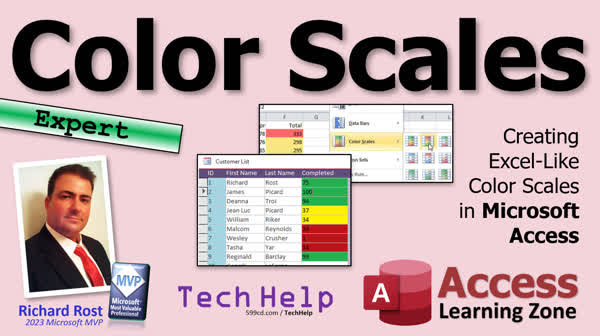 TechHelp Access, Access color scales, Conditional Formatting Access, Max function Access, Min function Access, Access form footer totals, Excel color scales in Access, Access dynamic coloring, Access column comparison, Access calculations in forms
 Subscribe to Color Scales
Get notifications when this page is updated
More InformationTranscript Today we're going to talk about color scale. I'm going to show you how to do them in Excel.
First, that's where you get the little colors, based on the scale of your data, so that low numbers can be in the red, mid-range numbers in the yellow, and high numbers in the green, or vice versa, whatever color scheme you want. I'll show you how it's really easy to do in Excel, but it's not quite so easy to do in Access because Access has a hard time figuring out what that scale is. We're going to have to teach you how to do that.
That's why this is an expert level video. It's a little more difficult than yesterday's video. Yesterday we learned about data bars, which is that little bar that goes across like that. The bigger the number, the bigger the bar.
Tomorrow we're going to mix the two. We're going to do color data bars. But for today, let's focus on these color scales.
All right, so yesterday in Excel, we made these cute little data bars. Let's get rid of the data bars. Go back to conditional formatting. We're going to go to manage rules, and we're going to delete this rule. Goodbye. Goodbye. Okay. Goodbye. Bye, see ya.
All right. Now, color scales. Let's again, select all the cells. Conditional formatting. Color scales right there, and then just pick one. Pick whatever one you like, there's a whole bunch of them in here. You can go from dark green to light green. You can go from red to green. You can go from green to blue. You can go from red to blue. You can go whatever you want. I'm going to do this one.
So if you got really high numbers - 150, 130, 90, 2 - you go from green, lighter green, whatever to red. Oops, someone just beamed in.
Excel can figure out what the range is in here. So if this is 20,000, then you can see that it adjusts accordingly. This is no longer green, it went white. But if this is only 140, now those are both darker green.
Now in Access, it's going to be a little trickier because we can do something like that with conditional formatting, but Access can't automatically figure out the scale.
Yesterday, we added a field to our customer table called completed, like how far along a project is or whatever.
Now, you can easily do this with conditional formatting if you have a known scale. For example, if this is always a value from one to 100, this is a one and this guy got a 100, we can very easily set this up with conditional formatting.
Save this, close it. Let's go into our customer list here. I'm going to get rid of this data bar for now. Let's make this a little bit bigger.
Now using conditional formatting, we can click on this, go to Format, conditional formatting, and we can add some simple rules in here.
We're going to say if the field value is - let's say we'll break it into thirds. So we'll say if the field value is greater than 66, then we'll make it green.
Then we'll add a new rule. If the field value is greater than 33, we'll make it yellow.
All right. And finally, new rule. If the value is greater than zero, we'll make it red. Like that. High, medium, low.
Obviously this requires values from one to whatever. We're just assuming it's 100. You could put a validation rule on here, for example, if you want to force it to be one to 100, but this is good enough for now.
Save it, close it, open it up. There you go. Put some mid-range values in here, 65, 90, and so on.
But if you get something in here that's, you know, 2200, it doesn't throw, you want to be able to have a scalable range. That's the benefit of doing the color scales in Excel, as it can figure out the range.
So with a little bit of math and a couple of functions, we can figure out what that range is and adjust the conditional formatting accordingly.
So first, let's figure out what our max and min values are using the max and min functions. I'm going to copy this, copy and paste it down here in the footer, and let's copy and paste it a second time.
This guy, the name is going to be the min x, or the min value, whatever, I'll call it min x. Its control source is going to be equal to the minimum of completed. I'll zoom in so you can see that. Shift up to zoom in. The minimum of completed.
A lot of you who are a little more advanced might know the d min and d max functions. You can use those domain functions to find the max or min value in any table or query. There are min and max as well, just like there's sum, count, min, max, average, all those. This is for the records on this form only. It's a form footer total.
Just like sum. I've got a form footer totals video up, I'll put a link to it down below if you want to learn more about this. But that's the minimum value.
In fact, let me get rid of this one here. We'll copy. Now that we've changed it, we'll copy and paste that one because that would just make a change and call this the maximum one.
This will be the max x. Here we'll change this to the maximum of whatever that is.
Save it, close it, take a peek. All right, there we go. The minimum is one, the maximum is 2200. If the minimum is 45, there you go. Now, yeah, 40 became the minimum, okay.
So now knowing this, now we can figure out what that range is. What's the range of values there?
Let's come in here and design. I'm going to take the conditional formatting off of these. I copied and pasted that once it already had conditional formatting on there. I don't want them on these. The conditional formatting - delete, delete, delete. That's just for those guys.
Let's make another one. Copy, paste. This will be the range of values. I'll call this my difference.
This is going to be what? Anybody? How do you tell the range of values? The difference between two numbers is what? Max x minus min x. Give me the maximum value minus the minimum value, and that's 2160.
Let's make it easier. Let's do 50. Oh, I can't change those, can I? No. Let's make the minimum value 50. We'll make you 50 as well. Let's make the max value 300. There you go. You can easily see the difference is 250. Now, I know what the minimum value, the maximum value is, and the difference is.
Now I can chop that up into thirds. If the bottom is 50 and I have to go up 250, well, I could just take the difference, the range there, multiply it by a third, and add that to the minimum value.
Let's make two more fields down here. You could do most of this in one thing. I like breaking this up. It's like complicated queries. I like making it so that I've got multiple fields because it's easier. The thought process is easier instead of trying to jam it all into one function. I hate when I look at other code and people just try to be fancy by jamming all this code together into one function when it should easily be six.
So what are we going to do here? This is going to be level one. Level zero will be everything on the bottom. Level zero will be everything from the minimum value up to level one.
Level one is going to be what? Let's zoom in so you can see this better here. What we're going to do in here is, we're going to take the difference and we're going to multiply it by 0.33. We're going to break this into thirds. So we'll do 0.33 and 0.67 for the second one.
That's level one. So if our numbers go from one to 100, at 33, that's where the first cutoff is. Just to be safe, let's take the int of that. Let's make it a whole number. Then we're going to add that to the min x. So if the bottom of the scale is 15, that's going to add 15 to it.
Then we're going to do the same thing for level two. Copy that. Actually, we just copy the field. Copy, paste. This will be level two. Level two. For this guy, let's go higher than 0.67, right, 0.6 repeating, okay, 0.67.
If our numbers are from one to 100, from one to 33 is going to be level zero or red, then everybody over this, which is a third of the range would be yellow, and then everybody over 67, which is two thirds, will be green.
Now all I have to do is use level one and level two in my conditional formatting.
So let's go into the conditional formatting. Format, conditional formatting. A lot of people don't realize instead of having a hard coded value, like 66 in here, you can put in here a field.
If this is greater than level two, make sure you put your brackets around that, so it sees it as a field. If this guy is greater than level one, and if this guy is greater than or equal to the min x, the minimum value.
Hit apply, hit okay, let's save it, close it, open it, look at that. Let's change our range again. Let's go from one to 100. 185, 50, and 65, that's on both 167, 8500, 9800. Let's sort this column, small to large. Of course, I got my nulls up top here. Let's go largest to smallest, there we go.
Now, if something happens where this guy becomes really, really big, there, now those are all in the bottom. Or if this becomes 80, that changes, that skews it accordingly. If this guy becomes a 70, okay.
Now your scale will change based on the values in there. Here are all your numbers down here, 150.
That's exactly how the color scales work in Excel.
Now do you have to see all these fields down here? No, we can hide them. Design view, come in here, format, visible, no. They're there, we just don't need to see them. You can shrink them all up, make them all small, tiny and small in here, so you don't waste a lot of space there.
Like I mentioned yesterday, I cover color scales and data bars and all that cool stuff in my Excel Beginner 2 class. We're right down here, right there, these color scales, because they're really easy to do in Excel.
But it's not a built-in feature in Access, because of course Access is literally the red-headed stepchild - it's literally red. It's the red-headed stepchild of the Office family. Microsoft gives Access no respect.
But this is something you can do pretty much everything in Access, most things. But it just requires a little bit more legwork. If you want that, there you go, that's how you do it.
If you like learning this kind of stuff with me, check out my Microsoft Access Expert courses. I cover all kinds of stuff. We do, you name it, functions and things of molecular structures and moving parts. I have so many lessons, it's hard to keep track of it all. But I cover pretty much everything you want to know about Access.
That'll do it for color scales.
Now tomorrow we're going to mix yesterday's lesson, which was data bars. We have these data bars, we're going to mix that with this. Today's color scales. Tomorrow we're going to put them together and we're going to have colored data bars, which is not something you can easily do in Excel. So we got one up on the Excel people.
I'm kind of an Excel people too, but I'm more of an Access people. That is going to be your TechHelp video for today.
I hope you learned something, my friends. Live long and prosper. I'll see you tomorrow. Intro In this video, I will show you how to use color scales in Microsoft Excel to visually represent your data, with color gradations ranging from one value to another. We will also talk about how applying similar color scale effects in Microsoft Access requires a bit more work, since Access does not automatically determine range values like Excel does. I will walk you through using conditional formatting, calculating min, max, and range values, and setting up dynamic color thresholds in both programs. Quiz Q1. What is the primary purpose of applying color scales in Excel?
A. To visually represent the relative value of data within a range using colors
B. To hide certain values in a spreadsheet
C. To lock specific cells from being edited
D. To automatically create charts from data
Q2. Why is applying color scales more difficult in Access compared to Excel?
A. Access requires data to be sorted first
B. Access cannot automatically detect the range of the data for scaling
C. Access only supports one color at a time
D. Access does not support any conditional formatting
Q3. In Excel, how does the color scale feature determine which colors to apply to data?
A. By user-specified fixed values only
B. By finding the minimum and maximum values in the selected range
C. By analyzing the formatting of neighboring cells
D. By converting each value into text and then applying colors
Q4. In Access, what function can be used to find the minimum value within records on a form?
A. DMax
B. Min
C. Average
D. Sum
Q5. What is the benefit of calculating the range (difference between max and min) when manually creating color scales in Access?
A. It allows for counting the number of records
B. It helps properly divide the values into segments for formatting
C. It makes the form load faster
D. It automatically sorts the data
Q6. When manually setting up conditional formatting in Access for color scales, what method is used to break data into thirds?
A. Use hard-coded values only
B. Multiply the range by 0.33 and 0.67, then add to the minimum value
C. Multiply the maximum value by 3
D. Divide all values by the minimum value
Q7. When setting up conditional formatting in Access, how do you use custom fields like level one and level two in your rules?
A. Reference them by their field name inside brackets
B. Only use their labels
C. Enter their values directly as numbers
D. Use them as text values in quotes
Q8. What is a key difference between how Excel and Access handle automatic color scale calculation?
A. Access automatically hides invalid data values
B. Excel infers scale from selected data, while Access requires explicit setup
C. Access can only use black and white colors
D. Excel cannot use multiple colors in conditional formatting
Q9. What is the suggested approach for hiding helper fields (like min, max, and thresholds) used for conditional formatting in Access?
A. Delete them from the form after use
B. Set their Visible property to No so they are hidden but still function
C. Change their text color to white
D. Move them to a different database
Q10. According to the tutorial, what will the next lesson after color scales focus on?
A. Sorting data in Access forms
B. Creating colored data bars by combining color scales and data bars
C. Using Access queries for reporting
D. Exporting Access data to Excel
Answers: 1-A; 2-B; 3-B; 4-B; 5-B; 6-B; 7-A; 8-B; 9-B; 10-B
DISCLAIMER: Quiz questions are AI generated. If you find any that are wrong, don't make sense, or aren't related to the video topic at hand, then please post a comment and let me know. Thanks. Summary Today's TechHelp tutorial from Access Learning Zone is all about color scales. I want to show you how these work in both Excel and Microsoft Access, and explain why setting them up in Access requires a bit more effort.
A color scale is a way to visualize data in which each cell or item is shaded based on its value within a range. For example, small numbers might appear in red, mid-range values in yellow, and large numbers in green. You can customize the colors to suit your needs. In Excel, this is very straightforward. You simply select your cells, open conditional formatting, choose color scales, and pick the color pattern that best fits your data. Excel instantly recognizes your data's range and applies the color gradient accordingly. If you have values spanning from, say, 20,000 to 140, Excel will adjust the shades automatically as you update the numbers.
Moving over to Access, things get trickier. Access cannot determine the minimum and maximum values of your data on its own when applying color schemes with conditional formatting. You'll have to work around this limitation by manually determining the scale.
Suppose you have a table in Access where you track the progress of various projects. Each project has a field, let's say "completed," that represents how far along the project is. If you know in advance that the values will always range from 1 to 100, conditional formatting is simple. You can set up rules so that values above 66 are green, those above 33 are yellow, and values greater than zero are red. However, if your data does not have a fixed range and can include outliers or unexpected values like 2200, this simple rule does not scale well.
Here is where you need to do some extra work in Access. You first want to determine the minimum and maximum values found in your data. You can do this by using functions like Min and Max for the relevant field and placing them in a form footer so they update based on whatever records are being displayed. More advanced users might make use of DMin and DMax domain functions, which can work across tables or queries, but using form footer totals is often sufficient if you're looking only at the current form's records.
Once you have your minimum and maximum, the next step is to calculate the range by subtracting the minimum from the maximum. With this range, you can divide the total scale into equal parts. In this example, I break it down into thirds: the first third is for low values (red), the second for mid-range (yellow), and the top third for high values (green). By calculating where each of these cutoff points falls, you can set up conditional formatting rules that refer to these calculated values, rather than just hard-coding in numbers. This ensures that as your range shifts or new data comes in, your color scheme stays proportional.
You don't need to leave all these calculation fields visible in your form. You can easily hide them so they don't clutter your layout, but they remain functional and keep your formatting rules working behind the scenes.
If you're interested in a deeper look at color scales and data bars in Excel, take a look at my Excel Beginner 2 class, where I cover these features in detail. In Excel, adding color scales to your data is as simple as a couple of clicks, while in Access, as you can see, a bit more manual setup is required.
Access sometimes gets overlooked among the Microsoft Office suite, but with techniques like this, you can achieve a lot of the same results; you just have to do a bit more of the work yourself.
In summary, if you want to apply color scales in Access similar to what you can do in Excel, you will need to calculate your minimum, maximum, range, and the break points for your colors, and then use those values in your conditional formatting rules. This approach is flexible and ensures your formatting adapts as your data changes.
Tomorrow, I will show you how to combine yesterday's lesson on data bars with today's color scales so you can have colored data bars in Access, which isn't a standard feature in Excel.
You can find a complete video tutorial with step-by-step instructions on everything discussed here on my website at the link below. Live long and prosper, my friends. Topic List Applying color scales in Excel using conditional formatting
Choosing different color scale options in Excel
Removing existing conditional formatting rules in Excel
Applying color scales to data based on value ranges
Understanding Excel's automatic range detection for color scales
Conditional formatting using fixed ranges in Access
Manually dividing data into thirds for color coding in Access
Creating rules for high medium and low value color assignments in Access
Calculating minimum and maximum values using Access functions
Using form footer totals to display min and max values in Access
Calculating range (difference) between maximum and minimum in Access
Determining tier boundaries for color scales using math in Access
Creating dynamic level thresholds (Level 1 and Level 2) in Access
Referencing calculated fields in Access conditional formatting
Hiding helper fields in Access forms for cleaner display Primary Topics Excel color scales, Access conditional formatting, dynamic threshold calculation, min and max functions, conditional formatting rules, scaling data visualization
Secondary Topics hiding helper fields, form footers, domain aggregate functions, level thresholds, field validation
|




