F to C
By Richard Rost

 2 years ago
Convert F to C and Back Again, by Bilbo Baggins...
In this Microsoft Access tutorial, I'm going to teach you how to convert from Fahrenheit to Celsius and vice versa. We'll learn the equation for the conversion. I'll show you how to do it in a query, and then how to do it in a form directly, and we'll talk about some of the ins and outs of each.
Jade from Redwood City, California (a Platinum Member) asks: I get temperature readings in Fahrenheit, and I have to enter those into my database and convert them over to Celsius for one of my vendors. I know the formula for conversion, but I'm having a hard time figuring out how to store that in my database. Please help.
Members
Members will learn how to create functions in VBA to handle the conversion. We'll make FtoC and CtoF functions which can be used anywhere in our database: in queries, forms, reports, macros, other VBA functions, etc.
Silver Members and up get access to view Extended Cut videos, when available. Gold Members can download the files from class plus get access to the Code Vault. If you're not a member, Join Today!
Prerequisites
Links
Recommended Courses
Keywords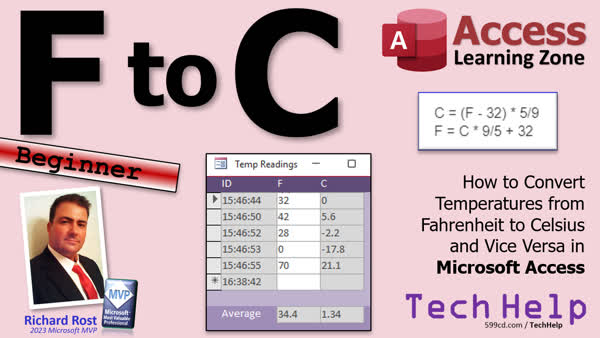
TechHelp Access, Fahrenheit to Celsius conversion, Celsius to Fahrenheit conversion, F to C, C to F, Access query calculation, Access form calculation, calculated fields in Access, using round function, converting temperatures in Access
 Subscribe to F to C
Get notifications when this page is updated
More InformationTranscript Welcome to another TechHelp video brought to you by AccessLearningZone.com. I'm your instructor, Richard Rost.
Today's video is F2C, or as I like to call it, Fahrenheit to Celsius. They're in back again by Bilbo Baggins, or I mean by me. No, never mind.
In today's video, I'm going to show you how to convert temperatures from Fahrenheit to Celsius and vice versa in Microsoft Access.
Today's question comes from Jade in Redwood City, California, one of my platinum members. Jade says, I get temperature readings in Fahrenheit and I have to enter those into my database and convert them over to Celsius for one of my vendors. I know the formula for conversion, but I'm having a hard time figuring out how to store that in my database. Please help.
Now, Jade sent me some screenshots of what she's working on and she's trying to actually do the conversion and store the converted value in her table, which you don't have to do. One of my rules is that if a value can be calculated, you generally should calculate it. For example, an order total. You have a bunch of items on an order, you add those all up, and then you have an order total. But that number can always be calculated by the items on the order, so there's no need to store that value in the table.
There are some exceptions. Yes, later on, you can store that for speed, but generally 99% of the time, if you've got a value that can be calculated, just calculate it on the fly whenever you need it. And there's no need to store both the Fahrenheit and the Celsius values in your table. So store one, whichever one you want, store the Fahrenheit, and then when you need Celsius, just calculate it.
And again, there are exceptions to every rule, but this is the general rule.
Alright, before we get started, if you don't know how to use calculated fields, go watch this video first. I'll show you how to create calculated fields in forms and in queries, which is what we're going to be doing today. Also, if you want to, go watch my video on rounding values, because generally when you're doing Fahrenheit to Celsius conversion, you get really long decimals. You get 0.642. You can leave them like that if you want to, or if you want to learn how to round things off, go watch this video. These are both free videos. They're on my website. They're on my YouTube channel. There's the link right there. I'll put links down below in the description. You can click on it or you can scan this little doodad right here with your phone, and it'll take you right to my website.
Alright, first things first, the equation for converting from Celsius to Fahrenheit. There are two equations, one to go each way. It's basically solve for C or solve for F.
Celsius is: you take Fahrenheit, subtract 32, multiply that by 5 divided by 9, or 5/9. Don't forget your parentheses here. Remember our order of operations. We want the subtraction to go first before this multiplication and division, so we have to put the parentheses there.
But the other way, if you want Fahrenheit and you have Celsius, you don't need parentheses because it's C times 9 divided by 5. Order of operations says these go first, and then when that's all done, add 32 to it.
I used to live, I grew up in Buffalo, New York. I lived there most of my life, and we'd go over the border a lot up into Canada, and you'd see all the temperatures in Celsius. Oh, it's 20 degrees Celsius. Is that good? I always had a rule of thumb in my head, which was double it and add 30. So if you have 20, double it, that's 40, add 30, that's 70. It's close enough, close enough for government work. Fifth is basically two. It's basically double it and then just add 30. So if you have 10 degrees, double it, it's 20, add 30, it's 50. That's a little chilly. That's just my little silly rule of thumb.
I don't have a rule of thumb to go the other way. Maybe subtract 30 and halve it. Anyhow, let's put that into an Access database.
Here I am in my TechHelp free template. This is a free database you can download off my website if you want to, but we're not really going to use it. We're going to create a table, create table design. Let's say we're getting temperature readings in Fahrenheit. We want to store those in our table.
So we'll call, we'll make a reading ID. We are reading table, temperature readings. That's my auto number. Most tables should have an auto number. Well, it's a good rule of thumb.
Now, we're going to store the temperature in Fahrenheit, temp f. Could you call it just f? Yes, you could. Nothing wrong with a single letter field name, but I think this is a little more self-explanatory.
Now, what type of value should this be? What data type should this be? We don't want text, because we want to be able to add these together or calculate an average. So we definitely want one of the number types, so pick Number. Among the number types, there are different field sizes down here. There are a whole bunch of different ones. There are only two that you have to concern yourself with as a beginner user: Long Integer or Double. Do not use Decimal, do not use Single, do not use Integer. You're going to always use Long Integer and Double. Double if you need a floating point value, like 55.6. If you don't care about that, if all you want are whole numbers, use Long Integer.
For this, I'm going to pick Double because I want decimal points. I want to be able to put in here 55.2.
I go into a much longer explanation of why you don't need all those other data types in my full Access class, so go watch that.
Now, if you want to put other information in here, like a timestamp or notes or a location where this temperature was read, all that stuff, put that in here. What you do not want to store in here is your Celsius temperature. You don't need to. You can calculate it on the fly.
I'm just going to put these two things in here for now. We're going to save it. I'm going to call this my reading table, ReadingT, primary key, yes. That's my ID field, and there we go. That's all we got.
We're going to put some values in here. We'll put in here maybe 15, an actual zero. As soon as you type in that zero there, it'll put a value.
If you don't want a default value, you can turn it off. The default value for numbers is zero, but you can get rid of that if you want to. If you want to force the user to have to put something in, you can make it required. Set that to Yes.
Save it. I'm back into here. I'll put a few more values in here. We've got 100. We've got 210. That's a pretty hot day. Negative 15.5 and so on. So there's our table.
Let's close that.
Now let's go make a query to do the calculation to convert to Celsius. Go to Create, Query Design. I'm going to bring in my reading table and bring down both the fields here with that star. Now, right here is where we put our calculated field.
I'm going to zoom in so you can see it better. Shift+F2, that zooms in. We're going to say temp c: (temp f - 32) * 5 / 9. That's our calculation.
Let's save it as our readingQ. Go ahead and run it. That just means that we got a really long number in there, so we have to make this column wider. Look at that. I told you, you got a whole bunch of 0.88889. This happens a lot when you convert from Fahrenheit to Celsius, and this is where you might want to throw the rounding function in there.
Go back to design view, zoom in again with Shift+F2. We're going to put round around this whole thing: round([temp f] - 32) * 5 / 9, 1. However many decimal points you want to round it off to. Usually one is good enough unless you're doing scientific stuff.
Save it, run it, and that looks a lot better. There you go.
Now you can use this anywhere you want. You can use this in forms and reports just by using readingQ.
Let me show you another way. Let me show you how to put this directly into a form, if you didn't want to put it inside of a query. Some people prefer that.
Here's a continuous form. This is my continuous form blank template. I'm just going to copy this. Control C, Control V. We're going to call this my readingF. This is just a blank form that I keep in my database so I can use it for classes and make stuff out of it without having to reinvent the wheel every time.
Here's my continuous form. I'm going to open up the properties. We're going to go to the All tab. Find the Record Source property. This is the table or query that this form is bound to, where it gets its data from. Let's bind it right to the reading table, just the table for now.
Now I can go to Add Existing Fields. You can add fields in directly from here if you want to, or you can just change them over here. I don't think we need to bother with the ID, so I'm just going to delete that.
We're going to take this field, slide it over to the left, and we're going to make this guy's Control Source our temp f. Then I'm going to copy and paste that because you should always make the name the same as the control source most of the time. We can also put temp f up here as our label.
Let's save this. I'm going to close it and reopen it just to see what I got. There we go. Looks just like the query data. Let's left-align this time. I like to have my stuff left-aligned. Format, align left.
Now, without using the query, we could put the temp c right in here by just redoing the calculation. Copy this, paste, and then slide it over here.
Let's open up this guy's properties. Instead of temp f here, we could put our calculation, which is, I'll zoom in for you, Shift+F2. It's going to be =([temp f] - 32) * 5 / 9. If you want to throw the rounding in here, you can throw the rounding in as well: round(( [temp f] - 32) * 5 / 9, 1).
That's how you do the calculation directly in a form field.
Sometimes I copy and paste. Sometimes I just cheat and do this: watch. Make this label bigger, and then just hit the space bar a bunch of times and come right here. I think it's easier than messing with a bunch of labels.
Save it. Close it. Open it up, and there you go. There's the calculation directly in a form field without having to waste your time with the query.
But the query does have some benefits. Let me show you one real quick, just a little side track here.
Let's say you want to figure out what the average temperature was. Copy this and put it down here in the form footer. If I come over here to the control source and I say =AVG([temp f]), hit OK. Let's name it, by the way, avgTempF. Always give your text boxes a good name.
If I save that, close it and reopen it, look at that. I get the average temperature down here. That looks about right.
Now, what if I try to do the same thing here? Copy and paste. This field's name is what? Oh, I didn't give this one a name, which is why you always want to give them a good name. Let's call it tempC. That's the name of this field up here. Now, if I come down here and say, give me the average of tempC, and let's call the name of it avgTempC, save it, close it, and let's look what happens.
Look at that. I get errors. Why is that? Because this box down here can't average all these up because they don't exist yet. They don't exist until the form is finished loading, and by that point the formula can't run.
If you want to use form footer totals or do any calculations on here, the data has to exist in the underlying table or query. It can't just be a form-calculated field to use these aggregate queries like this, these aggregate functions: average, sum, min, max, all those things.
Now, there are some things you could do. For example, you could apply the conversion calculation to this field here because this gives you the average in Fahrenheit. You can just convert this guy. And that would look something like this.
You could say round([avgTempF] - 32) * 5 / 9, 1. Now, what we're doing is we're just calculating that average and then rounding it and then putting the calculation on it. So now we get that and it works. In other words, we're not averaging these, we're just converting this guy. Or you could put the full function in here and then take the average of that. That's another way to do it.
But the easier way to do it is to simply use the query as the source for this form. Take the Record Source property of the form and pick the readingQ. Now in here, we don't need calculations at all. We can just pick tempC right from there. Now, down here, we can say, give me the average of tempC. Why? Because tempC is now a field in the underlying query, so now it'll work.
That's why I personally think that it's handy to put all your calculations in queries. That's just something I've always done. I put very few calculations directly in forms and reports.
So that's how you calculate the temperature conversion directly in a query or in a form. Reports work the same way as forms. It's the same thing. Just do it in a query and then pull that field into your report, it's exactly the same.
If you want to learn more, in the extended cut for the members, we're going to use a little VBA for the developers. We're going to make two functions, a Fahrenheit to Celsius and a Celsius to Fahrenheit. That way we can just use those functions everywhere in our database and not worry about having to remember calculations and put calculations in places and things with molecular structures and moving parts and all that. We'll just say FtoC(tempF) and it will give us a temp in C back.
I'll stick this stuff in the code vault for the Gold members, but this is all covered in the extended cut. Silver members and up get access to all of my extended cut videos. Gold members get to download these templates and they get the code vault and they get expert level classes and so much more, so check it out.
But that is going to be your TechHelp video for today. I hope you learned something, my friends. Live long and prosper. I'll see you next time. Intro In this video, I will show you how to convert temperatures between Fahrenheit and Celsius in Microsoft Access. You will learn how to build a table for temperature readings, use the correct data types, and create calculated fields in both queries and forms to display converted values. I will also explain the formulas for temperature conversion, discuss best practices for storing data versus calculated values, and demonstrate how to handle rounding and aggregate calculations such as averages within your database. Quiz Q1. According to the video, what is the recommended best practice when dealing with values that can be calculated, such as converting Fahrenheit to Celsius?
A. Always store both the original and calculated values in the table for reference
B. Only store the calculated value and discard the original
C. Calculate the value on the fly whenever needed and avoid storing the calculated value
D. Store the value in multiple tables for redundancy
Q2. Why is it usually unnecessary to store both Fahrenheit and Celsius values in your Access table?
A. Because Access cannot store two number fields in the same table
B. Because one can always be calculated from the other as needed
C. Because storing two related numbers creates a circular reference
D. Because temperature data must be imported from Excel
Q3. Which statement best describes when you might make an exception to storing only calculated values?
A. When you want to speed up performance for very large tables
B. When the calculation is impossible to perform in Access
C. When the calculation does not follow standard math rules
D. When the field is text data instead of numbers
Q4. What is the formula to convert a Fahrenheit temperature value (F) to Celsius (C)?
A. C = (F + 32) * 5 / 9
B. C = (F - 32) * 9 / 5
C. C = (F - 32) * 5 / 9
D. C = F * (9 / 5) + 32
Q5. When setting up a table field to store temperature values in Fahrenheit in Access, which data type should be used if you want to allow for decimal points?
A. Text
B. Currency
C. Long Integer
D. Double
Q6. Why is it important to use the correct order of operations (parentheses) in the Fahrenheit to Celsius conversion formula?
A. To make the formula compatible with all versions of Access
B. To ensure subtraction happens before multiplication and division
C. To prevent Access from rounding numbers automatically
D. To avoid creating new fields in the table
Q7. If you want to round the Celsius result to one decimal place in your Access query, what Access function should you use?
A. SUM()
B. ROUND()
C. FORMAT()
D. CEILING()
Q8. What is a key benefit of putting a calculated field such as Celsius temperature in an Access query instead of directly in a form?
A. It allows the result to be reused in forms, reports, and aggregate queries like averages
B. It makes the database easier to export to Excel
C. It prevents users from changing the calculation by mistake
D. It hides the calculation logic from all users
Q9. If you calculate a field like Celsius temperature directly on a form, what is one potential limitation?
A. You cannot display the field on reports
B. The calculation cannot be used in aggregate functions like average or sum in the form footer
C. You must store the result in the underlying table
D. It will not display decimal places
Q10. In the example, why does calculating the average of a form-calculated Celsius value fail, but works if the calculation is done in the underlying query?
A. The form cannot process any numerical data
B. Calculated controls on forms are not available during aggregations
C. Queries are designed to only allow text values in aggregate functions
D. Access cannot handle mathematical operations involving temperature
Q11. What rule of thumb did the instructor share for quickly estimating Celsius to Fahrenheit in your head?
A. Double it and add 10
B. Double it and add 32
C. Double it and add 30
D. Divide by two and add 30
Q12. When building your table in Access for storing temperature readings, what is a "good rule of thumb" suggested in the video for table design?
A. Use one table for each unique temperature value
B. Always have an AutoNumber primary key in your table
C. Only use text fields for better flexibility
D. Store both F and C values to ensure redundancy
Q13. If you want to require a temperature value to be entered in the table and not allow zeros by default, what should you do with the field properties?
A. Set the default value to zero and required to No
B. Set the default value to blank and required to Yes
C. Set the field data type to Text
D. Create a validation rule that allows only zero
Q14. Which of the following is NOT recommended for beginner Access users when selecting a numeric field size for temperature values?
A. Long Integer
B. Double
C. Decimal
D. Single
Q15. When using Access forms or queries, what's an advantage of giving controls descriptive names (like tempC or avgTempF) instead of default Access-generated names?
A. Access will run faster if you use the default names
B. Descriptive names make it easier to reference and maintain formulas or code
C. Descriptive names are mandatory in all Access queries
D. Access will add extra formatting to fields with custom names
Answers: 1-C; 2-B; 3-A; 4-C; 5-D; 6-B; 7-B; 8-A; 9-B; 10-B; 11-C; 12-B; 13-B; 14-C; 15-B
DISCLAIMER: Quiz questions are AI generated. If you find any that are wrong, don't make sense, or aren't related to the video topic at hand, then please post a comment and let me know. Thanks. Summary Today's TechHelp tutorial from Access Learning Zone focuses on converting temperatures from Fahrenheit to Celsius and vice versa in Microsoft Access.
A common question I receive is how to properly manage temperature data when it comes in Fahrenheit but needs to be converted to Celsius for vendors or other purposes. Many people are tempted to store both values in the database. However, my strong recommendation is to only save one and calculate the other whenever you need it. This follows the best practice in database design: do not store a value if it can be computed from existing fields. Storing both increases the risk of inconsistent data and adds unnecessary storage.
There are exceptions where storing the converted value might improve performance, but for almost every application, just calculate the value whenever you need it, such as when building queries, forms, or reports.
If you are not familiar with calculated fields, I suggest learning about them first. There are free resources on my website and YouTube channel that cover how to create calculated fields in both forms and queries. Also, since converting Fahrenheit to Celsius often results in long decimals, you might wish to round your results for clarity or display purposes. I have another free tutorial on rounding values in Access.
Now, let's discuss the basic formulas for temperature conversion. To convert Fahrenheit to Celsius, subtract 32 from the Fahrenheit value, then multiply the result by five-ninths. Parentheses are important here to ensure operations happen in the correct order. To convert Celsius to Fahrenheit, multiply the Celsius value by nine-fifths and then add 32. No extra parentheses are needed in that direction due to the order of operations.
For quick mental math, I've always used the rule of thumb: to estimate Fahrenheit from Celsius, double the Celsius value and add 30. This is handy when you want to approximate the temperature, though it is not perfectly precise. There really is no equally easy rule to convert the other way.
To implement this in Access, start by creating a table to store your temperature readings. Give your table a clear structure, such as an auto-numbered ID field and a field for the Fahrenheit value, like TempF. The data type should be Number. Out of the available number types, Long Integer is suitable for whole numbers, while Double works for values with decimals—which you'll usually want for temperature data. Avoid Decimal and Single types as they aren't necessary for most beginner uses.
Only store the Fahrenheit value. If you also want to keep track of time, location, or notes, include those as additional fields, but do not store Celsius since you can always compute it when needed.
Once your table is set up and contains some example temperature values, move on to creating a query to perform the conversion. Use Query Design, bring in your table, and add a calculated field for Celsius using the conversion formula. You'll notice that the result often includes many decimal places. This is where the Round function comes in handy—just surround your calculation with Round and specify how many decimal points to display, usually one digit is enough for most needs.
You can now use this query as the basis for forms and reports. Alternatively, you might want to put the calculation directly into a form without creating a query. To do this, bind your form to the original table, and add a calculated control on the form itself with the conversion formula, optionally using the Round function for display.
Forms allow you to perform calculations like averages in the form footer. However, there is a limitation: Access can only aggregate data that exists in the underlying table or query, not from controls calculated on the form itself. If you try to calculate an average temperature in Celsius using form-calculated controls, you will get errors. Instead, do all your calculations, such as converting and rounding, inside your query and use that as the source for your form. This allows aggregate functions like average, sum, min, or max to work properly.
Reports work the same way. Build your calculations in queries and let the report simply display the results.
In the Extended Cut for members, I show how to create reusable VBA functions that convert temperatures both ways. By defining these as custom functions, you can use them throughout your database without having to retype the formulas each time. This is especially helpful for developers. Gold members also get access to the code vault and downloadable templates, along with advanced courses.
For a complete video tutorial with step-by-step instructions on everything discussed here, visit my website at the link below. Live long and prosper, my friends. Topic List Storing temperature readings in an Access table
Choosing appropriate number data types for temperature
Building a table to store Fahrenheit values
Entering sample temperature data into a table
Creating a query to convert Fahrenheit to Celsius
Writing a calculated field in a query
Rounding calculated values in queries
Saving and using queries with calculated fields
Displaying calculated values in a form
Writing expressions for calculated controls in forms
Formatting and labeling fields in Access forms
Comparing calculations in queries versus forms
Calculating and displaying averages in form footers
Understanding aggregate functions in forms
Using form queries to enable aggregate functions
Switching form record sources from tables to queries
Applying the Fahrenheit to Celsius calculation in reports Primary Topics temperature conversion, calculated fields, Microsoft Access tables, queries, form design, number data types, aggregate functions, rounding values
Secondary Topics database normalization, report design, field naming conventions
|




