Unrecognized
By Richard Rost

 2 years ago
Fix Access Error 3343: Unrecognized Database Format
In this Microsoft Access tutorial, I will show you how to troubleshoot and resolve the "Unrecognized Database Format" error, ensuring your databases open smoothly and function as intended. This also applies to the "Access has detected that this database is in an inconsistent state" error as well.
Erratum
- At time index 4:05 the slide should say "Delete the LDB or LACCDB file." Don't delete the ACCDB file. You kinda need that. Thanks to Sami for catching this one.
Prerequisites
Links
Checklist
- Backup
- Compact & Repair
- Delete the LDB File
- Check Access Versions
- Move Back-End to Different Folder
- Import Objects into Blank New Database File
- Short Filenames with No Spaces
- Check Server for Disk Errors
- Make Sure Compression is OFF
- Test Network Speed
- Check Database File Size
- Check Free Disk Space
- Run Down the Troubleshooter
- Rollback Office / Windows Updates
Keywords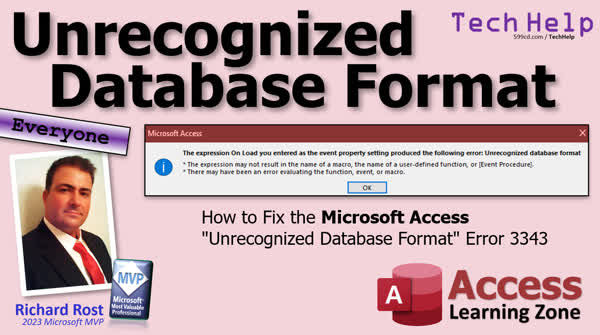
TechHelp Access, Error 3343, Unrecognized Database Format, Inconsistent State, Access database corruption, compact and repair, resolve error 3343, Access back-end file, backup strategies, database recovery, delete .LACCDB file, Access version consistency, import Access tables, server disk errors, decompile Access database, split Access back-end
 Subscribe to Unrecognized
Get notifications when this page is updated
More InformationTranscript Today we're going to talk about what to do if you get that error message saying that your database is in an unrecognized format or it's in an inconsistent state. There are a couple of different errors that mean the same thing. We'll talk about what causes that and how to fix it, hopefully.
This is one that comes up in my forums every now and then, maybe once a month or so, or someone posts a comment in one of my YouTube channel videos. And basically, error 3443 pops up, and it says, "unrecognized database format," or "Access has detected that the database is in an inconsistent state."
And what does this mean? Well, basically, Access tried to load your database, and it's looking at it going, "I've got no idea what this thing is." It's like if you tried to open up a Word document, and it wasn't a Word document. Word would go, "uh-uh, can't do it." So essentially, your database file is most likely corrupted.
Now, although this can happen with any database file, even a local one, it generally occurs on networked databases with an Access back-end file. It usually happens if one or more of the users exit the database improperly. They don't do a proper shutdown. Maybe their computer locks up. And if Access is in the middle of writing to that networked shared database file, when this happens, bam, it's going to corrupt it.
I had this happen to one of my clients years ago. I set him up with an Access solution over his network. He had like 15 people working on it, and there was a building-wide power outage. Everybody went out, and everybody crashed, and it took me a little while to repair that database. Moral of the story there too is make sure all your people have uninterruptible power supplies. They're cheap. You can get them for like 50 bucks. Put them on all your computers. That way, if something happens and the power goes out, your database doesn't go down. But any one of those people not talking to the database the right way can cause it to corrupt. And Access is unfortunately not as forgiving as a database server like SQL Server would be.
So how do we fix it? Well, the first thing is backup, backup, and backup again. I always preach backing up. You should be running a nightly backup at a minimum. Back up your database, back up all your files, back up your grandma's recipe, all that stuff. If you don't know how to run a backup and back up your Access database, go watch my TechHelp video. I'll put a link to it down below.
Now, the first thing you're going to try doing is running a compact and repair. Make sure everyone is out of the database. You're going to copy that back-end file down to your local workstation and then do the compact and repair there. Don't try to do the compact and repair over the network. You're just asking for troubles to creep in there. Then, once it's done, it will also run faster. Copy it back up to the server.
Now, if somehow you're not able to open it, if you try to open that database file and Access still gives you the error message and it won't let you even get to the compact and repair menu, you can do this from a command prompt. I would recommend you see if msaccess.exe is in your path. If it's not, just copy your database file to the msaccess.exe folder in your Office folder. Or, type in the full path to msaccess.exe. It's up to you. This is a Windows command line thing. msaccess.exe and then in quotes the name of your database with the full path and then /compact, and that will compact it without opening it first.
Alright. That might do it if you can't get into the file. If you don't know how to compact and repair your database, go watch my TechHelp video again. I'll put a link down below.
Next up, after compacting and repairing, if there is still an .LACCDB file sitting in your back-end folder, delete it. Make sure everyone is out of the database again. You can delete it. That file just stores record locking information. You don't need it. Access normally creates and deletes it when it opens and closes. You'll have one on your server in your database folder, okay? And again, make sure everyone's out of the database, and you can feel free to delete that. Sometimes if that gets corrupted, it can also cause problems.
Make sure you have the newest version of Access. And if you're not running the newest version of Access, of course, I recommend a Microsoft 365 subscription so you always constantly have the latest and greatest. But I know not every company does that. You might be running, you know, Access 2013, 2016, 2021, whatever. That's fine, just make sure that everyone has the same version. You don't have some people with Access 2007 and some people with Access 2016. That can cause problems, especially if the person designing the database has a newer version. Let's say you have a 365 subscription, you get the latest and greatest, someone else in accounting is still using, you know, Office 2016; you can cause issues that way. So make sure everyone using the database has the same version of Access. If you push an Office update, make sure everyone gets the update.
Alright, next one. This is a weird one. Try moving the database, the back-end database file, to a different folder. I know, it's weird, but sometimes it works. There are all kinds of weird quirky things that I've done over the past 30 years of working with Access that have fixed it inexplicably. I don't know why, but it works. It's like you go to the doctor; he says, "Well, it hurts when I raise my arm this way." He says, "Well, don't raise your arm that way."
So if your database was in, for example, X:database, try moving it to X:newdatabase. Put the database in that folder, re-link it, see if the problem goes away. If it does, you can thank me later. If it doesn't, well, on to the next one.
If that still doesn't work, try creating a blank new database file, okay? File, new, blank database, and then import all the tables from the corrupted file if you can. Sometimes the database shell itself gets corrupted, the container that holds all the objects. By creating a blank new database file and just importing all the tables, that sometimes fixes it too. Give that a try.
Here's another weird one. Make sure your back-end file name is short with no spaces. I know, again, it's weird, but I've seen this work. You've got a big long, you know, X:path to database super, whatever, blah, blah, blah. There's some kind of limitation in there with 32-character path and filenames. Again, I don't know why, but it just seems to fix it sometimes. This isn't gospel; it's just stuff that I've done in the past that has worked. Alright, try that for your database; a real short path and folder, no spaces, and a real short backend file name. Keep it short, keep it simple. "Keep it secret, keep it safe." Okay? "Keep it secret. Keep it safe."
Alright, next up, check your server for disk errors. Go to the machine that's your actual server, and I realize a lot of you don't have actual servers. You've got a computer that's acting as a server. That's the machine I'm telling you you should test. Okay? And it's part of Windows. Just go to the drive, right-click, properties, go to tools, and there's the error-checking option. Let that run. Scan this, check this, whatever they call it today. Check for errors. Believe it or not, hard drives have a finite lifetime. Three to five years. After that, you've got a ten-year-old hard drive. A lot of people take their old machine that no one else is using anymore and turn that into a file server. That's a bad idea. You want your newest, best machine to be your file server, okay, or your database server. That's where all the important stuff is. Don't just use some old machine in a closet for your server. But check it because if your drive is starting to go corrupt, they usually start to show signs that they're starting to go. And when that happens, you start getting bad sectors on the disk, and that's what this will check. Make sure if you've got any bad sectors, get rid of it; put a new hard drive in there, get a new machine, whatever. How important is this database for your business? That's how much you should spend on a good server. And while you're at it, make sure that the drive compression is off. Windows can compress drives, kind of like it turns the entire disk into one big zip file. But that compression, every time it reads and writes information, it's got to compress and decompress on the fly. And it will slow things down, so it might make your database run slower, but you're also opening yourself up to an additional possibility for corruption there, too. It's just another layer of stuff you don't need to worry about.
Also, check your network for errors. If you've got a slow network with lots of latency, that could cause problems too. Because again, if you're using an Access backend, it's not as forgiving as an actual database server, like SQL Server would be. So every machine has to be able to reliably read and write to that database file; otherwise, you're going to get corruption. So, I recommend Fing Network Monitor. I've been running this for years. It does a good job. It constantly takes, you know, keeps an eye on your network. It's got security issues, but it'll let you know if there are any kind of read-write problems going on. Okay, and no, I'm not affiliated with them. I don't get any compensation. This is just something I've used myself. I like the product. I recommend it. I'll put a link to them down below too. Get a commission or whatever if you purchase a product that I recommend, and I only recommend products that I use personally. I will never steer you to a particular product because I'm getting paid; I don't do that. I don't need to do that.
Oh, and one more thing, don't run your Access database over a wireless network. I don't recommend it. You've got any kind of drop packets in there or increased latency that can cause problems reading and writing. If you've got a database server, okay, that's something you can get away with, but use a wired network for an Access database, okay? Just trust me. Can it be done over wireless? Yeah, I've done it myself. I don't recommend it. You've got to have a really, really fast network and really good solid connections between all the points. Don't do it.
Alright, next up, check the size of your database backend file. If you've only got one of them, take a look at it. How big is it? There's a two-gigabyte limit per file. Realistically, I say if you get to one gigabyte, you might want to start thinking about splitting it into multiple backends. You can do this, and actually, I have a video coming up on this soon. This question comes up a lot. I'll show you how to take one backend file and split it into multiple backends. You basically just put different tables in different files, that's all. Then you just link to them separately. It's not hard to do. Here's a video I've got on splitting your database. And check this page out. When I finish the other one, I'll put a link to that one on there as well. And you can have almost as many backends as you want. I've got probably 15 different backends for my one database.
Next up, check to make sure you have enough free disk space. You should have at least twice the size of your database file as free space. Alright, so if you've got a one-gigabyte database file, you should have at least a minimum of two gigabytes free. Access does a lot of reading and writing, and there are temporary files, all kinds of stuff that goes on. And that database file will grow and shrink and grow and shrink. When you compact it, it gets smaller, and as you use it, it blows up. So make sure you've got plenty of free space available on the drive. I would say don't have less than 5 gigabytes of free space in there. That's just a safe, realistic number.
If you get to this point and it still hasn't fixed the problem, go run down my troubleshooter. I've got a lot of stuff on my troubleshooter on my website that covers steps that you might not think of, but it, you know, some of the weirdest things can help the database. If you've got a problem, restart Access, restart Windows, decompile the database; there are instructions for that, restore one of your backups and see if that works, rollback Windows updates, and Office updates ' again there are instructions for that in the troubleshooter. So, check that out. You'll find the troubleshooter on my website. There's the link. Again, I'll put a link to it down below. It's free.
And I was just looking at this picture. I've been using ChatGPT to give me images for these slides lately. And I just noticed: Why are these people in this video having so much trouble? Do you see it now? I kid. I kid. I pick on Apple users. I kid. My number one man is an Apple guy, Alex. But anyway, if you find yourself having consistent back-end problems and you have a lot of users, you might want to consider upgrading to SQL Server.
Now the maximum theoretical number of people you can have connected to an Access backend database is 255. That is laughable, okay? That's the maximum theoretical number. There's no way that's going to work. Realistically, I wouldn't have more than 15 to 20 people using Access at the same time. I have set up networks with 20, 30 users, but it was in situations where, you know, maybe five to ten people would be using it at any one given moment, right? Maybe the guys in shipping only did it when they got orders, or maybe the people in accounting only used it when they could do reports that everybody was using at the same time. If you've got more than, I'd say, fifteen to twenty simultaneous users, now it's time to upgrade to SQL Server. SQL Server Express is free; it does a much better job of keeping your database from getting corrupted. There is a little more setup time involved, but it's a much more professional, much more secure database solution too. There's no user limitation on the free version, but it does have a 10-gigabyte database size, which if you're using Access now and you've got a 2-gigabyte limit, unless you've got lots of back-end files, 10 gigs should be just fine for you.
I do have a seminar right now that covers setting up Access with SQL Server online. That's where you have it on an internet provider. I like the online version for a few reasons: One, someone else sets up and maintains the server for you. They handle all the bug fixes, the patching, the upgrades, and the security. All you have to do is upload your data and work with the database. Plus, if it's online, people in different locations can access your data. It's a good responsive solution, and they can connect wherever they happen to be, on the road or whatever.
As of this video, I am working on a second seminar to cover installing SQL Server Express locally, on-premises. That'll be out soon, but in the meantime, check this one out. Again, I'll put a link down below.
Now, a couple of years ago, I just have to mention this in this video because a couple of years ago, there was a big problem. Back in like 2020 ' it's currently 2024 ' I have to say that in every video. Users of Windows 10 especially were getting tons and tons of problems with databases in an inconsistent state or with the unrecognized database format error. Microsoft has a whole page on it. I'll put a link to that down below. Looks like they haven't updated it since 2020, so about four years now. Daniel over at DevHut did a big article on it. There's a link there; again. I'll put a link down below.
Now, fortunately, I don't see any comments on his article on his page since 2022. So it sounds like Microsoft fixed this with an Office update. There was a registry hack you could implement before, and that seemed to fix it. But apparently, it seems to have gone away in the last two years, so if you get it now, it's probably just a general, uh... unrecognized error because you did a step to corrupt it; it's not the specific bug. But I just want to bring this up because I remember a couple of years ago, this was a big deal. Okay, so check out his article if you want to learn more about that.
And finally, there are some third-party recovery software and services out there. I have not used any of them, at least not in ten years, so I'm kind of out of the loop on the different types of recovery software that's out there. And there are some services that will, uh... that they claim to repair your database. I would say maybe ten to fifteen years ago, I had a client that I recommended a solution to, and it worked for him. Honestly, I tried finding the emails; I can't where I can recall offhand who it was. So if you have a recovery software or service provider that you recommend, I want to hear from you. Post your comments down below, and I'll check out some of the third-party companies that offer services to recover an Access database that you can't fix with Compact and Repair.
I've only had to do this once in my entire career. Unfortunately, they were able to get them working, but I haven't heard from this company in a long time either. I would recognize them if I saw them. We're going back. In fact, I think it was long enough ago where it was an .MDB file. So we might be going back more than 15 years ago. But yeah, post down below if you know of anyone that does this, and I'll check them out and maybe make a second video on it.
But the good news is that I haven't needed this. I haven't needed to recommend this for anybody in the last 10, 15 years. So, Access has gotten much, much better at natively fixing problems with the built-in compact and repair. And of course, if you're running your nightly backups, if your database does corrupt, well, you can always roll back to last night. Intro In this video, we will talk about how to handle the "unrecognized database format" or "database is in an inconsistent state" errors in Microsoft Access. I'll explain what causes these errors, steps you can take to repair a corrupted database using Compact and Repair, troubleshooting tips like checking for .LACCDB files, verifying your network and disk health, keeping your Access versions updated, and other solutions that could help resolve these issues. We'll also discuss when it might be a good idea to consider upgrading to SQL Server if you have frequent corruption or many users. Quiz Q1. When encountering the error message indicating an "unrecognized database format" or that "the database is in an inconsistent state," what is most likely the problem with the Access database?
A. The user does not have sufficient permissions
B. The database file is encrypted
C. The database file is corrupted
D. The database file is in read-only mode
Q2. In which scenario is a database most likely to become corrupted?
A. When opening a database with read-only access
B. During a local file operation on a user's computer
C. When multiple users access a database over a network and one exits improperly
D. Upon successful backup operations
Q3. What is the very first step you should perform when fixing a corrupted Access database?
A. Run a disk error check on the server
B. Move the back-end database file to a different folder
C. Backup the database file
D. Update Access to the latest version
Q4. If you're unable to open the database to perform a compact and repair, what can you try instead?
A. Defragment the hard drive where the database is stored
B. Restart the entire network
C. Compact and repair from a command prompt with msaccess.exe
D. Increase the virtual memory allocated to Access
Q5. What should you delete from the back-end folder if it's still present after compact and repair?
A. The database file (.ACCDB)
B. The backup file (.BAK)
C. The lock information file (.LACCDB)
D. The temporary file (.TMP)
Q6. What advice is given regarding the versions of Access used in a network environment?
A. Everyone should use a mix of old and new versions
B. It doesn't matter if versions are mixed
C. Each user should have a different version for compatibility
D. All users should have the same version of Access
Q7. What occasionally inexplicable solution may resolve database errors?
A. Changing the database file extension
B. Moving the database to a different folder on the server
C. Renaming the database file to a longer name
D. Disabling the firewall for the server
Q8. How large can an Access database back-end file grow before it reaches its limit?
A. 10 gigabytes
B. 5 gigabytes
C. 2 gigabytes
D. 1 gigabyte
Q9. What is recommended if your database back-end file is approaching the size limit?
A. Compress the database file to reduce its size
B. Split one back-end into multiple back-end files
C. Use disk cleanup to clear unnecessary files
D. Convert the database to a different format
Q10. Why should you check to ensure there is enough free disk space where the database file is stored?
A. To prevent accidental deletion of the database file
B. Access databases require less free space to run efficiently
C. To make sure there is room for temporary files and database growth
D. Because database files are frequently archived and need storage space
Q11. If all other troubleshooting fails, what is the last resort for a corrupted Access database?
A. Creating a new database file and retyping all data from scratch
B. Installing a new operating system
C. Using a third-party recovery service or software
D. Switching to a different database program entirely
Q12. Why is it generally advised against running an Access database over a wireless network?
A. Because wireless networks can't handle databases
B. Because it violates Access licensing agreements
C. Due to potential packet loss and increased latency
D. Wireless networks are not compatible with Access databases
Answers: 1-C; 2-C; 3-C; 4-C; 5-C; 6-D; 7-B; 8-C; 9-B; 10-C; 11-C; 12-C;
DISCLAIMER: Quiz questions are AI generated. If you find any that are wrong, don't make sense, or aren't related to the video topic at hand, then please post a comment and let me know. Thanks. Summary Today's TechHelp tutorial from Access Learning Zone addresses what to do when you encounter error messages such as "Unrecognized database format" or "Access has detected that the database is in an inconsistent state." These errors, which are quite similar in nature, often confuse users, so I will go over what they mean, common causes, and the steps you can take to resolve or prevent them.
These types of issues come up from time to time in my forums and on YouTube comments. Typically, error 3443 appears with one of those messages I mentioned earlier. Fundamentally, this means that Microsoft Access cannot understand the structure or contents of your database file. In other words, the file is likely corrupt. It is as if you tried to open a non-Word file in Word; the program simply has no idea what to do with it.
Although corruption can happen with any Access database file, it tends to occur more often on databases stored on a network share, especially when multiple users are connected to a back-end file. The most common cause of corruption is when one or more users close Access improperly; maybe their computer freezes or they simply shut it down the wrong way. If Access is writing to the shared file at that time, corruption can result.
Let me give you a real-world example. Years ago, I had a client with a networked Access solution in place for about 15 employees. Unfortunately, there was a power outage that knocked everyone offline at once, resulting in database corruption. After some effort, I managed to repair the file, but the lesson here is to use uninterruptible power supplies for all users. These are easy to find and not expensive. If the power unexpectedly cuts out, you do not risk losing or corrupting your database. Each user's improper disconnect is a risk, and Access is just not as forgiving as a server-based system like SQL Server.
Now, the first and most important tip I give everyone is to back up your database regularly. You should have nightly backups as a minimum. Back up everything important, not just your database. If you are unfamiliar with how to back up your Access files, I have another video on the topic that you can refer to for guidance.
The first fix you should attempt is to perform a compact and repair operation on your database. Before doing this, ensure all users are disconnected from the database. Copy the back-end file down from your server to your local computer and perform the compact and repair operation there. Avoid running compact and repair over the network, as that introduces more risk for further issues. Once compact and repair has completed successfully, copy the file back to the server.
If you cannot even open the file to initiate compact and repair, you can attempt this operation from a Windows command prompt without first opening Access normally. You need to know the location of msaccess.exe on your system. Either copy your database to the Office program folder or reference the full path to msaccess.exe when running the command. This command line method may salvage a file that is otherwise inaccessible.
After running compact and repair, check if the .LACCDB locking file is still present in your database's folder. If it is, and again after ensuring everyone is out of the system, you can safely delete it. This file holds record locking information and should be created and removed by Access automatically, but lingering or corrupted .LACCDB files can cause trouble.
It's also critical to make sure you are running the latest version of Access, or as close to it as your organization allows. Using a Microsoft 365 subscription is helpful for always having current updates, but if that is not possible, at least ensure all users are standardized on the same Access version. Mixing versions, especially when the designer's version is ahead of the rest of the team, can lead to compatibility and corruption issues.
In some cases, simply moving the back-end database file to a different folder or location on the server can resolve unexplained problems. For example, if your file is in X:database, move it to X:newdatabase, re-link your tables, and see if the problem persists. Odd as it seems, this occasional workaround has worked for me countless times over the years.
If the above steps do not solve the issue, try creating a brand new blank database. Then, import all of your tables from the problematic database into this new one. Sometimes the structural container of the original file is what is corrupted, and this process skips over structural issues while preserving your data.
Another quirk you should consider: keep the back-end database file name and path as short and simple as possible, avoiding spaces. There are some path and filename limitations, and in practice, keeping things brief and direct eliminates another possible source of problems.
Your server's health is also a factor. Go to the physical server hosting your database and check its hard drive for errors. This is important even if your "server" is simply an older desktop being used as a file server. Drives wear out over time, so always use your most reliable, up-to-date equipment to host mission-critical data. Right-click the drive, open the Properties dialog, and use the error checking tool to scan for bad sectors. Also, check to make sure Windows drive compression is turned off, as it can slow performance and increase the risk of corruption due to its on-the-fly processing.
Network reliability is another factor. If you have a slow network, high latency, or unreliable connection between workstations and the server, database corruption risk increases dramatically. I recommend a tool called Fing Network Monitor for keeping an eye on network health. This utility monitors your network's activity for problems, and while I am not affiliated or compensated, I only recommend what I personally use and find helpful.
A crucial tip: avoid running your Access database over a wireless connection. Wired networks provide much more stable and reliable connections, which is essential for multi-user database access. While it is technically possible to operate over Wi-Fi, the risk for dropped packets and latency is much higher, so I do not recommend it for anything mission-critical.
Another thing to monitor is your back-end database size. Access databases have a two-gigabyte per-file limit. Realistically, when a file grows to around one gigabyte, consider splitting your data into multiple back-end files. This is straightforward to achieve by moving tables into separate files and relinking them. Additional resources and video tutorials on this are available on my site.
It's also important to maintain sufficient free disk space on your server. You should have at least twice the size of your database in free space, and ideally always keep five gigabytes or more available at all times. The reason is that Access performs a good deal of temporary data writing, and compacts can cause disk usage to spike.
If you have tried all these steps with no success, consult my troubleshooting guide available on my website. It contains many uncommon solutions and step-by-step instructions you might not have thought of: restarting Access or Windows, decompiling the database, restoring from backup, and rolling back Windows or Office updates.
With all of this said, if you are consistently having back-end database issues and have a large number of users, it is time to consider migrating to SQL Server. While Access theoretically supports up to 255 users, in practice, reliable operation is limited to about fifteen to twenty simultaneous users. SQL Server Express is a solid alternative that is free for single-server use and supports up to ten gigabytes per database, which is ample for most Access environments. I have seminars on integrating Access with SQL Server, including both online and on-premises options.
A quick historical aside: In 2020, there was a notable bug in Windows 10 and Access that caused a rash of "inconsistent state" and "unrecognized format" errors. Microsoft documented this and issued fixes, and it appears these issues have largely been resolved in recent versions.
Finally, there are some third-party recovery tools and services available in case you are unable to repair your database yourself. I have not personally needed these in over a decade, but if you are aware of reliable companies, please let me know. I would love to evaluate them and share recommendations in future videos.
The good news is that native Access tools have improved a great deal over time, and with proper routine backups, you should be able to avoid most of these crises entirely, reverting to last night's version if something goes wrong.
If you would like a comprehensive video walkthrough including step-by-step demonstrations of all the procedures discussed here, you can find it on my website at the link below.
Live long and prosper, my friends. Topic List Causes of unrecognized database format errors in Access
Common scenarios that lead to Access database corruption
Importance of proper shutdown procedures for Access databases
Impact of network disruptions and power outages on Access files
Steps for backing up Access databases regularly
How to perform a compact and repair in Access
Running compact and repair from the command prompt
Dealing with .LACCDB locking files
Ensuring all users are on the same version of Access
Troubleshooting version mismatches among users
Moving the back-end database file to a different folder
Importing tables into a new blank database to fix corruption
Renaming the backend file and folder for shortest paths
Checking the server's hard drive for disk errors
Disabling Windows drive compression for Access files
Evaluating network speed and reliability for Access backends
Avoiding wireless networks for Access database connections
Monitoring the network with diagnostic tools
Checking the size of the Access backend file
Splitting large databases into multiple backend files
Ensuring sufficient free disk space for database operations
Accessing the troubleshooter for persistent issues
When to consider upgrading to SQL Server
Simultaneous user limitations with Access backend databases
Overview of SQL Server Express as an alternative
Benefits of using SQL Server online hosting for Access
Past issues with Access inconsistent state errors fixed by updates
Considering third-party Access recovery tools and services Primary Topics Access database corruption, error 3443, unrecognized database format, inconsistent state, compact and repair, network issues, backend database maintenance, disk errors, database size limit, upgrading to SQL Server
Secondary Topics backup best practices, file naming conventions, Access/Office version compatibility, server selection, network monitoring, third-party recovery services
|




