Driving Directions
By Richard Rost

 2 years ago
Google Maps & MS Access: Multi-Location Directions
In this Microsoft Access tutorial, I will show you how to integrate Google Maps to obtain driving directions for multiple locations, utilizing simple VBA, recordsets, and SQL. Discover seamless navigation for sales calls or deliveries with this efficient mapping technique.
Oops!
I owe one of my moderators, Adam, some credit for this idea as well. Apparently, we had a conversation about this very topic three years ago in the Forums. This is what happens when I forget to put something on my "Upcoming Video Topics" list. Sorry, Adam. I'll make it up to you with a "Rick Forgot My Video Idea" badge or something.
Members
There is no extended cut, but here is the database download:
Silver Members and up get access to view Extended Cut videos, when available. Gold Members can download the files from class plus get access to the Code Vault. If you're not a member, Join Today!
Pre-Requisites
Links
Keywords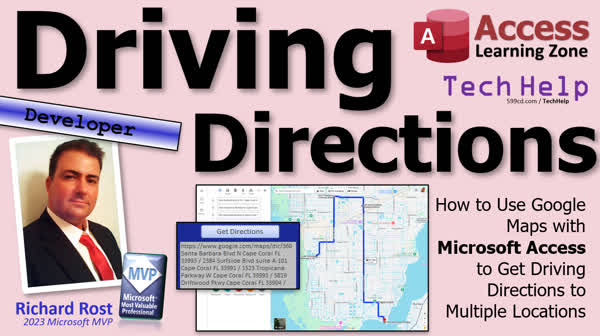
TechHelp Access, Google Maps integration, Access driving directions, Multiple location mapping, VBA in Access, Application.FollowHyperlink, Kevin Yip method, Creating a recordset, Generate maps URL, Address concatenation, URL encoding, Replace function VBA, Sales call routing, Delivery route planning, Driving directions API.
More InformationTranscript Today we're going to see how to get driving directions to multiple locations in Microsoft Access using Google Maps. Now, about four years ago, back in the early days of 2020, I guess let's see if we can figure out when this was. Yeah, 2020. I put a video together showing you how you can use Application.FollowHyperlink to map a single location in Google Maps from your database. So you go to a customer's record, for example, you click a button and there comes their address right up on Google Maps. And of course, since then, I've gotten dozens of emails from people that are like, that's awesome and all, but how do we do multiple locations on the driving directions? Right, I got five customers I have to visit today for sales calls or deliveries or whatever. How do I map out my route using Google Maps?
Well, I had a way of doing it myself. Someone asked in the forums how to do it, and I got really complicated ways in the Google Maps API, which is not exactly easy. It's a little more complicated than I really wanted to go into with a TechHelp video. But I want to shout out to Kevin Yip, who is a regular in our forums, and he came up with this way where you can just use this URL and separate the addresses by a pipe symbol. There's a bunch of addresses and your URL looks like that, and that will bring up multiple points on a map.
Now, I tried this myself and it works good; it works well to the city level. But I can't get it to show exact addresses if you want to do like driving directions within a city. And there's some other options on here and stuff. So shout out to Kevin for giving me this idea. But I did a little more research, and I figured out you can actually do it with driving directions relatively easily. And that's what I'm going to show you how to do in this video. I'll put a link to this thread down below, by the way, if you want to go read the original thread. He's got some additional ideas in here, too.
All right, but first up, this is a developer-level video, which means we're going to be using some VBA, not a ton, just a little bit. So go watch this video. If you haven't before, it's about 20 minutes long. It gives you everything you need to know to get started. We're also going to use a tiny little bit of SQL, so go watch this video so you're familiar with SQL. It's the language behind queries. Definitely go watch my video on record sets. In order to build our string that's going to have all the addresses in it, we're going to use a record set to loop through the records in the table and add them to our direction strings. This is a must. Watch this video if you want to learn more about the FollowHyperlink function we're going to be using in today's class. And you can use it to launch pretty much any kind of thing you want like an email program or a document with a very versatile function, and of course, I put a link below to the map location video. Go watch that, the original. These are all free; they're on my website; they're on my YouTube channel. Watch all of those and then come on back.
All right, so here I am in my TechHelp free template. This is a free database you download a copy of the website if you want to. And I took the liberty, I went in here, let's take a look at the customer table. I found my four people from Florida, and I gave them all valid addresses inside of Cape Coral. These are just random addresses. I wanted to make sure that Google Maps could find them. So I set those up, and what we're going to do is we're going to use the is active field to indicate which people we're going to visit, so you'll just check, you know, make them active. You could set up a new field, call it "has delivery" or "making service call today," or you could base it on a date where you could put an appointment date field in here and say, okay, you know, run this loop between everybody who's got a delivery scheduled for today, however you want to do it. That's the easy part; you can figure that out on your own; that's simple. I'm going to show you how to put this together so we can get driving directions for these people. OK?
Alright. So first thing we're going to do is set up a query. Let's go to Create, Query Design. Let's bring in that customer list. Let me bring this over here so you can see it. Bring in customers. A bit too far. There we go. Close that. What do you want to see in the query? Well, I want the customer ID, the first name, and the last name, maybe address through zip. If you're going to cross countries, yeah, bring in that country field too. I'm not going to bother. All right. And then we also need is active, and that's got to be true. Okay. And if you run it, take a look. There you go. There are our four people that have deliveries today. They're active deliveries today. Got it. Okay.
Now, if you want, you could also add in here like a stop number if you know the order in which that you want to visit these people. Or maybe if it's based on a date, you've got times in here. This guy is at 1 o'clock, this guy is at 3 o'clock, this guy is at 5 o'clock, then you can sort this by time if that's how you want to do it. All right? I'm just going to throw these addresses in. Let's save this as DeliveryQueue. These are all my active deliveries for today that we got to send. Okay, so now I got a query.
Now we're going to use this button right here that says, hey, give me a map to all the people that I need to see today or that have deliveries. Right, so let's go in here, design view, hello world, let's go, you know, show map, whatever you want to call it. Right-click, build event. Okay, here comes the code. We're going to need two variables, dim s as a string, that's what we're going to build our URL in that we're going to send to Google, and we need a record set, rs as a record set. We're going to start off s as that. That's the default URL for Google Maps driving directions, https://www.google.com/maps/dir/, for directory, that's their URL. Now, if you want to put your address in here to start, you can do that too. That way your address, if you're always leaving the office, you can stick that in here. So I'll stick my address in here. Boom. Before anybody tries to find me, it's a P.O. Box, relax. And make sure you put a slash on the end too. That's how we're going to separate each of the addresses is with a slash. So that's what we're starting our address at.
Now we're going to open up a record set for our query. So set RS equals CurrentDB.OpenRecordset("DeliveryQueue"). And again, if you want to sort this, you can. You could go right straight to the table if you want to write all that SQL out if you don't want to make a query. That's up to you. I'm just going to open this up, in no particular order.
While Not RS.EOF, that means while I've got records, do some stuff, RS.MoveNext, WEnd. I like to put the guts of the record set together first before I put the filling in the middle like a donut. I fill my donut when I'm done. This way I don't forget anything. RS.Close, Set RS = Nothing. There's the guts for that. Because if you forget this, then you get an endless loop. And that's no fun for anybody. What am I going to do in here? I've got an address that I want to add on to the end of that string. So it's going to be s = s & " " & RS!Address & " " & RS!City. And no, you don't have to put commas. You don't have to worry about putting pluses. The URL pretty much figures that off, the browser is good like that. There's one character we got to worry about that. I'll tell you about at the end here and " " & RS!State & " " & RS!Zip, and if you got country, put a country in there, and don't forget at the end, put a slash. That's how it knows. That's the end of that address. Okay?
Now, when you're all done with that, I'm going to do two things. I'm going to Debug.Print s. That way it shows up in that status box right, you know, my status box right there. I just want to see it. Okay? And then, Application.FollowHyperlink s, because we've given it a full valid URL, so it's going to know to open our web browser. That's it. There's your code. That's all you really need. Well, there's one more little tiny thing we need. I'll show you in just a minute. All right. Save it. Always good to throw in a what? Debug.Compile. All right. Everything's good. Okay. Close it. Open it. All right. You ready? Hit show map and there you go. There are your addresses. Right? That's over here. You can rearrange these. This is why I don't really bother, unless you've got these timed, where you gotta be this place at one, this place at two. If this is just deliveries anytime today, then you can come in here and reorder these the way you want. Let's say you wanna start, see we're starting over here. So we can go to 1529, we can move this one down like that. Same, we can go around in a circle here. We can put this one at the bottom. You know, however you want to do it, and not the big straight line really. Reason over here, and you can print this out, and there's your directions for the day.
So I said there was one thing you do you gotta worry about, and that's a pound sign, or hash, and whatever you want to call it. I ran into this when I was working with this earlier. If you've got someone in here like this "is number 101", when you go to create your map, it will generate the map, but that will be the last address, and it chops it off. So if you've got any pound signs in there, it messes up the whole thing. So there's a couple of things you can do. You can either remove them from the address or you can filter them out. So right here, for example, we're going to say s = Replace(s, "#", "%23"). That's the URL encode. All right, that basically makes that into a safe that. Okay, Google "URL encode" if you want to replace more characters if you have any problems with them. But that should fix that issue. And now if I click it again, you can see right there it's been URL encoded. And now I'm back to having all five addresses on here. So it seems to be working just nicely.
So there you go. There's your TechHelp video for today. It's pretty easy. Again, shout out to Kevin Yip for the tip. If you like learning this stuff with me, if you like my style, if you want to learn more VBA programming with Access, come to my website. Check out my developer lessons. I've got lots and lots and lots online for you. But that's going to be your TechHelp video for today. I hope you learned something. Live long and prosper, my friends. I'll see you next time.
TOPICS:
Using Application.FollowHyperlink in Access
Mapping a single location in Google Maps from Access
Mapping multiple locations on Google Maps from Access
Generating driving directions to multiple locations in Access
Utilizing Google Maps URL and pipe symbol for address separation
Researching driving directions with Google Maps API
Kevin Yip's method for mapping multiple points on Google Maps
Using VBA in Microsoft Access
Using SQL in Access
Working with record sets in Access
Adding addresses to direction strings with record sets
Using the FollowHyperlink function
Building a URL string for Google Maps directions in VBA
Creating and modifying queries in Access for address selection
Using Active field to select records for mapping
Designing a button in Access to show mapped directions
Looping through records with a record set to form the URL
Debugging and compiling VBA code in Access
Replacing problematic characters in addresses for URL encoding
Encoding pound signs (hashes) as %23 for URLs
Learning VBA programming for Access on a website Intro In this video, we will learn how to generate driving directions to multiple locations from your Microsoft Access database using Google Maps. I will show you how to use VBA, SQL, and the Application.FollowHyperlink function to build a query, gather selected addresses, and create a clickable button that maps your delivery or visit route with Google Maps. We'll cover building the required URL string, looping through records with a record set, handling URL encoding for special characters, and offer some helpful tips along the way for setting up and customizing the process for your needs. Quiz Q1. What is the primary functionality demonstrated in the video tutorial?
A. Creating a database in Microsoft Access
B. Getting directions to a single location using Google Maps
C. Integrating Microsoft Access with Google Maps API
D. Getting driving directions to multiple locations in Microsoft Access using Google Maps
Q2. Which of the following is used to map out multiple locations for driving directions as shown in the video?
A. A customized Microsoft Access function
B. A third-party mapping software
C. A specific URL pattern with addresses separated by /
D. Application.FollowHyperlink function to connect to Google Maps API directly
Q3. What does the 'is active' field in the customer table indicate in the context of the video tutorial?
A. The customers who have an appointment scheduled
B. The customers who are currently being served
C. The customers chosen for a delivery or visit
D. The customers who have recently interacted with customer service
Q4. What programming and database tools does the video suggest you should be familiar with to follow the tutorial on multi-stop directions?
A. VBA, SQL, and record sets
B. Python, Java, and MySQL
C. PHP, Ruby, and Oracle
D. C++, C#, and SQLite
Q5. In the solution proposed in the video, how are the individual addresses separated in the URL string for Google Maps?
A. With a comma
B. With a plus sign
C. With a semicolon
D. With a slash
Q6. What additional step is necessary if the addresses contain a pound or hash sign (#) according to the video?
A. Use Application.FollowHyperlink to automatically convert the symbol
B. Use a built-in Microsoft Access function to replace it
C. Remove them from the address entirely
D. Replace them with their URL encoded '%23' equivalent
Q7. What can be indicated in the query, as per the video, for organizing delivery stops?
A. The age of the customers
B. The stop number or appointment times
C. The sales volume of the customer
D. The last service date
Q8. How does the video suggest you handle if you want to sort the order of the addresses for multi-stop trips?
A. Do not sort; Google will optimize the route
B. Manually sort them after the map is generated
C. Automatically sort by customer ID
D. Use a SQL order by statement in the record set
Answers:
1-D;
2-C;
3-C;
4-A;
5-D;
6-D;
7-B;
8-B.
DISCLAIMER: Quiz questions are AI generated. If you find any that are wrong, don't make sense, or aren't related to the video topic at hand, then please post a comment and let me know. Thanks. Summary Today's TechHelp tutorial from Access Learning Zone covers how to generate driving directions to multiple locations in Microsoft Access by using Google Maps. A few years ago, I created a video showing you how to map a single customer address from your Access database onto Google Maps with the Application.FollowHyperlink function. That technique opened Google Maps with the customer's address pre-filled, making it easy to find the location for just one stop. Since then, I've received a lot of requests from people who want to take that idea further and map out directions for multiple stops, like five customers to visit in a single day for deliveries or sales calls.
Initially, I explored some advanced methods involving the Google Maps API. These are quite complex and go beyond what I like to cover in a typical TechHelp video. Fortunately, an active forum member named Kevin Yip came up with a much easier approach. He found that you can build a Google Maps URL containing several addresses separated by a pipe symbol, so your map will show multiple points. This works well for plotting addresses at a general city or region level.
However, I noticed that getting precise driving directions to multiple specific addresses within a city required more work. After some additional research, I discovered a simpler method to make Google Maps give us driving directions between multiple stops, and that's what I'm going to teach you today. If you're interested, I'll link to that forum thread at the end of the article since there are several other suggestions there as well.
This lesson is intended for Access developers, and you'll need a basic understanding of VBA. If you're new to VBA, I recommend watching my introductory video on getting started with development. You'll also want to be familiar with how SQL works within Access, as we'll be using it to build queries behind the scenes. I suggest you also check out my tutorial on record sets since we'll loop through records in a table to build up our list of addresses. Another helpful resource is my lesson covering the FollowHyperlink function, which is what Access uses to launch URLs, open files, or even start emails. Lastly, if you missed my earlier video about mapping a single location, that's worth reviewing as well. All of these are available on my website and YouTube channel for free.
Let's get started. I'm working in my free TechHelp template, which you can download from my site. In the customer table, I chose four sample customers located in Cape Coral, Florida and updated their records with valid addresses. This way, I can guarantee that Google Maps recognizes the destinations. To track which customers need a visit today, I'm using an "is active" field. You could substitute your own field, perhaps one that indicates if a delivery is scheduled, or even use a date field for appointments. That logic is flexible and up to you. The important part is making sure your selected customers are flagged for today's route.
The next step is to create a query to pull together just the customers scheduled for visits. In the query, I added customer ID, first name, last name, address, city, state, and zip code fields. If you expect to route between countries, include the country as well. I then applied a filter so only those with the "is active" field set to true appear. Running this query now gives me the four customers who have scheduled deliveries for today.
If you have your own system for sequencing stops, such as assigning each customer a "stop number" or appointment time, you can sort the query accordingly. For instance, if you want to visit locations in a certain order, just include those fields and sort by time or stop number. That way, your route matches your preferred schedule. I named the query "DeliveryQueue" to represent the list of current delivery stops.
Now, I want to provide a button in my Access form that will generate the driving directions to all of these customers. I added a button called "Show Map" and set up an event procedure for it. The underlying logic requires two variables: a string to hold the URL and a record set to pull customer addresses from the "DeliveryQueue" query.
I begin by setting the URL for Google Maps driving directions, which starts with "https://www.google.com/maps/dir/". If you want the starting point to always be your office or warehouse, include that address as the initial value in the URL, followed by a slash. Each destination after that will be added on with another slash.
Next, I open a record set to loop through the records in "DeliveryQueue". For each record, I concatenate the address fields from the current row to the end of the URL string, separating each with a slash to tell Google that these are individual stops. There's no need to worry about commas or plus signs; the browser interprets the address components correctly. If you need to include a country field, just add it to the string as well.
After forming the complete URL with all addresses, I print it to the debug window for review. Then, I use Application.FollowHyperlink to launch the URL in the default web browser. Google Maps opens with directions plotted for each stop in your list. It's a good practice to save your work and compile the code before running it to catch any errors.
Once you run it, Google Maps will display your route with all the specified stops. You can easily rearrange the order of the stops within Maps if your delivery sequence is flexible. If you have specific times for each appointment, just make sure your query sorts the list accordingly.
There's one character you must watch out for: the pound sign (or hash). If any address in your dataset includes a "#" character, it can break the URL and cause Google Maps to ignore everything after that address. To avoid this, you need to convert any instances of "#" to their URL-encoded equivalent "%23". This ensures the complete list of addresses is passed to Google Maps correctly, and none are lost along the way. If you expect to encounter other special characters, you can look up URL encoding for those as well.
In summary, you can build an Access solution to produce a set of driving directions to multiple addresses using Google Maps by simply constructing a properly formatted URL and using a bit of VBA to glue everything together. This is a quick and practical way to help manage daily routes for deliveries, sales calls, or service visits right from your database. Thanks again to Kevin Yip for the clever idea.
If you enjoyed this tutorial, you'll find many more lessons on Access VBA programming on my website. For a complete video tutorial with step-by-step instructions covering everything discussed here, visit my site at the link below.
Live long and prosper, my friends. Topic List Mapping a single location in Google Maps from Access
Mapping multiple locations on Google Maps from Access
Generating driving directions to multiple locations in Access
Building a Google Maps directions URL using VBA
Selecting active records with a query for mapping
Creating a DeliveryQueue query for selected addresses
Adding a button to launch mapped directions in Access
Writing VBA to loop through records and build an address string
Opening a record set from a query in VBA
Appending customer addresses from a record set to a URL
Using Application.FollowHyperlink to open the directions URL
Encoding addresses to handle special characters in URLs
Replacing pound signs with %23 for URL compatibility
Testing the URL and displaying it with Debug.Print
Reordering mapped stops directly in Google Maps Primary Topics VBA in Access, Google Maps URL structure, driving directions, Application.FollowHyperlink, recordsets, queries, address concatenation Secondary Topics SQL basics, URL encoding, user interface (buttons), debugging VBA |






